

Skip to content
Signature PNG · 25 free credits

Remove the background from a signature

Photograph your signature on paper and get a clean, transparent PNG — the paper, shadows and grey tint go, the ink stays. Ready for PDFs, Word and Google Docs.

  • Ink only, no grey box
  • Transparent PNG
  • Works from a phone photo
  • No watermark
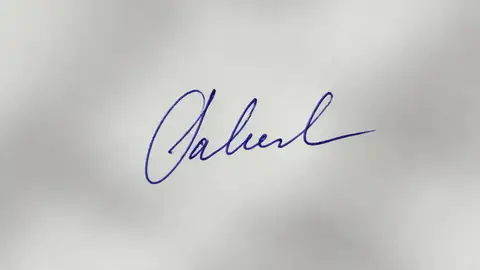
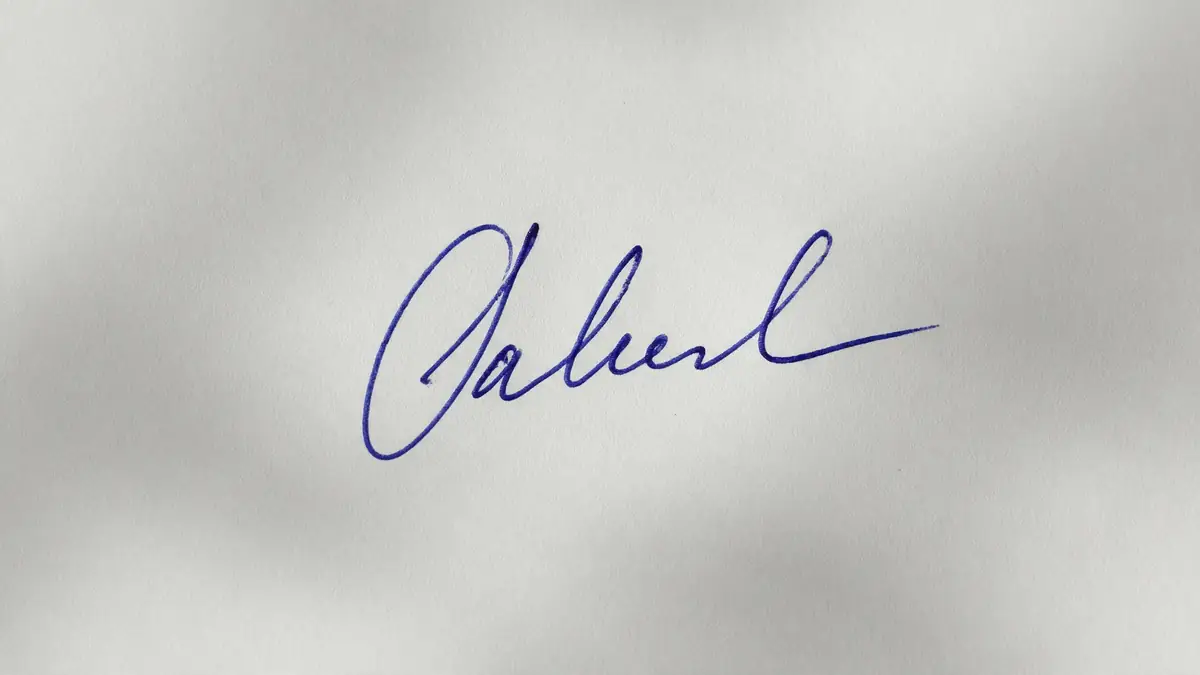
Handwritten blue ink signature on paper — original photo
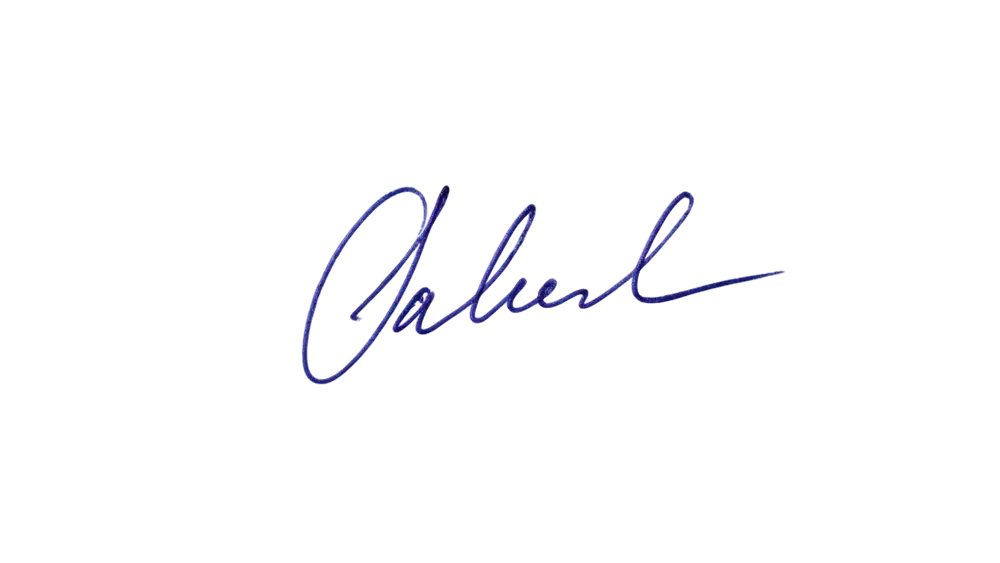
Handwritten blue ink signature on paper — background removed
BEFOREAFTER

Kenerate Cutout HD · Signature

Try this photo
  • Kenerate Cutout
  • Cutout HD · hair & glass
  • Object Pick · keep what you name
  • Magic Eraser
  • AI Edit · Qwen Image 2.0
  • Edit Text in Image · GPT Image 2
  • White, black & colour backdrops

Quick answer

Updated

To remove the background from a signature, sign on white paper with a dark pen, take a flat photo in daylight, upload it to Kenerate and run Cutout HD, then download the transparent PNG. It takes under a minute, and new accounts get 25 free credits.

Time
Under a minute
Free to start
25 credits on sign-up, no watermark
Output
Transparent PNG, ink only
Use in
PDF (Acrobat Fill & Sign), Word, Google Docs

Real results

See it on real photos

Every slider is a real Kenerate result. Drag to compare, then run the same photo yourself.

  1. Handwritten blue ink signature on paper — before
    Handwritten blue ink signature on paper — after
    BeforeAfter

    01Signature

    Ink only, no paper

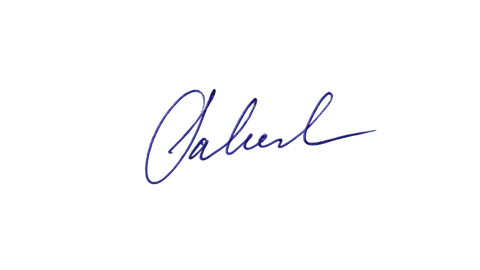
    A handwritten signature turned into a transparent PNG for documents.

    Kenerate Cutout HD

    Cut this photo out

Step by step

How do I make my signature transparent?

  1. Step 1: Sign on plain white paper

    Use a black or dark blue pen with a medium tip. Fill a good part of the page so the signature is large.
  2. Step 2: Take a flat, bright photo

    Shoot from directly above in daylight, without flash. Avoid your shadow falling on the paper.

    Tip: Hold the phone parallel to the paper — a tilted shot stretches the signature.

  3. Step 3: Remove the background

    Upload the photo to Kenerate and use Cutout HD. The paper and its shadows disappear; the ink stays.

    Tip: Cutout HD keeps thin pen strokes and the tails of letters that a standard cut-out can drop.

  4. Step 4: Download the PNG

    Download a transparent PNG and crop it close to the ink. It's ready for PDFs, Word and Google Docs.
Handwritten blue ink signature on paper — original photo
Handwritten blue ink signature on paper — background removed
BEFOREAFTER

A phone photo with uneven light and a soft shadow — cut out with Cutout HD.

The result

Ink only — ready to place on any document

A transparent PNG stores only the pen strokes. Place it on a signature line, a coloured letterhead or a scanned form, and nothing but the ink shows — unlike a photo or a JPG, which brings a grey or white rectangle with it.

Keep the original photo too. If you ever need a bigger version, cut out the original again rather than enlarging the small PNG.

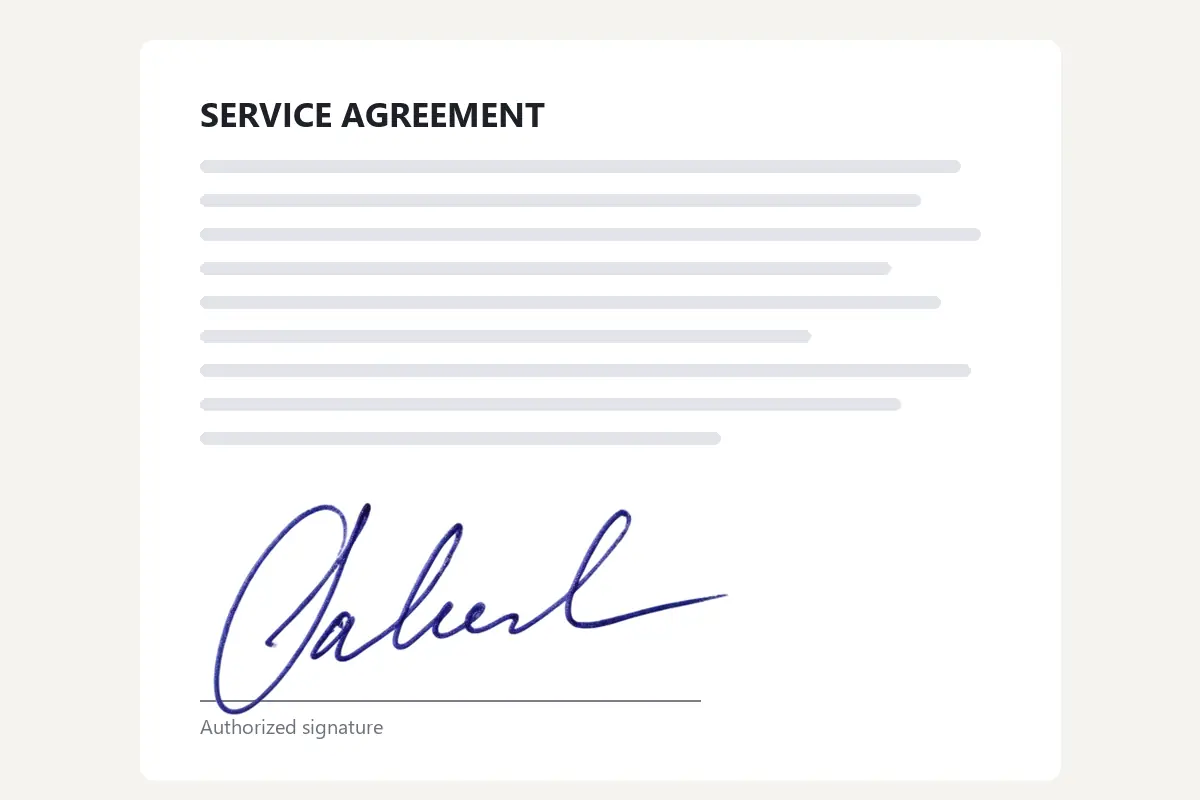
Transparent signature PNG placed on the signature line of a document
The same PNG dropped on a signature line — no white box.

Look closer

Thin strokes, kept

Signatures fail at the thin ends of letters. Zoom in: the tails and loops stay, and the grey paper tint is gone.

  • Thin pen tails and loops kept
  • Paper texture and shadow removed
  • Transparent PNG, not a white box

Move your pointer over the image to zoom into the edge.

Handwritten blue ink signature on paper — cut out with Kenerate Cutout HD. The checkerboard is transparent.

Pick a method

AI vs GIMP vs drawing it in Acrobat

Three common ways to get a signature onto a document.

  • Kenerate AIphoto → PNG

    Your real handwriting
    Yes
    Works from a phone photo with shadows
    Yes
    Transparent PNG you can reuse
    Yes
    Time
    Under a minute
  • GIMPColor to Alpha

    Your real handwriting
    Yes
    Works from a phone photo with shadows
    Best with clean scans
    Transparent PNG you can reuse
    Yes
    Time
    2–5 minutes
  • Acrobat Readerdraw or type

    Your real handwriting
    Drawn with a mouse or finger, or typed
    Works from a phone photo with shadows
    Not needed
    Transparent PNG you can reuse
    No
    Time
    About a minute

Where to use it

How do I add my signature to a PDF, Word or Google Doc?

  • PDF (Acrobat Reader)

    Fill & Sign → Add signature → Image, then choose the PNG.

  • Microsoft Word

    Insert → Pictures, then Wrap Text → In Front of Text to place it on the line.

  • Google Docs

    Insert → Image, then choose “In front of text” and drag it into place.

  • Email signature

    Add the PNG in your mail app's signature settings, next to your name.

Better results

How do I get a clean signature PNG?

  • Dark ink, medium tip. Black or dark blue gives the cleanest edges; pale pencil is hard to separate from paper.
  • Plain white paper, no lines. Ruled lines can be kept as part of the “ink”.
  • Even daylight, no flash. Flash leaves a bright spot and your phone can cast a shadow.
  • Sign large. A bigger signature keeps its detail when you scale it down in a document.
  • Crop close. Trim the empty space around the ink so the PNG lines up easily.

Only use your own signature. For contracts, many organisations require a proper e-signature service with an audit trail — check before you paste an image.

Have a photo of your signature? Turn it into a PNG now — it's free to start.

Use cases

Who needs a transparent signature

Common jobs for a signature PNG.

  • Freelancer

    Invoices & quotes

    Adds the same signature PNG to every invoice template so each PDF goes out signed, without printing or scanning.

    Signature PNG · Cutout HD

  • HR coordinator

    Offer letters

    Keeps a clean signature file for letters and certificates that need a handwritten look on a branded letterhead.

    Placed over letterhead · no white box

  • Student

    Forms & applications

    Online forms ask for an uploaded signature. A phone photo of a signature becomes a clean PNG in under a minute.

    Upload-ready PNG · free credits

Example workflows built on real Kenerate outputs — not customer reviews.

In depth

Is a pasted signature image legally valid?

What e-signature laws in the US, EU and UK say about a scanned signature — with sources. Not legal advice.

United States: ESIGN

The ESIGN Act defines an electronic signature as an electronic sound, symbol or process attached to or logically associated with a record and adopted by a person with the intent to sign [1], and says a signature may not be denied legal effect solely because it is electronic [2]. An image of your handwritten signature, added with intent to sign, fits that broad definition.

European Union: eIDAS levels

eIDAS has three levels. A simple electronic signature is data attached to other data and used by the signatory to sign — a pasted image qualifies. Advanced signatures must be uniquely linked to the signer and detect later changes, and only qualified signatures have the same legal effect as handwritten ones across the EU [3].

England and Wales: scanned signatures count — but can be copied

The Law Commission's 2019 report says electronic signatures range from a scanned manuscript signature to typed names and clicking “I accept”, and that reliability isn't essential to validity [4]. It also warns that anyone with access to a scanned signature can put it on any document [4] — so keep your transparent signature file private.

Practical tips

Use the transparent PNG for everyday paperwork like invoices, letters and simple agreements. For contracts that need stronger proof, use an e-signature service that records who signed and when. Other countries have their own rules — India's IT Act, for example, defines electronic signatures by approved techniques such as Aadhaar eSign — so check local law for anything important.


Start free

Start free, top up only when you need to

25 free credits on sign-up. The same credits work in every Kenerate tool.

  • 25 free credits on sign-up

    Test on your own images before you buy anything.

  • Credits never expire

    One-time packs — use them this week or next year.

  • No subscription, no watermark

    Nothing to cancel. Free results download clean.

  • One balance, every tool

    The same credits work across images, video, voice and 3D.

Tried it? Tell us how it went

We only publish real, verified reviews — never invented quotes. Send a line about your result (and whether we may quote you), and it will appear here.

Send a review

FAQ

Signature background questions

8 questions

Still stuck?

A real person answers — usually within a day.

01

How do I remove the background from a signature?

Photograph your signature on white paper, upload it to Kenerate, run Cutout HD and download a transparent PNG. Only the ink stays.

02

Is it free?

Yes to start. New accounts get 25 free credits, and bigger jobs use one-time credit packs that never expire. No watermark.

03

What pen works best?

A black or dark blue pen with a medium tip. Very thin or pale ink, like a light pencil, is harder to separate from the paper.

04

How do I add the signature to a PDF?

In Adobe Acrobat Reader use Fill & Sign → Add signature → Image and choose the PNG. On a Mac, Preview's Markup toolbar can insert a saved signature, or you can drag the PNG onto the page.

05

How do I put it in Word or Google Docs?

Word: Insert → Pictures, choose the PNG, then set Wrap Text to In Front of Text so you can place it on the line. Google Docs: Insert → Image, then choose “In front of text”.

06

Why does my signature have a grey box around it?

The background wasn't removed, or the file was saved as JPG. Download the PNG from Kenerate — JPG can't store transparency.

07

Is a pasted image of my signature legally valid?

It depends on your country and the document. Many everyday documents accept it, but contracts often need a proper e-signature service with an audit trail. Check with the person asking for it.

08

Can I remove the background from a signature in GIMP?

Yes: Colors → Color to Alpha turns white paper transparent. It works best on clean scans; photos with uneven light usually leave grey patches, which AI handles better.

Clean edges. Every time.

Hair, fur, glass and white-on-white — cut out in seconds, with no watermark.

Cut-out modes
4
Cut-out modes
Backdrops: clear, white, black
3
Backdrops: clear, white, black
Free credits to start
25
Free credits to start
Watermarks, ever
0
Watermarks, ever

Explore the toolkit

More background and photo-fix tools

Every Kenerate tool, guide and comparison for removing and replacing backgrounds.

Written by the Kenerate AI team

Written by the Kenerate team; the signature example is a real Cutout HD result. Last updated 26 September 2026. Corrections: hello@kenerateai.com.

Sources

Ready when you are

Make your signature transparent

Upload a photo, download a clean PNG. 25 free credits on sign-up.

  • 25 free credits
  • No watermark
  • Credits never expire