











Skip to content
Tutorial · Canva Pro & Canva Free

How to remove a background in Canva

The three-click BG Remover method, the free way for Canva Free accounts, removing backgrounds from 50 photos at once — and what to do when BG Remover is greyed out.

  • Checked against Canva's help centre
  • Works on Canva Free too
  • Bulk method
  • Fixes for greyed-out BG Remover
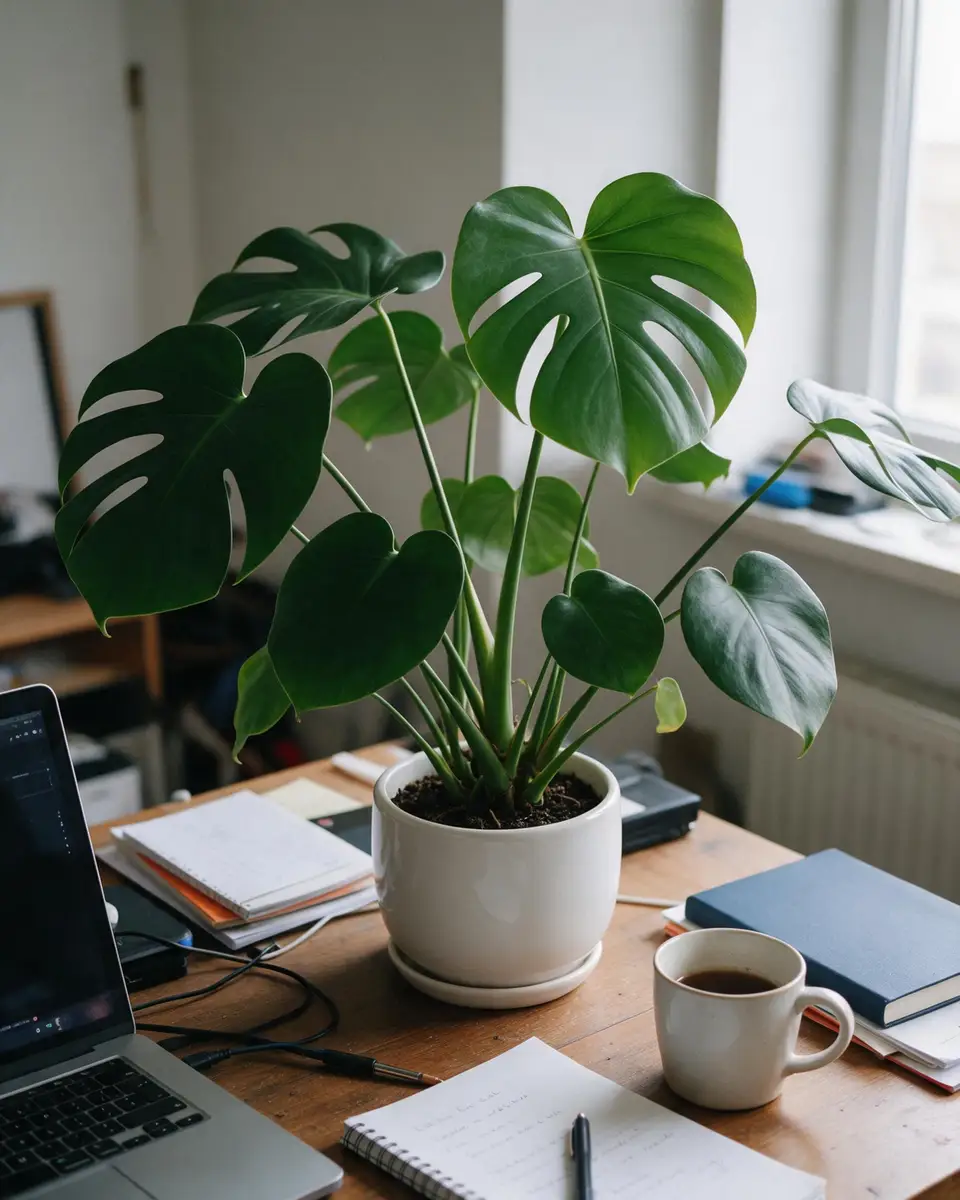
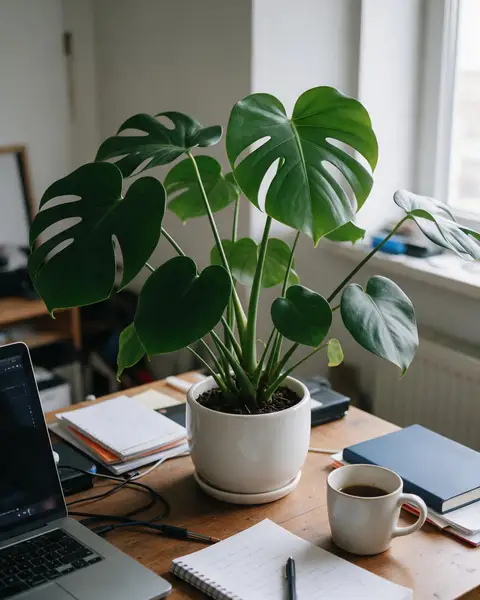
Monstera plant in a white pot on a cluttered desk — original photo
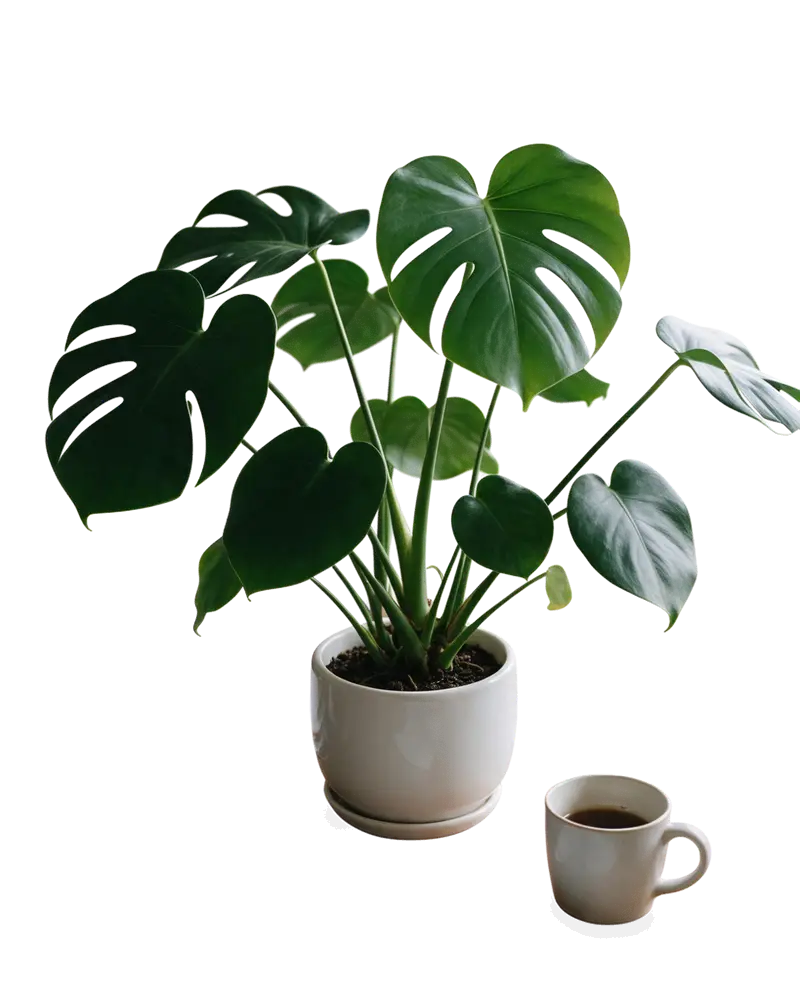
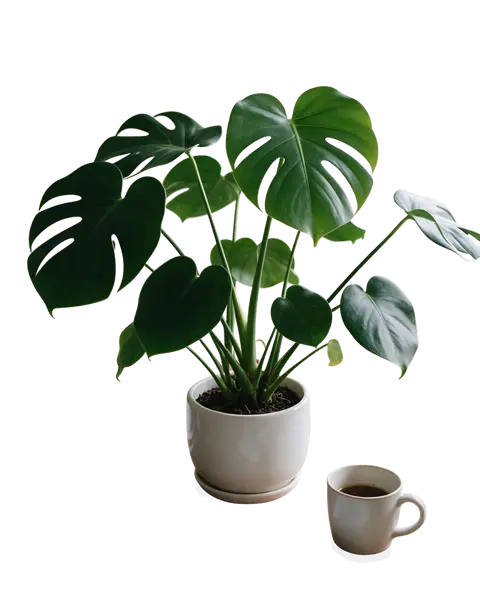
Monstera plant in a white pot on a cluttered desk — background removed
BEFOREAFTER

Kenerate Cutout HD · Desk plant

Try this photo
  • Kenerate Cutout
  • Cutout HD · hair & glass
  • Object Pick · keep what you name
  • Magic Eraser
  • AI Edit · Qwen Image 2.0
  • Edit Text in Image · GPT Image 2
  • White, black & colour backdrops
Desk plant — background removed
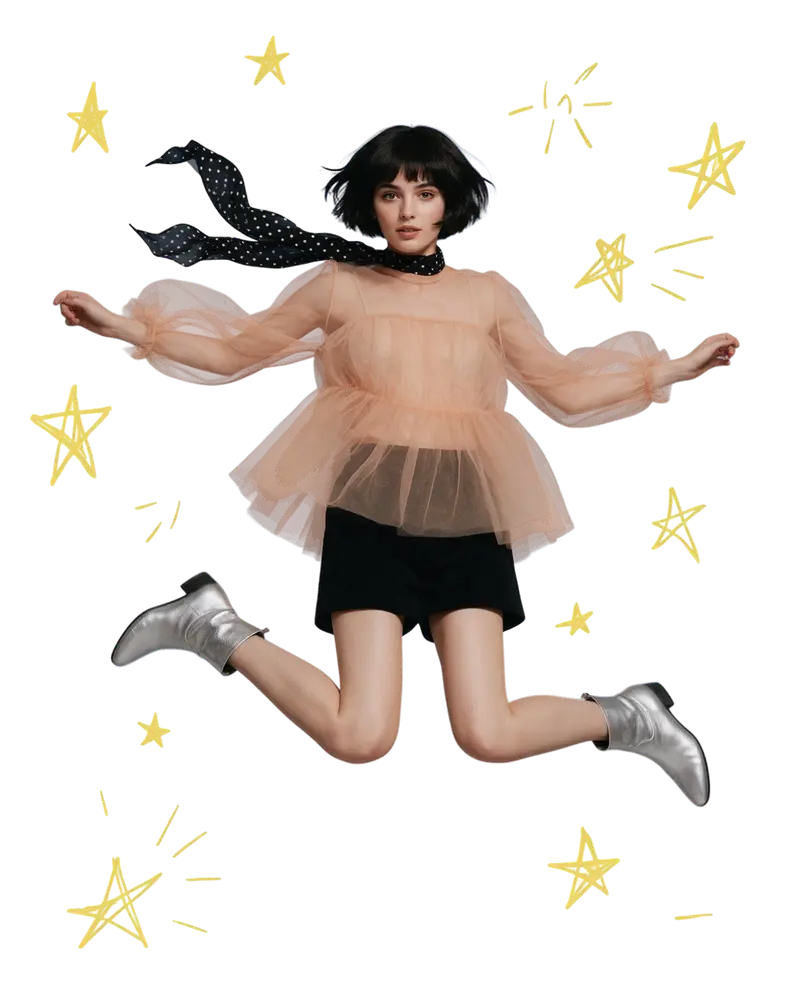
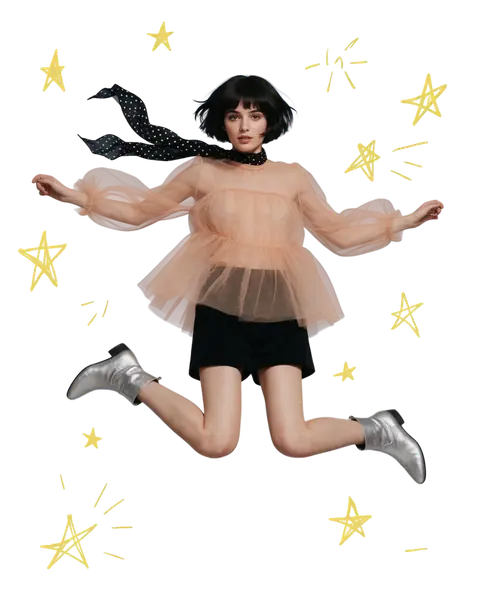
Mid-air jump — background removed
Glass bottle — background removed
Curly hair — background removed
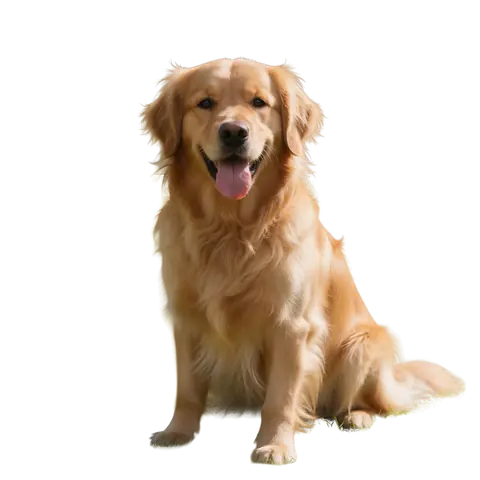
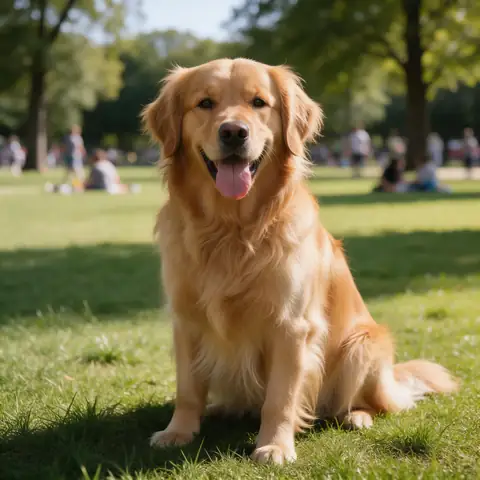
Dog fur — background removed
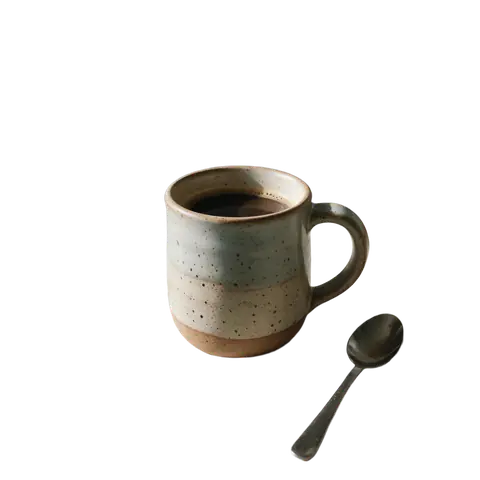
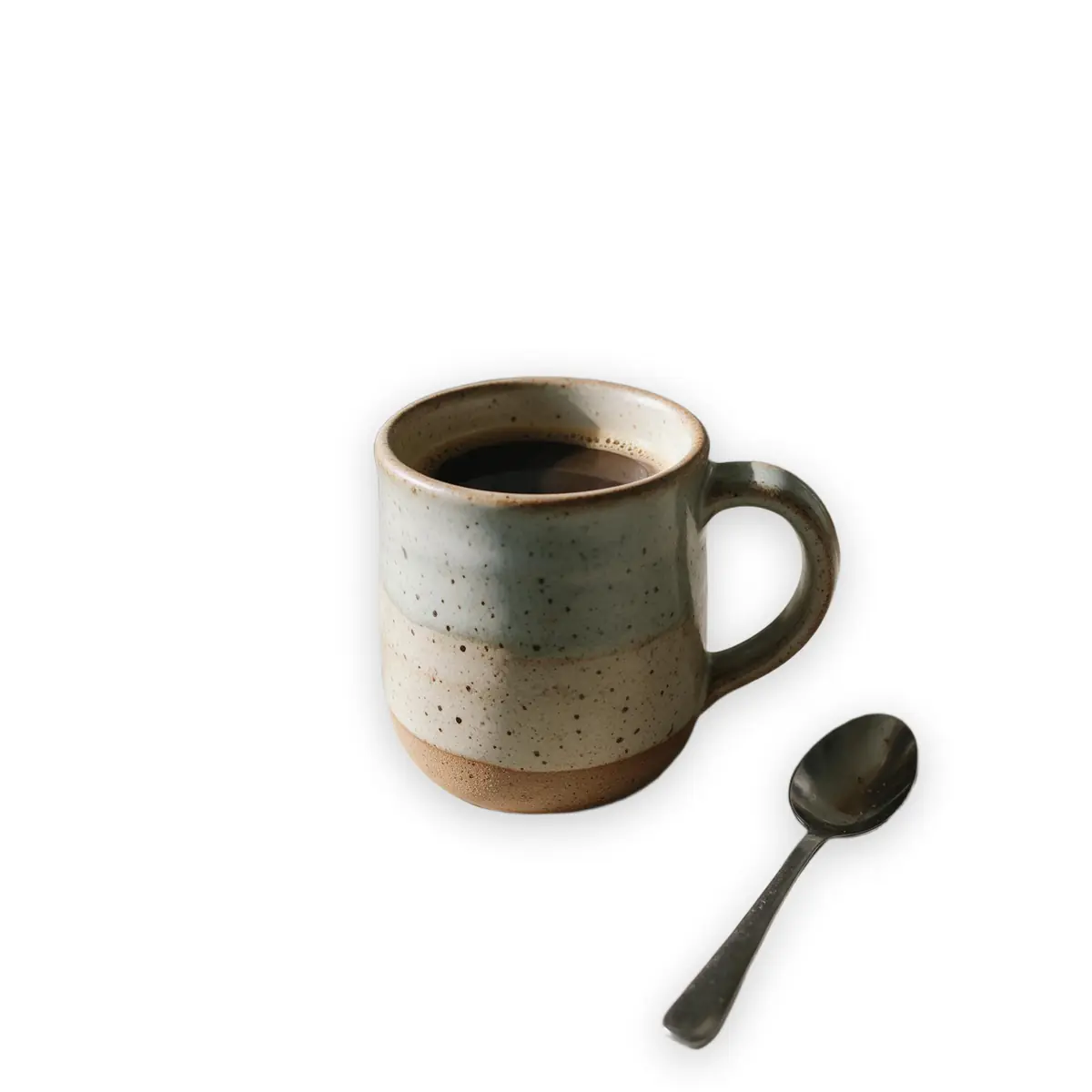
Ceramic mug — background removed
Logo on paper — background removed
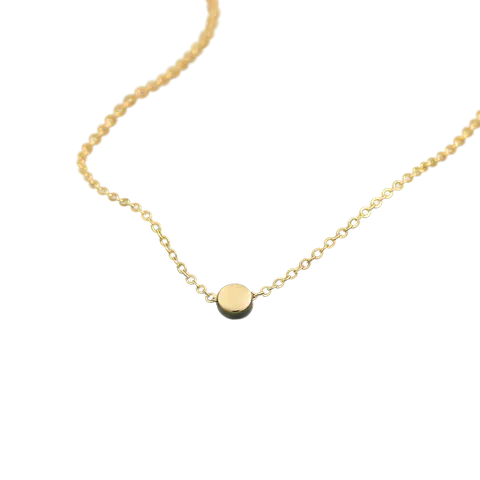
Gold chain — background removed
Desk plant — background removed
Mid-air jump — background removed
Glass bottle — background removed
Curly hair — background removed
Dog fur — background removed
Ceramic mug — background removed
Logo on paper — background removed
Gold chain — background removed

Quick answer

Updated

To remove a background in Canva, select the photo in your design and click BG Remover in the editor toolbar, then refine with the Erase and Restore brushes. BG Remover is only on paid Canva plans — on Canva Free, cut the photo out with a free tool like Kenerate and upload the transparent PNG to Canva.

Plan needed
Paid Canva plans only
Max photo size
Under 9 MB
Resolution
Over 10 MP is downscaled to 10 MP
Bulk
Up to 50 images per folder

Real results

See it on real photos

Every slider is a real Kenerate result. Drag to compare, then run the same photo yourself.

  1. Monstera plant in a white pot on a cluttered desk — before
    Monstera plant in a white pot on a cluttered desk — after
    BeforeAfter

    01Home & decor

    A plant without the desk

    Leaves and pot cut out from a cluttered desk.

    Kenerate Cutout HD

    Cut this photo out
  2. Woman jumping against a blue sky with doodle stars — before
    Woman jumping against a blue sky with doodle stars — after
    BeforeAfter

    02Motion

    Mid-air, clean edges

    A jumping dancer and her flying scarf cut out against a busy sky.

    Kenerate Cutout HD

    Cut this photo out
  3. Glass perfume bottle with peonies on a marble table — before
    Glass perfume bottle with peonies on a marble table — after
    BeforeAfter

    03Glass

    See-through glass, kept see-through

    A glass bottle and the flowers beside it, with the transparency intact.

    Kenerate Cutout HD

    Cut this photo out
  4. Handmade ceramic mug on a messy kitchen counter — before
    Handmade ceramic mug on a messy kitchen counter — after
    BeforeAfter

    04Handmade goods

    Messy counter, clean product

    Crumbs and clutter gone — a handmade mug ready for Etsy.

    Kenerate Cutout

    Cut this photo out

Before you start

Is Canva's background remover free?

No. Canva's help centre says Background Remover is included with paid plans. Free accounts can't use it.

Three other limits from Canva's help centre are worth knowing before you start:

  • Photos must be under 9 MB.
  • Photos over 10 MP are downscaled to 10 MP after the background is removed.
  • It doesn't work on vector graphics — only on photos.

Method 1 · paid plans

Remove a background in the Canva editor

The standard way, inside a design.

  1. Step 1: Select the photo

    Open your design and click the photo you want to cut out.
  2. Step 2: Click BG Remover

    With the photo selected, choose BG Remover from the editor toolbar.

    Editor toolbarBG Remover

    Tip: Can't see it? Background Remover is part of Canva's paid plans.

  3. Step 3: Wait a few seconds

    Canva processes the photo and removes the background.
  4. Step 4: Refine with Erase and Restore

    Paint with Erase to remove leftovers, or with Restore to bring back a part the AI cut away — ears, fingers, the edge of a product.
  5. Step 5: Download

    Download the design. For a cut-out on its own, put the photo on a blank design sized to the subject.
Monstera plant in a white pot on a cluttered desk — original photo
Monstera plant in a white pot on a cluttered desk — background removed
BEFOREAFTER

Cut out free, then use it in Canva

Kenerate Cutout HD — the leaves, pot and mug kept; the desk gone.

Get the free PNG

Method 2 · paid plans

Remove a background without opening a design

Handy when you only need the cut-out.

  1. Step 1: Open Projects

    From the Canva homepage, go to Projects, then Images.

    ProjectsImages

  2. Step 2: Edit the image

    Hover over the photo, click the ⋯ (More) menu and choose Edit image.

    MoreEdit image

  3. Step 3: Run BG Remover

    Under Tools, select BG Remover. You don't need to open a design first.

    ToolsBG Remover

Method 3 · Canva Free

How to remove a background in Canva for free

Do the cut-out outside Canva, then use the PNG in any Canva design.

  1. Step 1: Cut out the photo in Kenerate

    Upload the photo to the free background remover. New accounts get 25 free credits.

    Tip: Use Cutout HD for hair, fur or glass.

  2. Step 2: Download the transparent PNG

    It downloads with the background already removed.
  3. Step 3: Upload the PNG to Canva

    In Canva, go to Uploads and upload the PNG. It works on Canva Free.

    UploadsUpload files

  4. Step 4: Drop it into your design

    Drag the PNG onto any template — the background shows through where the old background was.
Woman jumping against a blue sky with doodle stars — original photo
Woman jumping against a blue sky with doodle stars — background removed
BEFOREAFTER

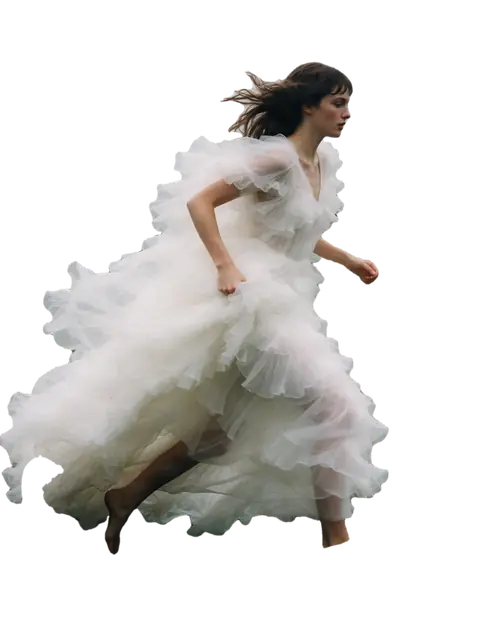
Sheer tulle and a flying scarf, cut out with Cutout HD — ready to upload to Canva.

On Canva Free? Make the transparent PNG here — start with 25 free credits.

Method 4 · many photos

Remove backgrounds from up to 50 photos at once

Canva's folder method (paid plans).

  1. Step 1: Put the photos in a folder

    Collect the photos in one Canva folder (up to 50 per run).
  2. Step 2: Run Remove background on the folder

    From Projects, hover over the folder, open More and select Remove background.

    ProjectsFolderMoreRemove background

  3. Step 3: Find the results

    Canva creates a new folder named “[folder name] - Edited”. Your originals stay unchanged.

Checked 26 September 2026

Canva BG Remover vs Kenerate

Canva is great when the cut-out goes straight into a Canva design. Kenerate is the free-to-start option with a high-detail mode.

  • Canva BG Removerpaid plans

    Free plan
    No
    After that
    Canva paid plan
    Max photo size
    Under 9 MB
    Output resolution
    Downscaled to 10 MP if larger
    High-detail mode for hair & glass
    No
    Keep only what you describe
    No
    Bulk
    Up to 50 per folder
    Design tools
    Full Canva editor
  • Kenerate AIfree to start

    Free plan
    25 free credits on sign-up
    After that
    One-time credit packs, no subscription
    Max photo size
    Up to 10 MB (Cutout HD)
    Output resolution
    Upscale afterwards with the AI upscaler
    High-detail mode for hair & glass
    Cutout HD
    Keep only what you describe
    Object Pick
    Bulk
    Up to 20 in Edit Studio batch
    Design tools
    Edit Studio (layers, text, AI background)
Canva details from Canva's help centre (Remove photo and video backgrounds).

Look closer

Where cut-outs usually fail: the edges

Zoom into a Cutout HD result — the kind of detail you would otherwise fix with Canva's Erase and Restore brushes.

  • Windblown strands kept across the sky
  • No sea-coloured fringe
  • Transparent PNG, ready to upload to Canva

Move your pointer over the image to zoom into the edge.

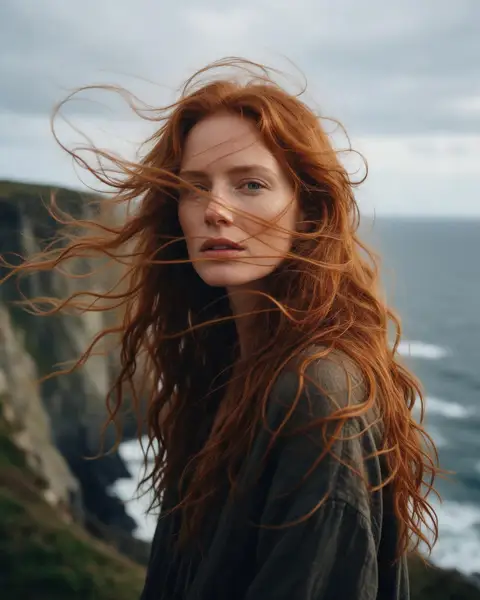
Woman with long windblown auburn hair on a sea cliff — cut out with Kenerate Cutout HD. The checkerboard is transparent.

Troubleshooting

Why is Canva BG Remover not working?

BG Remover is greyed out

You are on Canva Free, or the element is a vector graphic rather than a photo. Upgrade, or use the free method above.

“File too large”

Canva's limit is 9 MB. Compress or resize the photo first, or cut it out in Kenerate (Cutout HD takes up to 10 MB).

The cut-out looks soft or small

Canva downscales results over 10 MP. For big prints, cut out the full-size photo elsewhere and upload the PNG.

Parts of the subject are missing

Use the Restore brush to paint them back. Busy or low-contrast backgrounds cause this most often.

I made the whole image see-through

That's the Transparency slider, which changes the opacity of the whole image. It doesn't remove the background — see how to make an image transparent.

Ready for Canva

Transparent PNGs you can drop into any template

Real Kenerate cut-outs — tap “Original” to see the photo.

Try it free
  • Monstera plant in a white pot on a cluttered desk — background removed with Kenerate Cutout HDCutout HD

    Desk plant

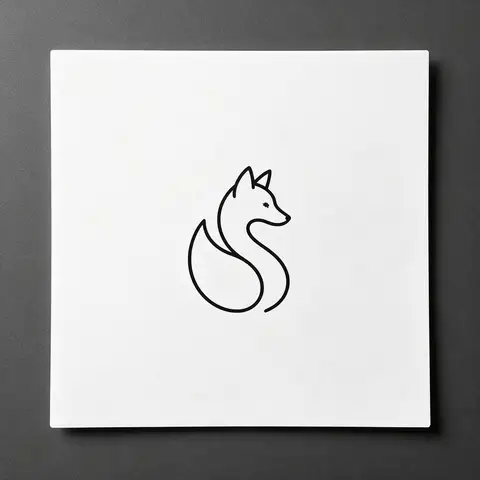
  • Black line-art fox logo printed on white paper — background removed with Kenerate Cutout HDCutout HD

    Logo on paper

  • Glass perfume bottle with peonies on a marble table — background removed with Kenerate Cutout HDCutout HD

    Glass bottle

  • Woman with big curly backlit hair on a city street — background removed with Kenerate Cutout HDCutout HD

    Curly hair

Use cases

Who uses which method

Canva's remover and a separate cut-out tool both have their place.

  • Small business owner

    Instagram posts in Canva

    On Canva Free. Cuts product photos out in Kenerate, uploads the PNGs and drops them into Canva templates for weekly posts.

    Kenerate Cutout · Canva Free

  • Social media designer

    Agency, Canva Pro

    Uses BG Remover inside Canva for quick social graphics, and Cutout HD when a model's hair needs a cleaner edge than the brushes give.

    Canva for speed · Cutout HD for hair

  • Teacher

    Classroom slides

    Makes worksheets in Canva Free with cut-out photos of plants and animals, prepared as transparent PNGs first.

    Transparent PNG · Cutout HD

Example workflows built on real Kenerate outputs — not customer reviews.

In depth

Canva's background remover, and where it came from

How the tool got into Canva, what it needs, and what the remove.bg change means — with sources.

From remove.bg to Canva

Canva launched its Background Remover in 2019 [1]. In February 2021 it bought Kaleido, the Austrian start-up behind remove.bg, which Canva said was removing more than 150 million backgrounds a month [2]; remove.bg itself dates from 2018 and is now a Canva Austria brand [3]. From 1 December 2026 remove.bg's website removal moves into Canva, while its self-service API moves to Leonardo.Ai [4] — which Canva acquired in 2024 [1].

What the current tool needs

Canva's help centre lists Background Remover as included with paid plans only. In the editor you select the photo and choose BG Remover from the toolbar; from Projects you can remove backgrounds from up to 50 uploaded images at a time [5]. Canva also notes the remover doesn't add AI-generated content metadata to your design [5].

On Canva Free

Without a paid plan, make the transparent PNG elsewhere and upload it — PNG keeps the soft edges that make hair look natural [6].
Start free

Start free, top up only when you need to

25 free credits on sign-up. The same credits work in every Kenerate tool.

  • 25 free credits on sign-up

    Test on your own images before you buy anything.

  • Credits never expire

    One-time packs — use them this week or next year.

  • No subscription, no watermark

    Nothing to cancel. Free results download clean.

  • One balance, every tool

    The same credits work across images, video, voice and 3D.

Tried it? Tell us how it went

We only publish real, verified reviews — never invented quotes. Send a line about your result (and whether we may quote you), and it will appear here.

Send a review

FAQ

Canva background remover questions

8 questions

Still stuck?

A real person answers — usually within a day.

01

How do I remove a background in Canva?

Select the photo in your design, click BG Remover in the editor toolbar and wait a few seconds. Refine the result with the Erase and Restore brushes if needed.

02

Is Canva's background remover free?

No. Canva's help centre says Background Remover is included with paid plans. On Canva Free, cut the photo out in a free tool such as Kenerate and upload the transparent PNG to Canva.

03

How do I remove a background in Canva for free?

Remove the background outside Canva first: upload the photo to Kenerate (25 free credits on sign-up), download the transparent PNG, then upload that PNG to Canva and use it in any design.

04

Why is BG Remover greyed out or missing?

The usual reasons are a free plan, a file over 9 MB, or a vector graphic instead of a photo. Canva's help centre lists all three limits.

05

Does Canva reduce the quality of cut-outs?

Canva says photos over 10 MP are downscaled to 10 MP after the background is removed. For large prints, cut out the photo elsewhere and upload the full-size PNG.

06

Can I remove backgrounds from many photos at once in Canva?

Yes, on paid plans. Canva can remove backgrounds for up to 50 images in a folder at a time and saves the results in a new folder.

07

Is the Transparency slider the same as removing the background?

No. The Transparency slider makes the whole image see-through. BG Remover deletes only the background and keeps the subject solid.

08

Does Background Remover add an AI label to my design?

Canva says Background Remover is treated as an editing tool and does not add its AI-generated content metadata on its own.

Clean edges. Every time.

Hair, fur, glass and white-on-white — cut out in seconds, with no watermark.

Cut-out modes
4
Cut-out modes
Backdrops: clear, white, black
3
Backdrops: clear, white, black
Free credits to start
25
Free credits to start
Watermarks, ever
0
Watermarks, ever

Explore the toolkit

More background and photo-fix tools

Every Kenerate tool, guide and comparison for removing and replacing backgrounds.

Written by the Kenerate AI team

Checked against Canva's own help centre; the cut-out examples are real Kenerate results. Last updated 26 September 2026. Corrections: hello@kenerateai.com.

Sources

Ready when you are

On Canva Free? Get the cut-out here

25 free credits on sign-up — download a transparent PNG and upload it to Canva.

  • 25 free credits
  • No watermark
  • Credits never expire