



Skip to content
AI shadow & glare remover · 25 free credits

Remove shadows from photos — and glare

Phone shadows on documents, window shadows on products, glare on glasses. Describe the fix in plain words or paint over it — Kenerate removes it and leaves the rest of the photo alone.

  • Describe it or paint it
  • Rest of the photo unchanged
  • Glare on glasses too
  • 25 free credits
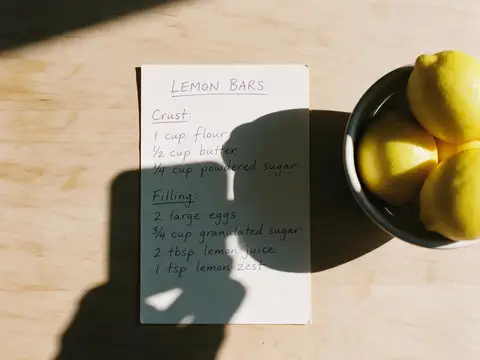
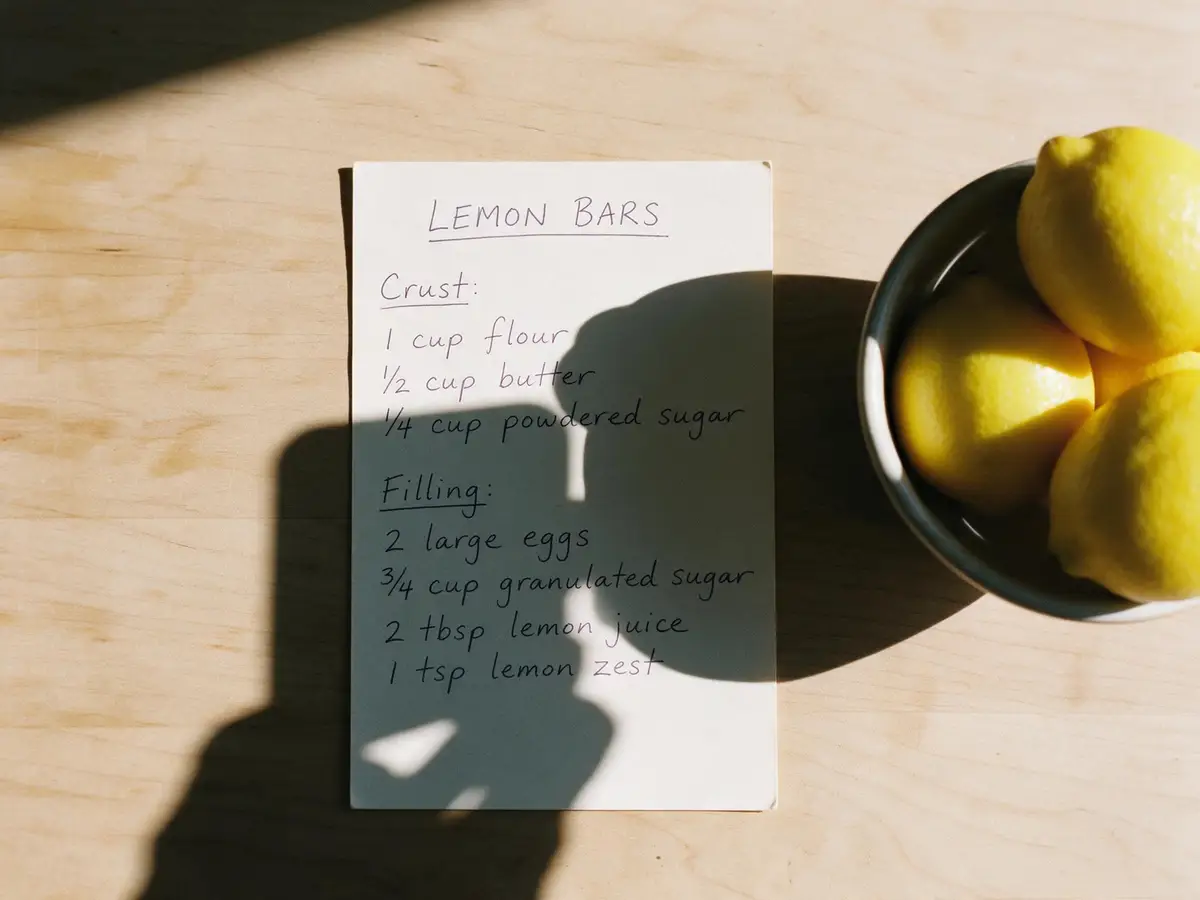
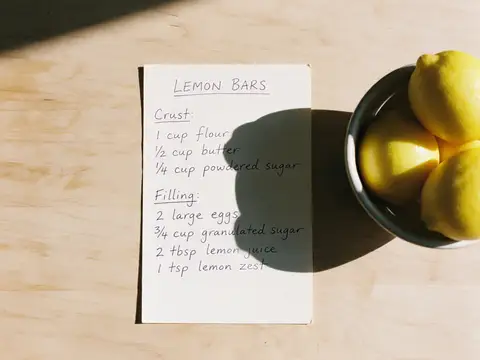
Recipe card with the photographer's phone shadow across it — original photo
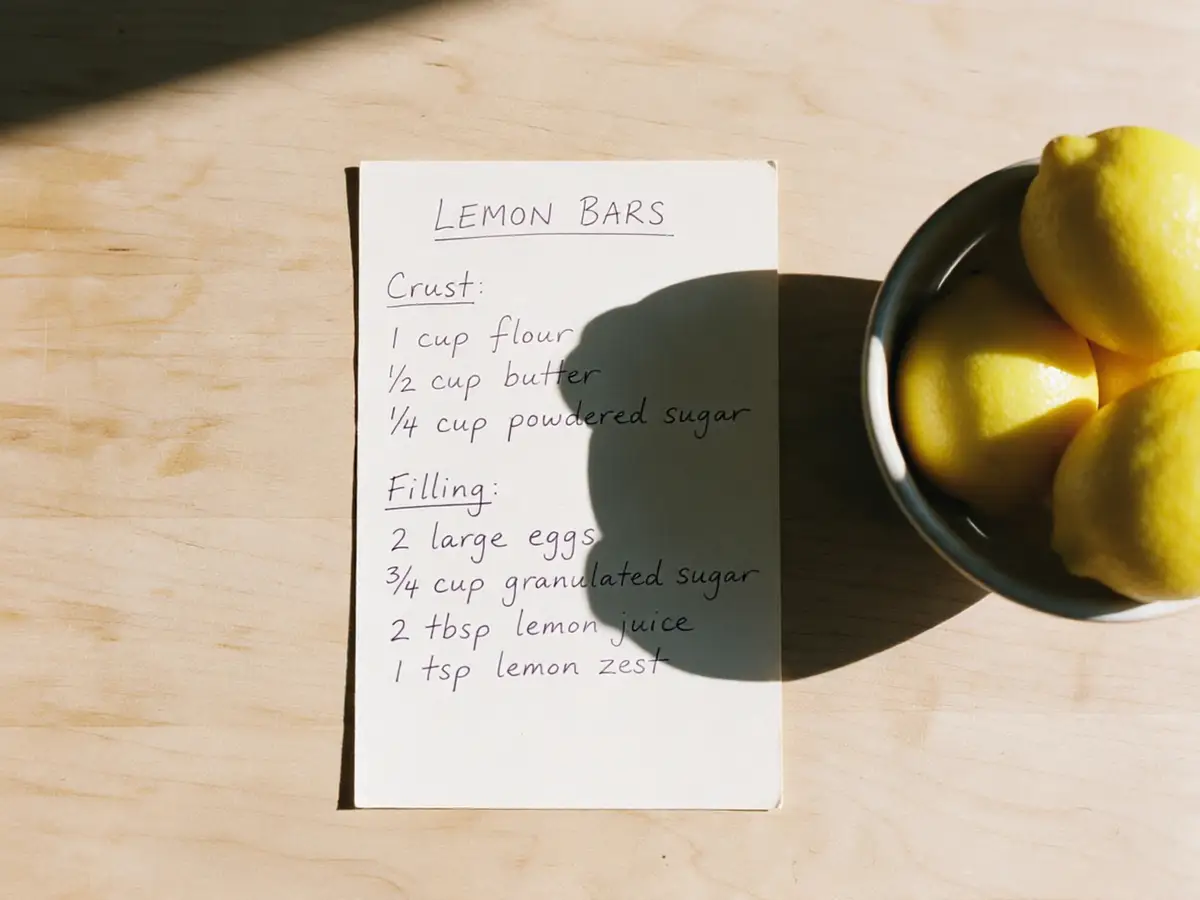
Recipe card with the photographer's phone shadow across it — after the fix
BEFOREAFTER

AI Edit · Phone shadow

Try this photo
  • Kenerate Cutout
  • Cutout HD · hair & glass
  • Object Pick · keep what you name
  • Magic Eraser
  • AI Edit · Qwen Image 2.0
  • Edit Text in Image · GPT Image 2
  • White, black & colour backdrops

Quick answer

Updated

To remove a shadow from a photo, open it in Kenerate's Edit Studio, choose AI Edit and describe the shadow — “remove the shadow of my phone across the paper, keep everything else the same” — or paint over a small shadow with Magic Eraser. New accounts get 25 free credits.

AI Edit
Qwen Image 2.0, describe the fix
Magic Eraser
Paint over small shadows
Fixes
Phone, window and face shadows; glasses glare
Free to start
25 credits on sign-up

Real results

See it on real photos

Every slider is a real Kenerate result. Drag to compare, then run the same photo yourself.

  1. Recipe card with the photographer's phone shadow across it — before
    Recipe card with the photographer's phone shadow across it — after
    BeforeAfter

    01Shadows

    Your phone's shadow, erased

    The shadow across a recipe card removed — the handwriting untouched.

    AI Edit

    Fix this photo
  2. Man in eyeglasses with white glare on the lenses — before
    Man in eyeglasses with white glare on the lenses — after
    BeforeAfter

    02Glare

    Glare off the glasses

    Window reflections removed from lenses so the eyes are visible.

    AI Edit

    Fix this photo
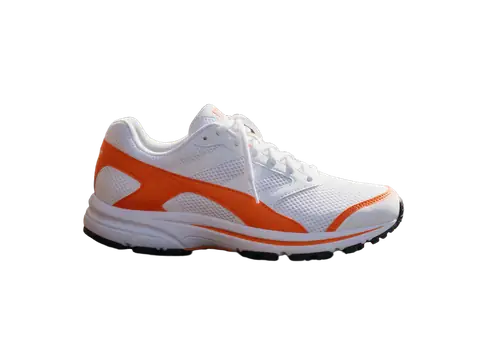
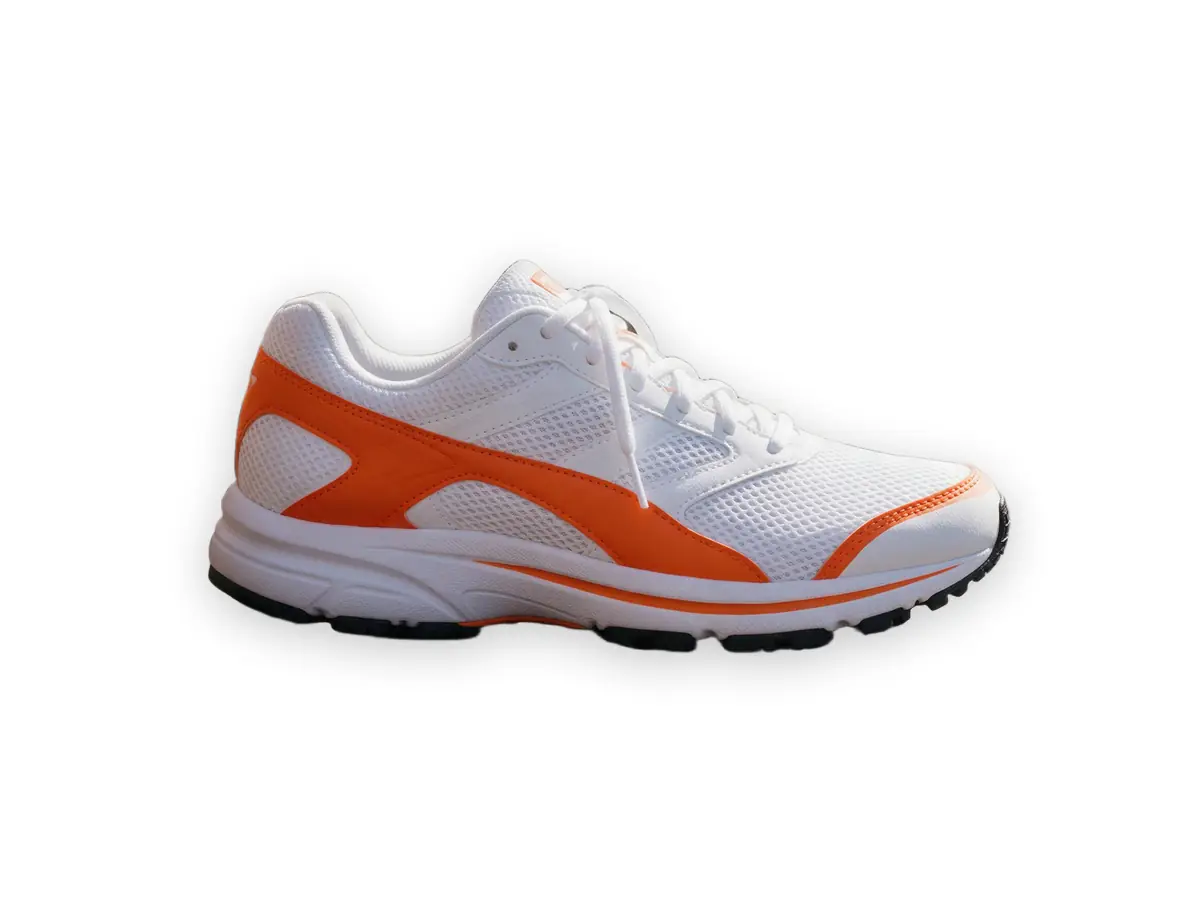
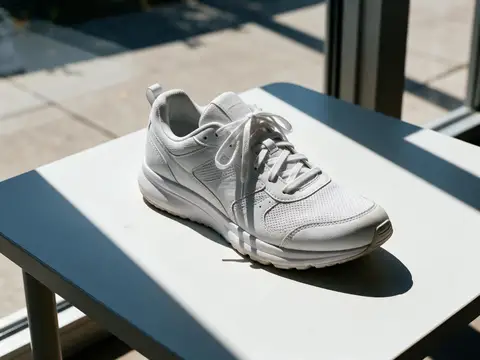
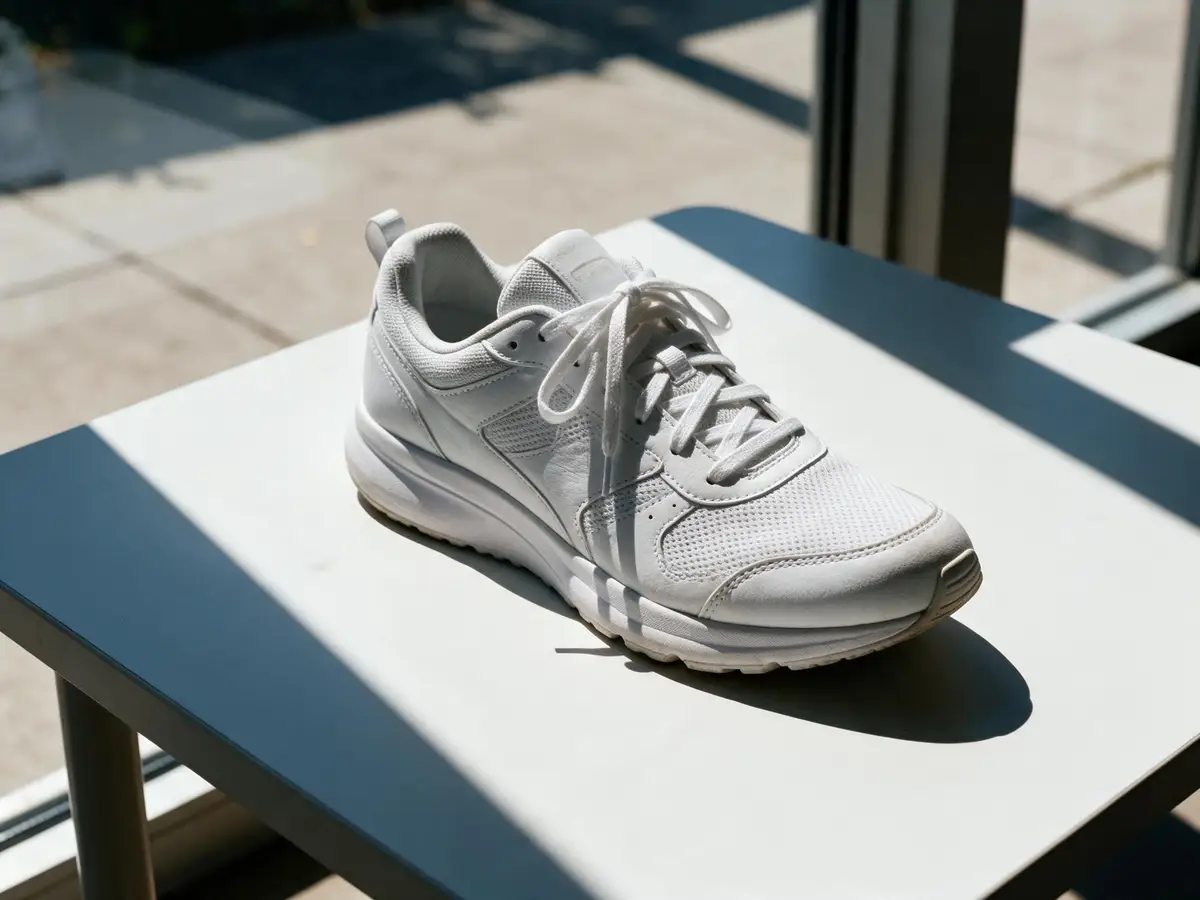
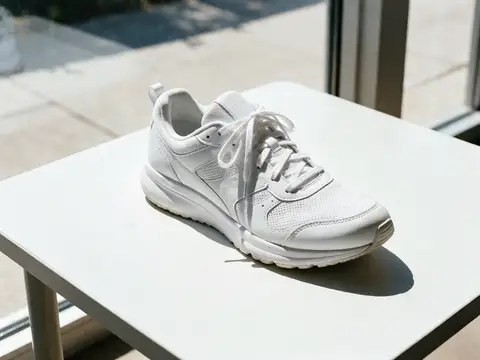
  3. White sneaker with a hard window-frame shadow across it — before
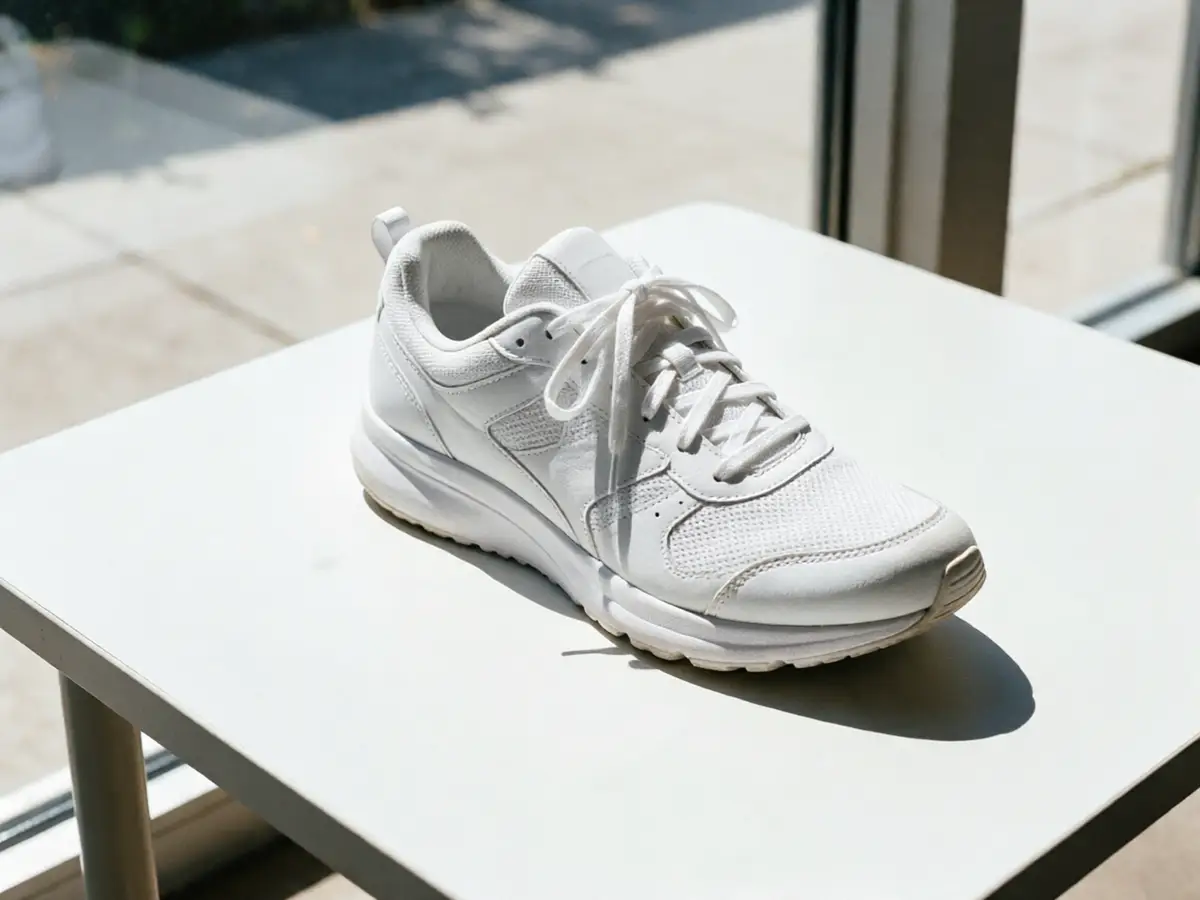
    White sneaker with a hard window-frame shadow across it — after
    BeforeAfter

    03Shadows

    Window shadows, softened

    A hard window-frame shadow removed from a product shot.

    AI Edit

    Fix this photo

Real results

What shadows can AI remove from a photo?

Each “after” is a real Kenerate AI Edit result. Tap “Original” to see the photo that went in.

Try it free
  • Recipe card with the photographer's phone shadow across it — fixed with AI EditAI Edit

    Phone shadow

  • White sneaker with a hard window-frame shadow across it — fixed with AI EditAI Edit

    Window shadow

  • Man in eyeglasses with white glare on the lenses — fixed with AI EditAI Edit

    Glasses glare

Step by step

How to remove a shadow from a photo

  1. Step 1: Open the photo in Edit Studio

    Upload the photo with the shadow or glare to Kenerate's Edit Studio.
  2. Step 2: Describe the fix with AI Edit

    Choose AI Edit and write what to remove, for example: “Remove the dark shadow of the phone across the card. Keep everything else the same.”

    Edit StudioAIAI Edit

    Tip: End every prompt with “Keep everything else exactly the same.”

  3. Step 3: Or paint over it with Magic Eraser

    For a small, clearly separate shadow or reflection, choose Magic Eraser and paint over it.

    Edit StudioAIMagic Eraser

    Tip: Paint a little past the shadow's edge so no dark rim is left.

  4. Step 4: Download

    Compare the result with the original, run it again if needed, and download.
Recipe card with the photographer's phone shadow across it — original photo
Recipe card with the photographer's phone shadow across it — after the fix
BEFOREAFTER

The phone-and-hand shadow is gone; the handwriting and lemons are untouched.

Copy these

Prompts that remove shadows without changing the photo

The model follows your words closely. Say what the shadow is, where it falls, and always end with what must stay the same.

  • Phone or hand shadow“Remove the dark shadow of the phone and hand that falls across the paper and table. Keep the paper, the writing and everything else exactly the same.”
  • Window-frame shadow“Remove the hard diagonal window-frame shadow across the product and table, leaving soft even light. Keep the product exactly the same.”
  • Glasses glare“Remove the white glare reflections from the eyeglass lenses so both eyes are clearly visible. Keep the face, frames and everything else exactly the same.”
  • Harsh face shadow“Soften the hard shadow on the left side of the face into gentle, even light. Keep the face, expression and colours identical.”
  • Hat or cap shadow“Lighten the dark shadow the cap casts over the eyes so the eyes are visible. Keep everything else the same.”

Glare

Remove glare from glasses

Window and screen reflections on lenses hide the eyes. One AI Edit prompt clears them and keeps the frames.

  • Reflections removed from both lenses
  • Eyes visible behind clean glass
  • Frames, face and background unchanged

Move your pointer over the image to zoom into the edge.

Man in eyeglasses with white glare on the lenses — fixed with AI Edit.

Got a photo with a shadow on it? Fix it now — 25 free credits on sign-up.

What it fixes

Shadows and reflections it handles

  • Document & recipe photos

    Your phone and hand casting a shadow across the page.

  • Product photos

    Hard window-frame, blind or tree shadows across the item and table.

  • Glasses glare

    White reflections from windows, lights and screens on lenses.

  • Harsh face shadows

    Midday sun and caps casting dark shadows over the eyes.

  • Hotspots & shine

    Bright glare on glossy packaging, phones and framed art.

  • Photographer shadows

    Your own silhouette on the ground in front of the subject.

Methods compared

AI Edit vs Magic Eraser vs a healing brush

Two AI options in Kenerate, and the classic manual way.

  • AI Editdescribe it

    Best for
    Large or soft shadows, glare
    Changes only the marked area
    Prompt-guided
    Relights the area
    Yes
    Skill needed
    Write one sentence
  • Magic Eraserpaint it

    Best for
    Small, separate shadows
    Changes only the marked area
    Yes
    Relights the area
    Fills it in
    Skill needed
    Paint a stroke
  • Healing / clone brushPhotoshop, GIMP

    Best for
    Small areas, full control
    Changes only the marked area
    Yes
    Relights the area
    By hand
    Skill needed
    High

Next time

How can I avoid shadows when taking photos?

  • Use open shade or a big window. Soft, broad light makes soft, faint shadows.
  • Keep the light to one side of you. Light straight behind the camera puts your shadow in the frame.
  • Get your hand out of the light. Hold the phone higher, zoom in slightly, or use the timer.
  • Bounce light into the shadows. A sheet of white card opposite the light fills them in.
  • For glasses, tilt them. Lowering the arms slightly off the ears angles reflections away from the camera.

Use cases

Who fixes shadows

Common jobs, with the real before and after.

  • Food blogger

    Recipes

    Photographs handwritten family recipes on the kitchen table in morning sun — and the phone always casts a shadow. One AI Edit prompt fixes it.

    AI Edit

  • Online seller

    Sneakers

    Shoots listings by a sunny window. Hard window-frame shadows across the product are removed so the photo looks studio-lit.

    AI Edit

  • Job seeker

    Profile photo

    A good headshot with glare on the glasses. The reflections are removed so the eyes are visible for LinkedIn.

    AI Edit

Example workflows built on real Kenerate outputs — not customer reviews.

In depth

How AI removes shadows

Shadow removal as a research problem, and the inpainting ideas behind it — with sources.

A shadow isn't an object

A shadow darkens what's underneath without covering it, so removing it means relighting the area, not deleting it. Researchers built the ISTD benchmark (2018) — 1,870 sets of a shadow photo, its shadow mask and the same scene without the shadow — to train models that detect and remove shadows together [1].

When the area has to be rebuilt

Very dark shadows lose the texture underneath, so the tool has to fill it in. That is inpainting: Bertalmio's 2000 method carried lines in from the edges like an art restorer [2]; PatchMatch (2009), the algorithm behind Photoshop's Content-Aware Fill, copies matching patches from elsewhere in the photo [3][4]; LaMa (2022) uses a network that sees the whole image to fill large areas [5].

Why the prompt matters

A general image editor like AI Edit can relight or repaint anything, so it needs to be told what to leave alone. Naming the shadow and ending with “keep everything else exactly the same” keeps the change local; Magic Eraser only touches the area you paint.
Start free

Start free, top up only when you need to

25 free credits on sign-up. The same credits work in every Kenerate tool.

  • 25 free credits on sign-up

    Test on your own images before you buy anything.

  • Credits never expire

    One-time packs — use them this week or next year.

  • No subscription, no watermark

    Nothing to cancel. Free results download clean.

  • One balance, every tool

    The same credits work across images, video, voice and 3D.

Tried it? Tell us how it went

We only publish real, verified reviews — never invented quotes. Send a line about your result (and whether we may quote you), and it will appear here.

Send a review

FAQ

Shadow and glare removal questions

8 questions

Still stuck?

A real person answers — usually within a day.

01

How do I remove a shadow from a photo?

Open the photo in Kenerate's Edit Studio, choose AI Edit and describe the shadow to remove — “remove the shadow of my phone across the paper, keep everything else the same”. For a small shadow, paint over it with Magic Eraser instead. Download the result.

02

Is it free?

Free to start: new accounts get 25 free credits, and bigger jobs use one-time credit packs that never expire.

03

Can AI remove shadows from faces?

It can soften or remove harsh shadows, but faces are sensitive — keep the prompt specific (“soften the hard shadow on the left side of the face, keep the face identical”) and compare with the original.

04

How do I remove glare from glasses in a photo?

Use AI Edit with a prompt like “Remove the white glare reflections from the eyeglass lenses so the eyes are visible. Keep everything else the same.”

05

How do I remove a shadow from a document photo?

Use AI Edit and ask it to remove the shadow across the page while keeping the text unchanged, then check the words carefully. For scans that must be exact, re-shoot the document in even light.

06

Why does the AI change other parts of the photo?

Vague prompts give the model room to change things. Name the shadow, say where it is, and end with “Keep everything else exactly the same.” Magic Eraser only changes the area you paint.

07

Can I remove a shadow and then cut out the subject?

Yes. Fix the shadow in Edit Studio, then use Remove BG in the same studio — or the background remover — to get a transparent PNG.

08

How can I avoid shadows when taking photos?

Shoot in open shade or near a large window, keep the light behind the camera at an angle, hold the phone higher or use the timer so your hand is out of the light, and add a white card on the shadow side to bounce light in.

Clean edges. Every time.

Hair, fur, glass and white-on-white — cut out in seconds, with no watermark.

Cut-out modes
4
Cut-out modes
Backdrops: clear, white, black
3
Backdrops: clear, white, black
Free credits to start
25
Free credits to start
Watermarks, ever
0
Watermarks, ever

Explore the toolkit

More background and photo-fix tools

Every Kenerate tool, guide and comparison for removing and replacing backgrounds.

Written by the Kenerate AI team

Written by the Kenerate team; every example is a real result from Edit Studio's AI Edit. Last updated 26 September 2026. Corrections: hello@kenerateai.com.

Sources

Ready when you are

Remove the shadow from your photo

Open Edit Studio, describe the fix, download. 25 free credits on sign-up.

  • 25 free credits
  • No watermark
  • Credits never expire