



Skip to content
Guide · AI, iPhone & Photoshop

How to remove a person from a photo

Photobombers, strangers in the background, an ex at the edge of the frame — remove them with one AI prompt, a brush stroke, iPhone Clean Up or Photoshop, and fill the background naturally.

  • One-sentence AI fix
  • Background rebuilt
  • iPhone & Photoshop steps
  • Runs in the browser
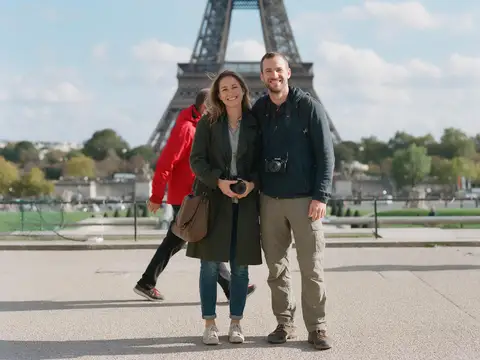
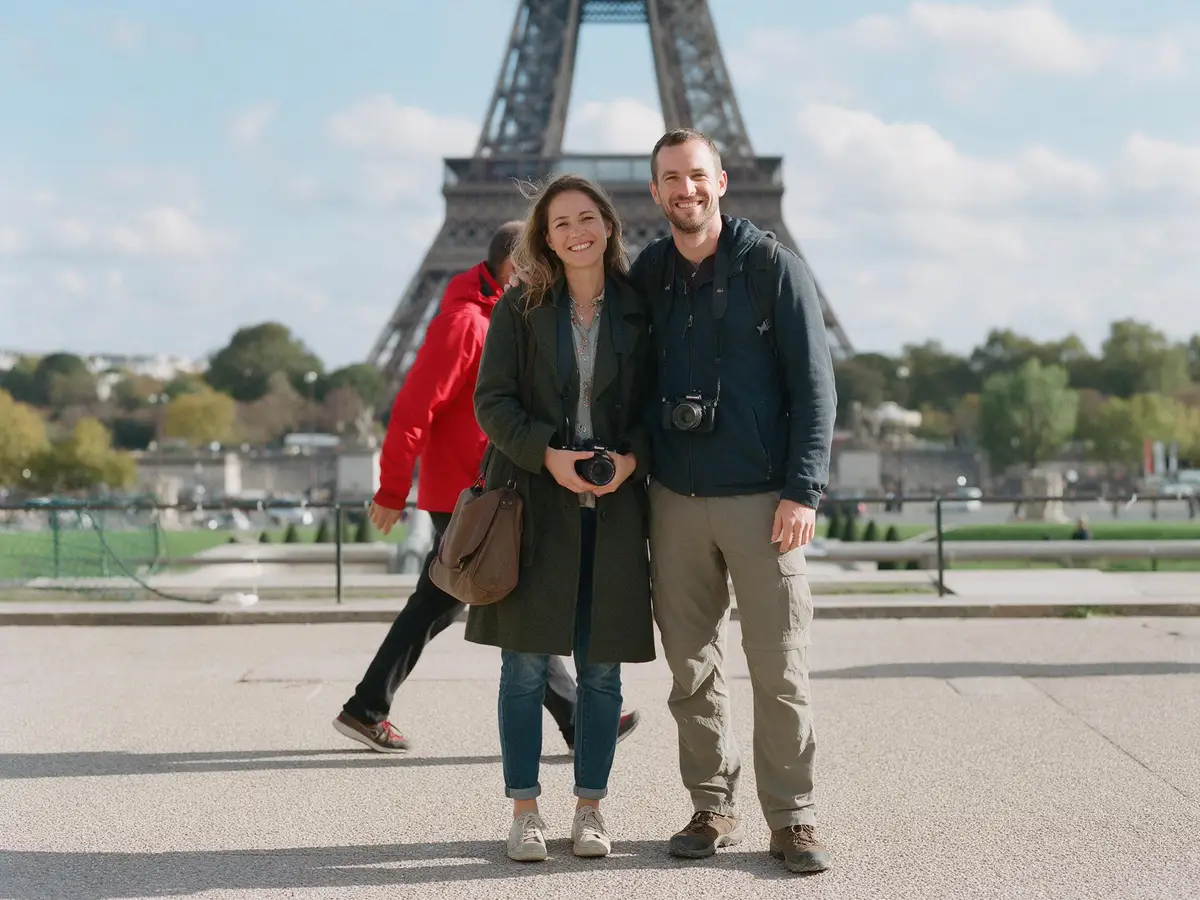
Couple at the Eiffel Tower with a stranger in a red jacket walking behind them — original photo
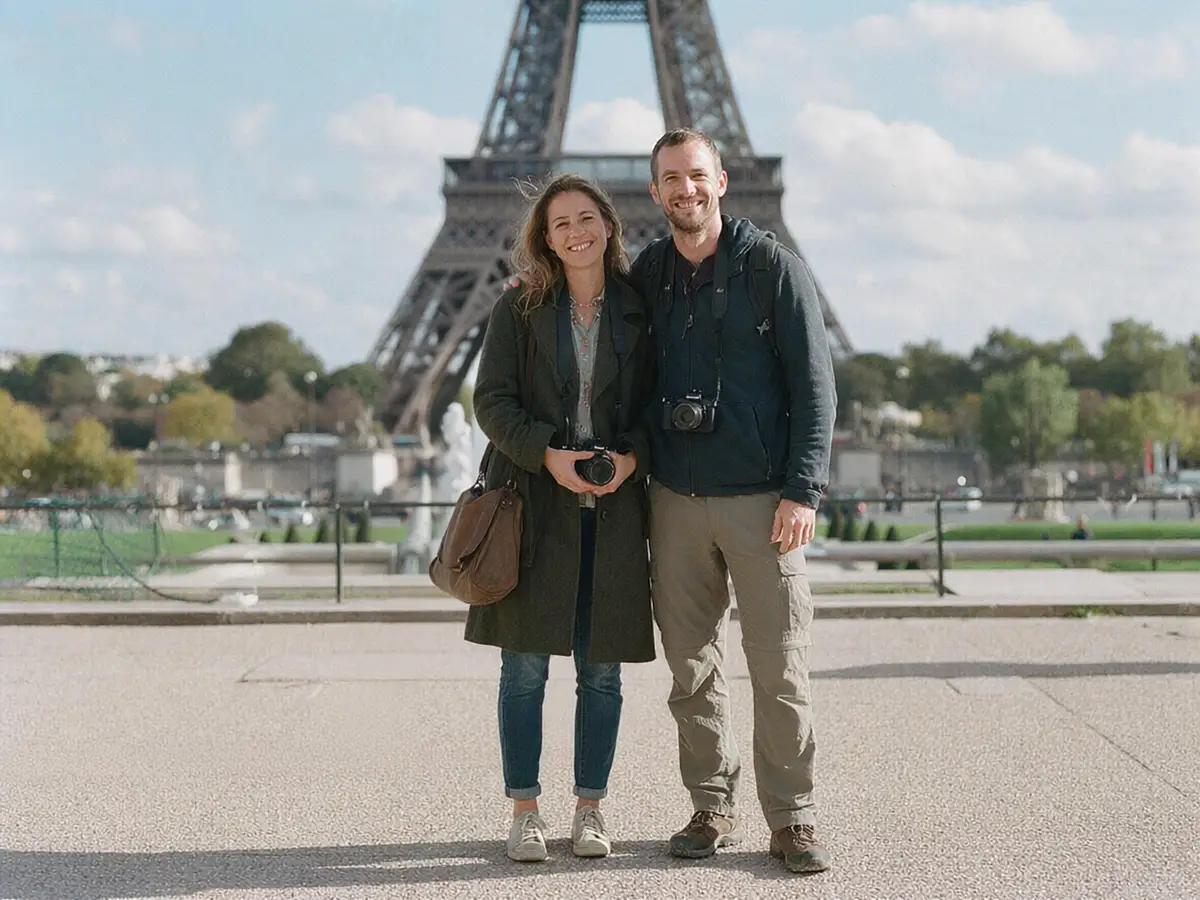
Couple at the Eiffel Tower with a stranger in a red jacket walking behind them — after the fix
BEFOREAFTER

AI Edit · Photobomber

Try this photo
  • Kenerate Cutout
  • Cutout HD · hair & glass
  • Object Pick · keep what you name
  • Magic Eraser
  • AI Edit · Qwen Image 2.0
  • Edit Text in Image · GPT Image 2
  • White, black & colour backdrops
Photobomber — background removed
Crowded beach — background removed
Phone shadow — background removed
Glasses glare — background removed
Caption & date stamp — background removed
Sale overlay — background removed
Photobomber — background removed
Crowded beach — background removed
Phone shadow — background removed
Glasses glare — background removed
Caption & date stamp — background removed
Sale overlay — background removed

Quick answer

Updated

To remove a person from a photo, open it in Kenerate's Edit Studio, choose AI Edit and describe who to remove — “remove the man in the red jacket behind the couple, keep everything else the same” — or paint over them with Magic Eraser. The background is rebuilt where they stood. On supported iPhones, Photos → Edit → Clean Up does the same on the phone.

AI Edit
Describe who to remove
Magic Eraser
Paint over them
iPhone
Photos → Clean Up (Apple Intelligence)
Photoshop
Remove tool

Real results

See it on real photos

Every slider is a real Kenerate result. Drag to compare, then run the same photo yourself.

  1. Couple at the Eiffel Tower with a stranger in a red jacket walking behind them — before
    Couple at the Eiffel Tower with a stranger in a red jacket walking behind them — after
    BeforeAfter

    01Remove people

    Photobomber, removed

    A stranger in a red jacket erased and the background rebuilt.

    AI Edit

    Fix this photo
  2. Woman in a white dress on a beach with tourists behind her — before
    Woman in a white dress on a beach with tourists behind her — after
    BeforeAfter

    02Remove people

    A crowded beach, emptied

    Tourists behind the subject removed with one prompt.

    AI Edit

    Fix this photo

Real results

What does it look like after the person is removed?

Real Kenerate AI Edit results — tap “Original” to see who was there.

Try it free
  • Couple at the Eiffel Tower with a stranger in a red jacket walking behind them — fixed with AI EditAI Edit

    Photobomber

  • Woman in a white dress on a beach with tourists behind her — fixed with AI EditAI Edit

    Crowded beach

Method 1 · AI

How do I remove a person from a photo with AI?

  1. Step 1: Open the photo in Edit Studio

    Upload it to Kenerate's Edit Studio.
  2. Step 2: Describe who to remove

    Choose AI Edit and write, for example: “Remove the man in the red jacket walking behind the couple. Keep everything else exactly the same.”

    Edit StudioAIAI Edit

    Tip: Describe the person by what they wear and where they are, and end with “keep everything else exactly the same”.

  3. Step 3: Or paint over them

    For one small figure, use Magic Eraser and brush over the person.

    Edit StudioAIMagic Eraser

    Tip: Paint over their shadow too.

  4. Step 4: Download

    Compare with the original, re-run if needed, and download.
Couple at the Eiffel Tower with a stranger in a red jacket walking behind them — original photo
Couple at the Eiffel Tower with a stranger in a red jacket walking behind them — after the fix
BEFOREAFTER

The stranger in the red jacket removed; the Eiffel Tower and the couple untouched.

Copy these

What should I type to remove someone?

Name the person by what they wear and where they are, and always say what must stay the same.

  • One photobomber“Remove the man in the red jacket walking behind the couple and fill in the background naturally. Keep the couple and everything else exactly the same.”
  • People in the background“Remove all the people in the background behind the woman, leaving an empty beach. Keep the woman and everything else exactly the same.”
  • Someone at the edge“Remove the partly visible person on the right edge of the photo. Keep everyone else and the background exactly the same.”
  • Person and shadow“Remove the child on the left and her shadow on the grass. Keep everything else the same.”

Look closer

Look where they were standing

The hard part is what's behind the person. Zoom in on the beach: sand, waves and sunset continue where the tourists walked.

  • Tourists and the surfer removed
  • Waves and sand rebuilt, no smudge
  • The woman in the white dress untouched

Move your pointer over the image to zoom into the edge.

Woman in a white dress on a beach with tourists behind her — fixed with AI Edit.

Someone in your photo you'd rather not see? Remove them now — 25 free credits.

Method 2 · iPhone

How do I remove people from pictures on iPhone?

  1. Step 1: Open the photo and tap Edit

    In Photos, open the picture and tap the edit button, then Tools → Clean Up.

    PhotosEditToolsClean Up

  2. Step 2: Tap, brush or circle the person

    Clean Up removes them and fills the area. Some distractions are highlighted automatically.
  3. Step 3: Older iPhone?

    Clean Up needs an iPhone that supports Apple Intelligence. Otherwise use Kenerate AI Edit in Safari.

Method 3 · Photoshop

How do I remove a person in Photoshop?

  1. Step 1: Pick the Remove tool

    It's in the healing-brush group of the toolbar.
  2. Step 2: Brush over the person

    Cover the whole person and their shadow in one stroke; Photoshop fills the area.
  3. Step 3: Bigger areas: Generative Fill

    Select the area, click Generative Fill in the Contextual Task Bar and leave the prompt empty to fill with background.

Methods compared

AI Edit vs Magic Eraser vs iPhone Clean Up vs Photoshop

All four fill the background; they differ in control and where they run.

  • AI Editdescribe

    Several people at once
    Yes
    Runs in the browser
    Yes
    Any phone or computer
    Yes
    What you need
    Free account, 25 credits
  • Magic Eraserpaint

    Several people at once
    Paint each
    Runs in the browser
    Yes
    Any phone or computer
    Yes
    What you need
    Free account, 25 credits
  • iPhone Clean UpPhotos

    Several people at once
    Yes
    Runs in the browser
    No
    Any phone or computer
    Apple Intelligence iPhones
    What you need
    Free
  • PhotoshopRemove tool

    Several people at once
    Brush each
    Runs in the browser
    No
    Any phone or computer
    Desktop app
    What you need
    Adobe subscription

Use it fairly

Is it OK to remove people from photos?

It's fine for your own photos — holidays, family shots, product photos. Don't use it to mislead: altering news, evidence, documents or other people's photos without permission.

Use cases

Who removes people from photos

Common jobs, with the real before and after.

  • Traveller

    Holiday album

    A stranger walked through the one good photo at the Eiffel Tower. One AI Edit prompt removed him.

    AI Edit

  • Photographer

    Portraits on location

    Busy beaches ruin backgrounds. Removing the tourists leaves a clean scene for the client.

    AI Edit

  • Real-estate agent

    Listings

    Removes passers-by and parked cars from street shots of properties before listing.

    Magic Eraser

Example workflows built on real Kenerate outputs — not customer reviews.

In depth

How object removal works

From Content-Aware Fill to today's generative editors — with sources.

Inpainting: filling the hole

Removing a person is inpainting — filling a region so it matches its surroundings. The 2000 SIGGRAPH paper “Image Inpainting” propagated lines of equal brightness inward from the edges, as art restorers do [1].

PatchMatch and Content-Aware Fill

PatchMatch (2009) found matching patches elsewhere in the photo up to a hundred times faster than earlier methods [2] and became the engine of Photoshop's Content-Aware Fill in CS5 [3]. It works best when the background repeats — sand, grass, sky.

Large holes and generative fill

Big removals — a person in the middle of a street — need more context. LaMa (2022) uses a network that sees the whole image at once and was trained on large masks [4]; today's prompt-based editors go further and generate new background, which is why they handle crowds and architecture, and why the fill should be checked for invented details.


Start free

Start free, top up only when you need to

25 free credits on sign-up. The same credits work in every Kenerate tool.

  • 25 free credits on sign-up

    Test on your own images before you buy anything.

  • Credits never expire

    One-time packs — use them this week or next year.

  • No subscription, no watermark

    Nothing to cancel. Free results download clean.

  • One balance, every tool

    The same credits work across images, video, voice and 3D.

Tried it? Tell us how it went

We only publish real, verified reviews — never invented quotes. Send a line about your result (and whether we may quote you), and it will appear here.

Send a review

FAQ

Removing people from photos

8 questions

Still stuck?

A real person answers — usually within a day.

01

How do I remove a person from a photo?

Open the photo in Kenerate's Edit Studio, choose AI Edit and describe the person to remove, or paint over them with Magic Eraser. The background is filled in where they stood.

02

How do I remove someone from a picture on iPhone?

On iPhones that support Apple Intelligence, open the photo in Photos, tap Edit → Clean Up and tap, brush or circle the person. On other iPhones, use Kenerate in Safari.

03

Is there a free app to remove a person from a picture?

Kenerate is free to start: 25 free credits on sign-up for AI Edit and Magic Eraser. iPhone Clean Up is built in on supported models.

04

How do I remove several people at once?

Describe them together — “remove all the people in the background behind the woman” — and check the result. Crowds covering most of the scene are the hardest case.

05

Why does the filled-in area look blurry or odd?

The AI has to invent what was hidden. Use the largest photo you have, keep the prompt specific, and re-run; for small figures, Magic Eraser is often cleaner.

06

How do I remove a person in Photoshop?

Use the Remove tool and brush over the person; Photoshop fills the area. For larger areas, select them and use Generative Fill.

07

Can I remove a person and keep their shadow out too?

Yes — mention the shadow in the prompt (“remove the man and his shadow”) or paint over both with Magic Eraser.

08

Is it OK to remove people from photos?

It's fine for your own photos. Don't use it to mislead — for example to change news, evidence or someone else's photos without permission.

Clean edges. Every time.

Hair, fur, glass and white-on-white — cut out in seconds, with no watermark.

Cut-out modes
4
Cut-out modes
Backdrops: clear, white, black
3
Backdrops: clear, white, black
Free credits to start
25
Free credits to start
Watermarks, ever
0
Watermarks, ever

Explore the toolkit

More background and photo-fix tools

Every Kenerate tool, guide and comparison for removing and replacing backgrounds.

Written by the Kenerate AI team

Written by the Kenerate team using Apple's and Adobe's own guides; the examples are real AI Edit results. Last updated 26 September 2026. Corrections: hello@kenerateai.com.

Sources

Ready when you are

Remove the person from your photo

Open Edit Studio, describe who to remove, download. 25 free credits on sign-up.

  • 25 free credits
  • No watermark
  • Credits never expire