

Skip to content
Edit with words · 14 studio tools

AI Image Editor

Upload a photo and say what to change — outfit, background, lighting, style. The rest stays the same. Brush tools, background removal and 8K upscaling are one click away.

  • Edit with one sentence
  • Up to 16 images
  • 25 free credits
  • No watermark

Quick answer

Updated

Kenerate's AI image editor lets you change a photo by describing it — new outfit, new background, night to day, a different art style — while the rest stays the same. Use Seedream 5.0 Pro, GPT Image 2, Nano Banana 2 or free-plan Flux 2 Dev, or open Edit Studio for 14 tools including brush-based Change Region, Remove BG and Upscale up to 8K. A free account gets 25 credits and downloads have no watermark.

Edit Studio tools
14
Remove BG
One click in Edit Studio
Upscale
Up to 8K
Free start
25 credits

Real edits

Real edits, one sentence each

Drag the handle to compare. Every edit is a real Seedream 5.0 Pro result on one of our own images.

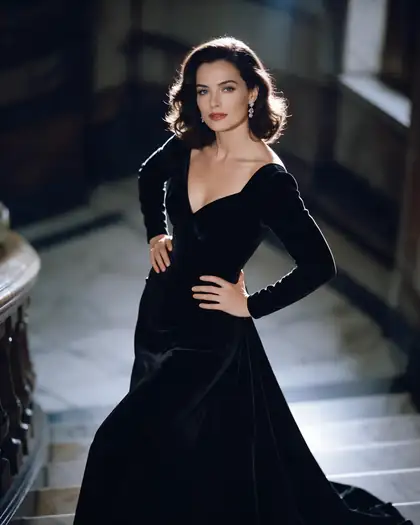
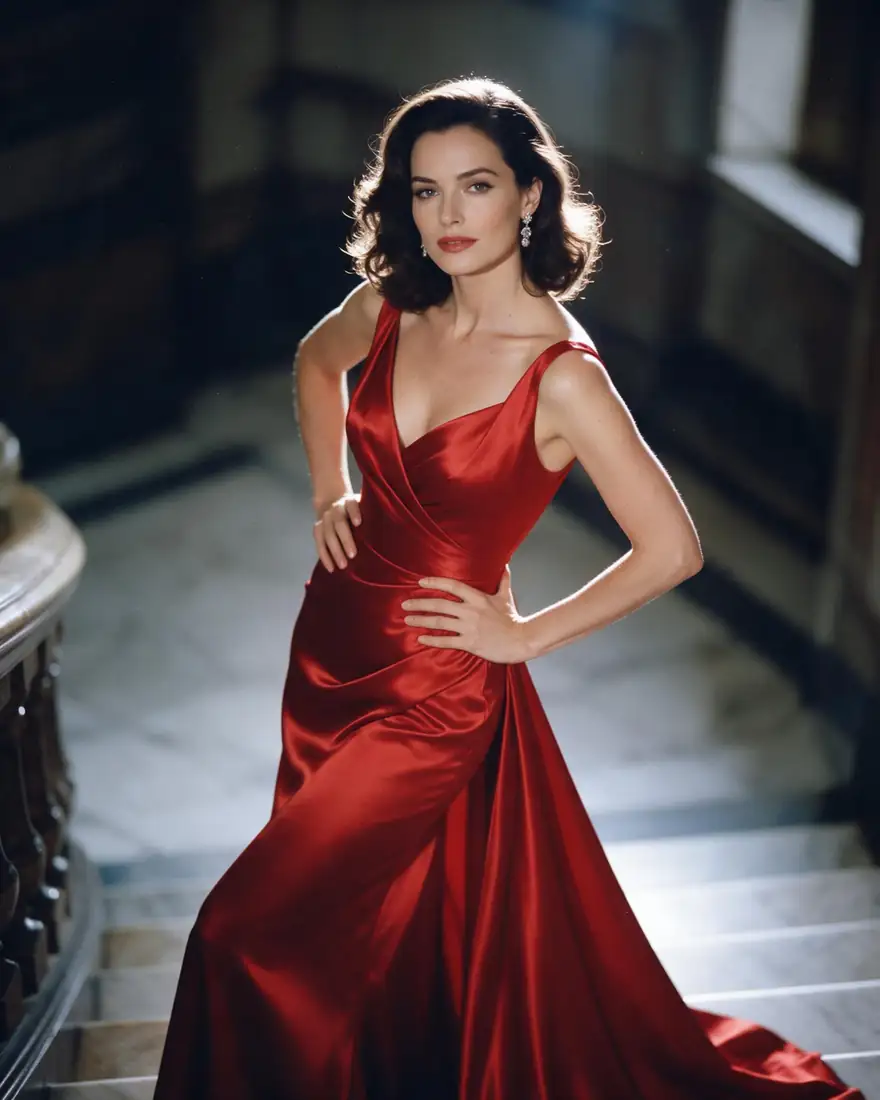
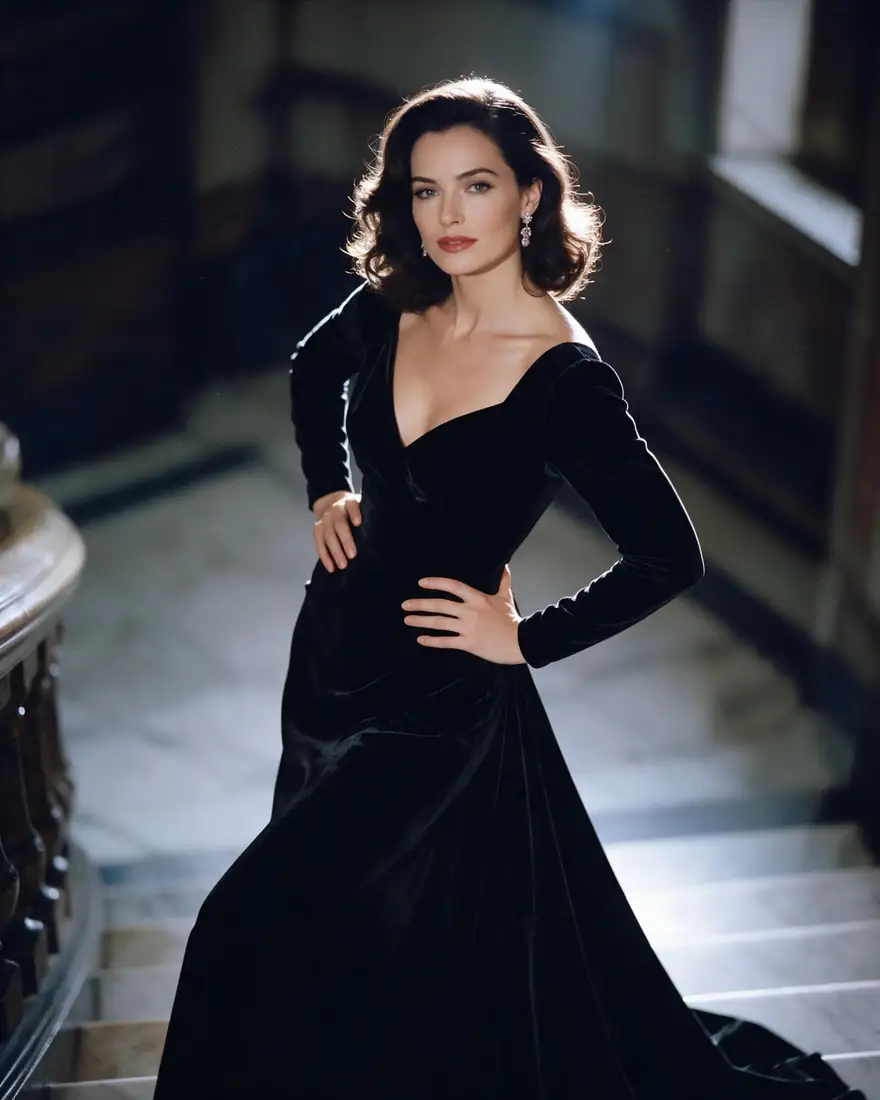
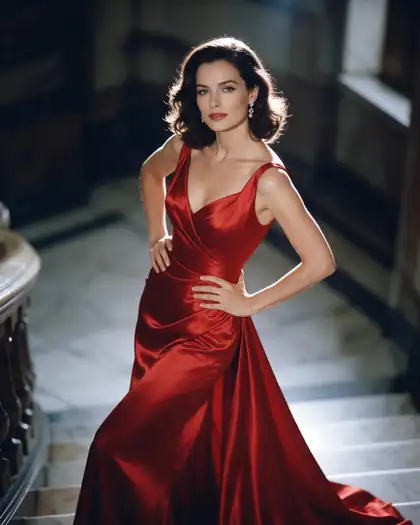
  1. Before: woman in a red gown on a staircase. After: the same woman in a black velvet gown — before
    Before: woman in a red gown on a staircase. After: the same woman in a black velvet gown — after
    BeforeAfter

    01Outfit

    Change clothes with one sentence

    Red satin becomes black velvet. Face, hair, pose and the staircase stay put because the prompt says so.

    Prompt
    Change her red satin gown to a black velvet gown with long sleeves. Keep her face, hair, pose, the staircase and the lighting exactly the same.

    Seedream 5.0 Pro edit · 2K

    Edit a photo like this
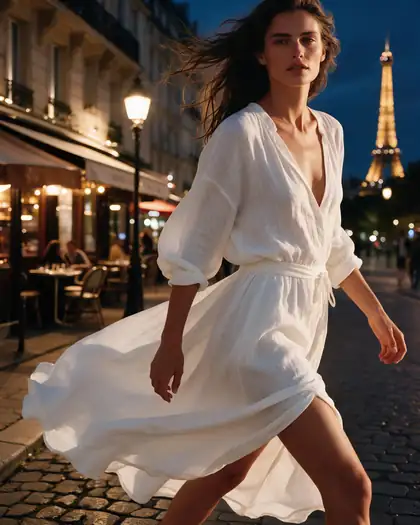
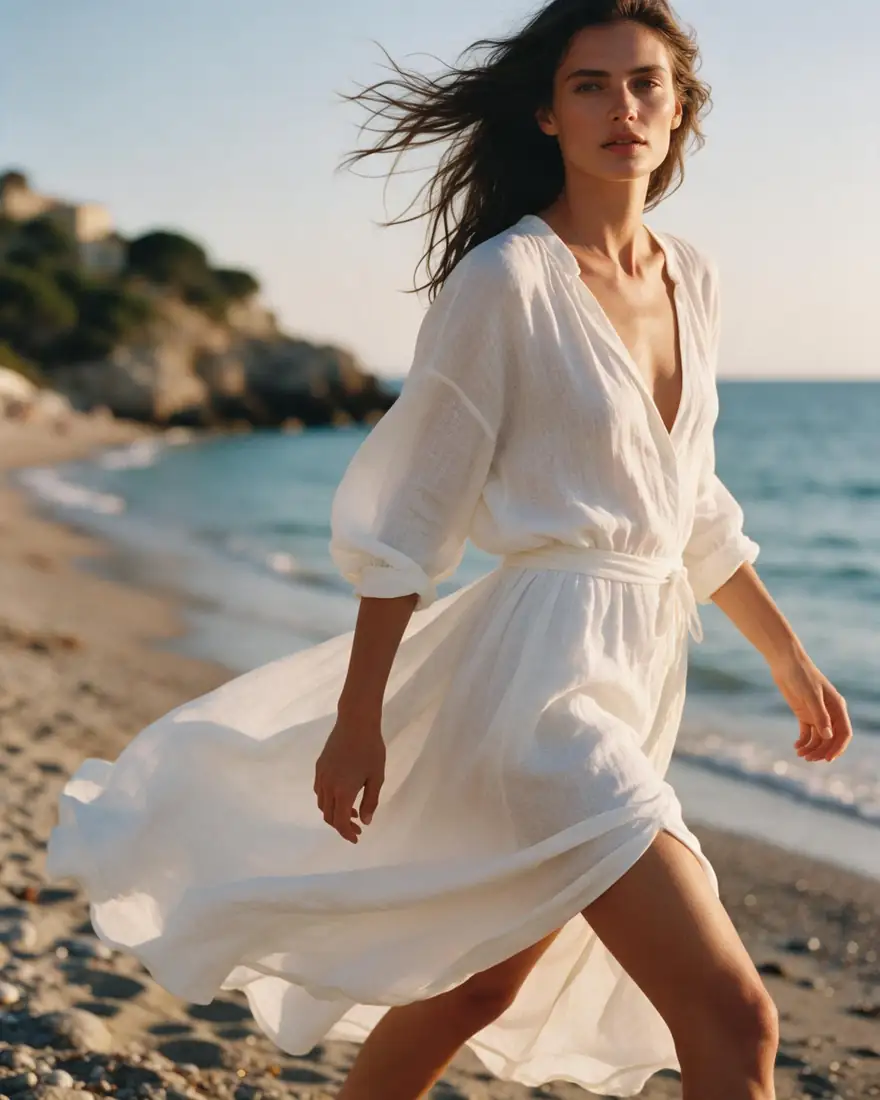
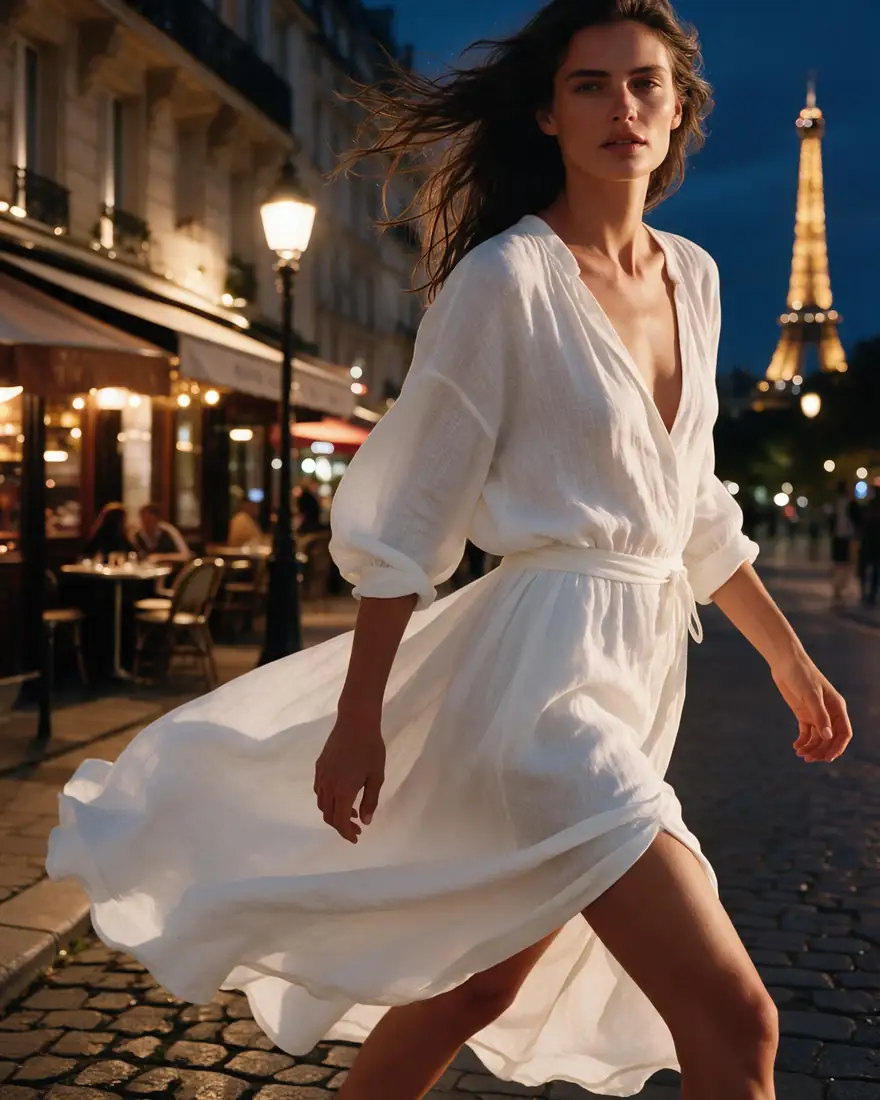
  2. Before: woman on a beach. After: the same woman on a Paris street at night — before
    Before: woman on a beach. After: the same woman on a Paris street at night — after
    BeforeAfter

    02Background

    Swap the background

    The subject stays; the world around her changes, with light that matches the new scene.

    Prompt
    Replace the beach background with a Paris street at night with warm cafe lights and the Eiffel Tower in the distance. Keep the woman, her dress and her pose unchanged.

    Seedream 5.0 Pro edit · 2K

    Edit a photo like this
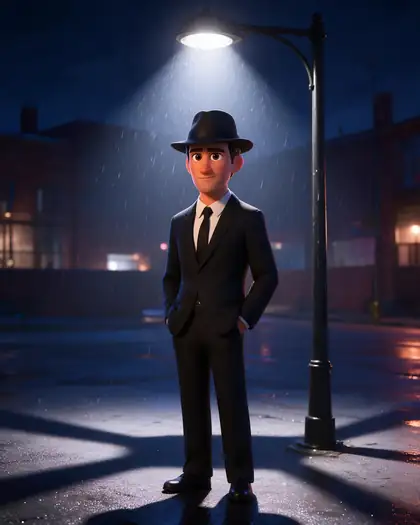
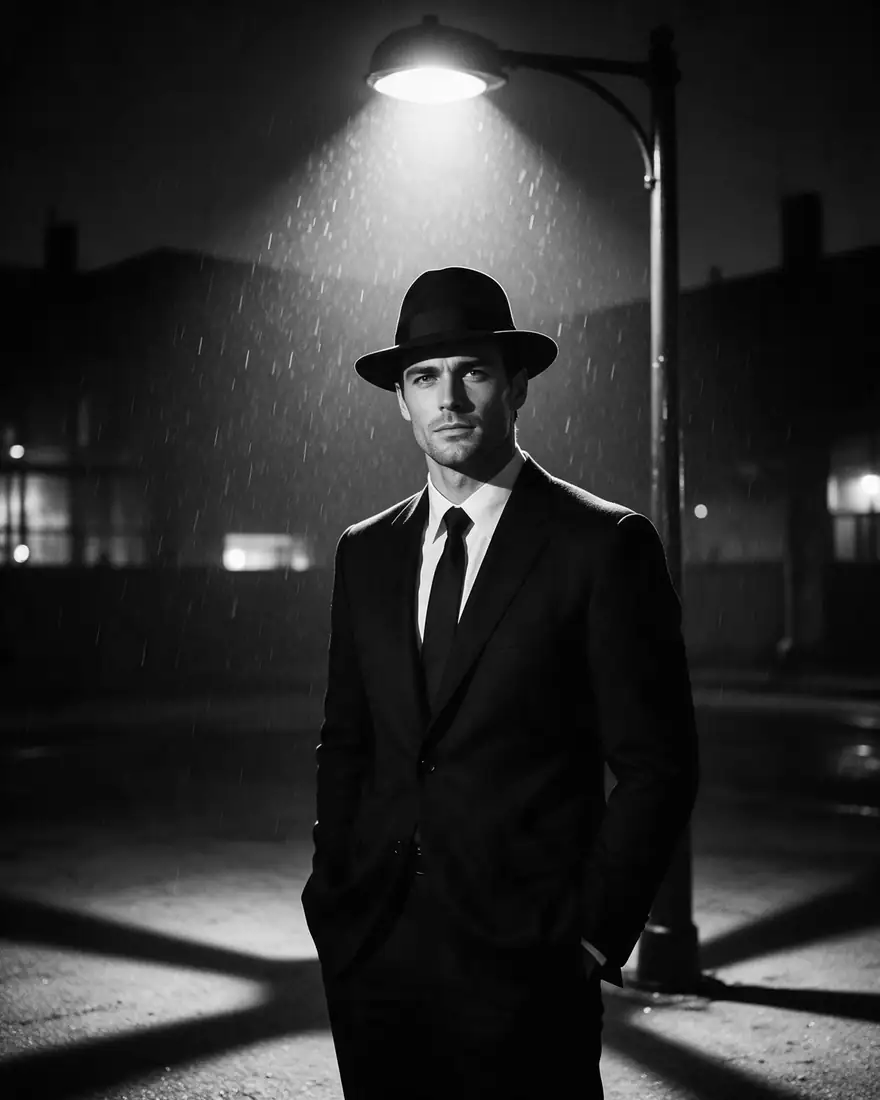
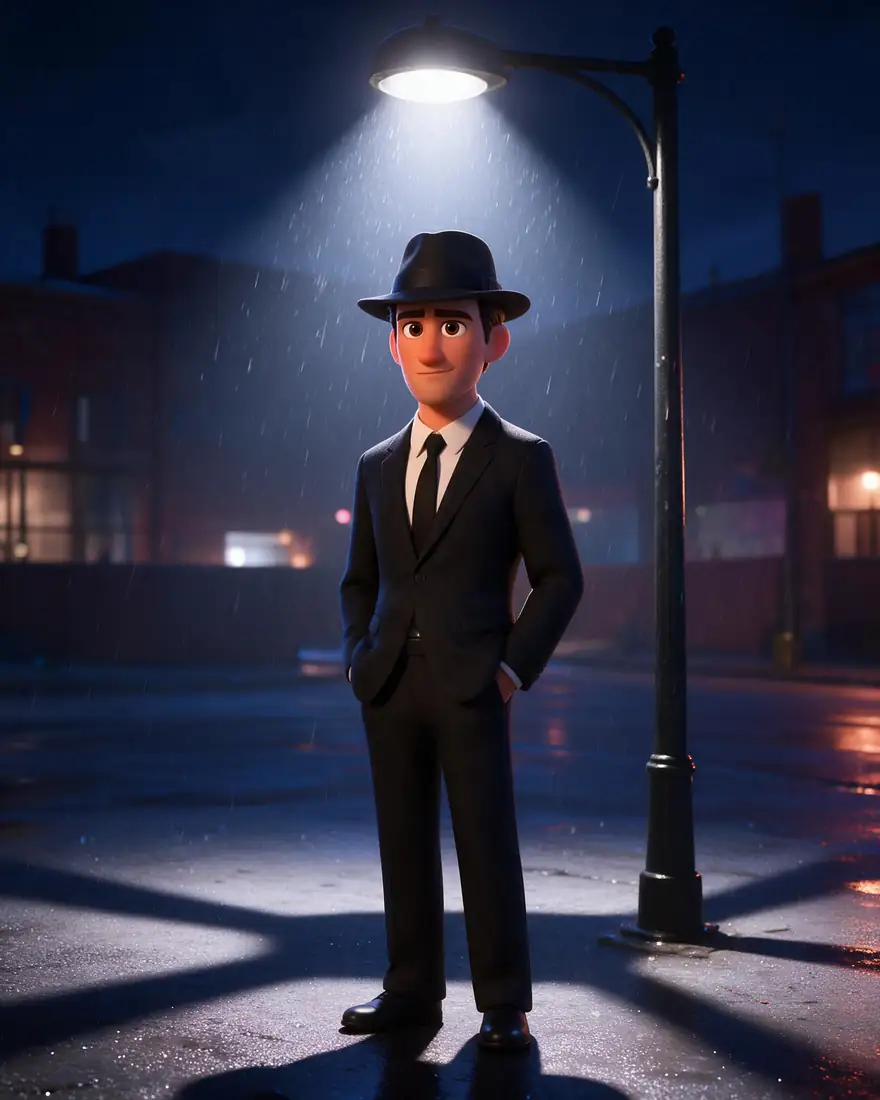
  3. Before: black-and-white photo of a man in a fedora. After: colourful 3D animated version — before
    Before: black-and-white photo of a man in a fedora. After: colourful 3D animated version — after
    BeforeAfter

    03Style

    Turn a photo into 3D animation

    Keep the composition, change the medium — film noir in, colourful 3D render out.

    Prompt
    Turn this photo into a colorful Pixar-style 3D animated render. Keep the man, the suit, the fedora and the street lamp composition.

    Seedream 5.0 Pro edit · 2K

    Edit a photo like this
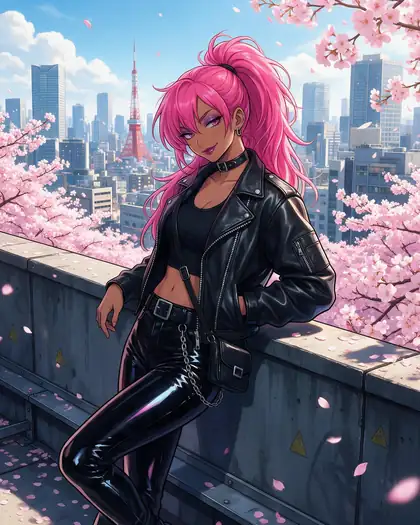
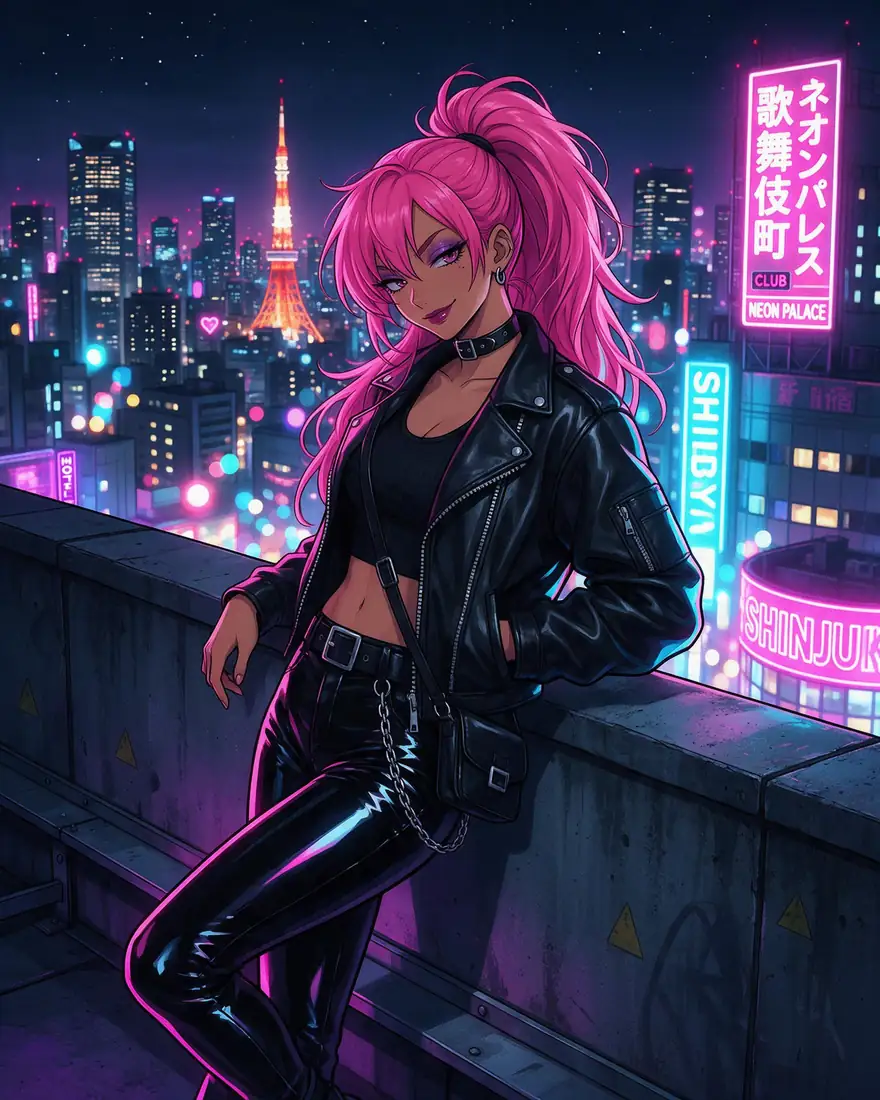
  4. Before: anime woman on a neon rooftop at night. After: the same scene on a sunny afternoon — before
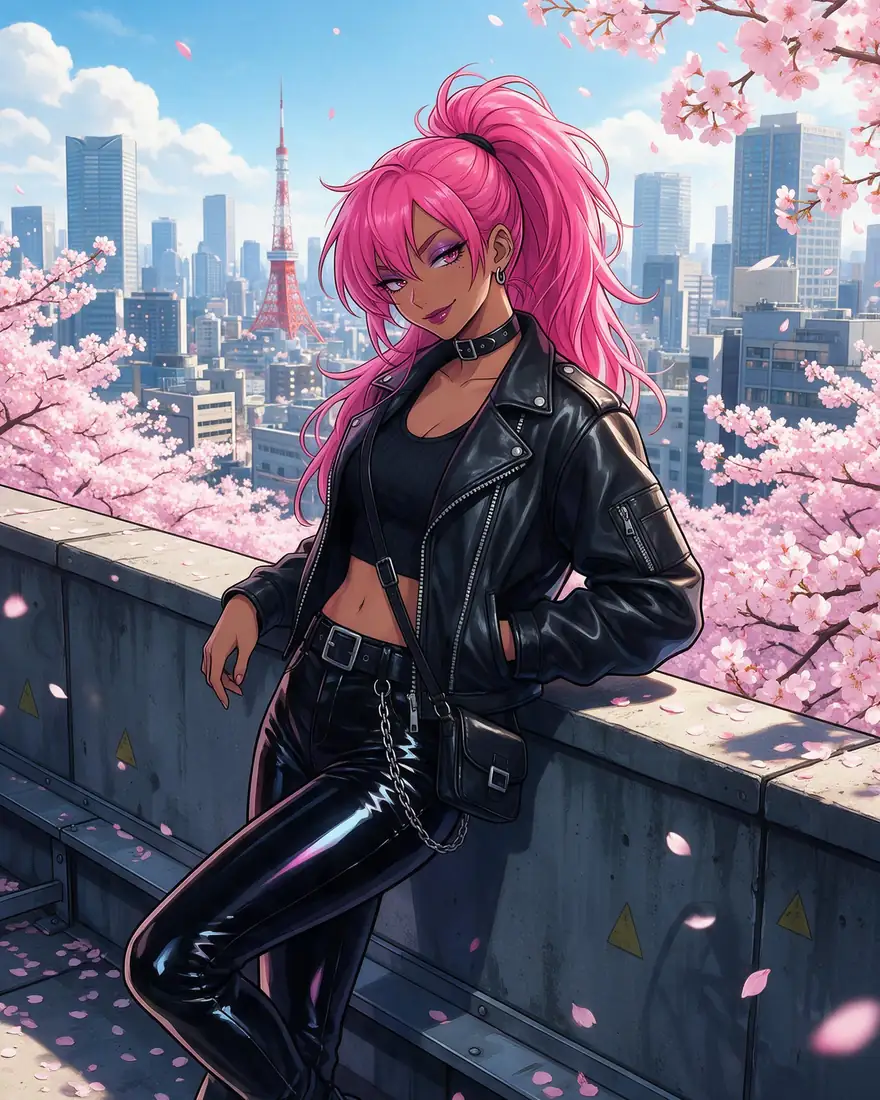
    Before: anime woman on a neon rooftop at night. After: the same scene on a sunny afternoon — after
    BeforeAfter

    04Lighting

    Turn night into day

    Time of day, weather and season are one instruction away.

    Prompt
    Make it a sunny spring afternoon with pink cherry blossoms instead of the neon night. Keep the same character, outfit and pose.

    Seedream 5.0 Pro edit · 2K

    Edit a photo like this
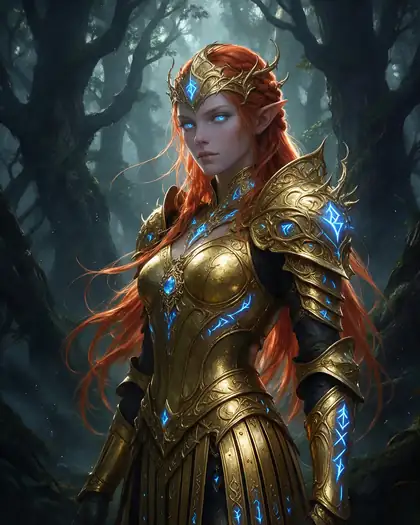
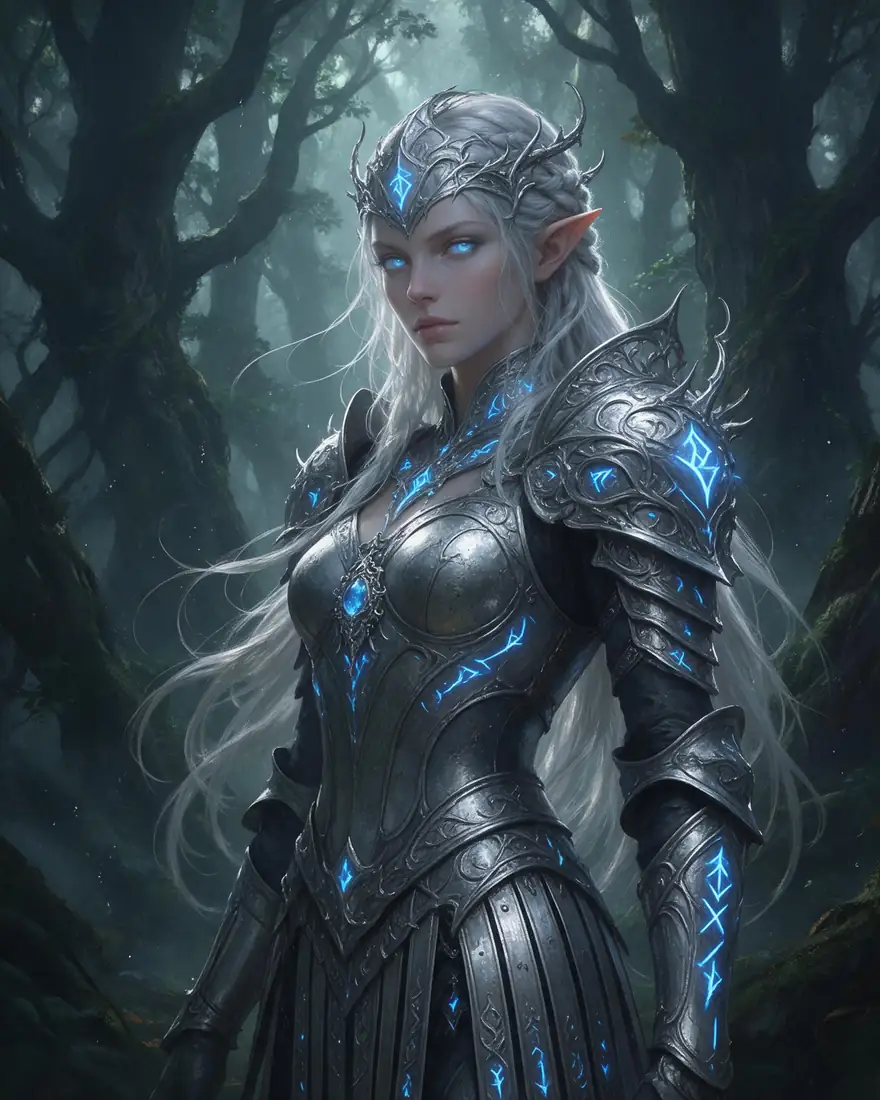
  5. Before: elf with silver hair. After: copper-red hair and gold armour — before
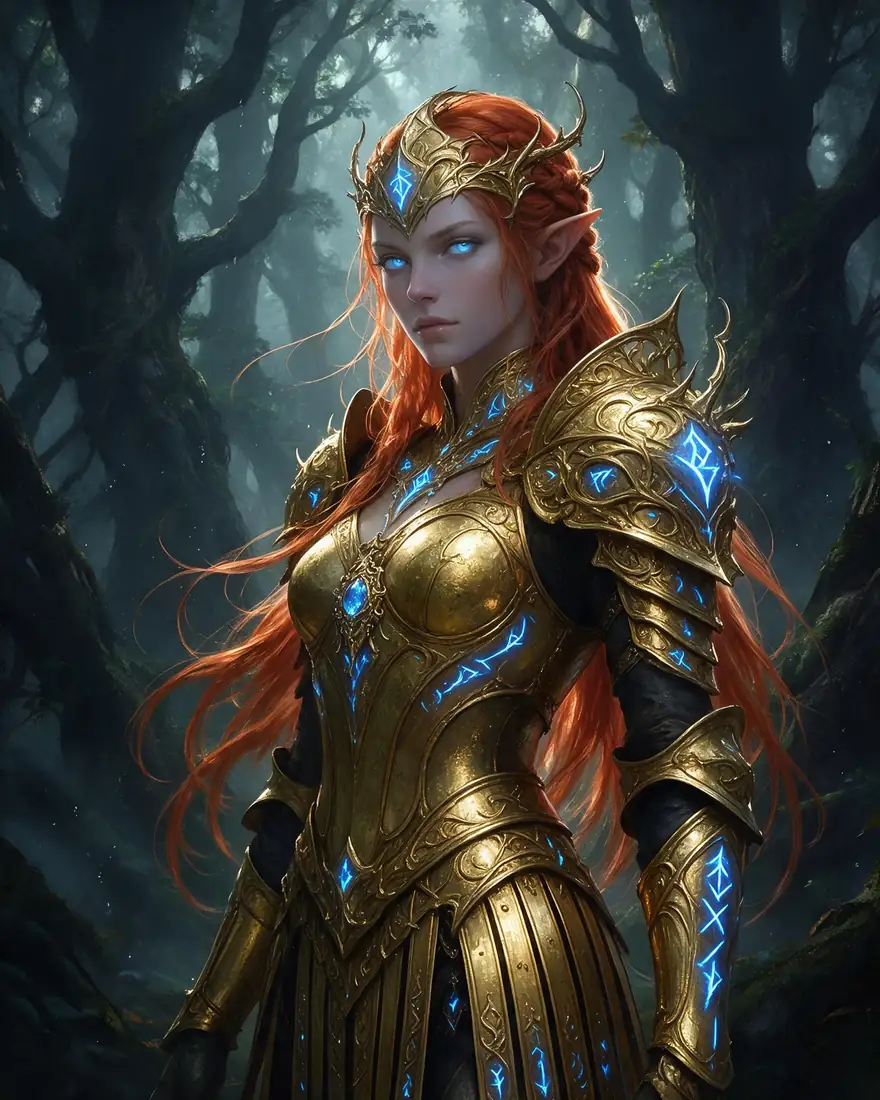
    Before: elf with silver hair. After: copper-red hair and gold armour — after
    BeforeAfter

    05Colour

    Recolour hair and details

    Change colours without repainting the whole character.

    Prompt
    Change her hair to fiery copper red and her armor to polished gold. Keep her face, the runes and the forest unchanged.

    Seedream 5.0 Pro edit · 2K

    Edit a photo like this
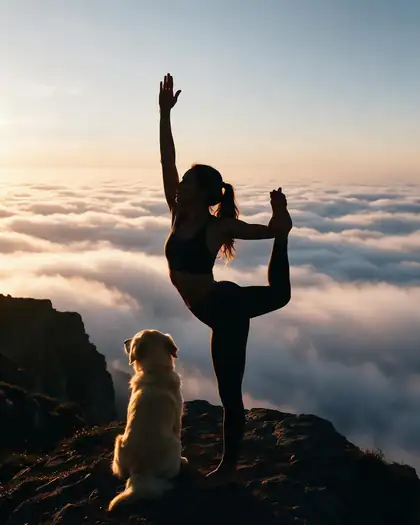
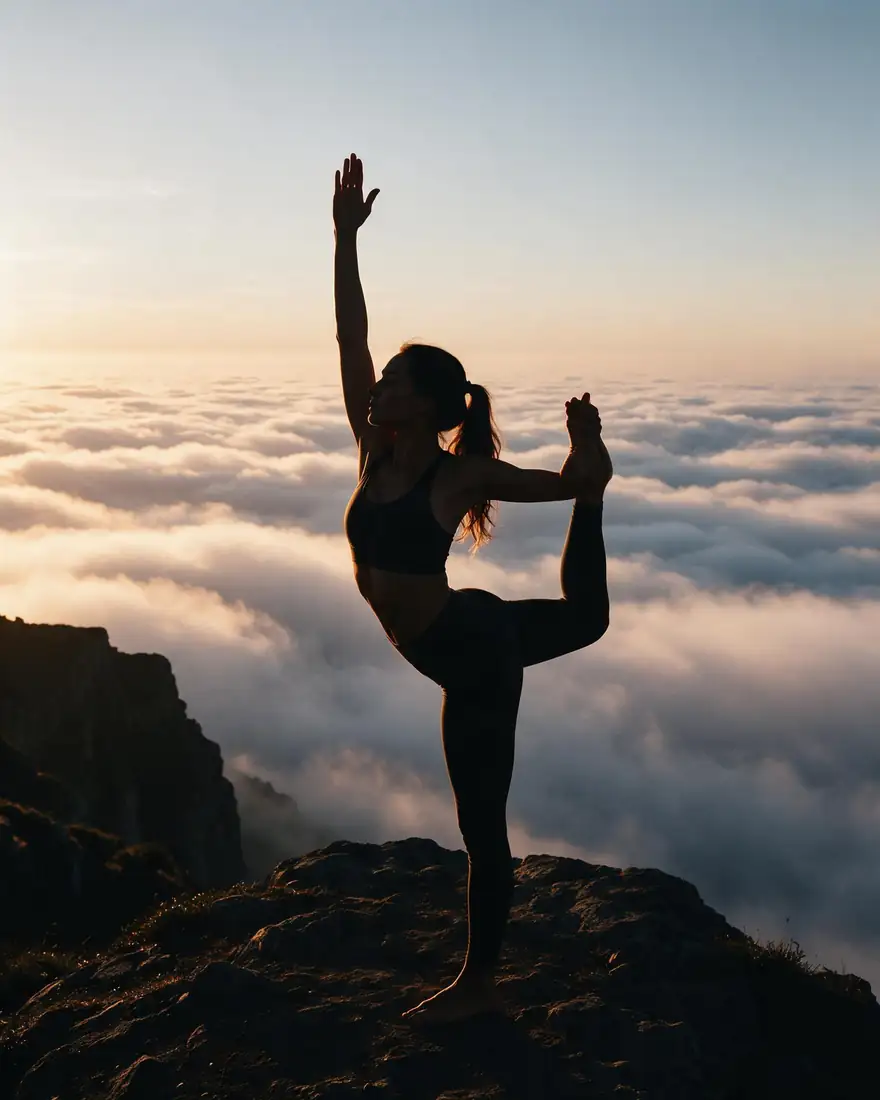
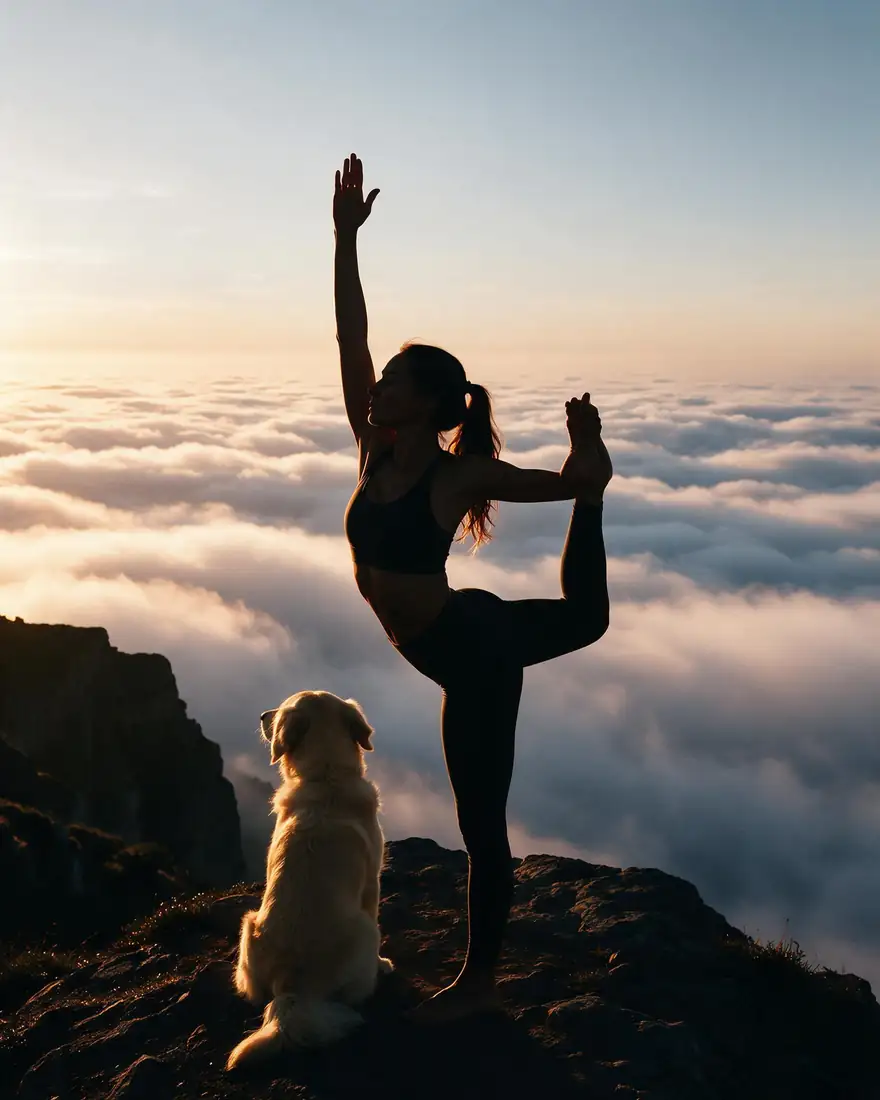
  6. Before: woman in a yoga pose on a cliff. After: a golden retriever sitting beside her — before
    Before: woman in a yoga pose on a cliff. After: a golden retriever sitting beside her — after
    BeforeAfter

    06Add object

    Add something to the scene

    New objects arrive in the same light and perspective as the rest of the photo.

    Prompt
    Add a golden retriever sitting calmly next to her on the cliff, lit by the same sunrise. Change nothing else.

    Seedream 5.0 Pro edit · 2K

    Edit a photo like this

Multi-image edit

Combine two photos into one scene

Upload more than one image and describe how they fit together. Seedream 5.0 Pro takes up to 10; GPT Image 2 up to 16.

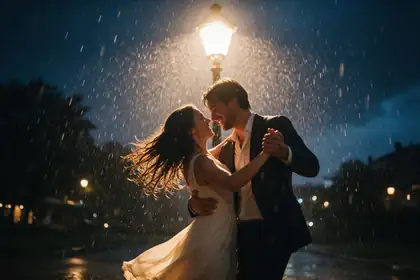
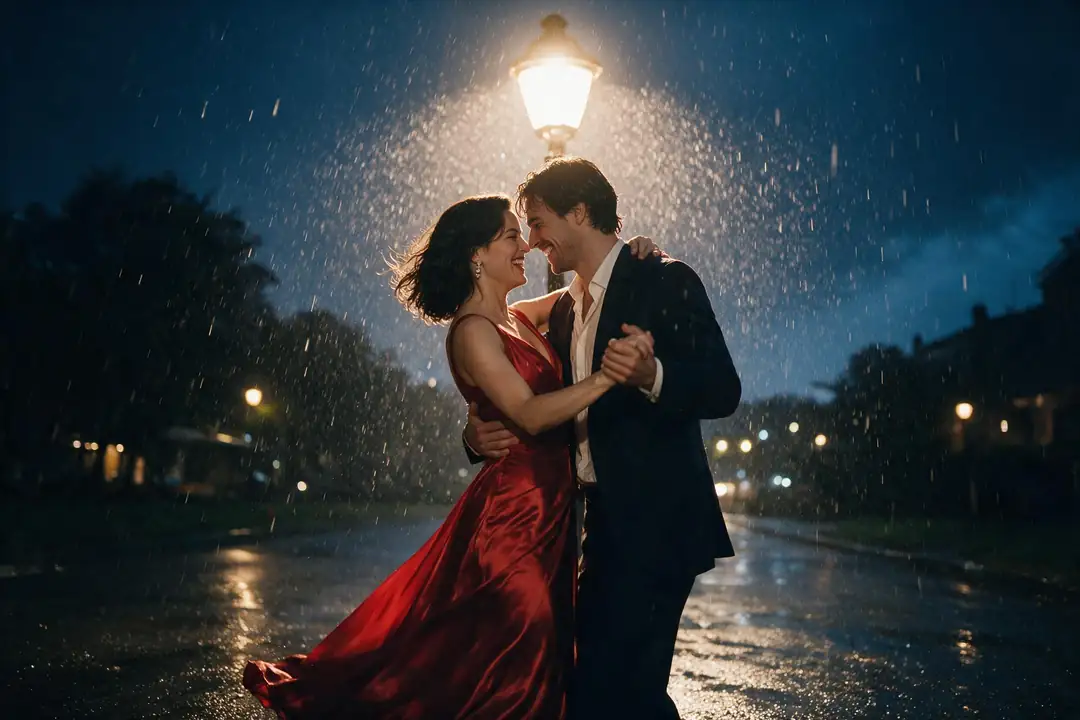
Woman in a red satin evening gown on a marble staircase, soft rim lightCouple dancing in the rain under a street lamp at nightTwo references combined: the woman in the red gown dancing in the rainy street scene
Prompt
Place the woman in the red gown from the first image into the rainy street scene from the second image, dancing with the man under the street lamp. Match the rain and lighting.

Seedream 5.0 Pro edit · 2K · 2 images

Edit Studio

14 editing tools in one place

For precise work, open Edit Studio at /app/edit.

Edit Studio tools
ToolWhat it does
AI EditChange anything with a text prompt
Change RegionBrush an area and describe the change
Magic EraserPaint over objects to remove them
Remove BGCut out the subject instantly
AI BackgroundReplace the background with a new scene
UpscaleIncrease resolution up to 8K
Crop & ExpandOutpaint to a new aspect ratio
Change LightingRelight with a prompt
Camera AngleChange angle and perspective
Edit Text in ImageReplace, translate or remove printed text
Style TransferApply a new artistic style
Color PaletteRecolour to a palette
AI StickerTransparent sticker from text
Convert FormatJPEG, PNG, WebP, AVIF and more

Just need a cut-out? See the background remover. Need it bigger? Upscale your image.

How to

How to edit a photo with AI

Four steps, a minute or two.

  1. Step 1: Upload your image

    Open the generator or Edit Studio and add your photo — sign in free for 25 credits.
  2. Step 2: Say what to change — and what to keep

    “Change the jacket to red leather. Keep the face, pose and background the same.”
  3. Step 3: Use a brush for precision

    In Edit Studio, paint the area and describe the change (Change Region), or paint objects away (Magic Eraser).
  4. Step 4: Finish and download

    Remove the background, upscale up to 8K, convert the format — no watermark.

Models

Editing models and tools

Open any model straight in the editor.

Editing models and tools
ModelReference imagesMax sizeGood forOpen
Seedream 5.0 ProByteDanceUp to 102KKeeps faces and detail bestOpen
GPT Image 2OpenAIUp to 16Up to 4KMost references; great with textOpen
Nano Banana 2GoogleUp to 141K (square today)Many referencesOpen
Qwen Image 3.0AlibabaFree planUp to 32KPrecise edits; free planOpen
Flux 2 DevBlack Forest LabsFree planUp to 32048 pxFree planOpen
Change RegionEdit StudioBrush maskKeeps sizeRepaint only the area you brushOpen
Remove BG · UpscaleEdit Studio—Up to 8KCut out, then enlargeOpen

Upload a photo and change it with one sentence — 25 free credits on sign-up.

Start free

Start editing free

25 free credits on sign-up, then one-time credit packs shared across every Kenerate tool. Credits never expire.

  • 25 free credits on sign-up

    Test on your own images before you buy anything.

  • Credits never expire

    One-time packs — use them this week or next year.

  • No subscription, no watermark

    Nothing to cancel. Free results download clean.

  • One balance, every tool

    The same credits work across images, video, voice and 3D.

In depth

AI image editing, explained

How instruction-based editing works, prompts that keep what matters, and when to use a brush.

How instruction-based editing works

Instruction-based editors were popularised by InstructPix2Pix, which trained a model to follow written edits like “make it snow” while keeping the rest of the image [1]. Today's models go further: they read several reference images at once and keep faces, clothing and composition steady when you tell them to.

Prompts that keep what matters

The model changes whatever you don't pin down, so:

  • Say what to change first, in one sentence.
  • Then list what to keep: face, hair, pose, background, lighting.
  • For two images, refer to them by number.
  • If a small area keeps changing, switch to Change Region and brush just that area.

Text edits vs brush tools

Text edits are fastest for whole-image changes — style, lighting, outfit, background. Brush tools in Edit Studio are better when the change must stay inside a boundary, or when you want to erase something without touching the rest.

Tried it? Tell us how it went

We only publish real, verified reviews — never invented quotes. Send a line about your result (and whether we may quote you), and it will appear here.

Send a review

FAQ

AI image editor questions

7 questions

Still stuck?

A real person answers — usually within a day.

01

What is an AI image editor?

An editor where you describe the change in words — new outfit, new background, different lighting — and AI makes it, keeping the rest of the picture. Kenerate adds brush tools for precise edits.

02

Is the AI image editor free?

You can start free: a new account gets 25 credits, and Flux 2 Dev and Qwen Image 3.0 edit on the free plan. Bigger jobs use one-time credit packs that never expire.

03

Which model is best for editing?

Seedream 5.0 Pro and GPT Image 2 keep faces and details best; Nano Banana 2 and GPT Image 2 handle the most reference images; Flux 2 Dev is on the free plan.

04

Can I combine two photos?

Yes. Upload both and say which image gives what — “the woman from image 1 in the street from image 2”. Seedream 5.0 Pro takes up to 10 images, GPT Image 2 up to 16.

05

Can I edit just one part of a photo?

Yes. In Edit Studio, Change Region lets you brush an area and describe the change; Magic Eraser removes what you paint over.

06

Can I edit photos of other people?

Only with their permission, and never to make sexual or misleading images of real people.

07

Does it add a watermark?

No. Edited images download without a watermark.

See more of Kenerate AI in your Google resultsAdd kenerateai.com as a preferred source — Google shows more from your preferred sources in Top Stories and AI answers.

Explore

Every Kenerate image tool

Generators, design tools, photo edits, models and comparisons — all in one studio, on one credit balance.

Written by the Kenerate AI team

We build and run the Kenerate image editor. Every before-and-after is a real Seedream 5.0 Pro edit of one of our own images; tool facts were checked against the app's code. Last updated 27 September 2026. Corrections: hello@kenerateai.com.

Sources

Ready when you are

Edit your first photo free

25 free credits on sign-up. No watermark, nothing to install.

  • 25 free credits
  • No watermark
  • Credits never expire