








Skip to content
Tutorial · Photoshop 2026

How to remove a background in Photoshop

The one-click Remove Background quick action, Select and Mask for hair, the Pen tool for products and the fast way to drop a white background — with fixes for greyed-out buttons and white exports.

  • From Adobe's own help pages
  • 1-click and manual methods
  • Hair with Select and Mask
  • No-Photoshop option
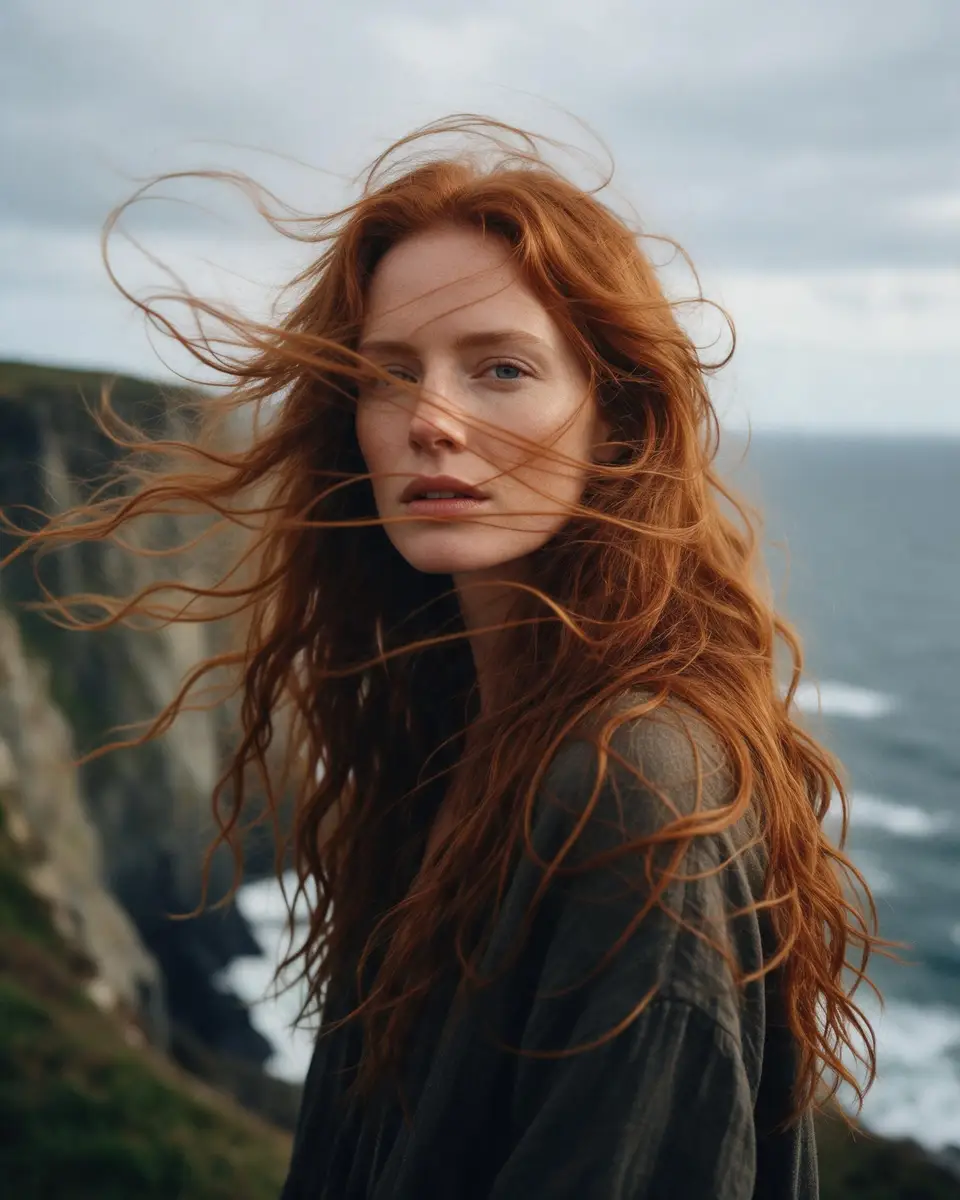
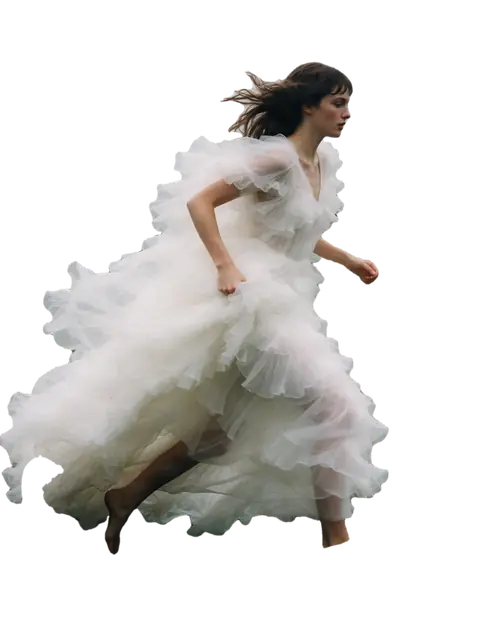
Woman with long windblown auburn hair on a sea cliff — original photo
Woman with long windblown auburn hair on a sea cliff — background removed
BEFOREAFTER

Kenerate Cutout HD · Windblown hair

Try this photo
  • Kenerate Cutout
  • Cutout HD · hair & glass
  • Object Pick · keep what you name
  • Magic Eraser
  • AI Edit · Qwen Image 2.0
  • Edit Text in Image · GPT Image 2
  • White, black & colour backdrops
Windblown hair — background removed
Curly hair — background removed
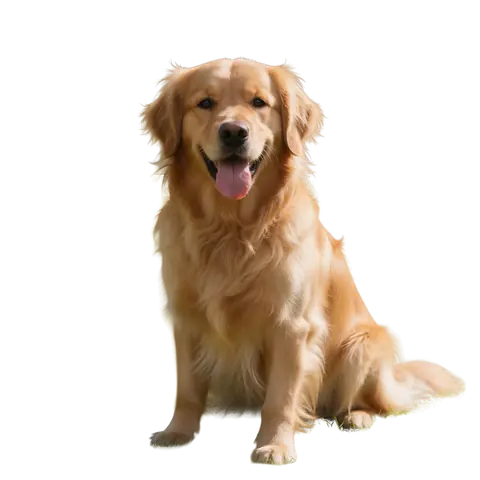
Dog fur — background removed
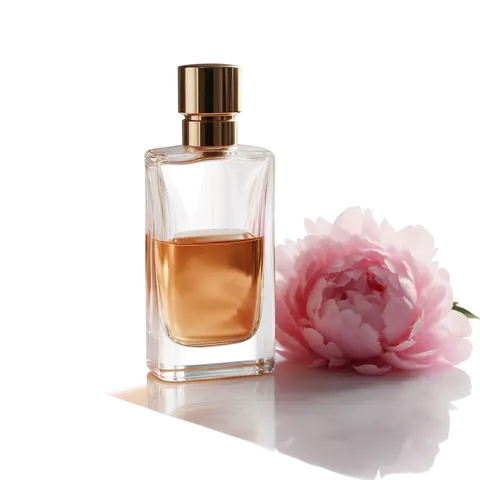
Glass bottle — background removed
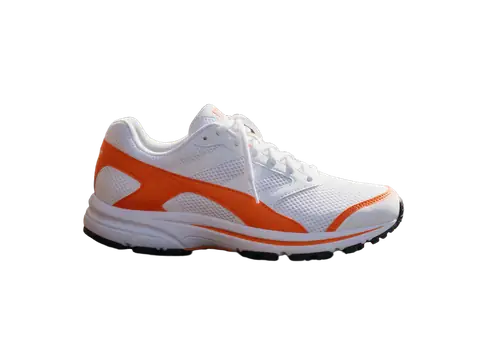
Sneaker — background removed
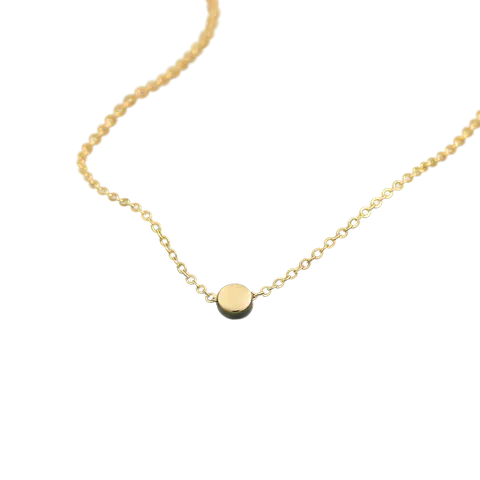
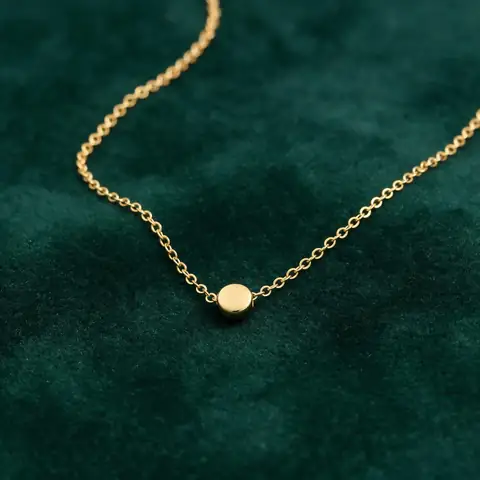
Gold chain — background removed
Logo on paper — background removed
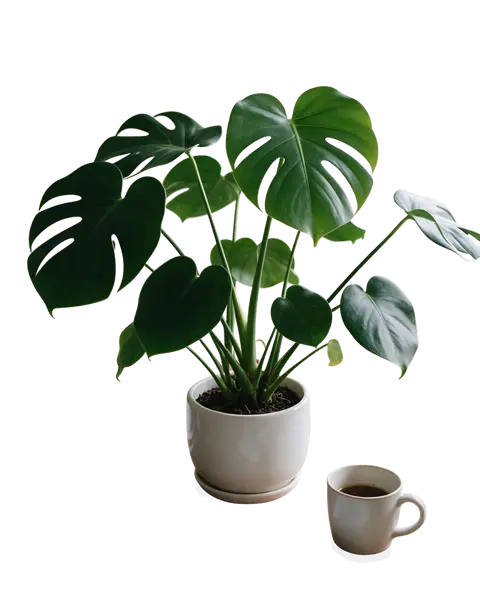
Desk plant — background removed
Windblown hair — background removed
Curly hair — background removed
Dog fur — background removed
Glass bottle — background removed
Sneaker — background removed
Gold chain — background removed
Logo on paper — background removed
Desk plant — background removed

Quick answer

Updated

To remove a background in Photoshop, unlock the image layer, open the Discover panel → Browse → Quick Actions → Remove Background, touch up the layer mask with a brush, then File → Export → Quick Export as PNG. For hair, use Select → Subject followed by Select and Mask with Decontaminate Colors.

1-click
Quick Actions → Remove Background
Hair
Select Subject + Select and Mask
Products
Pen tool → Make Selection → mask
Save as
Quick Export as PNG

Real results

See it on real photos

Every slider is a real Kenerate result. Drag to compare, then run the same photo yourself.

  1. Woman with long windblown auburn hair on a sea cliff — before
    Woman with long windblown auburn hair on a sea cliff — after
    BeforeAfter

    01Hair

    Windblown hair, kept

    Long auburn strands across a sea-cliff sky, separated cleanly.

    Kenerate Cutout HD

    Cut this photo out
  2. Woman with big curly backlit hair on a city street — before
    Woman with big curly backlit hair on a city street — after
    BeforeAfter

    02Hair

    Every curl, not a helmet

    Backlit curly hair separated strand by strand from a city street.

    Kenerate Cutout HD

    Cut this photo out
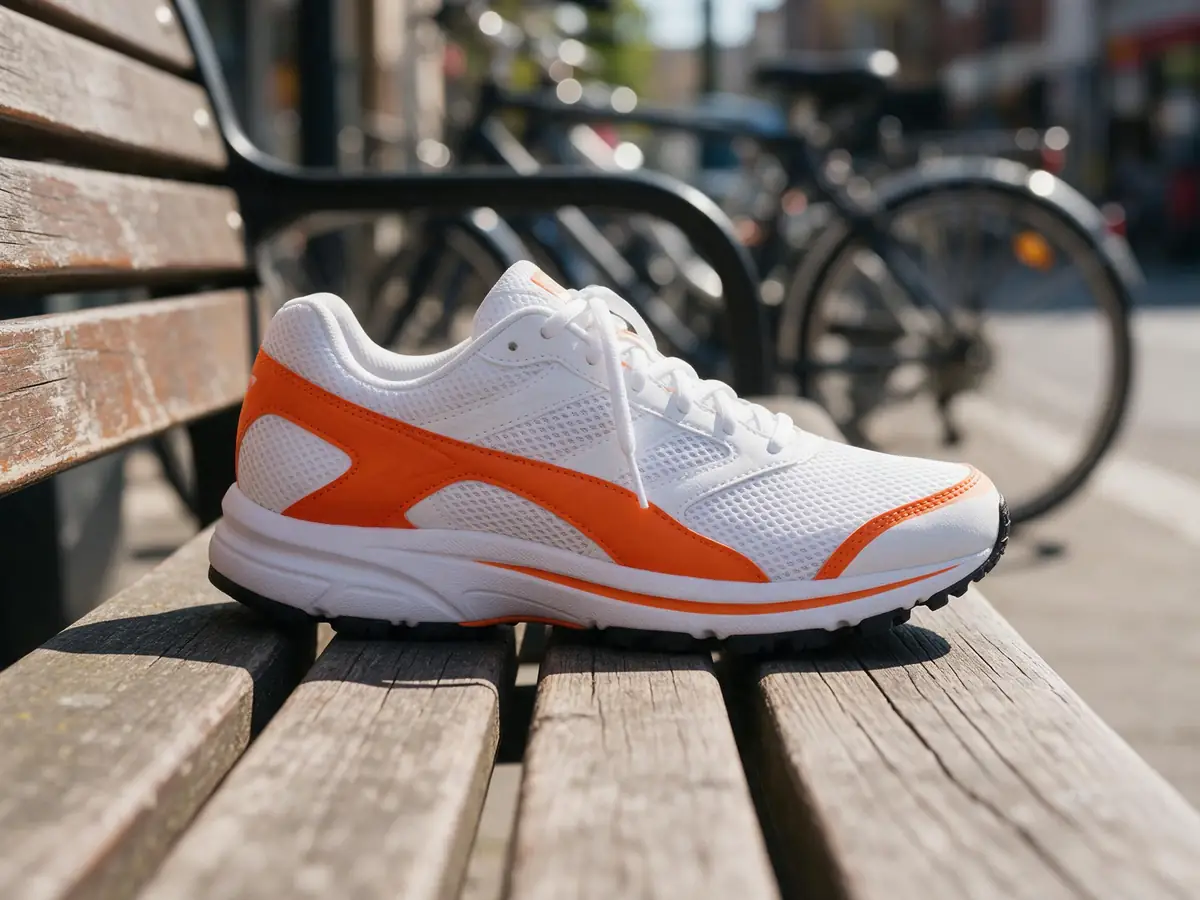
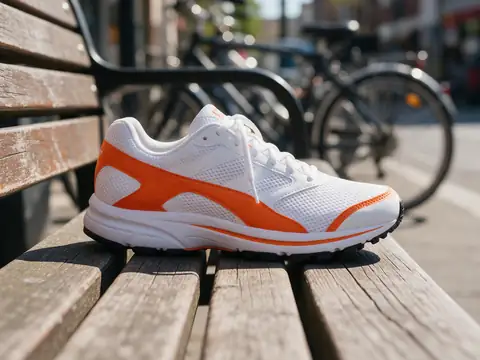
  3. White and orange running sneaker on a wooden bench — before
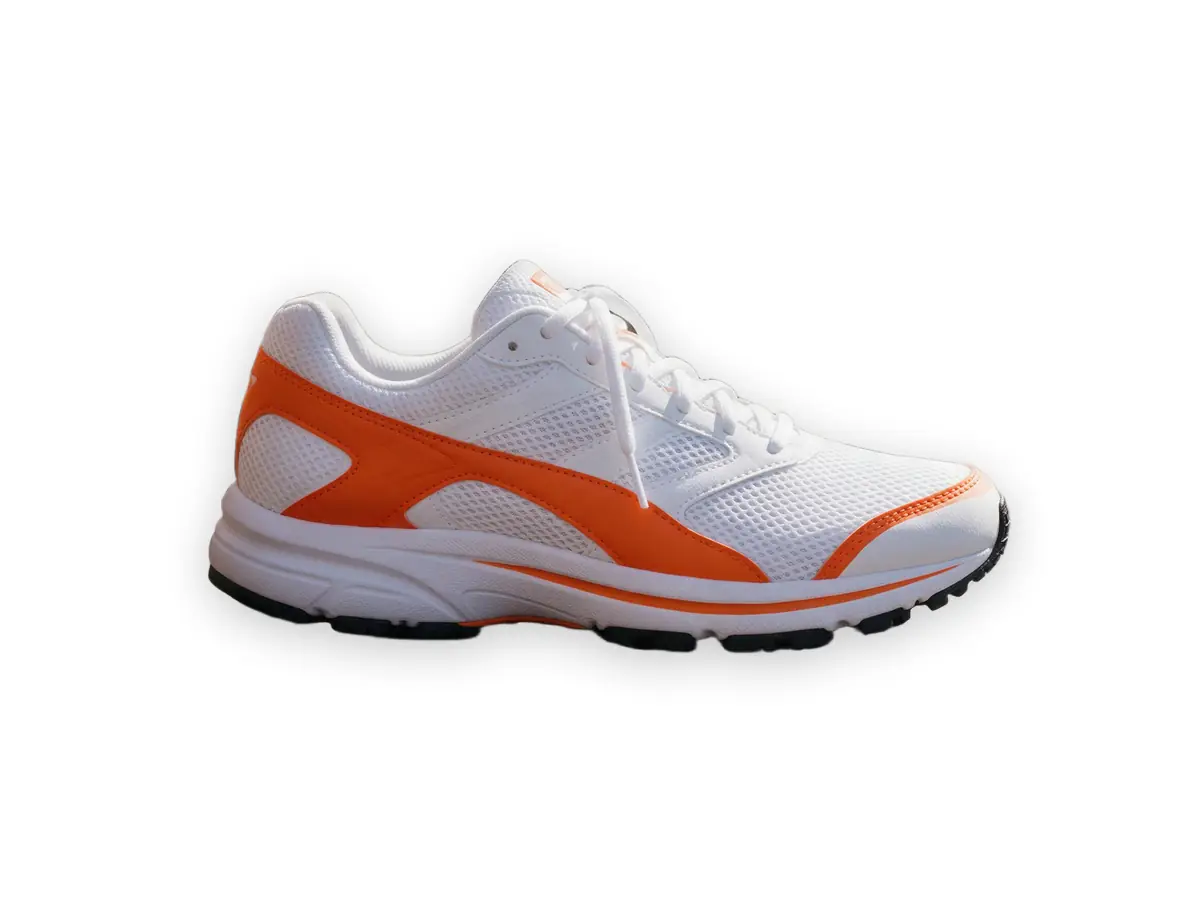
    White and orange running sneaker on a wooden bench — after
    BeforeAfter

    03Products

    A listing photo in one click

    A sneaker lifted off a wooden bench, ready for a white or coloured backdrop.

    Kenerate Cutout

    Cut this photo out
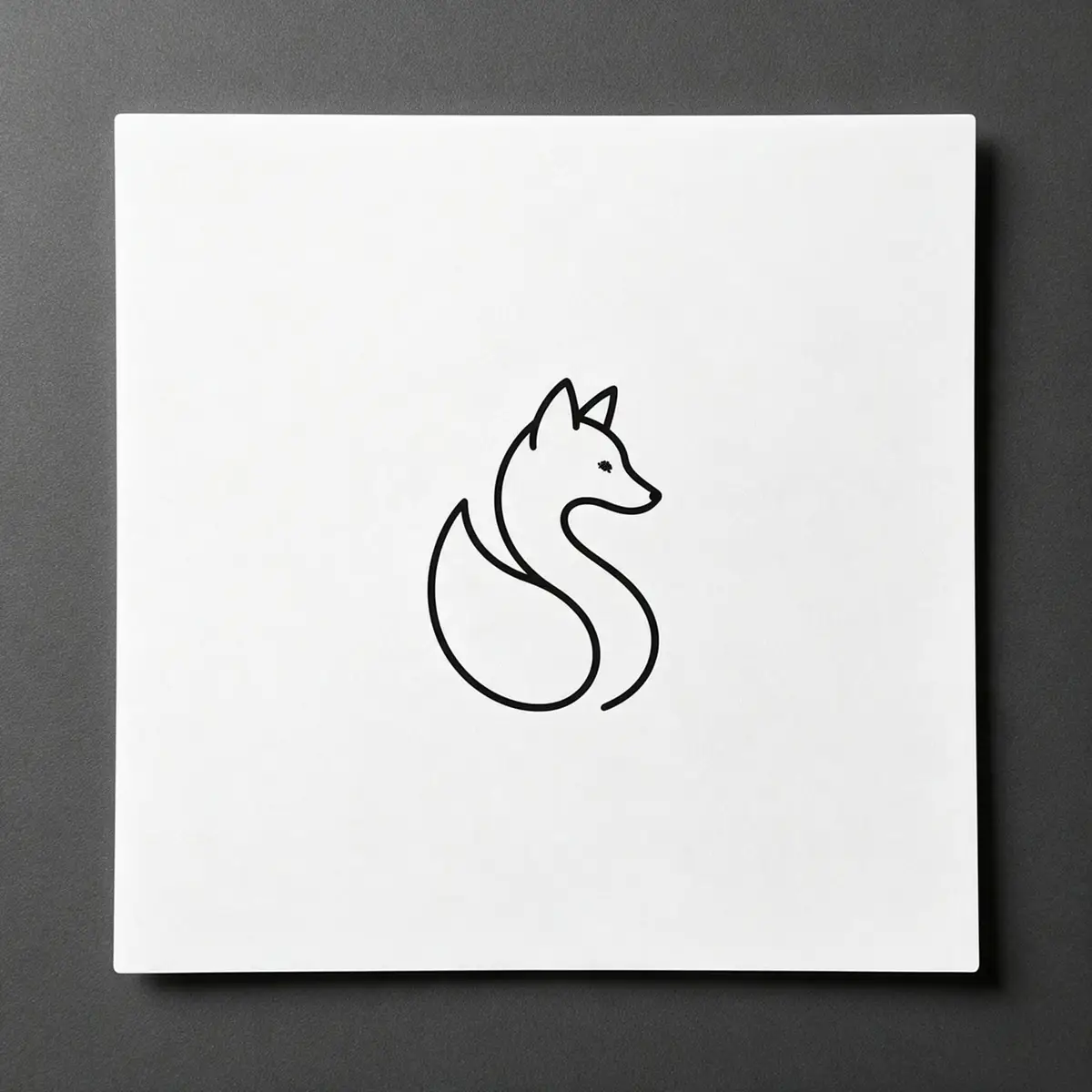
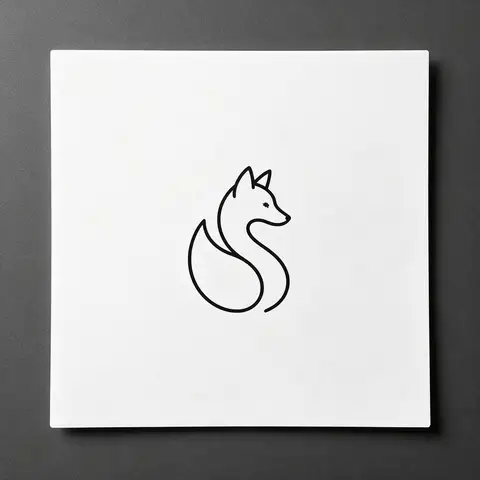
  4. Black line-art fox logo printed on white paper — before
    Black line-art fox logo printed on white paper — after
    BeforeAfter

    04Logos

    A logo on paper, made transparent

    Line-art printed on paper, turned into a clean transparent PNG.

    Kenerate Cutout HD

    Cut this photo out

Pick your method

Which Photoshop method should you use?

Start with the quick action and step up only if the edge needs it.

  • Remove Background quick action

    Best for
    Most photos
    Time
    Under 1 min
    Hair & fur
    Good
  • Select Subject + Select and Mask

    Best for
    Portraits, pets, hair
    Time
    3–10 min
    Hair & fur
    Very good
  • Pen tool

    Best for
    Products with hard edges
    Time
    5–20 min
    Hair & fur
    Poor
  • Magic Wand / Color Range

    Best for
    Plain white backgrounds, logos
    Time
    1–2 min
    Hair & fur
    Poor
  • Kenerate AI (no Photoshop)This site

    Best for
    Any photo, in the browser
    Time
    About 5 s
    Hair & fur
    Very good (Cutout HD)

Method 1 · one click

Remove a background with the Remove Background quick action

Adobe's fastest route — a mask, so nothing is deleted.

  1. Step 1: Unlock the layer

    A photo usually opens as a locked “Background” layer. Click the lock icon in the Layers panel so it becomes an editable layer.
  2. Step 2: Open Quick Actions

    Open the Discover panel with the search icon (or Help → Photoshop Help), then go to Browse → Quick Actions.

    DiscoverBrowseQuick Actions

  3. Step 3: Choose Remove Background

    Photoshop isolates the subject and adds a layer mask that hides the background.

    Tip: Also in the Contextual Task Bar: select the layer and click Remove background.

  4. Step 4: Touch up the mask

    Select the mask thumbnail and paint with the Brush tool — black hides, white brings back.
  5. Step 5: Export as PNG

    PNG keeps the transparency; JPG fills it with white.

    FileExportQuick Export as PNG

Woman with long windblown auburn hair on a sea cliff — original photo
Woman with long windblown auburn hair on a sea cliff — background removed
BEFOREAFTER

No Photoshop? About 5 seconds

Kenerate Cutout HD kept the windblown strands against the sky — no mask painting.

Try it on your photo

Method 2 · hair and fur

Cut out hair with Select Subject and Select and Mask

The method that keeps flyaways and removes the colour fringe.

  1. Step 1: Unlock the layer

    A photo usually opens as a locked “Background” layer. Click the lock icon in the Layers panel so it becomes an editable layer.
  2. Step 2: Select the subject

    Photoshop finds the main subject and makes a selection.

    SelectSubject

  3. Step 3: Open Select and Mask

    The refinement workspace for soft edges.

    SelectSelect and Mask…

  4. Step 4: Paint over the hair

    Use the Refine Edge brush along the hairline and flyaways. Switch the view to On Black or On White to see the edge clearly.

    Tip: “Refine Hair” in the options bar does a first pass automatically.

  5. Step 5: Decontaminate colours and output

    Tick Decontaminate Colors to remove the old background's colour from the edge, and set Output To: Layer Mask. Click OK.
  6. Step 6: Export as PNG

    PNG keeps the transparency; JPG fills it with white.

    FileExportQuick Export as PNG

Woman with big curly backlit hair on a city street — original photo
Woman with big curly backlit hair on a city street — background removed
BEFOREAFTER

Backlit curls — the hardest case for any mask. This one is a Cutout HD result.

Skip the masking — a Cutout HD result takes about five seconds. Start with 25 free credits.

Method 3 · products

Cut out a product with the Pen tool

Crisp, resolution-independent edges for shoes, bottles and packaging.

  1. Step 1: Unlock the layer

    A photo usually opens as a locked “Background” layer. Click the lock icon in the Layers panel so it becomes an editable layer.
  2. Step 2: Draw a path with the Pen tool

    Press P. Click to place points around the product and drag to make curves. Close the path on the first point.
  3. Step 3: Make a selection from the path

    Right-click the path and choose Make Selection (Feather: 0.5 px), or press Ctrl+Enter.
  4. Step 4: Add a layer mask

    Click Add Layer Mask at the bottom of the Layers panel. Everything outside the path is hidden.
  5. Step 5: Export as PNG

    PNG keeps the transparency; JPG fills it with white.

    FileExportQuick Export as PNG

Method 4 · white backgrounds

Remove a white background in Photoshop

Quickest for logos, icons and scans.

  1. Step 1: Unlock the layer

    A photo usually opens as a locked “Background” layer. Click the lock icon in the Layers panel so it becomes an editable layer.
  2. Step 2: Select the white

    Use the Magic Wand (Contiguous off for gaps), or Select → Color Range and click the white.

    SelectColor Range…

  3. Step 3: Delete it

    Press Delete. The checkerboard shows where it is now transparent.

    Tip: Soft grey edge left over? Select → Modify → Contract by 1 px before deleting.

  4. Step 4: Export as PNG

    PNG keeps the transparency; JPG fills it with white.

    FileExportQuick Export as PNG

Black line-art fox logo printed on white paper — original photo
Black line-art fox logo printed on white paper — background removed
BEFOREAFTER

A logo photographed on paper, cut out with Cutout HD — the paper and its shadow are gone.

Tool comparison

Photoshop vs GIMP vs Kenerate

All three can give you a transparent PNG. They differ in plan, time and how much you do by hand.

  • PhotoshopAdobe plan

    Plan
    Adobe subscription
    One-click removal
    Remove Background quick action
    Hair & fur
    Select and Mask
    Non-destructive (mask)
    Yes
    Typical time
    1–10 min
    Full editing afterwards
    Yes
  • GIMPfree desktop app

    Plan
    Free
    One-click removal
    No
    Hair & fur
    Foreground Select, by hand
    Non-destructive (mask)
    With layer masks
    Typical time
    5–15 min
    Full editing afterwards
    Yes
  • Kenerate AIbrowser

    Plan
    25 free credits, no subscription
    One-click removal
    Yes
    Hair & fur
    Cutout HD
    Non-destructive (mask)
    Keeps your original
    Typical time
    About 5 s
    Full editing afterwards
    Edit Studio

Look closer

Hair: what a good mask looks like

Use this as the target for your Select and Mask edge — or skip the masking entirely.

  • Strands separated one by one against the sky
  • No blue-grey fringe from the sea
  • Semi-transparent edge pixels, like a decontaminated mask

Move your pointer over the image to zoom into the edge.

Woman with long windblown auburn hair on a sea cliff — cut out with Kenerate Cutout HD. The checkerboard is transparent.

Troubleshooting

Why is Remove Background not working in Photoshop?

Remove Background is greyed out

The layer is locked or not selected. Click the lock icon on the “Background” layer in the Layers panel, select the layer and try again.

A coloured halo around the hair

Open Select and Mask on the layer mask and tick Decontaminate Colors, or contract the mask by 1 px.

The PNG has a white background

You exported a JPG, or the layer below is white. Hide or delete any white layer and use Quick Export as PNG.

Parts of the subject disappeared

Paint white on the layer mask to bring them back — the quick action hides pixels, it doesn't delete them.

Select Subject picked the wrong thing

Add to the selection with the Object Selection tool, or subtract with Alt held down.

No Photoshop needed

The same results in the browser

Real Kenerate cut-outs — tap “Original” to see the photo.

Try it free
  • Woman with long windblown auburn hair on a sea cliff — background removed with Kenerate Cutout HDCutout HD

    Windblown hair

  • Golden retriever sitting on grass in a park — background removed with Kenerate Cutout HDCutout HD

    Dog fur

  • Glass perfume bottle with peonies on a marble table — background removed with Kenerate Cutout HDCutout HD

    Glass bottle

  • Thin gold chain necklace on green velvet — background removed with Kenerate Cutout HDCutout HD

    Gold chain

Use cases

Who uses which method

Photoshop, masks or AI — it depends on the job.

  • Retoucher

    Fashion & beauty

    Uses Select and Mask for hero images where every strand matters, and an AI cut-out as a quick first pass to show clients.

    Select and Mask for finals · AI for drafts

  • Product photographer

    E-commerce

    Pen tool paths for packshots that need perfect curves; an AI white-background cut-out for everyday catalogue images.

    Kenerate Cutout

  • Marketing assistant

    No Photoshop licence

    Needs a clean logo and product cut-outs for decks and social posts, without an Adobe plan.

    Kenerate Cutout HD

Example workflows built on real Kenerate outputs — not customer reviews.

In depth

How Photoshop's one-click tools evolved

Select and Mask, Select Subject, the Remove Background quick action and Generative Fill — when each arrived, with sources.

From Refine Edge to Select and Mask

Select and Mask arrived in Photoshop CC 2015.5 (June 2016), replacing the old Refine Edge dialog as the place to perfect hair and soft edges [1].

Sensei-powered one-click selections

Select Subject came in Photoshop CC 19.1 in January 2018, powered by Adobe Sensei [2]. The Object Selection tool and the Remove Background quick action followed in Photoshop 21.0 in November 2019 — “in a single click, you can now remove the background” [3][4].

Filling instead of cutting

Content-Aware Fill, introduced in CS5 in 2010, is built on the PatchMatch algorithm [5]; Generative Fill, powered by Adobe Firefly, was released commercially in September 2023 [6]. They're for removing objects inside a photo — for a clean cut-out you still want a mask.

Why hair still needs refining

Every edge pixel is a mix of subject and background colour, which makes hair a mathematically ambiguous problem [7]. That's why Select and Mask's edge tools — or a dedicated HD cut-out — beat a plain selection on flyaway strands.

Start free

Start free, top up only when you need to

25 free credits on sign-up. The same credits work in every Kenerate tool.

  • 25 free credits on sign-up

    Test on your own images before you buy anything.

  • Credits never expire

    One-time packs — use them this week or next year.

  • No subscription, no watermark

    Nothing to cancel. Free results download clean.

  • One balance, every tool

    The same credits work across images, video, voice and 3D.

Tried it? Tell us how it went

We only publish real, verified reviews — never invented quotes. Send a line about your result (and whether we may quote you), and it will appear here.

Send a review

FAQ

Photoshop background removal questions

8 questions

Still stuck?

A real person answers — usually within a day.

01

How do I remove a background in Photoshop?

Select the unlocked image layer, open the Discover panel, choose Browse → Quick Actions → Remove Background, refine the layer mask with a brush if needed, and export as PNG.

02

How do I remove a background in Photoshop in one click?

Use the Remove Background quick action, or the Remove background button in the Contextual Task Bar that appears when an image layer is selected.

03

How do I cut out hair in Photoshop?

Use Select → Subject, then Select → Select and Mask. Paint over the hair with the Refine Edge brush, tick Decontaminate Colors to remove the old background's colour, and output to a layer mask.

04

Why is Remove Background greyed out?

The layer is probably locked (a “Background” layer) or not selected. Unlock it by clicking the lock icon in the Layers panel, select it, and try again.

05

How do I remove a white background in Photoshop?

For plain white backgrounds, use the Magic Wand or Select → Color Range on the white, press Delete (on an unlocked layer), then export as PNG. For logos, Blend If on the layer style is another option.

06

Why does my Photoshop export have a white background?

It was saved as JPG. Use File → Export → Quick Export as PNG, or Export As and choose PNG with transparency.

07

Can I remove a background without Photoshop?

Yes. Upload the photo to Kenerate's free background remover and download a transparent PNG a few seconds later — 25 free credits on sign-up.

08

Does Photoshop's Remove Background use generative credits?

Remove Background isolates the subject with a mask. Adobe's generative features, such as Generate Background, are separate and are what use generative credits.

Clean edges. Every time.

Hair, fur, glass and white-on-white — cut out in seconds, with no watermark.

Cut-out modes
4
Cut-out modes
Backdrops: clear, white, black
3
Backdrops: clear, white, black
Free credits to start
25
Free credits to start
Watermarks, ever
0
Watermarks, ever

Explore the toolkit

More background and photo-fix tools

Every Kenerate tool, guide and comparison for removing and replacing backgrounds.

Written by the Kenerate AI team

Checked against Adobe's Photoshop help pages; the cut-out examples are real Kenerate results. Last updated 26 September 2026. Corrections: hello@kenerateai.com.

Sources

Ready when you are

No Photoshop? No problem

Upload a photo and get a transparent PNG in seconds. 25 free credits on sign-up.

  • 25 free credits
  • No watermark
  • Credits never expire