Wan 3 · Seedance 2.5 · Gemini Omni · Grok · 11 edit models
Video to Video AI — restyle any clip with one sentence
Upload a clip and describe the change — anime, claymation, winter, night, a 1980s film look. The motion stays; the look changes. Every edit on this page is a real Wan 3 output. Need captions, extends or upscaling too? The AI video editor page covers the whole toolkit.
- Keeps the original motion
- One-sentence edits
- 11 edit models
- Keeps your audio
Updated by the Kenerate AI team
Made with Kenerate

On this page
Quick answer
What is video to video AI?
Video to video AI re-renders an existing clip from a text instruction, keeping the same motion with a new look, scene or details. In Kenerate AI's studio, video edit runs on 11 models, including Wan 3, Seedance 2.5 and Gemini Omni Flash, and on Wan 3 you can keep the clip's own sound. Turn footage into anime, claymation or watercolour.
Key facts
- Edit models
- 11
- Keeps
- Motion + audio
- Top resolution
- 4K · Seedance
- Input
- Your clip + one sentence
- Model examples
- Wan 3, Seedance 2.5, Gemini Omni, Grok Imagine
Real demo
One clip, three edits
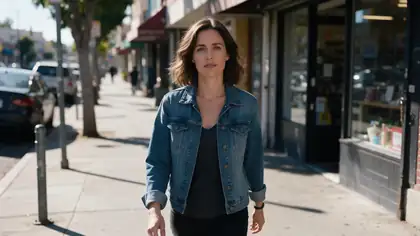
The same 5-second Wan 3 clip, edited three ways. Switch between them — the walk and the camera move stay identical.
- Original. Wan 3 image to video, 5 s, 720p.
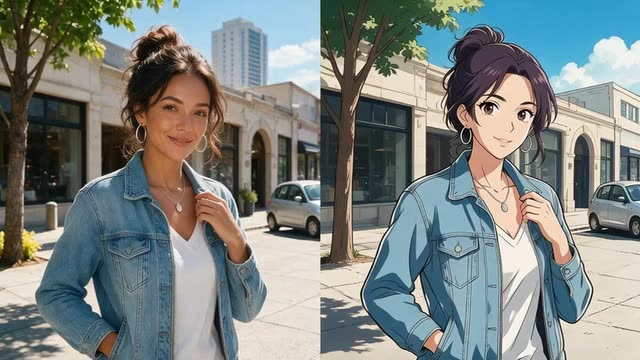
- Anime. Turn the whole video into a hand-drawn 2D anime style with bold outlines and soft cel shading
- Winter night. Change the season to a snowy winter evening: snow falling, snow on the sidewalk, warm shop lights, she wears a wool coat
- Claymation. Restyle the video as claymation with plasticine textures and stop-motion charm
Wan 3 video edit, unedited outputs. The original clip's audio is kept.
Edit your clipReal demo
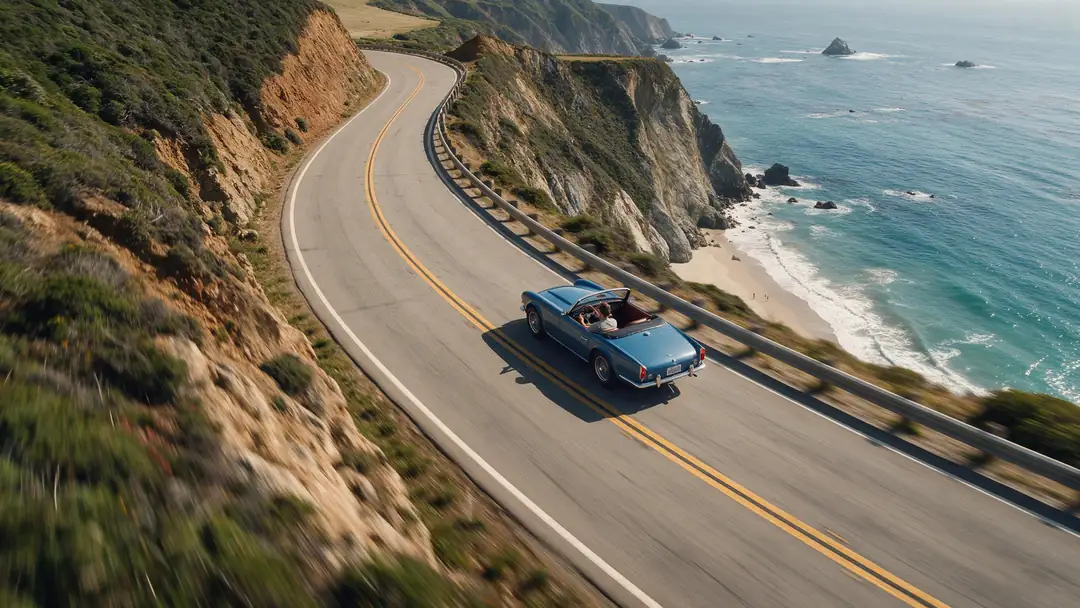
Day to night
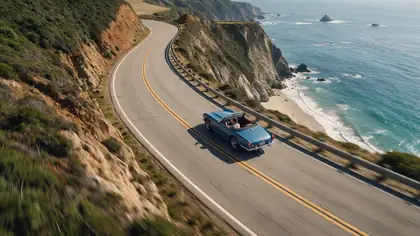
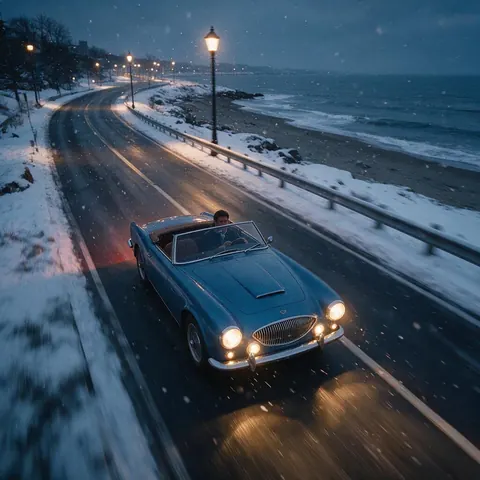
Drag the handle: same drive, new time of day.
- Night. Change it to night: moonlight on the ocean, the car's headlights on, stars in the sky
Wan 3 video edit on a 5-second, 720p Wan 3 clip.
Real demo
More restyles
Watercolour, neon and a 1980s film look on three other clips.
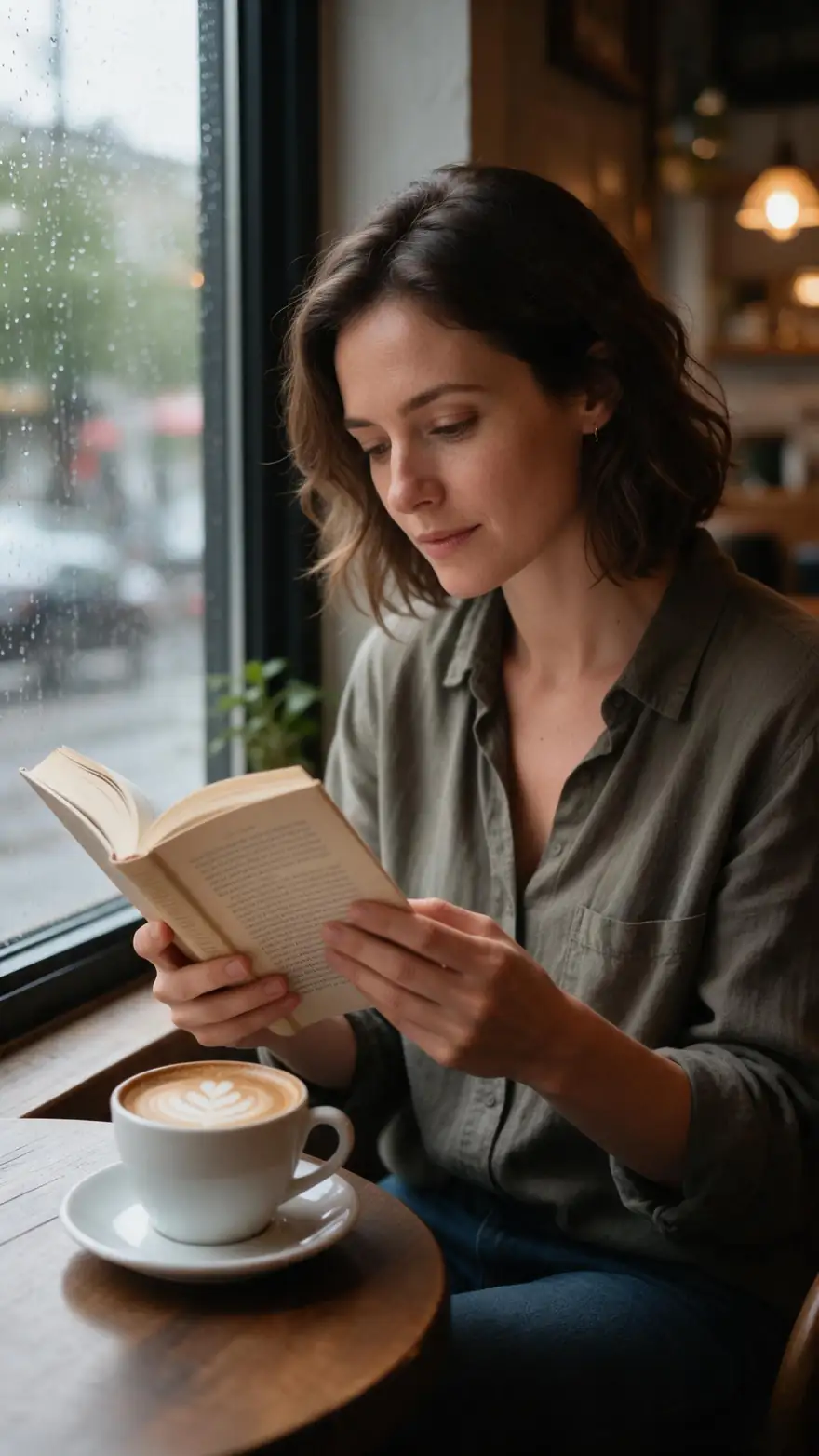
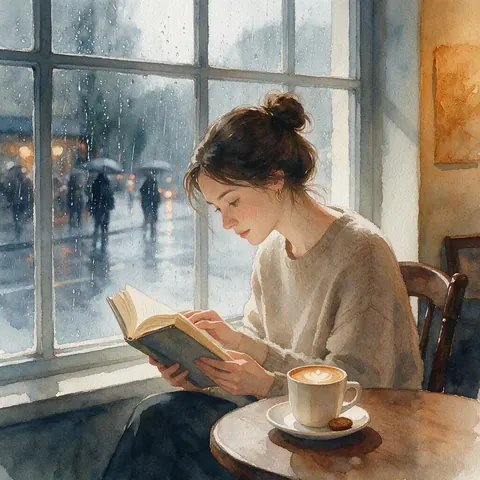
- Watercolour. Restyle the video as a soft watercolour painting with visible paper texture
Wan 3 video edit, unedited output.
Real results
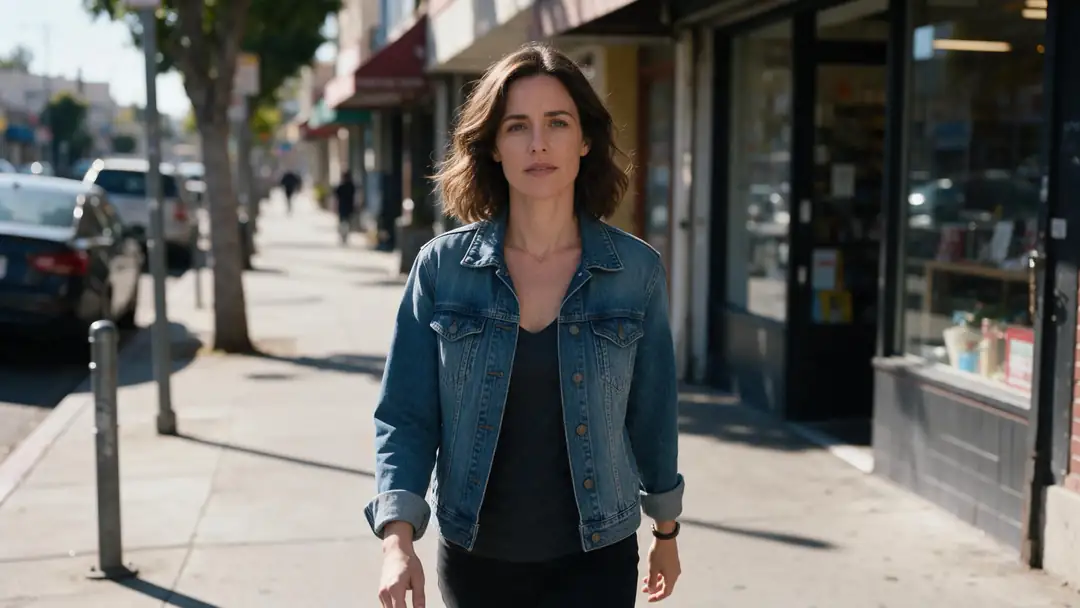
The source clips
Five Wan 3 clips (5 s, 720p, with sound) we used as inputs. Each one was then edited with a single sentence.
Source clips: Wan 3 image to video. The edits are in the demos above.
How to
How to use Kenerate Video to Video AI
- Time needed
- Steps
- 4 steps
Step 1
Open the video studio
Choose Video edit and a model: Wan 3, Seedance 2.5, Gemini Omni, Grok or Wan 2.7.
Step 2
Add your clip
Upload a video, or pick one you made in the studio.
Step 3
Describe the change
One sentence: 'turn it into claymation', 'make it a snowy night'.
Step 4
Keep or replace the sound
On Wan 3, audio off keeps the clip's own sound.
See it in the app

Open Restyle Video and upload a clip, or pick one from your history, library or a link.


Watch the tour · 1:19
Text, image & reference to video, models, edit, extend & chat
Chapters
Engines
Models that edit video
From the studio's own model list — every model with a video-edit mode.
- Used here
Alibaba
Wan 3 / Wan 3 Prime
- Input
- Your clip + prompt (+ 10 images, 5 audio)
- Output
- Edited clip · up to 1080p
Open Wan 3 / Wan 3 PrimeBest for
Restyles and scene changes, keeping the motion
ByteDance
Seedance 2.5
- Input
- Your clip + prompt (+ references)
- Output
- Edited clip · up to 4K
Open Seedance 2.5Best for
High-resolution edits
ByteDance
Seedance 2.0 / Fast / Mini
- Input
- Your clip + prompt
- Output
- Edited clip · up to 4K
Open Seedance 2.0 / Fast / MiniBest for
Faster Seedance edits
Alibaba
Wan 2.7
- Input
- Your clip + prompt (+ 5 references)
- Output
- Edited clip · 720p or 1080p
Open Wan 2.7Best for
Everyday edits
Google
Gemini Omni Flash / 1.1 Flash
- Input
- Your clip + prompt
- Output
- Edited clip · up to 4K (1.1)
Open Gemini Omni Flash / 1.1 FlashBest for
Quick instruction edits
xAI
Grok Imagine
- Input
- Your clip + prompt
- Output
- Edited clip · 480p or 720p
Open Grok ImagineBest for
Fun, fast edits
All models (7)
Kenerate AI
Kenerate Video
- Input
- Your clip + prompt
- Output
- Edited clip · 720p or 1080p
Open Kenerate VideoBest for
Kenerate's own edit model
The demos above use Wan 3.
Tips
Edits that hold together
What worked in our tests.
Say what changes and what stays: 'same walk, winter evening'.
Whole-frame restyles (anime, clay) are the most reliable.
Scene changes work best when the layout stays the same.
Add a reference image on Wan 3 for an exact look or outfit.
Keep audio off on Wan 3 to keep the original sound.
Only edit clips you have the rights to; real people need their permission.
Example uses
How creators use video to video AI
Illustrative examples of typical workflows, not customer reviews.
Music artist
An artist can turn a simple cafe clip into a soft watercolour music video with one sentence.
Ad agency
An agency can change a summer drive into a snowy winter evening while the camera move stays the same.
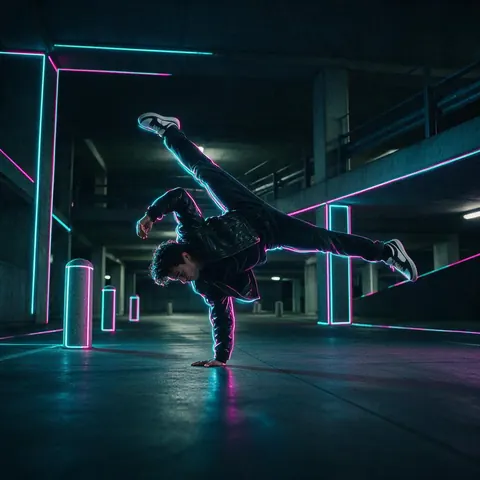
Dance creator
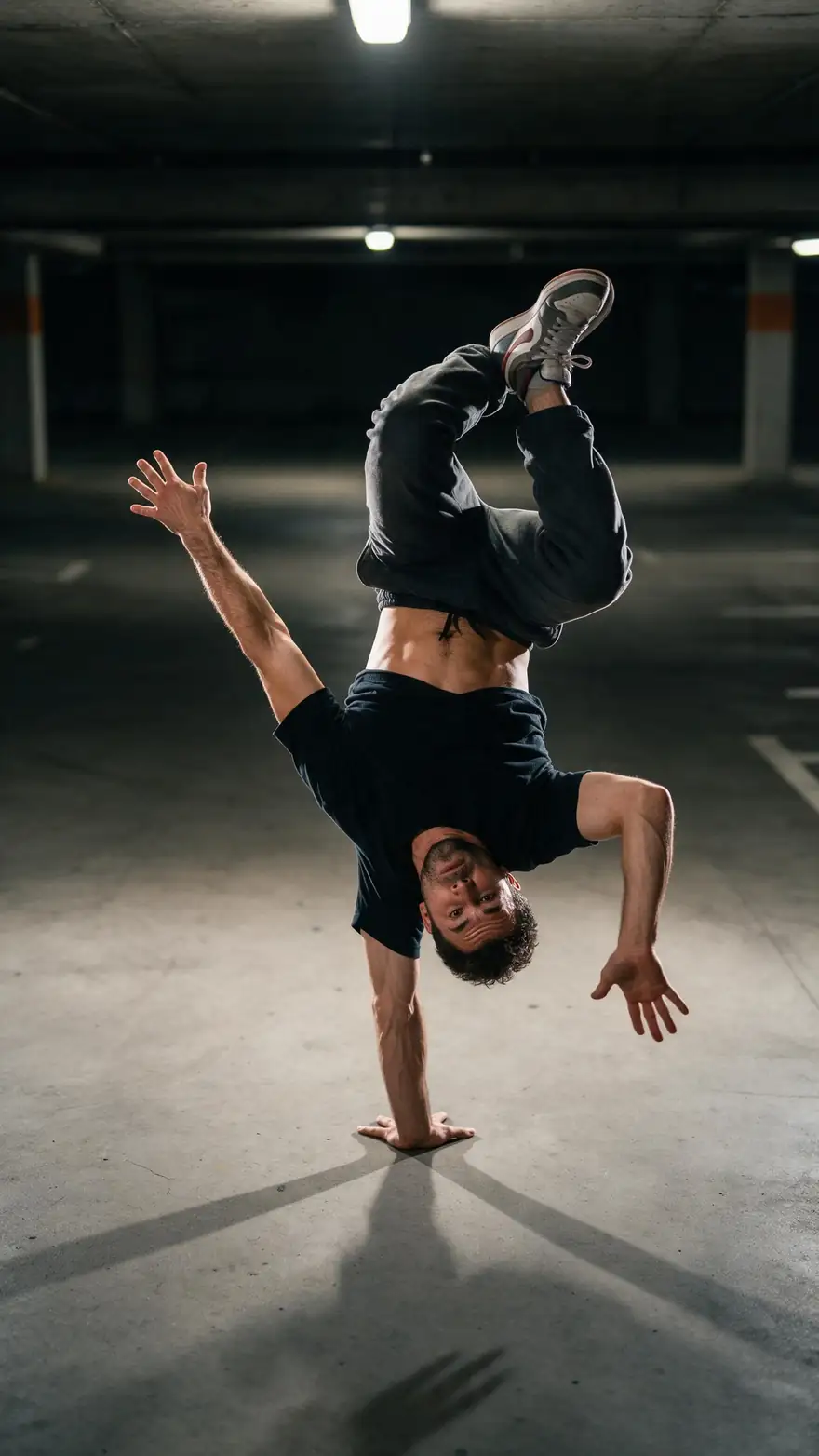
A dancer can restyle a breakdance clip as neon or clay while keeping every move.
FAQ
Video to Video AI questions
7 questions
What is video to video AI?
A model that takes your clip and a text instruction and re-renders it with the same motion but a new style, scene or details.
Link to this answerWhich models can edit video?
In Kenerate: Wan 3, Wan 3 Prime, Seedance 2.5, Seedance 2.0 (and Fast, Mini), Wan 2.7, Gemini Omni Flash and 1.1 Flash, Grok Imagine and Kenerate Video.
Link to this answerCan I turn a video into anime?
Yes — the Anime tab above is a real Wan 3 edit of a live-action clip, from one sentence.
Link to this answerDoes it keep the original audio?
On Wan 3, yes: with audio generation off, the edited clip keeps the original sound.
Link to this answerIs video to video AI free?
Not on Kenerate: video edit runs on the video models, which need a credit pack. The free sign-up credits work on image models, so you can make a reference image for an outfit or a look before you edit the clip.
Link to this answerHow does video to video AI work?
The model reads your clip frame by frame — the poses, the layout, the camera move — and regenerates only the appearance your sentence asks for. A walk or a spin stays in place while the style, season or outfit changes, which is why whole-frame restyles like anime or claymation are the most reliable edits.
Link to this answerCan I edit a video of a real person?
Only with their permission, and never to make misleading or sexual content of them.
Link to this answerIn depth
Video to Video AI, explained
Restyle, re-scene, re-detail
Video edits fall into three kinds. Restyles change the whole look — anime, claymation, watercolour — and are the most reliable. Scene changes swap the season, weather or time of day while keeping the layout. Detail changes swap an outfit or an object, and work best with a reference image.
Why the motion survives
The edit model reads the motion from your clip frame by frame and only regenerates appearance, so walks, spins and camera moves stay where they were. That's what separates video to video from making a new clip from text.
Explore
Every Kenerate video tool
Generators, tools, models and guides — all in one studio.