



Skip to content
AI glare remover · 25 free credits

Remove glare from a photo — glasses, glass and flash

Reflections on eyeglasses, window glare over a framed picture, your room reflected in a window, a flash hotspot on a page. Describe it in one sentence and Kenerate removes it, leaving the rest of the photo alone.

  • One-sentence fix
  • Glasses, frames & windows
  • Rest of the photo unchanged
  • No watermark
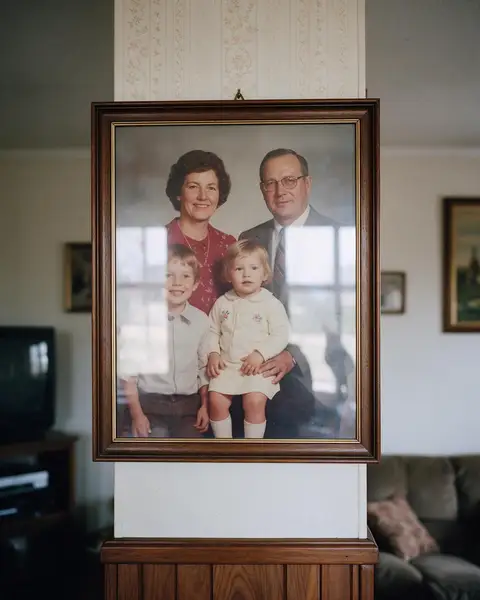
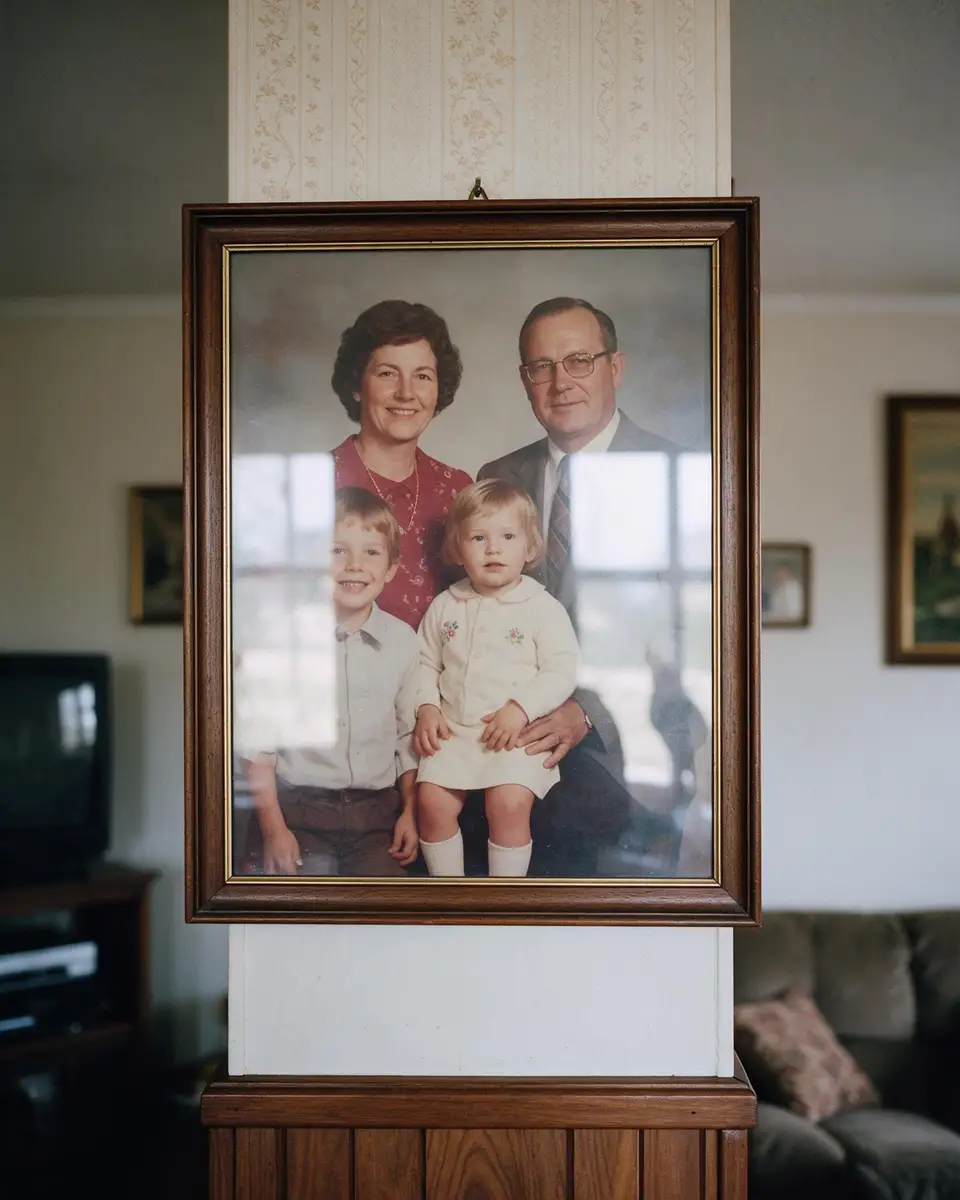
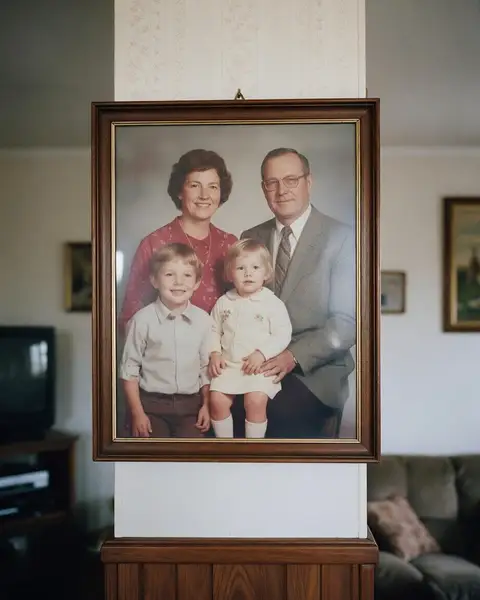
Framed family photo on a wall with window glare across the glass — original photo
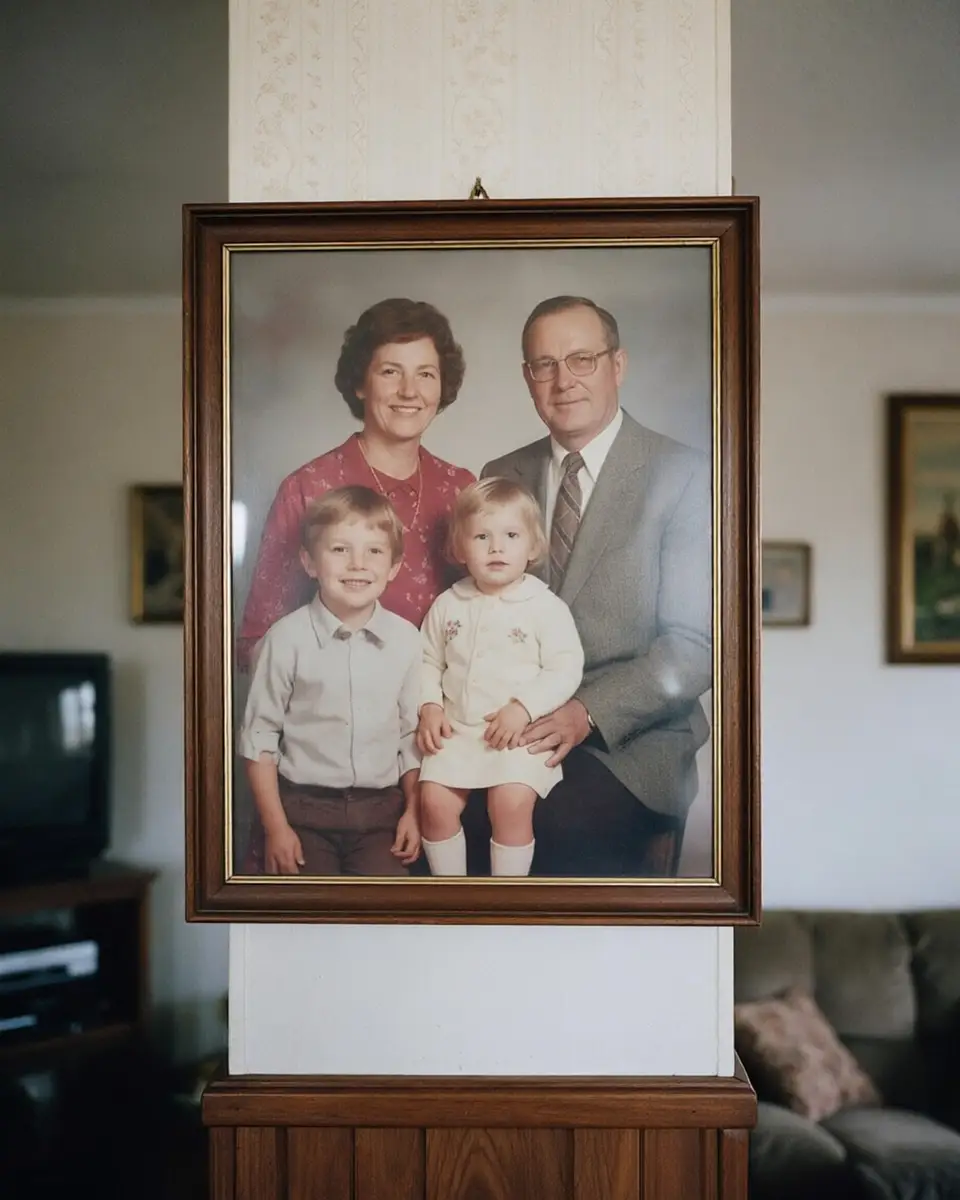
Framed family photo on a wall with window glare across the glass — after the fix
BEFOREAFTER

AI Edit · Glass on a frame

Try this photo
  • Kenerate Cutout
  • Cutout HD · hair & glass
  • Object Pick · keep what you name
  • Magic Eraser
  • AI Edit · Qwen Image 2.0
  • Edit Text in Image · GPT Image 2
  • White, black & colour backdrops

Quick answer

Updated

To remove glare from a photo, open it in Kenerate's Edit Studio, choose AI Edit and describe the glare — “remove the window glare from the glass of the frame, keep everything else the same”. It works on glasses, framed pictures, windows and flash hotspots, and new accounts get 25 free credits. Glare that has completely hidden text can't be read back — the AI fills it in.

AI Edit
Qwen Image 2.0, one-sentence fix
Magic Eraser
Paint over small spots
Fixes
Glasses, framed glass, windows, flash
Free to start
25 credits on sign-up

Real results

See it on real photos

Every slider is a real Kenerate result. Drag to compare, then run the same photo yourself.

  1. Framed family photo on a wall with window glare across the glass — before
    Framed family photo on a wall with window glare across the glass — after
    BeforeAfter

    01Glare

    Reflections off framed glass

    Window glare removed so the photo behind the glass shows through.

    AI Edit

    Fix this photo
  2. Man in eyeglasses with white glare on the lenses — before
    Man in eyeglasses with white glare on the lenses — after
    BeforeAfter

    02Glare

    Glare off the glasses

    Window reflections removed from lenses so the eyes are visible.

    AI Edit

    Fix this photo
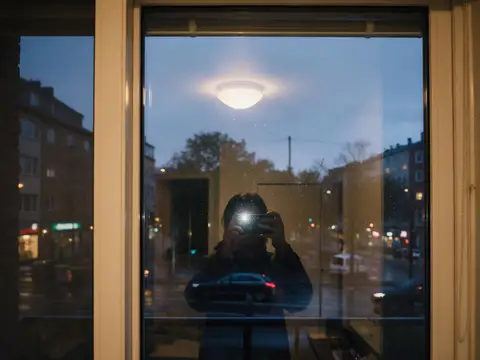
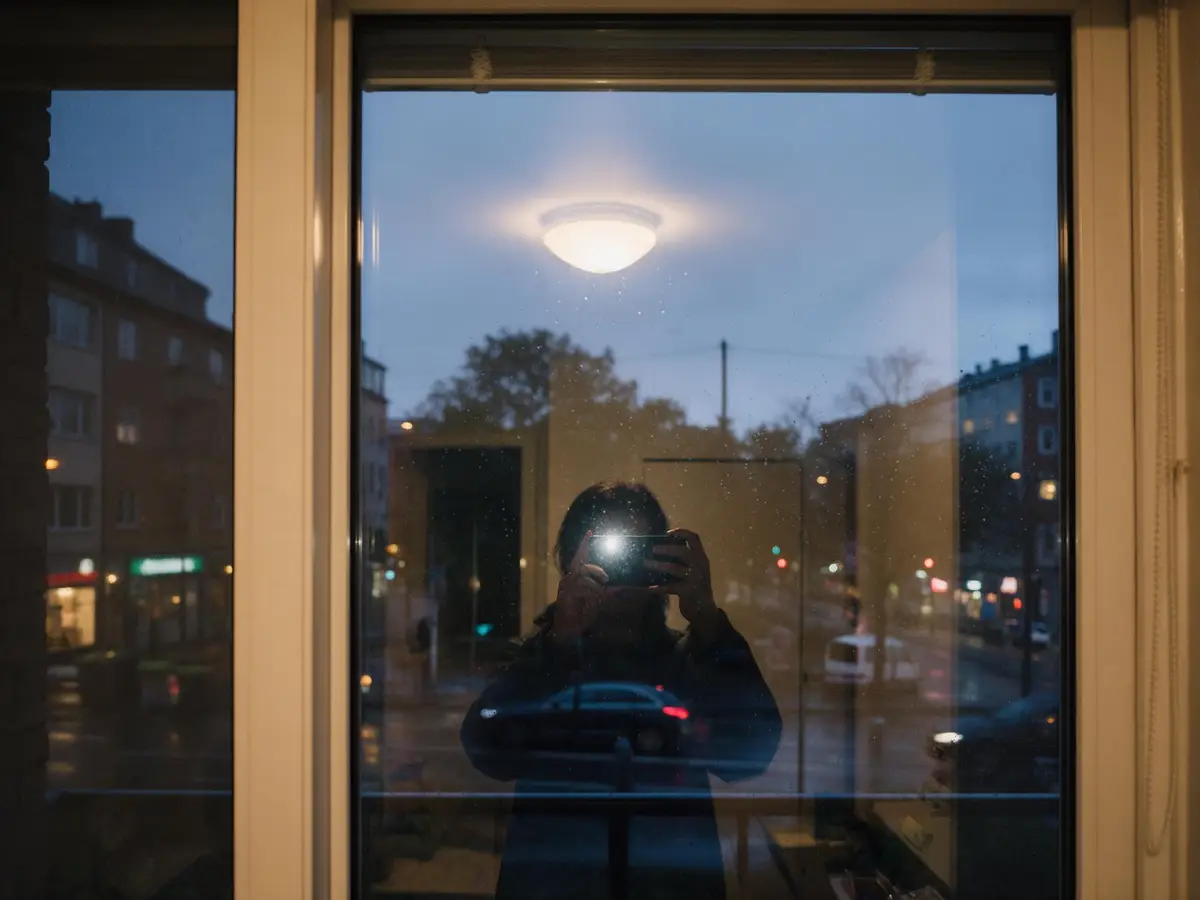
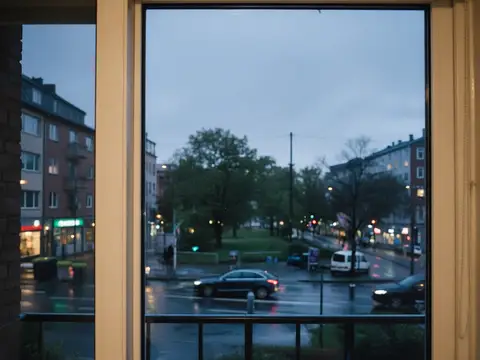
  3. Rainy city street photographed through a window with a lamp and a person reflected in the glass — before
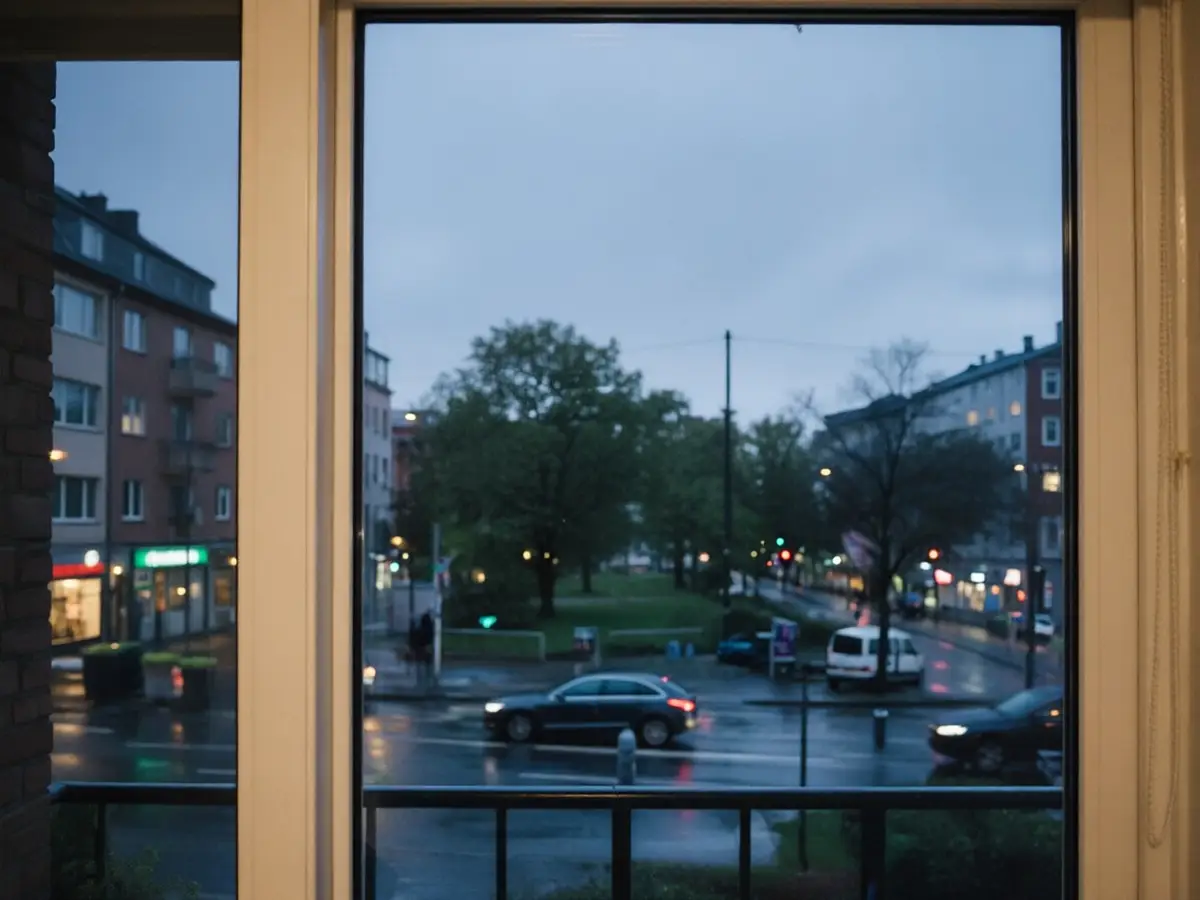
    Rainy city street photographed through a window with a lamp and a person reflected in the glass — after
    BeforeAfter

    03Reflections

    Shoot through the window

    The room lamp and your reflection removed — only the street remains.

    AI Edit

    Fix this photo
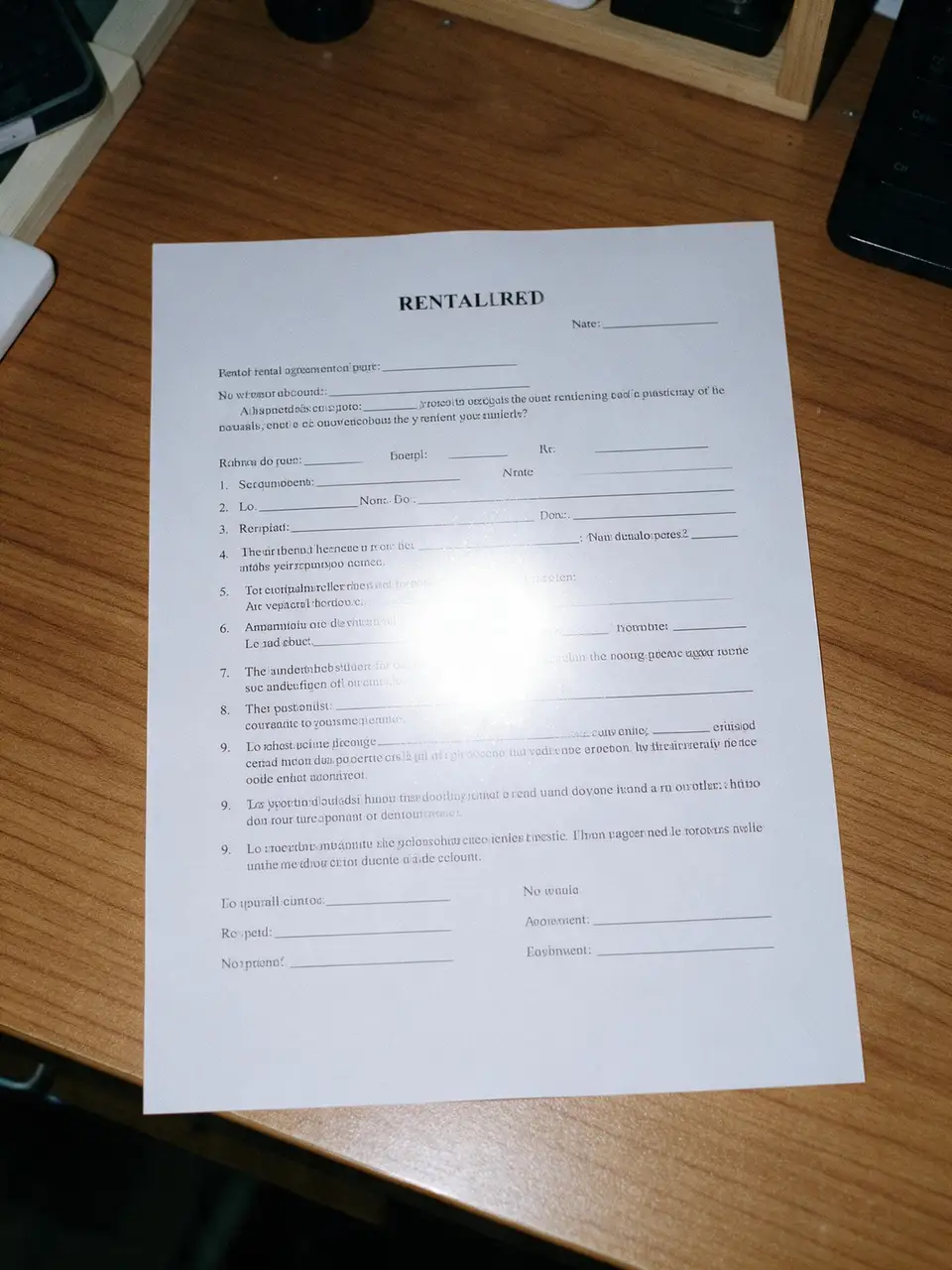
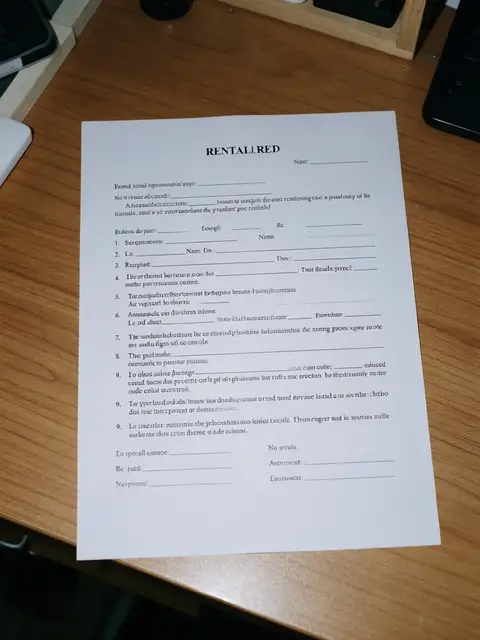
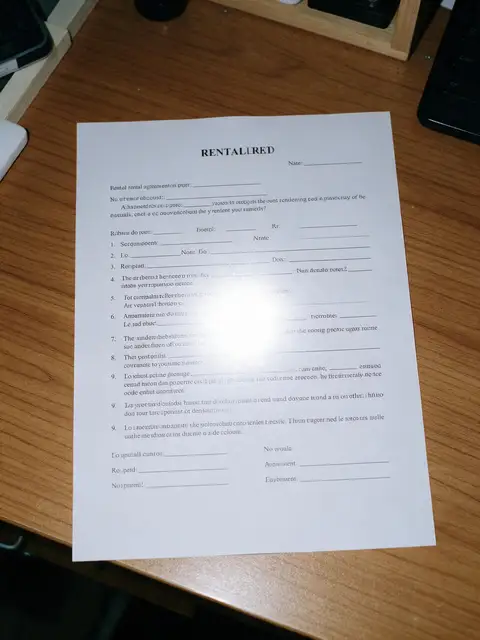
  4. Printed rental agreement on a desk with a bright camera-flash hotspot over the text — before
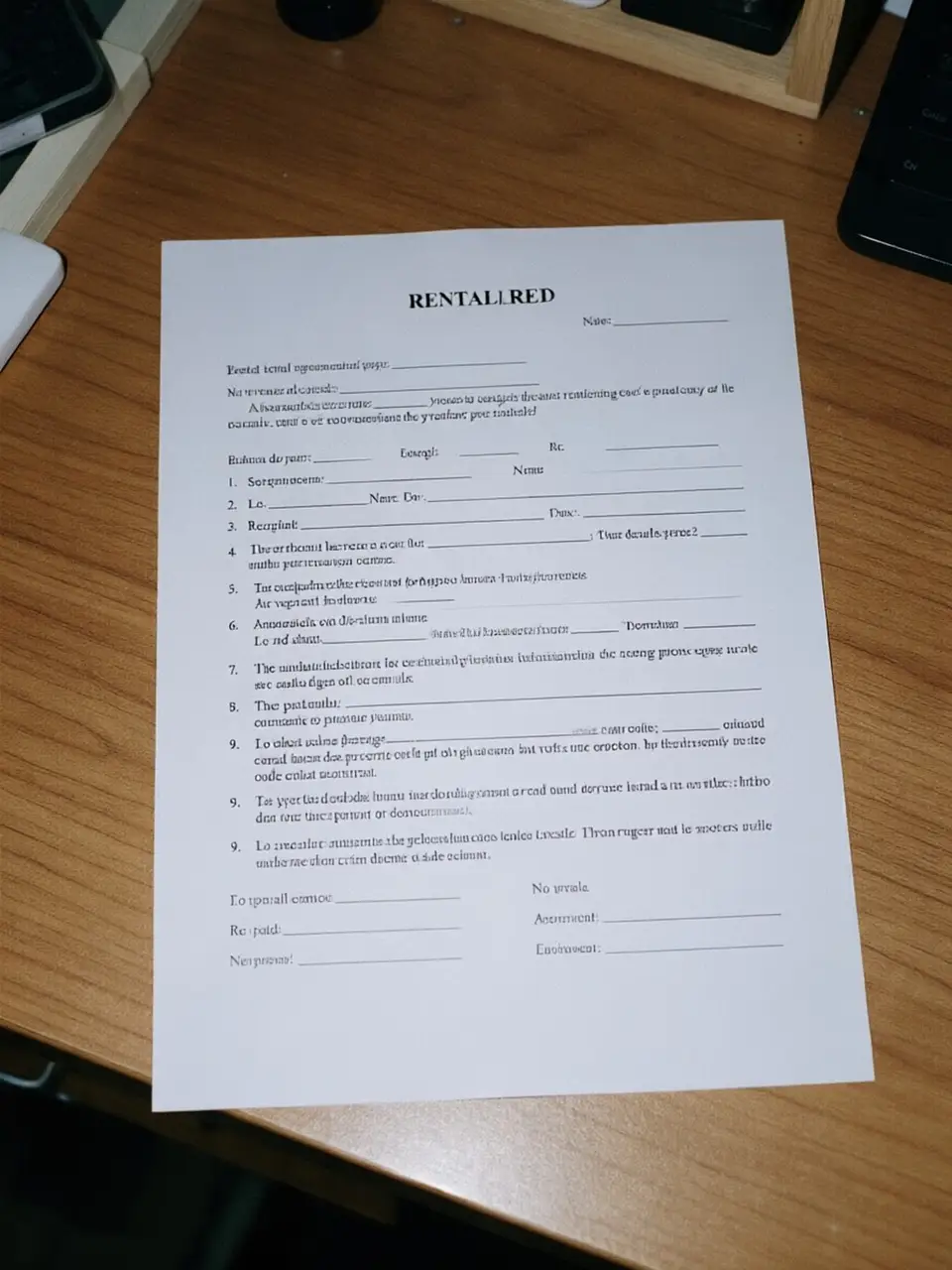
    Printed rental agreement on a desk with a bright camera-flash hotspot over the text — after
    BeforeAfter

    04Glare

    Flash hotspot, gone

    A flash glare removed from a document photo — check any text beneath it.

    AI Edit

    Fix this photo

Real results

What kinds of glare can AI remove?

Each “after” is a real Kenerate AI Edit result. Tap “Original” to see the photo that went in.

Try it free
  • Framed family photo on a wall with window glare across the glass — fixed with AI EditAI Edit

    Glass on a frame

  • Rainy city street photographed through a window with a lamp and a person reflected in the glass — fixed with AI EditAI Edit

    Window reflection

  • Man in eyeglasses with white glare on the lenses — fixed with AI EditAI Edit

    Glasses glare

  • Printed rental agreement on a desk with a bright camera-flash hotspot over the text — fixed with AI EditAI Edit

    Flash on a document

Step by step

How to remove glare from a photo

  1. Step 1: Open the photo in Edit Studio

    Upload the photo with the glare or reflection to Kenerate's Edit Studio (JPG, PNG or WEBP).
  2. Step 2: Describe the glare with AI Edit

    Choose AI Edit and say what to remove and what to keep — “Remove the window glare from the glass of the picture frame. Keep the frame and the photo exactly the same.”

    Edit StudioAIAI Edit

    Tip: End every prompt with “Keep everything else exactly the same.”

  3. Step 3: Or paint over a small hotspot

    For one small bright spot, choose Magic Eraser and paint over it.

    Edit StudioAIMagic Eraser

  4. Step 4: Check and download

    Compare with the original — especially any text that was under the glare — then download.
Rainy city street photographed through a window with a lamp and a person reflected in the glass — original photo
Rainy city street photographed through a window with a lamp and a person reflected in the glass — after the fix
BEFOREAFTER

The lamp and the person reflected in the window are gone; the street outside is untouched.

Copy these

Prompts that remove glare without changing the photo

Say what the glare is, where it is, and always end with what must stay the same.

  • Glasses glare“Remove the white glare reflections from the eyeglass lenses so both eyes are clearly visible behind clean glass. Keep the face, frames and everything else exactly the same.”
  • Framed photo or artwork“Remove the window reflection and glare from the glass of the picture frame so the picture inside is clearly visible. Keep the frame, wall and picture exactly the same.”
  • Shooting through a window“Remove all reflections on the window glass so only the scene outside is visible. Keep the outside scene exactly the same.”
  • Flash on a document“Remove the bright flash glare hotspot from the page so the paper is evenly lit. Keep all visible text exactly the same.”
  • Shine on a product“Reduce the harsh glare hotspot on the glossy packaging to a soft, even highlight. Keep the label and the product exactly the same.”

Glasses

Remove glare from glasses

Window and screen reflections on lenses hide the eyes. One AI Edit prompt clears them and keeps the frames.

  • Reflections removed from both lenses
  • Eyes visible behind clean glass
  • Frames, face and background unchanged

Move your pointer over the image to zoom into the edge.

Man in eyeglasses with white glare on the lenses — fixed with AI Edit.

Got a photo with glare on it? Fix it now — 25 free credits on sign-up.

Without Kenerate

How to remove reflections in Lightroom or Camera Raw

Adobe added AI reflection removal for photos taken through glass.

  1. Step 1: Open the photo in Lightroom or Camera Raw

    Reflection removal is in Lightroom, Lightroom Classic and Adobe Camera Raw.
  2. Step 2: Apply Reflections removal

    Open Remove → Distraction Removal → Reflections and click Apply. It detects reflections on glass automatically.

    RemoveDistraction RemovalReflections

  3. Step 3: Adjust and export

    Use the amount slider to remove more or less, pick the quality (Preview, Standard or Best), then export.

Be careful

Can AI read text hidden under glare?

No. When a flash hotspot has turned part of a page pure white, there is nothing left to recover. The AI removes the hotspot and fills the area with plausible lines — it looks right but is not the original text. In our document example, the lines under the hotspot were re-created, not restored.

For contracts, receipts and forms, re-shoot without the flash at a slight angle. Use the AI fix for photos where looks matter, not for records.

Printed rental agreement on a desk with a bright camera-flash hotspot over the text — original photo
Printed rental agreement on a desk with a bright camera-flash hotspot over the text — after the fix
BEFOREAFTER

What it fixes

Glare and reflections it handles

  • Glasses

    Window, lamp and screen reflections on lenses.

  • Framed pictures & art

    Window glare across the glass of a frame.

  • Photos through windows

    The room, lights and you reflected in the glass.

  • Flash on paper

    Hotspots on documents, menus and book pages (check the text).

  • Glossy products

    Harsh shine on packaging, bottles and phones.

  • Screens

    Reflections on TVs, monitors and phone screens in a photo.

Methods compared

AI Edit vs Lightroom Reflections vs a healing brush

Three ways to get rid of glare.

  • Kenerate AI Editdescribe it

    Glasses glare
    Yes
    Window reflections
    Yes
    Flash hotspot
    Yes
    Skill needed
    Write one sentence
  • Lightroom / Camera RawReflections

    Glasses glare
    Built for glass/windows
    Window reflections
    Yes
    Flash hotspot
    No
    Skill needed
    One click
  • Healing brushPhotoshop, GIMP

    Glasses glare
    Slow, by hand
    Window reflections
    Very hard
    Flash hotspot
    Small spots only
    Skill needed
    High

Next time

How to avoid glare when taking photos

  • Turn off the flash for glass, glossy paper and screens.
  • Shoot at an angle. Glare bounces straight back — step a little to the side of a framed picture or window.
  • Move the light, not the subject. Close a curtain or switch off the lamp that is reflecting.
  • Lean in to the window. Put the lens close to the glass (or a dark cloth around it) to block room reflections.
  • Use a circular polarising filter for glass and water.
  • For glasses, tilt them. Lowering the arms slightly angles reflections away from the camera.

Use cases

Who removes glare

Common jobs, with the real before and after.

  • Family archivist

    Framed photos

    Some prints are glued into frames and can't be scanned. A phone photo plus one AI Edit prompt removes the window glare from the glass.

    AI Edit

  • Travel blogger

    Hotel views

    The best view is always through a window at night — with the room lamp reflected in it. AI Edit removes the reflection and keeps the city.

    AI Edit

  • Job seeker

    Profile photo

    A good headshot with glare on the glasses. The reflections are removed so the eyes are visible for LinkedIn.

    AI Edit

Example workflows built on real Kenerate outputs — not customer reviews.

In depth

What glare is — and how it's removed

Why reflections are hard to separate from a photo, and the ideas AI uses to fill them in — with sources.

Glare adds light on top of the scene

A reflection or flash hotspot adds light over what's behind it. Where it is faint, the scene is still there and can be recovered; where it saturates to pure white, the detail underneath was never recorded. Researchers showed as far back as 1999 that glass which reflects or bends light can't be described by a simple transparency value [1].

Filling in what glare hid

For blown-out areas the tool must inpaint: patch-based methods such as PatchMatch copy texture from nearby [2], and modern networks such as LaMa use the whole image as context [3]. That is why text under a white hotspot comes back as plausible lines rather than the original words.

Prevention beats repair

Because glare can destroy detail, the best fix is at capture: flash off, shoot at an angle to the glass, and block reflections — then use AI for what's left.

Start free

Start free, top up only when you need to

25 free credits on sign-up. The same credits work in every Kenerate tool.

  • 25 free credits on sign-up

    Test on your own images before you buy anything.

  • Credits never expire

    One-time packs — use them this week or next year.

  • No subscription, no watermark

    Nothing to cancel. Free results download clean.

  • One balance, every tool

    The same credits work across images, video, voice and 3D.

Tried it? Tell us how it went

We only publish real, verified reviews — never invented quotes. Send a line about your result (and whether we may quote you), and it will appear here.

Send a review

FAQ

Glare removal questions

7 questions

Still stuck?

A real person answers — usually within a day.

01

How do I remove glare from a photo?

Open the photo in Kenerate's Edit Studio, choose AI Edit and describe the glare — “remove the window glare from the glass, keep everything else the same”. New accounts get 25 free credits. For one small hotspot, paint over it with Magic Eraser.

02

How do I remove glare from glasses in a photo?

Use AI Edit with: “Remove the white glare reflections from the eyeglass lenses so both eyes are clearly visible. Keep the face, frames and everything else exactly the same.” The example on this page was made with exactly that prompt.

03

Can AI recover text hidden under glare?

Not reliably. If the glare has completely washed out part of a page, the AI fills that area with plausible lines — it cannot read what the camera never captured. For documents, re-shoot without flash and use the AI result only for looks.

04

How do I remove reflections in Lightroom or Photoshop?

In Lightroom, Lightroom Classic or Adobe Camera Raw, open Remove → Distraction Removal → Reflections and click Apply. It is built for reflections on windows and glass.

05

Is there a free way to remove glare?

Kenerate gives 25 free credits on sign-up to test AI Edit. GIMP's heal tool is free but works only for small spots and takes practice.

06

How do I avoid glare when taking photos?

Turn off the flash, shoot at an angle to the glass instead of straight on, move the light source or yourself so reflections fall outside the frame, and use a circular polarising filter for glass and water.

07

Why did the AI change more than the glare?

Vague prompts give the model room to change things. Say exactly where the glare is and end with “Keep everything else exactly the same.” Magic Eraser only changes the area you paint.

Clean edges. Every time.

Hair, fur, glass and white-on-white — cut out in seconds, with no watermark.

Cut-out modes
4
Cut-out modes
Backdrops: clear, white, black
3
Backdrops: clear, white, black
Free credits to start
25
Free credits to start
Watermarks, ever
0
Watermarks, ever

Explore the toolkit

More background and photo-fix tools

Every Kenerate tool, guide and comparison for removing and replacing backgrounds.

Written by the Kenerate AI team

Written by the Kenerate team; every example is a real result from Edit Studio's AI Edit. Last updated 26 September 2026. Corrections: hello@kenerateai.com.

Sources

Ready when you are

Remove glare from your photo

25 free credits on sign-up. No watermark.

  • 25 free credits
  • No watermark
  • Credits never expire