

Skip to content
AI image generator from image

Image to Image AI

Upload an image and describe what it should become — a sketch into a painting, a photo into anime, a pose into a character. Combine up to 16 images, with 25 free credits to start.

  • Up to 16 images
  • Strength slider
  • 25 free credits
  • No watermark

Quick answer

Updated

Kenerate's image to image AI turns an image you upload into a new one from your prompt — sketch to painting, photo to anime, pose reference to character. Use Flux 2 Dev (up to 3 images, 2048 px, free plan) for most jobs, Z Image Base when you want a strength slider, or GPT Image 2 to combine up to 16 images. A free account gets 25 credits and downloads have no watermark.

Max size
2048 px (Flux 2 Dev)
Most references
16 (GPT Image 2)
Strength slider
10–100 %
Free start
25 credits

Real edits

Image to image, before and after

Real results from Flux 2 Dev in /app/image. Drag the slider to compare.

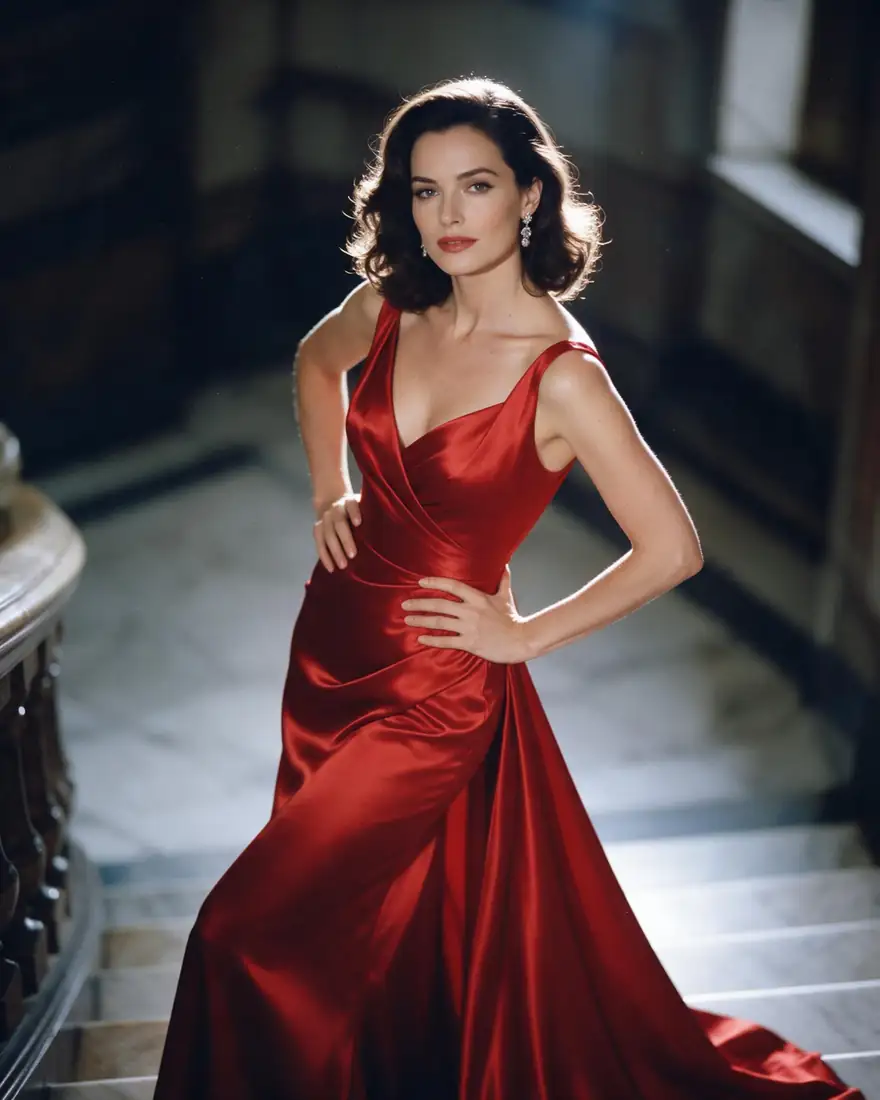
  1. Photo-style image and its anime version — before
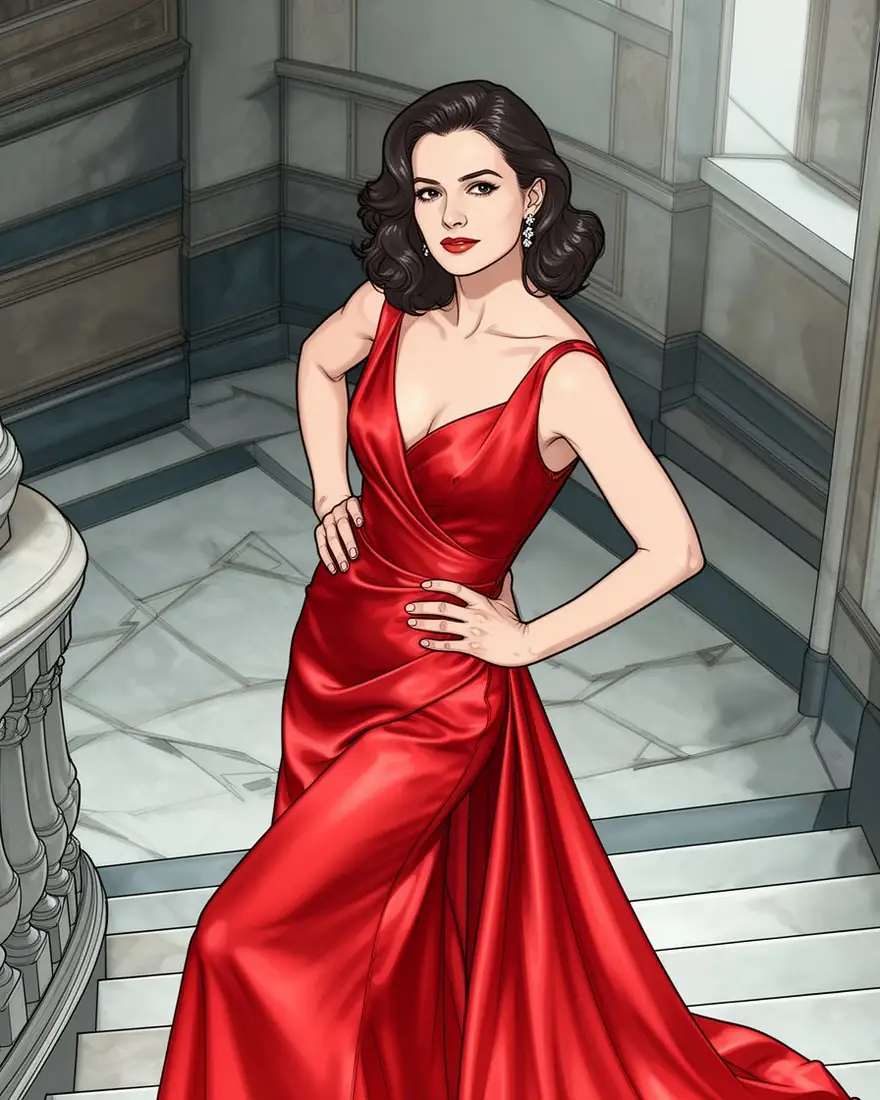
    Photo-style image and its anime version — after
    BeforeAfter

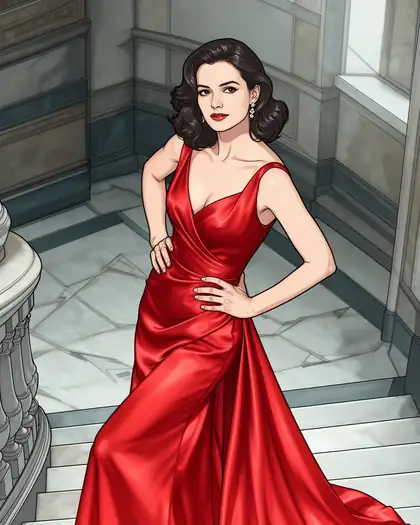
    01Photo to anime

    Turn a photo into anime

    Same woman, same dress, same staircase — only the medium changes.

    Prompt
    Turn this into a detailed anime illustration of the same woman in the same red satin gown on the staircase, cel shading

    Flux 2 Dev · 896×1120 · 1 image

    Edit a photo like this
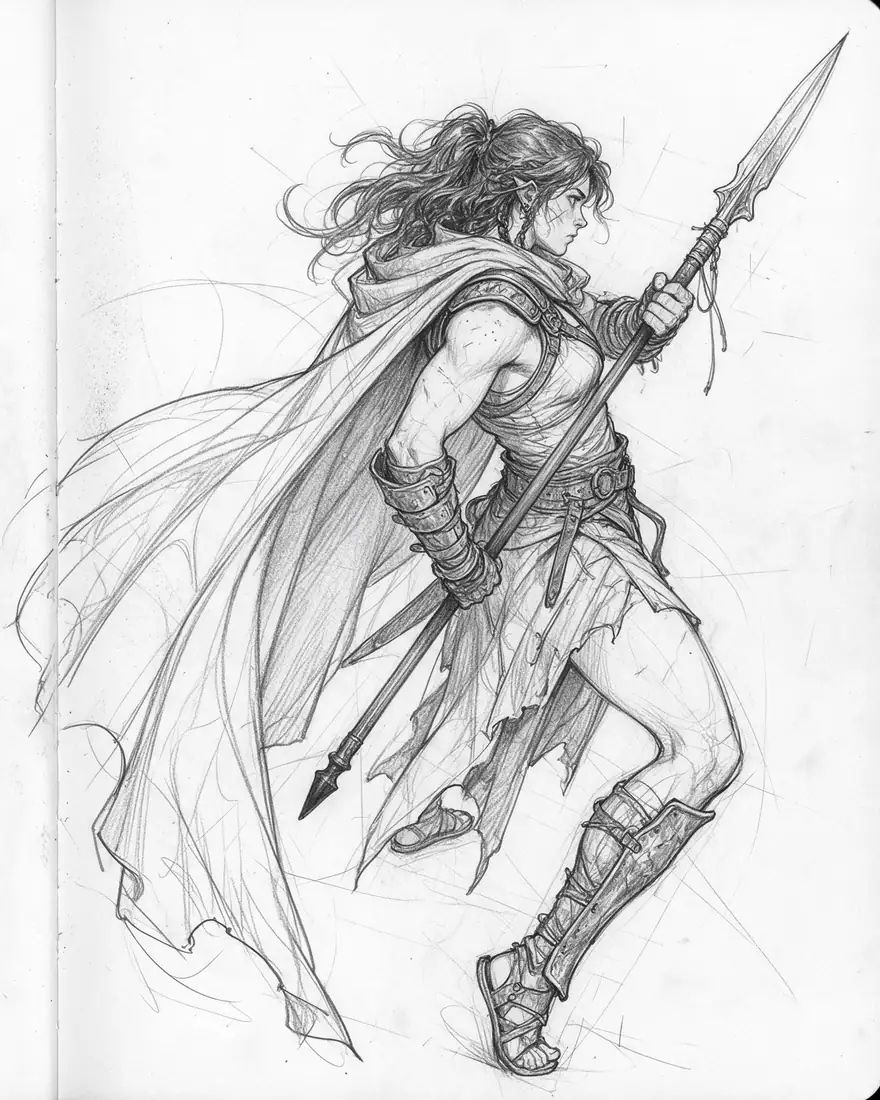
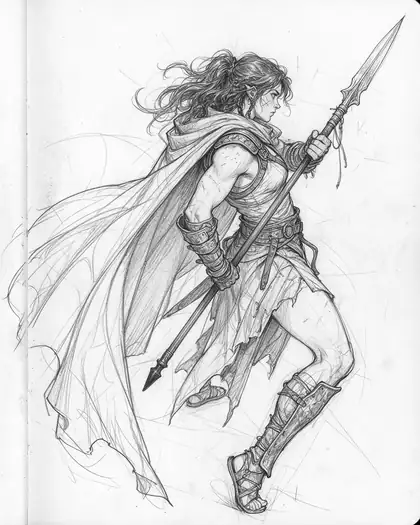
  2. Pencil sketch and the finished oil painting — before
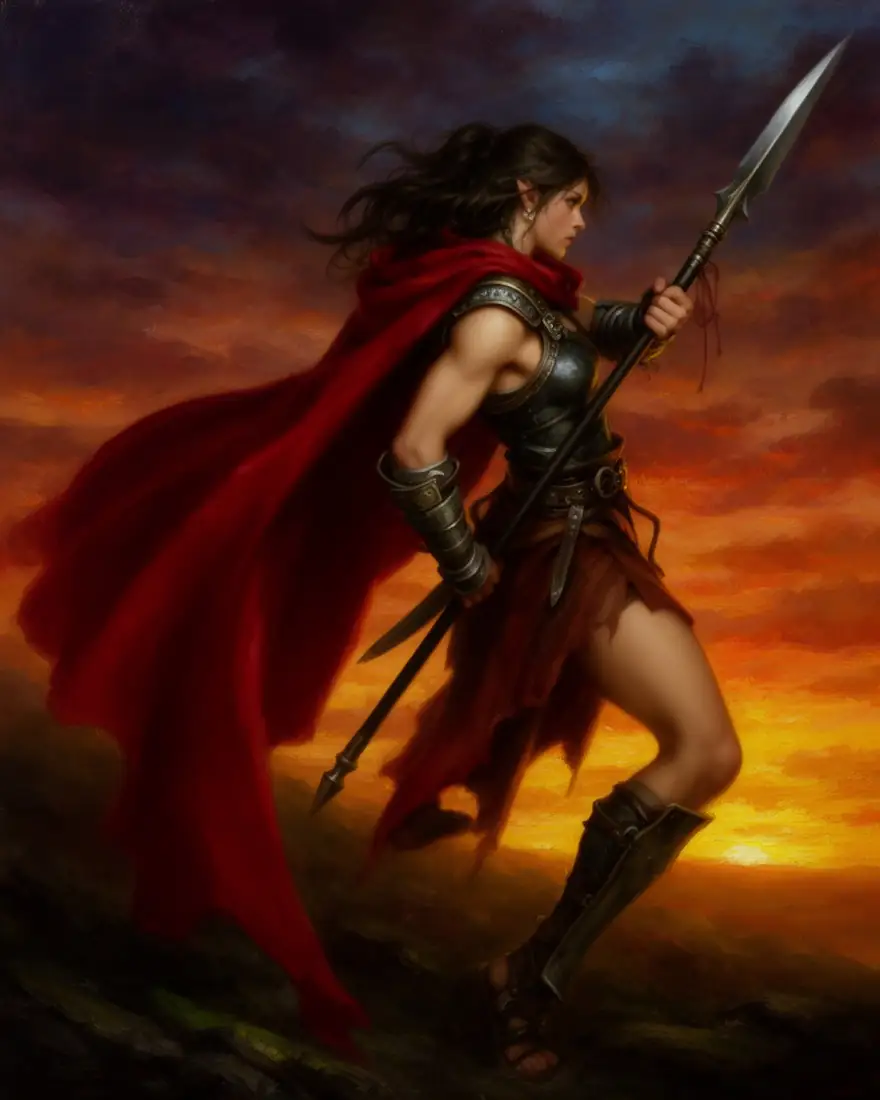
    Pencil sketch and the finished oil painting — after
    BeforeAfter

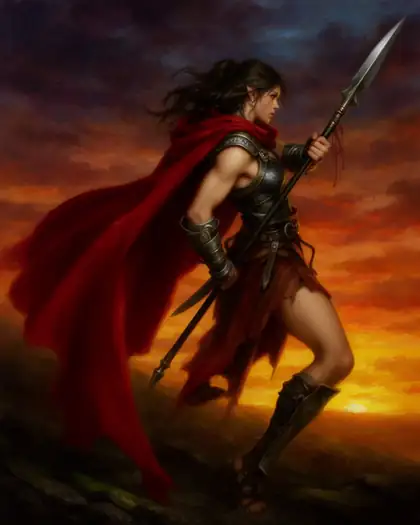
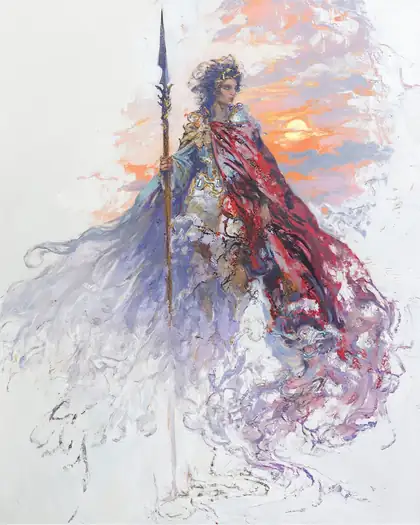
    02Sketch to painting

    Finish a pencil sketch

    Your drawing sets the pose and composition; the prompt adds colour, light and brushwork.

    Prompt
    Finished fantasy oil painting of a warrior woman holding a spear with a flowing crimson cape, dramatic sunset sky, rich colors

    Flux 2 Dev · 896×1120 · 1 image

    Edit a photo like this
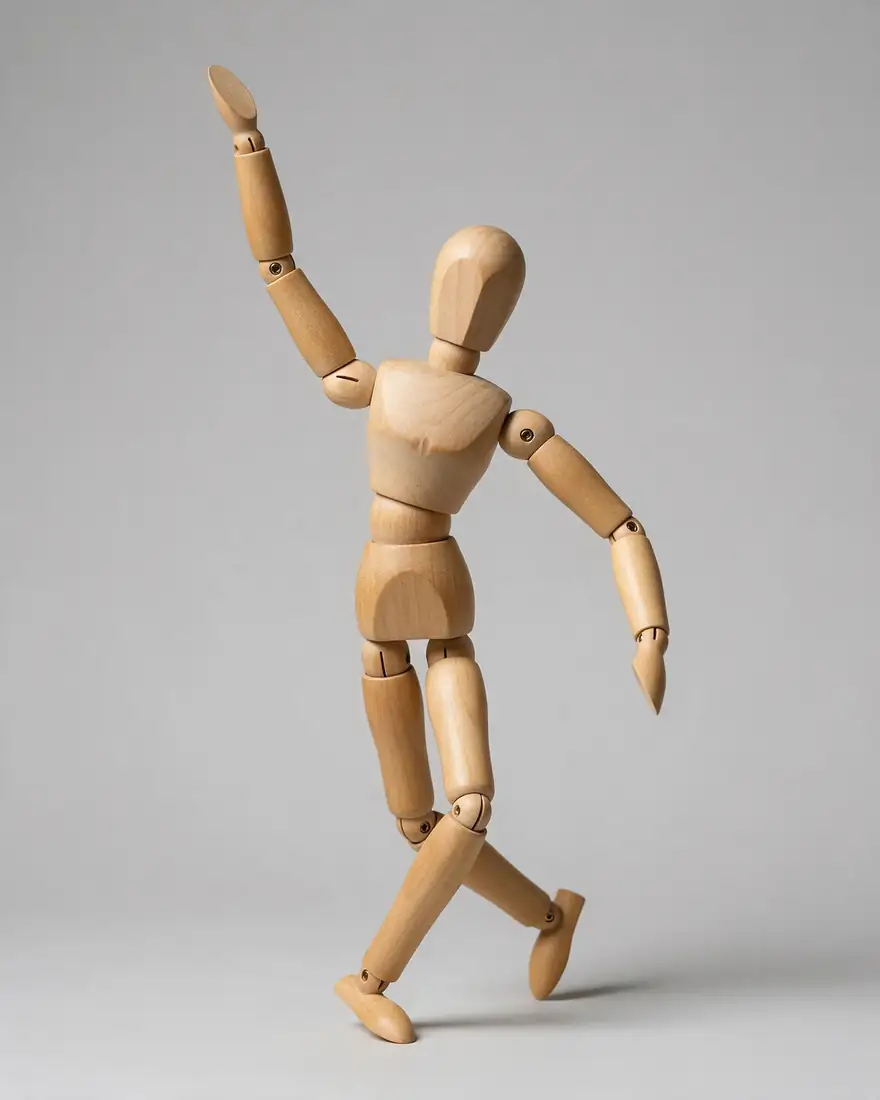
  3. Wooden mannequin and a dancer in the same pose — before
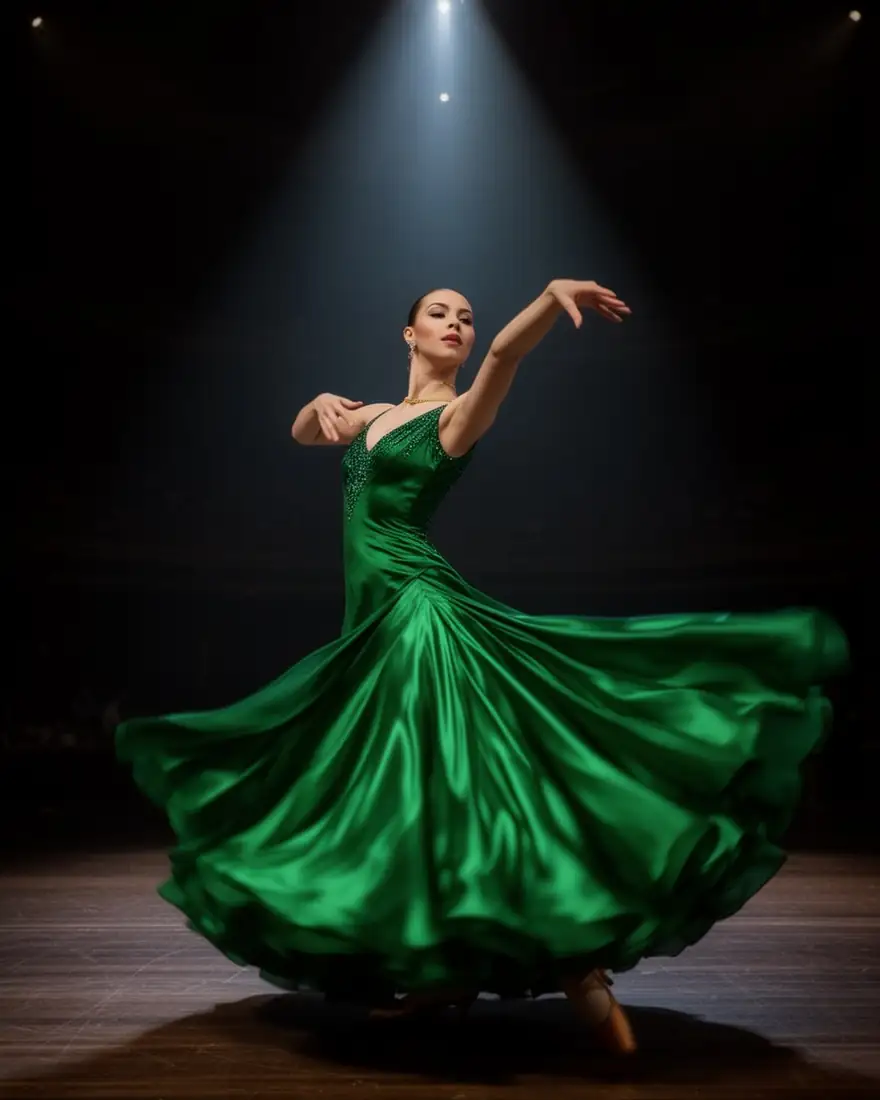
    Wooden mannequin and a dancer in the same pose — after
    BeforeAfter

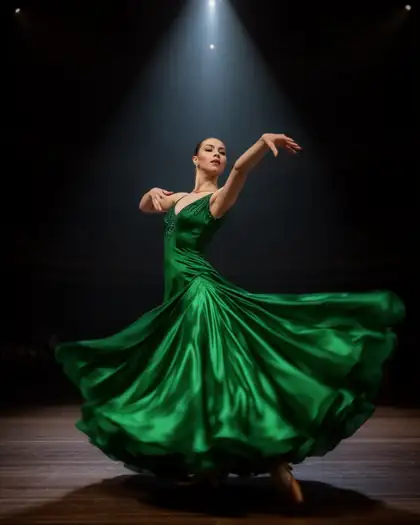
    03Pose reference

    Borrow a pose from a mannequin

    “Exactly the same pose” keeps the body; everything else comes from your words.

    Prompt
    Elegant ballroom dancer woman in a flowing emerald satin gown in exactly the same pose, stage spotlights, dark theatre, cinematic photo

    Flux 2 Dev · 896×1120 · 1 image

    Edit a photo like this
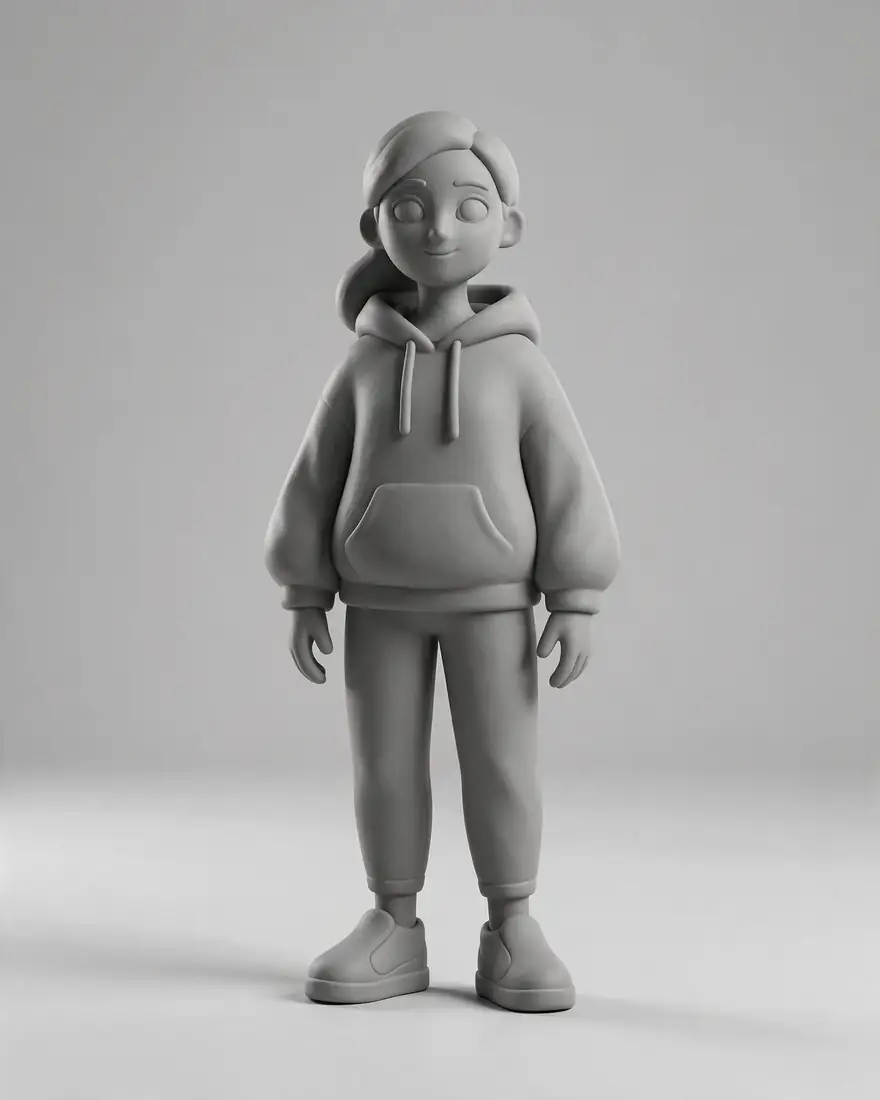
  4. Grey 3D render and the anime character made from it — before
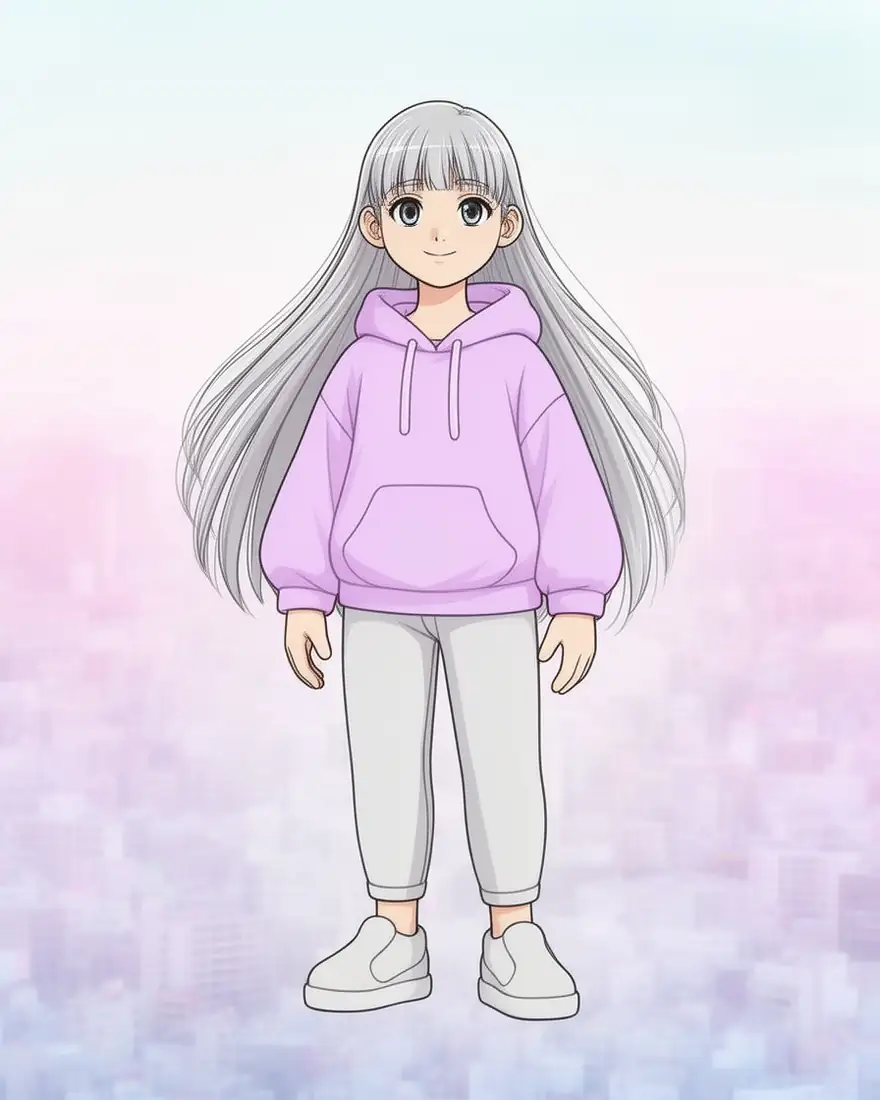
    Grey 3D render and the anime character made from it — after
    BeforeAfter

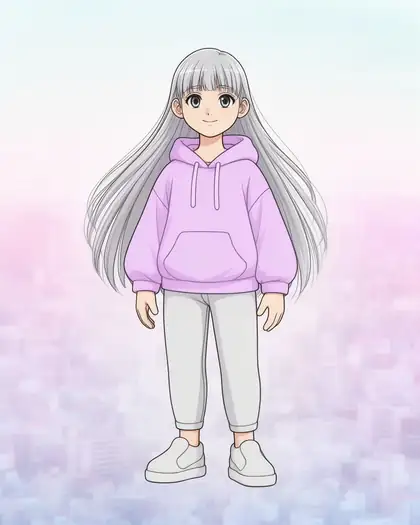
    043D to 2D

    Turn a 3D blockout into a character

    A grey render from Blender or VRoid becomes finished character art.

    Prompt
    Anime character illustration of the same girl in a lilac hoodie with long silver hair, clean cel shading, pastel city background

    Flux 2 Dev · 896×1120 · 1 image

    Edit a photo like this
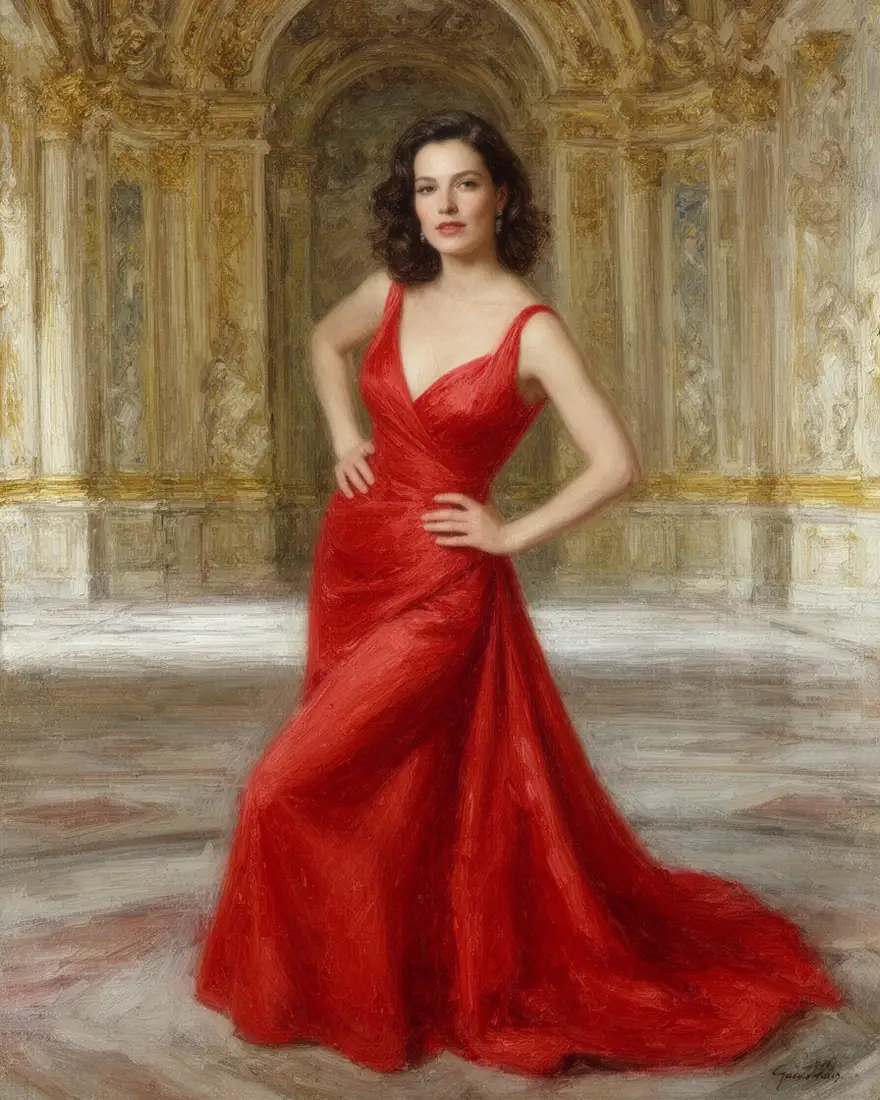
  5. Photo-style image and its oil painting version — before
    Photo-style image and its oil painting version — after
    BeforeAfter

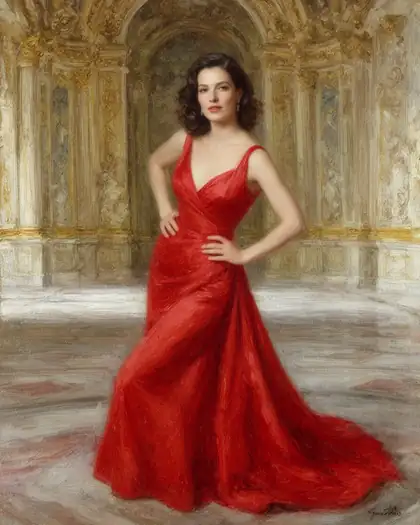
    05Photo to painting

    Or make it a classical oil painting

    One source, a different prompt: brush strokes and a baroque palace.

    Prompt
    Turn this into a classical oil painting of the same woman in the same red gown, visible brush strokes, baroque palace

    Flux 2 Dev · 896×1120 · 1 image

    Edit a photo like this

Strength

Keep more, or change more

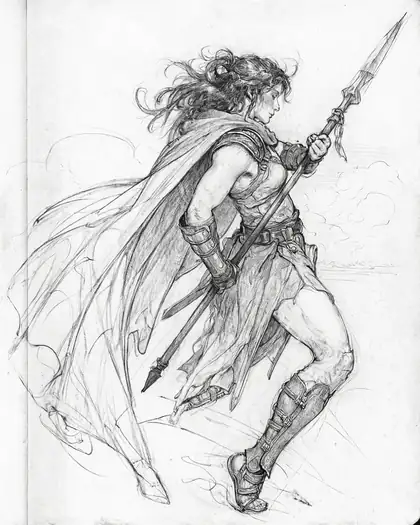
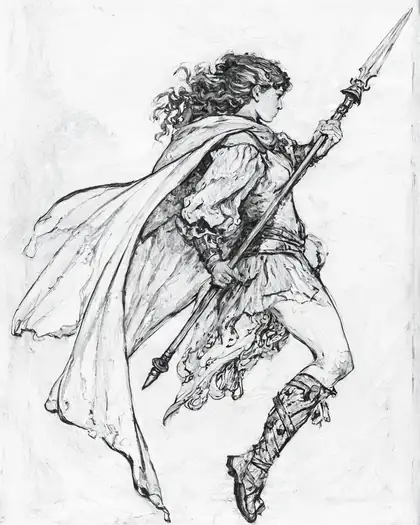
The same sketch and prompt on Z Image Base at three Reference strength settings.

  • Pencil sketch at Your image strength
    Your imagePencil sketch
  • Cleaner sketch at 35 % strength
    35 %Cleaner sketch
  • Inked drawing at 60 % strength
    60 %Inked drawing
  • Full-colour painting at 85 % strength
    85 %Full-colour painting
Prompt
Finished fantasy oil painting of a warrior woman holding a spear with a flowing crimson cape, dramatic sunset sky, rich colors

Reference models like Flux 2 Dev follow the prompt and your image rather than a noise level — they gave nearly the same painting at every setting in our test — so use Z Image Base when you want fine control.

Image to image vs editing

Make a new image, or change this one?

Two different tools. Pick by what you want to keep.

Image to image compared with image editing
Image to imageImage editing
ResultA new image based on yoursYour image with one thing changed
Good forRestyling, sketch to art, poses, combining imagesBackgrounds, outfits, objects, fixes
On Kenerate/app/image with a reference/app/edit and one-sentence edits

Need to change one detail instead? Try the AI image editor. Starting from text? Use the AI image generator.

How to

How to generate an AI image from an image

Four steps, about a minute.

  1. Step 1: Open the generator

    Go to /app/image and sign in free — 25 credits are added.
  2. Step 2: Upload your image

    Add it as a reference in the prompt box. Flux 2 Dev takes up to 3 images, Seedream 5.0 Pro 10, GPT Image 2 up to 16.
  3. Step 3: Say what to keep and what to change

    “Same pose, same composition” — then the new style, outfit, setting or light.
  4. Step 4: Adjust and download

    On Z Image Base, set Reference strength under Advanced settings: lower keeps more of your image. Downloads have no watermark.

Models

Image to image models

How many images each model takes at once, and how big it outputs.

Image to image models
ModelReference imagesMax sizeGood forOpen
Flux 2 DevBlack Forest LabsFree planUp to 32048 pxBest all-rounder for image to imageOpen
Flux 2 KleinBlack Forest LabsFree planUp to 31536 pxFast draftsOpen
Z Image BaseOpen model12048 pxStrength sliderOpen
Qwen Image 3.0AlibabaFree planUp to 32KPrecise edits; text in imagesOpen
Seedream 5.0 ProByteDanceUp to 102KMost polished restylesOpen
Nano Banana 2GoogleUp to 141K (square today)Many referencesOpen
GPT Image 2OpenAIUp to 16Aspect ratiosMost referencesOpen

Upload an image and see what it becomes — 25 credits are free.

Start free

Start image to image free

One-time credit packs, shared across every Kenerate tool.

  • 25 free credits on sign-up

    Test on your own images before you buy anything.

  • Credits never expire

    One-time packs — use them this week or next year.

  • No subscription, no watermark

    Nothing to cancel. Free results download clean.

  • One balance, every tool

    The same credits work across images, video, voice and 3D.

In depth

How image to image AI works

Noise-based vs reference-based models, which to pick, and prompts that keep what matters.

Two kinds of image to image

The classic method, described in the SDEdit paper, adds noise to your picture and lets the model redraw it toward your prompt [1]. More noise means more change — that is what a strength setting controls. Z Image Base on Kenerate works this way.

Reference models — Flux 2, Qwen Image, Seedream, GPT Image, Nano Banana — read your images as references instead. They keep a pose, a face or a layout because you ask them to in the prompt, and several can take many references at once.

Which model for which job

Our picks after testing:

  • Sketch or 3D blockout to finished art: Flux 2 Dev.
  • Light clean-up that keeps your image: Z Image Base at 30–60 % strength.
  • Restyle a photo as anime or a painting: Flux 2 Dev or Seedream 5.0 Pro.
  • Combine several images: Seedream 5.0 Pro (10), Nano Banana 2 (14) or GPT Image 2 (16).

Prompts that keep what matters

Reference models change whatever you don't pin down. Start with what must stay — “same pose”, “same composition”, “same woman and dress” — then describe the change. With several images, refer to them by number.

Tried it? Tell us how it went

We only publish real, verified reviews — never invented quotes. Send a line about your result (and whether we may quote you), and it will appear here.

Send a review

FAQ

Image to image AI questions

7 questions

Still stuck?

A real person answers — usually within a day.

01

What is image to image AI?

AI that takes an image you upload as the starting point and makes a new one from your prompt — a sketch into a painting, a photo into anime, a 3D blockout into a finished character.

02

Can I generate an AI image from my own image for free?

Yes. A free account gets 25 free credits on sign-up to test it. Flux 2 Dev and Qwen Image 3.0 are on the free plan; bigger jobs use one-time credit packs that never expire.

03

How many images can I upload at once?

It depends on the model: Z Image Base 1, Flux 2 Dev and Qwen Image 3.0 up to 3, Seedream 5.0 Pro up to 10, Nano Banana 2 up to 14 and GPT Image 2 up to 16.

04

What does the strength slider do?

It appears under Advanced settings once you upload an image to a model that supports it (10–100 %, default 75 %). On Z Image Base, higher values change more of your image.

05

What's the difference between image to image and image editing?

Image to image makes a new picture from yours — new style, medium or scene. Editing keeps the picture and changes one thing, like the background or an outfit.

06

Can I combine two images?

Yes. Upload both to Flux 2 Dev, Seedream 5.0 Pro or GPT Image 2 and say which image gives what — “the character from image 1 in the room from image 2”.

07

Does it add a watermark?

No. Images download without a watermark on free and paid credits.

See more of Kenerate AI in your Google resultsAdd kenerateai.com as a preferred source — Google shows more from your preferred sources in Top Stories and AI answers.

Explore

Every Kenerate image tool

Generators, design tools, photo edits, models and comparisons — all in one studio, on one credit balance.

Written by the Kenerate AI team

We build and run the Kenerate image generator. Every before-and-after is a real output of the model named under it, made from our own AI images; app facts were checked against its code. Last updated 27 September 2026. Corrections: hello@kenerateai.com.

Sources

Ready when you are

Turn your image into something new

25 free credits on sign-up. No watermark.

  • 25 free credits
  • No watermark
  • Credits never expire