






Skip to content
AI text remover · 25 free credits

Remove text from any image — the background comes back

Captions, sale stickers, quotes and camera date stamps: Kenerate removes the lettering from your photo and rebuilds what was behind it. Replace or translate the words instead if you'd rather.

  • Background rebuilt
  • Remove, replace or translate
  • Date stamps too
  • Your own photos
Beach sunset photo with a big caption and a date stamp — original photo
Beach sunset photo with a big caption and a date stamp — after the fix
BEFOREAFTER

Edit Text · Caption & date stamp

Try this photo
  • Kenerate Cutout
  • Cutout HD · hair & glass
  • Object Pick · keep what you name
  • Magic Eraser
  • AI Edit · Qwen Image 2.0
  • Edit Text in Image · GPT Image 2
  • White, black & colour backdrops

Quick answer

Updated

To remove text from an image, open it in Kenerate's Edit Studio, choose Edit Text in Image → Remove and run it. The AI deletes captions, overlays and lettering and rebuilds the background behind them. For one small word or a date stamp, paint over it with Magic Eraser.

Tool
Edit Studio → Edit Text in Image
Default model
GPT Image 2
Also
Replace or translate the text
Small text
Magic Eraser

Real results

See it on real photos

Every slider is a real Kenerate result. Drag to compare, then run the same photo yourself.

  1. Beach sunset photo with a big caption and a date stamp — before
    Beach sunset photo with a big caption and a date stamp — after
    BeforeAfter

    01Text removal

    Captions and date stamps, gone

    A big caption and a date stamp erased from a holiday photo.

    Edit Text

    Fix this photo
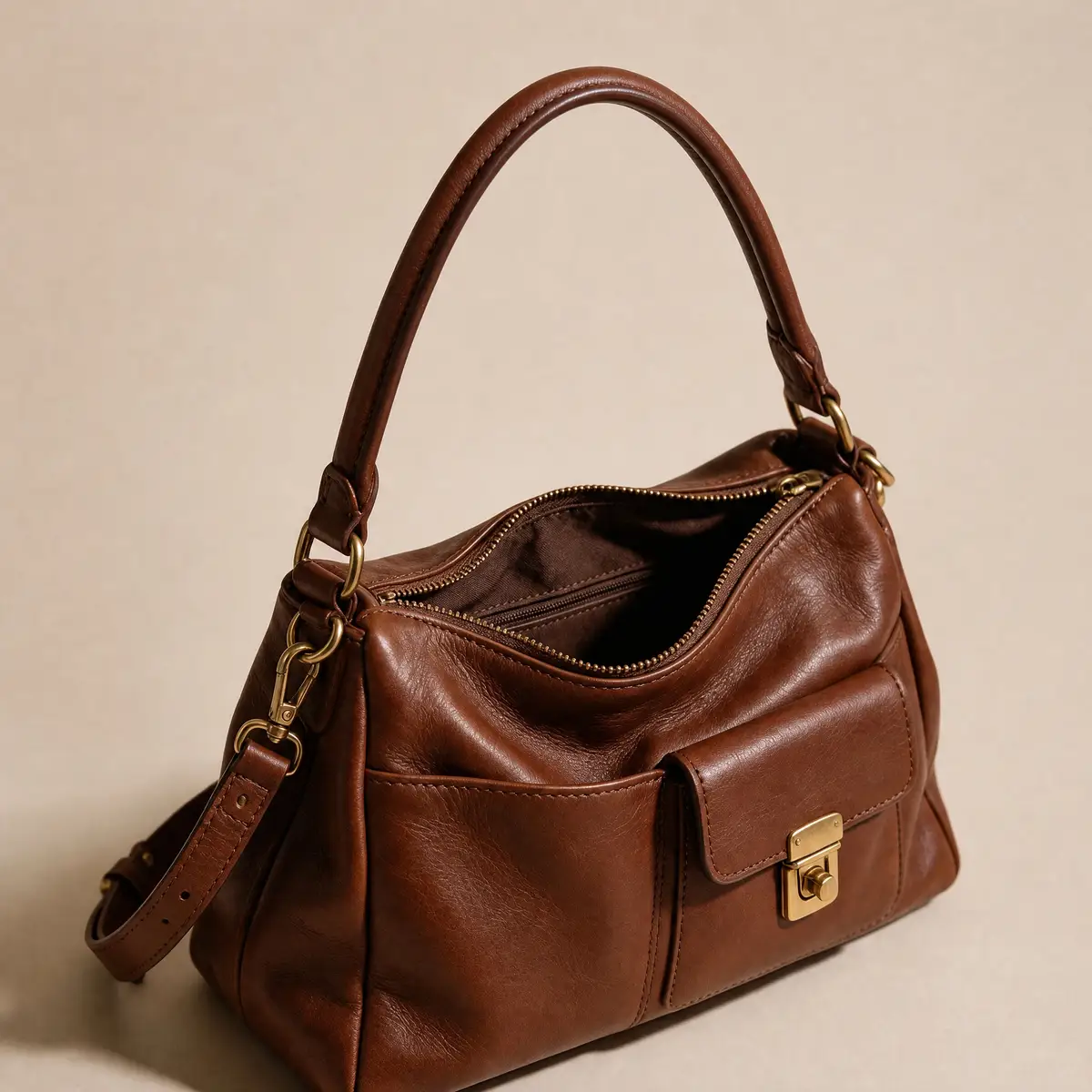
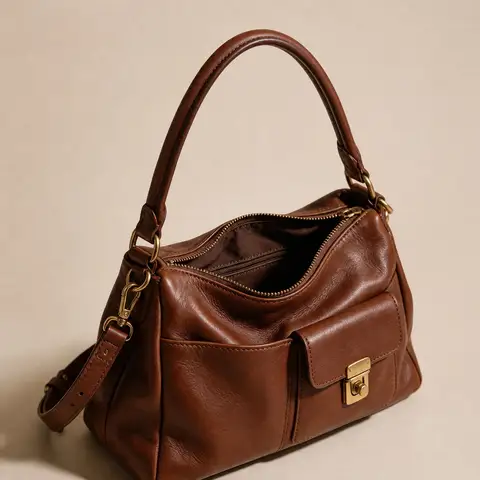
  2. Leather handbag photo with a red sale text overlay — before
    Leather handbag photo with a red sale text overlay — after
    BeforeAfter

    02Text removal

    Promo text off a product

    A red sale banner removed from a handbag photo.

    Edit Text

    Fix this photo
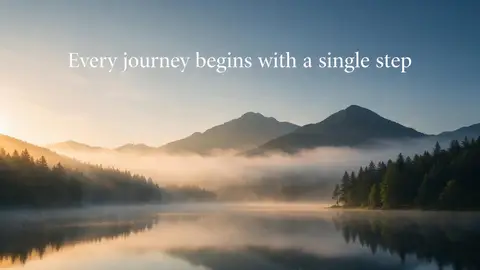
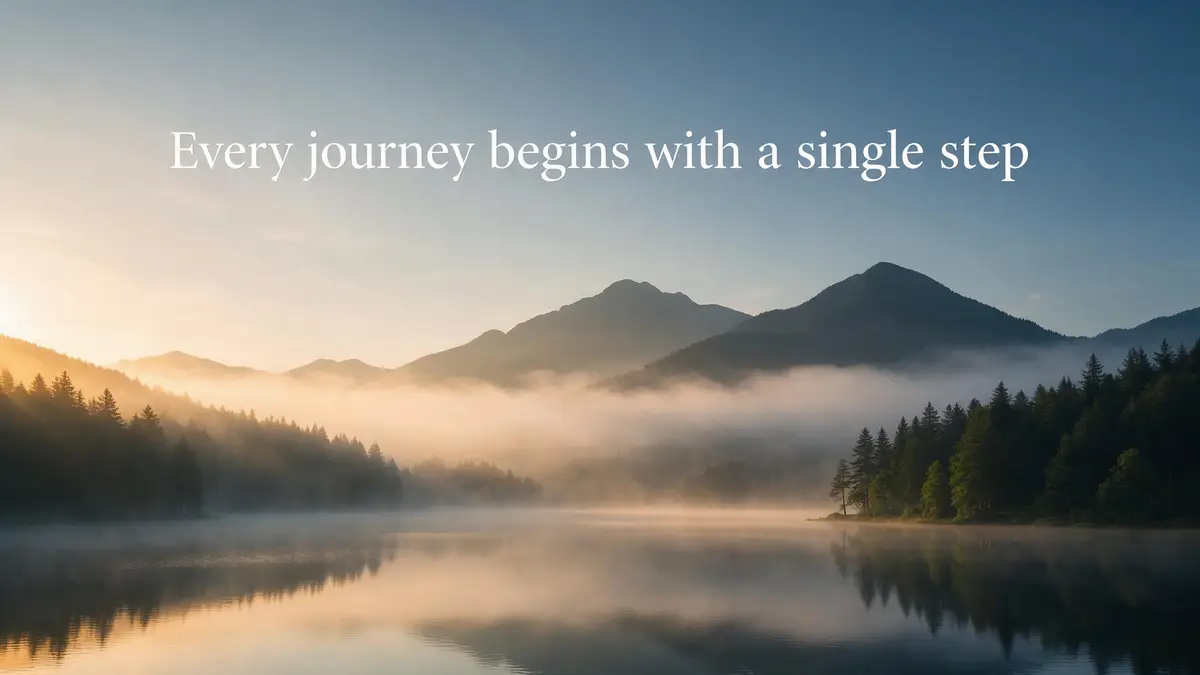
  3. Misty mountain lake with a quote written across the sky — before
    Misty mountain lake with a quote written across the sky — after
    BeforeAfter

    03Text removal

    A quote wiped from the sky

    Overlay text erased and the sky rebuilt behind it.

    Edit Text

    Fix this photo

Real results

What does the background look like after the text is removed?

Each “after” is a real Edit Text in Image result. Tap “Original” to see the lettering that was there.

Try it free
  • Beach sunset photo with a big caption and a date stamp — fixed with Edit TextEdit Text

    Caption & date stamp

  • Leather handbag photo with a red sale text overlay — fixed with Edit TextEdit Text

    Sale overlay

  • Misty mountain lake with a quote written across the sky — fixed with Edit TextEdit Text

    Quote on a photo

Step by step

How to remove text from a picture

  1. Step 1: Open the photo in Edit Studio

    Upload your photo to Kenerate's Edit Studio.
  2. Step 2: Choose Edit Text in Image

    In the AI tools, pick Edit Text in Image and switch to Remove.

    Edit StudioAIEdit Text in ImageRemove

    Tip: GPT Image 2 is the default model; the picker has other models too.

  3. Step 3: Run it

    The AI removes the captions, stickers and lettering and rebuilds what was behind them.
  4. Step 4: Download

    Compare with the original and download. Use Magic Eraser for any small leftover.

    Edit StudioAIMagic Eraser

Beach sunset photo with a big caption and a date stamp — original photo
Beach sunset photo with a big caption and a date stamp — after the fix
BEFOREAFTER

“SUMMER 2026” and the orange date stamp removed; the palms and sunset rebuilt behind them.

One tool, three modes

Remove, replace or translate the text

  • Remove

    Clears captions and lettering and rebuilds the background behind them.

  • Replace

    Swaps words for new ones in the same font, size and position — fix a typo or a price.

  • Translate

    Rewrites the text in another language and keeps the layout.

Look closer

Look where the letters were

The hard part isn't deleting text — it's rebuilding what was behind it. Zoom into the handbag: the leather, stitching and shadow continue where “SALE 50% OFF” sat.

  • Leather texture continues under the old text
  • No blur patch or smudge
  • Lighting and shadow unchanged

Move your pointer over the image to zoom into the edge.

Leather handbag photo with a red sale text overlay — fixed with Edit Text.

Have a photo with text on it? Clean it up now — 25 free credits on sign-up.

What it removes

Text people remove from photos

  • Date stamps

    Orange digits burned into the corner of camera prints and scans.

  • Sale & price stickers

    Old promotions on your own product photos, ready to reuse.

  • Quotes & captions

    Text laid over your own photos for a past post or slide.

Methods compared

Edit Text in Image vs Magic Eraser vs clone stamp

Pick by how much text there is and what is behind it.

  • Edit Text in Imageall text at once

    Best for
    Captions, overlays, lots of text
    Finds the text for you
    Yes
    Rebuilds complex backgrounds
    Yes
    Replace or translate instead
    Yes
  • Magic Eraserpaint it

    Best for
    One word or a date stamp
    Finds the text for you
    No
    Rebuilds complex backgrounds
    Yes
    Replace or translate instead
    No
  • Clone stampPhotoshop, GIMP

    Best for
    Small text on simple backgrounds
    Finds the text for you
    No
    Rebuilds complex backgrounds
    By hand
    Replace or translate instead
    No

Better results

How do I remove text from a photo cleanly?

  • Start with the biggest text. Run Remove once, then pick off any leftovers with Magic Eraser.
  • Use the highest-resolution photo you have. More pixels around the text means a more convincing rebuild.
  • Text over faces or detailed patterns is the hardest case — compare carefully and re-run if a detail looks invented.
  • Need the same text in another language? Use Translate instead of removing and re-typing it.

Only edit images you own or have the right to change. Don't use this to remove watermarks, photo credits or copyright notices from other people's work.

Use cases

Who removes text from photos

Common jobs, with the real before and after.

  • Store owner

    Leather goods

    Last season's product photos carry a “SALE 50% OFF” overlay. Removing it lets the same photos go back on the full-price listing.

    Edit Text in Image · Remove

  • Traveller

    Photo book

    Old holiday shots have captions and a camera date stamp. Clean versions go into a printed photo book.

    Edit Text in Image · Remove

  • Content creator

    Reusing posts

    A quote graphic from a past post becomes a clean landscape for a new caption and a new design.

    Edit Text in Image · Remove

Example workflows built on real Kenerate outputs — not customer reviews.

In depth

How text removal works

Scene-text erasing as a research problem, and why the background behind text is guessed — with sources.

Two steps: find the text, fill the gap

Text removal first finds every letter, then fills the space where it was. Researchers built SCUT-EnsText (2020) — 3,562 real photos with the text erased by hand — to train and test models such as EraseNet [1].

The background is reconstructed, not revealed

Whatever was behind the letters was never photographed, so it is inpainted: patch-based methods like PatchMatch copy similar texture from nearby [2], and large-mask networks like LaMa use context from the whole image [3]. On skies and plain backgrounds the fill is seamless; on detailed areas, check it closely.

Use it on your own images

Removing a caption, a date stamp or a sale banner from your own photo is the everyday use. Removing watermarks or credits from other people's images can breach copyright — only edit images you have the rights to.

Start free

Start free, top up only when you need to

25 free credits on sign-up. The same credits work in every Kenerate tool.

  • 25 free credits on sign-up

    Test on your own images before you buy anything.

  • Credits never expire

    One-time packs — use them this week or next year.

  • No subscription, no watermark

    Nothing to cancel. Free results download clean.

  • One balance, every tool

    The same credits work across images, video, voice and 3D.

Tried it? Tell us how it went

We only publish real, verified reviews — never invented quotes. Send a line about your result (and whether we may quote you), and it will appear here.

Send a review

FAQ

Text removal questions

8 questions

Still stuck?

A real person answers — usually within a day.

01

How do I remove text from an image?

Open the photo in Kenerate's Edit Studio, choose Edit Text in Image, switch to Remove and run it. The AI removes captions, overlays and lettering and rebuilds the background behind them.

02

Is it free?

Free to start with 25 credits on sign-up. Edit Text in Image uses GPT Image 2 by default; other models are available in the model picker, and Magic Eraser works for small pieces of text. Bigger jobs use one-time credit packs that never expire.

03

Can I remove just one word and keep the rest?

Yes. Paint over that word with Magic Eraser, or use Replace mode in Edit Text in Image to swap it for different words in the same font.

04

Can it translate the text instead of removing it?

Yes. Edit Text in Image has a Translate mode that rewrites the words in another language and keeps the font and layout.

05

Will it change the rest of the photo?

It is told to change only the text. Busy backgrounds behind large text are rebuilt by the AI, so check the result against the original and re-run if needed.

06

Can I remove a date stamp from an old photo?

Yes — date stamps like the orange digits in the corner of camera prints are removed the same way. For small stamps, just paint over them with Magic Eraser.

07

Can I remove watermarks with it?

Only remove text from images you own or have the right to edit. Don't use it to strip watermarks, credits or copyright notices from other people's work.

08

What about text in videos?

For video, use the AI video text remover instead of this image tool.

Clean edges. Every time.

Hair, fur, glass and white-on-white — cut out in seconds, with no watermark.

Cut-out modes
4
Cut-out modes
Backdrops: clear, white, black
3
Backdrops: clear, white, black
Free credits to start
25
Free credits to start
Watermarks, ever
0
Watermarks, ever

Explore the toolkit

More background and photo-fix tools

Every Kenerate tool, guide and comparison for removing and replacing backgrounds.

Written by the Kenerate AI team

Written by the Kenerate team; every example is a real Edit Text in Image result on a photo we generated for this page. Last updated 26 September 2026. Corrections: hello@kenerateai.com.

Sources

Ready when you are

Remove the text from your photo

Open Edit Studio, choose Edit Text in Image, download. 25 free credits on sign-up.

  • 25 free credits
  • No watermark
  • Credits never expire