














Skip to content
iPhone guide · built-in + HD

How to remove a background on iPhone

The built-in lift-subject trick in Photos, a cleaner HD cut-out in Safari for hair and fur, and Clean Up for removing people — step by step.

  • From Apple's own guides
  • No app needed
  • HD option for hair
  • Remove people too
Golden retriever sitting on grass in a park — original photo
Golden retriever sitting on grass in a park — background removed
BEFOREAFTER

Kenerate Cutout HD · Dog fur

Try this photo
  • Kenerate Cutout
  • Cutout HD · hair & glass
  • Object Pick · keep what you name
  • Magic Eraser
  • AI Edit · Qwen Image 2.0
  • Edit Text in Image · GPT Image 2
  • White, black & colour backdrops
Dog fur — background removed
Curly hair — background removed
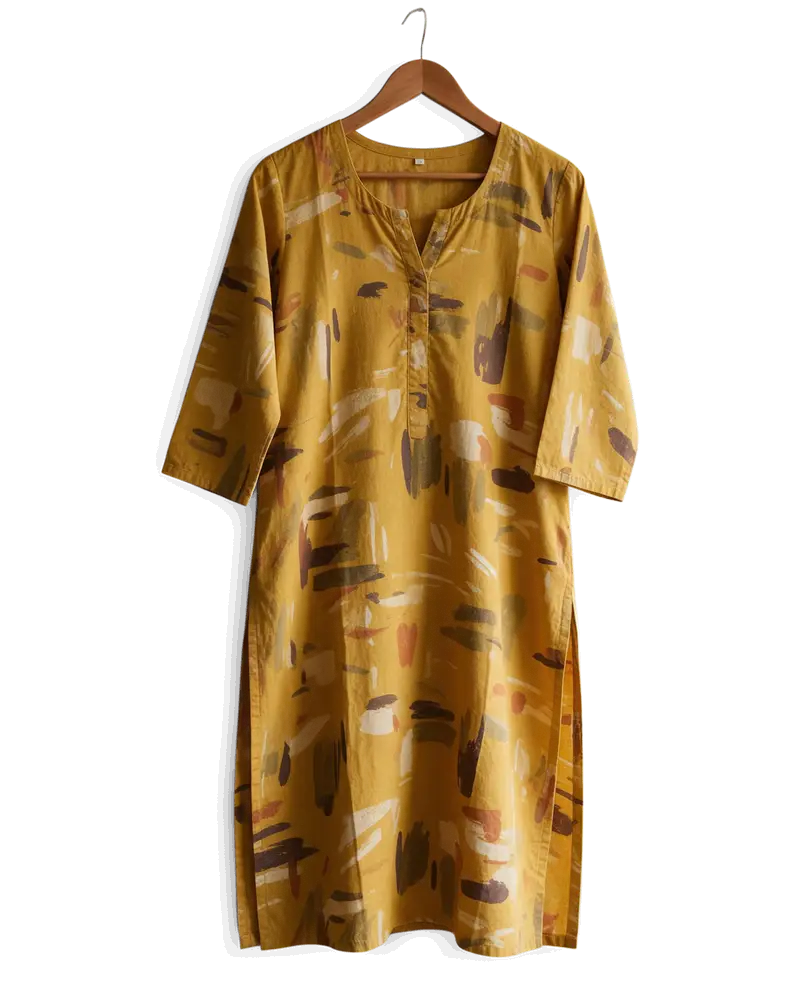
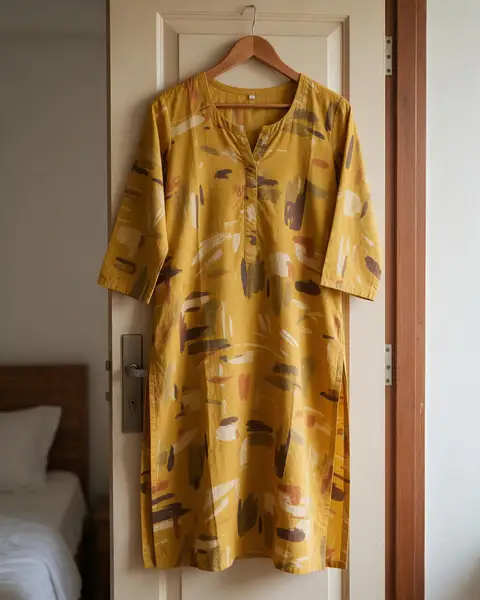
Kurti on a hanger — background removed
Glass bottle — background removed
Mid-air jump — background removed
Windblown hair — background removed
Desk plant — background removed
Dog fur — background removed
Curly hair — background removed
Kurti on a hanger — background removed
Glass bottle — background removed
Mid-air jump — background removed
Windblown hair — background removed
Desk plant — background removed

Quick answer

Updated

To remove a background on iPhone, open the photo in Photos, touch and hold the subject until an outline appears, then tap Copy or Share — you get the subject without its background. For a saved PNG with cleaner hair and fur edges, open kenerateai.com in Safari and run Cutout HD. To remove a person or object instead, use Photos → Edit → Clean Up on iPhones that support Apple Intelligence.

Built-in
Photos: touch and hold the subject → Copy / Share
Remove people
Photos → Clean Up (Apple Intelligence iPhones)
HD option
Kenerate Cutout HD in Safari, for hair and fur
Output
Transparent PNG saved to Photos or Files

Real results

See it on real photos

Every slider is a real Kenerate result. Drag to compare, then run the same photo yourself.

  1. Golden retriever sitting on grass in a park — before
    Golden retriever sitting on grass in a park — after
    BeforeAfter

    01Fur

    Pet fur without a green fringe

    Long feathery fur cut out from grass without the halo.

    Kenerate Cutout HD

    Cut this photo out
  2. Woman with big curly backlit hair on a city street — before
    Woman with big curly backlit hair on a city street — after
    BeforeAfter

    02Hair

    Every curl, not a helmet

    Backlit curly hair separated strand by strand from a city street.

    Kenerate Cutout HD

    Cut this photo out
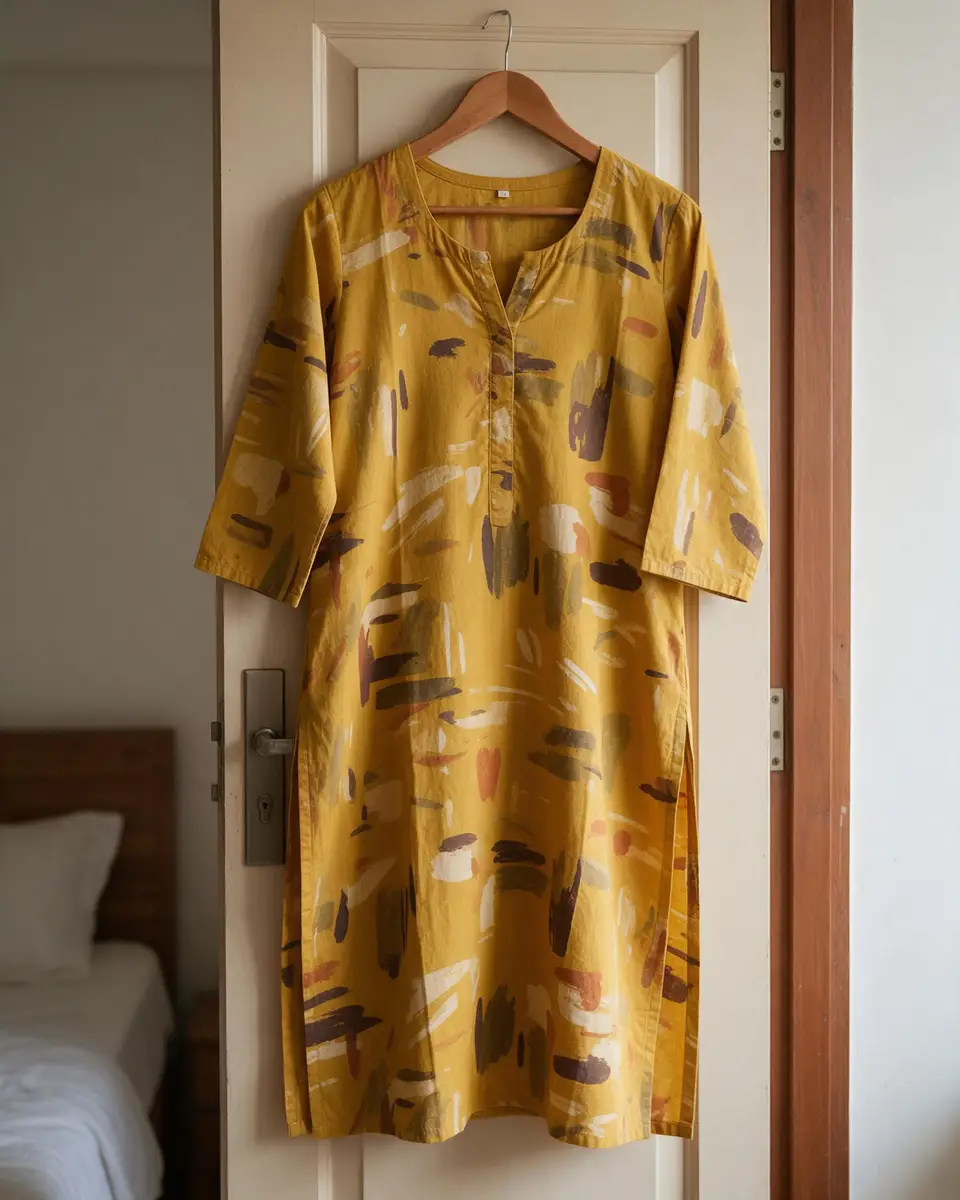
  3. Mustard printed cotton kurti on a hanger on a bedroom door — before
    Mustard printed cotton kurti on a hanger on a bedroom door — after
    BeforeAfter

    03Fashion

    Off the hanger, onto white

    A kurti cut out from a bedroom door for a clean catalogue shot.

    Kenerate Cutout HD

    Cut this photo out
  4. Glass perfume bottle with peonies on a marble table — before
    Glass perfume bottle with peonies on a marble table — after
    BeforeAfter

    04Glass

    See-through glass, kept see-through

    A glass bottle and the flowers beside it, with the transparency intact.

    Kenerate Cutout HD

    Cut this photo out

Method 1 · built in

How do I remove a background in the iPhone Photos app?

Apple calls it lifting a subject from the background. It also works in Safari, Quick Look and on paused video frames.

  1. Step 1: Open the photo

    Open it full screen in the Photos app.
  2. Step 2: Touch and hold the subject

    Hold until a glowing outline appears around it.
  3. Step 3: Copy or Share

    Tap Copy to paste it elsewhere, or Share to save or send it without the background.

    Tip: Share → Save Image puts a copy in Photos; Save to Files keeps it as a separate file.

Golden retriever sitting on grass in a park — original photo
Golden retriever sitting on grass in a park — background removed
BEFOREAFTER

Fur is where quick cut-outs struggle. This is a Cutout HD result.

Method 2 · cleaner edges

How do I get an HD cut-out on iPhone?

When the built-in outline clips hair or leaves background behind.

  1. Step 1: Open Kenerate in Safari

    Go to kenerateai.com/app/tool/remove-bg — no app to install.
  2. Step 2: Choose the photo

    Tap the upload area and pick the photo from your library.
  3. Step 3: Run Cutout HD

    Best for hair, fur and busy backgrounds where the built-in tool leaves rough edges.
  4. Step 4: Download the PNG

    Tap download, then save to Photos or Files. You can pick a white, black or colour backdrop first.
Woman with big curly backlit hair on a city street — original photo
Woman with big curly backlit hair on a city street — background removed
BEFOREAFTER

Backlit curls on a city street — Cutout HD, run from Safari.

Open in Safari

On your iPhone right now? Open the tool in Safari — 25 free credits on sign-up.

Method 3 · remove people

How do I remove people from pictures on iPhone?

Different job: removing a person or object and filling the gap, not cutting out the subject.

  1. Step 1: Open the photo and tap Edit

    In the Photos app, open the picture and tap the edit button.

    PhotosEditToolsClean Up

  2. Step 2: Tap, brush or circle the person

    Some distractions are highlighted automatically — tap to remove them.
  3. Step 3: No Clean Up on your iPhone?

    It needs an iPhone that supports Apple Intelligence. On other models, use Kenerate's AI Edit in Safari.
Couple at the Eiffel Tower with a stranger in a red jacket walking behind them — original photo
Couple at the Eiffel Tower with a stranger in a red jacket walking behind them — after the fix
BEFOREAFTER

A photobomber removed with Kenerate AI Edit — works on any iPhone in Safari.

Open Edit Studio

Pick a method

Built-in iPhone tools vs Kenerate

Use the built-in tool for quick copies; use HD when the edges matter.

  • Photos: lift subjectbuilt in

    Removes the background
    Yes
    Removes a person or object
    No
    Hair & fur edges
    Good on simple shots
    White, black or colour backdrop
    No
    Works on older iPhones
    Recent iOS
    Plan
    Free
  • Photos: Clean UpApple Intelligence

    Removes the background
    No
    Removes a person or object
    Yes
    Hair & fur edges
    n/a
    White, black or colour backdrop
    No
    Works on older iPhones
    Supported models only
    Plan
    Free
  • KenerateSafari

    Removes the background
    Yes
    Removes a person or object
    AI Edit / Magic Eraser
    Hair & fur edges
    Cutout HD
    White, black or colour backdrop
    Yes
    Works on older iPhones
    Any iPhone with Safari
    Plan
    25 free credits, no subscription

Look closer

Where the built-in tool struggles

Fine fur against grass is the classic hard case. Zoom into a Cutout HD result to see the edge you're aiming for.

  • Long, feathery fur kept
  • No green fringe from the grass
  • Transparent PNG you can save to Photos

Move your pointer over the image to zoom into the edge.

Golden retriever sitting on grass in a park — cut out with Kenerate Cutout HD. The checkerboard is transparent.

Made on a phone

What does an iPhone cut-out look like?

Real Kenerate results — tap “Original” to see the photo.

Try it free
  • Golden retriever sitting on grass in a park — background removed with Kenerate Cutout HDCutout HD

    Dog fur

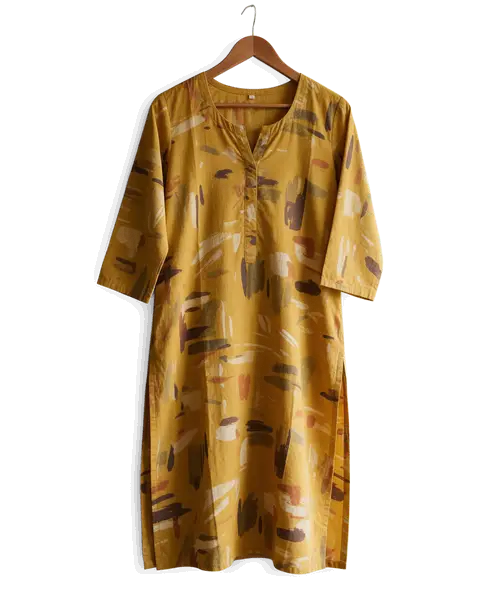
  • Mustard printed cotton kurti on a hanger on a bedroom door — background removed with Kenerate Cutout HDCutout HD

    Kurti on a hanger

  • Bearded man in a knit sweater in a busy cafe — background removed with Kenerate Cutout HDCutout HD

    Portrait

  • Monstera plant in a white pot on a cluttered desk — background removed with Kenerate Cutout HDCutout HD

    Desk plant

Better results

Why is my iPhone cut-out rough, and how do I fix it?

  • Busy or similar-coloured backgrounds confuse the outline — try a photo where the subject stands out.
  • Fine hair and fur get clipped — use Cutout HD in Safari.
  • Several subjects? The built-in tool picks one; Kenerate's Object Pick lets you name the one you want.
  • Nothing happens when you hold? Update iOS, or use the Safari method.

Use cases

Who removes backgrounds on their phone

Common jobs, with the real before and after.

  • Pet owner

    Custom stickers

    Turns a photo of the dog in the park into a sticker for messages. The HD cut-out keeps the fluffy fur.

    Cutout HD

  • Instagram seller

    Clothing

    Shoots and lists products entirely from the phone — cut-out in Safari, straight into the post.

    Cutout HD

  • Traveller

    Holiday photos

    A stranger walked through the shot at the Eiffel Tower. AI Edit removed him in Safari.

    AI Edit

Example workflows built on real Kenerate outputs — not customer reviews.

In depth

The iPhone's built-in cut-out and Clean Up

When Apple added these features, which devices get them, and their limits — from Apple's own pages.

Lift subject from background (iOS 16)

Apple introduced lifting a subject from its background with iOS 16 in September 2022: touch and hold the subject of an image to lift it [1]. You can then copy it, share it, add it as a sticker or drag it into another app, and it works in Photos, Safari, Quick Look and paused video frames [2].

Clean Up (Apple Intelligence)

Clean Up arrived with iOS 18.1 in October 2024 as part of Apple Intelligence [3]. It needs an iPhone 15 Pro or later (plus supported iPads and Macs) and isn't available on devices bought in mainland China [4]; in Photos you open Tools → Clean Up and tap, brush or circle the object [5].

What the built-in tools don't do

Lifting gives a quick sticker-style cut-out; it doesn't let you choose an HD edge mode, refine hair, or place the subject on a new colour before saving. For product listings or print, a dedicated remover gives a transparent PNG you control [6].


Start free

Start free, top up only when you need to

25 free credits on sign-up. The same credits work in every Kenerate tool.

  • 25 free credits on sign-up

    Test on your own images before you buy anything.

  • Credits never expire

    One-time packs — use them this week or next year.

  • No subscription, no watermark

    Nothing to cancel. Free results download clean.

  • One balance, every tool

    The same credits work across images, video, voice and 3D.

Tried it? Tell us how it went

We only publish real, verified reviews — never invented quotes. Send a line about your result (and whether we may quote you), and it will appear here.

Send a review

FAQ

iPhone background removal questions

8 questions

Still stuck?

A real person answers — usually within a day.

01

How do I remove the background from a photo on iPhone?

In Photos, open the picture, touch and hold the subject until an outline appears, then tap Copy or Share. The subject comes without its background.

02

Which iPhones can lift a subject from a photo?

The feature is part of recent versions of iOS; if touching and holding a subject does nothing, update iOS or use a web tool in Safari.

03

How do I save the cut-out as a PNG on iPhone?

Share the lifted subject to Files or Photos, or use Kenerate in Safari and download the PNG.

04

How do I remove people from pictures on iPhone?

On iPhones that support Apple Intelligence, open the photo in Photos, tap Edit → Clean Up, and tap, brush or circle the person. On other iPhones, use Kenerate's AI Edit or Magic Eraser in Safari.

05

Why are the edges of my iPhone cut-out rough?

Busy backgrounds, similar colours and fine hair are hard for the built-in tool. Cutout HD is built for those edges.

06

Can I change the background colour on iPhone?

The built-in tool only lifts the subject. In Kenerate you can put it on white, black, any colour or another photo before downloading.

07

Does it work on videos?

Apple's lift-subject also works on a paused video frame. For full video background removal, use a video tool.

08

Is the Kenerate option free?

Free to start with 25 free credits on sign-up, then one-time credit packs that never expire — no subscription.

Clean edges. Every time.

Hair, fur, glass and white-on-white — cut out in seconds, with no watermark.

Cut-out modes
4
Cut-out modes
Backdrops: clear, white, black
3
Backdrops: clear, white, black
Free credits to start
25
Free credits to start
Watermarks, ever
0
Watermarks, ever

Explore the toolkit

More background and photo-fix tools

Every Kenerate tool, guide and comparison for removing and replacing backgrounds.

Written by the Kenerate AI team

Checked against Apple's iPhone user guide; the cut-out examples are real Kenerate results. Last updated 26 September 2026. Corrections: hello@kenerateai.com.

Sources

Ready when you are

Get an HD cut-out on your iPhone

Open the tool in Safari — 25 free credits on sign-up, no app to install.

  • 25 free credits
  • No watermark
  • Credits never expire