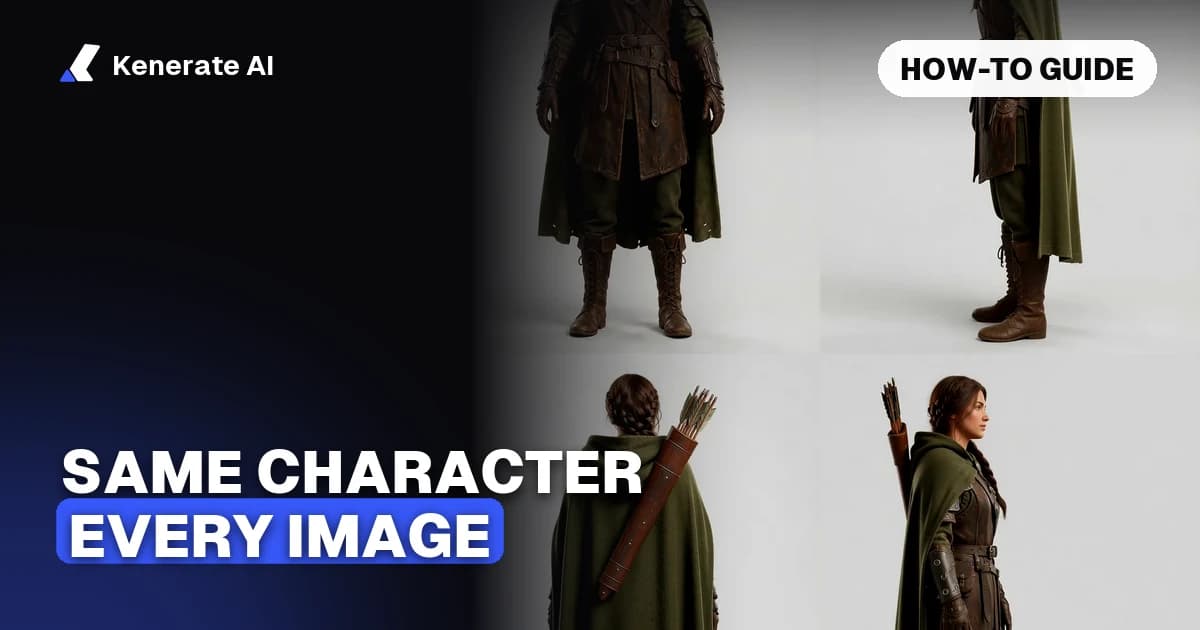
To keep an AI character consistent, stop relying on prompts alone and anchor every generation to the same reference images. The reliable workflow as of 28 October 2026: generate one clean master portrait, build a turnaround sheet (front, side, three-quarter, back), then feed those sheets into a multi-reference model — Nano Banana 2.1 accepts up to 14 reference images on Kenerate — every time you need the character in a new scene. For video, pass the same references into a reference-to-video model or use a finished image of the character as the start frame.
This guide walks through that workflow step by step, explains why characters drift in the first place, and covers the fixes for the most common failures: face drift, outfit changes, and vanishing accessories.
Why does my AI character look different in every image?
Image models don't remember your character. Diffusion and multimodal models sample a fresh image from an enormous space of possibilities that match your text — they don't store an identity between generations. As the APIframe guide on character consistency puts it, each generation is a new sample, so the same prompt can produce a different face every time, and even a small wording change pushes the result further away.
That's why "same prompt, same character" fails. Text is simply too lossy to pin down a specific face: "a young woman with long black hair and green eyes" matches millions of different people. The fix is to give the model something text can't carry — actual pictures of your character — and to keep the words around those pictures stable.
Three things drive drift in practice:
- Under-specified features. If the hair, eyes, or face shape are described loosely, the model re-rolls them every generation.
- Too many variables changing at once. New pose + new outfit + new lighting + new scene in one jump gives the model too much freedom.
- No visual anchor. Without a reference image, the model has nothing to match a face against.
What's the fastest workflow for a consistent AI character?
Here is the full loop we recommend on Kenerate, start to finish:
- Generate the master portrait. Use the AI character generator to create one front-facing, well-lit image of your character. Iterate until it's exactly right — this image is your source of truth for everything that follows.
- Write the locked description. In a notes file, write one fixed paragraph covering age range, hair (length, texture, color), eye color, face shape, skin tone, build, and every distinctive detail (scar, glasses, earring, freckles). You'll paste this unchanged at the start of every future prompt.
- Build a turnaround sheet. Feed the master portrait into the character turnaround tool to get front, three-quarter, side, and back views in one sheet. Multi-angle references are what stop the face from collapsing when the character turns away from the camera.
- Generate scenes with multi-reference. For each new image, attach the master portrait plus the turnaround sheet as reference images, paste the locked description first, then describe only the new scene, pose, or outfit after it.
- Always reference the originals. Never chain outputs — using image 5 as the reference for image 6 compounds small errors into a different person by image 20. Every generation goes back to the same master references.
- Move to video with the same anchors. Use reference-to-video with your character images attached, or generate a still of the character in the scene first and use it as the start frame of an image-to-video generation.
Change one variable at a time. If you need the character in a new outfit and a new location, generate the outfit change first, confirm the face held, then move the scene.
Which AI models are best for character consistency?
Reference capacity is the number that matters most: more reference slots means you can send the turnaround sheet, the master portrait, and outfit references all at once. Here's what the multi-reference image models on Kenerate support as of 28 October 2026:
| Model | Reference images | Credits per image | Best for |
|---|---|---|---|
| Nano Banana 2.1 | up to 14 | 21 (1K) · 31.5 (2K) · 42 (4K) | Strongest subject consistency, 4K, clean text |
| GPT Image 2.5 Sunburst | up to 16 | from 7.2 (medium, 1K) | Precise edits, posters, photoreal detail |
| Nano Banana 2 | up to 14 | 14 | Consistency plus web and image search |
| Seedream 5.0 Pro | up to 10 | 13.5 (1K/1.5K) | Illustration and anime characters, regional edits |
| Nano Banana | up to 10 | 8 | Fast, cheap volume drafts |
A practical pairing: draft the character and explore poses on Nano Banana at 8 credits, then re-generate the keepers on Nano Banana 2.1 — Google built it specifically for stronger subject consistency and prompt adherence — at the resolution you actually need.
Stay on one model per character. Every model has its own rendering style, and switching mid-project changes skin texture, line weight, and proportions even when the face technically matches.
How do I write a character prompt that doesn't drift?
Structure beats length. The Picsart consistency tutorial makes the key point: generators weight early words more heavily, so the locked character description always goes first, scene details after.
A template that works:
[LOCKED — never edit this part]
Mira, a woman in her late 20s, long straight copper-red hair with
a left-side part, bright green eyes, oval face, light freckles
across the nose, small silver hoop earrings, athletic build.

[SCENE — the only part that changes]
Standing on a rainy neon-lit street at night, wearing a black
raincoat, looking over her shoulder at the camera, cinematic
lighting, 35mm photo style.
Four rules keep it tight:
- Be specific, not poetic. "Long straight copper-red hair with a left-side part" survives; "beautiful red hair" re-rolls every time.
- Name the character. A consistent name helps the model (and you) treat the description as one entity across generations.
- Repeat what drifts. If the freckles keep vanishing, mention them twice — once in the feature list, once in the scene ("rain on her freckled face").
- Pick features that read at a glance. The ColorBliss character guide recommends distinctive features that survive any rendering style — round glasses, a star-shaped badge, curly hair — because subtle traits are the first thing a model drops.
What is a character turnaround sheet and why do I need one?
A turnaround sheet shows the same character from multiple angles — typically front, three-quarter, side, and back — on one neutral background. Animation studios have used them for a century for exactly the problem you're fighting: keeping a character on-model when different artists (or in your case, different generations) draw them.
For AI work the sheet does two jobs. First, it's a visual spec: when an output looks "off", you compare it against the sheet feature by feature instead of eyeballing it. Second, it's reference fuel: attaching the sheet to a multi-reference generation teaches the model what the character looks like from angles your master portrait doesn't cover. Profile and back views are where single-reference workflows fall apart, because the model has never seen your character's side.
You can generate one in a single step from any portrait with Kenerate's character turnaround tool, then keep it pinned in every future generation.
How do I keep a character consistent in AI video?
Video adds motion, but the principle is identical: anchor to references, as of October 2026 in two ways.
Reference-to-video. The current video models accept character reference images directly, so the model holds the identity across the whole clip. On Kenerate, Seedance 2.5 takes up to 30 reference images and generates 4–30 second clips; Seedance 2.0 takes up to 9 references for 4–15 second clips; and Wan 3.0 takes up to 10 references for 2–30 second clips, with 480p drafts at 15 credits per second — the cheap way to test whether your character survives motion before rendering anything expensive.
Image-to-video with a start frame. Generate a still of your character in the exact scene using the multi-reference image workflow above, then feed that image in as the first frame of the video. The model animates forward from a frame where the identity is already correct, which keeps faces and outfits far more stable than describing the character in a text prompt.
For longer pieces, combine both: lock a strong start frame and attach the turnaround references, generate in short clips, and always start each new clip from a fresh still rather than a frame grabbed from a previous AI clip (the chaining problem applies to video too). If the character also needs to move a specific way, AI character animation covers rigging a pose or motion onto a character image.
Why does my character's outfit or face keep changing, and how do I fix it?
The failure modes are predictable enough to have standard fixes:
| Failure | Why it happens | Fix |
|---|---|---|
| Face drifts over a series | Chaining outputs as new references | Always reference the master portrait + turnaround, never a previous output |
| Face collapses in profile/back views | References only show the front | Add a turnaround sheet to the references |
| Outfit changes between images | Clothing not in the locked description | Describe the outfit in locked detail, or keep a dedicated outfit reference image |
| Glasses, jewelry, scars vanish | Small features get dropped first | Repeat them in the prompt; zoom the reference so they're clearly visible |
| Style shifts (photoreal → illustrated) | Model switch or style words in scene text | One model per character; put style keywords in the locked block |
| Character breaks in extreme poses | Pose too far outside reference coverage | Generate the pose on a plain background first, confirm identity, then add scene |
| Everything drifts at once | Too many variables changed in one prompt | Change one thing at a time: pose, then outfit, then scene |
The meta-fix behind all of these: audit side by side. Open the new image next to the turnaround sheet and check hair, eyes, face shape, skin tone, and accessories one at a time. Drift compounds silently — catching it on image 3 costs one regeneration; catching it on image 30 costs the series.
Key takeaways
- Prompts alone can't hold an identity — anchor every generation to the same master portrait and turnaround sheet.
- Use a multi-reference model: Nano Banana 2.1 takes up to 14 reference images, GPT Image 2.5 Sunburst up to 16.
- Lock one character description, paste it first in every prompt, and change only the scene text after it.
- Never chain outputs as references; always go back to the original master images.
- For video, use reference-to-video (Seedance 2.5 takes up to 30 reference images) or start each clip from a correct still frame.
- Change one variable at a time and audit outputs against the turnaround sheet.