YouTube Studio CC · burned in for Shorts · 16:9 and 9:16
YouTube subtitles — YouTube's own CC or burned in, and when
YouTube already writes automatic captions, so why burn subtitles in? This page explains how YouTube's own subtitles work in YouTube Studio, when burned-in captions do a better job — mostly Shorts, trailers and clips shared beyond YouTube — and how to avoid doubled captions.
- YouTube Studio steps
- Burned in for Shorts
- Avoid doubled captions
- 16:9 and 9:16 clips
Updated by the Kenerate AI team
On this page
Quick answer
Updated
How do you add subtitles to a YouTube video?
To add YouTube subtitles, open YouTube Studio, choose Subtitles, pick the video and add a language: upload a file, auto-sync a transcript, type the lines, or edit YouTube's automatic captions. Those are closed captions viewers can toggle. For Shorts and clips you also post elsewhere, burn styled captions in with Kenerate before uploading.
Key facts
- YouTube's own captions
- Closed (CC)
- Kenerate's captions
- Burned in (open)
- Kenerate clip limit
- 4 min, 100 MB
- Shorts length
- Up to 3 min
- Best for long videos
- YouTube Studio
- Best for Shorts
- Burned in
Real demo
A 16:9 explainer, burned in
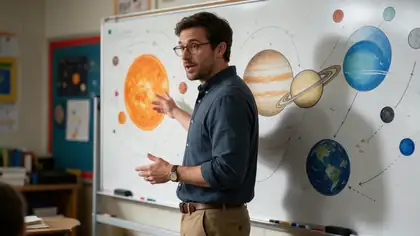
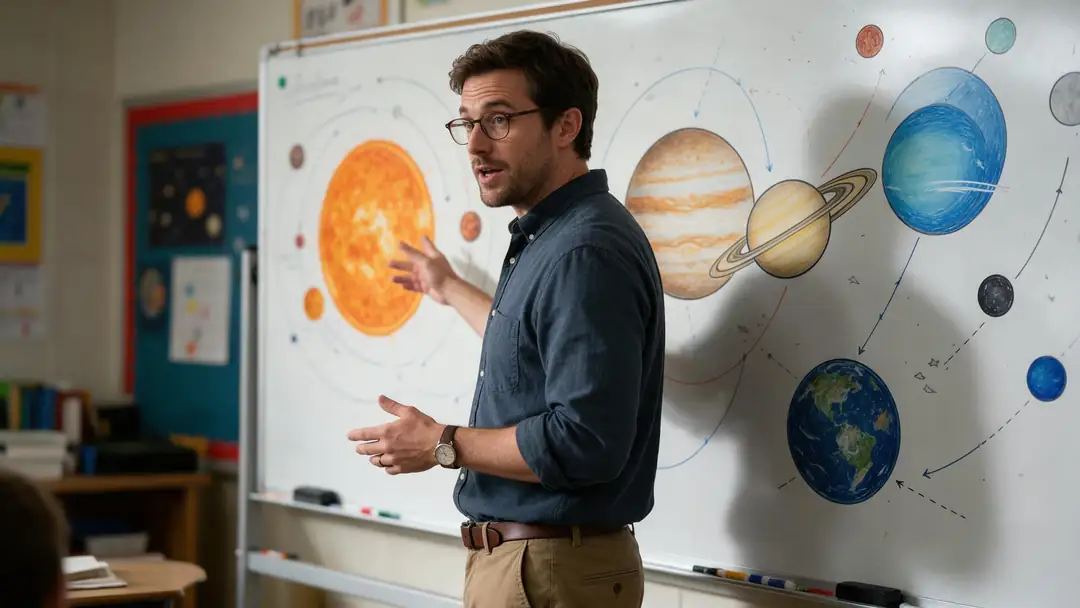
Drag the line. Left: a classroom clip as it would go to YouTube. Right: the same clip with Plain subtitles burned in at the bottom.
- Original. 16:9 clip with speech.
- Burned in. Plain style; visible even with YouTube's CC off.
Both are real, unedited files, shown at the same size.
Caption a clip for YouTubeReal results
Landscape videos and Shorts, burned in
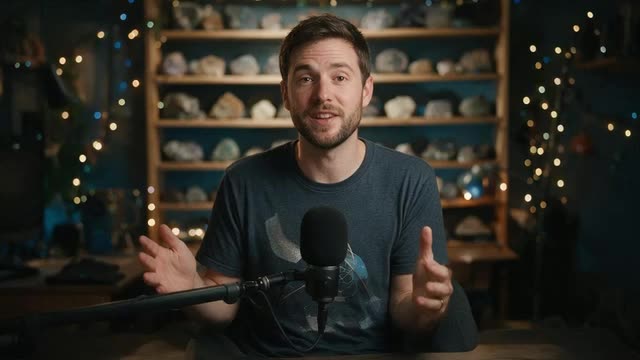
Two 16:9 clips for regular uploads and two 9:16 clips for Shorts, each captioned once by Auto Subtitles before uploading.
Clips: Wan 3 image to video with speech (AI-generated people). Captions: Kenerate Auto Subtitles, unedited.
How to
How to add burned-in subtitles to a YouTube video or Short
- Time needed
- Steps
- 4 steps
Step 1
Export the cut
16:9 for a regular video or 9:16 for a Short, under 4 minutes and 100 MB.
Step 2
Upload it to Auto Subtitles
Sign in with a verified email; new accounts get starter credits to try it.
Step 3
Place captions with YouTube's CC in mind
Top or Middle keeps them away from where YouTube draws CC by default.
Step 4
Choose 1080p HD
Sharper text holds up better after YouTube processes the upload.
See it in the app

Open Auto Subtitles and upload a clip, or pick one from your history, library or a link.


Watch the tour · 1:19
Text, image & reference to video, models, edit, extend & chat
Chapters
Engines
Ways to subtitle a YouTube video
YouTube Studio's options, from YouTube Help (checked 3 October 2026), next to Kenerate's burned-in route.
YouTube (speech recognition)
Automatic captions
- Input
- Any uploaded video
- Output
- Closed captions in supported languages
A starting point you review and edit
Open Automatic captions
YouTube Studio
Upload file, with timing
- Input
- A timed subtitle file such as SRT
- Output
- Closed captions exactly as written
Subtitles made in an editor or by a translator
Open Upload file, with timing
YouTube Studio
Auto-sync
- Input
- A plain transcript
- Output
- YouTube sets the timings
Scripted videos with an exact transcript
Open Auto-sync
YouTube Studio
Type manually
- Input
- You type while the video plays
- Output
- Closed captions, timed as you type
Short videos and careful corrections
Open Type manually- Burned in
Kenerate Auto Subtitles
Burned-in captions
- Input
- Clip up to 4 min
- Output
- MP4 with captions in the frames
Shorts, trailers, clips posted elsewhere
Open Burned-in captions
YouTube's options create closed captions; only the last row changes the video file itself.
Tips
YouTube caption tips
How to split the work between YouTube and burned-in captions.
Long tutorials and vlogs: rely on YouTube's CC and review the automatic text.
Shorts: burn captions in before uploading so they show from the first view.
If you burn in, place captions at the Top or Middle so CC doesn't overlap them.
Videos full of names and jargon: correct YouTube's automatic captions in Studio.
Trailers and teasers shared on social: burn in once, post everywhere.
Multilingual audiences: add one YouTube subtitle track per language.
Example uses
How creators use YouTube subtitles
Illustrative examples of typical workflows, not customer reviews.
Education channel
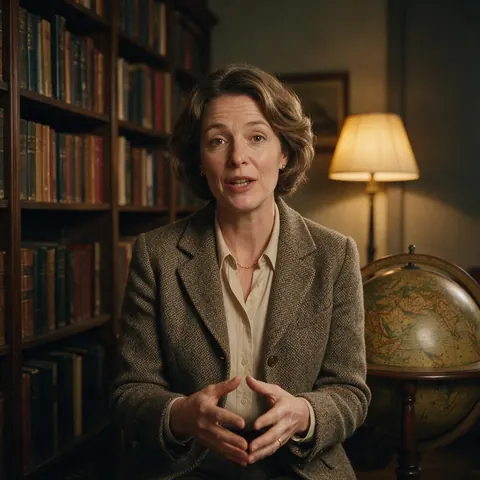
A history channel can keep 20-minute lectures on YouTube's own captions and burn subtitles into the one-minute Shorts cut from them.

Game reviewer
A reviewer can burn captions into a trailer-style teaser placed at the Top, clear of YouTube's CC area.
Fitness channel
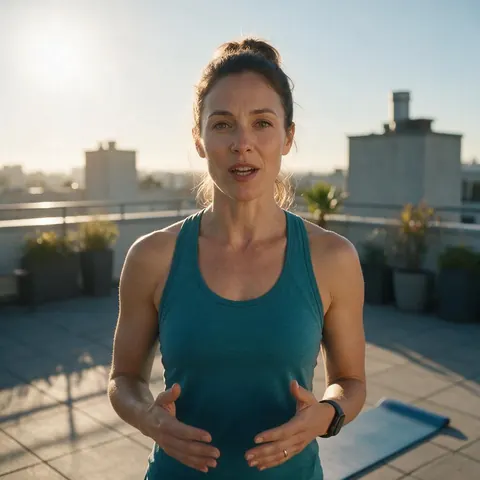
A trainer can caption a 9:16 workout tip once and post it as a Short with the words showing from the first view.
FAQ
YouTube Subtitles — questions
Does YouTube add subtitles automatically?
Often, yes. YouTube uses speech recognition to create automatic captions for many videos in supported languages. They can be missing or wrong when the audio is poor, several people talk at once, or a video starts with a long silence, and YouTube advises creators to review them. You can correct them in YouTube Studio under Subtitles.
Link to this answerHow do I add subtitles to YouTube Shorts?
Two routes. YouTube can add automatic captions to a Short, which you can then review in YouTube Studio. Or burn captions in before uploading: run the 9:16 clip through Kenerate's Auto Subtitles with the Middle position and upload the captioned MP4. Shorts can run up to three minutes, inside Kenerate's 4-minute limit.
Link to this answerShould I burn subtitles into a YouTube video?
Usually not for long videos: YouTube's closed captions can be corrected later, offered in several languages and switched off by viewers who don't want them. Burn them in for Shorts, trailers, ads and clips you'll also post on other platforms, where you want the same styled captions everywhere. Kenerate handles clips up to 4 minutes, so it suits short-form.
Link to this answerCan I upload an SRT file to YouTube from Kenerate?
No, because Kenerate doesn't create SRT files: it burns captions into the video. If you need an SRT for YouTube, let YouTube generate automatic captions and correct them in Studio, or make the file in an editor that exports one. YouTube accepts uploaded subtitle files with or without timing under Subtitles in YouTube Studio.
Link to this answerWhy do my YouTube captions appear twice?
Because the video has burned-in captions and the viewer has also turned on YouTube's closed captions. Burned-in text can't be hidden, but you can reduce the clash: place your captions at the Top or Middle so they don't sit where YouTube draws CC by default, and don't upload a matching subtitle track for a video that already has captions burned in.
Link to this answerCan YouTube show my subtitles in other languages?
YouTube lets you add your own subtitle track for each language, and viewers pick one in the player. Kenerate's burned-in captions are always in the spoken language and can't be switched by the viewer. To publish a version in another language, dub the clip with Kenerate's AI dubbing first, then burn in captions for that language.
Link to this answerIn depth
YouTube subtitles in practice
On this page
YouTube Studio's options, step by step
Under Subtitles in YouTube Studio, choose a video, add a language and click Add [1]. Upload file takes a file with timing, or a transcript without it; Auto-sync takes a transcript and times it for you, working best on videos under an hour with clear audio; Type manually lets you enter lines as the video plays [1].
When automatic captions fall short
YouTube lists the usual reasons automatic captions are missing or wrong: complex or poor-quality audio, an unsupported language, a very long video, a long silence at the start, or several people speaking at once [2]. The same audio problems affect any speech-to-text tool, Kenerate's included, so clean audio pays off either way.
Shorts are short enough to burn in
Square or vertical videos up to three minutes long, uploaded on or after 15 October 2024, are treated as Shorts [3]. That fits inside Auto Subtitles' 4-minute limit, so a whole Short can be captioned in one run, in the Middle position the tool labels Reels style, and posted with its captions showing from the first view.
A sensible split for a channel
Most channels end up using both kinds.
- Long-form uploads: YouTube's closed captions, reviewed in Studio.
- Shorts: burned-in captions in the Middle position.
- Trailers and teasers: burned in, posted on YouTube and social.
- Other-language versions: dub first and caption, or add a YouTube subtitle track.
YouTube CC
CC stands for closed captions: the track viewers switch on with the CC button. Automatic captions and uploaded subtitle files both appear there.
Add subtitles to a YouTube video
Done in YouTube Studio for closed captions, or before uploading for burned-in ones. You can only add YouTube subtitles to videos on your own channel.
YouTube auto captions
Captions YouTube writes with speech recognition. They're a good start for long videos, but YouTube itself recommends reviewing them, especially for names, accents and technical terms [2].
Explore
Every Kenerate video tool
Generators, tools, models and guides — all in one studio.