


Stories · Reels · posts · wallpapers
Photo Extender — make any photo fit the frame
Your best photo is the wrong shape again: too wide for Stories, too tall for YouTube, too tight for a post. Expand it instead of cropping it — the AI paints the missing edges to match.


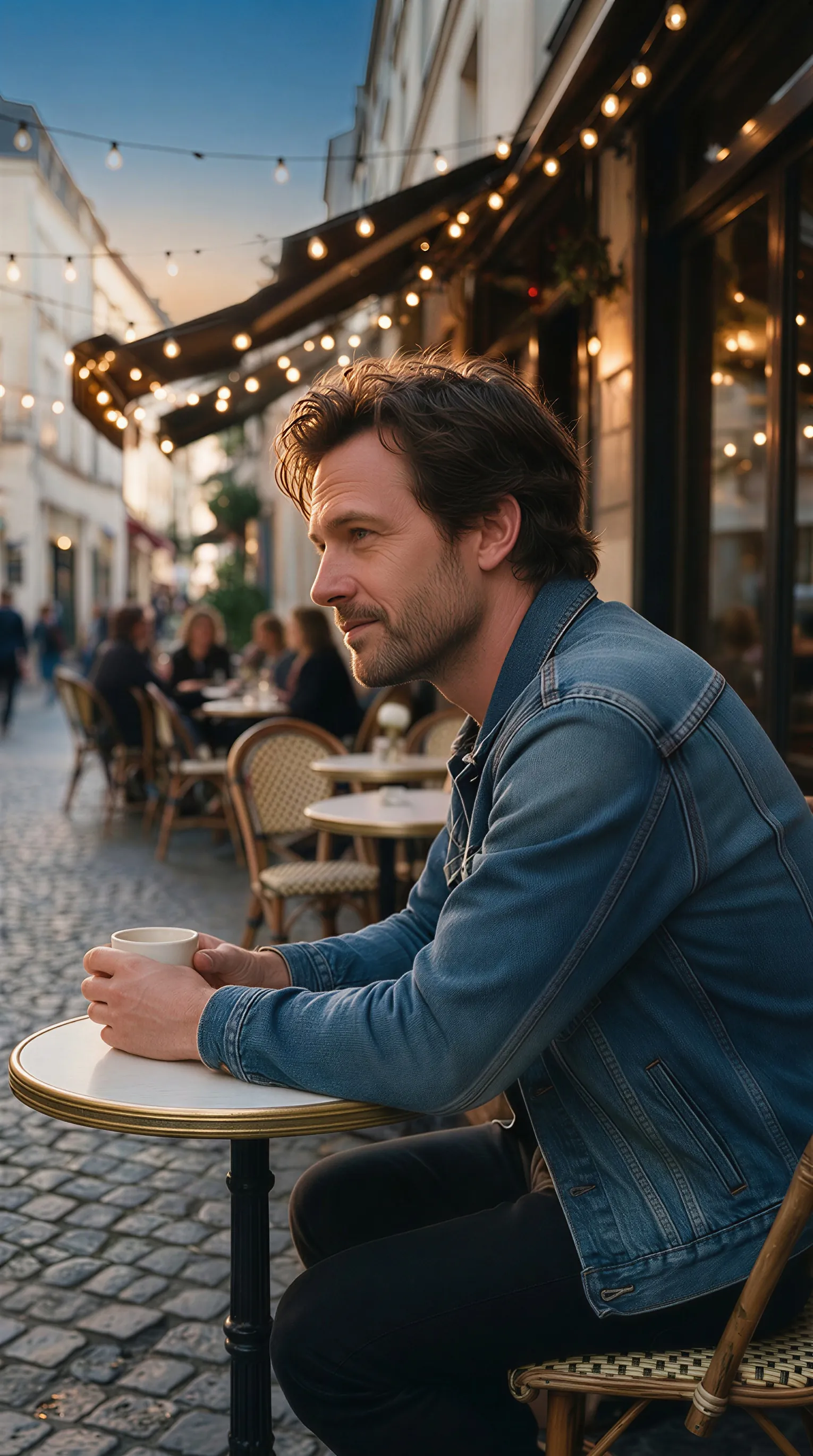
- Fits Stories, Reels and posts
- Pick where the photo sits
- Phone browser friendly
- No watermark
Updated by the Kenerate AI team
On this page
Quick answer
Updated
What does a photo extender do?
A photo extender adds new picture around your photo so it fits a different shape without cutting anyone out. To expand a photo on Kenerate, upload it to Expand Image, pick the shape you need — 9:16 for Stories and Reels, 4:5 for portrait posts, 16:9 for YouTube — and choose where the original sits.
Key facts
- Common fits
- 9:16, 4:5, 1:1, 16:9 and 6 more
- Photo position
- Left / centre / right or top / centre / bottom
- Grow one side
- 0–100% per edge
- Photo
- JPG, PNG or WebP, up to 25 MB
- Runs in
- Any browser, phone included
- Watermark
- None
Everyday fixes
What people use a photo extender for
Six common problems and the Expand Image setting that solves each one.
Wide photo, vertical Story
Pick 9:16. The tool grows the top and bottom; set the photo to centre, or to the bottom to leave sky for stickers.
Tall photo, YouTube thumbnail
Pick 16:9. The sides grow, and you can slide the photo left to leave room for a title on the right.
Portrait post without the crop
Pick 4:5, the tall feed shape, so faces near the edge stay in.
Shot framed too tightly
Use Grow edges at +10% or +25% for breathing room on every side.
Room for your own text
Grow only the top or one side, then add your caption in any editor.
Print at a standard size
3:2, 4:3 or 5:4 match common print frames; send the result to Upscale for more pixels.
How to
How to expand a photo for Stories, Reels or a post
Same steps on a phone or a laptop.
- Time needed
- Steps
- 4 steps
- You need
- A web browser · The photo you want to resize
Step 1
Open Expand Image and add your photo
Upload from your camera roll or computer: JPG, PNG or WebP up to 25 MB. Sign in with a verified email to run it.
Step 2
Pick the shape you need
9:16 for Stories, Reels and TikTok; 4:5 for portrait posts; 1:1 for square; 16:9 for YouTube and desktop. A shape your photo already has is blocked.
Step 3
Place the photo
Choose left, centre or right (or top, centre, bottom), or drag the photo inside the frame, so the new area lands where you want it.
Step 4
Extend and save
Optionally say what the new area should show, run it, and download the result without a watermark. Ask for 2 variations if you want a choice.

Open Expand Image and upload the photo you want to make wider, taller or bigger.


Watch the tour · 1:17
Add a photo, pick a model, new ratio & position or grow edges, describe the new area, results & chat
Chapters
Models
Which model for everyday photos?
All five Expand Image models handle photos. These notes say when to switch from the default.

Google
Nano Banana 2 Fast
- Output
- About 4 MP (2K)
The default; answers largest (about 4 MP), good for most phone photos
Open Nano Banana 2 Fast
Google
Nano Banana 2
- Output
- About 1 MP
Switch to it when a face or a product sits close to the edge
Open Nano Banana 2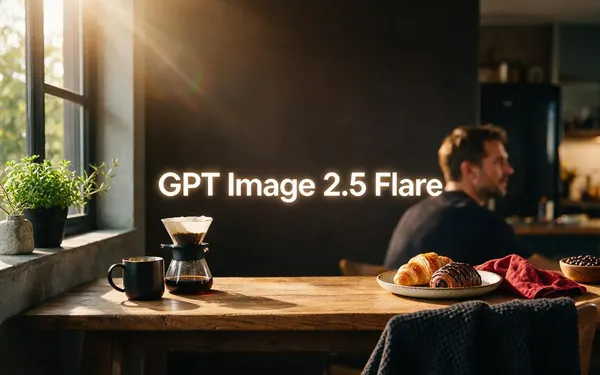
OpenAI
GPT Image 2.5 Flare
- Output
- 1024 px square, 1536 px long side
The quickest GPT option when you just need a fit
Open GPT Image 2.5 Flare
OpenAI
GPT Image 2
- Output
- 1024 px square, 1536 px long side
Accurate object placement and dense text
Open GPT Image 2
OpenAI
GPT Image 2.5 Sunburst
- Output
- 1024 px square, 1536 px long side
Precision: spends longer on detail
Open GPT Image 2.5 Sunburst
Results come back at each model's own size, at the nearest ratio it supports, so a 9:16 request returns a 9:16-shaped image rather than an exact pixel count.
Compared
Extend, crop or stretch?
Three ways to make a photo fit a new shape, and what each costs you.
| Photo extender (AI) | Crop | Stretch or resize | |
|---|---|---|---|
| Keeps the whole original | Yes | No — edges are cut | Yes |
| Keeps people in proportion | Yes | Yes | No — faces get squashed |
| Adds new picture | Yes, generated to match | No | No |
| Risk | The new area is invented and can need a second try | Losing part of the subject | Visible distortion |
General comparison of the three methods; Expand Image details from the tool, 3 October 2026.
Sources: Kenerate Expand Image
Example uses
How creators use photo extender
Illustrative examples of typical workflows, not customer reviews.
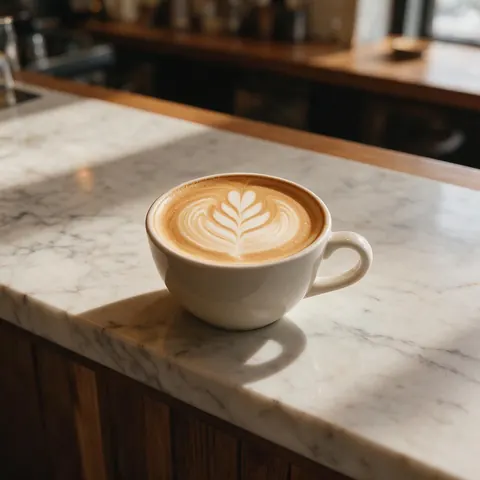
Small cafe owner
A small cafe owner could extend a horizontal latte photo to 9:16 for a Story without cropping the cup.
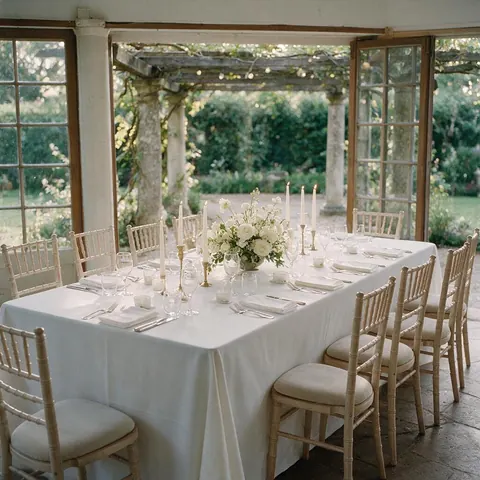
Wedding guest
A wedding guest could extend a tightly framed table photo so the whole floral centrepiece fits a square post.
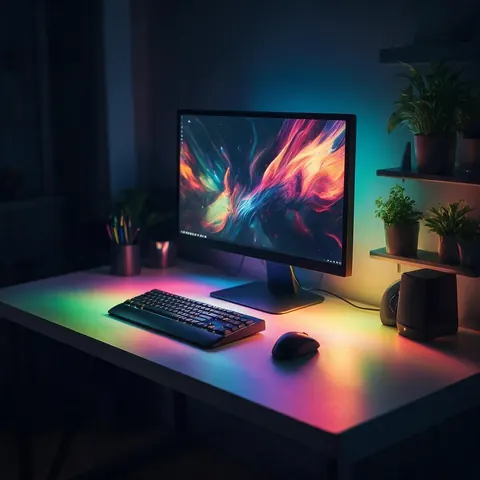
Gamer
A gamer could widen a tall photo of a desk setup to 16:9 to use as a desktop wallpaper.
FAQ
Photo extender questions
Is there an image extender I can use free?
You can try Kenerate's photo extender without paying: new accounts get starter credits, and there's no subscription required. After that you buy credits only if you want more runs. There is no plan gate, every model is available to every account, failed runs are refunded automatically, and results download without a watermark.
Link to this answerHow do I expand a photo for Instagram Stories or Reels?
Upload it to Expand Image and pick 9:16, the shape labelled for Stories, Reels and TikTok. For a horizontal photo, the tool grows the top and bottom; choose top, centre or bottom to decide where the new area goes. Optionally describe it, such as 'more sky above, more sand below', then download.
Link to this answerCan I extend a photo on my phone?
Yes. Expand Image works in the phone browser with nothing to install: upload from your camera roll, pick a shape or grow the edges, place the photo and run it. Results save to your device without a watermark and also stay in your Kenerate History, so you can open them later on a computer.
Link to this answerWill the person in my photo change?
The original photo is kept where it is; only the new area is painted. The tool's instruction tells the model to keep the photo's content, position and scale unchanged. Models can occasionally retouch near the seam, so check faces at the edge, and pick Nano Banana 2, which the tool lists for keeping faces consistent.
Link to this answerWhy is my extended photo smaller than I expected?
Because each model answers at its own size: GPT models at 1024 px square or 1536 px on the long side, Nano Banana 2 at about 1 MP, Nano Banana 2 Fast at about 4 MP. For a large print or a 4K screen, send the result to Upscale from the result screen.
Link to this answerCan I make a photo wider on just one side?
Yes. Switch to Grow edges and set only the side you want, from 0 to 100% of the photo's width or height in 5% steps. That is handy for adding space next to a person for a caption, or extending only the sky. The presets +10, +25 and +50% grow every side at once.
Link to this answerIn depth
Expanding photos for social media
Why photos keep getting cropped, and how to extend them so nobody notices.
On this page
Why do my photos get cropped when I post them?
Each app shows pictures in a fixed set of shapes. Your phone shoots 3:4 or 4:3, a full-screen Story or Reel is 9:16, a YouTube thumbnail is 16:9. When the shapes don't match, the app either crops your photo or pads it with bars. Extending the photo to the target shape first means you decide what's in the frame.
Which photos extend best
Photos with a simple surrounding — sky, sea, a plain wall, a studio backdrop, a park — give the model an easy pattern to continue. Busy scenes still work, but check the new area for doubled objects. If someone's arm or bag is cut by the edge, the model has to invent the rest, so try Nano Banana 2 or a second variation.
When cropping is still the better choice
If the target shape is narrower than your photo and the subject sits in the middle with nothing important at the sides, cropping is faster and keeps every pixel real. Extending wins when the subject fills the frame or sits off-centre, and when you need extra space for text.
Extending a photo on your phone
Expand Image runs in the mobile browser, so there's nothing to install. Upload from your camera roll, pick the shape, tap to place the photo, and save the result back to your phone. The same account works on desktop, and your results stay in your History.
Whose photos should you extend?
Your own photos, or pictures you have the rights to use. Extending changes a photo by adding invented content, so be careful with photos of other people: don't present an extended photo as an untouched record of a real event.
Make it fit without cropping
Starter credits for new accounts. Works on your phone. No watermark.
Tried it? Tell us how it went