

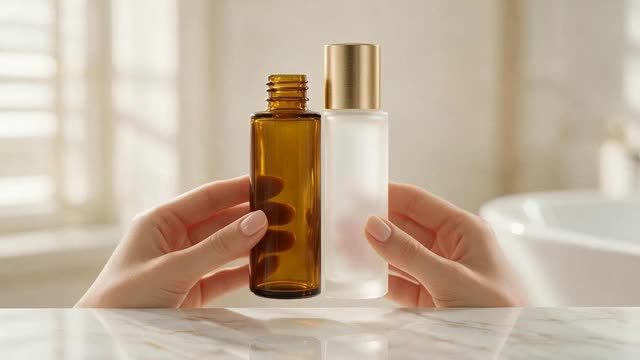
Swap object mode · your own products · same hands and motion
Replace a product in a video — your packshot, the shot you already paid for
The take is perfect, but the product isn't: old packaging, last season's colour, a prototype, or a placeholder from the shoot. Genjutsu swaps it for your current product from a packshot, keeping the hands, the camera, the light and the voice-over.
- Your packshot as reference
- Hands and pours kept
- Same timing for every variant
- Up to 4K
Updated by the Kenerate AI team
Made with Kenerate

On this page
Quick answer
Updated
How do you replace a product in a video with AI?
To replace a product in a video with AI, upload the clip to Kenerate Genjutsu, choose Swap object, add a clean packshot of your product as @image1 and write "swap the bottle for the product in @image1". The new product takes the old one's place, scale and movement in every frame, including when hands hold or turn it.
Key facts
- Mode
- Swap object
- Reference
- Your packshot, up to 10 angles (30 on Seedance 2.5)
- Kept
- Hands, people, background, camera, timing, light
- Clip length
- 2–15 s, or 4–30 s on Seedance 2.5
- Output
- MP4, no watermark, up to 4K on Seedance 2.5
- Use on
- Footage you own or licensed, with your own products
Real demo
A product swap through a pour
The hardest product shot is one that's being used. Swap object turned the coffee cup into the glowing crystal cup from one reference image — and the milk still pours into it, with the glow lighting the table.
- New product. Prompt: “Turn the coffee cup into the glowing crystal cup from @image1 — the milk still pours into it and the cyan glow lights the table.”
Kenerate Genjutsu at 720p — an unedited result from the app's example gallery, shown next to its source clip.
Swap in your productReal demo
Same product, a new set
Sometimes the product is right and the setting is wrong. Change background moved this bottle onto a mossy rock by a forest waterfall from one reference image, with the product itself left untouched.
- New set. Prompt: “Place the bottle on the mossy rock by the forest waterfall from @image1, with soft morning light and mist.”
Kenerate Genjutsu at 720p — an unedited result from the app's example gallery, shown next to its source clip.
Move your productReal results
Shots that sell a product
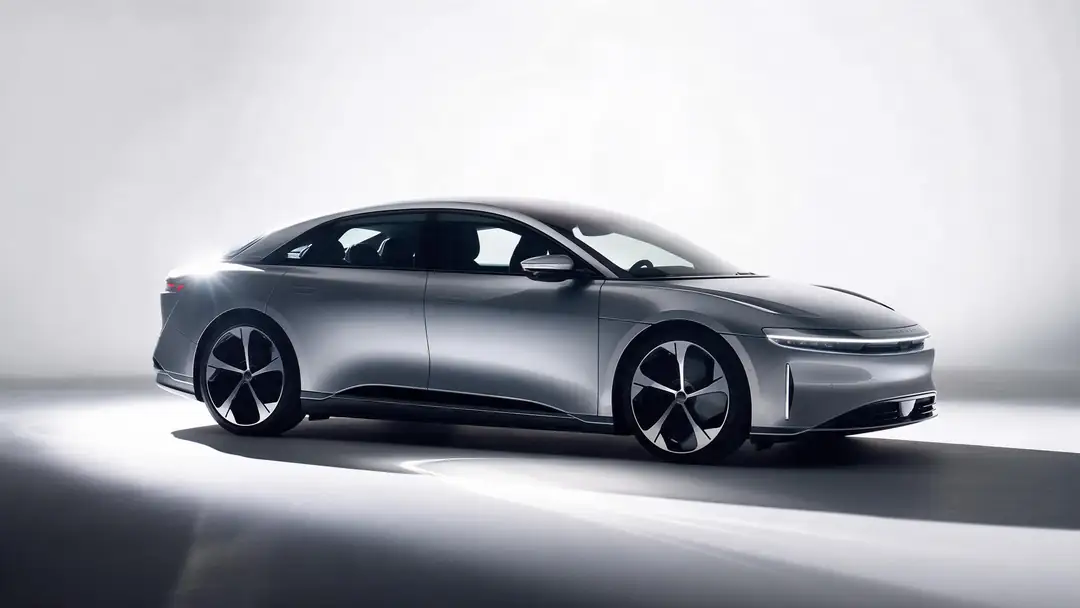
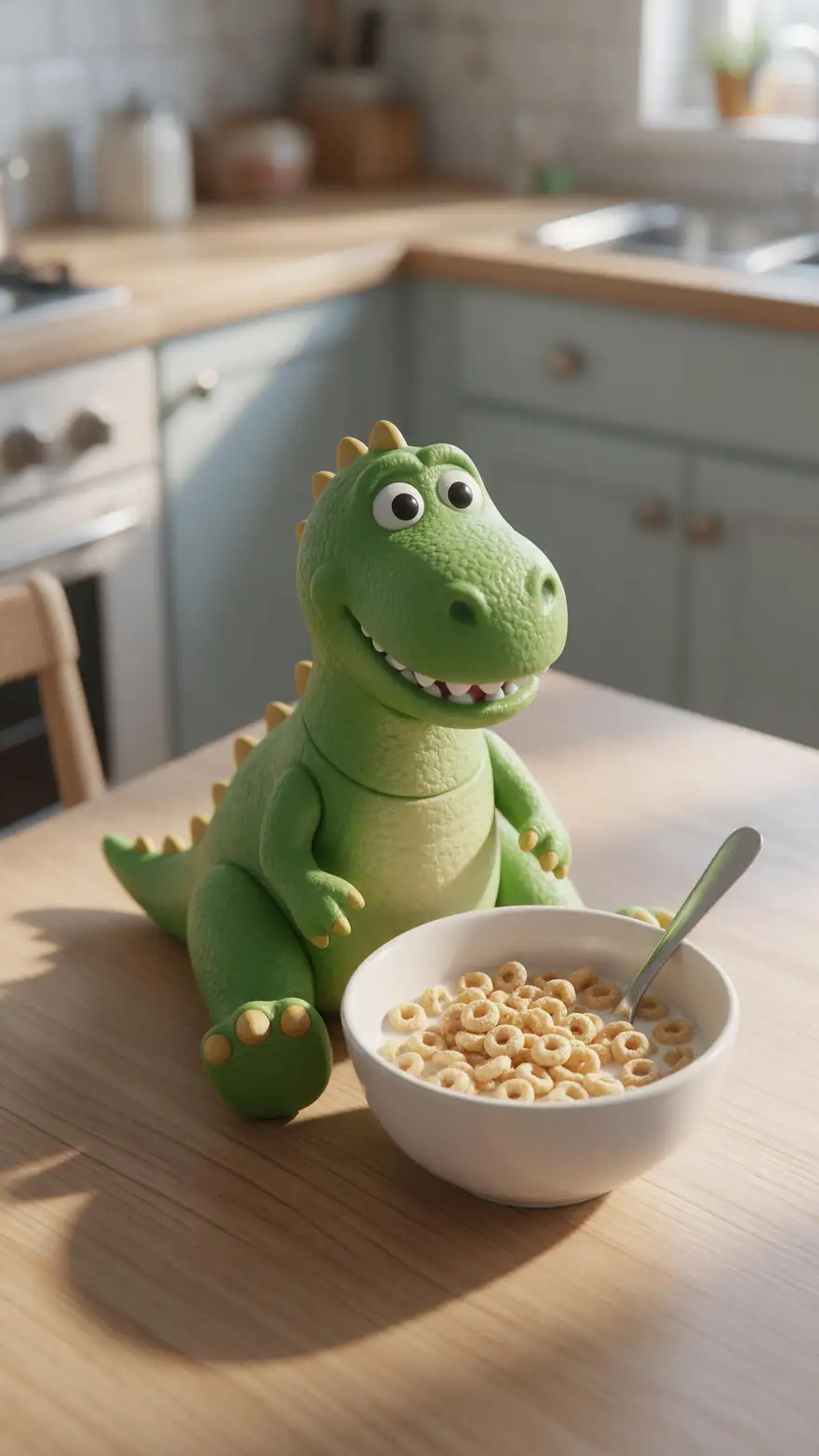
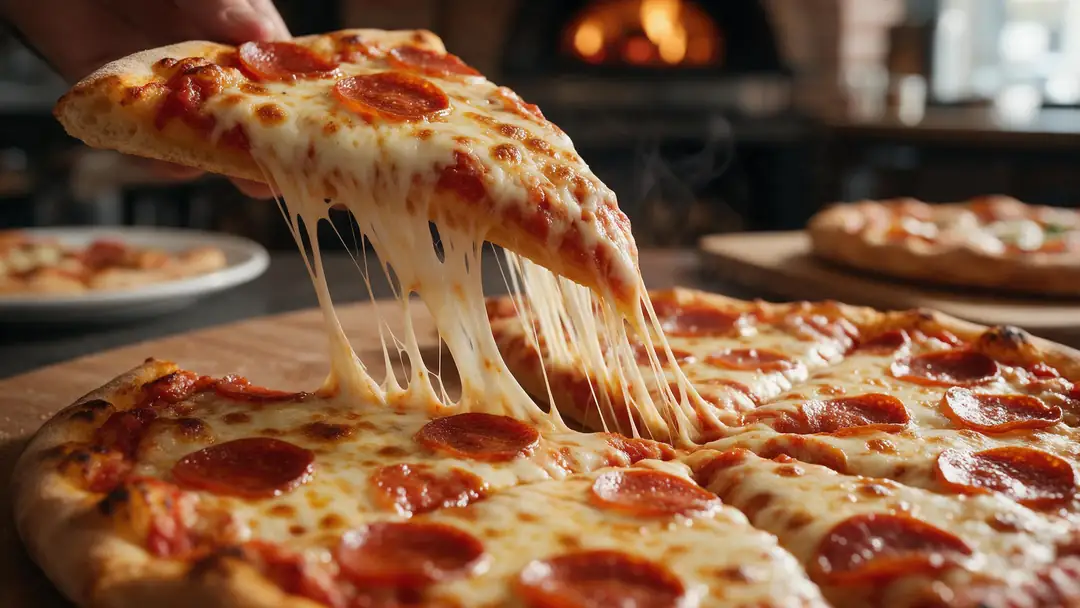
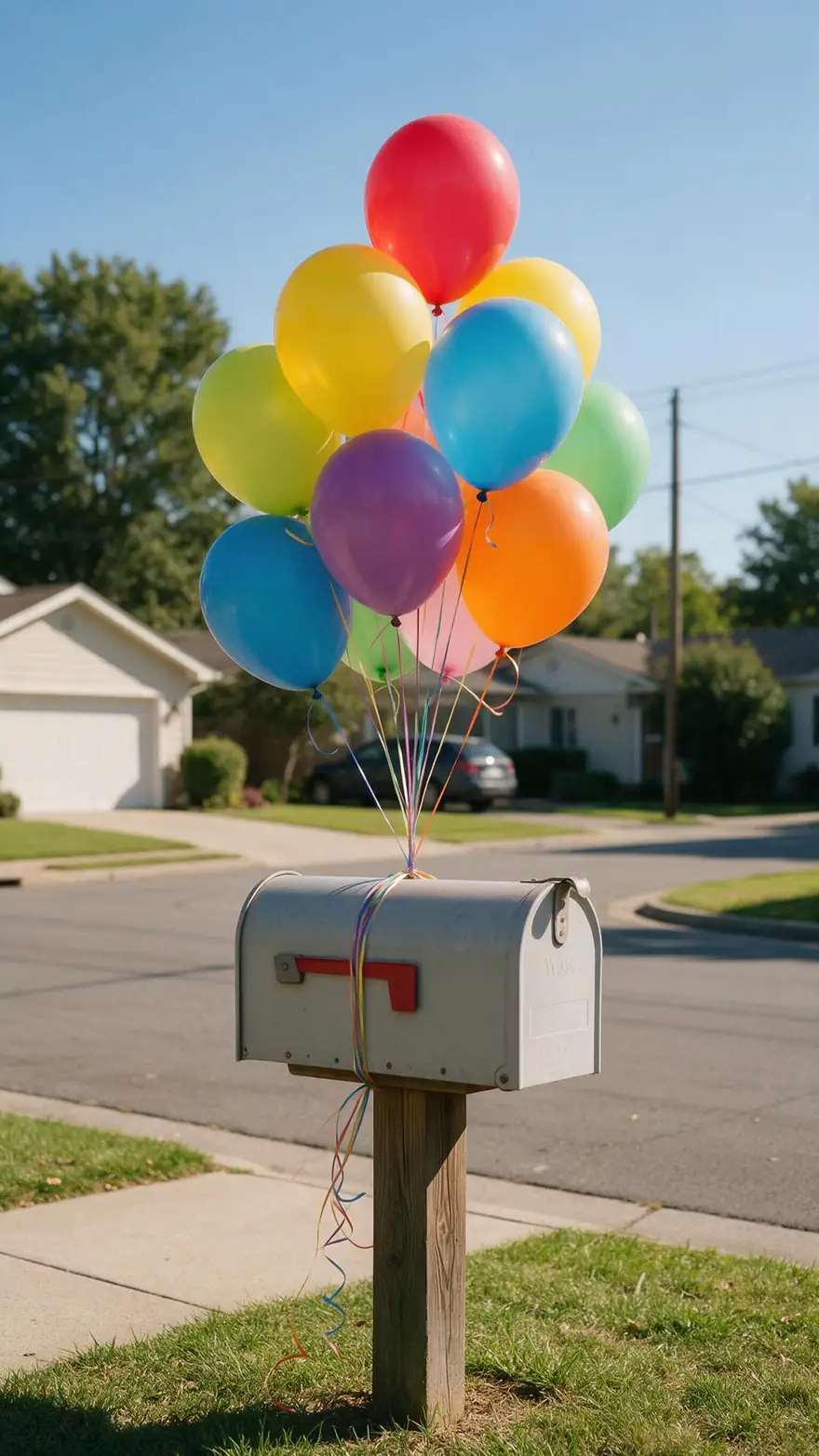
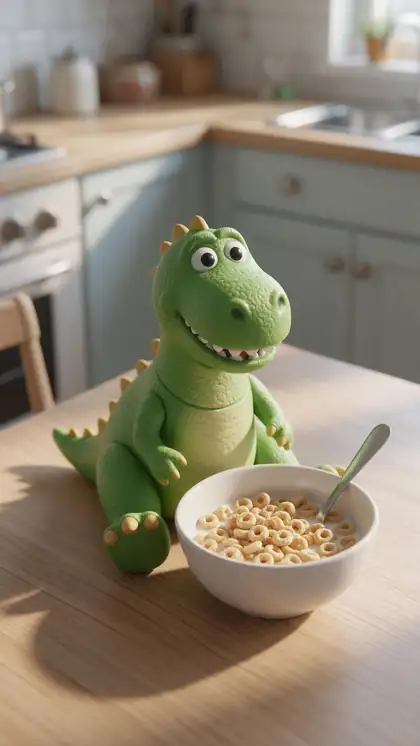
A car on a studio turntable, latte art, a breakfast-table toy, a cheese pull and balloons on a mailbox — the kind of product moments brands want to reuse.
These gallery clips were generated from still images (model named on each card); none of them is a product swap. For real swaps, see the two Genjutsu demos above, each shown next to its source clip.
How to
Replace a product in five steps
- Time needed
- Steps
- 4 steps
Step 1
Pick the source take
The product clearly visible and not tiny in frame. MP4, MOV, WebM or M4V up to about 100 MB; 2–15 s, or up to 30 s on Seedance 2.5.
Step 2
Prepare the packshot
Your product alone on a plain background, sharp, in the same orientation as in the clip. Add side and back views as @image2, @image3.
Step 3
Choose Swap object and name the old item
"Swap the white bottle on the counter for the product in @image1." Naming the old item matters when there are several.
Step 4
Keep the original audio on
Voice-overs, music and sound effects stay aligned with the action, because the timing doesn't change.
See it in the app

Open Kenerate Genjutsu and choose Replace character, Swap object, Change outfit, Change background or Free edit.


Watch the tour · 1:19
Text, image & reference to video, models, edit, extend & chat
Chapters
Engines
Which engine for a product swap
Product shots live or die on material and shape. Choose by how close the camera gets and how long the ad is.
- Default
Kenerate
Kenerate Genjutsu
- Input
- Clip 2–15 s + up to 10 references
- Output
- 480p, 720p or 1080p · ~2–4 min
Quick variants of a 6–15 second social ad, one per product
Open Kenerate Genjutsu - Finer detail
Kenerate
Kenerate Genjutsu Pro
- Input
- Clip 2–15 s + up to 10 references
- Output
- 480p, 720p or 1080p · ~3–6 min
Close-ups where glass, metal or fabric texture must read cleanly
Open Kenerate Genjutsu Pro 
ByteDance
Seedance 2.5
- Input
- Clip 4–30 s + up to 30 references
- Output
- 480p to 4K · ~4–8 min
Ads up to 30 s, up to 30 packshot angles, and 4K for big screens
Open Seedance 2.5
Every run keeps the clip's length, motion and timing, so variants line up shot for shot with the original edit.
Tips
Product swaps that pass a brand review
The closer the new product is to the old one's size and shape, the more believable the swap.
Swap like for like: a bottle for a bottle.
Match the packshot angle to the clip.
Big, simple labels survive; fine print may not.
Avoid shots where hands fully wrap the product.
Check reflections on glass and metal.
Only your own products and footage you control.
Example uses
How creators use Replace Product in video
Illustrative examples of typical workflows, not customer reviews.
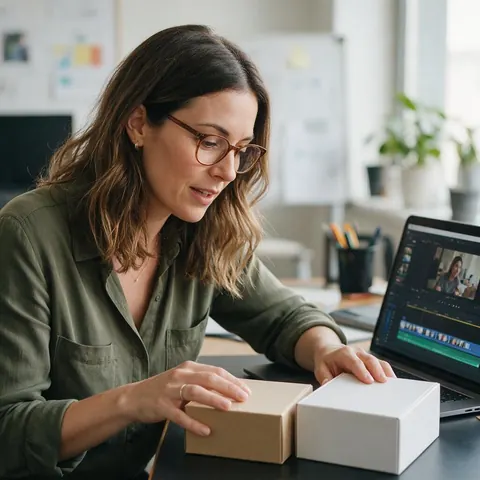
DTC brand marketer
A brand marketer can update last year's best-performing ad with the new packaging instead of booking a reshoot.
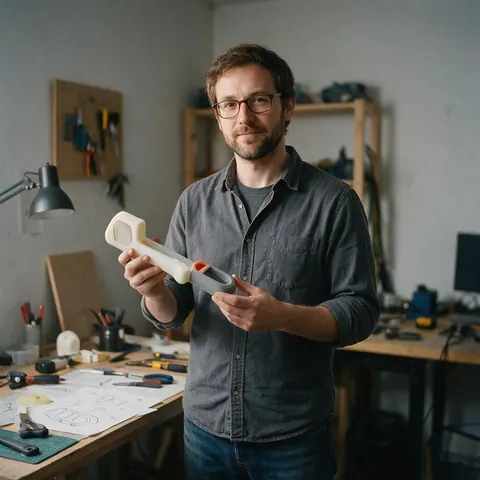
Product startup
A hardware startup can show a pre-production design in a real demo clip before the final units arrive.
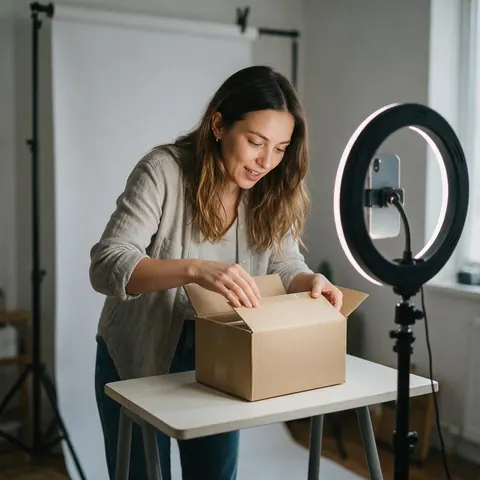
Marketplace seller
A marketplace seller can make one video per colourway from a single filmed unboxing.
FAQ
Replacing products in video — questions
Can AI replace a product in an existing video?
Yes. Genjutsu's Swap object mode replaces one named item with the product in your reference image, matching its shape, material, colour and details. The new product keeps the original's exact place, scale, orientation and movement in every frame, with contact, occlusion, reflections and shadows, while people, hands, background and camera stay unchanged.
Link to this answerWill my label and logo come out exactly right?
Large shapes, colours and bold logos usually carry over well; small text, ingredient lists and fine print may not be reproduced letter for letter. Review every frame in the compare view. For legal copy, prices or claims that must be exact, add them as a graphic overlay in your editor after the swap rather than relying on the generated label.
Link to this answerWhat is AI product placement?
It means putting a product into footage after it was filmed instead of on set. Genjutsu does this by replacement: it swaps an item already in the shot for your product, so the hands, the table and the light are already right. It works best when something of a similar size already sits where your product should be.
Link to this answerWhich shots work best for a product swap?
Shots where the product is clearly visible, not tiny in frame, and moves at a moderate pace. Slow pushes, turntables, hand-held reveals and pours all work. Very fast whip pans, products mostly hidden by fingers, and items reflected in mirrors are harder — check those moments first in the synced compare view before you approve a variant.
Link to this answerDoes the voice-over stay in sync after the swap?
Yes, by default. Keep the original audio is switched on, and the swap doesn't change the clip's length, motion or timing, so voice-over, music and sound effects line up exactly as before. Turn it off only if you want new sound generated to match the edited scene; Dub into another language is also available afterwards.
Link to this answerCan I put my product into a creator's or influencer's video?
Only with their permission and the rights to the footage. Edit videos you own or licensed, swap only products you're entitled to show, and never replace a competitor's product to make it look like a creator endorsed yours. Paid placements should be disclosed as advertising — in the US the FTC's Endorsement Guides apply.
Link to this answerIn depth
Product replacement, explained
How to prepare a packshot, where labels need help, and the rules around placement.
On this page
Preparing a packshot the engine can copy
The Swap object instruction asks the engine to match the reference's shape, material, colour, texture and details, so the packshot is effectively the brief. A slightly boring, accurate photo beats a stylised campaign render.
- One product per image, nothing else in frame.
- Plain, light background and even studio light.
- Same angle the product shows in the clip.
- Extra angles as @image2, @image3 for turns.
- Real colours — no heavy retouching or glow.
Labels, small text and compliance copy
Generated video handles form and colour far better than small type. A big wordmark on a can usually holds; a nutrition panel, a batch code or an ingredient list may come out blurred or rewritten. Plan for it: keep the label face large in the source shot, and put any copy that must be exact — claims, prices, legal lines — on top in your editor after the swap.
Placement, disclosure and fair comparison
Using AI to update your own ads is ordinary post-production. The line is crossed when an edit changes what someone appeared to endorse or use: swapping a product into a creator's clip without a deal, or replacing a rival's product to stage a comparison. Get written agreement for creator content and disclose paid placements as advertising.
When to reshoot instead
A swap can't fix a product of a very different size or shape — a tall bottle where a lipstick was, or a laptop in place of a phone — because hands, shadows and framing were built around the original. Swap object also needs something to swap: it isn't built to place a product on an empty table. If the new product needs a different interaction, a new take is quicker.
Product placement AI video
For a brand's own content, placement is a swap: the shot already has a cup, a phone or a bottle where the product should be, and Swap object turns it into yours with the hands and lighting intact.
Update packaging in a video
Rebrands and new packaging don't need a reshoot of every evergreen ad. Run the old take with a packshot of the new pack, then compare the label frame by frame before you replace the ad in the account.
Replace product in video for marketplaces
Regional packs, bundle sizes and colourways can each get their own version of one hero clip. Since the timing never changes, the same captions and voice-over fit every version.
Explore
Every Kenerate video tool
Generators, tools, models and guides — all in one studio.
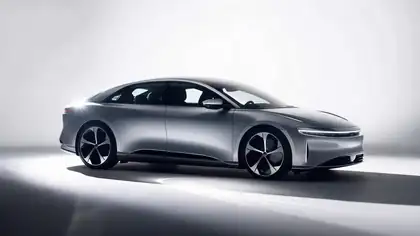

Today's product, yesterday's best take
Swap object, your packshot, the same hands and timing. Your own products only.
Tried it? Tell us how it went