

Prompt → textured 3D model
Text to 3D generator describe it, get the model
Write what you want — the object, its shape, materials and colours — and get a 3D model back. Then try the same prompt on a second engine and keep the better one.
- Long briefs on GPT-6 Astra
- GLB · FBX · OBJ · USDZ · STL
- paid plans & credit packs
Updated by the Kenerate AI team
Made with Kenerate


On this page
Quick answer
What is a text to 3D generator?
A text to 3D generator creates a 3D model from a written description. In Kenerate AI's 3D Studio you describe one object (its shape, materials and colours) and pick one of nine engines; most models arrive in 1–5 minutes (longer on GPT-6 Astra) as GLB, with FBX, OBJ, USDZ or STL on some engines.
Key facts
- Prompt length
- 200 (Hunyuan Rapid) · 600 (Meshy) · 1,000 (Rodin) · 1,024 (Tripo) · 4,000 (GPT-6 Astra) characters
- Engines
- Tripo H3.1 (default) · Meshy 7.1, 7, 6 · Tripo P2 · Rodin 2.5, 2 · Hunyuan 3D 3.1 Rapid · GPT-6 Astra
- Output
- GLB on every engine; FBX, OBJ, USDZ, STL on some
- Typical time
- About 1–5 minutes; GPT-6 Astra longer
- Styles
- Realistic, stylised, low-poly (Meshy), untextured draft (Hunyuan)
- Access
- paid plans and credit packs
Start from a picture
Ideas to describe — or start from
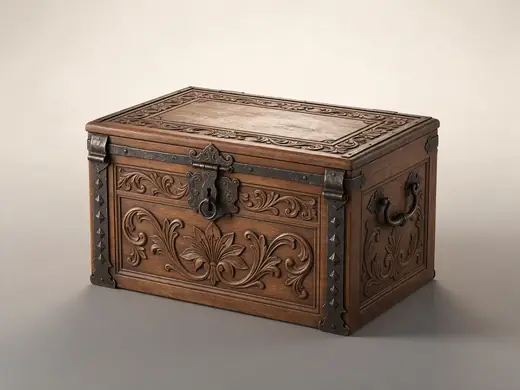
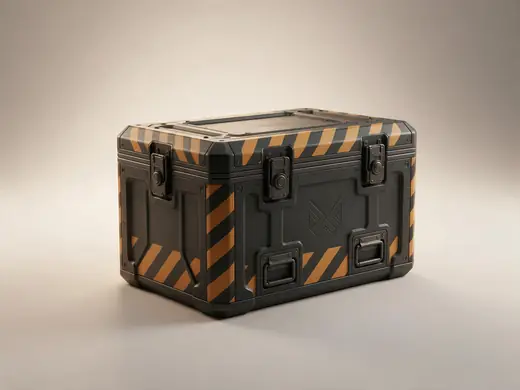
Each of these matches a prompt idea on this page. Describe one in words, or tap “To 3D” to start from the picture.
Reference images made with Seedream 5.0 Pro. “To 3D” opens Image to 3D in the 3D Studio with that picture.
Why Kenerate
Text to 3D model: prompts in, real models out
Engines read prompts differently. Trying the same text on two of them is the fastest way to learn which to use. Want letters and words in 3D instead? That's the free 3D Text Generator.

Also
What else it does
Style controls
Low-poly and smart-topology modes on Meshy, quad meshes on Tripo and Rodin, polygon budgets where the engine supports them.
Draft fast, finish strong
Try a shape on Hunyuan 3D Rapid in about a minute, then rebuild the keeper on a textured engine.
Engines
Nine engines in one 3D Studio
Pick per job — draft fast, then rebuild your favourite on a stronger engine.
Meshy
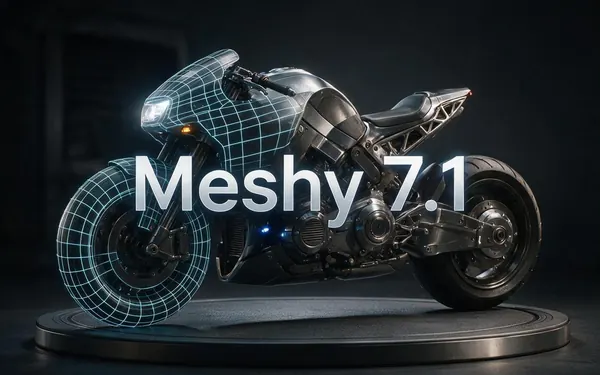
Meshy 7.1
- Inputs
- Text · Photo · Multi-view (up to 4 views)
- Files
- GLB, FBX, OBJ, USDZ
- Typical time
- about 3–4 min
Open Meshy 7.1Best for
Production assets with the finest Meshy geometry (2K / 4K), smart topology, rigging and animation.
Meshy
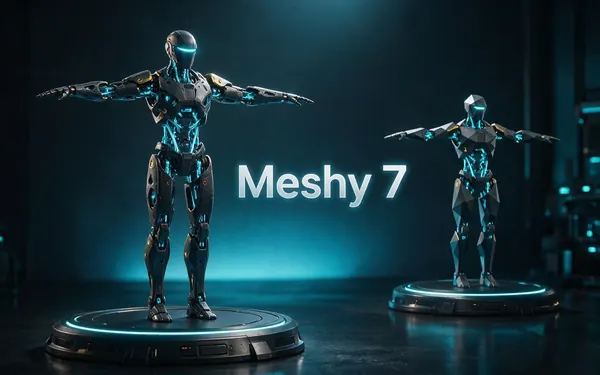
Meshy 7
- Inputs
- Text · Photo · Multi-view (up to 4 views)
- Files
- GLB, FBX, OBJ, USDZ
- Typical time
- about 3–4 min
Open Meshy 7Best for
Detailed game and product assets, with an Ultra detail switch, low-poly mode and auto-rigging.
Meshy
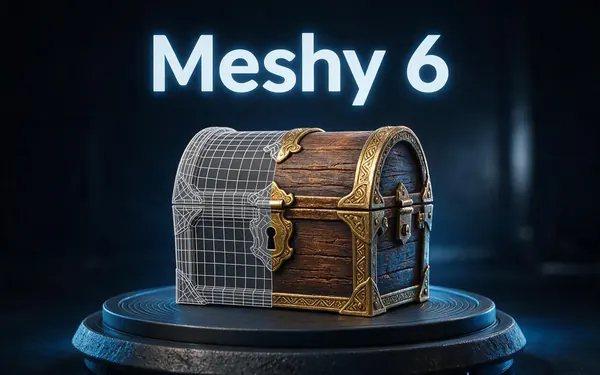
Meshy 6
- Inputs
- Text · Photo
- Files
- GLB, FBX, OBJ, USDZ
- Typical time
- about 3–4 min
Open Meshy 6Best for
Reliable textured meshes with a polygon budget you control — the engine 3D Studio started on.
Tripo
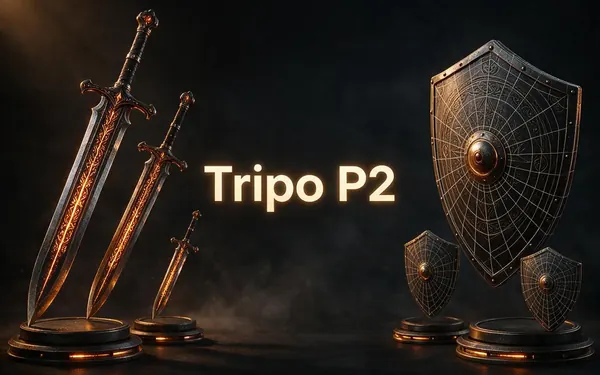
Tripo P2
- Inputs
- Text · Photo
- Files
- GLB, FBX
- Typical time
- about 3–4 min
Open Tripo P2Best for
Crisp, game-ready meshes with pro texture tiers up to Extreme and clean quad remeshing.
Tripo
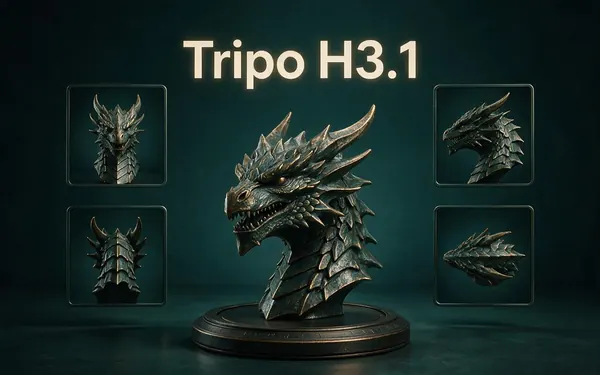
Tripo H3.1
- Inputs
- Text · Photo · Multi-view (up to 4 views)
- Files
- GLB
- Typical time
- about 4–5 min
Open Tripo H3.1Best for
High-quality meshes, with detailed geometry and a four-view mode for exact shapes.
OpenAI
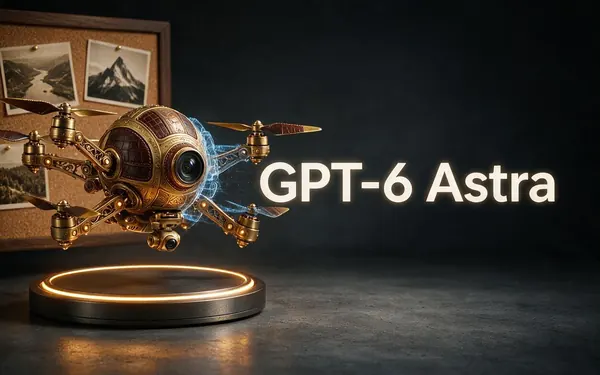
GPT-6 Astra
- Inputs
- Text · Photo · Multi-view (up to 10 views)
- Files
- GLB
- Typical time
- about 5–6 min
Open GPT-6 AstraBest for
OpenAI's general GPT-6 Astra model run as a 3D job — follows long, detailed briefs and up to 10 reference photos, returns a GLB with PBR textures at real-world size. The slowest engine.
All models (9)
Hyper3D
Rodin 2.5
- Inputs
- Text · Photo · Multi-view (up to 5 views)
- Files
- GLB, FBX, OBJ, USDZ, STL
- Typical time
- about 2–3 min
Open Rodin 2.5Best for
Studio-grade meshes from 2K to 500K faces, quad or triangle, with a HighPack for 4K textures.
Hyper3D
Rodin 2
- Inputs
- Text · Photo · Multi-view (up to 5 views)
- Files
- GLB, FBX, OBJ, USDZ, STL
- Typical time
- about 2–3 min
Open Rodin 2Best for
Clean, detailed meshes — the first photo drives the materials.
Tencent
Hunyuan 3D 3.1 Rapid
- Inputs
- Text · Photo
- Files
- GLB (untextured)
- Typical time
- about 1 min
Open Hunyuan 3D 3.1 RapidBest for
The fastest geometry — an untextured (clay) GLB for quick blockouts, drafts and ideas.
Typical times are the studio’s own estimates; real runs vary with load and settings. Formats are what each engine returns — GLB previews in the browser, other formats download.
How it works
How text becomes a 3D model
Behind the prompt box.
Understand
The engine reads your prompt for the object, its parts, materials and style.
Shape
It generates a 3D mesh that matches the description.
Texture
Colours and, on most engines, PBR maps are painted on.
Deliver
GLB lands in your gallery with the prompt and engine saved.
How to
How to use the Text to 3D Generator
- Time needed
- Steps
- 4 steps
Step 1
Pick Text to 3D
In the 3D Studio, choose Text to 3D.
Step 2
Write one object
Name the object, then shape, material, colours and style.
Step 3
Choose an engine
Tripo H3.1 by default; others for their strengths.
Step 4
Generate and refine
Inspect it, adjust the prompt or engine, and download.
Watch the tour · 1:48
Text, photo or multi-view to a textured GLB, nine engines, the viewer & lighting, compare engines, gallery, download & chat
Chapters
Use cases
What people describe
Props and items
Weapons, furniture, food, tools.
Characters
Stylised creatures and figures (rig on Meshy).
Collectibles
Figurines and miniatures to print.
Concept blockouts
Fast shapes for pitches and level design.
Product ideas
Visualise a product before it exists.
Teaching models
Objects and structures for lessons.
Tips
Writing a good 3D prompt
Start with the object: “a ceramic teapot”, not “a cosy kitchen”.
Add shape and parts: “round body, short spout, bamboo handle”.
Name materials and colours: “speckled cream glaze, dark wood”.
Set a style: realistic, stylised, low-poly, cartoon.
Leave out backgrounds, lighting and camera words — engines model the object only.
Prompt guide
Prompts that make good 3D models
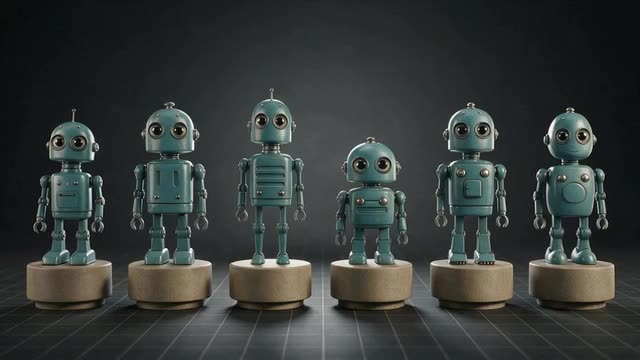
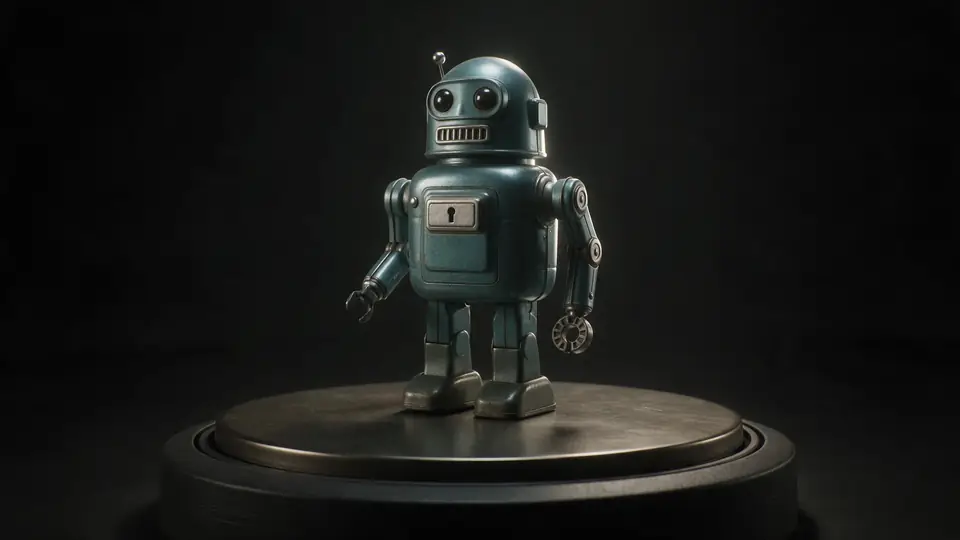
A friendly retro toy robot…
A friendly retro toy robot with round glass eyes and a teal painted metal body
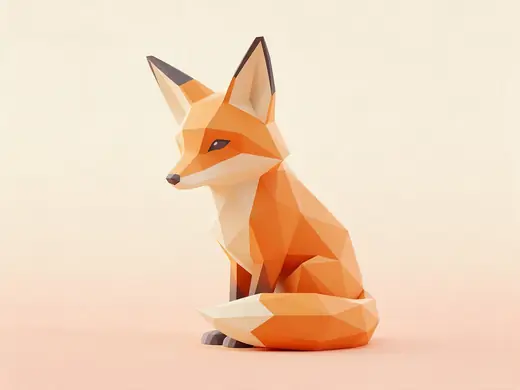
A low-poly stylised fox sit…
A low-poly stylised fox sitting with its tail around its paws
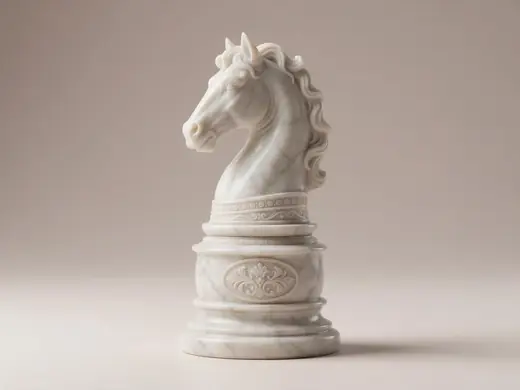
An ornate chess knight piec…
An ornate chess knight piece in white marble on a round base
Example uses
How creators use the text to 3D generator
Illustrative examples of typical workflows, not customer reviews.
Indie game developer
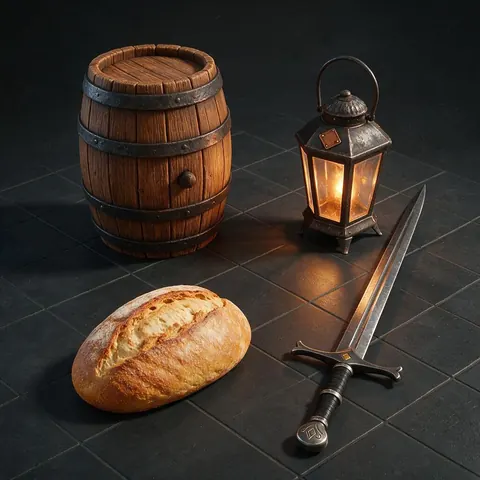
A game developer can describe props such as furniture, tools and food and get textured models to drop into a level.
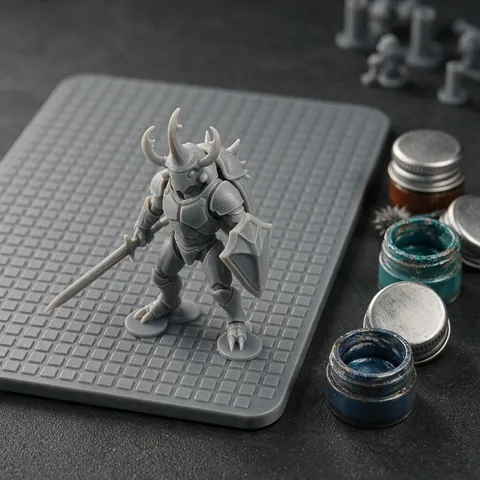
Miniature hobbyist
A hobbyist can describe a figurine, then convert the model to STL and print it.
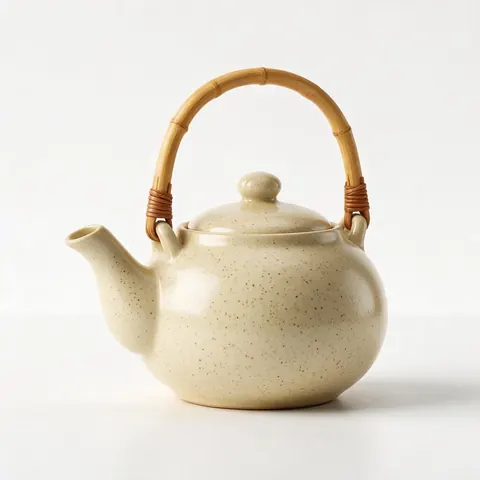
Product designer
A designer can describe a product idea in words and see it as a 3D model before it exists.
FAQ
Text to 3D Generator questions
7 questions
What is text to 3D?
AI that creates a 3D model from a written description, usually with textures, as a file like GLB or FBX.
Link to this answerWhat's the best text-to-3D engine?
Tripo H3.1 is a strong default; Meshy 7.1 for production assets and rigging; Rodin 2.5 for dense detail and STL; GPT-6 Astra for long, specific briefs; Hunyuan 3D Rapid for quick drafts.
Link to this answerHow long can my prompt be?
Up to 200 characters on Hunyuan Rapid, 600 on Meshy, about 1,000 on Rodin and Tripo, and 4,000 on GPT-6 Astra.
Link to this answerIs text to 3D the same as a 3D text generator?
No. Text to 3D makes an object from a description. If you want letters and words in 3D — names, signs, logos — use the free 3D Text Generator, which extrudes fonts into STL or GLB.
Link to this answerCan it make a whole scene?
Most engines make one object at a time — make the pieces separately and arrange them in Blender or a game engine. GPT-6 Astra can return a small scene in one GLB when the prompt describes one.
Link to this answerIs text to 3D free?
3D generation is part of every paid plan and credit pack.
Link to this answerCan I print the result?
Yes — STL from Rodin, or convert any GLB with the free GLB to STL tool.
Link to this answerIn depth
Text to 3D Generator, explained
How engines read prompts, and how to write ones that model well.
On this page
Prompts describe objects, not pictures
Image prompts are about composition and light; 3D prompts are about the thing itself. Describe parts, proportions and materials. Lighting is added later by whatever displays the model.
Why engines disagree
Each engine was trained differently, so the same words produce different proportions, levels of detail and texture styles. When a result is close but not right, changing engine often helps more than rewording.
From text to a printable object
For printing, prefer chunky forms without thin floating parts and convert the GLB to STL or 3MF in millimetres. Walls under about 0.9 mm are risky on a 0.4 mm nozzle [11].
Try the Text to 3D Generator
3D generation is part of every paid plan and credit pack. The free 3D tools — viewers, converters, image to STL — need no account.
Tried it? Tell us how it went