Speech to text · Auto-detect + 10 languages · burned in · up to 4 min
Auto subtitle generator — speech in, burned-in subtitles out
Upload a video and the AI transcribes the speech, times every line and burns the subtitles into the picture. Below: how the language setting works, what burned-in means next to an SRT file, and what to use when you need a file.
- Speech transcribed automatically
- Auto-detect or pin the language
- Burned into one MP4
- Original vs Captioned preview
Updated by the Kenerate AI team
On this page
Quick answer
Updated
What is an auto subtitle generator?
An auto subtitle generator uses AI speech recognition to turn the dialogue in a video into timed subtitles without any typing. Kenerate's version detects the spoken language automatically, or lets you pin one of 10, and burns the subtitles into the video as one MP4 at 720p or 1080p. It doesn't export SRT or VTT files.
Key facts
- Spoken languages
- Auto-detect + 10
- Subtitle type
- Burned in (open)
- SRT / VTT export
- No
- Translation
- No — dub first
- Clip limit
- 4 min, 100 MB
- Formats in
- MP4, MOV, WebM
Real demo
Speech in, subtitles out
Drag the line. Left: the classroom clip as recorded. Right: the auto subtitle generator's output in Plain — transcribed and timed with no typing.
- Original. The 16:9 clip with speech, no subtitles.
- Subtitled. Plain style at the bottom, burned into the frame.
Both are real, unedited files, shown at the same size.
Subtitle a clipReal results
Four clips, subtitled automatically
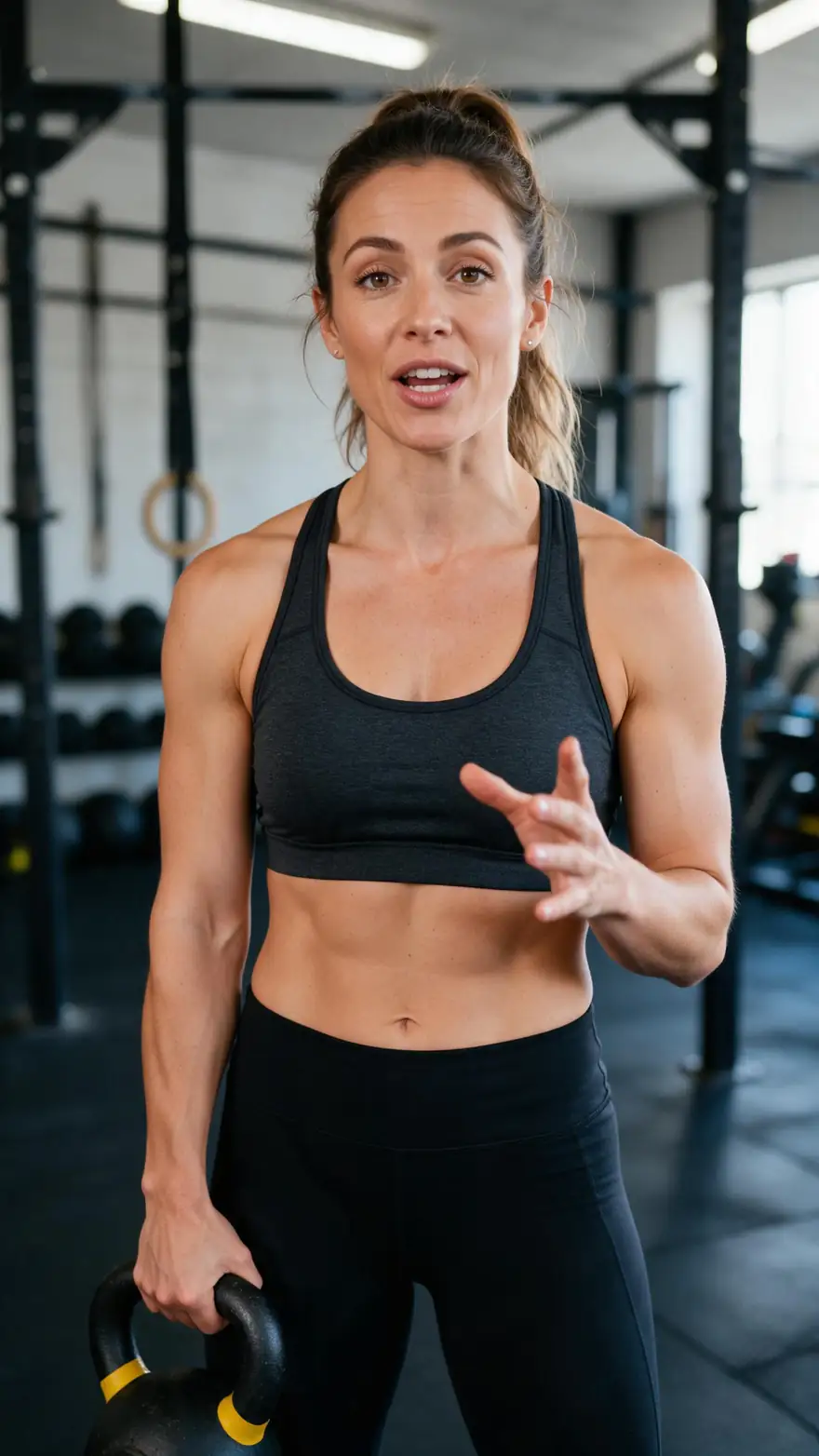
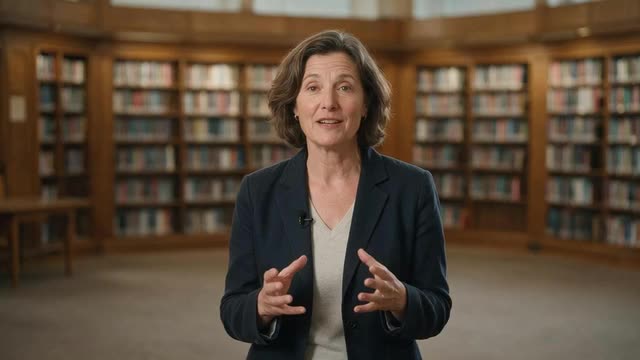
Real Wan 3 talking clips with English speech. Nobody typed a word: each was transcribed and subtitled by the tool, in a different style.
Clips: Wan 3 image to video with speech (AI-generated people). Subtitles: Kenerate Auto Subtitles, unedited.
How to
How to generate subtitles automatically
- Time needed
- Steps
- 4 steps
Step 1
Check the audio
One clear voice at a time and low music give the best transcript.
Step 2
Upload the video
MP4, MOV or WebM, up to 4 minutes and 100 MB; split longer videos into parts.
Step 3
Set the spoken language
Leave Auto-detect, or pin one of the 10 languages the tool lists.
Step 4
Pick style, position and resolution
10 styles; Top, Middle or Bottom; 720p or 1080p HD.
See it in the app

Open Auto Subtitles and upload a clip, or pick one from your history, library or a link.


Watch the tour · 1:19
Text, image & reference to video, models, edit, extend & chat
Chapters
Engines
Which spoken-language setting to use
The tool's language list, and when each option makes sense.
- Default
Default setting
Auto-detect
- Input
- Any clip up to 4 min
- Output
- Language picked from the audio
One clear language, everyday accents
Open Auto-detect 
Spoken language
English (US)
- Input
- Any clip up to 4 min
- Output
- English subtitles
American and most other English
Open English (US)
Spoken language
English (India)
- Input
- Any clip up to 4 min
- Output
- English subtitles
Indian-accented English
Open English (India)
Spoken language
Spanish · French · German · Italian · Portuguese
- Input
- Any clip up to 4 min
- Output
- Subtitles in that language
European-language speech; pin it for accents
Open Spanish · French · German · Italian · Portuguese
Spoken language
Japanese · Chinese
- Input
- Any clip up to 4 min
- Output
- Subtitles in that language
Japanese or Chinese speech
Open Japanese · Chinese
All models (7)
Not in Auto Subtitles
Hindi and other languages
- Input
- Speech in an unlisted language
- Output
- Dub into a listed language first
AI dubbing (33 target languages), then subtitle
Open Hindi and other languages
Subtitles come out in the language that is spoken; the tool doesn't translate.
Tips
Getting a clean auto transcript
The audio decides most of the result.
Pin the language when a speaker has a strong accent.
Choose English (India) for Indian-accented English rather than English (US).
Keep background music well below the voice.
Cut long intros with no speech before uploading.
Split a long video into parts under 4 minutes each.
If speakers switch languages, pin the main one.
Example uses
How creators use Auto subtitle generator
Illustrative examples of typical workflows, not customer reviews.
Language teacher
A Spanish teacher can subtitle short speaking clips in Spanish so learners can read along while they listen.

Nonprofit team
A nonprofit can subtitle a volunteer's short interview once and share the same file on its website and social pages.

Documentary maker
A filmmaker can burn subtitles into a festival teaser where the speaker's accent is hard to follow.
FAQ
Auto Subtitle Generator — questions
7 questions
How does an auto subtitle generator work?
It runs speech recognition on the video's audio, splits the transcript into short lines with start and end times, and shows them in sync with the voice. Kenerate's version then burns those lines into the frames in your chosen style, so you download one finished MP4 instead of a separate subtitle file. A run takes about 1–3 minutes.
Link to this answerCan I burn subtitles into a video?
Yes — burning subtitles into the video is the only output here. Kenerate's auto subtitle generator draws the subtitles into every frame and returns one MP4 at 720p or 1080p, so they show in any player or app without a separate file. The trade-off: viewers can't turn them off, and the text can't be changed after export.
Link to this answerCan I download an SRT or VTT file?
No. Kenerate burns subtitles into the video and doesn't export SRT, VTT or any other subtitle file. If you need a file, for a YouTube subtitle upload, a website player or a translator, use a tool that exports one: OpusClip lists TXT, SRT and VTT, and VEED lists SRT, VTT and TXT on their own pages, checked 3 October 2026.
Link to this answerWhich languages does the AI subtitle generator support?
Auto-detect plus 10 spoken-language options: English (US), English (India), Spanish, French, German, Japanese, Chinese, Italian, Portuguese and Russian. Hindi isn't available yet. Subtitles always come out in the spoken language, because the tool transcribes and doesn't translate. For other languages, dub the video with Kenerate's AI dubbing first, then subtitle the dubbed version.
Link to this answerHow do I get subtitles in another language?
Dub first, then subtitle. Kenerate's AI dubbing translates and re-voices a video into one of 33 target languages, keeping each speaker's voice. Run the dubbed video through Auto Subtitles with the new language pinned, and you get subtitles in that language. This works when the dub language is one the subtitle tool lists, such as Spanish, French, German or Japanese.
Link to this answerIs the subtitle generator accurate with accents?
It is most accurate on clear speech in a listed language. For accented English, pin English (US) or English (India) rather than relying on Auto-detect; for other languages, pin the language you hear. Background music, crosstalk and echo cause most errors, and because subtitles can't be edited after generation, cleaning up the audio before uploading matters more here than in editable tools.
Link to this answerHow long can the video be?
Up to 4 minutes and 100 MB per video, in MP4, MOV or WebM. For a longer video, cut it into parts under 4 minutes, subtitle each part and join them in your editor. Pricing goes by length tier, up to 1, 2, 3 or 4 minutes, with no subscription required, and new accounts get starter credits to try it.
Link to this answerIn depth
Burned-in subtitles vs SRT files, explained
On this page
Open vs closed subtitles
Open subtitles are drawn into the video frames and can't be removed; closed subtitles are stored separately and overlaid by the player, so viewers can switch them on or off or choose another language [1]. Kenerate's auto subtitle generator makes open, burned-in subtitles only.
What's inside an SRT file
When to burn in, and when to use a file
Neither is better in general; it depends on where the video goes.
- Burn in: TikTok, Reels, Shorts and ads that autoplay on mute.
- Burn in: players or apps that ignore subtitle files.
- File: YouTube uploads, which accept subtitle files with or without timing [4].
- File: several languages on one video, or subtitles you will keep editing.
- File: when viewers must be able to turn subtitles off.
YouTube's own automatic captions
YouTube creates automatic captions with speech recognition, in the video's default language only, and also accepts uploaded subtitle files [4]. For YouTube-only videos those closed captions are often enough. Burn subtitles in when the same clip also goes to Shorts, social feeds or places without a captions button.
AI subtitle generator
Another name for the same tool: AI speech recognition writes the subtitles. The 'AI' part is the transcription and the word timing; the look comes from the style you choose.
Subtitle generator
Older subtitle generators expected you to type the text and set the timings; most now transcribe automatically. If you need a timed SRT file to edit by hand, pick one that exports files. Kenerate burns subtitles in only.
Burn subtitles into video
Burning, or hardcoding, means drawing the subtitles into the frames for good. It suits social clips that autoplay on mute and players that ignore subtitle files, and it is exactly what Kenerate's tool outputs.
Explore
Every Kenerate video tool
Generators, tools, models and guides — all in one studio.