Guide · 6 methods · closed or burned in · checked 3 Oct 2026
How to add subtitles to video — six methods, step by step
There's no single right way to subtitle a video: it depends on where the video will play and whether viewers need to switch the text off. This guide walks through six methods, the steps for each, and where Kenerate's burned-in captions fit — and where they don't.
- Six methods compared
- Steps for each platform
- Closed vs burned in, explained
- Honest limits: no SRT from Kenerate
Updated by the Kenerate AI team
On this page
Quick answer
Updated
How do you add subtitles to a video?
How to add subtitles to video depends on where it plays. On YouTube, add closed captions in YouTube Studio; on TikTok or Instagram, use the in-app captions; in a desktop editor, generate or import a subtitle track. To burn styled subtitles into the file itself, upload it to Kenerate's Auto Subtitles — it doesn't create SRT files.
Key facts
- Methods covered
- 6
- Closed captions
- YouTube, TikTok, editors
- Burned in
- Kenerate, editors, Clips
- Kenerate clip limit
- 4 min, 100 MB
- Kenerate output
- One MP4, captions burned in
- SRT from Kenerate
- No
Real demo
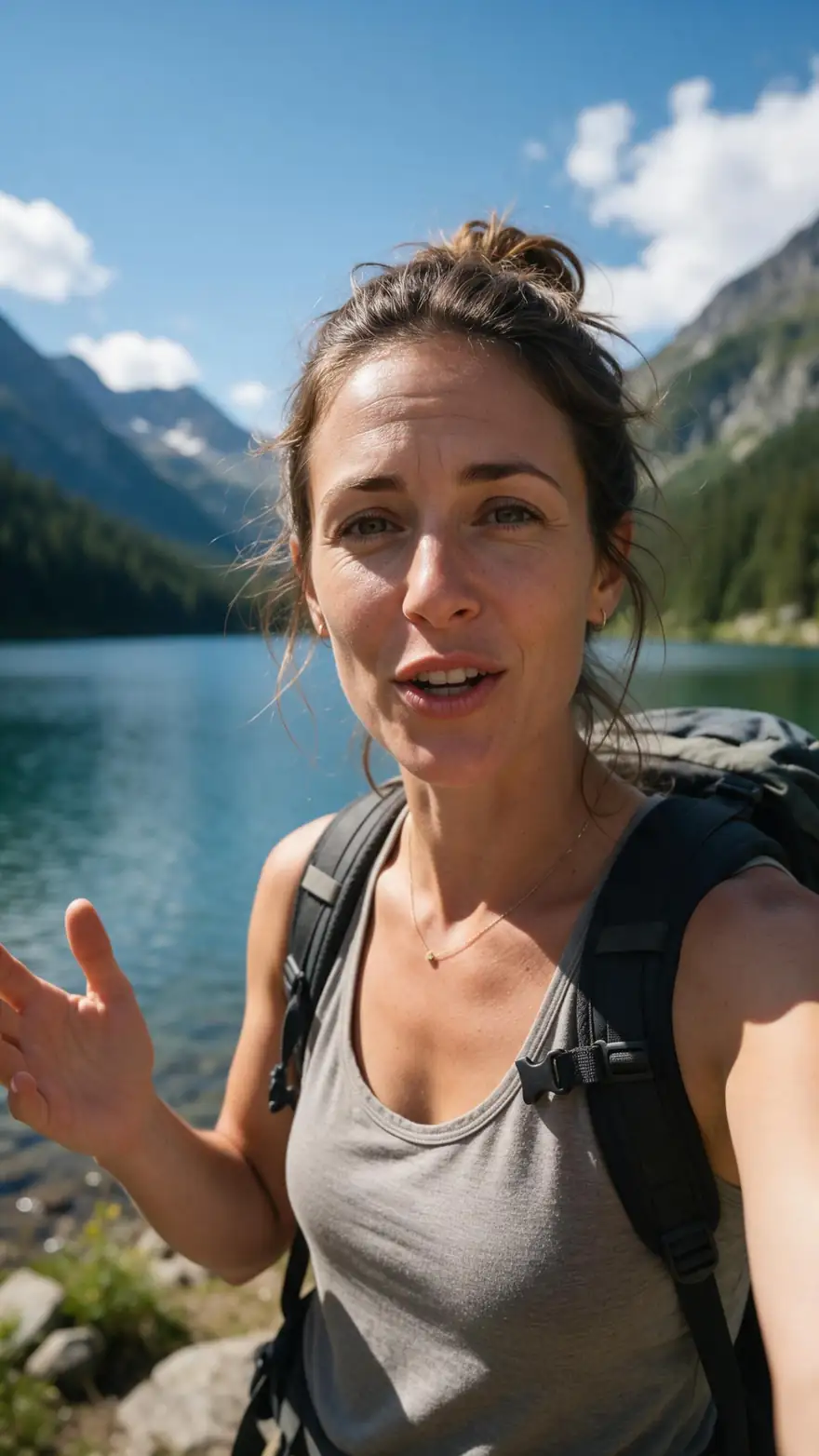
Before and after: a vertical travel clip
Drag the line. Left: the 9:16 clip as recorded. Right: the same clip after method six, with Vegas-style captions burned into the frame.
- Original. Speech, no subtitles.
- Subtitled. Vegas style, burned in; the frame stays 9:16.
Both are real, unedited files, shown at the same size.
Try method sixReal results
Method six, in four real clips
What the burned-in route produces: four Wan 3 talking clips, each subtitled once by Kenerate's Auto Subtitles in a different style.
Clips: Wan 3 image to video with speech (AI-generated people). Subtitles: Kenerate Auto Subtitles, unedited.
How to
How to add subtitles to a video with Kenerate
- Time needed
- Steps
- 4 steps
Step 1
Decide: closed or burned in
If viewers must switch subtitles off or pick a language, use a closed-caption method instead.
Step 2
Upload the video
MP4, MOV or WebM up to 4 minutes and 100 MB, after signing in with a verified email.
Step 3
Choose a style and a position
Ten styles; Bottom is classic, Middle suits vertical clips, Top clears lower-third graphics.
Step 4
Set the language and resolution
Auto-detect or pin the spoken language; 720p or 1080p HD.
See it in the app

Open Auto Subtitles and upload a clip, or pick one from your history, library or a link.


Watch the tour · 1:19
Text, image & reference to video, models, edit, extend & chat
Chapters
Engines
Six ways to add subtitles, compared
Each method, what it needs and what you get back. Other companies' tools are described from their own help pages, checked 3 October 2026.
Closed captions
1. YouTube Studio
- Input
- A video uploaded to YouTube
- Output
- Automatic captions, an uploaded file, auto-sync or typed lines
Long YouTube videos, several languages
Open 1. YouTube Studio
Closed captions
2. TikTok editor captions
- Input
- A clip in the TikTok app
- Output
- Auto captions that viewers can switch off
Posts that live only on TikTok
Open 2. TikTok editor captions
On-screen sticker
3. Instagram Captions sticker
- Input
- A Reel in the mobile app
- Output
- Auto captions in four preset looks
Quick Reels made on a phone
Open 3. Instagram Captions sticker
Editable caption track
4. Desktop editor (e.g. Clipchamp)
- Input
- A project on your computer
- Output
- Editable captions, SRT download or burned in
Hand-corrected subtitles and subtitle files
Open 4. Desktop editor (e.g. Clipchamp)
On-screen titles
5. Apple Clips Live Titles
- Input
- Speech recorded in Clips on iPhone
- Output
- Animated titles written as you speak
Short iPhone clips you record yourself
Open 5. Apple Clips Live Titles- This site
Burned in (open captions)
6. Kenerate Auto Subtitles
- Input
- MP4, MOV or WebM up to 4 min
- Output
- One MP4, 10 styles, 720p or 1080p
Social clips posted in several places
Open 6. Kenerate Auto Subtitles
Kenerate is method six. Methods one to five belong to other companies; links go to our guides for each situation.
Tips
Picking the right method
A few questions settle it before you start.
Will viewers need to turn the subtitles off? Use closed captions.
Is the same video going to several platforms? Burn the subtitles in once.
Will you fix words by hand? Pick a method with a text editor.
Is the video longer than 4 minutes? Use YouTube Studio or an editor, or split it.
Does a client need a subtitle file? Use an editor that exports SRT.
Is the speech in a language Kenerate doesn't list? Dub it first, or use the platform's captions.
Example uses
How creators use How to Add subtitles to video
Illustrative examples of typical workflows, not customer reviews.
Repair channel
A bike mechanic can keep long repair videos on YouTube's own captions and burn subtitles into the 60-second highlight he posts everywhere else.

Wedding videographer
A videographer can subtitle a short toast clip from a reception so guests can follow it on their phones with the sound off.
HR trainer
A trainer can subtitle a two-minute onboarding clip once and share the same file in email, chat and the company intranet.
FAQ
How to Add Subtitles to Video — questions
7 questions
How do I add subtitles to a video on my phone?
On a phone, the quickest routes are the captions built into TikTok and Instagram, or Live Titles in Apple's Clips app on iPhone, which writes your words on screen as you speak. Kenerate also works in a phone browser: upload the clip from your camera roll, pick a style and download the captioned MP4, with no app to install.
Link to this answerHow do I add subtitles to a video on a computer?
Use a desktop editor or a browser tool. In Clipchamp, Microsoft's editor, you turn on autocaptions, choose the language and transcribe; you can then fix words and download an SRT file, according to Microsoft's support page. In Kenerate, you upload the file, choose one of 10 styles and download it with the subtitles burned into the picture.
Link to this answerShould subtitles be burned in or kept as a separate file?
Burn them in when the video autoplays on mute in social feeds or goes somewhere that ignores subtitle files. Keep a separate file, or use the platform's closed captions, when viewers need to switch them off or choose a language, or when you'll correct the text later. Kenerate only burns in, so choose another method if you need a file.
Link to this answerCan I add subtitles to a long video?
With Kenerate, each video can be up to 4 minutes and 100 MB, so cut longer videos into parts, subtitle each part and join them in your editor. For full-length YouTube videos, YouTube Studio is usually the better route: YouTube writes automatic captions with speech recognition, and you can review and correct them there before relying on them.
Link to this answerHow do I add subtitles in another language?
Translate the speech first, then subtitle it. Kenerate's subtitles always match the spoken language, so dub the video into a listed language with Kenerate's AI dubbing, then run the dubbed version through Auto Subtitles. On YouTube you can instead add a subtitle track for each language, which viewers pick from the player's settings.
Link to this answerHow long does it take to add subtitles?
With Kenerate, about 1–3 minutes per clip once it's uploaded, with no typing: the speech is transcribed, timed and burned in automatically. Typing subtitles by hand takes far longer, because every line needs its own start and end time. Platform captions vary; YouTube says processing time depends on how complex the video's audio is.
Link to this answerDo I need to install software to add subtitles?
Not for Kenerate: Auto Subtitles runs in the browser, so you sign in, upload and download. Some other methods do need an app: Instagram's Captions sticker is in its mobile app, Apple's Live Titles live in the Clips app on iPhone, and desktop editors such as Clipchamp or Premiere Pro need to be installed or opened separately.
Link to this answerIn depth
The six methods in detail
On this page
Method 1: YouTube Studio
In YouTube Studio, open Subtitles, choose the video, click Add language, then Add under Subtitles. You can upload a file with or without timing, paste a transcript and let auto-sync time it, or type the lines while the video plays [1]. YouTube also writes automatic captions with speech recognition and asks creators to review them [2].
Methods 2 and 3: TikTok and Instagram
TikTok's editor has a Captions option that transcribes the clip, and the text can then be edited and restyled inside the app [6]. Instagram's Captions sticker transcribes a Reel in the mobile app and comes in four preset looks — classic, typewriter, scroll and fade — according to Kapwing's guide [5]. Both stay inside their own app.
Method 4: a desktop editor
Editors give the most control. In Clipchamp you turn on autocaptions, choose the language and transcribe, then correct words in the transcript and download the captions as an SRT file [3]. Other editors follow the same pattern: a caption track you can edit, export as a file, or burn into the picture when you export.
Method 5: Apple Clips on iPhone
Apple's Clips app writes Live Titles from your voice: choose a title style, hold Record while you speak, and the words appear on the video in time with you [4]. You can also add Live Titles to a voiceover you recorded in Clips. It suits short clips made in the app rather than long, finished edits from another camera.
Method 6: burned in with Kenerate
Upload a finished clip and Auto Subtitles transcribes it, times every line and burns the subtitles into one MP4 in the style you pick. It's the quickest way to get the same styled captions on every platform, but there is no text editor, no SRT or VTT file and no translation — the trade-offs listed in the table above.
How to put subtitles on a video
The same task. 'Put on' usually means burned in, so the words show everywhere; if you want viewers to be able to hide them, use the platform's closed captions instead.
How to add subtitles to a video on iPhone
Use Live Titles in Apple's Clips app while recording, the captions in TikTok or Instagram, or a phone browser with Kenerate for a finished clip from your camera roll.
How to add subtitles to an MP4
Either burn them into the MP4, which is what Kenerate outputs, or keep an SRT file next to it for players that load one. Burned-in subtitles need no extra file but can't be turned off.
Explore
Every Kenerate video tool
Generators, tools, models and guides — all in one studio.