

Outpainting · 10 ratios · 5 models
AI Image Extender — expand any photo past its edges
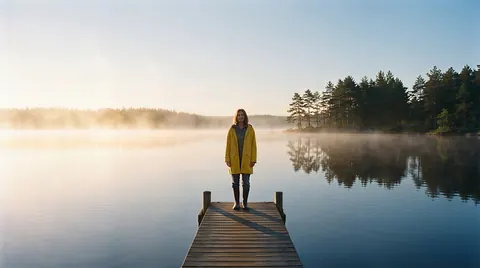
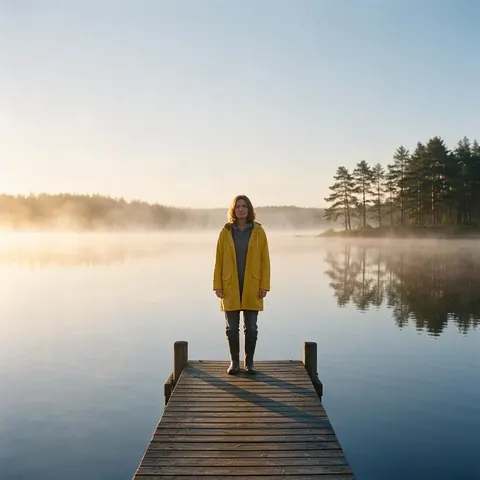
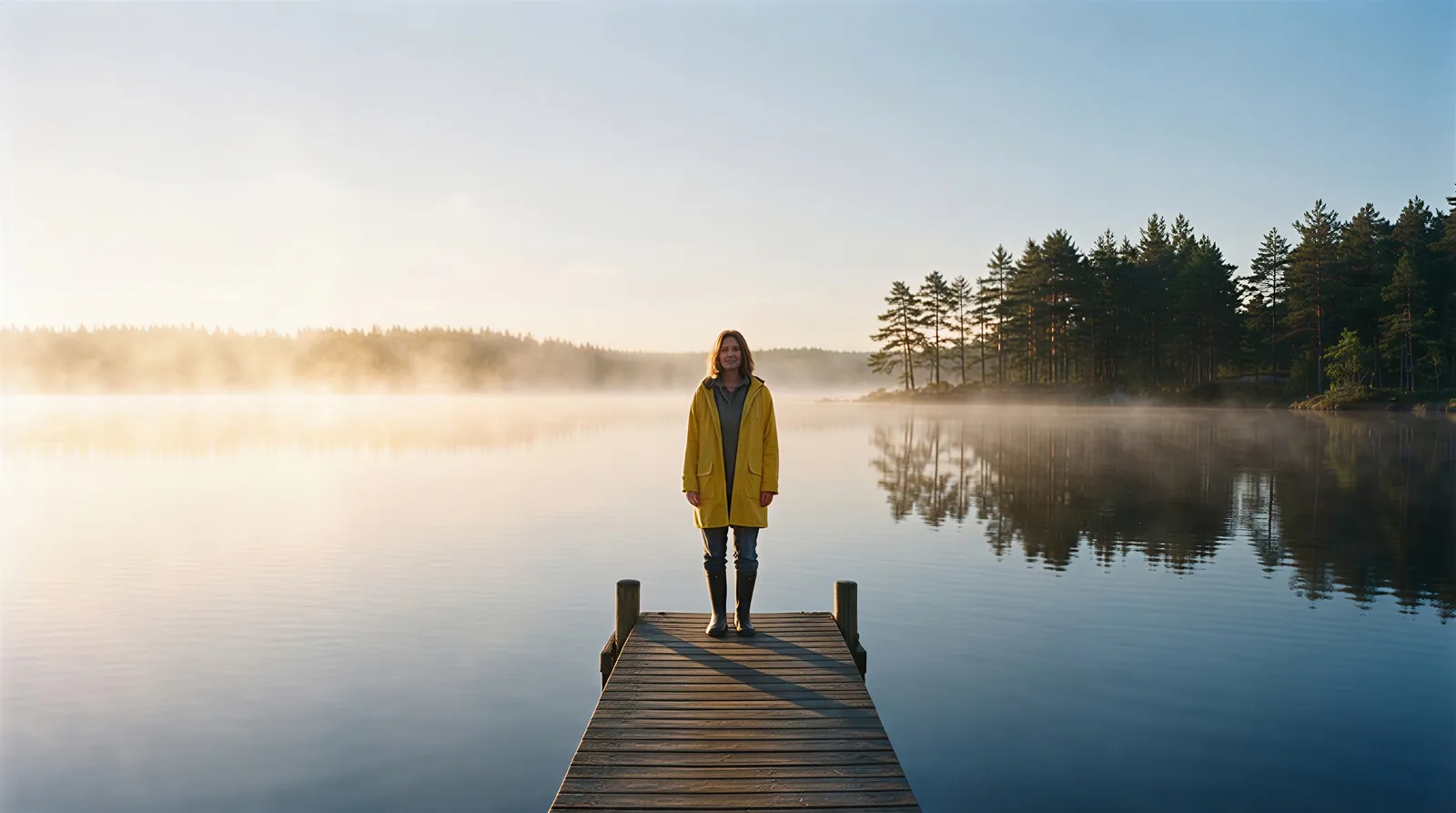
Turn a square photo into a 16:9 banner, a portrait into a 9:16 story, or give a tight shot more room. Add a photo, pick the shape, and the model paints what lies beyond the frame.

- 10 target ratios
- Grow any edge
- 5 models
- No watermark
Updated by the Kenerate AI team
On this page
Quick answer
Updated
What is an AI image extender?
An AI image extender paints new scenery past a photo's edges so it fits a wider or taller frame without cropping or stretching. Kenerate's Expand Image places your photo on a bigger canvas and fills the rest with one of five models: pick one of 10 target ratios, or grow each edge by up to 100%.
Key facts
- Target ratios
- 10, from 1:1 to 21:9 (16:9 to start)
- Or grow edges
- +10 / +25 / +50%, or 0–100% per side
- Models
- 5 — Nano Banana 2 Fast is the default
- Photo
- JPG, PNG or WebP, up to 25 MB
- Per run
- 1 or 2 variations
- Watermark
- None
Ratios
Every shape the AI image extender can make
The 10 target ratios in Expand Image, with the label the tool gives each one. A ratio your photo already has is blocked, so you always get new area.
1:1 — Square
Feed posts and profile tiles.
4:5 — Portrait
Instagram's tall feed shape.
5:4 — Classic print
A slightly wide print frame.
3:4 — Portrait photo
The usual vertical phone photo.
4:3 — Classic photo
The usual horizontal phone photo.
2:3 — Poster
Posters and Pinterest pins.
3:2 — DSLR photo
The shape most cameras shoot in.
9:16 — Stories, Reels, TikTok
Full-screen vertical video covers and stories.
16:9 — YouTube, desktop
Thumbnails, slides and wallpapers. The starting ratio.
21:9 — Cinematic banner
Website headers and ultra-wide banners.
How to
How to extend an image with AI
Four steps in the browser, about a minute end to end.
- Time needed
- Steps
- 4 steps
- You need
- A web browser · A photo to expand
Step 1
Add a photo
Upload a JPG, PNG or WebP up to 25 MB, or paste a public image link. Running it needs an account with a verified email.
Step 2
Choose how to expand
Ratio: pick one of 10 shapes and set the photo left, centre or right (or top, centre, bottom), or drag it. Grow edges: +10, +25 or +50%, or 0–100% per side.
Step 3
Pick a model, describe if you like
Nano Banana 2 Fast is the default. Optionally describe the new area in up to 400 characters, such as 'more beach and sky'.
Step 4
Expand and download
Get 1 or 2 variations with an outline showing where your original sits. Download, or send the result to Edit, Upscale, Camera angle or Image to video.

Open Expand Image and upload the photo you want to make wider, taller or bigger.


Watch the tour · 1:17
Add a photo, pick a model, new ratio & position or grow edges, describe the new area, results & chat
Chapters
Models
Which model should extend your image?
The five models Expand Image offers, with the strengths the tool lists for each. Open any card to start with that model picked.
Google
Nano Banana 2 Fast
- Output
- About 4 MP (2K)
The default: a faster Nano Banana 2 with 2K output
Open Nano Banana 2 Fast
OpenAI
GPT Image 2
- Output
- 1024 px square, 1536 px long side
Accurate object placement and dense text
Open GPT Image 2
OpenAI
GPT Image 2.5 Sunburst
- Output
- 1024 px square, 1536 px long side
Precision: spends longer on detail
Open GPT Image 2.5 Sunburst
OpenAI
GPT Image 2.5 Flare
- Output
- 1024 px square, 1536 px long side
Fast, low-latency
Open GPT Image 2.5 Flare
Each model answers at its own size, at the nearest ratio it supports, so the result is close to your chosen frame rather than an exact pixel size. The working canvas is capped at 2048 px on the long side. Need more pixels? Send the result to Upscale.
Compared
Ratio or Grow edges: which mode?
Expand Image has two ways to set the new frame. Both use the same models.
| Ratio | Grow edges | |
|---|---|---|
| You choose | A target shape, one of 10 | How much each side grows |
| Photo placement | Left / centre / right or top / centre / bottom, or drag | Follows how much you add to each side |
| Range | 1:1 to 21:9 | 0–100% per side, in 5% steps; presets +10, +25, +50% |
| Best for | Hitting a platform shape (9:16 Reels, 16:9 YouTube) | Breathing room on one or more sides |
| Blocked when | The photo already has that ratio | Every side is set to 0% |
From the Expand Image tool, checked 3 October 2026.
Sources: Kenerate Expand Image · Kenerate Edit Studio (Crop & Expand)
Example uses
How creators use AI image extender
Illustrative examples of typical workflows, not customer reviews.
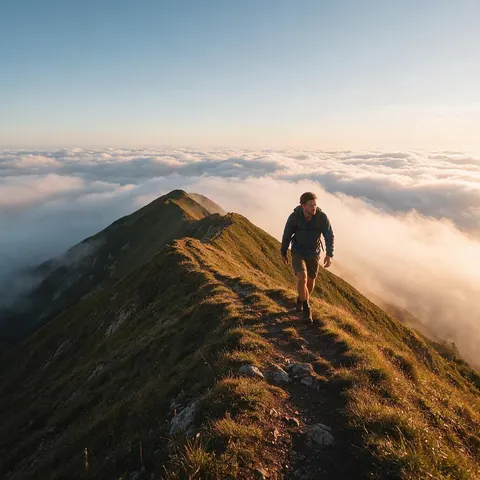
YouTube creator
A YouTube creator could extend a square photo to 16:9 so it fills a thumbnail without black bars.
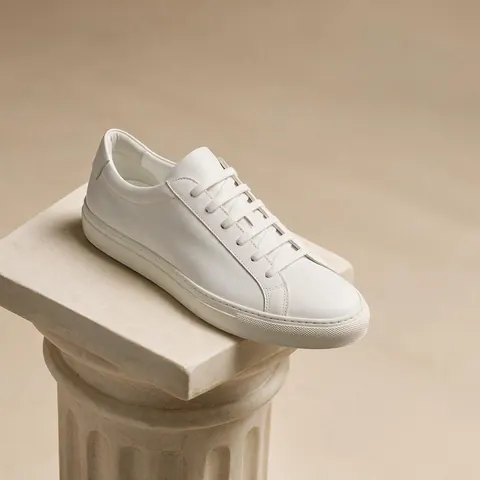
Web designer
A web designer could grow a product shot into a 21:9 banner, leaving clean space for a headline.
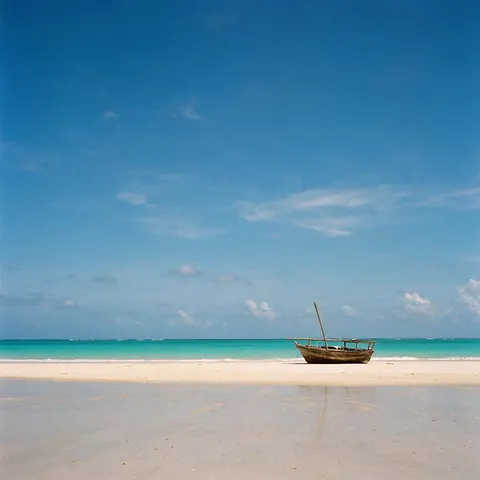
Travel blogger
A travel blogger could turn a horizontal beach photo into a 9:16 story by growing the sky and sand.
FAQ
AI image extender questions
7 questions
Can I try the AI image extender without a subscription?
Yes. New accounts get starter credits to try it, and there is no subscription required: you only spend credits when you run an expand, and failed runs are refunded automatically. You need an account with a verified email to run it. Every model is open to every account, with no plan gate, and downloads carry no watermark.
Link to this answerWhat is the difference between an AI image extender and an AI image expander?
There is none; both names describe outpainting, where AI paints new content past a photo's edges. Some tools say extender, some say expander, and some say uncrop. On Kenerate the tool is called Expand Image, and it offers 10 target ratios or a Grow edges mode, with five models to paint the new area.
Link to this answerHow far can I extend an image?
Up to a 21:9 frame in Ratio mode, or up to 100% of the photo's own width or height on each side in Grow edges mode. The working canvas is capped at 2048 px on the long side, and the model answers at its own size. Large extensions work best on simple surroundings like sky, sea or studio backdrops, because more of the picture is invented.
Link to this answerWill the extended image be higher resolution than my photo?
Not necessarily; the output size is the model's, not a pixel-exact copy of your frame. GPT models answer at 1024 px square or 1536 px on the long side, Nano Banana 2 at about 1 MP and Nano Banana 2 Fast at about 4 MP. If you need a bigger file, send the result to Upscale from the result screen.
Link to this answerCan I tell the AI what to put in the new area?
Yes. 'Describe the new area' is optional and takes up to 400 characters, for example 'more beach and sky' or 'continue the brick wall and add a doorway on the right'. It is checked by moderation like every text field. Leave it empty and the model simply continues what naturally lies beyond the original edges.
Link to this answerWhich model is best for extending photos of people or products?
Nano Banana 2 is the one the tool describes as keeping faces and products consistent, so start there when a person or product sits near the edge. Nano Banana 2 Fast, the default, is quicker and answers larger. GPT Image 2 places objects accurately and handles dense text; GPT Image 2.5 Sunburst spends longer on detail and Flare answers fastest.
Link to this answerIs there a watermark on the result?
No. Expanded images download without a watermark, whichever of the five models you pick and whether you run one variation or two. The result screen shows an outline of where your original photo sits, but that outline is only drawn in the viewer to help you compare; it is not part of the file you download.
Link to this answerIn depth
AI image extension, explained
How outpainting works, what to expect at the seams, and which shape to pick.
On this page
How does an AI image extender work?
Expand Image puts your photo on a bigger canvas — the frame you chose, capped at 2048 px on the long side — with the original exactly where it should stay and empty space around it. The model gets that canvas and the original photo, and paints the empty space so the scene carries on with the same perspective, horizon, light, colour and grain.
Nothing outside your photo is recovered from anywhere: the new area is invented to match. That is why the result shows an outline of the original — you can see at a glance what is real and what was painted.
Extend, expand, uncrop, outpaint — are they the same?
Yes, for practical purposes. 'AI image extender' and 'AI image expander' describe the same tool; 'uncrop' stresses undoing a tight crop; 'outpainting' is the technical name, the opposite of inpainting, which repaints inside a picture. Kenerate calls the tool Expand Image, and Edit Studio's Crop & Expand uses the same models and method.
What to expect at the seams
Skies, water, grass, walls, studio backdrops and interiors extend most convincingly. The hard parts are things that must line up exactly: lettering cut by the edge, a hand or shoulder half out of frame, or a repeating pattern such as tiles. If a seam looks off, run a second variation, describe the new area more precisely, or try a different model.
- Easy: sky, sea, foliage, plain walls, floors, studio sweeps
- Medium: crowds, streets, furniture
- Hard: text cut at the edge, hands, symmetrical architecture
Picking a shape for where the picture will go
Start from where the image will be seen. A vertical 3:4 phone photo becomes a 16:9 thumbnail by growing the sides; a wide 3:2 landscape becomes a 9:16 story by growing the top and bottom. Use the photo position to leave room on the side where you'll put a title or a button later.
After the expand
The result can go straight into Edit (fix a detail the model painted), Upscale (more pixels for print or a large screen), Camera angle (re-shoot the wider scene from another viewpoint) or Image to video (animate it).
Give your photo more room
Starter credits for new accounts. No subscription required. No watermark.
Tried it? Tell us how it went