

5 expand models · one tool
AI Image Expander — five models, one for every kind of photo
Portraits, product shots, landscapes and signs expand differently. Pick the model that suits the picture, set the new shape, and the AI paints everything past the old edges.

- 5 models to choose from
- Up to about 4 MP out
- 10 ratios or grow edges
- No watermark
Updated by the Kenerate AI team
On this page
Quick answer
Updated
Which AI image expander model should you use?
An AI image expander enlarges a photo's canvas and paints new scenery into the added space, and Kenerate's Expand Image gives you 5 models to do it. Pick Nano Banana 2 for faces and products, Nano Banana 2 Fast for the largest file (about 4 MP), and GPT Image 2 when lettering sits near an edge.
Key facts
- Models
- 5 — Nano Banana 2 Fast is the default
- Largest output
- Nano Banana 2 Fast, about 2736 × 1536 px at 16:9
- GPT models
- 1536 px on the long side, 1024 px square
- Nano Banana 2
- About 1 MP (around 1360 × 768 at 16:9)
- New shape
- 10 ratios from 1:1 to 21:9, or grow each edge 0–100%
- Per run
- 1 or 2 variations, no watermark
Best for
Best expander model for each kind of photo
Start from what's in the picture, especially what sits close to the edge you're growing. These picks follow the strengths the tool lists for each model.
Portraits and people — Nano Banana 2
The model the tool describes as keeping faces and products consistent. Use it when a shoulder, hand or face touches the edge.
Products and packshots — Nano Banana 2
The same model, picked to keep the product and its label consistent while the table, studio sweep or shelf carries on around it.
Landscapes, skies and wallpapers — Nano Banana 2 Fast
The default. Sky, sea and foliage extend easily, and it returns the biggest file: about 4 MP.
Signs, menus and screenshots — GPT Image 2
Accurate object placement and dense text, for pictures where lettering or a layout runs off the edge.
Busy, detailed scenes — GPT Image 2.5 Sunburst
Precision mode: it spends longer on detail, which helps crowds, streets and patterned interiors.
Quick tries and drafts — GPT Image 2.5 Flare
Fast and low-latency, for testing a ratio or a placement before a final run.
How to
How to expand an image with the right model
Four steps in the browser, about a minute end to end.
- Time needed
- Steps
- 4 steps
- You need
- A web browser · A photo to expand
Step 1
Add the photo
Upload a JPG, PNG or WebP up to 25 MB, or paste a public image link. Running it needs an account with a verified email.
Step 2
Open the model picker
Expand Image opens on Nano Banana 2 Fast. Switch to Nano Banana 2 for people and products, or GPT Image 2 for text near the edge.
Step 3
Set the new frame
Choose one of 10 ratios and place the photo (left, centre, right or top, centre, bottom), or grow each edge by 0–100%. Optionally describe the new area in up to 400 characters.
Step 4
Expand, compare, download
Get 1 or 2 variations with the original outlined. If one model leaves a seam, run the same frame on another model and keep the better result.

Open Expand Image and upload the photo you want to make wider, taller or bigger.


Watch the tour · 1:17
Add a photo, pick a model, new ratio & position or grow edges, describe the new area, results & chat
Chapters
Models
The five AI image expander models side by side
Every model gets the same canvas and the same outpaint instruction; they differ in speed, detail and output size. Open a card to start with that model picked.
Google
Nano Banana 2 Fast
- Output
- About 4 MP (2K), e.g. 2736 × 1536 at 16:9
The default: landscapes, skies, wallpapers
Open Nano Banana 2 Fast
Google
Nano Banana 2
- Output
- About 1 MP, e.g. 1360 × 768 at 16:9
Portraits and products: keeps faces and products consistent
Open Nano Banana 2
OpenAI
GPT Image 2
- Output
- 1536 px long side, 1024 px square
Signs, menus, screenshots: accurate placement and dense text
Open GPT Image 2
OpenAI
GPT Image 2.5 Sunburst
- Output
- 1536 px long side, 1024 px square
Busy scenes: spends longer on detail
Open GPT Image 2.5 Sunburst
OpenAI
GPT Image 2.5 Flare
- Output
- 1536 px long side, 1024 px square
Quick drafts: fast, low-latency
Open GPT Image 2.5 Flare
Sizes are what each model returns at the nearest ratio it supports, worked out the way the tool does; they are not a pixel-exact copy of your frame. The working canvas is capped at 2048 px on the long side. For a bigger file, send the result to Upscale.
Compared
AI image expander models compared
The same five models power Expand Image and Edit Studio's Crop & Expand. Here is how they differ for an expand.
| Nano Banana 2 Fast | Nano Banana 2 | GPT Image 2 | GPT Image 2.5 (Sunburst / Flare) | |
|---|---|---|---|---|
| Output at 16:9 | About 2736 × 1536 | About 1360 × 768 | 1536 × 864 | 1536 × 864 |
| Strength the tool lists | Faster Nano Banana 2, 2K output | Keeps faces and products consistent | Accurate object placement, dense text | Sunburst: detail · Flare: speed |
| Best for | Scenery, wallpapers, big screens | People and products near the edge | Lettering, layouts, screenshots | Busy scenes (Sunburst), drafts (Flare) |
| Default? | Yes | No | No | No |
From the Expand Image tool and src/lib/edit-models.ts, checked 6 October 2026. Every model is open to every account and none adds a watermark.
Sources: Kenerate Expand Image · Kenerate Edit Studio (Crop & Expand)
Example uses
How creators use AI image expander
Illustrative examples of typical workflows, not customer reviews.
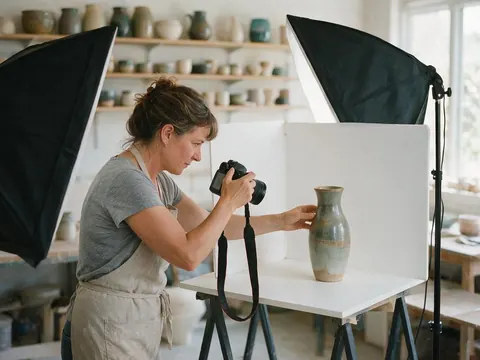
Online shop owner
An online shop owner could shoot products on a small tabletop set, then expand each photo into a 16:9 banner with Nano Banana 2 so the product stays consistent while the backdrop grows.
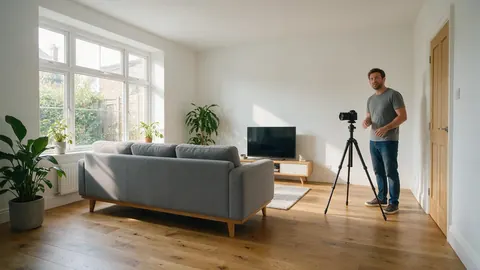
Property photographer
A property photographer could widen a tight room shot to 16:9 with Nano Banana 2 Fast for a listing header, and try a second model if a window frame doesn't line up.
Video creator
A video creator could turn a vertical phone photo into a 16:9 thumbnail, leaving room on one side for a title, and switch to GPT Image 2 when lettering in the shot reaches the edge.
FAQ
AI image expander questions
7 questions
What is the best AI image expander model?
It depends on the photo. On Kenerate's Expand Image, Nano Banana 2 is the pick for people and products because the tool describes it as keeping faces and products consistent. Nano Banana 2 Fast, the default, suits scenery and returns the largest file at about 4 MP. GPT Image 2 handles lettering and layouts near the edge best.
Link to this answerIs there a free AI image expander?
You can try Expand Image without a subscription: new accounts get starter credits, every one of the five models is open to every account, and a failed run is refunded automatically. You need an account with a verified email to run an expand. Results download without a watermark, whichever model you choose.
Link to this answerCan I expand a photo with people in it?
Yes. The model is told to keep the original photo's content, position and scale unchanged and to paint only the empty area, and the result outlines where your original sits so you can check the person against it. The risk is a body part cut by the edge, such as a shoulder or hand, which the model has to complete. Use Nano Banana 2 for these, and run two variations to pick the more natural one.
Link to this answerWhy is my expanded image smaller than my original photo?
Because the model answers at its own size. The GPT models return 1536 px on the long side, Nano Banana 2 about 1 MP and Nano Banana 2 Fast about 4 MP. A large camera photo expanded on a GPT model can therefore come back with fewer pixels. Switch to Nano Banana 2 Fast, or send the result to Upscale.
Link to this answerHow far can an AI photo expander go?
Up to a 21:9 frame in Ratio mode, or up to 100% of the photo's own width or height on each side in Grow edges mode, in 5% steps. Growing every side by 100% makes a frame three times as wide and tall, so most of the picture is new. Big expansions work best on simple surroundings like sky, sea or plain walls.
Link to this answerCan I tell the expander what to paint?
Yes, optionally. 'Describe the new area' takes up to 400 characters, for example 'more beach and a pier on the left'. It is moderation-checked like every text field. Leave it empty and the model continues whatever naturally lies beyond the original edges, which is usually the right choice for skies, walls and backdrops.
Link to this answerCan I compare two models on the same photo?
Yes. Run the same photo and frame on one model, then switch the model and run again; each result stays in your history with the original outlined. This is the quickest way to decide which expander suits a tricky picture, such as a product label or a hand at the edge, before you expand a whole set.
Link to this answerIn depth
Choosing an AI image expander, explained
Why the model matters for an expand, what the output size really is, and how to fix a weak seam.
On this page
Why does the model matter when you expand an image?
Every expand is the same job: Expand Image places your photo on a bigger canvas, marks the empty area, and asks the model to continue the scene with the same perspective, horizon, light, colour and grain while keeping the original photo's content, position and scale unchanged. What changes between models is how they handle the hard parts — a face cut by the edge, a product label, a row of letters, a dense crowd — and how many pixels they hand back.
That is why the same frame can look seamless on one model and slightly off on another. Trying a second model on a difficult picture is usually faster than rewriting the description.
How big is the expanded image?
The model answers at its own size, at the nearest ratio it supports. Nano Banana 2 Fast works around 2048 px on a square side, which comes to about 4 MP — roughly 2736 × 1536 for a 16:9 frame. Nano Banana 2 works around 1 MP, about 1360 × 768 at 16:9. The three GPT models return 1024 × 1024 for a square and 1536 px on the long side otherwise.
So if your source photo is larger than the model's output, the expanded picture can have fewer pixels than the original. Send it to Upscale from the result screen when you need a print or a 4K screen.
- Biggest file: Nano Banana 2 Fast
- Most faithful people and products: Nano Banana 2
- Best with text: GPT Image 2
Expander, extender, uncrop — which do you need?
They all describe outpainting. People searching 'AI image expander' or 'photo expander' usually want the picture bigger in one direction; 'uncrop' implies undoing a tight crop; 'extender' is the same tool by another name. On Kenerate it is one tool, Expand Image, and the same five models also sit behind Crop & Expand in Edit Studio.
Fixing a weak seam
Most problems show up where real and painted pixels meet. Turn on the outline of the original to see exactly where that is, then try one of these:
- Run 2 variations and keep the cleaner one
- Switch model: Nano Banana 2 for a face or product, GPT Image 2 for letters
- Describe the new area, such as 'continue the wooden table and the white wall'
- Grow less at once: expand to 4:3 first, then expand that result to 16:9
- Send the result to Edit to repaint a small detail
Expand your photo with the right model
Starter credits for new accounts. No subscription required. No watermark.
Tried it? Tell us how it went