

Motion Transfer · 12 engines · up to 1080p
AI motion transfer — animate an image with a video
Take the movement from one video and give it to the character in a still image. Kenerate's Motion Transfer tool reads the clip's body, hands and face, and renders your image performing it — on the engine that suits the motion.
- Image + driving video
- 12 engines
- Up to 2 min
- Up to 1080p
Updated by the Kenerate AI team
Made with Kenerate
On this page
Quick answer
Updated
What is AI motion transfer?
AI motion transfer takes the movement from one video — body, hands and often the face — and applies it to the character in a still image, so the image performs it. Kenerate AI's Motion Transfer tool does this on 12 engines, with driving clips up to 2 minutes and up to 1080p output.
Key facts
- Inputs
- 1 image + 1 driving video
- Video formats
- MP4, MOV, WEBM, M4V, MKV
- Upload size
- About 100 MB
- Engines
- 12 in 8 families
- Highest output
- 1080p
- Output
- MP4 · no watermark
Real results
Motion worth transferring
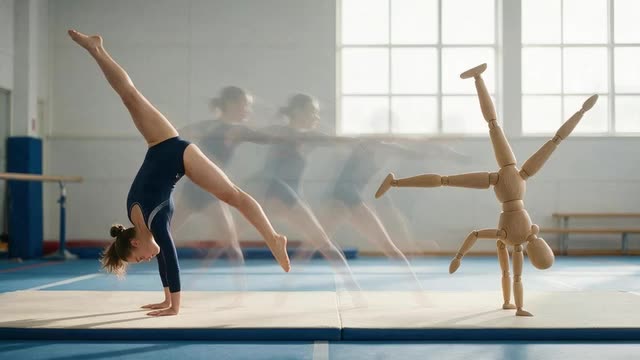
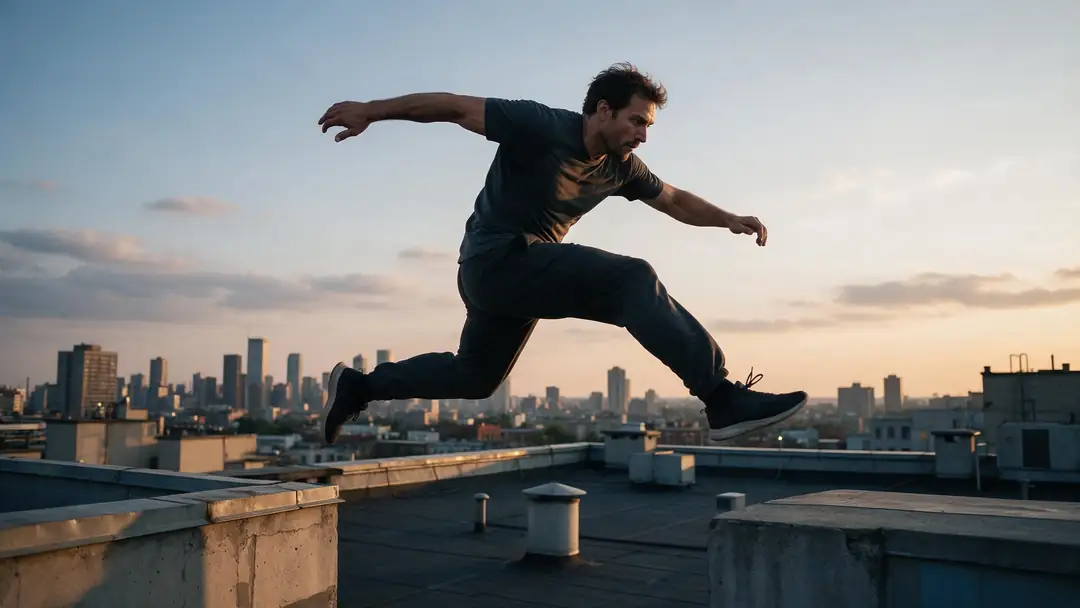
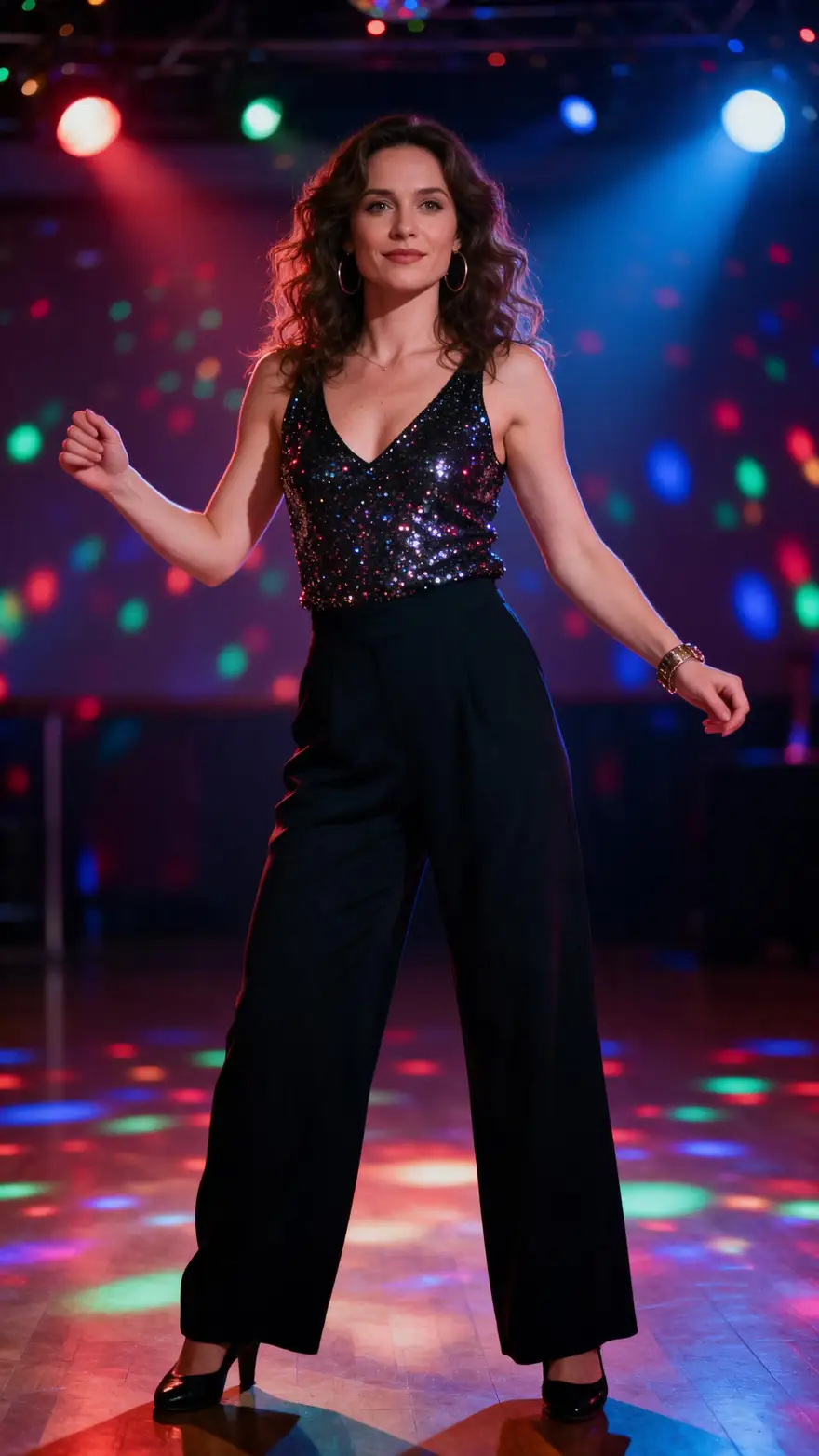
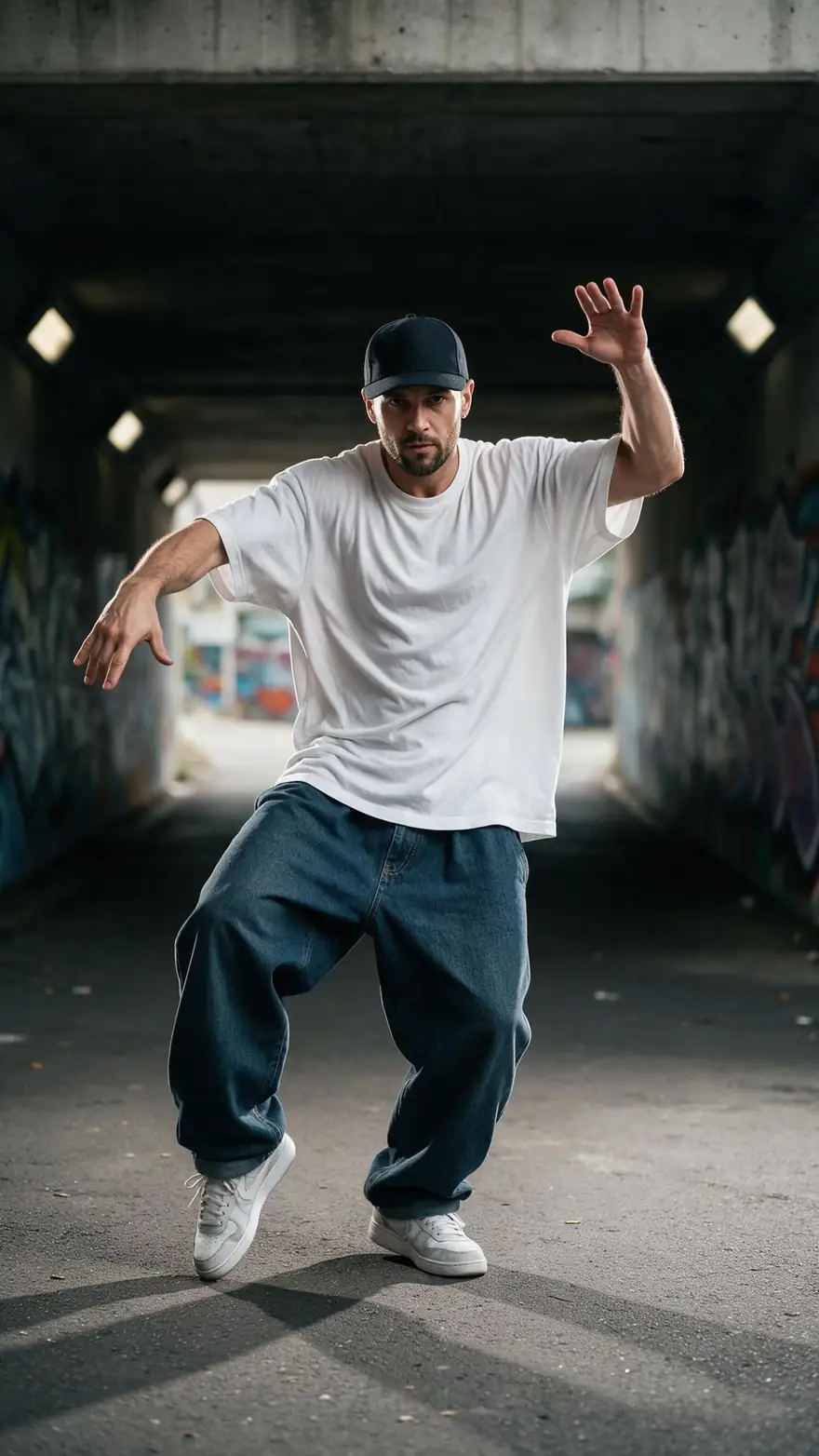
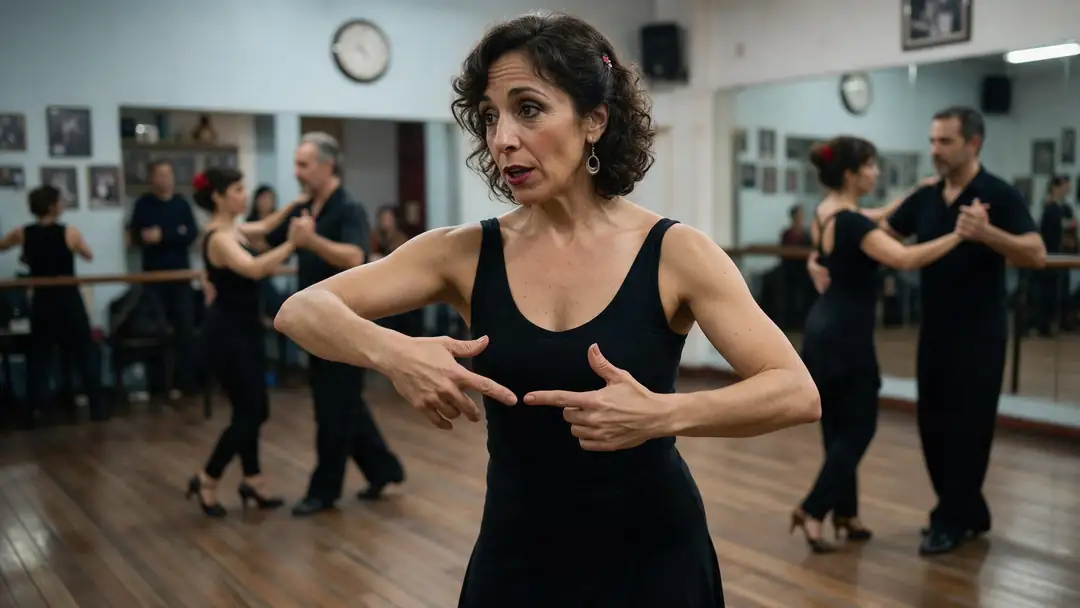
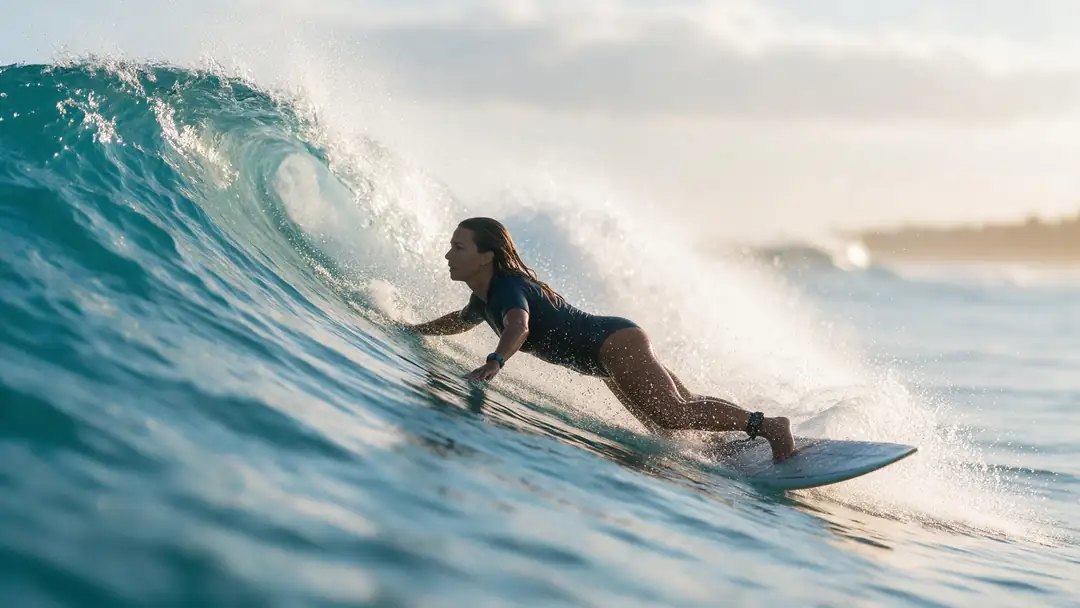
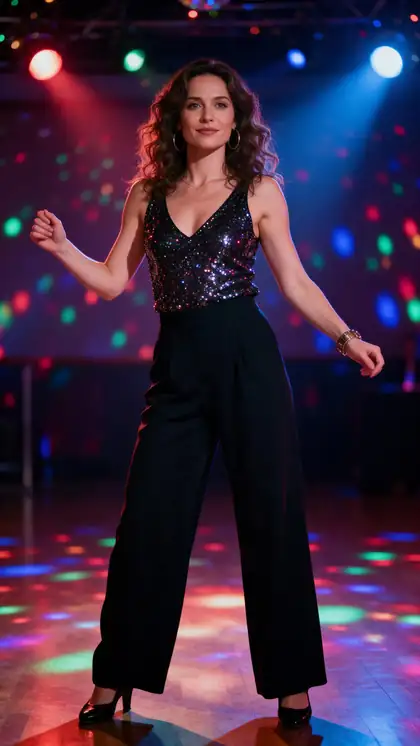
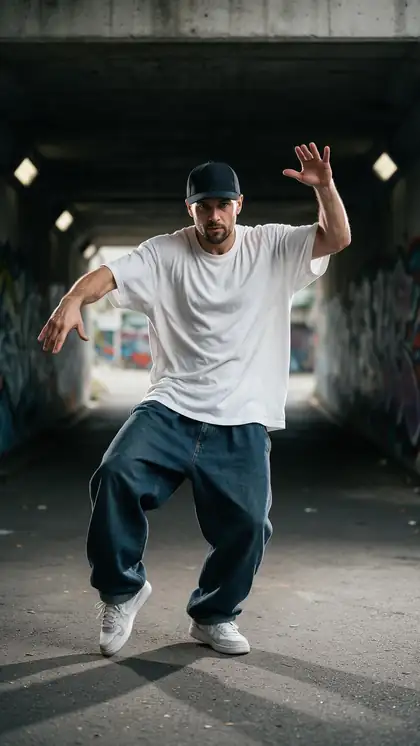
A rooftop leap, a disco move, popping and locking, a tango demonstration and a surf pop-up — each a different kind of motion: athletic, rhythmic, precise, instructional, full-body.
Example clips from image to video, model named on each card. Motion transfer uses the movement of your driving video instead of a prompt.
How to
Transfer motion in five steps
- Time needed
- Steps
- 4 steps
Step 1
Choose the driving video
The movement you want copied. MP4, MOV, WEBM, M4V or MKV, about 100 MB at most. Upload it, or pick from your History or library — links aren't accepted.
Step 2
Choose the image
The character that will perform it. Clear JPG or PNG; on LTX-2 Control the image is optional.
Step 3
Pick the engine for the motion
SteadyDancer for dance, Kling for realistic detail, LTX-2 Control for structure, DreamActor v2 for performances.
Step 4
Set the engine's options
Resolution, prompt, seed, and where offered: keep sound, frame rate (Kenerate Motion), pose/depth/edges (LTX-2 Control).
See it in the app

Open Motion Transfer and upload a clear photo of the character, or choose one from your history.


Watch the tour · 1:19
Text, image & reference to video, models, edit, extend & chat
Chapters
Engines
Which engine for which kind of motion
Engines read motion differently — as a skeleton, as structure, or straight from the pixels. Match the engine to what your clip is about.
- Dance
WaveSpeed
SteadyDancer
- Input
- Image + video up to 2 min
- Output
- 480p or 720p · silent
Fast, athletic full-body motion that needs a stable, on-model character
Open SteadyDancer 
Kuaishou
Kling 3.0 Pro Motion
- Input
- Image + 3–30 s video
- Output
- Follows the source · sound switch
Realistic human detail — fingers, cloth, faces — on 3–30 s clips
Open Kling 3.0 Pro Motion- Structure
Lightricks
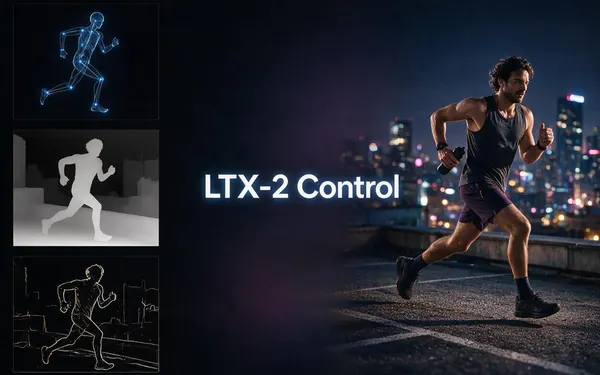
LTX-2 Control
- Input
- Video up to 20 s (+ optional image)
- Output
- 480p, 720p or 1080p · keep, new or mute sound
Pick pose, depth or edges as the guide; the image is optional, up to 1080p
Open LTX-2 Control 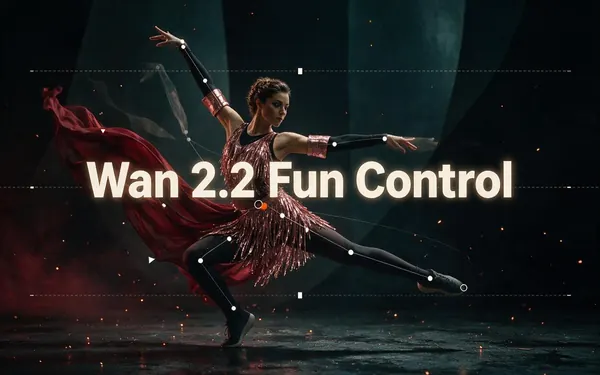
Alibaba
Wan 2.2 Fun Control
- Input
- Image + video up to 2 min
- Output
- 480p or 720p · silent
Structure-guided transfer that restyles the clip from your image
Open Wan 2.2 Fun Control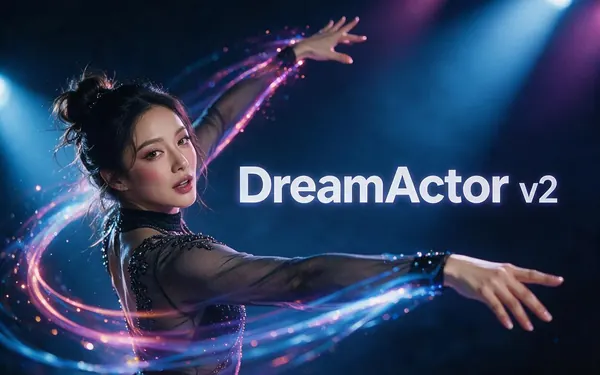
ByteDance
DreamActor v2
- Input
- Image + video up to 30 s · no prompt
- Output
- Follows the source · keeps sound
Performance transfer: body, face and lip movement, no prompt
Open DreamActor v2
Kenerate
Kenerate Motion
- Input
- Image + video (first 20 s used)
- Output
- 720p or 1080p · 24/48 fps · sound switch
1080p output and a frame-rate choice: original, 24 or 48 fps
Open Kenerate Motion
Outputs are MP4 without a watermark. SCAIL, Wan, Kling, Kenerate Motion and SteadyDancer trim an over-long clip; DreamActor v2, PixVerse Mimic and LTX-2 Control refuse it.
Tips
Clips that transfer well
The driving video does most of the work, so a few habits when filming it pay off.
Film on a tripod — camera shake reads as body movement.
Plain background, contrasting clothes: limbs are easier to track.
Keep the whole body in frame for full-body moves.
Avoid baggy sleeves that hide the elbows and wrists.
Trim dead time at the start and end — you pay per second of clip.
Transfer motion only onto people who agreed to it.
Example uses
How creators use AI motion Transfer
Illustrative examples of typical workflows, not customer reviews.
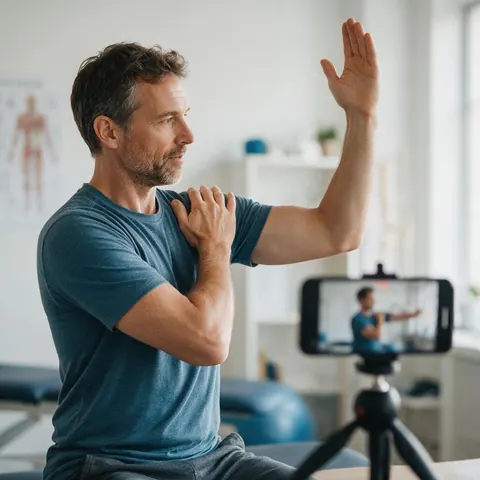
Physiotherapist
A physiotherapist can record an exercise once and transfer it onto a neutral illustrated figure for patient handouts, without showing a real patient.
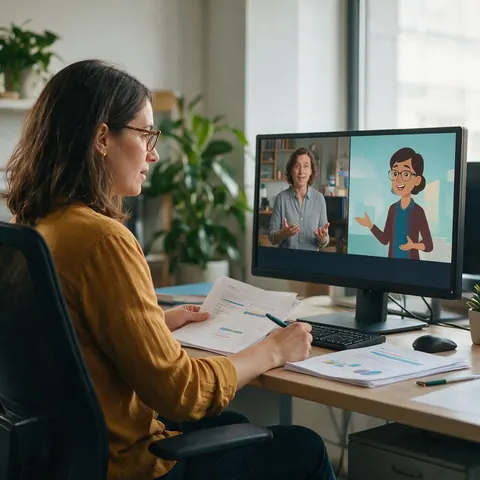
E-learning designer
An e-learning designer can turn a filmed demonstration into the same demonstration by the course's illustrated host.
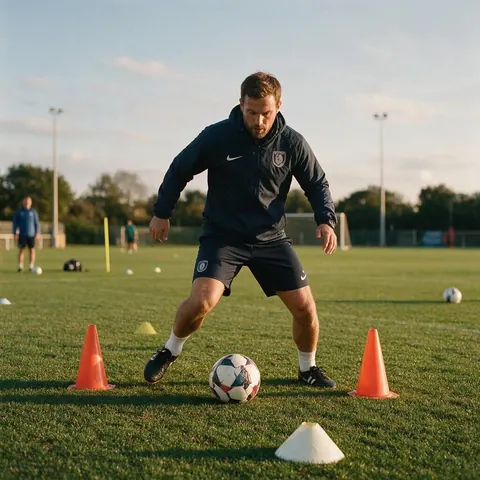
Sports coach
A coach can transfer a pro-quality movement drill onto a team mascot to make drill videos kids actually watch.
FAQ
AI motion transfer questions
7 questions
Is motion transfer the same as motion control?
Mostly, yes. 'Motion control' is the name Kling uses for its version, and many tools now use the two terms interchangeably for making an image copy a video's movement. Kenerate's tool is called Motion Transfer and includes Kling 3.0's motion control alongside 10 other engines, so both searches lead to the same place.
Link to this answerWhat files can I use for AI motion transfer?
The driving video can be MP4, MOV, WEBM, M4V or MKV, up to about 100 MB; Kling engines take MP4 or MOV. The character image should be a clear JPG or PNG — WEBP is best avoided. Upload them, or pick either from your History or library; external links are refused.
Link to this answerWhat resolution does motion transfer output?
It depends on the engine. SCAIL, Wan and SteadyDancer offer 480p or 720p; PixVerse Mimic 360p, 540p or 720p; Kenerate Motion 720p or 1080p; LTX-2 Control 480p, 720p or 1080p; Kling and DreamActor follow your source clip. For a sharper master, use the result's Upscale to 4K hand-off.
Link to this answerCan I change the frame rate?
On Kenerate Motion, yes: keep the original frame rate, or output 24 or 48 fps. The other engines don't offer a frame-rate setting. Kenerate Motion uses the first 20 seconds of the driving clip, so it suits short, smooth shots where you want 1080p and a specific frame rate.
Link to this answerCan I transfer motion without a character image?
Yes, on LTX-2 Control. It re-renders the driving clip guided by its pose, depth or edges, and the image is optional — a prompt alone can restyle the whole scene. Every other engine needs one character image, because the image is what the movement is transferred onto.
Link to this answerDo I need to describe the motion in a prompt?
No. The driving video already shows the motion, so prompts describe the look instead — clothes, lighting, style. Wan 2.2 Animate 2 adds a 'Describe the motion' field for moves the clip shows poorly, and DreamActor v2 and PixVerse Mimic take no prompt at all.
Link to this answerWhose images can I transfer motion onto?
Only images you have the right to use: yourself, characters you designed, or people who gave permission. Don't animate celebrities or strangers. Motion transfer can make anyone appear to do anything, so tell viewers the clip is AI-made when you share it.
Link to this answerIn depth
How AI motion transfer works
Three ways engines read movement from a video, and what survives the transfer.
On this page
Three ways engines read motion
Skeleton methods are precise for bodies, structure maps keep scenes and silhouettes, and pose-free methods carry over faces and subtle performance. That's why one tool benefits from several engines.
- Skeleton pose — the clip is turned into joint positions frame by frame; SCAIL's research adds depth so the pose stays consistent in 3D.
- Structure maps — pose, depth or edge maps of each frame steer the render (LTX-2 Control, Wan 2.2 Fun Control).
- Pose-free — the model learns motion straight from the video's pixels; ByteDance's DreamActor-M2 paper describes this approach.
What carries over, and what doesn't
Movement, timing and, on most engines, facial expression carry over. Sound carries over on SCAIL 2, DreamActor v2, LTX-2 Control and — with a switch — Kling 3.0 and Kenerate Motion; the rest are silent. Length follows the clip up to each engine's limit: 2 minutes on SCAIL, Wan and SteadyDancer, 30 seconds on Kling, DreamActor and PixVerse, 20 seconds on Kenerate Motion and LTX-2 Control.
Over-long clips: trimmed or refused
SCAIL, Wan, Kling, Kenerate Motion and SteadyDancer trim an over-long clip to their limit and use the start. DreamActor v2, PixVerse Mimic and LTX-2 Control refuse it, so trim before uploading. Failed jobs are refunded automatically either way.
Animate image with video
That's exactly what motion transfer is: the video supplies the movement, the image supplies the character. Upload both, pick an engine, and the image performs the video. If you'd rather describe the movement in words, that's image to video — a different tool.
AI motion: transfer vs generation
'AI motion' covers two jobs. Motion generation invents movement from a prompt. Motion transfer copies real movement from a clip, so timing, choreography and gestures match the original exactly. Use transfer whenever you already have — or can film — the movement you want.
Motion transfer AI for a whole scene
Most engines move one character. LTX-2 Control instead re-renders the entire clip guided by its pose, depth or edges, so you can restyle a whole scene from a prompt, with or without an image, and keep, regenerate or mute the sound.
Explore
Every Kenerate video tool
Generators, tools, models and guides — all in one studio.
Transfer motion onto your image
One image, one driving video, 12 engines. Paid per second of clip, no subscription.
Tried it? Tell us how it went