



Skip to content
AI image enhancer · 25 free credits

Enhance photo quality with AI — blur, grain and all

Fix what is actually wrong with the picture: sharpen a blurry shot, clean a grainy night photo, repair an old print or turn a tiny image into 4K. Pick the fix for the problem and download with no watermark.

  • Blurry → sharp
  • Grainy → clean
  • Low-res → 4K
  • No watermark
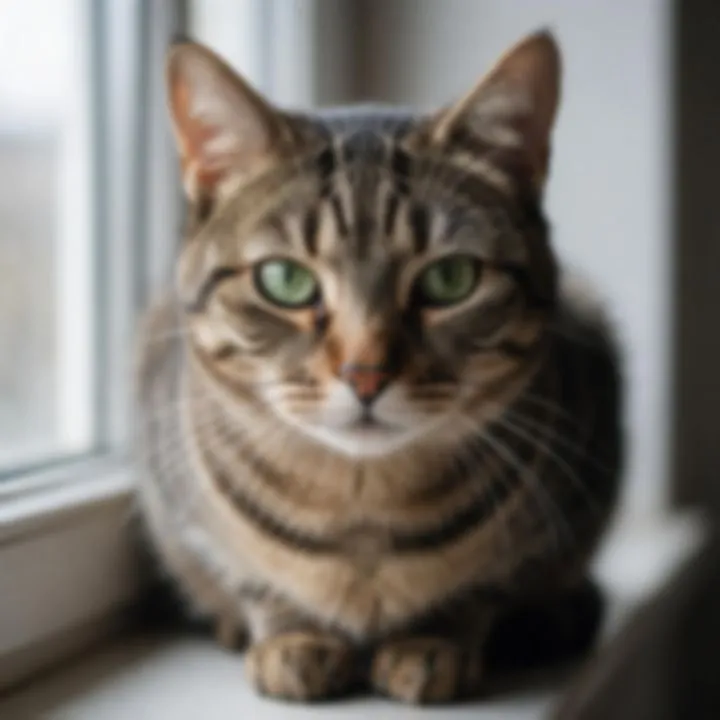
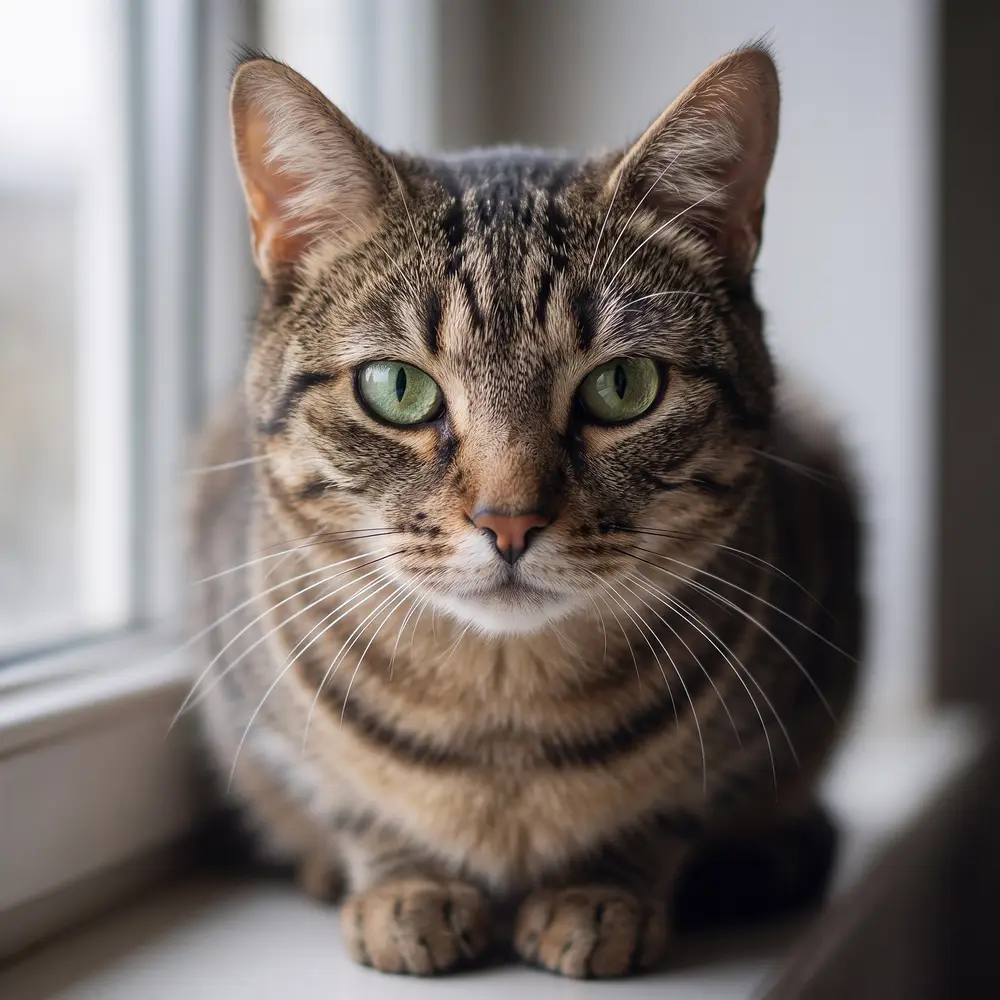
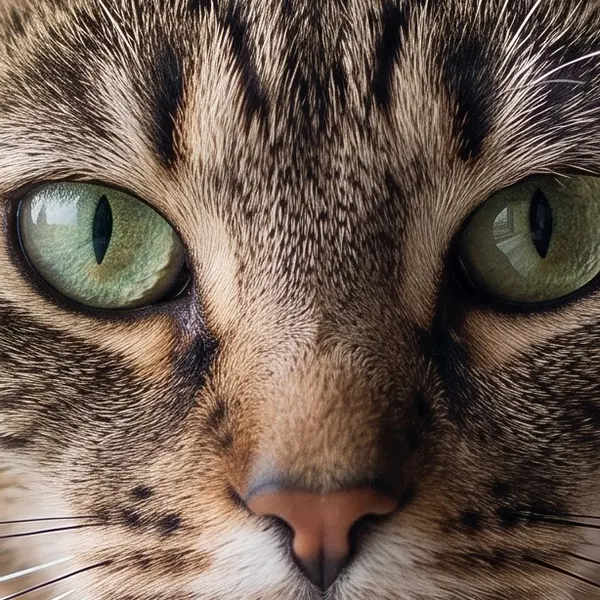
Tabby cat with green eyes on a windowsill — original 720 px, out of focus
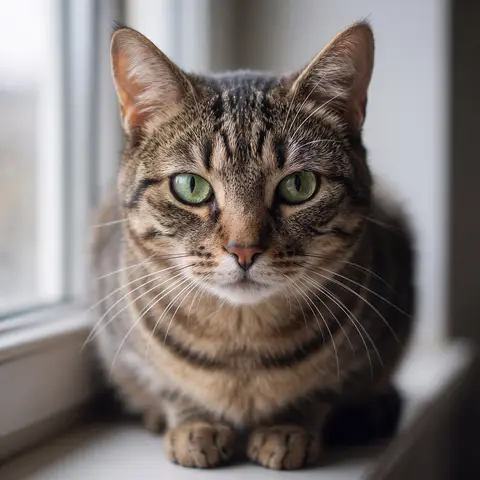
Tabby cat with green eyes on a windowsill — after Phota Enhance
BEFORE · 720 px, out of focusAFTER · 2048 px, sharp

Phota Enhance720 px, out of focus → 2048 px, sharp

Try this photo
  • Real-ESRGAN
  • Image Upscaler 2K · 4K · 8K
  • Kenerate Upscale · 128 MP
  • Ultimate Upscaler
  • Clarity Pro
  • Phota Enhance
  • Recraft Creative
Blurry pet photo — after Phota Enhance
Grainy night shot — after Phota Enhance
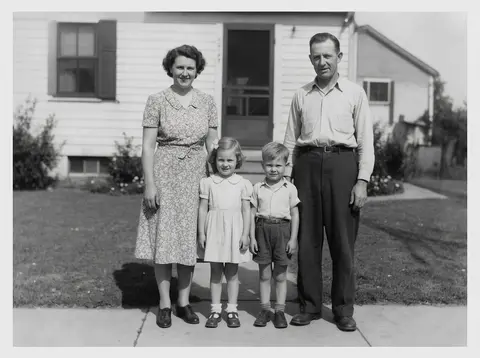
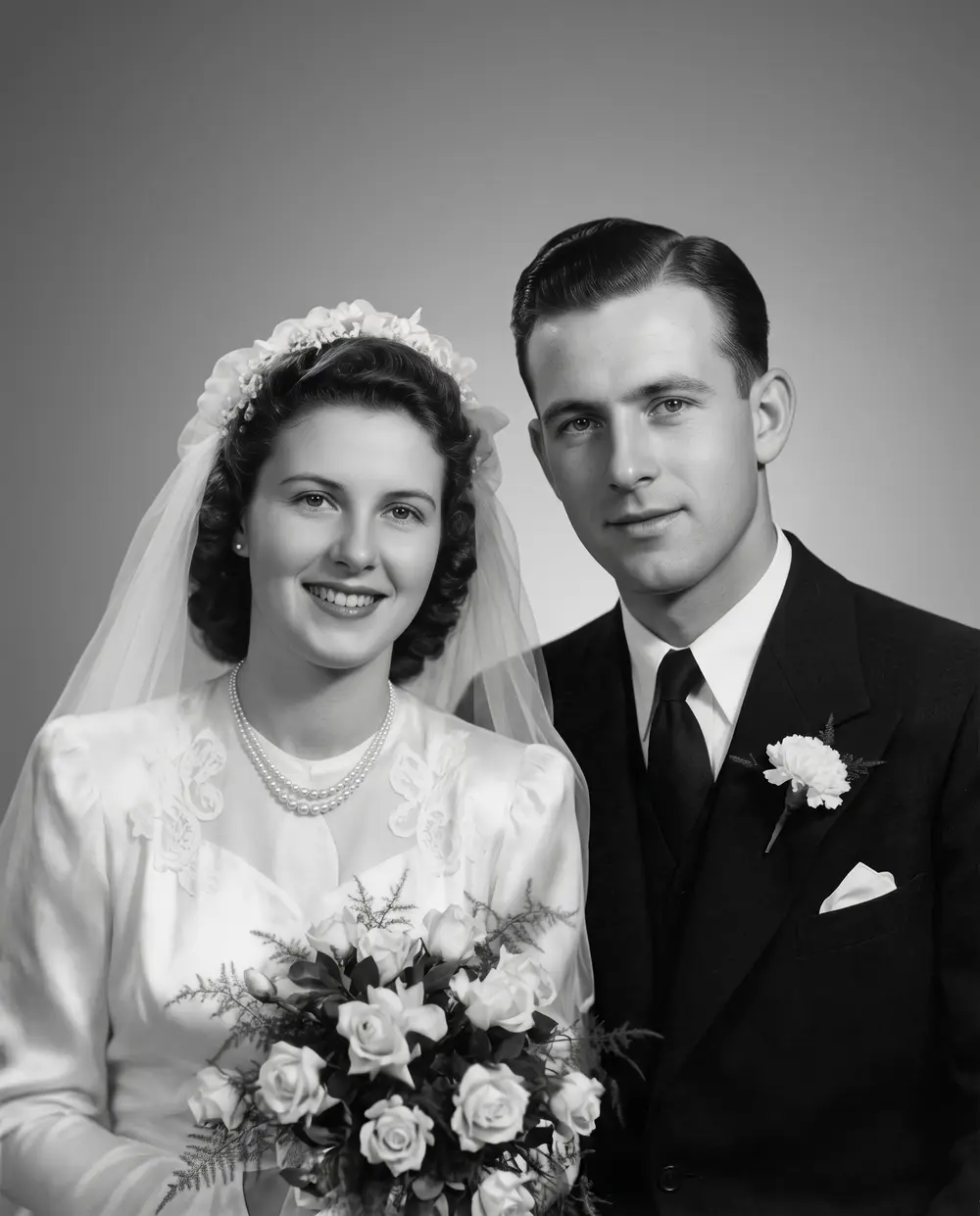
1950s family print — after Phota Enhance
Tiny portrait — after Image Upscaler
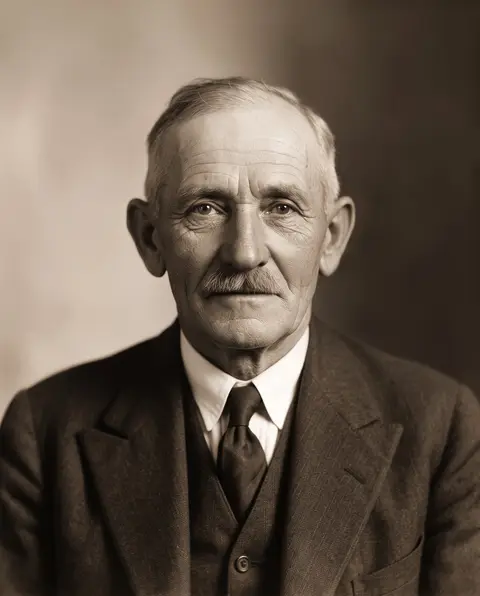
1930s portrait — after Phota Enhance
Pixelated macro — after Clarity Pro
Landscape to 4K — after Image Upscaler
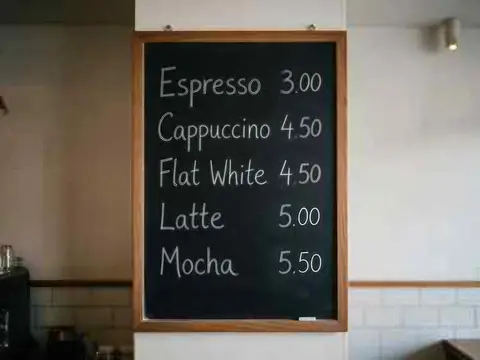
Text on a menu — after Image Upscaler
Blurry pet photo — after Phota Enhance
Grainy night shot — after Phota Enhance
1950s family print — after Phota Enhance
Tiny portrait — after Image Upscaler
1930s portrait — after Phota Enhance
Pixelated macro — after Clarity Pro
Landscape to 4K — after Image Upscaler
Text on a menu — after Image Upscaler

Quick answer

Updated

Kenerate AI's image enhancer improves photo quality online by matching the fix to the problem: Phota Enhance repairs blurry, grainy and old photos, Real-ESRGAN cleans up and enlarges small or compressed images, and Image Upscaler outputs 4K or 8K. New accounts get 25 free credits, results take under a minute, and there is no watermark.

Fixes
Blur · grain · low-res · old damage
Output
Up to 4K or 8K
Free to start
25 credits, no watermark
Time
About 25–40 seconds

Real results

See what it does to real photos

Every slider is a real Kenerate output from the bad input on the left. Drag to compare, then try the same photo.

  1. Tabby cat with green eyes on a windowsill — before
    Tabby cat with green eyes on a windowsill — after
    BeforeAfter

    01Blurry photos

    Out of focus? Fur and whiskers return

    Phota Enhance rebuilds the detail a missed focus smeared — eyes, whiskers, every stripe.

    Phota Enhance · 720 px, out of focus → 2048 px, sharp

    Try it now
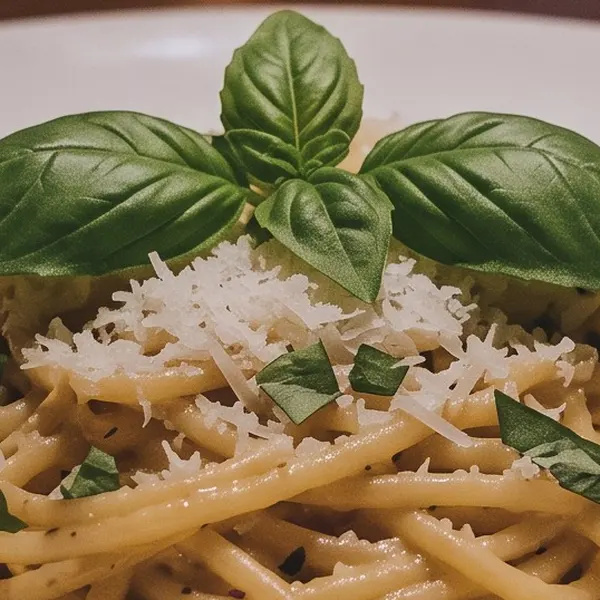
  2. Plate of pasta with basil in a dim candle-lit restaurant — before
    Plate of pasta with basil in a dim candle-lit restaurant — after
    BeforeAfter

    02Grainy photos

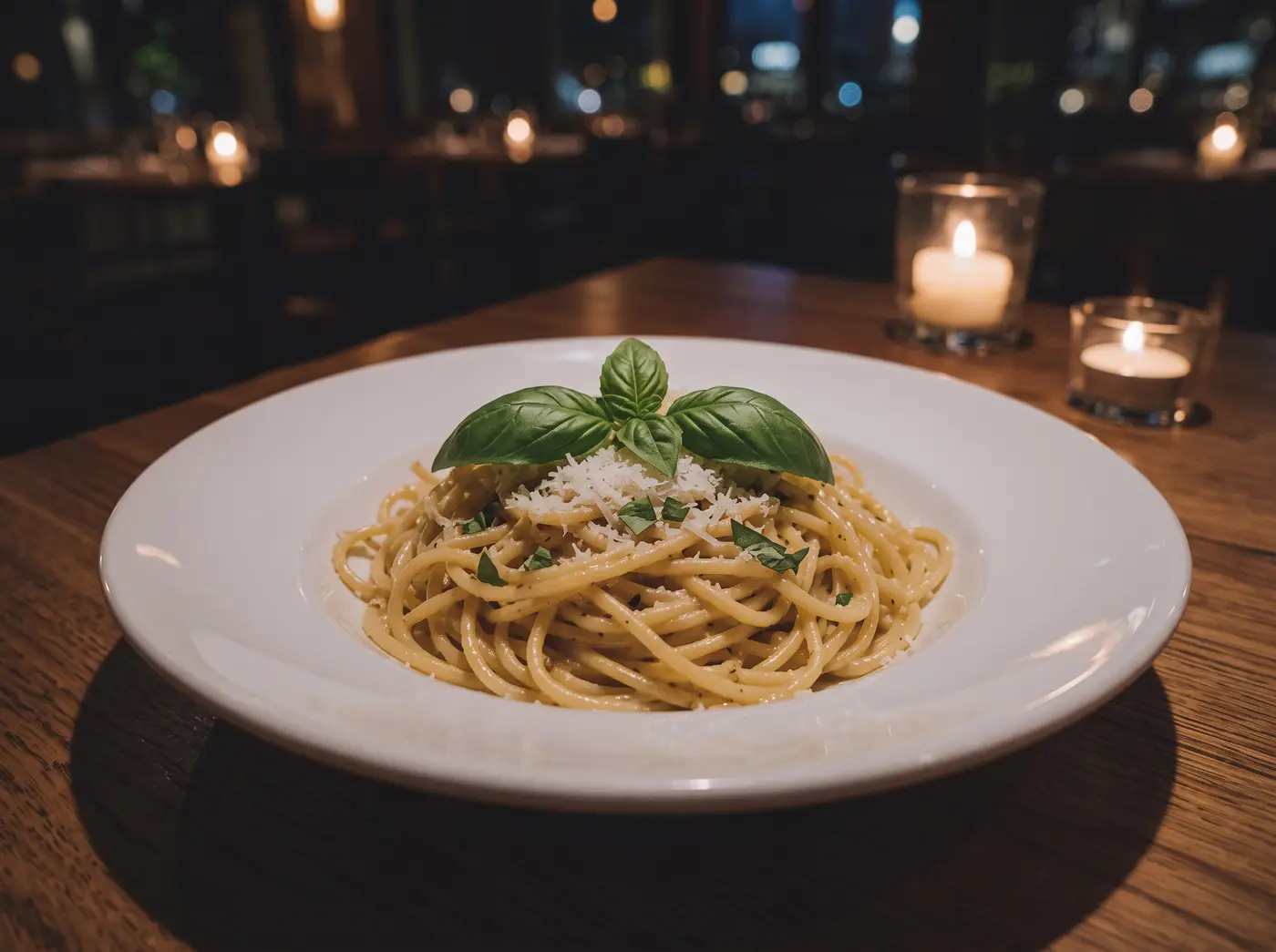
    Night-time noise, gone

    A dim restaurant shot cleaned of grain without the plastic look of a blur filter.

    Phota Enhance · 640 px, noisy → Clean · 2400 px

    Try it now
  3. Faded 1950s black-and-white family photo in front of a house, with scratches and a torn corner — before
    Faded 1950s black-and-white family photo in front of a house, with scratches and a torn corner — after
    BeforeAfter

    03Photo restoration

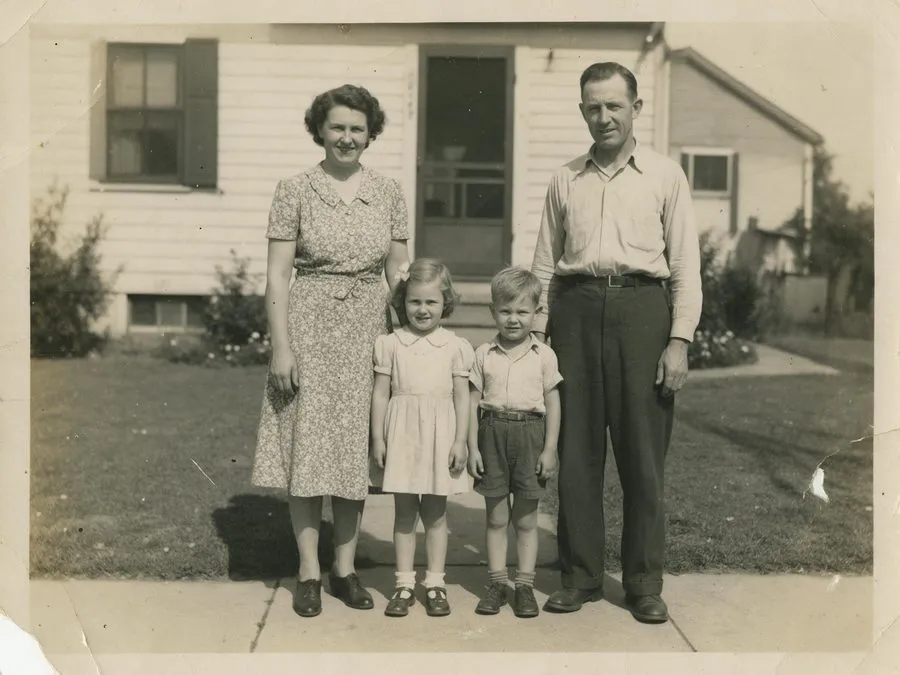
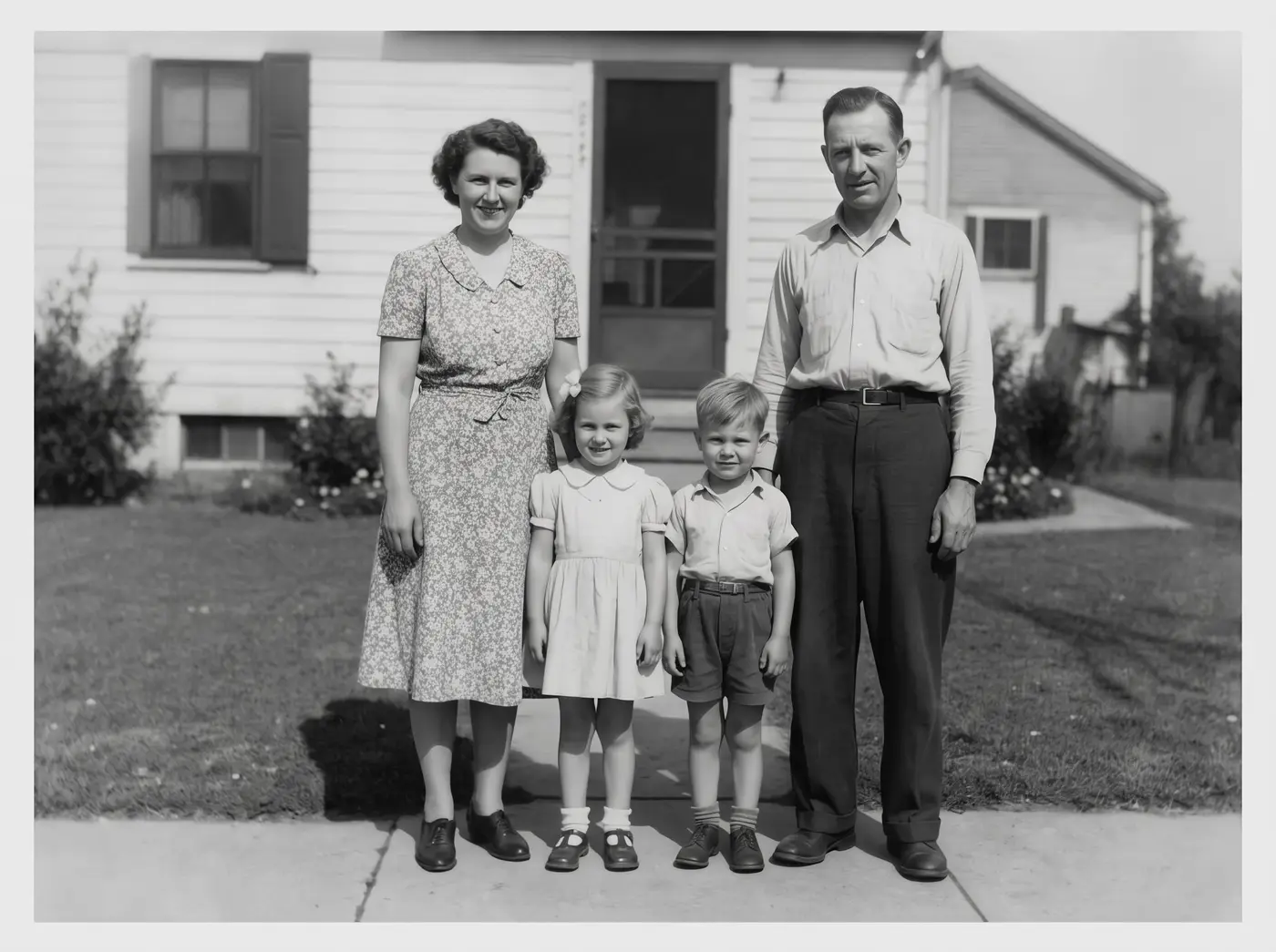
    A 1950s family print, repaired

    Creases, scratches and a torn corner fixed, fading lifted — the photo stays black-and-white.

    Phota Enhance · Scanned print → Restored · 2400 px

    Try it now
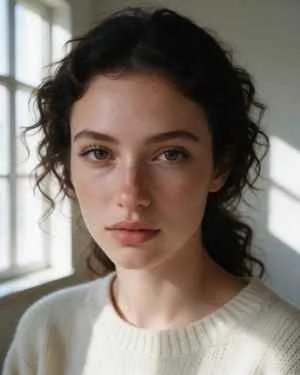
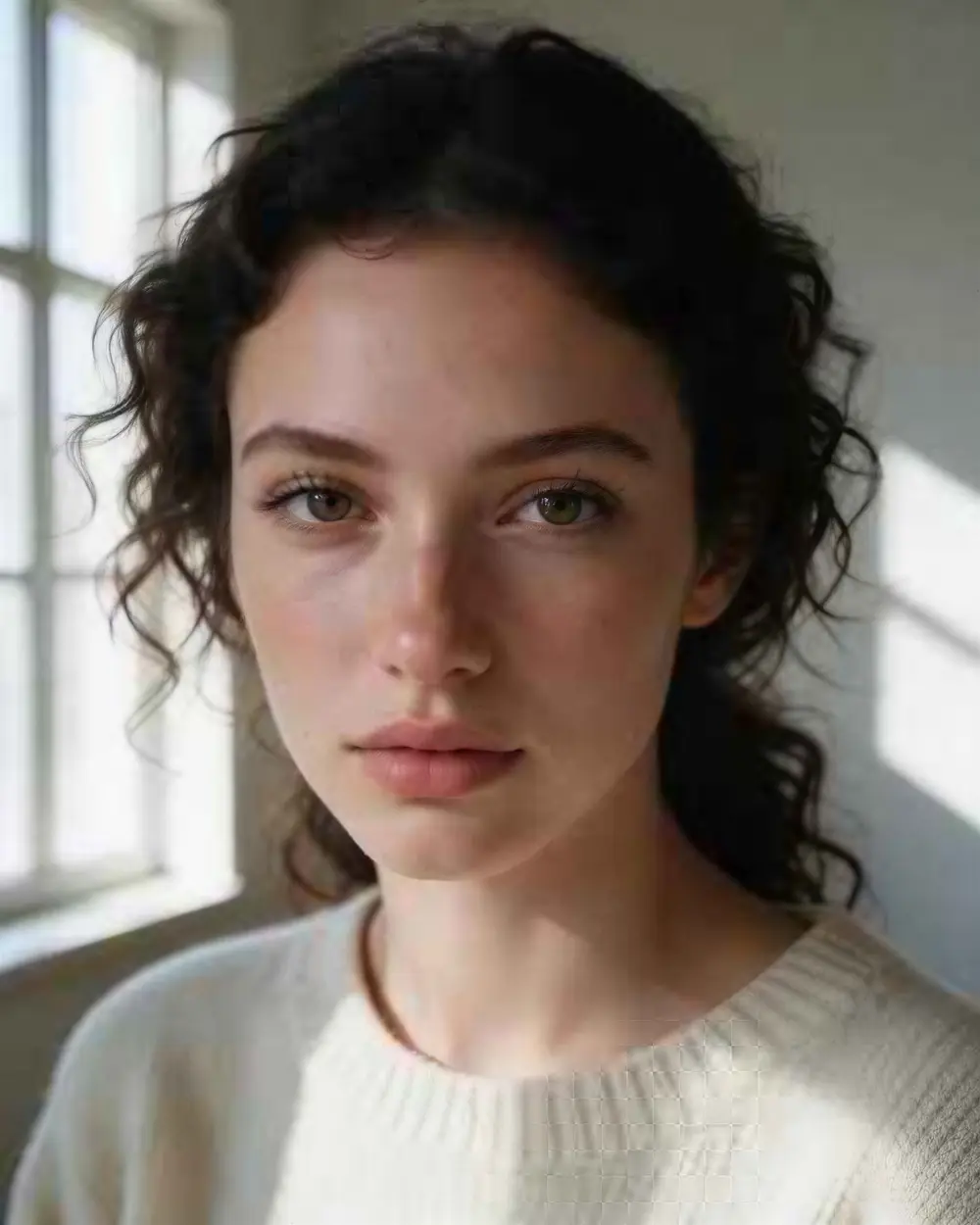
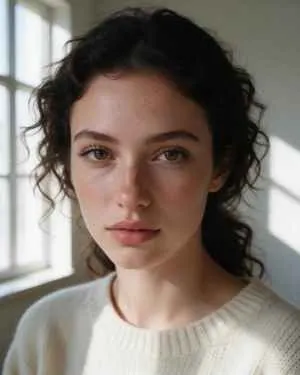
  4. Close-up portrait of a young woman with freckles and dark curly hair — before
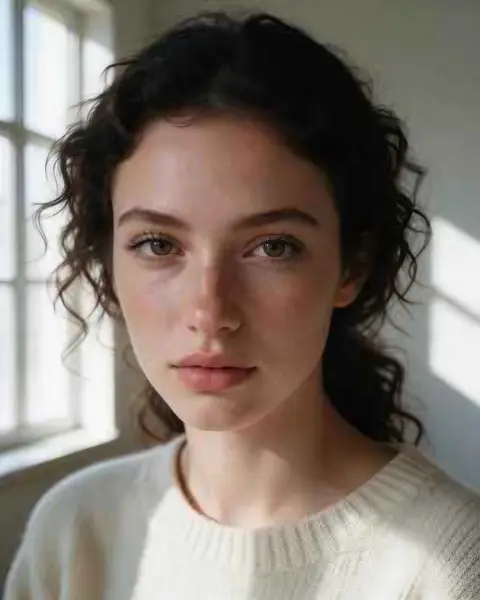
    Close-up portrait of a young woman with freckles and dark curly hair — after
    BeforeAfter

    04Low resolution

    A 300-pixel portrait, now 4K

    Skin, lashes and curls come back sharp — and it's still the same person. A faithful upscale, not a new face.

    Image Upscaler · 300 px JPEG → 4K · 3664 × 4579

    Try it now

How it works

How to enhance image quality with AI

The same three steps for every fix — only the engine changes.

  1. Add the photo

    Upload the image you want to improve — JPG, PNG or WEBP up to 25 MB.

  2. Pick the fix for the problem

    Blurry, grainy, damaged or old → Phota Enhance. Just small or soft → Real-ESRGAN or Image Upscaler to 4K. Flat skin, hair or fabric → Recraft Creative.

  3. Compare and download

    Drag the slider to check the enhanced image against the original, then download it with no watermark.

Real results

What can the AI image enhancer fix?

Each card is a real output from the bad input you can see in the hero slider. Tap one to try it yourself.

Choosing

Which enhancement do I need?

Most “bad” photos have one main problem. Pick the engine built for that problem.

Which Kenerate engine fixes which photo problem
ProblemUse
Blurry or out of focusPhota Enhance
Grainy / noisy night shotPhota Enhance
Old, faded or scratchedPhota Enhance
Small or low resolutionReal-ESRGAN or Image Upscaler
JPEG blocks and compressionReal-ESRGAN
Needs more fine detailClarity Pro
Flat skin, hair or fabricRecraft Creative

Not sure? Start with Phota Enhance for anything blurry, grainy or old, and Real-ESRGAN for anything that is simply too small. Both keep the photo looking like the original.

At 100%

Enhanced vs original, zoomed in

The same area of the photo: the original stretched to size, next to the enhanced result.

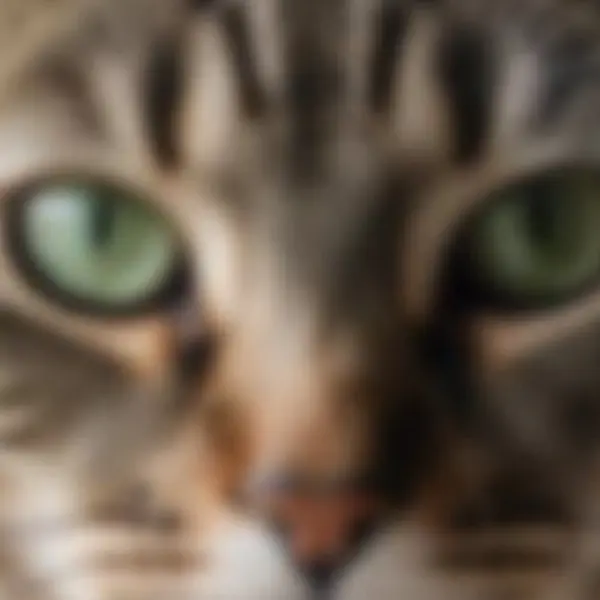
  • Tabby cat with green eyes on a windowsill — the 720 px, out of focus original stretched to the same size (bicubic)
    Stretched
    Tabby cat with green eyes on a windowsill — the same crop after Phota Enhance
    Phota Enhance

    Blurry pet photo · 720 px, out of focus → 2048 px, sharp

  • Plate of pasta with basil in a dim candle-lit restaurant — the 640 px, noisy original stretched to the same size (bicubic)
    Stretched
    Plate of pasta with basil in a dim candle-lit restaurant — the same crop after Phota Enhance
    Phota Enhance

    Grainy night shot · 640 px, noisy → Clean · 2400 px

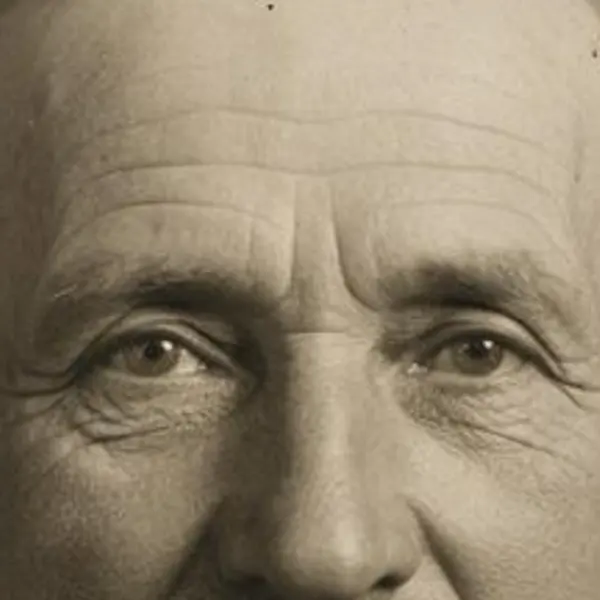
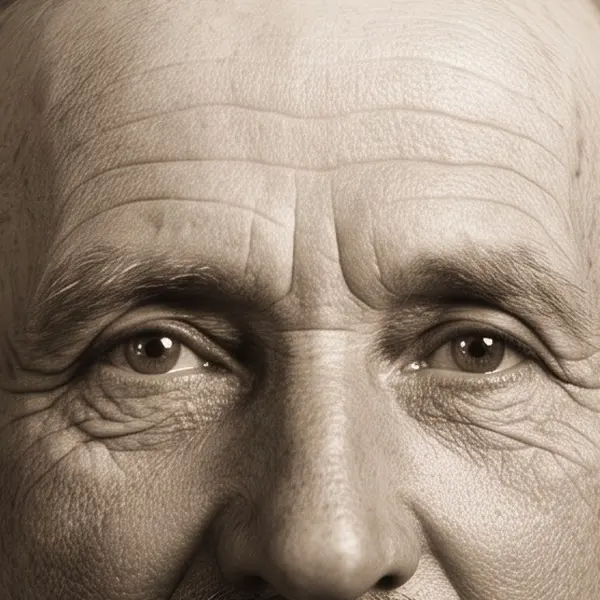
  • Damaged sepia studio portrait of an elderly man with a mustache — the Scanned print original stretched to the same size (bicubic)
    Stretched
    Damaged sepia studio portrait of an elderly man with a mustache — the same crop after Phota Enhance
    Phota Enhance

    1930s portrait · Scanned print → Restored · 2304 px

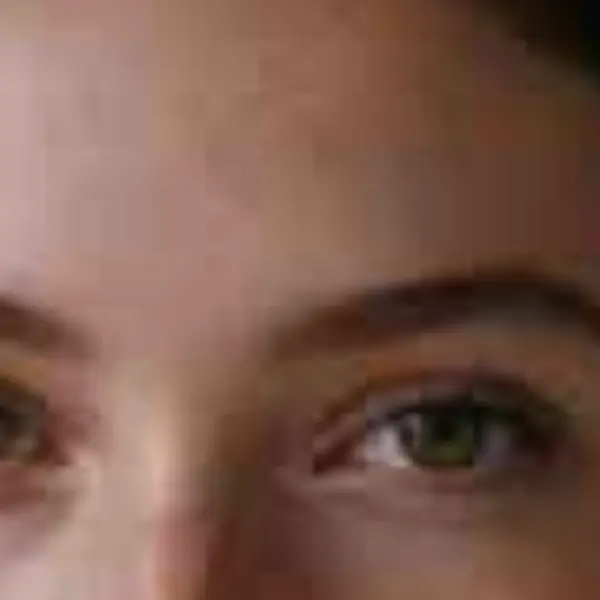
  • Close-up portrait of a young woman with freckles and dark curly hair — the 300 px JPEG original stretched to the same size (bicubic)
    Stretched
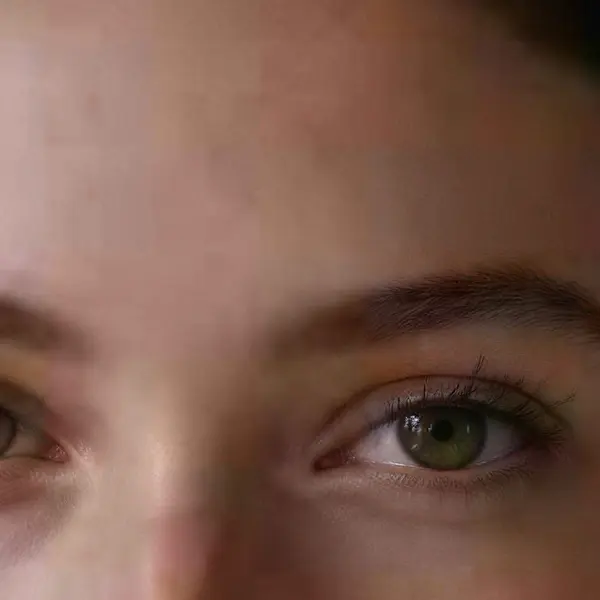
    Close-up portrait of a young woman with freckles and dark curly hair — the same crop after Image Upscaler
    Image Upscaler

    Tiny portrait · 300 px JPEG → 4K · 3664 × 4579

Left: the original enlarged with ordinary bicubic resizing. Right: the same area of the real Kenerate output. Both crops are shown at the same size.

Look closer

Zoom into a rescued photo

A tabby cat shot slightly out of focus, after Phota Enhance. Move over the picture to check the fur and eyes.

  • Individual whiskers separated again
  • Eyes and iris texture sharp
  • Fur texture rebuilt, background blur kept

Move your pointer over the image to zoom in.

Tabby cat with green eyes on a windowsill — 720 px, out of focus in, 2048 px, sharp out with Phota Enhance.

Seven engines

Which engine should enhance your photo?

From a quick clean-up to a full repair — pick the one built for your problem.

  • FaithfulDEFAULT

    Real-ESRGAN

    Classic super-resolution — sharper edges, less noise, bigger image.

    Best for: Quick clean-ups of AI renders, web images and product shots.

    Larger, sharper copy ~25s per image

    Use
  • Faithful

    Kenerate Upscale

    Pick the exact size in megapixels — up to 128 MP, very fast.

    Best for: E-commerce and design assets at a precise size, fast.

    Up to 128 MP ~14s per image

    Use
  • Faithful

    Image Upscaler

    Straight upscale to 2K, 4K or 8K that keeps the original texture.

    Best for: Everyday photos and AI art to a standard size.

    Up to 8K ~45s per image

    Use
  • Faithful

    Ultimate Upscaler

    Higher-quality 2K / 4K / 8K upscale for pro restoration.

    Best for: Marketing assets and photo restoration where fine detail matters.

    Up to 8K ~19s per image

    Use
  • Creative

    Clarity Pro

    Up to 16× with a creativity dial — stay true or invent fine detail.

    Best for: Portraits and campaign visuals for print; keeps identity, adds detail.

    Up to 64 MP ~81s per image

    Use
  • Restore

    Phota Enhance

    Restores old, blurry or damaged photos and rebuilds lost detail, up to 4K.

    Best for: Old family photos, archives and low-res pictures you want to print.

    Restored · up to 4K ~37s per image

    Use
  • Creative

    Recraft Creative

    Refines skin, hair and fabric texture — a polish pass, it keeps the size.

    Best for: Portraits and product shots that need richer texture rather than more pixels.

    Same size · richer texture ~29s per image

    Use
New accounts get 25 free credits to try the engines on their own images.

Got a blurry or grainy photo? Phota Enhance repairs blur, grain and old-photo damage.

Background

Why do photos lose quality — and what can AI fix?

  • Missed focus and camera shake smear edges. AI restoration models such as Phota Enhance are trained to rebuild those edges; sharpening filters only add contrast to the blur.
  • Grain (noise) comes from high ISO in low light. An AI enhancer removes it while keeping texture; a blur filter would remove both.
  • Low resolution and JPEG compression throw away pixels. Super-resolution models (Real-ESRGAN, Image Upscaler) put plausible detail back as they enlarge.
  • Age — fading, scratches, creases and stains on prints. See photo restoration.

What AI cannot do is recover information that never reached the sensor. If a face is a few pixels wide, any enhancer is guessing — which is why Kenerate offers faithful engines for accuracy and creative ones for looks.

Related jobs

More ways to improve a picture

Use cases

How people use the enhancer

Three common jobs, with the real before and after.

  • Pet owner

    Phone photos

    The best photo of the cat was the one that missed focus. One Phota Enhance run made it sharp enough to print and frame.

    Blurry → sharp · Phota Enhance

  • Food blogger

    Restaurant reviews

    Dim restaurants mean grainy phone shots. Enhancing cleans the noise before the photos go into the review.

    Grainy → clean · Phota Enhance

  • Recruiter

    Candidate profiles

    Headshots arrive as tiny thumbnails. Upscaling to 4K keeps the face the same and makes them usable on the careers page.

    300 px → 4K · Image Upscaler

Example workflows built on real Kenerate outputs — not customer reviews.

In depth

Where bad photos come from

Noise, blur and compression explained — and how built-in tools compare — with sources.

Noise: light is grainy

Adobe's Denoise team explains that light itself is noisy — the number of photons hitting each pixel varies — and the sensor's readout adds more, mostly in the shadows; high ISO and underexposure make it visible [1]. That's why night and indoor phone shots look grainy.

Blur: shutter and focus

Nikon's rule of thumb is a shutter speed of at least 1/focal length — 1/200 s at 200 mm — to avoid camera shake [2]. Slower than that, or with the focus on the wrong spot, fine detail never reaches the sensor cleanly.

Compression: detail thrown away

JPEG saves space by discarding detail; Adobe notes the loss is permanent and converting to TIFF won't restore it [3]. Messaging apps and social networks re-compress, which is why forwarded photos get worse each time.

Built-in enhancers vs a dedicated tool

Adobe's Denoise (2023) works on raw files and Super Resolution (2021) doubles width and height [1][4]; Google Photos' Unblur, launched on the Pixel 7 in 2022, reached all Google Photos users in 2024 [5]. Kenerate puts restoration, denoising and upscaling engines in one browser tool, for any photo format, on any device.
Start free

Start free, top up only when you need to

25 free credits on sign-up. The same credits work in every Kenerate tool.

  • 25 free credits on sign-up

    Test on your own images before you buy anything.

  • Credits never expire

    One-time packs — use them this week or next year.

  • No subscription, no watermark

    Nothing to cancel. Free results download clean.

  • One balance, every tool

    The same credits work across images, video, voice and 3D.

Tried it? Tell us how it went

We only publish real, verified reviews — never invented quotes. Send a line about your result (and whether we may quote you), and it will appear here.

Send a review

FAQ

AI image enhancer questions

9 questions

Still stuck?

A real person answers — usually within a day.

01

What does an AI image enhancer do?

It improves the quality of a photo automatically: it can sharpen blur, remove grain and JPEG artefacts, add resolution and repair old-photo damage. Kenerate's enhancer lets you pick the engine for the problem you have, so a photo that only needs to be bigger does not go through a heavy restoration.

02

Is the AI image enhancer free?

It is free to start: new accounts get 25 free credits to test with, and bigger jobs use one-time credit packs that never expire. There is no watermark and no subscription.

03

How do I fix a blurry photo?

Upload it and choose Phota Enhance. It is built for out-of-focus, shaken and soft photos and rebuilds edges, eyes and texture. In our example a blurred cat photo came back with sharp fur and whiskers.

04

How do I make a grainy photo clearer?

Use Phota Enhance: it removes noise from dark, high-ISO phone shots and keeps the detail. A normal upscaler enlarges the grain along with the photo.

05

Can it enhance a photo of a face?

Yes. Phota Enhance and Image Upscaler both keep the person looking like themselves. Creative engines such as Clarity Pro add the most detail but can change small features when the creativity dial is high.

06

What is the difference between an image enhancer and an upscaler?

An upscaler makes the image bigger; an enhancer fixes what is wrong with it. Most good enhancers upscale too. On Kenerate the same tool does both — Phota Enhance repairs and enlarges up to 4K, and the other engines focus on size.

07

How do I enhance image quality in Photoshop?

In Camera Raw use Enhance → Denoise for grain in raw files and Super Resolution to double the size; use Filter → Sharpen → Smart Sharpen for softness. It works, but each fix is a separate step and blur from missed focus is hard to fix by hand.

08

Can it make blurry text readable?

It can make text look sharp, but be careful: when letters are too blurred to read, a restoration model guesses them. In our test on blurry handwritten notes, Phota Enhance turned smudged words into clean, plausible — but partly different — words. Don't rely on it for documents, receipts or number plates where every character matters.

09

Is it safe to upload personal photos?

Your uploads and results are saved to your own private history so you can download them again.

Every pixel, rebuilt. Up to 128 MP.

Seven engines in one browser tool — faithful, creative and restoration — up to 8K or 128 MP.

AI engines
7
AI engines
Largest output
128 MP
Largest output
Free credits to start
25
Free credits to start
Straight upscale to
8K
Straight upscale to

Explore the toolkit

More upscale, enhance and restore tools

Every Kenerate page for making images bigger, sharper, cleaner and older photos new again.

Written by the Kenerate AI team

We build and run the Kenerate image tools; every example on this page is a real output from the input shown. Last updated 26 September 2026. Corrections: hello@kenerateai.com.

Sources

Ready when you are

Enhance your first photo free

25 free credits on sign-up. No watermark, no subscription.

  • 25 free credits
  • No watermark
  • Credits never expire