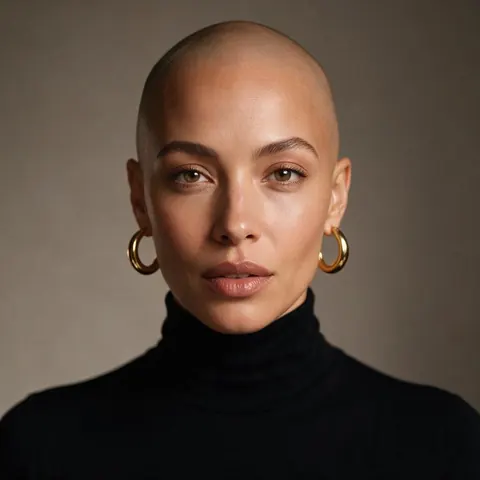
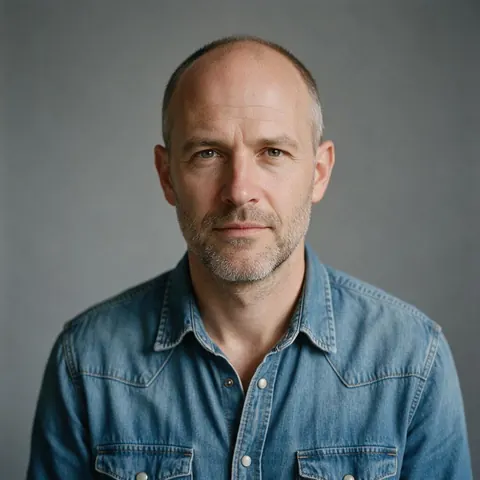
Same face · no hair
Bald Filter
Curious how you'd look bald? Upload your own photo and the bald filter removes the hair and redraws a natural scalp. Your face, eyebrows and background stay the same.
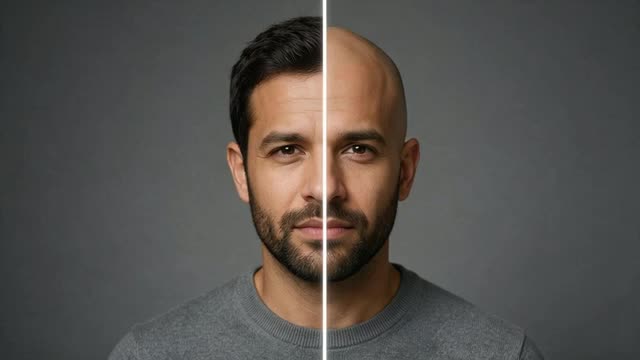
- Keeps your face and brows
- Shaved or receding
- Free to start
- No watermark
Updated by the Kenerate AI team
On this page
Quick answer
Updated
What is a bald filter?
A bald filter removes the hair in your own photo and redraws a smooth, natural scalp, so you can see what you'd look like bald. Kenerate AI opens its image editor with the bald instruction filled in; you add a clear photo, and the model keeps your face, eyebrows, any beard and the background the same.
Key facts
- Works on
- Your own photo
- What changes
- Hair on the head only
- Keeps
- Face · brows · beard
- Default model
- Qwen Image 3.0
- Free start
- Starter credits
- Watermark
- None
Gallery
Bald filter examples
Fictional adults made with Kenerate AI to show the look.
How to
How to use the bald filter
- Time needed
- Steps
- 4 steps
Step 1
Open the bald filter
Press “Add your photo”. The image studio opens with the bald instruction in the prompt box. Sign in free for starter credits.
Step 2
Upload your photo
Add a clear photo of yourself with your whole head and ears in the frame.
Step 3
Create
Keep Qwen Image 3.0 (free plan) or pick Seedream 5.0 Pro, then press Create. Change “completely bald” to “receding hairline” if you like.
Step 4
Compare and download
Run it again for a second take and download the one you like without a watermark.
See it in the app

Open Edit Studio and upload an image, or pick one from your history.


Watch the tour · 1:23
Prompts, styles, references, edit, Arena & chat
Chapters
Tips
Get a believable bald preview
What makes the preview look natural.
Use a photo where your whole head and ears are visible.
Keep “keep my eyebrows and beard” so only the scalp hair goes.
Try “receding hairline” or “thinning crown” for a gradual look.
A plain background gives a cleaner head outline.
Run it twice and keep the more natural scalp.
Thinking of a buzz cut instead? Try the buzz cut filter.
Models
Models for bald edits
What each model is good at. Open any one straight in the generator.
- Free plan

Alibaba
Qwen Image 3.0
- Reference images
- Up to 3
- Output
- 1K or 2K
Default here · free plan
Open Qwen Image 3.0 
ByteDance
Seedream 5.0 Pro
- Reference images
- Up to 10
- Output
- 2K
Strong at keeping faces the same
Open Seedream 5.0 Pro
Google
Nano Banana 2
- Reference images
- Up to 14
- Output
- 1K (square today)
Good edits; square for now
Open Nano Banana 2
Example uses
How creators use bald filter
Illustrative examples of typical workflows, not customer reviews.
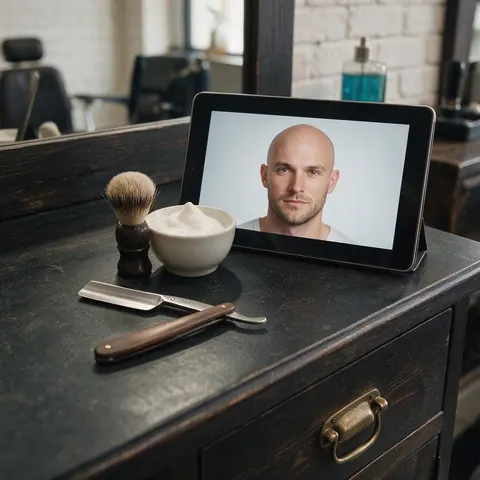
Barber
A barber could show a client with a thinning crown how a full shave would look before suggesting it.
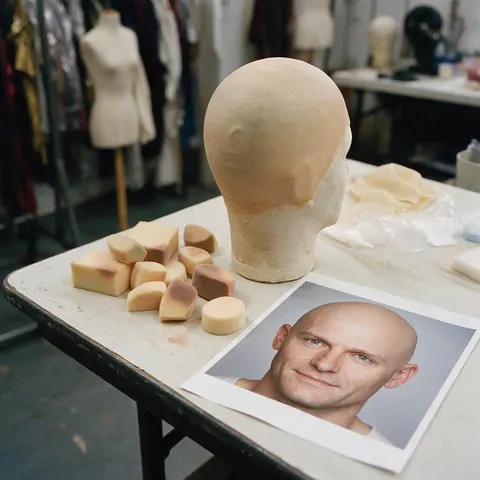
Theatre costume team
A costume team could preview a bald look on an actor's own photo, with their consent, before ordering a bald cap.
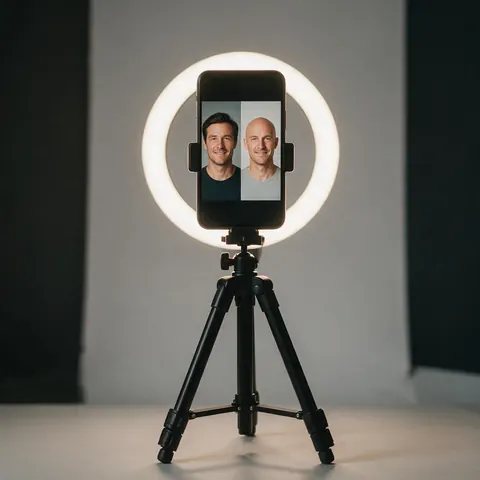
Content creator
A creator could post a before-and-after preview ahead of a head-shave video.
FAQ
Bald Filter questions
What would I look like bald?
Upload a clear photo of yourself to the bald filter and press Create to find out. Kenerate AI fills in the instruction, a smooth clean-shaven head with the same face, eyebrows, beard and background, and the image model redraws your scalp where the hair was. Use a front-facing photo with your ears visible, because the model follows your head shape from the picture.
Link to this answerIs the bald filter free?
Yes, to start. A new Kenerate account gets free starter credits, which work on free-plan models such as Qwen Image 3.0, the default here. Seedream 5.0 Pro and Nano Banana 2 need a one-time credit pack rather than a subscription, and credits you buy never expire. Results download without a watermark.
Link to this answerCan the bald filter show a receding hairline instead?
Yes. Change the prompt before you press Create, for example “give me a receding hairline” or “thinning hair on the crown”, and keep the line about your face and background. Each run edits your original photo, so you can compare fully bald, receding and thinning versions side by side before you decide anything.
Link to this answerWill it keep my beard and eyebrows?
It should, because the preset asks for that in words: keep my face, eyebrows, any beard, clothing and background exactly the same. Instruction-based editors change only what you name. If a run thins your brows or beard, run it again or add “do not change the eyebrows or facial hair” to the prompt.
Link to this answerCan I use someone else's photo?
Only with their permission. A bald preview still edits a real person's likeness, so use your own photo or one the person has agreed to, and share the result only with their consent. Never upload a photo of anyone under 18; the filter is for adults editing their own pictures. Kenerate's content rules apply to every edit.
Link to this answerIn depth
Bald Filter, explained
What works, what to avoid, and how to pick a model.
How the bald filter works
The bald filter is an instruction edit. Your photo and one sentence go to an image model's edit endpoint; the model removes the hair it can see, paints a scalp that matches your skin tone and lighting, and leaves the rest of the photo alone.
When a bald preview helps
People use it to:
- Decide whether to shave a thinning crown or keep growing it.
- See a shaved look before a charity shave or a stage role.
- Show a barber the result they're after.