Honest comparison · checked 6 Oct 2026 · no auto-clipping · no watermark
Opus Clip alternative — captions for shorts you already cut
OpusClip finds the best moments in a long video and turns them into captioned shorts. Kenerate doesn't do that clipping step. If you already cut your own shorts and want bold, word-highlight captions burned in — plus upscaling or a dubbed version — Kenerate's Auto Subtitles is the narrower, pay-per-clip alternative.
- 10 caption styles, word highlight included
- Shorts up to 4 minutes
- No watermark, no subscription
- No auto-clipping — said plainly
Updated by the Kenerate AI team
On this page
Quick answer
Updated
Is Kenerate a good Opus Clip alternative?
Kenerate covers 1 half of Opus Clip: the captions, not the clipping. It has no auto-clipping, so it won't cut a long video into shorts; it finishes shorts you already cut, with 10 burned-in caption styles for clips up to 4 minutes, upscaling to 4K and dubbing into 33 languages, with no watermark.
Key facts
- Long video → shorts
- No (OpusClip: yes)
- Caption styles
- 10, burned in
- Word highlight
- Rizz, Glide Pop
- Clip limit
- 4 min, 100 MB
- Auto-reframe to 9:16
- No (OpusClip: yes)
- Upscale / dub shorts
- Up to 4K / 33 languages
Real demo
One short, three caption styles
The same talking clip with Simple, Glide Pop and Fusion captions. Turn the sound on.
- Simple. Simple style, bottom, mid shadow.
- Glide Pop. Glide Pop style, bottom, mid shadow.
- Fusion. Fusion style, bottom, mid shadow.
Real outputs of the subtitles tool, unedited.
Caption a shortReal demo
The same short in more languages
Dub a finished clip, then caption the dubbed version. Switch languages and turn the sound on.
- English (original). A Wan 3 travel clip in English.
- Spanish. AI Dubbing, source language auto-detected.
- Hindi. Same clip, dubbed to Hindi.
Unedited outputs of Kenerate's dubbing tool.
Dub a shortReal results
Shorts captioned by Kenerate
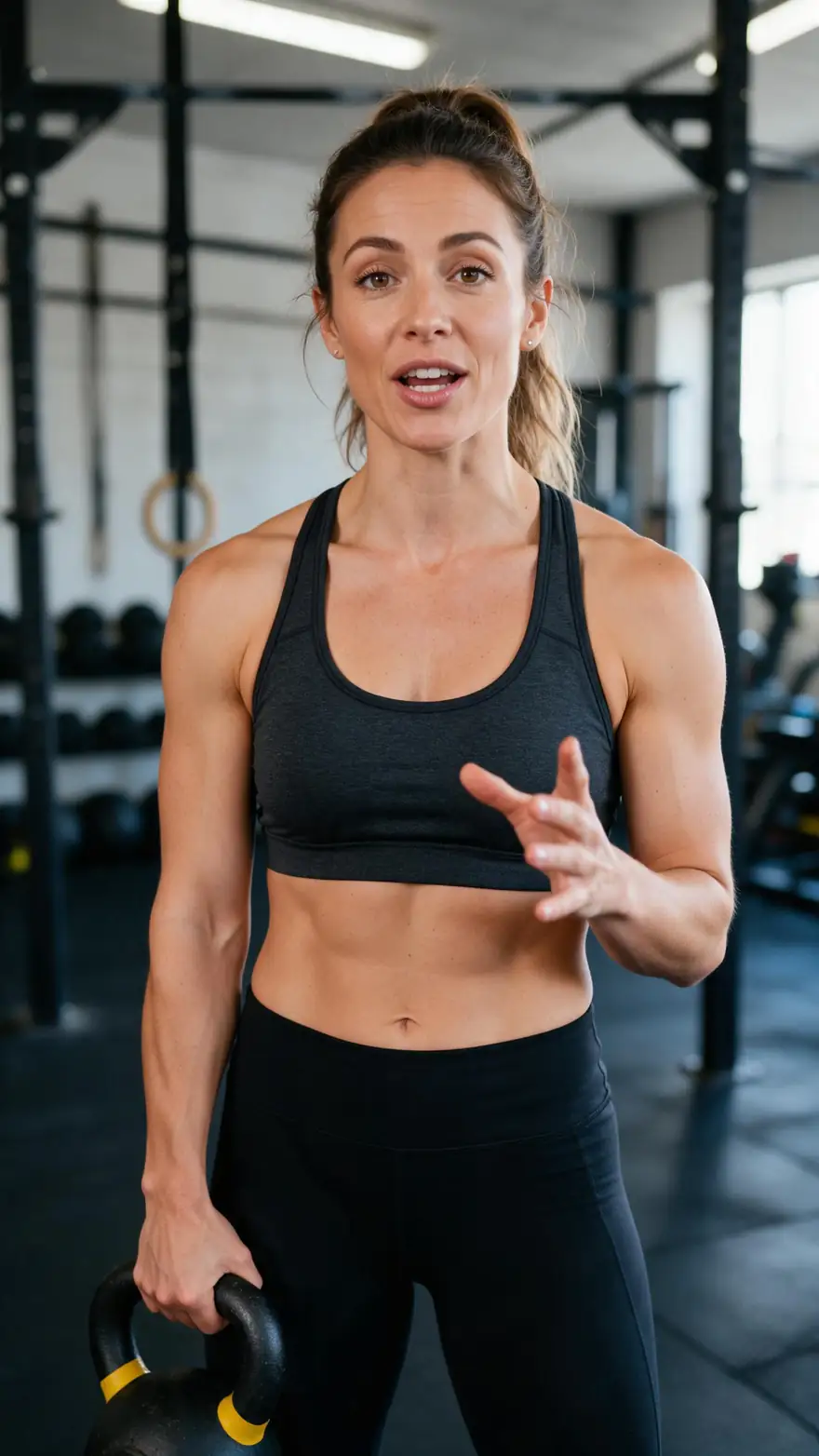
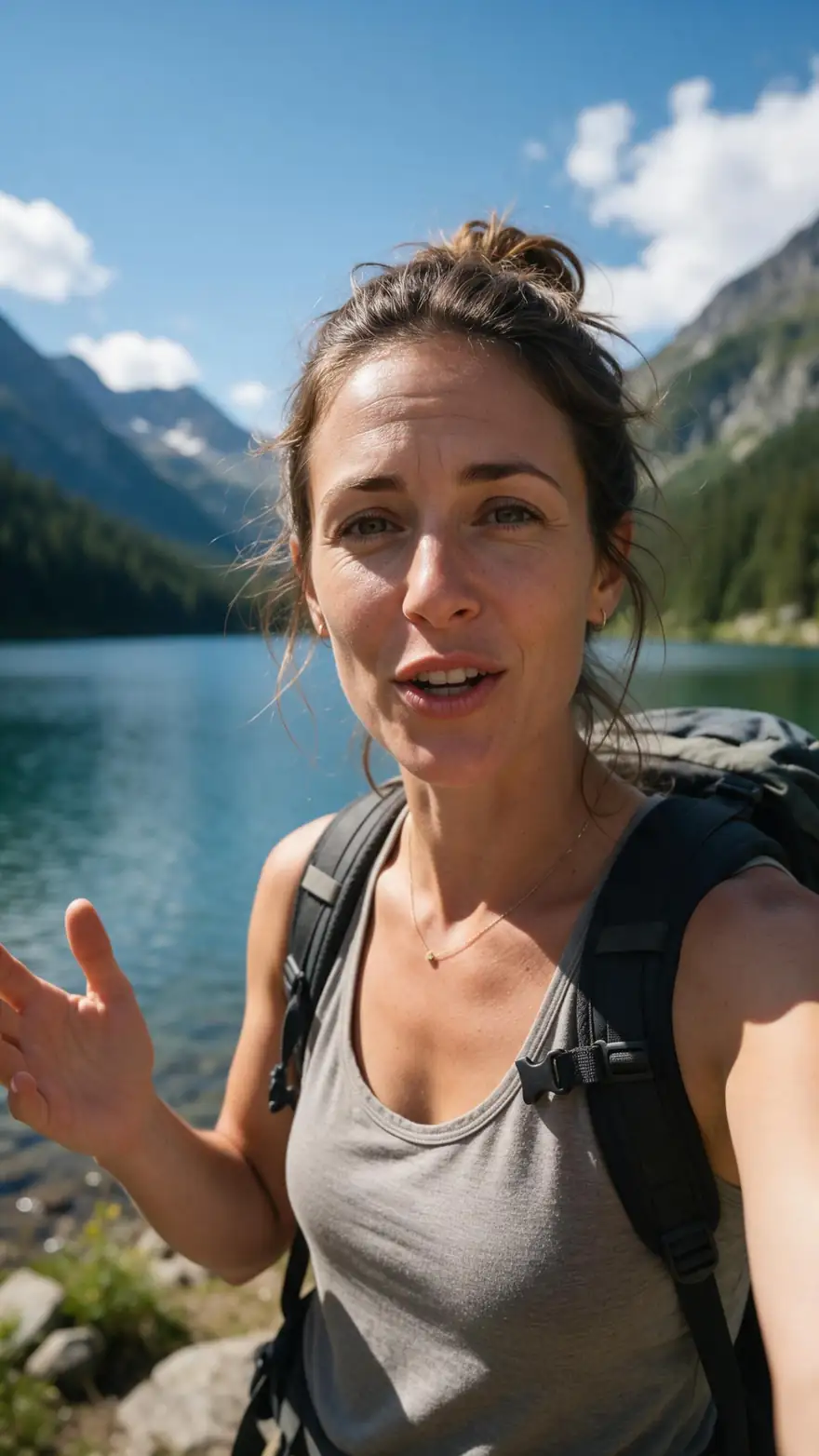
Real 9:16 Wan 3 talking clips, each captioned by Auto Subtitles in a different style, with no watermark.
Clips: Wan 3 image to video with speech (AI-generated people). Captions: Kenerate Auto Subtitles, unedited.
How to
How to caption a short you already cut
- Time needed
- Steps
- 4 steps
Step 1
Cut the short
In any editor or clipper; Kenerate doesn't pick highlights.
Step 2
Check length and size
Up to 4 minutes and 100 MB, in MP4, MOV or WebM.
Step 3
Pick a style
Rizz or Glide Pop for a highlighted word, Simple or Plain for clean subtitles.
Step 4
Set position and language
Middle suits 9:16 shorts; auto-detect or pin one of 10 spoken languages.
See it in the app

Open Auto Subtitles and upload a clip, or pick one from your history, library or a link.


Watch the tour · 1:47
Caption styles, position for wide or vertical, spoken language, resolution & shadow, before/after & chat
Chapters
Checked 6 October 2026
Kenerate vs OpusClip — best for what
OpusClip details from opus.pro as their site states, checked 6 October 2026. Kenerate is our product; where OpusClip does more, the table says so.
| Kenerate | OpusClip | |
|---|---|---|
| What it is | AI tools for finished clips: captions, upscale, dubbing | An AI clipper that turns long videos into shorts |
| Best for | Styled captions on shorts you cut yourself | Repurposing podcasts, streams and long videos at volume |
| Finds highlights in a long video | No | Yes |
| Auto-reframe to vertical | No | Yes |
| Captions | 10 burned-in styles, word highlight | Animated captions, editable |
| Caption languages | Auto-detect + 10 spoken languages | 25+ languages |
| Edit caption text | No | Yes |
| Upscale and dub the short | Yes — up to 4K; 33 dub languages | Check OpusClip's current tools |
| Publish to social platforms | No — download the MP4 | Yes |
OpusClip's features can change; check its pages before you choose.
Sources: Kenerate Auto Subtitles (tool) · OpusClip — home page, checked 6 October 2026 · Choppity — Opus Clip alternatives, checked 6 October 2026 · quso.ai — Opus Clip alternatives, checked 6 October 2026 · Submagic — Opus Clip alternatives, checked 6 October 2026
Engines
Which tool for which job
Short-form jobs mapped to Kenerate tools — and the one Kenerate doesn't do.
- Kenerate
Kenerate Auto Subtitles
Bold captions on a short
- Input
- Clip up to 4 min
- Output
- Burned-in MP4, 10 styles
Shorts watched on mute
Open Bold captions on a short - Kenerate
Kenerate Video Upscaler
A sharper short
- Kenerate
Kenerate AI Dubbing
The short in another language
- Input
- Video up to 15 min
- Output
- Dub in 33 languages
New audiences, then caption
Open The short in another language OpusClip or another clipper
Long video → many shorts
- Input
- A long video or link
- Output
- Ranked short clips
Everything Kenerate doesn't do
Open Long video → many shorts
Kenerate rows open our tools; the last row links to our caption guide for shorts.
Tips
When to stay with OpusClip
Honest cases where an AI clipper is the better fit.
You start from long podcasts, streams or webinars.
You want AI to pick the moments worth posting.
You need auto-reframing from 16:9 to 9:16.
You edit caption words before posting.
You publish straight to social platforms.
Your captions need a language Kenerate doesn't list.
Example uses
How creators use Opus Clip alternative
Illustrative examples of typical workflows, not customer reviews.

Beauty creator
A beauty creator could cut her own 30-second short and burn in Rizz captions with the spoken word highlighted before posting.

Chef
A chef could caption a quick recipe short in the Glass style and upscale it to 1080p so the dish looks sharp on phones.

Marketing lead
A marketing lead could dub a finished product short into Spanish, then caption the dubbed version for a second market.
FAQ
Opus Clip Alternative — questions
7 questions
Can Kenerate turn a long video into short clips like Opus Clip?
No. Kenerate has no auto-clipping: it doesn't scan a long video for highlights, rank them or reframe them to vertical. OpusClip's own site describes that as its core feature. Kenerate starts after the cut — you upload a short you've made, and it adds captions, upscales it or dubs it.
Link to this answerWhat is the best Opus Clip alternative for captions?
If captions are what you want, Kenerate's Auto Subtitles burns one of 10 styles into clips up to 4 minutes, including Rizz (heavy caps, spoken word in yellow) and Glide Pop (small words, spoken one highlighted). If you also need clipping, the guides we checked compare clippers such as Vizard, Klap, Submagic and Choppity.
Link to this answerIs there a free Opus Clip alternative?
The guides we read in October 2026 name CapCut for manual clipping and Kapwing's free tier for AI-assisted clipping with watermarked exports. Kenerate isn't a free clipper: new accounts get starter credits to try Auto Subtitles, then you pay per clip with no subscription.
Link to this answerWhy do people look for Opus Clip alternatives?
The comparison pages we checked list paying for uploaded minutes rather than the clips you keep, limited editing after clipping, and scheduling or editing features on higher tiers. Others simply cut their own shorts and only want the captions — the case Kenerate is built for.
Link to this answerCan I edit caption words in Kenerate?
No. Kenerate transcribes the speech and burns it in as it heard it; there's no text editor and no SRT export. Clear speech with little music underneath gives the cleanest captions. OpusClip lists editable captions, so if you correct words often, it's the better fit.
Link to this answerWhich languages do Kenerate's captions support?
Auto-detect plus 10 spoken languages: English (US), English (India), Spanish, French, German, Japanese, Chinese, Italian, Portuguese and Russian. OpusClip lists 25+ caption languages. For a short in another language, dub it first with Kenerate's AI Dubbing (33 targets), then caption the dubbed version.
Link to this answerDoes Kenerate add a watermark to shorts?
No. Captioned, upscaled and dubbed shorts download as MP4 files with no Kenerate watermark.
Link to this answerIn depth
Choosing between OpusClip and Kenerate
On this page
What OpusClip does
OpusClip takes a long video, picks the moments it rates highest and rearranges them into shorts, reframes them for vertical screens and adds animated captions it describes as over 97% accurate in 25+ languages. It imports from sources such as YouTube, Google Drive and Zoom, and publishes to social platforms [1].
What Kenerate does instead
Kenerate starts where the clipping ends. Auto Subtitles burns captions into a finished short in one of 10 styles, at 720p or 1080p, top, middle or bottom. The same account can upscale the short to 4K or dub it into one of 33 languages. There's no highlight detection, no reframing and no publishing.
Questions to ask before switching
Five questions settle most cases.
- Do I start from long videos? Then I still need a clipper; Kenerate isn't one.
- Do I cut my own shorts? Kenerate captions them with no watermark.
- Do I fix caption words by hand? Kenerate has no caption editor.
- Are my shorts under 4 minutes? That's the captioning limit, with 100 MB per file.
- Do I want other languages? Dub first, then caption the dub.
Using both
Explore
Every Kenerate video tool
Generators, tools, models and guides — all in one studio.