
Video Edit · Edit Text in Image
AI Video Text Remover Free Remove Captions and Text Overlays from Your Own Clips
AI Video Text Remover Free to start on Kenerate AI uses Video Edit on models such as Seedance 2.5 and Wan 3.0: upload a short clip, ask it to remove the captions or text overlay, and the clip is re-rendered without them. For stills, Edit Text in Image and Magic Eraser do the same. Use it only on footage you own or have rights to.
- Tool
- Video Edit in the Video Studio
- Models
- Seedance 2.5 · Wan 3.0
- Clip length
- Up to 30 s (Seedance 2.5)
- Stills
- Edit Text in Image · Magic Eraser
- Watermark
- None added

- Free to start
- No Watermarks
- Image and video models
- No subscription required
Updated by the Kenerate AI team




On this page
Real results
AI video text remover free — examples
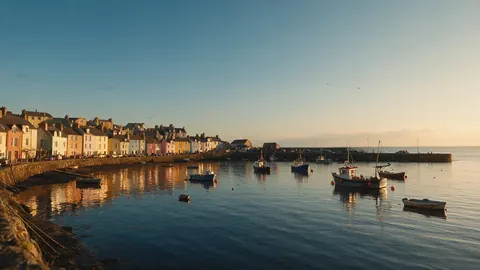
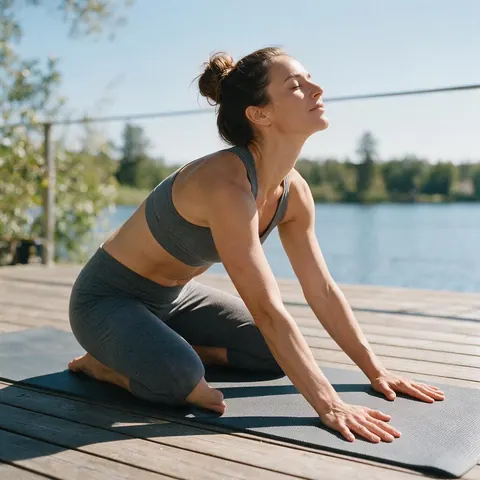
Generated with the AI models in Kenerate. No watermarks.
How AI removes text from video
Describe what to remove
Tell Video Edit what to take out — the subtitles at the bottom, a title card, a sticker — and what to keep.
Re-rendered, not blurred
The model redraws the frames without the text, so there is no blur box and no crop.
Short clips
Video Edit works on short clips: up to 30 seconds on Seedance 2.5 and 15 seconds on Wan 3.0.
Text in photos
Edit Text in Image replaces, translates or removes printed text in a photo; Magic Eraser paints away small marks.
Add new captions
Removed old subtitles? Auto Subtitles burns new animated captions in, in 10 styles.
Your footage only
Use it on videos you made or have rights to — never to strip other creators' watermarks or credits.
Comparison
AI text removal vs cropping or blurring
What changes when an AI re-renders the clip instead of hiding the text.
| Feature | Video Edit (AI) | Crop or blur by hand |
|---|---|---|
| Result | Text gone, frame rebuilt | Text hidden, frame cut or smeared |
| Framing | Full frame kept | Cropped, or a visible blur box |
| Fine detail | Can shift slightly, since the clip is re-rendered | Unchanged outside the edit |
| Length | Short clips | Any length |
| Effort | One instruction | Keyframes for every shot |
How it works
How it works in the app
Step 1
Pick what should change
Open Kenerate Genjutsu and choose Replace character, Swap object, Change outfit, Change background or Free edit.
Step 2
Choose the video
Upload a clip of 2 to 15 seconds or pick one from your history — its motion, camera and timing are kept.
Step 3
Add a reference and describe the swap
Add up to ten reference images, mention them with @image, and describe the change in the prompt.
Step 4
Set engine and quality, then Cast
Keep Kenerate Genjutsu as the engine, pick 480p, 720p or 1080p, then press Cast Genjutsu.
See it in the app

Open Kenerate Genjutsu and choose Replace character, Swap object, Change outfit, Change background or Free edit.


FAQ
Frequently Asked Questions

How do I remove text from a video with AI?
Open the Kenerate Video Studio, choose Video Edit and a model such as Seedance 2.5, upload a short clip and write what to remove — for example, “remove the captions at the bottom, keep everything else”. The model re-renders the clip without the text. Check faces and fine detail, since a re-render can change them slightly.
Link to this answerIs the AI video text remover free?
Free to start, with a catch: Video Edit runs on the video models, which need a one-time credit pack. A new Kenerate AI account's free credits can go on Edit Text in Image and Magic Eraser for stills. Packs never expire, there is no subscription required, and downloads have no watermark.
Link to this answerCan I remove a watermark or logo from a video?
Only from footage you own or have the rights to — for example, your own logo on an old clip. Video Edit can re-render a clip without an overlay, but removing another creator's watermark or credit can break copyright law and platform rules, and Kenerate AI does not support that use.
Link to this answerCan AI remove objects from a video, not just text?
Yes, within Video Edit. Describe the object to remove — a sign, a cup, a person in the background — and the model re-renders the short clip without it. Results are best when the object is small, the camera is steady and the clip is short. Check the frame edges, where leftovers are most likely.
Link to this answerHow do I remove text from a photo instead?
Use Edit Text in Image in the Kenerate Edit Studio: it replaces, translates or removes text printed in a photo. For a small mark or stray caption, Magic Eraser removes whatever you paint over and rebuilds the background. Both run on credits, free credits included, and download without a watermark.
Link to this answerIn depth
AI Video Text Remover Free, explained
Video AI eraser: tips for a clean result
Say what stays. “Remove the captions at the bottom, keep the faces, background and colours the same” gives the model a clear job. Name the text's position and colour if there is more than one overlay.
Keep clips short and steady. A re-render can shift fine detail slightly, especially faces and small print elsewhere in the frame, so check the result before you post.
Know the cost. Video Edit runs on the video models, which need a one-time credit pack; Edit Text in Image and Magic Eraser for stills run on free credits. Downloads never carry a watermark.
By the Kenerate AI teamLast updated and reviewed

Clean up your clip
Free credits to start. No watermarks. No subscriptions.
Tried it? Tell us how it went