





Skip to content
Auto captions · 10 styles · 11 language options · up to 4 min

Add Subtitles to Video — automatic, in 10 styles

Upload a clip and get burned-in captions in a minute — transcribed automatically, styled in one of 10 looks, placed top, middle or bottom. Every subtitled clip here is a real output.

  • Automatic transcription
  • 10 caption styles
  • Top, middle or bottom
  • Clips up to 4 minutes
Styles
10
Languages
Auto + 10
Max length
4 min
Chef's tip
Real clip 1 / 5

Glass

Chef's tip

She whisks the eggs and says to the camera: "The secret is low heat and a little patience." Kitchen ambience

Wan 3 · 5 s · 720p · subtitles: GlassAnimate

Quick answer

To add subtitles to a video automatically, upload it to Kenerate's subtitles tool: it transcribes the speech and burns the captions into the video. Pick one of 10 styles — Simple, Plain, Glass, Whisper, Glide Pop, Fusion, Terminal, Lowkey, Rizz and Vegas — a position (top, middle or bottom), a shadow (off to max) and 720p or 1080p output. The spoken language can be auto-detected or pinned to one of 10 languages (US or Indian English, Hindi, Spanish, French, German, Japanese, Chinese, Italian, Portuguese, Russian). Clips run up to 4 minutes, and the tool works with the 25 free sign-up credits. It's powered by VEED.

Updated 27 September 2026 · specs read from Kenerate's code

  • Styles10
  • LanguagesAuto + 10
  • Max length4 min
  • Output720p or 1080p

Real demo

One clip, three caption styles

The same talking clip with Simple, Glide Pop and Fusion captions. Turn the sound on.

  • Simple. Simple style, bottom, mid shadow, English (US).
  • Glide Pop. Glide Pop style, bottom, mid shadow.
  • Fusion. Fusion style, bottom, mid shadow.

Real outputs of the subtitles tool on a Wan 3 clip.

Subtitle a clip

Short answers

What people ask first

  • How do I add subtitles to a video automatically?

    Upload it to the subtitles tool, pick a style, position and language, and download the captioned video. Speech is transcribed and burned in automatically.

  • Is it free?

    It runs on credits, and the 25 free sign-up credits work on it.

  • What caption styles are there?

    Ten: Simple, Plain, Glass, Whisper, Glide Pop, Fusion, Terminal, Lowkey, Rizz and Vegas.

  • Which languages work?

    Auto-detect, or pin one of 10: English (US or India), Hindi, Spanish, French, German, Japanese, Chinese, Italian, Portuguese or Russian.

Real clips

Five clips, five caption styles

Wan 3 talking clips (5 s, 720p, with speech), each run through the subtitles tool in a different style.

Clip: Wan 3 image to video with speech. Captions: the subtitles tool.

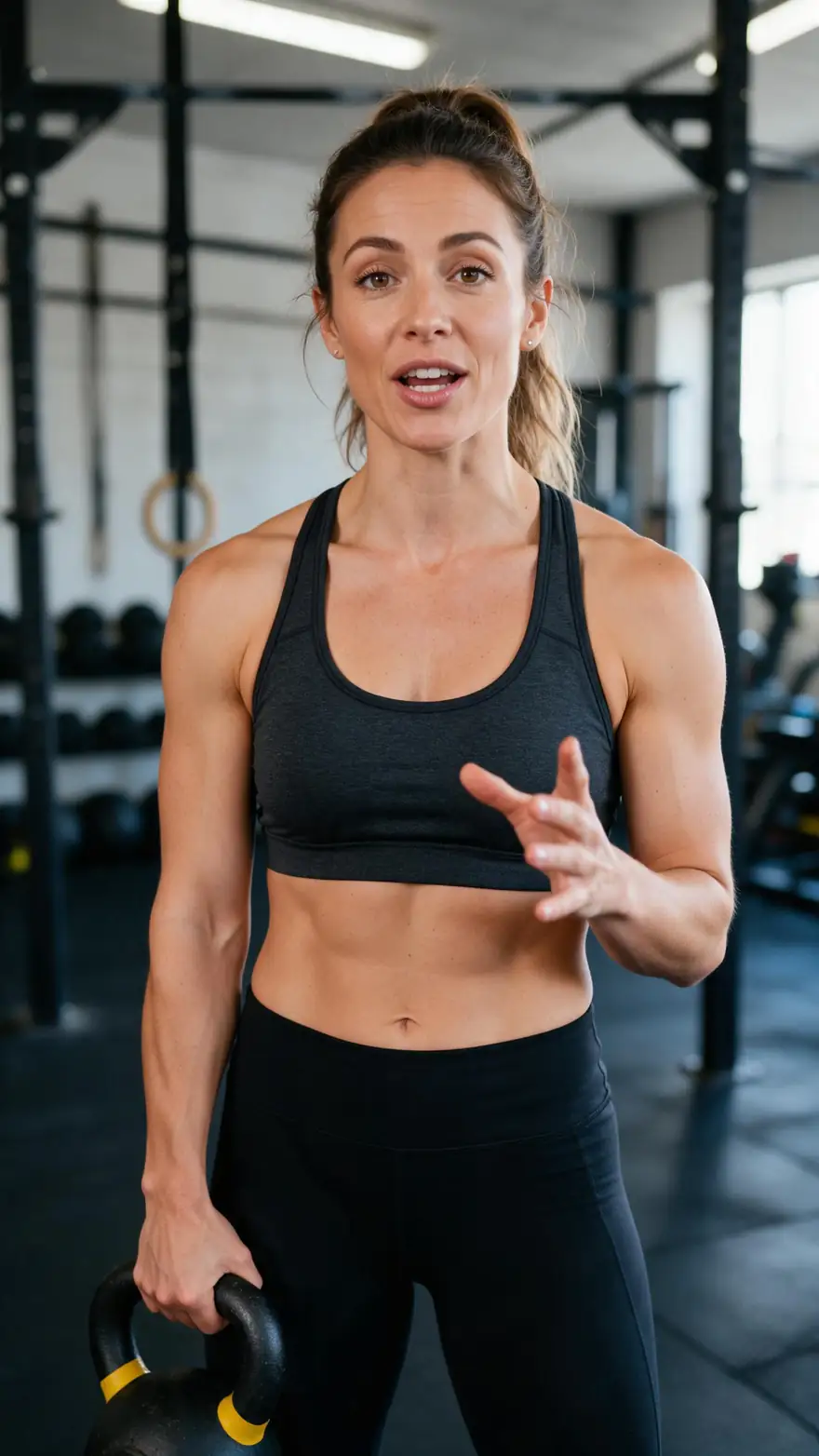
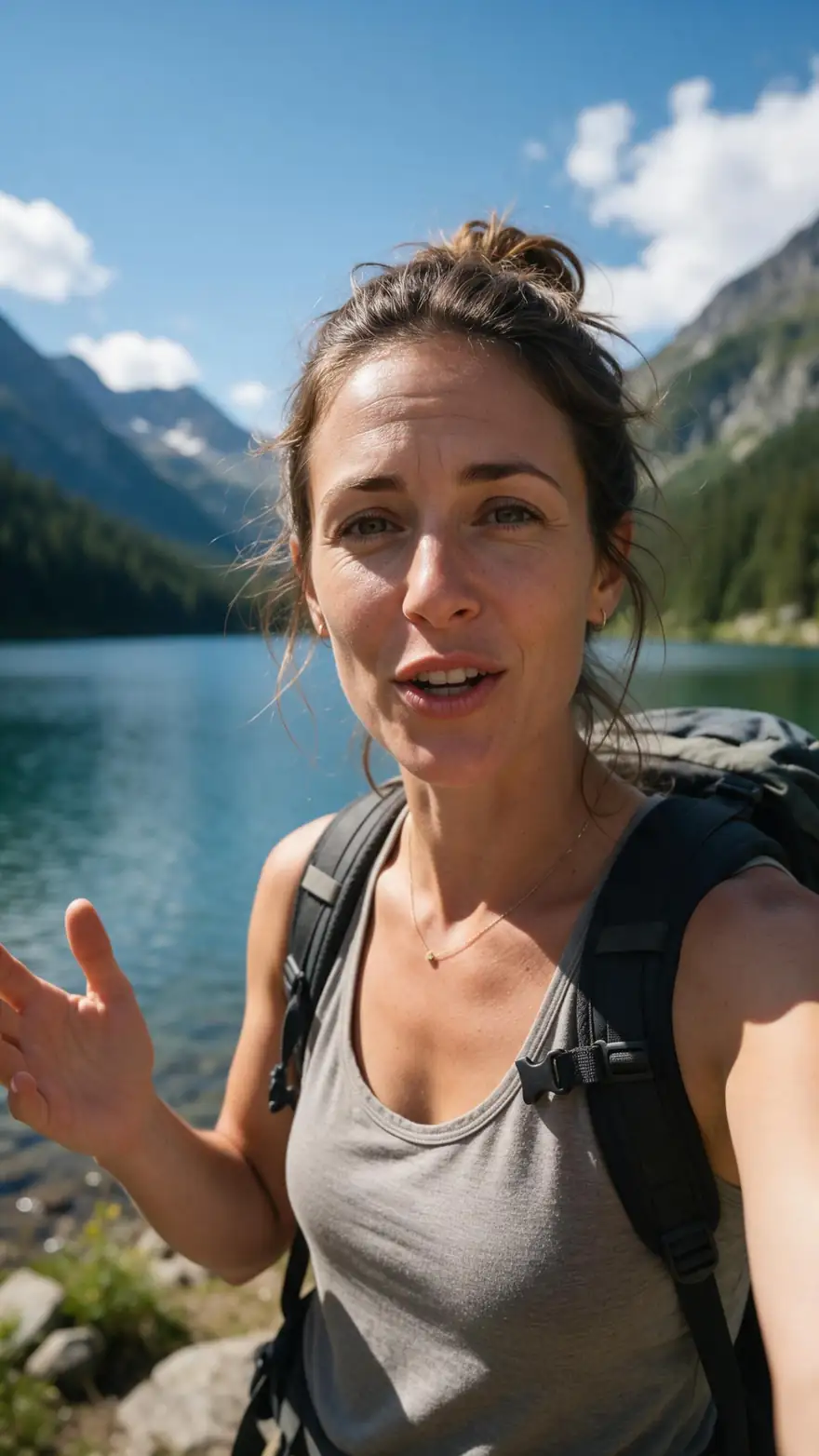
Start image for Chef's tip
Result · start image top right

How it works

Subtitles in three steps

Upload, pick a style, download.

  1. 01

    Start image

    Seedream 5.0 Pro at 2K — or upload your own photo.

  2. 02

    Motion prompt

    She whisks the eggs and says to the camera: "The secret is low heat and a little patience." Kitchen ambience

  3. 03

    Wan 3

    Wan 3 · 5 s · 720p · subtitles: Glass. The clip on the left is the real result.

Animate this scene

Tips

Captions people actually read

From our tests.

  • Bottom position for landscape, middle for vertical clips with UI.
  • Bold styles (Glide Pop, Rizz) for social; Simple or Plain for tutorials.
  • Pin the language when speakers have strong accents.
  • Add a shadow when the background is bright.
  • Clear audio beats everything — reduce music under speech.
  • Translate first with dubbing, then subtitle the new language.

Step by step

How to use the add subtitles to video

  1. Step 1: Open the subtitles tool

    It works with the 25 free sign-up credits.
  2. Step 2: Upload your clip

    Up to 4 minutes, with clear speech.
  3. Step 3: Pick style, position and language

    10 styles; top, middle or bottom; auto-detect or pin the language.
  4. Step 4: Download

    Captions are burned in at 720p or 1080p.

Engines

Caption and speech tools

From the app's own tools.

  • VEED

    Auto subtitlesFree credits

    10 styles, 11 language options

    You give it
    Clip up to 4 min
    You get
    Burned-in captions · 720p or 1080p
    Open Auto subtitles
  • ElevenLabs

    Dubbing

    Translating before you caption

    You give it
    Clip with speech
    You get
    The clip in another language
    Open Dubbing
  • VEED Lipsync 2 and more

    Lip sync

    Matching a new voice

    You give it
    Clip + new audio
    You get
    Mouth re-synced
    Open Lip sync
  • Alibaba

    Wan 3

    Making the clip itself

    You give it
    Image + prompt with a line of dialogue
    You get
    5–30 s talking clip with sound
    Open Wan 3

Burned-in captions are part of the video; they can't be switched off by viewers.

Every clip on this page started as one still image. Make yours, then animate it.

In depth

Add Subtitles to Video, explained

What the models can do, how to prompt them, and what isn't allowed.

Burned-in vs closed captions

Burned-in (open) captions are part of the picture, so they show on every platform and autoplay feed — ideal for social clips watched on mute. Closed captions are a separate file viewers can switch on; YouTube and most players support them.

Picking a style

Bold, high-contrast styles like Glide Pop and Rizz grab attention in feeds; Simple and Plain suit tutorials and interviews; Glass and Whisper sit lightly over cinematic footage.


Sources

    FAQ

    Add Subtitles to Video questions

    6 questions

    Still stuck?

    A real person answers — usually within a day.

    01

    How do I add subtitles to a video automatically?

    Upload it to the subtitles tool, pick a style, position and language, and download the captioned video. Speech is transcribed and burned in automatically.

    02

    Is it free?

    It runs on credits, and the 25 free sign-up credits work on it.

    03

    What caption styles are there?

    Ten: Simple, Plain, Glass, Whisper, Glide Pop, Fusion, Terminal, Lowkey, Rizz and Vegas.

    04

    Which languages work?

    Auto-detect, or pin one of 10: English (US or India), Hindi, Spanish, French, German, Japanese, Chinese, Italian, Portuguese or Russian.

    05

    How long can the video be?

    Up to 4 minutes.

    06

    Can I get an SRT file instead of burned-in captions?

    The tool burns captions into the video; it doesn't export a separate subtitle file.

    See more of Kenerate AI in your Google resultsAdd kenerateai.com as a preferred source — Google shows more from your preferred sources in Top Stories and AI answers.

    Explore

    Every Kenerate video tool

    Generators, tools, models and guides — one studio, one credit balance.

    Written by the Kenerate AI team

    We build and run Kenerate's video studio. Every clip here is a real, unedited Wan 3 output (5 s, 720p) and every start image a real Seedream 5.0 Pro output; model specs and limits were read from the app's code; facts about other tools link to their own pages. Last updated 27 September 2026. Corrections: hello@kenerateai.com.

    Sources

    Ready when you are

    Try the add subtitles to video

    One studio for images and video.

    • 25 free credits
    • No watermark
    • Credits never expire