
Skip to content
Drawing in · finished image out

Sketch to Image AI

Upload a sketch, doodle or line art and describe the finished image — an architectural render, a product photo, a 3D toy or a coloured illustration. Your lines and proportions stay.

  • Keeps your composition
  • Photo, 3D or illustration
  • 25 free credits
  • No watermark

Quick answer

Updated

Kenerate's sketch to image AI turns a drawing into a finished image: upload your sketch, doodle or line art and describe the result — a photoreal render, a product photo, a 3D figure or a coloured illustration. Seedream 5.0 Pro (up to 2K, up to 10 reference images) kept the shapes most faithfully in our tests; Flux 2 Dev (free plan, up to 2048 px) is a quick way to start, and Z Image Base lets you set how much changes with a strength slider.

Best fidelity
Seedream 5.0 Pro · 2K
Free plan
Flux 2 Dev
Strength control
Z Image Base
Free start
25 credits

Same prompt

One sketch, three models

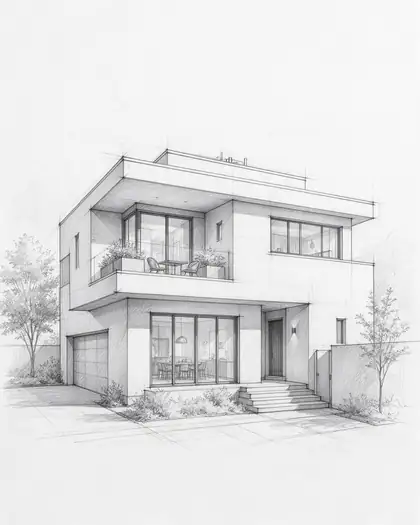
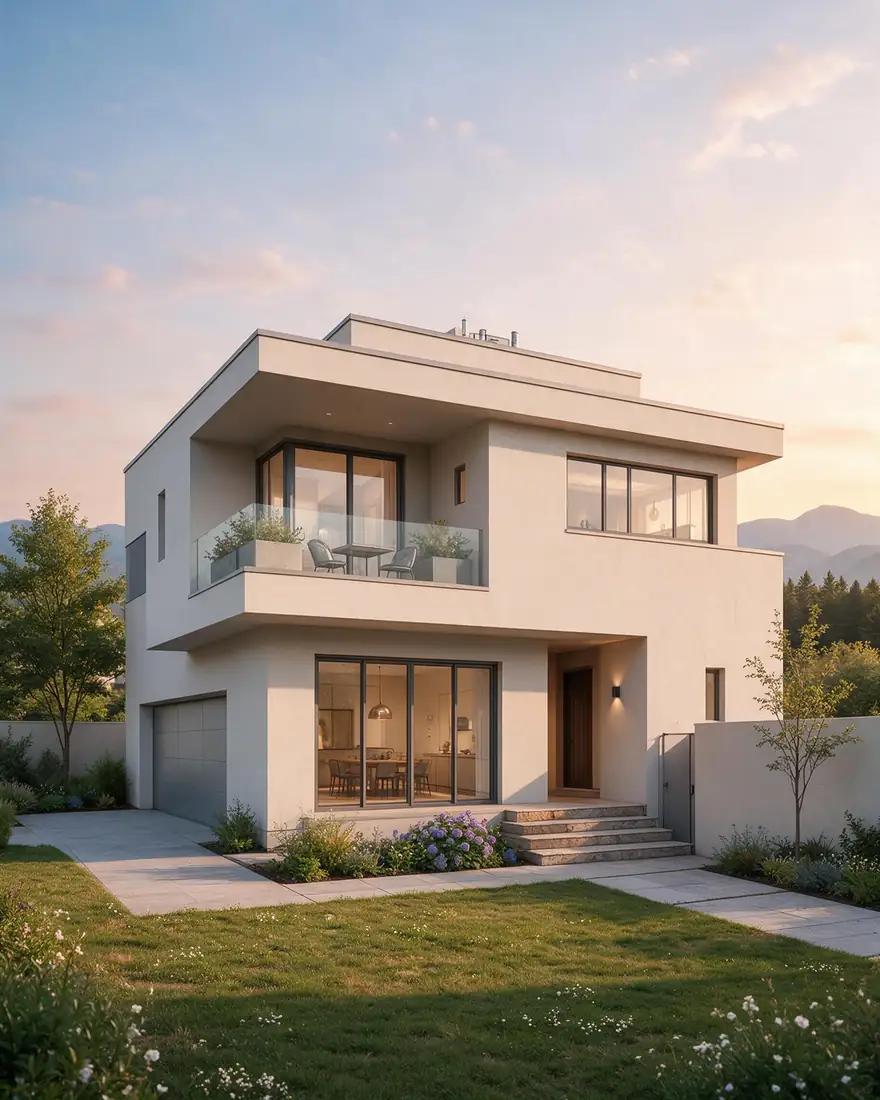
The house sketch with the same prompt. Seedream and Flux 2 Dev made a finished render; Z Image Base at 80 % strength stayed closer to the drawing.

  • Same prompt on Your sketch
    Your sketchInput
  • Same prompt on Seedream 5.0 Pro
    Seedream 5.0 Pro2K
  • Same prompt on Flux 2 Dev
    Flux 2 DevFree plan
  • Same prompt on Z Image Base (80 %)
    Z Image Base (80 %)Strength slider
Prompt
Turn this sketch into a photorealistic architectural render of the same house at golden hour, same shape and windows, landscaped garden

Tips

Getting the most from a sketch

What worked in our tests.

  • Say “same shape”, “same pose” or “keep every line” so the drawing is respected.
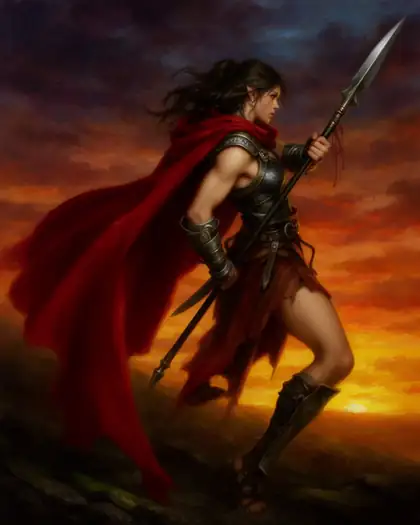
  • Name the finish: photoreal render, studio product photo, 3D plush, anime colour.
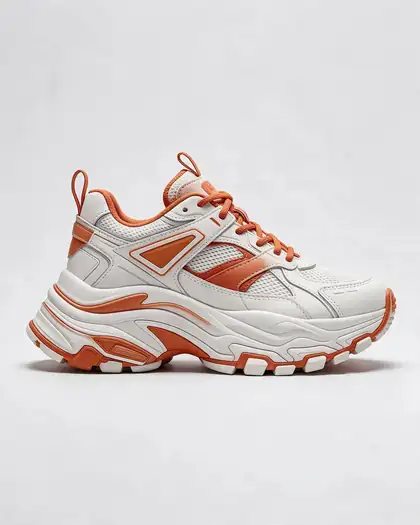
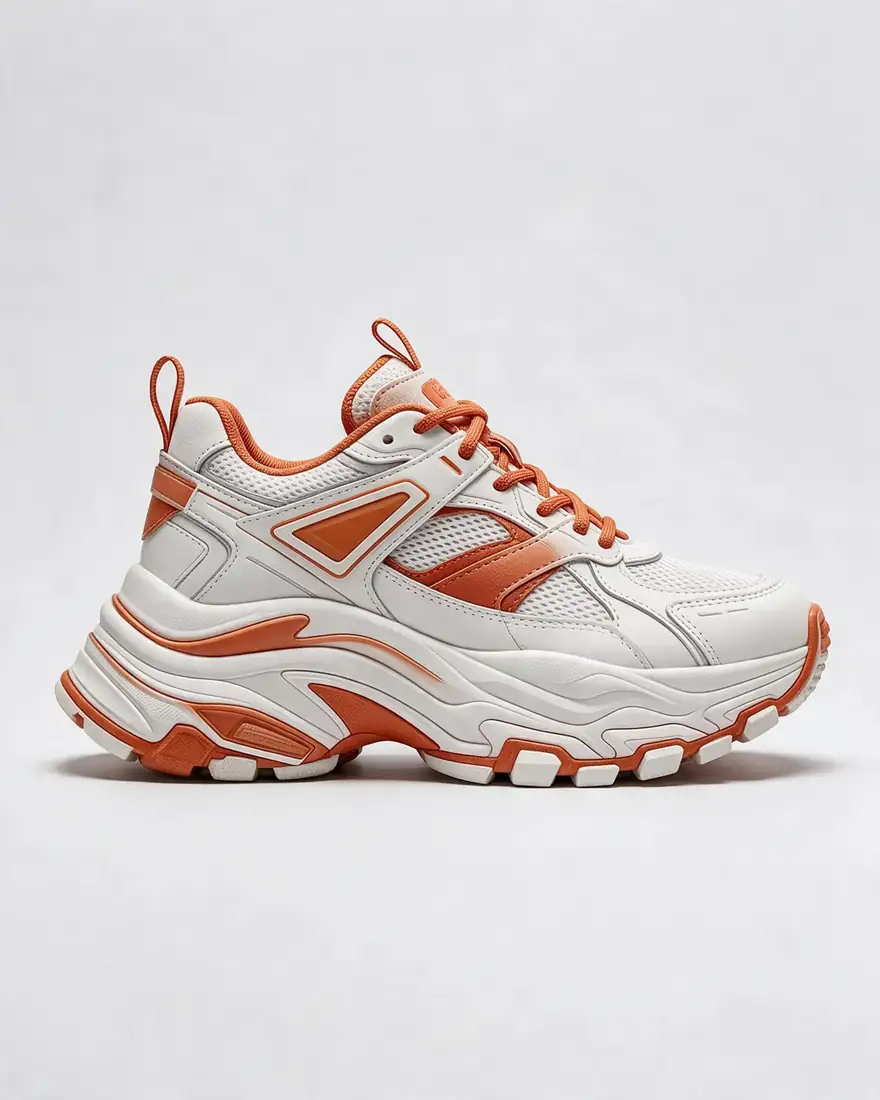
  • Add materials and colours the sketch can't show: white leather, orange accents.
  • Give it light and a setting: golden hour, seamless grey background.
  • Clean, dark lines work best — photograph sketches in good light.
  • For small changes only, use Z Image Base with a lower strength.

How to

How to use the sketch to image ai

  1. Step 1: Photograph or scan your sketch

    Clear, dark lines on white paper work best.
  2. Step 2: Upload it in /app/image

    Pick Seedream 5.0 Pro for fidelity or Flux 2 Dev on the free plan.
  3. Step 3: Describe the finish

    “Turn this sketch into a … keep the same shape.”
  4. Step 4: Download

    No watermark. Upscale for print.

Models

Models for sketch to image

What each model is good at. Open any one straight in the generator.

Models for sketch to image
ModelReference imagesMax sizeGood forOpen
Seedream 5.0 ProByteDanceUp to 102KMost faithful to the sketchOpen
Flux 2 DevBlack Forest LabsFree planUp to 32048 pxFree plan; up to 3 referencesOpen
Z Image BaseAlibaba Tongyi1 (strength)2048 pxControl how much changesOpen
GPT Image 2OpenAIUp to 161K–4KSketches with labels or textOpen

Make your first one — 25 free credits on sign-up.

Start free

Start free, top up only when you need to

The same credits work in every Kenerate tool.

  • 25 free credits on sign-up

    Test on your own images before you buy anything.

  • Credits never expire

    One-time packs — use them this week or next year.

  • No subscription, no watermark

    Nothing to cancel. Free results download clean.

  • One balance, every tool

    The same credits work across images, video, voice and 3D.

In depth

Sketch to Image AI, explained

What works, what to avoid, and how to pick a model.

How sketch to image works

Reference-based models read your sketch as a guide for shape and composition, then draw a finished image from your description. Noise-based models like Z Image Base redraw the sketch itself, with strength deciding how far they move from it.

Uses beyond art

Architects turn concept sketches into client renders, product designers check colourways, illustrators colour line art, and parents turn children's drawings into toys — all from the same upload-and-describe flow.
Sources

    Tried it? Tell us how it went

    We only publish real, verified reviews — never invented quotes. Send a line about your result (and whether we may quote you), and it will appear here.

    Send a review

    FAQ

    Sketch to Image AI questions

    5 questions

    Still stuck?

    A real person answers — usually within a day.

    01

    Can AI turn a sketch into a realistic image?

    Yes. Upload the sketch, say “turn this sketch into a photorealistic …, same shape”, and the model keeps your composition while adding materials, colour and light.

    02

    Is sketch to image free?

    A new account gets 25 free credits to test, and Flux 2 Dev is on the free plan. Seedream 5.0 Pro and bigger jobs use one-time credit packs that never expire.

    03

    Will it keep my drawing?

    Say so in the prompt: “same shape”, “same pose”, “keep every line”. For the lightest touch, use Z Image Base at a low strength.

    04

    Does it work with children's doodles?

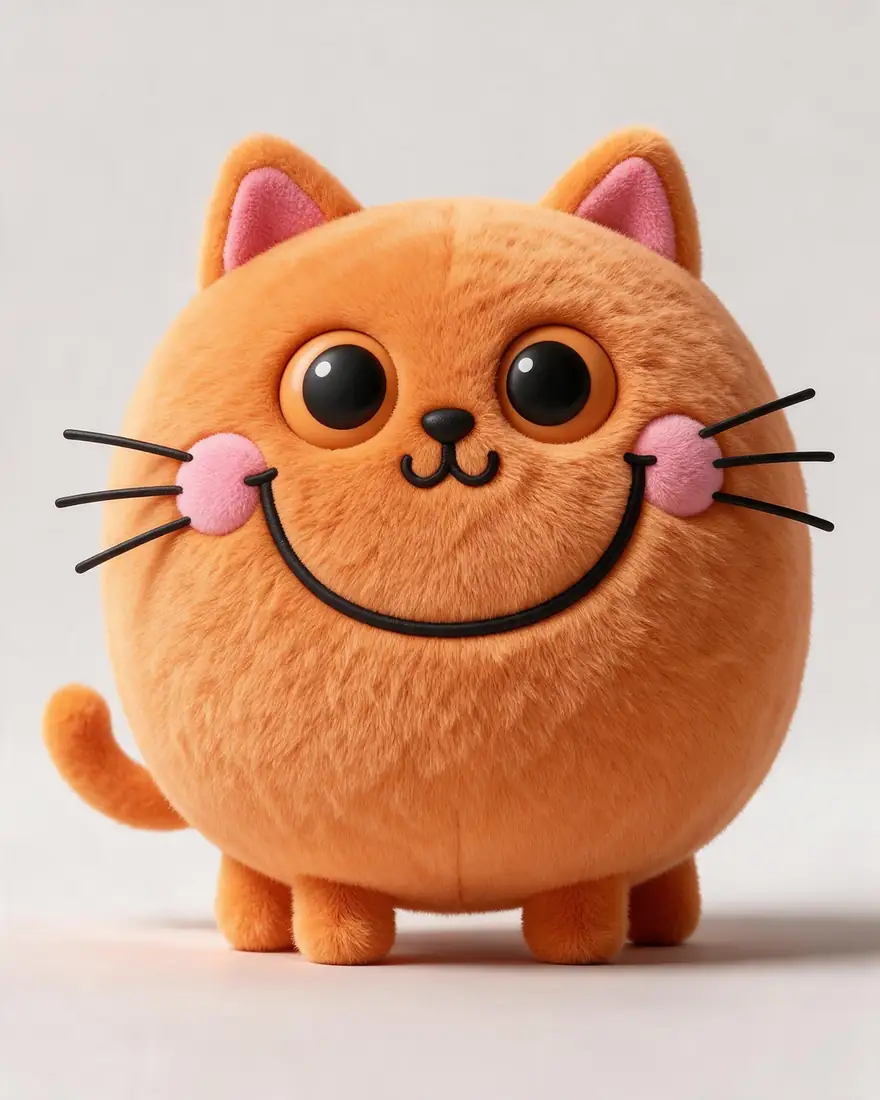
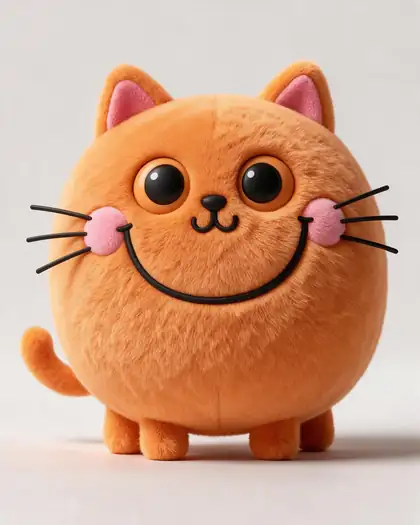
    Yes — the round cat doodle on this page became a 3D plush toy.

    05

    Can I turn line art into coloured art?

    Yes. Describe the colours and background and ask it to keep every line.

    See more of Kenerate AI in your Google resultsAdd kenerateai.com as a preferred source — Google shows more from your preferred sources in Top Stories and AI answers.

    Explore

    Every Kenerate image tool

    Generators, design tools, photo edits, models and comparisons — all in one studio, on one credit balance.

    Written by the Kenerate AI team

    We build and run the Kenerate generator. Every example is a real output of the model named under it; models and presets were checked against the app's code. Last updated 27 September 2026. Corrections: hello@kenerateai.com.

    Sources

      Ready when you are

      Try the sketch to image ai

      25 free credits on sign-up. No watermark.

      • 25 free credits
      • No watermark
      • Credits never expire