

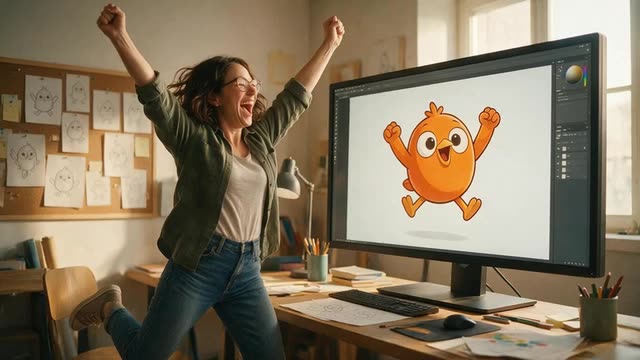
Mascots · cartoons · anime · 3D · no rig
AI character animation — act it out, your character performs it
Film yourself doing the move — a wave, a dance, a victory jump — and your mascot, cartoon, anime or 3D character performs it. No rigging, no motion-capture suit, no keyframes: one character image and one clip.
- No rig, no mocap suit
- Mascots, toons, anime, 3D
- Clips up to 2 min
- 12 engines
Updated by the Kenerate AI team
Made with Kenerate
On this page
Quick answer
Updated
How does AI character animation from video work?
AI character animation from video lets you film a person doing a move and have your own character — a mascot, cartoon, anime or 3D render — perform it, with no rig or motion-capture suit. Kenerate AI's Motion Transfer tool animates one character image with that clip on 12 engines, including Wan 2.2 Fun Control for stylised looks.
Key facts
- Character types
- Mascot, cartoon, anime, 3D
- Needs
- 1 character image + 1 clip
- Rig or mocap suit
- Not needed
- Stylised pick
- Wan 2.2 Fun Control
- Clip length
- Up to 2 min
- Output
- MP4 video, no watermark
Real results
Characters, not people
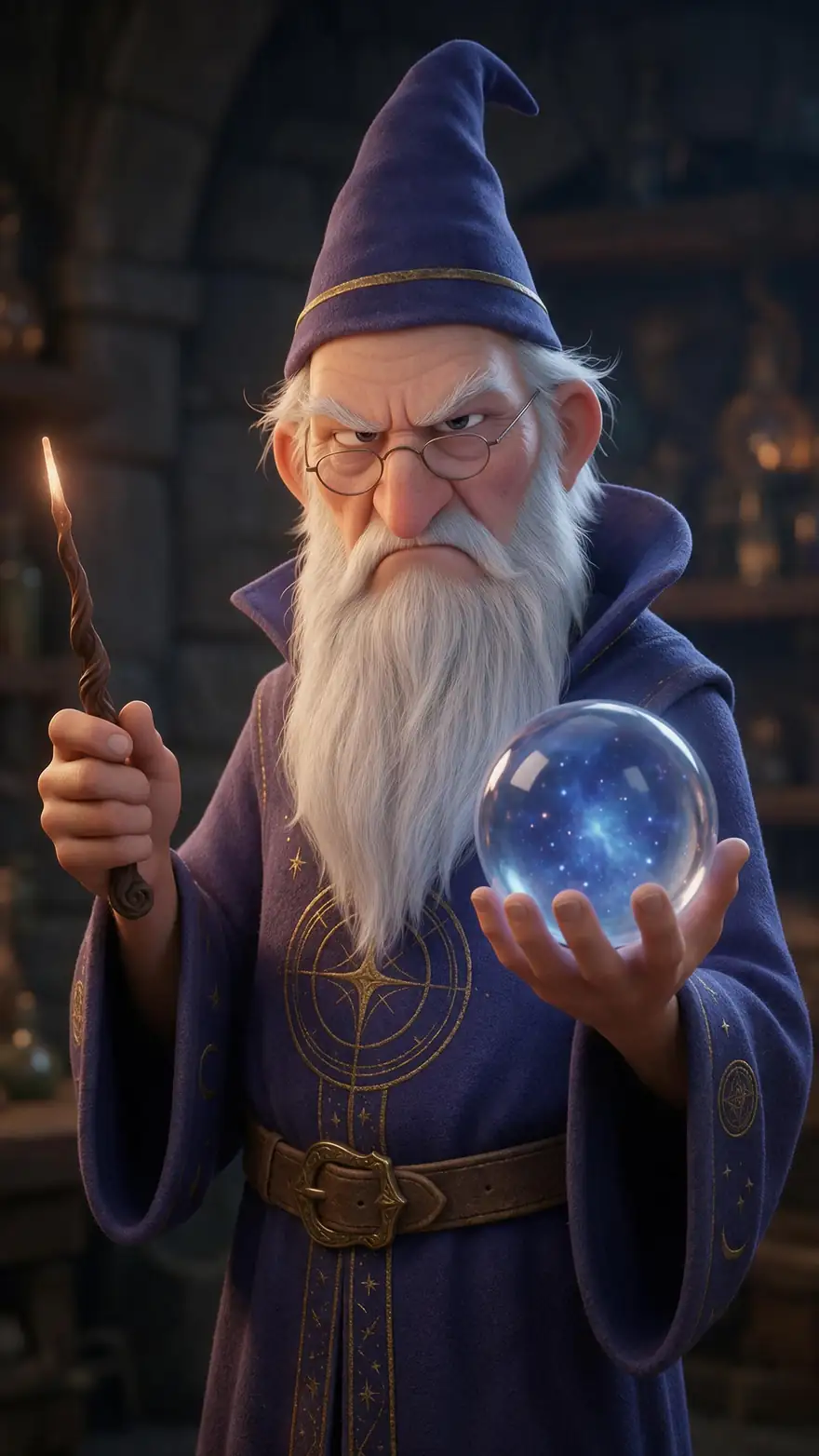
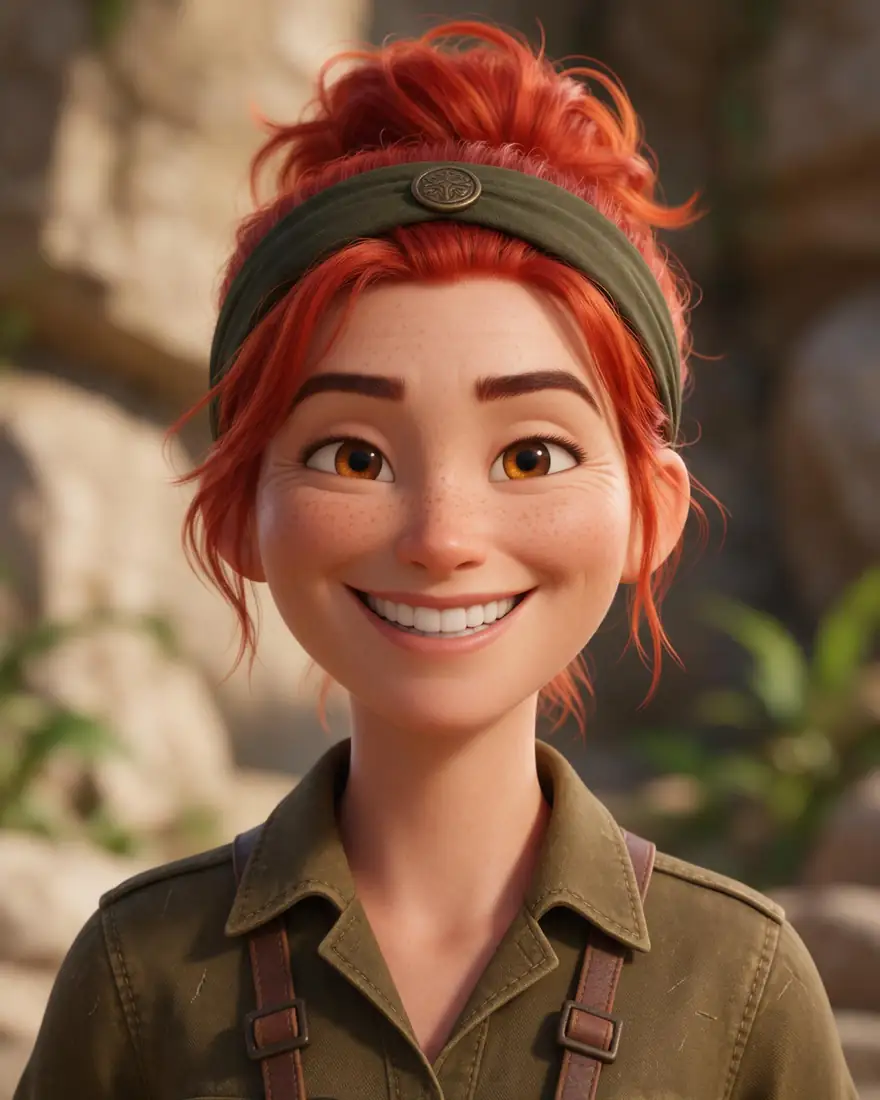
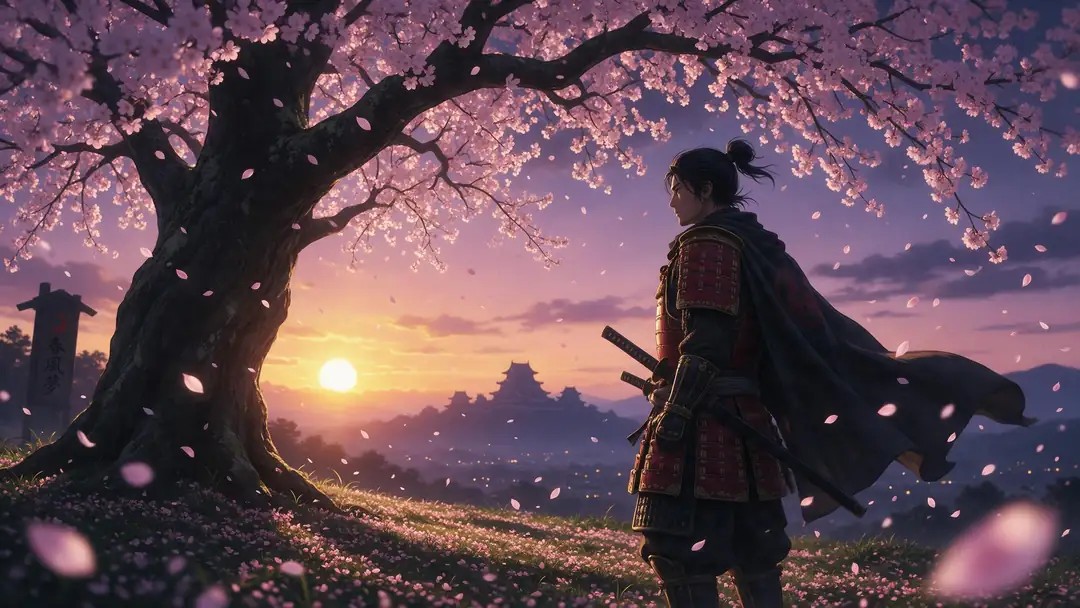
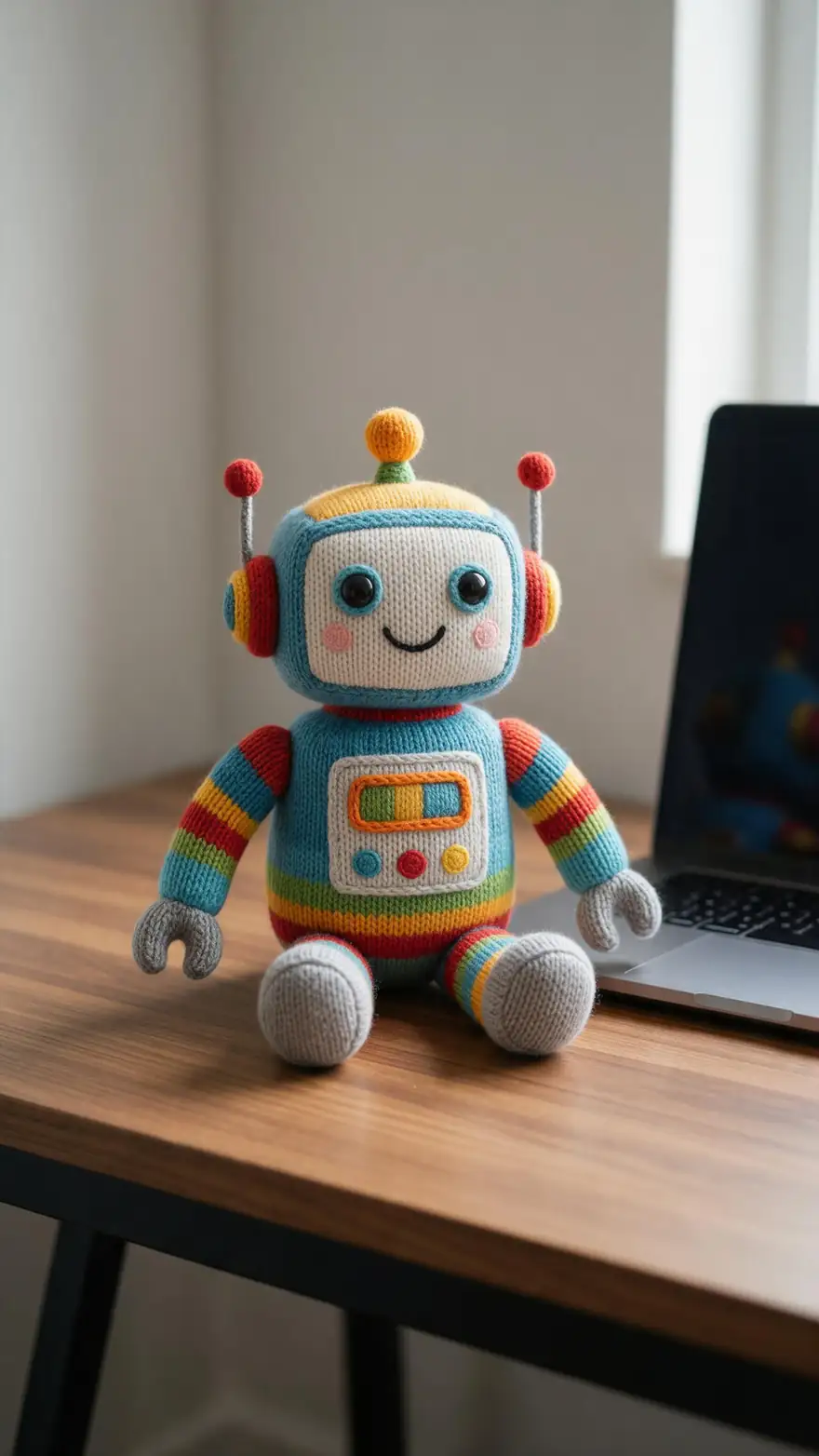
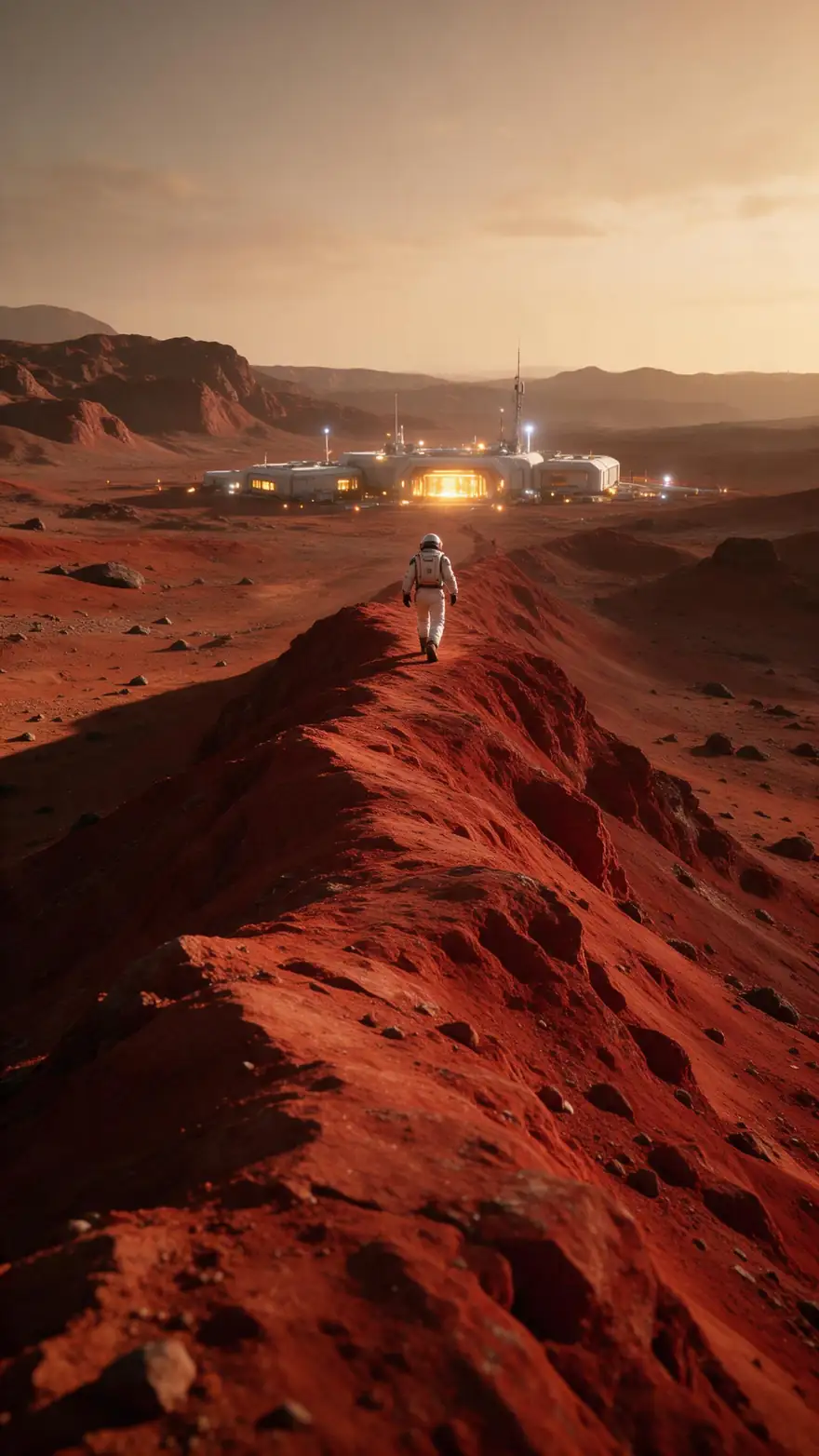
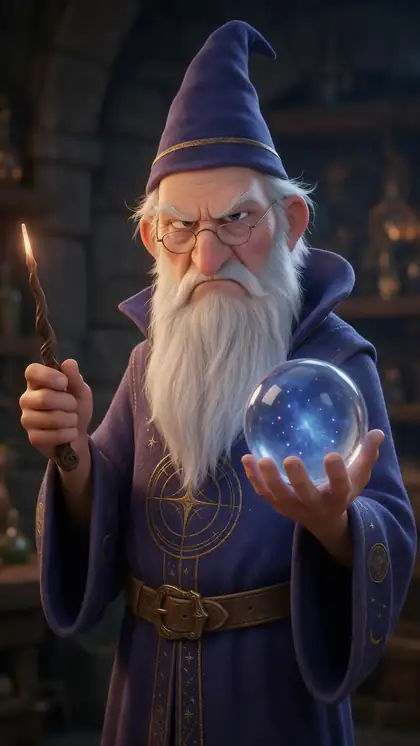
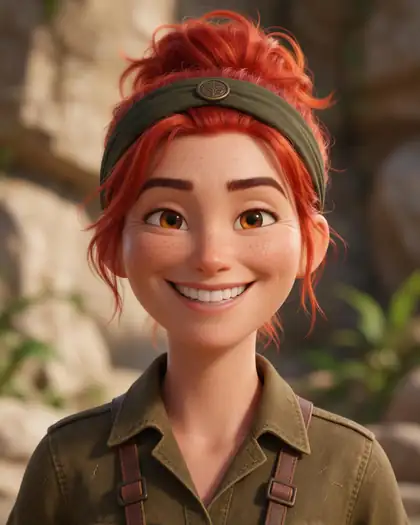
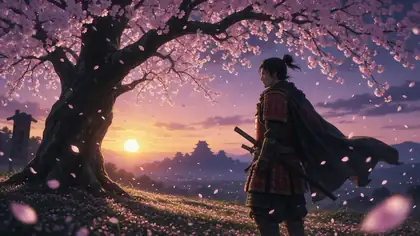
A grumpy 3D wizard, a cartoon explorer, an anime samurai, a knitted toy robot and an astronaut — the kinds of characters people want moving.
Image-to-video examples of characters, model on each card. In the Motion Transfer tool, your recorded clip drives the character.
How to
Animate a character in five steps
- Time needed
- Steps
- 4 steps
Step 1
Prepare the character image
Full body, arms slightly away from the torso, legs visible, on a simple background. JPG or PNG.
Step 2
Act out the move
Film yourself or a friend on a tripod doing exactly what the character should do. Match the character's framing.
Step 3
Pick the engine for the style
Wan 2.2 Fun Control or SCAIL 2 for cartoon and anime; Wan 2.2 Animate 2 for acting with face and hands; Kling for humanoid 3D.
Step 4
Describe the look
A short prompt that restates the style — 'flat cel-shaded cartoon, bold outlines' — keeps the engine from drifting toward realism.
See it in the app

Open Motion Transfer and upload a clear photo of the character, or choose one from your history.


Watch the tour · 1:19
Text, image & reference to video, models, edit, extend & chat
Chapters
Engines
Which engine suits which character
Realistic engines can push a cartoon toward a human look; structure-guided and stylisation-friendly engines keep it on-model.
- Stylised
Alibaba
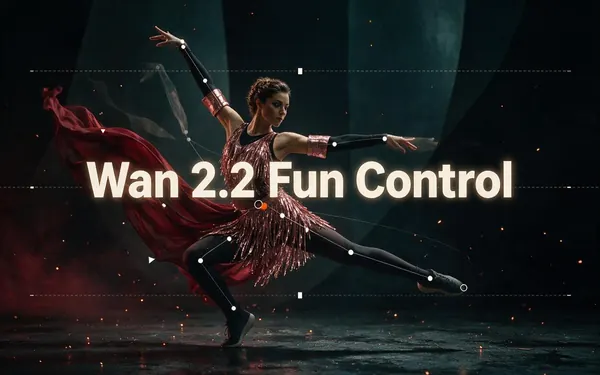
Wan 2.2 Fun Control
- Input
- Image + video up to 2 min
- Output
- 480p or 720p · silent
Cartoons, toys and illustrated mascots — follows the clip's structure while keeping your character's style
Open Wan 2.2 Fun Control 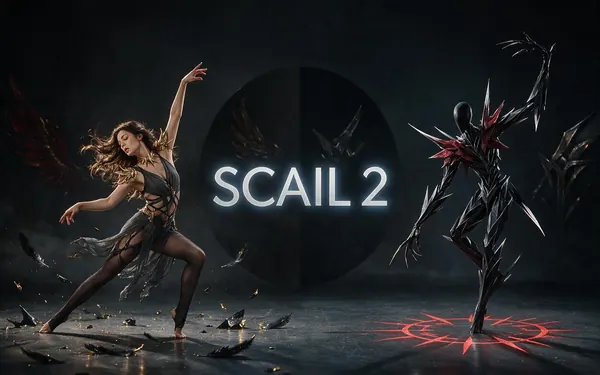
WaveSpeed
SCAIL 2
- Input
- Image + video up to 2 min
- Output
- 480p or 720p · keeps sound
Anime, painted and 3D characters through turns and spins; keeps the clip's sound
Open SCAIL 2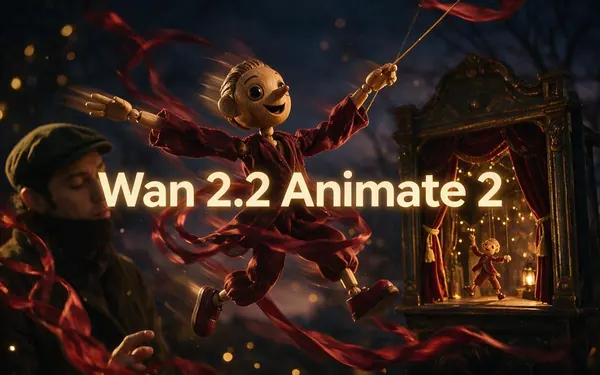
Alibaba
Wan 2.2 Animate 2
- Input
- Image + video up to 2 min · motion prompt
- Output
- 480p or 720p · silent
Characters with faces and hands that should act — body, hands and expression; motion prompt
Open Wan 2.2 Animate 2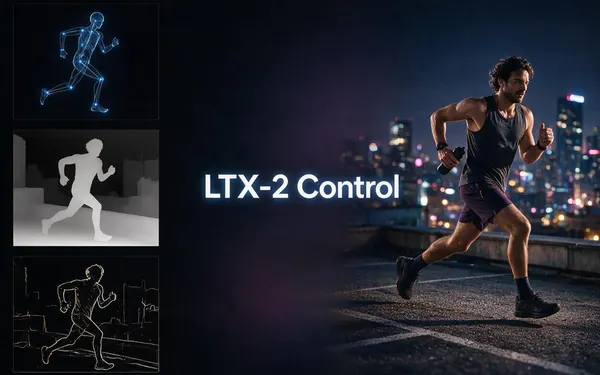
Lightricks
LTX-2 Control
- Input
- Video up to 20 s (+ optional image)
- Output
- 480p, 720p or 1080p · keep, new or mute sound
Restyle the whole performance into a new world from a prompt; image optional, up to 1080p
Open LTX-2 Control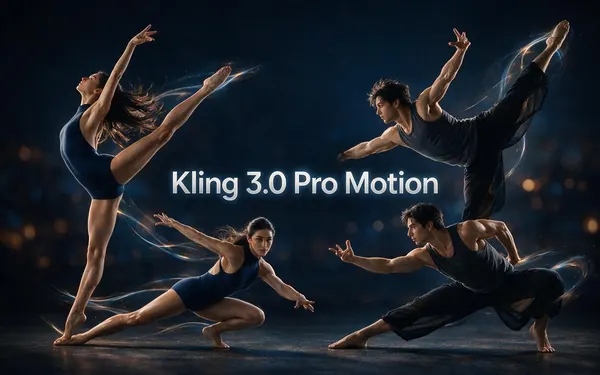
Kuaishou
Kling 3.0 Pro Motion
- Input
- Image + 3–30 s video
- Output
- Follows the source · sound switch
Humanoid 3D characters and realistic avatars on 3–30 s clips
Open Kling 3.0 Pro Motion
Each engine outputs an MP4 video with no watermark — not a rig or an animation file. Clips over the limit are trimmed on most engines and refused on LTX-2 Control.
Tips
Character art that animates well
Most problems in character animation come from the image, not the clip.
Show the whole body — hidden legs get invented.
Separate the arms from the body; fused limbs smear.
Very short or very round characters copying a tall performer may stretch — act out moves that suit the shape.
Keep accessories (staffs, capes) small or the engine may lose them.
Restate the art style in the prompt.
Animate only characters you own or have rights to.
Example uses
How creators use AI character animation
Illustrative examples of typical workflows, not customer reviews.
Brand designer
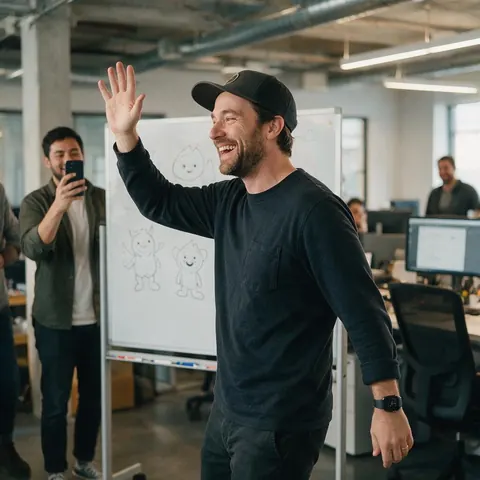
A brand designer can make the company mascot wave and dance for a launch post by acting the moves out in the office.
Children's author
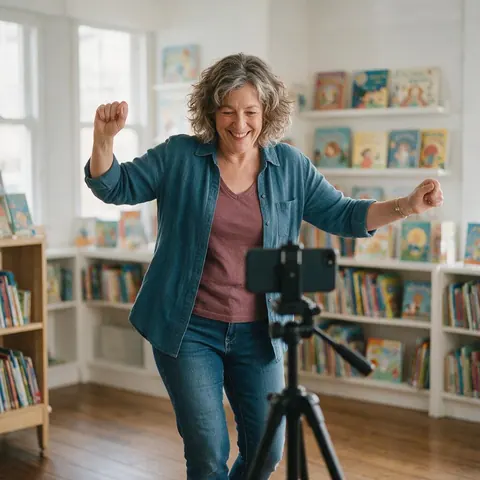
A children's author can turn a book's main character into a short reading-day video by performing the character's dance.
Game artist
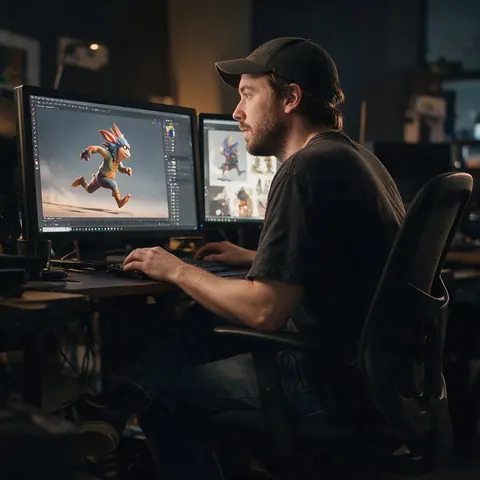
A game artist can see a character concept move before any rigging, using a clip of themselves as the reference.
FAQ
AI character animation questions
7 questions
Can AI animate a cartoon or mascot from a video?
Yes. Upload one image of the cartoon or mascot and a video of a person doing the move, and the Motion Transfer tool makes the character perform it. Wan 2.2 Fun Control and SCAIL 2 are the first engines to try for stylised characters; the 'Mascot on a beat' starter example shows the settings on Wan.
Link to this answerDo I need to rig my character?
No. The engines work from a single flat image and infer the body from it, so there's no skeleton to build, no weights to paint and no keyframes. You do need a clear image with visible limbs, because the engine can only animate what it can see or reasonably guess.
Link to this answerCan I export the animation as FBX or to a game engine?
No. The output is a finished MP4 video, not skeletal animation data, so it can't be retargeted onto a rig in Blender, Unity or Unreal. It's ideal for social clips, previews, pitch reels and explainer videos; for game-ready animation you still need a motion-capture or rigging workflow.
Link to this answerWhat kind of video should I record as the reference?
A steady, tripod-shot clip of one person doing the move, with no cuts, the whole body in frame for full-body moves and plain clothes that show the elbows and knees. Act a little bigger than real life — cartoon characters read better with clear, exaggerated poses — and trim the clip to just the action.
Link to this answerHow do I keep my character's colours and style?
Pick an engine that respects stylisation — Wan 2.2 Fun Control or SCAIL 2 — and restate the style in the prompt, for example 'flat cel-shaded cartoon, bold outlines, candy colours'. Avoid photoreal wording. If a realistic engine like Kling starts adding skin texture to a cartoon, switch engines rather than fighting it with the prompt.
Link to this answerHow long can a character animation be?
Up to 2 minutes of driving video on SCAIL, the Wan engines and SteadyDancer, which covers a full song or a short scene. Kling takes 3–30 seconds, DreamActor v2 and PixVerse Mimic up to 30 seconds, Kenerate Motion and LTX-2 Control up to 20. Longer clips are trimmed or refused depending on the engine.
Link to this answerCan I animate a character based on a real person?
Only with that person's permission, and not celebrities or public figures. Characters you designed, licensed mascots and original avatars are the safe choice. If your character is a stylised version of someone real, get their consent first and say the clip is AI-made when you publish it.
Link to this answerIn depth
Animating characters, explained
Designing art that moves well, handling proportion mismatches, and what you get at the end.
On this page
Proportions: the main source of trouble
A motion engine maps the performer's joints onto your character. If the character's proportions are close to a person's, that mapping is easy. A chibi character with a huge head, a round mascot with stubby legs, or a creature with extra limbs forces the engine to stretch or invent. Act out moves that suit the shape — small steps for a stubby mascot, big arm moves for a long-armed one.
Stylised characters and realistic engines
Engines trained mostly on real people sometimes pull a cartoon toward realism: skin texture, realistic eyes, extra shading. SCAIL's research specifically shows generalisation to anime, hand-drawn and even animal characters, and Wan 2.2 Fun Control follows the clip's structure while restyling from your image, which is why those two lead the list for toons.
What you get, and what you don't
- You get: an MP4 of your character performing the clip, no watermark, ready to post or edit.
- You don't get: a rig, skeletal animation data or an FBX/GLB file.
- You can add: Upscale to 4K for a sharper master, or Dub into another language for a talking character.
Video to animation AI
'Video to animation' can mean two things: restyling a whole video into a cartoon look, or driving your own character with a video's movement. This page is the second. For the first, LTX-2 Control can re-render a clip from its pose, depth or edges with a new style prompt.
Animate a character from a video for a brand
Brands use it to make a mascot wave, dance or demonstrate a product without an animation studio: film a staff member doing the move, then animate the mascot image with that clip. Keep the mascot's official artwork as the image so the colours stay on-brand.
3D character animation without rigging
A render of a 3D character works as the image — a front view in a neutral pose is best. The result is a video of that render moving, not an animated 3D file, which is often all a social post, pitch or storyboard needs.
Explore
Every Kenerate video tool
Generators, tools, models and guides — all in one studio.
Bring your character to life
One character image, one clip of you acting it out. No rig, no suit, no subscription.
Tried it? Tell us how it went