

Golden hour · neon · moonlight · day to night
Relight Photo AI — change the light, keep the photo
Upload a photo and pick a light — golden hour, studio, neon, moonlight — or describe your own. The face, pose and scene stay the same; only the lighting and mood change.

- 6 one-tap presets
- Or describe any light
- Keeps face and scene
- No watermark
Updated by the Kenerate AI team
Made with Kenerate



On this page
Quick answer
How do you relight a photo with AI?
Relight photo AI changes the lighting of a photo you already have — the direction, colour and time of day — without reshooting it. In Kenerate's Edit Studio, the Relight tool has six presets (Golden Hour, Studio, Dramatic, Neon Glow, Moonlight, Backlit) or takes a prompt. In our tests Qwen Image 3.0, the default and a free-plan model, kept the face, outfit and print in every relight, and Seedream 5.0 Pro followed the light direction more closely.
Key facts
- Presets
- Golden Hour · Studio · Dramatic · Neon Glow · Moonlight · Backlit
- Default model
- Qwen Image 3.0 (free plan)
- Kept in every test
- Face · pose · outfit · print
- Best light direction
- Seedream 5.0 Pro
- Day to night
- Yes — sky, moon and reflections
- Watermark
- None
Gallery
One photo, four lights
Real relights made on Kenerate for this page, plus the original. Open any one to copy the prompt.
Same prompt
Same prompt, two models
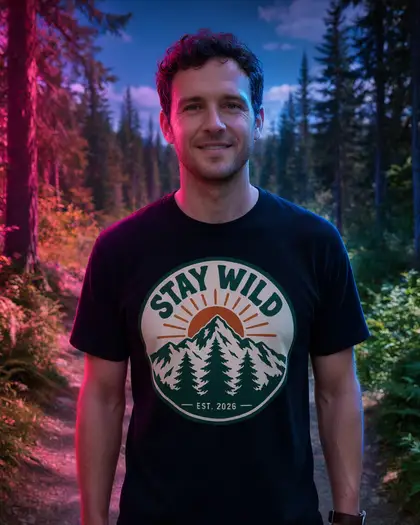
“Golden hour sunlight from the left” on the same photo. Seedream 5.0 Pro lit the left side of his face and kept a blue sky; Qwen Image 3.0 washed the whole frame in warm haze. Both kept the face and the print.
PromptRelight this photo: warm golden hour sunlight from the left, soft orange and yellow tones, long soft shadows, warm glow on his face and t-shirt. Keep the man, his face, pose, clothes, the t-shirt print and the forest exactly the same — only the lighting changes.
 OriginalFlat midday light
 Seedream 5.0 ProLight from the left
 Qwen Image 3.0All-over warm haze
How to
How to use the relight photo AI
- Time needed
- Steps
- 4 steps
Step 1
Upload your photo
Open Edit Studio (/app/edit) and add the photo. Sign in free for starter credits.
Step 2
Open Relight
Pick a preset — Golden Hour, Studio, Dramatic, Neon Glow, Moonlight or Backlit — or describe the light.
Step 3
Choose the model
Qwen Image 3.0 is the default and on the free plan; switch to Seedream 5.0 Pro for exact light direction.
Step 4
Compare and download
Try two or three variations side by side, then download without a watermark.
See it in the app

Open Edit Studio and upload an image, or pick one from your history.


Watch the tour · 1:23
Prompts, styles, references, edit, Arena & chat
Chapters
Tips
Get a relight that looks real
What worked in our tests.
Name the direction: “from the left”, “from behind”, “from above”. Seedream 5.0 Pro follows it more closely.
Name the colour and softness: “warm, soft”, “cool silvery”, “hard white”.
End with “keep everything else exactly the same — only the lighting changes”.
For day to night, ask for the sky too: “a clear night sky with a full moon”.
Bright clothes and prints stay bright at night — darken them in a second pass if it looks lit by a flash.
Start from a preset, then edit its text in the prompt box to fine-tune.
Models
Models for relighting
What each model is good at. Open any one straight in the generator.
- Free plan
Alibaba
Qwen Image 3.0
- Reference images
- Up to 3
- Output
- 1K · 2K
Open Qwen Image 3.0Best for
Relight default · free plan
ByteDance
Seedream 5.0 Pro
- Reference images
- Up to 10
- Output
- Up to 2K
Open Seedream 5.0 ProBest for
Follows light direction best
Google
Nano Banana 2.1
FAQ
Relight Photo AI questions
7 questions
How do I relight a photo with AI?
Open Kenerate's Edit Studio, upload the photo and choose Relight. Tap a preset — Golden Hour, Studio, Dramatic, Neon Glow, Moonlight or Backlit — or describe the light, such as “warm golden hour sunlight from the left”. End with “keep everything else exactly the same”. Our trail photo kept the same face, t-shirt print and forest in every relight.
Link to this answerCan AI change the direction of the light?
Yes, but models differ. With “sunlight from the left”, Seedream 5.0 Pro lit the left side of his face and kept the shadows on the right; Qwen Image 3.0 made the whole picture warmer instead. If the direction matters, pick Seedream 5.0 Pro and name the side in the prompt.
Link to this answerCan I turn a day photo into night?
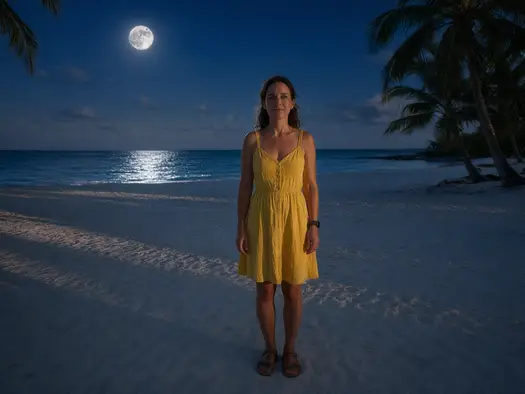
Yes. Ask for the night sky as well as the light: “a clear night sky with a bright full moon, cool blue moonlight on the sand, a moon reflection on the waves”. Our sunny beach became a moonlit night with the woman, palm trees and layout unchanged. Her yellow dress stayed brighter than moonlight would make it — a second pass can darken it.
Link to this answerIs the relight tool free?
Free to start. The Relight tool's default model, Qwen Image 3.0, is on the free plan, and a new Kenerate account gets starter credits on sign-up. Seedream 5.0 Pro uses credits from one-time packs that never expire — no subscription. Downloads carry no watermark.
Link to this answerWill relighting change the face?
Not in our tests. All four Qwen Image 3.0 relights and the Seedream 5.0 Pro one kept the same face, hair, stubble and smile. Faces can drift with bigger changes, so ask to keep the face exactly the same and compare with the original.
Link to this answerCan I relight a product photo?
Yes — the same Relight presets work on products. “Studio” gives clean white light for a catalogue shot, “Dramatic” deep shadows for an ad. Keep “the product exactly the same” in the prompt so labels and colours don't change.
Link to this answerIs this the same as Microsoft Photos Relight?
No. Microsoft's Relight runs in the Photos app on Copilot+ PCs. Kenerate's Relight works in the browser on any device and also changes the time of day and the colour of the light from a text prompt.
Link to this answerIn depth
Relight Photo AI, explained
What works, what to avoid, and how to pick a model.
How AI relighting works
An image editor reads the photo, works out the shapes and surfaces in it, and redraws it under the light you describe: new highlights where the light hits, new shadows where it doesn't, a new colour cast across the scene. The people and objects are copied from the original.
Because the whole image is redrawn, small things can shift. Saying what must stay — the face, the print, the background — keeps them close to the original.
What we got
One photo, four lights, two models, plus a day-to-night beach:
- Golden hour (Seedream 5.0 Pro): light really comes from the left; the sky stays blue. The most natural of the set.
- Golden hour (Qwen Image 3.0): the whole frame turns warm and hazy with the sun behind the trees, more filter than lamp.
- Neon glow (Qwen Image 3.0): pink on the left side of his face and the trees, a darker blue sky; the blue light on the right is weak.
- Moonlight (Qwen Image 3.0): a convincing night with a dark blue sky — but the t-shirt print stays brighter than moonlight would allow.
- Beach day to night (Qwen Image 3.0): full moon, its reflection on the sea, same pose and palm trees; the yellow dress looks lit by a flash.