Online · 5 settings · burned in · 720p or 1080p
Add captions to video — five settings, one captioned MP4
Adding captions comes down to five choices: style, position, resolution, text shadow and spoken language. This page explains each one, what the default is and when to change it, with real captioned clips to compare.
- Defaults that work as they are
- A position for every aspect ratio
- Shadow levels for bright footage
- Original vs Captioned check
Updated by the Kenerate AI team
On this page
Quick answer
Updated
How do you add captions to a video online?
To add captions to video online, upload the clip to Kenerate's Auto Subtitles: it transcribes the speech and draws timed captions onto the picture. The defaults — Simple style, Bottom position, Mid shadow, 720p, Auto-detect language — suit most clips; change them for vertical, bright or accented footage, then download the captioned MP4.
Key facts
- Default style
- Simple
- Default position
- Bottom
- Default shadow
- Mid
- Default resolution
- 720p
- Default language
- Auto-detect
- Ready in
- About 1–3 min
Real demo
Before and after: Glass captions on a kitchen clip
Drag the line. Left: a 16:9 cooking clip as recorded. Right: captions added in Glass, which sets the words on a frosted pill so they stay readable over a bright kitchen.
- Original. 16:9 clip with speech, no captions.
- Captioned. Glass style, burned into the frame.
Both are real, unedited files, shown at the same size.
Add captions to a clipReal results
Three clips, three sets of settings
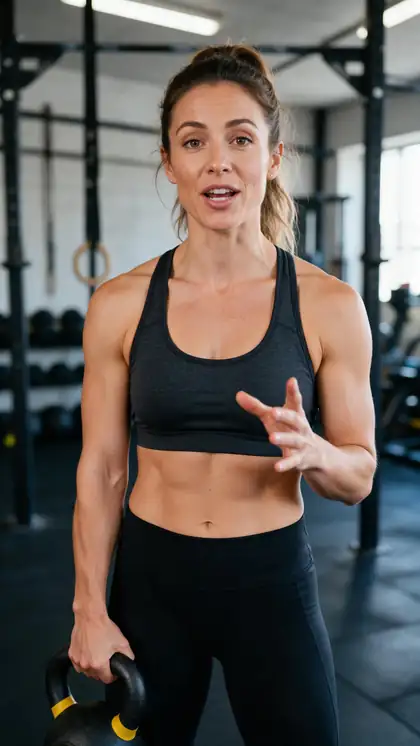
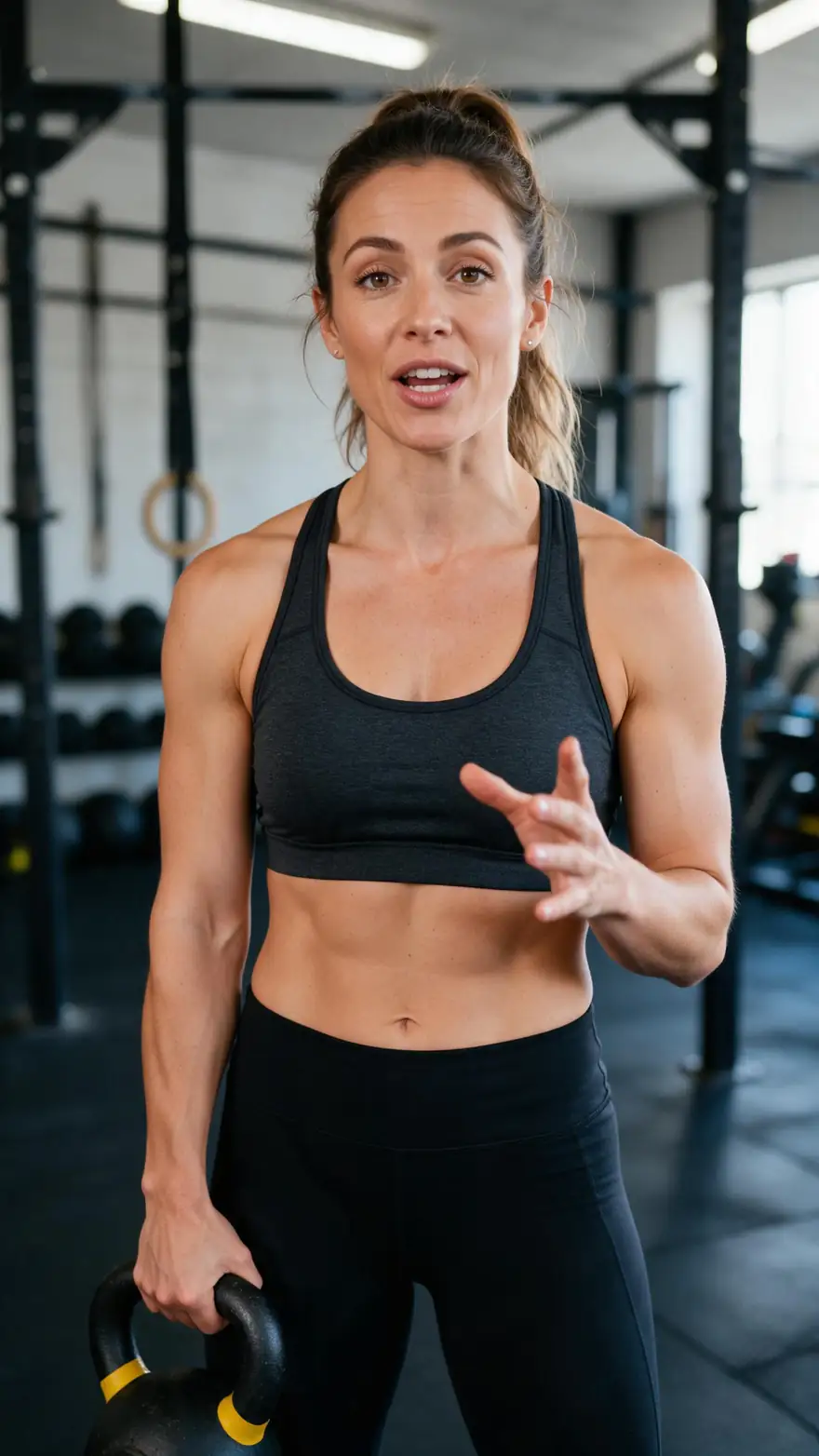
Real 5-second Wan 3 talking clips, captioned once each with different style and position choices.
Clips: Wan 3 image to video with speech (AI-generated people). Captions: Kenerate Auto Subtitles, unedited.
How to
How to add captions to a video
- Time needed
- Steps
- 4 steps
Step 1
Upload the clip
MP4, MOV or WebM up to 4 minutes and 100 MB; sign in with a verified email first.
Step 2
Keep or change the style
Simple is preselected; nine more styles are one tap away.
Step 3
Match the position to the frame
Bottom for landscape, Middle for vertical, Top when graphics sit low.
Step 4
Check language, resolution and shadow
Pin the language for strong accents, choose 1080p HD for sharper text, raise the shadow on bright scenes.
See it in the app

Open Auto Subtitles and upload a clip, or pick one from your history, library or a link.


Watch the tour · 1:19
Text, image & reference to video, models, edit, extend & chat
Chapters
Engines
Every caption setting, explained
The five settings in Auto Subtitles, their options, and the default the tool starts with.
- Default Simple
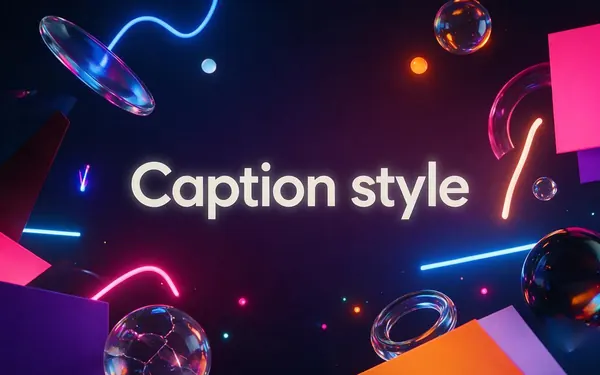
Default: Simple
Caption style
- Input
- 10 options
- Output
- Simple, Plain, Glass, Whisper, Glide Pop, Fusion, Terminal, Lowkey, Rizz, Vegas
Match the look to the video's tone
Open Caption style 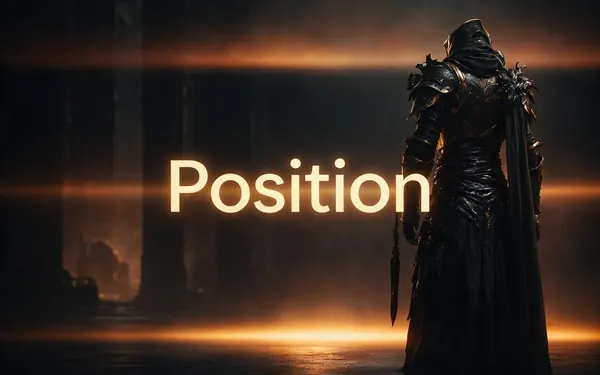
Default: Bottom
Position
- Input
- 3 options
- Output
- Top · Middle (Reels style) · Bottom
Bottom for landscape, Middle for 9:16, Top above lower thirds
Open Position
Default: 720p
Resolution
- Input
- 2 options
- Output
- 720p · 1080p HD
720p to post quickly, 1080p for sharper text
Open Resolution
Default: Mid
Text shadow
- Input
- 4 options
- Output
- Off · Soft · Mid · Max
Max on bright footage, Off on dark plain shots
Open Text shadow
Default: Auto-detect
Spoken language
- Input
- Auto + 10 options
- Output
- English (US), English (India), Spanish, French, German, Japanese, Chinese, Italian, Portuguese, Russian
Pin it for strong accents or mixed-language clips
Open Spoken language
Settings apply to the whole clip; you can't switch style or position halfway through.
Tips
Readability checks before you post
Small changes that make captions easier to read.
Watch the result on a phone before posting; that's where most people will see it.
Raise the shadow to Max over snow, sky or white walls.
Turn the shadow Off only on dark, plain backgrounds.
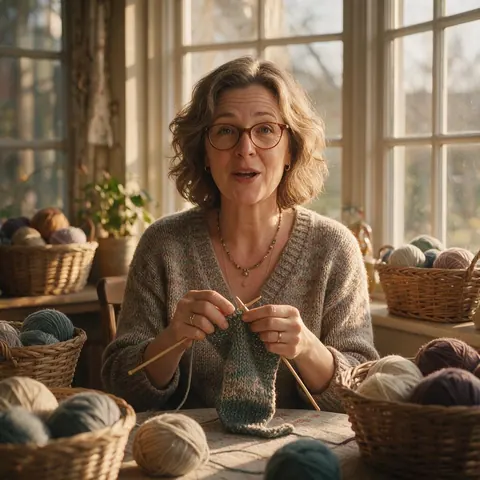
Use Top on cooking or craft clips where hands fill the lower half.
Pick 1080p HD when the style is small, such as Lowkey or Glide Pop.
Run it again with the language pinned if a name or term comes out wrong.
Example uses
How creators use Add Captions to video
Illustrative examples of typical workflows, not customer reviews.
Craft teacher
A craft teacher can put captions at the Top so they never cover the hands doing the work at the bottom of the frame.
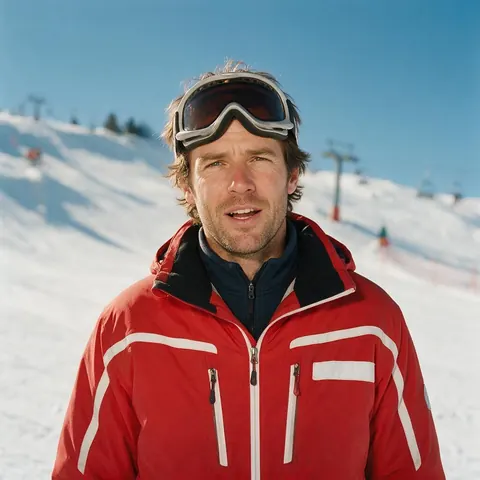
Ski instructor
A ski instructor can raise the text shadow to Max so white captions stay readable against bright snow.
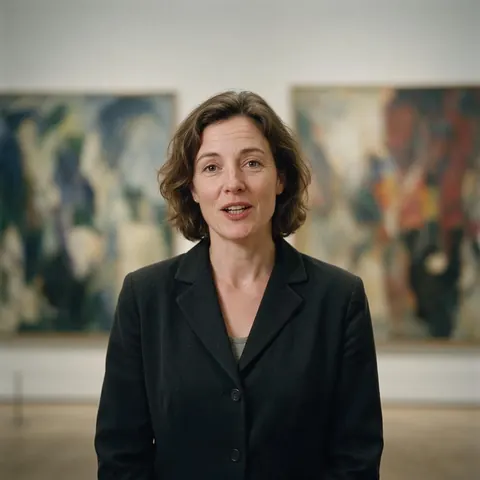
Museum guide
A museum can caption a short gallery talk at 1080p HD so the words stay crisp on the lobby screen.
FAQ
Add Captions to Video — questions
What happens when I add captions to a video with Kenerate?
The tool transcribes the speech, splits it into short timed lines and draws them onto every frame in the style, position and shadow you set. You get one MP4 at 720p or 1080p with the captions burned in, plus an Original vs Captioned view to check it first. A run takes about 1–3 minutes.
Link to this answerWhere should captions go on the screen?
Bottom suits landscape video and is where viewers expect subtitles. Middle, which the tool labels Reels style, centres captions on vertical clips so app buttons don't cover them. Top keeps captions clear of lower-third name titles, product graphics or hands working at the bottom of the frame, as in cooking or craft videos.
Link to this answerWhy are my captions hard to read?
Usually it's contrast: white words over a bright background. Raise the text shadow to Mid or Max, switch to Glass, which sets the words on a frosted pill, or move the captions to a darker part of the frame. Small styles such as Lowkey and Glide Pop read better at 1080p HD, especially after a platform recompresses the upload.
Link to this answerCan I add captions to a video that has no speech?
No. The captions are written from the speech, so a silent clip, or one with only music, has nothing to transcribe. For those, add text titles in a regular video editor. If you plan a voiceover, record it and mix it in first, then add captions to the finished video with the voice clearly louder than any music.
Link to this answerCan I add captions to only part of a video?
Not inside the tool, which captions all the speech in the clip you upload. To caption one section, trim it out in your editor, run that section through Auto Subtitles and place the captioned part back on your timeline. Export the section at the same frame size as the rest of the edit so the join stays clean.
Link to this answerDo captions make a video accessible?
They help many viewers, including people who are deaf or hard of hearing and anyone watching on mute. Full accessibility captions also describe important non-speech sounds and identify speakers, which W3C guidance includes in its description of captions. Kenerate transcribes speech only, so add sound descriptions in an editor when a video needs them.
Link to this answerIn depth
Getting captions right on the first run
On this page
Reading speed and line length
Captions only work if viewers can read them before they change. Auto Subtitles splits the transcript into short lines timed to the speech, so the pace follows the speaker. Fast talkers produce fast captions; if a clip feels rushed, a style that shows fewer words at once, such as Fusion's short bursts, is easier to follow.
Contrast is the setting most people skip
Most web players show captions as white characters in a black box [1]. Burned-in styles usually drop the box for a cleaner look, which makes contrast your job. The text shadow setting is the fix: Soft for dark scenes, Mid as the default, Max for snow, beaches and white kitchens. Glass and Terminal bring their own background.
Aspect ratio decides the position
The captions follow the clip's own frame; only their placement changes.
- 16:9 landscape: Bottom, the classic subtitle spot.
- 9:16 vertical: Middle, clear of app buttons and post text.
- 1:1 square: Bottom or Middle, depending on what sits low in the frame.
- Screen recordings: Top, if the bottom holds controls or a taskbar.
- Interviews with name titles: Top, so captions don't collide with the lower third.
What captions should carry
W3C describes captions as a text version of the speech and the non-speech audio needed to understand a video [1]. Auto Subtitles covers the speech. Laughter, music cues and speaker names are up to you: add them as titles in your editor when a video has to be fully accessible, not just watchable on mute [2].
Put captions on a video
Another way of saying the same thing. On Kenerate the captions go into the picture itself, so they show in every player and app without a separate file.
Auto caption a video
Captions written by speech recognition instead of typed. Here the transcript, the timing and the burn-in all happen in one run, and nothing has to be typed.
Add text to a video vs add captions
Text overlays are titles you place and time yourself; captions follow the speech line by line. For static titles, use a video editor; for speech, use captions.
Explore
Every Kenerate video tool
Generators, tools, models and guides — all in one studio.