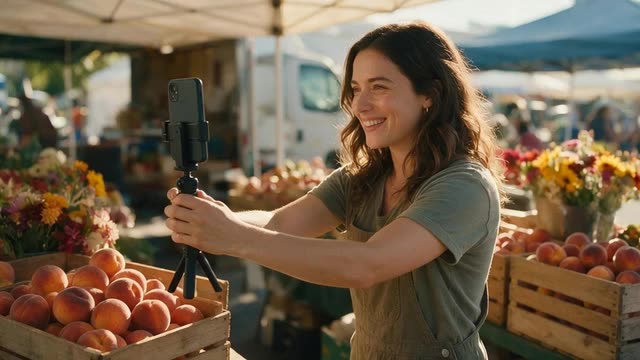
Reels · Shorts · Middle position · up to 4 min
Instagram Reels captions — auto captions for Reels and Shorts
Instagram has its own Captions sticker, and YouTube adds automatic captions to Shorts. This page is about a third route: burning styled captions into the file before it goes up, so your Reels and Shorts show the same words, in your chosen look, from the first play.
- Reels-style Middle position
- Fits 3-minute Reels and Shorts
- No sticker to place by hand
- Same file for Reels and Shorts
Updated by the Kenerate AI team
On this page
Quick answer
Updated
How do you add captions to Instagram Reels?
There are two ways to add Instagram Reels captions: the Captions sticker in Instagram's mobile app, or captions burned into the video before upload. Kenerate does the second: upload the 9:16 clip, choose the Middle position, which the tool calls Reels style, pick a style and post the captioned MP4 to Reels or YouTube Shorts.
Key facts
- Reels length
- Up to 3 min
- Shorts length
- Up to 3 min
- Kenerate clip limit
- 4 min, 100 MB
- Position
- Middle (Reels style)
- Word highlight
- Glide Pop, Rizz
- Resolution
- 720p or 1080p
Real demo
Before and after: Glide Pop on a Reel
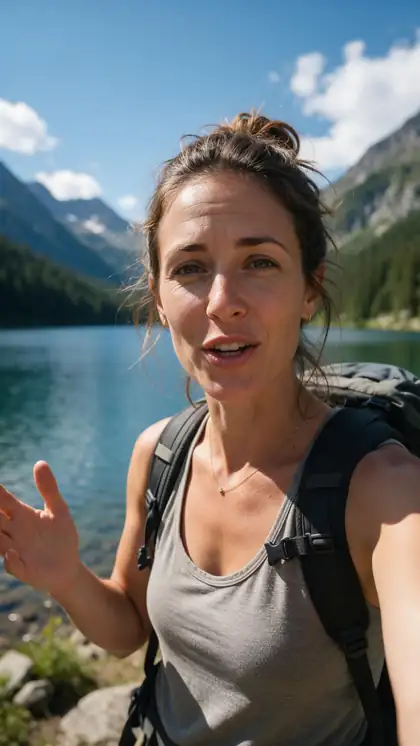
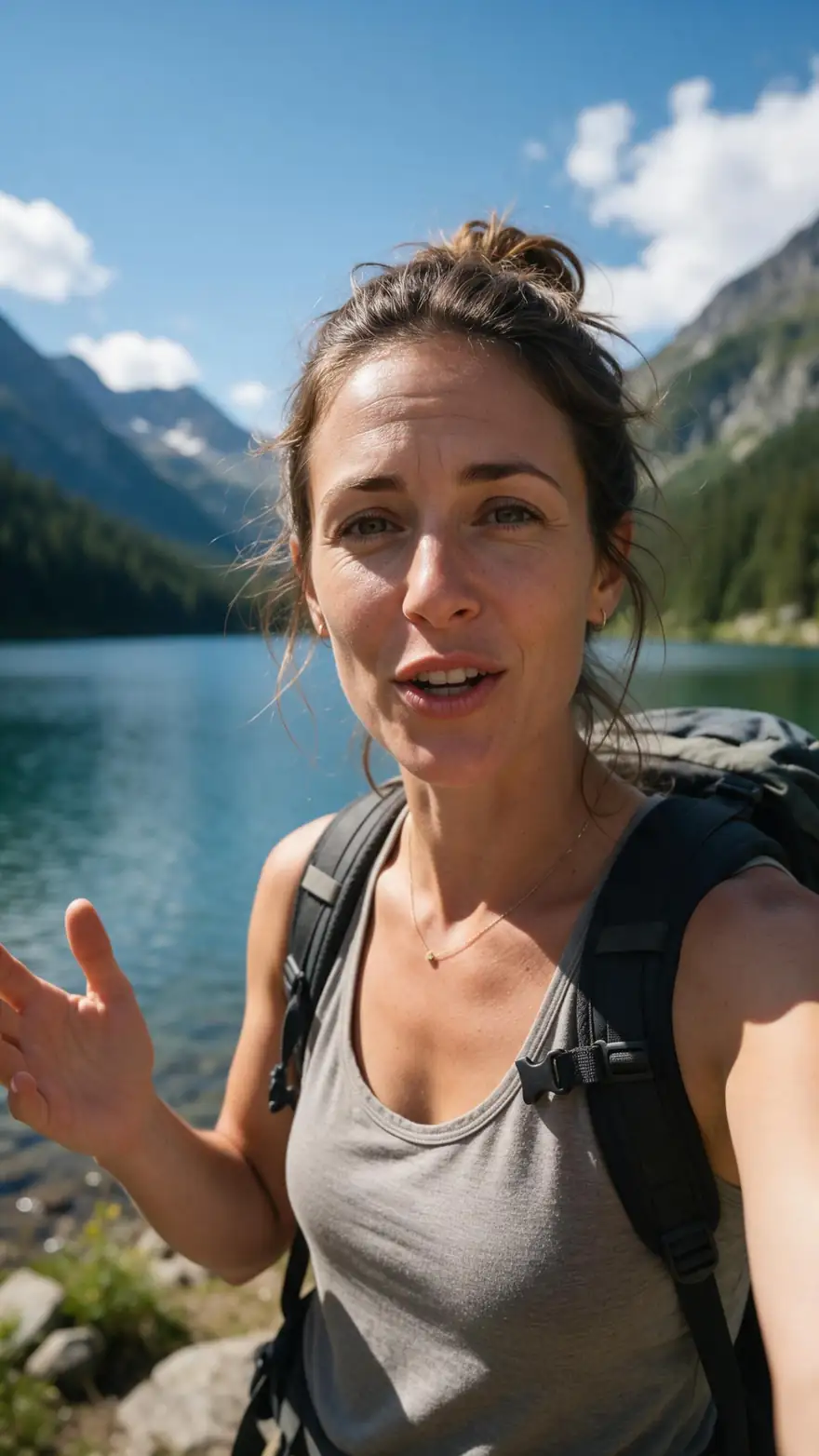
Drag the line. Left: a vertical travel vlog as filmed. Right: the same Reel with Glide Pop captions — small white words, the spoken one in yellow script.
- Original. 9:16 clip with speech.
- Captioned. Glide Pop, burned in.
Both are real, unedited files, shown at the same size.
Caption a ReelReal results
Three vertical clips, ready to post
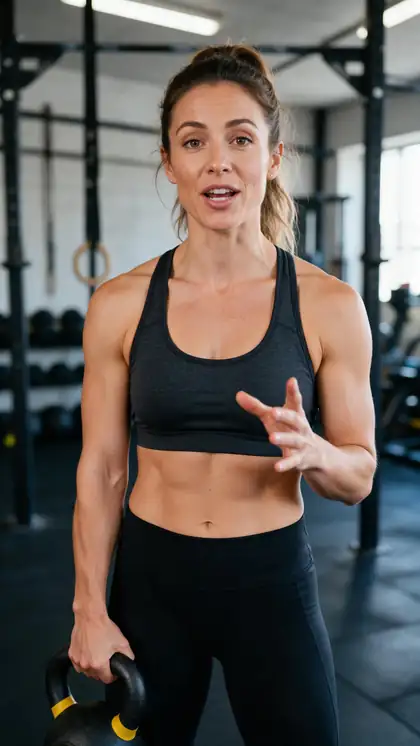
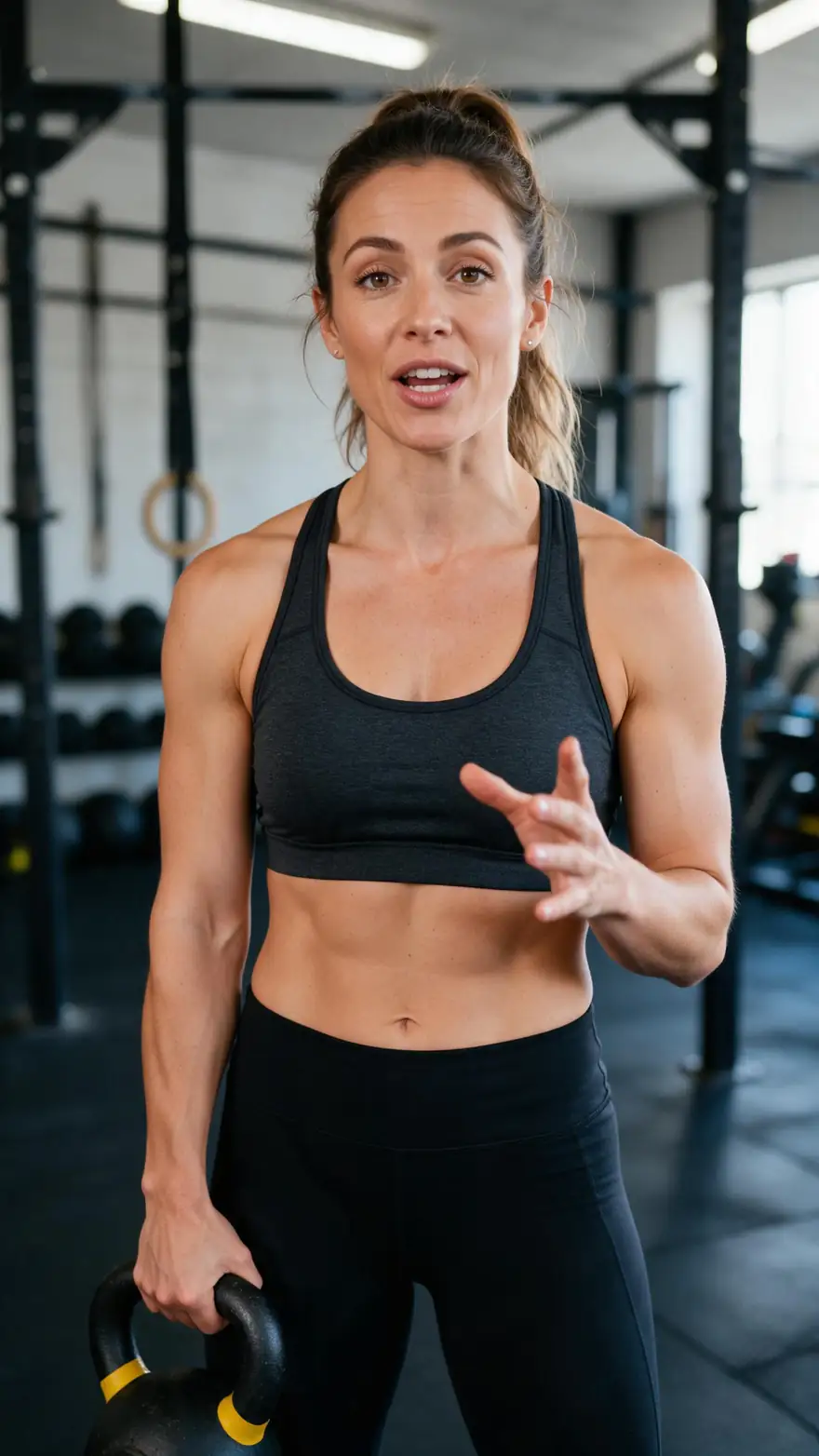
Real 9:16 Wan 3 clips with speech, captioned once each and ready for Reels or Shorts.
Clips: Wan 3 image to video with speech (AI-generated people). Captions: Kenerate Auto Subtitles, unedited.
How to
How to add captions to a Reel before posting
- Time needed
- Steps
- 4 steps
Step 1
Edit the Reel first
Finish cuts and music, then export 9:16 under 4 minutes and 100 MB.
Step 2
Upload it to Auto Subtitles
MP4, MOV or WebM; sign in with a verified email.
Step 3
Set Position to Middle
The tool's Reels-style option centres the captions.
Step 4
Pick a style and shadow
Glide Pop or Rizz to highlight words; Mid or Max shadow on bright scenes.
See it in the app

Open Auto Subtitles and upload a clip, or pick one from your history, library or a link.


Watch the tour · 1:19
Text, image & reference to video, models, edit, extend & chat
Chapters
Engines
Reels and Shorts caption setups
Six setups using the tool's real settings for common kinds of vertical video.
- Top
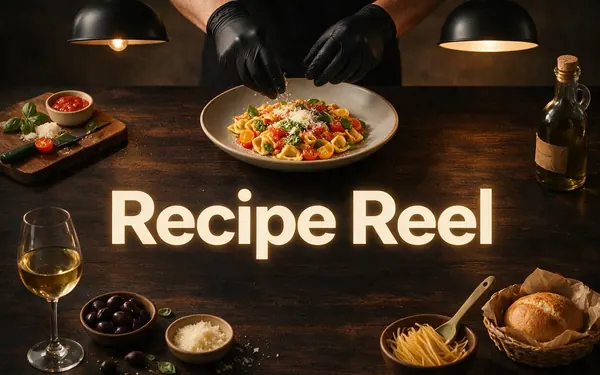
Glass · Top
Recipe Reel
- Input
- 9:16 clip up to 4 min
- Output
- Words on a frosted pill
Hands and food in the lower half
Open Recipe Reel 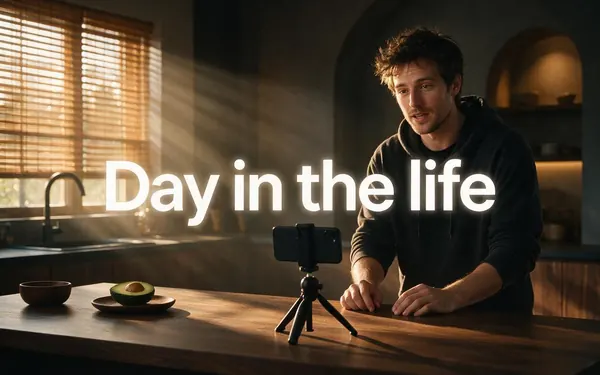
Glide Pop · Middle
Day in the life
- Input
- 9:16 clip up to 4 min
- Output
- The spoken word in yellow script
Calm vlogs and routines
Open Day in the life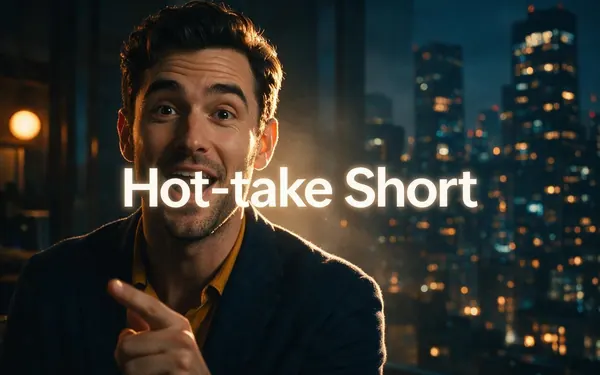
Rizz · Middle
Hot-take Short
- Input
- 9:16 clip up to 4 min
- Output
- Heavy caps, the spoken word in yellow
Opinions, tips and hooks
Open Hot-take Short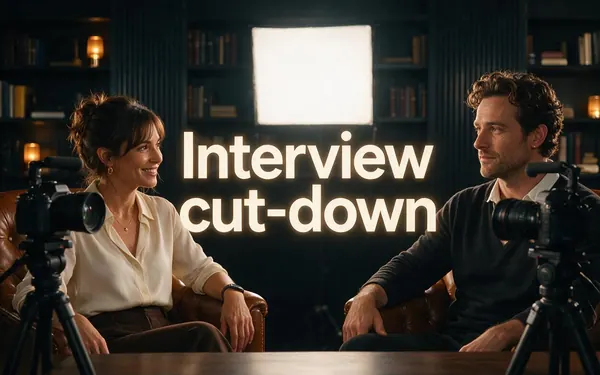
Fusion · Middle
Interview cut-down
- Input
- 9:16 clip up to 4 min
- Output
- Short bursts of words
Two-person clips from a longer talk
Open Interview cut-down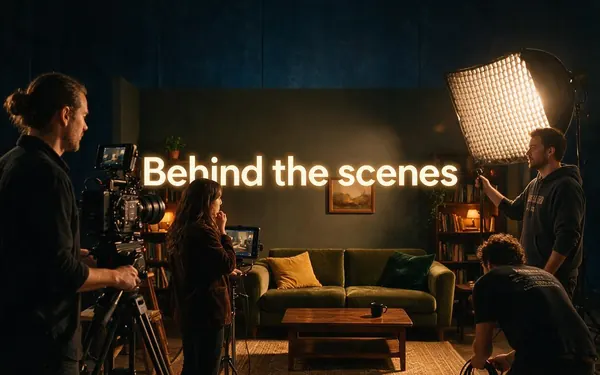
Lowkey · Middle
Behind the scenes
- Input
- 9:16 clip up to 4 min
- Output
- Small, subtle text
Footage where the visuals lead
Open Behind the scenes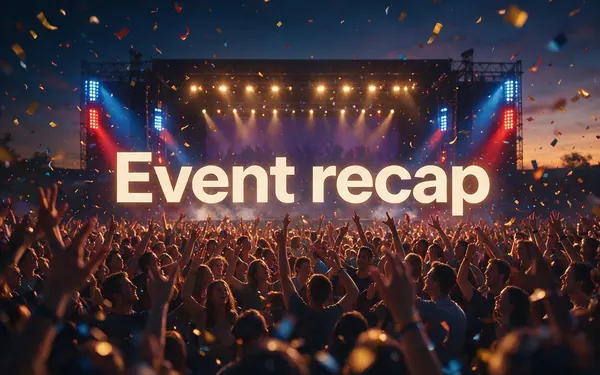
Vegas · Middle
Event recap
- Input
- 9:16 clip up to 4 min
- Output
- Pink neon caps
Concerts, parties and launches
Open Event recap
Every setup uses Middle or Top so the captions stay clear of the buttons and text at the bottom of each app.
Tips
Reels and Shorts caption habits
Small things that keep vertical captions working.
Keep music under the voice; the captions follow speech only.
Write the Reel's description separately; it isn't the on-screen text.
Use the same style across a series so your Reels look related.
Keep key words near the centre, away from the edges of the frame.
Post the original captioned MP4 to each app, not a re-download.
Leave the app's own caption sticker off for that post to avoid double text.
Example uses
How creators use Instagram Reels Captions
Illustrative examples of typical workflows, not customer reviews.

Food creator
A food creator can put Glass captions at the Top of a recipe Reel so the plating at the bottom stays in view.
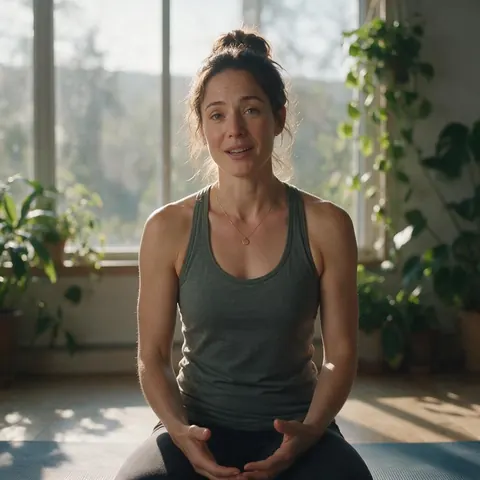
Yoga teacher
A yoga teacher can caption a calm morning-routine Reel with Glide Pop and post the same file as a Short.
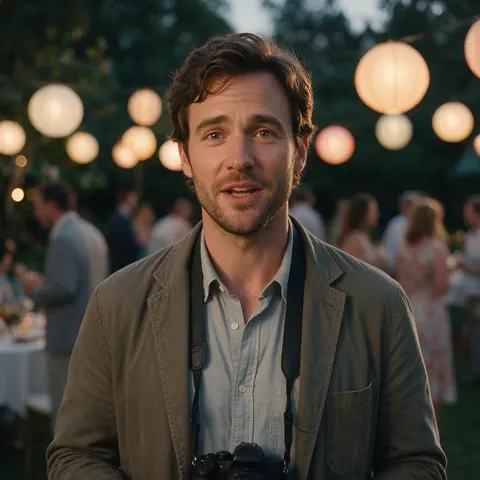
Event photographer
A photographer can caption a quick event recap in Vegas for Reels, with the music kept low under the voice.
FAQ
Instagram Reels Captions — questions
How do I turn on auto captions for Reels?
In Instagram's mobile app, add the Captions sticker while editing a Reel and it transcribes the speech; Kapwing's guide notes the sticker offers four preset looks and one placement for the whole video. Instagram can also show automatic closed captions that viewers control. For styled captions that are part of the file, burn them in with Kenerate before posting.
Link to this answerCan I use the same captioned video for Reels and Shorts?
Yes. Both are vertical, and both now take videos up to three minutes, which fits inside Kenerate's 4-minute limit. Caption the 9:16 clip once in the Middle position, download the MP4 and upload that same file to Instagram and YouTube. Skip each app's own caption tool for that post so viewers don't see two sets.
Link to this answerWhy use burned-in captions instead of the Captions sticker?
The sticker is quick but limited to the app's preset looks and one placement, and it lives only on that Instagram post. Burned-in captions travel with the file: 10 styles including word highlight, a text shadow setting, 1080p HD, and the same look on Reels, Shorts and anywhere else. The trade-off is that you can't edit words afterwards.
Link to this answerHow long can a Reel be for captions?
Instagram supports Reels up to three minutes, and Kenerate captions clips up to 4 minutes and 100 MB, so a standard Reel fits in one run. Captioning takes about 1–3 minutes. If your file is over 100 MB, export it again from your editor at a lower bitrate before uploading; the captioned version comes back at 720p or 1080p.
Link to this answerWhich caption style works best on Reels?
Glide Pop and Rizz are the most Reels-like choices because they highlight the word being spoken. Glass suits busy or bright backgrounds, Lowkey suits footage where the picture leads, and Fusion's short bursts suit fast talkers. Whatever you choose, keep it consistent across a series so your Reels are recognisable in the feed.
Link to this answerCan Instagram viewers turn my burned-in captions off?
No. Burned-in captions are part of the picture, so everyone sees them, including people who never switch captions on. That's the point for muted scrolling, but it also means a typo stays. Check the Original vs Captioned preview carefully, and if a word is wrong, run the clip again with the spoken language pinned.
Link to this answerIn depth
Captioning for Reels and Shorts
On this page
Instagram's Captions sticker, briefly
In the Instagram app, the Captions sticker transcribes a Reel's speech once you add it while editing. Kapwing's May 2024 guide describes four preset styles — classic, typewriter, scroll and fade — and one caption position for the whole video, set in the mobile app [1]. It's quick for a phone-made Reel, less so for a series that needs one consistent look.
Three minutes on both platforms
Instagram's closed captions vs yours
Instagram can also generate closed captions with speech recognition, which viewers control themselves [2]. If your Reel already has burned-in captions, a viewer with captions switched on may see both. Burned-in captions win when the look matters; Instagram's own captions win when viewers want control.
Explore
Every Kenerate video tool
Generators, tools, models and guides — all in one studio.