

Halloween · cinematic undead · no gore
Zombie Filter — a cinematic undead makeover, no gore
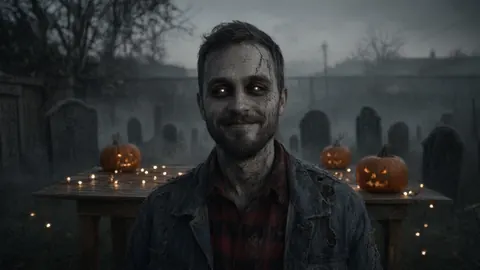
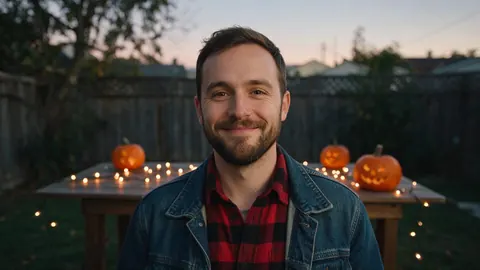
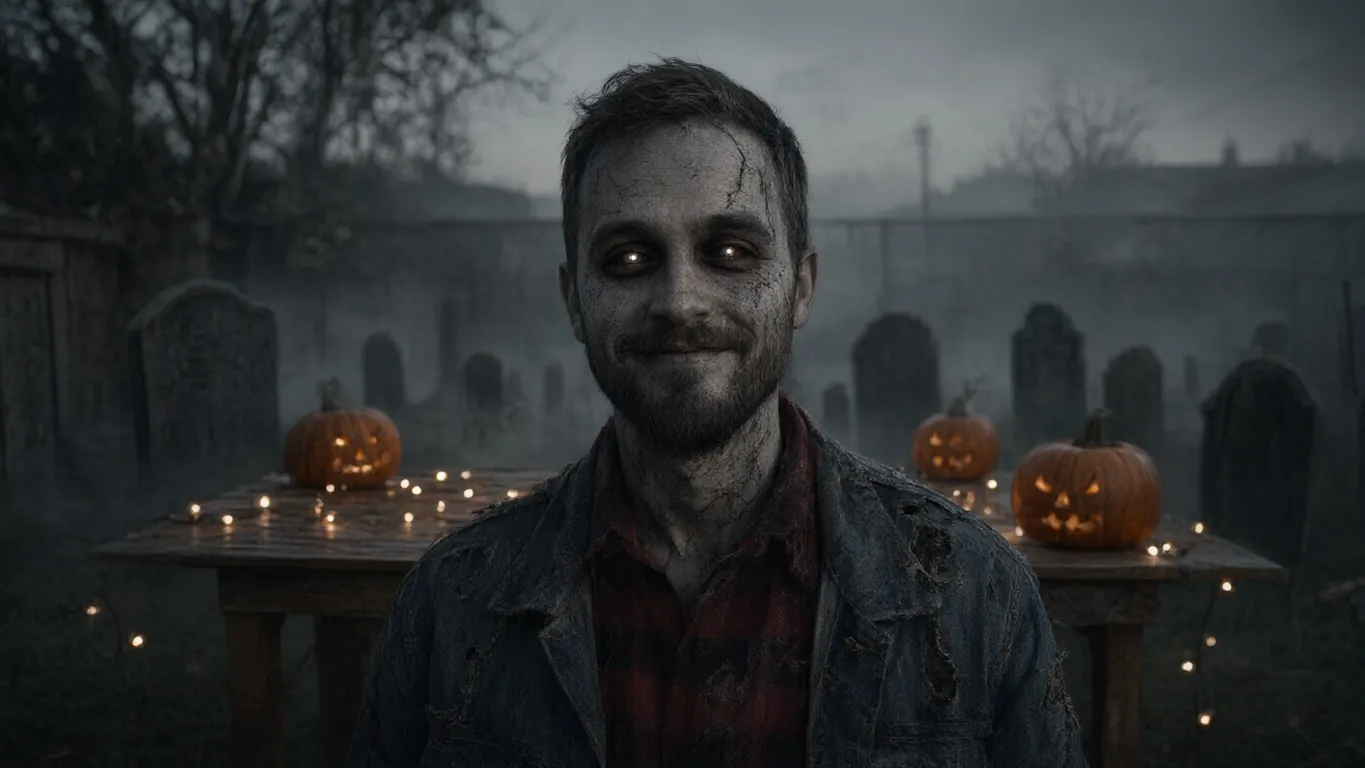
The Zombie look turns your photo into a film-still zombie — greyed cracked skin, sunken glowing eyes, tattered clothes, a foggy graveyard — while it keeps your pose and expression.
- Cinematic, not gory
- Keep your own background
- Works on group photos
- No watermark
Updated by the Kenerate AI team
On this page
Quick answer
Updated
What does a zombie filter do?
A zombie filter turns a normal photo into an undead version of the same person. In Kenerate AI Filter, the Zombie look gives you greyed cracked skin, sunken glowing eyes, tattered clothes and a foggy graveyard backdrop, while keeping your pose and expression. It's horror-movie styling with no blood or gore in the look.
Key facts
- Look
- Zombie (Fun & Wild group)
- What changes
- Grey cracked skin, glowing eyes, tattered clothes, foggy graveyard
- Gore
- None in the look
- Keep your background
- Yes — say so in the Twist
- Input
- One photo · JPG, PNG or WebP · up to 20 MB
- Speed
- About 10–20 s on Qwen Image 3
Looks
Zombie and five more looks for Halloween
Spooky, moody or costume-ready. Each card opens AI Filter with the look picked.
Zombie
Greyed cracked skin, sunken glowing eyes, tattered clothes and a foggy graveyard. The demo above.
Film Noir
A 1940s black-and-white still with hard venetian-blind shadows across the face.
Comic Noir
Black-and-white comic ink with a single red spot colour and dramatic shadows.
Infrared
Pink-white foliage, near-black skies and pale glowing skin: eerie without a single prop.
Marble Statue
Carved white stone with veined skin on a plinth — a quiet costume for a museum-themed party.
Superhero
A comic-cover hero with a sculpted suit and a cape, for the costume half of the party.
How to
How to turn yourself into a zombie in a photo
Four steps. Use the Twist if you want your own backdrop instead of the graveyard.
- Time needed
- Steps
- 4 steps
- You need
- A web browser · One photo (JPG, PNG or WebP)
Step 1
Add a photo
Upload, snap or paste a clear photo — JPG, PNG or WebP up to 20 MB. A face in good light keeps the most of you.
Step 2
Pick Zombie
Open the Fun & Wild group, or search the look drawer for “zombie”.
Step 3
Set the scene in the Twist
Optional, up to 300 characters: “keep my backyard and the string lights, no graveyard” or “add a torn party hat”.
Step 4
Apply, compare, share
Drag the Compare slider for the before/after, then download it, Upscale it for a poster, or Tweak and run again.
See it in the app

Open AI Filter and upload the photo you want to restyle.


Watch the tour · 1:46
56 looks in 7 groups, four engines, before / after, mix two looks, add a twist, hand-offs & chat
Chapters
Engines
Which engine for a zombie filter?
Zombie is a big transformation, so the engine decides how much of you survives it.
- Default
Alibaba
Qwen Image 3
- Strength
- Fast, faithful to the face · best value (default)
- Typical time
- About 10–20 s
The default and the demo engine: quick, and keeps the face recognisable under the makeup.
Open Qwen Image 3 
Kenerate
Kenerate Filter
- Strength
- Identity-locked re-render · bold style changes
- Typical time
- About 15–30 s
For a bolder undead change — deeper cracks, stronger glow — with your identity locked.
Open Kenerate Filter
ByteDance
Seedream 5 Pro
- Strength
- Painterly & cinematic looks · rich texture
- Typical time
- About 20–40 s
For a darker, more cinematic grade: fog, rim light and texture.
Open Seedream 5 Pro
OpenAI
GPT Image 2
- Strength
- Smartest with complex mixes · toys & posters
- Typical time
- About 30–60 s
For a group shot or a party poster, and for mixes such as Zombie × Comic Noir.
Open GPT Image 2
Times are typical, not promised. Every engine returns one image per run, and a failed run is refunded automatically.
Example uses
How creators use zombie filter
Illustrative examples of typical workflows, not customer reviews.
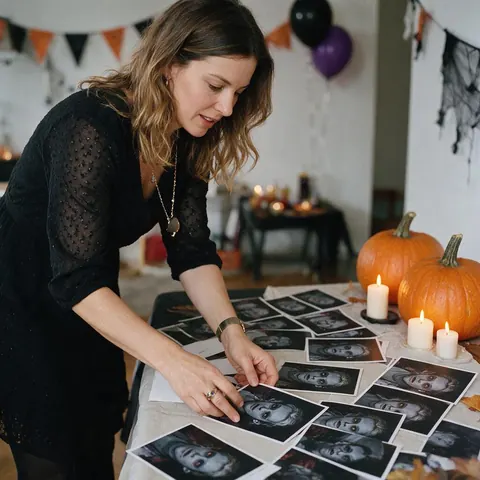
Party host
A party host zombifies each guest's photo, with their agreement, for the Halloween invitations.
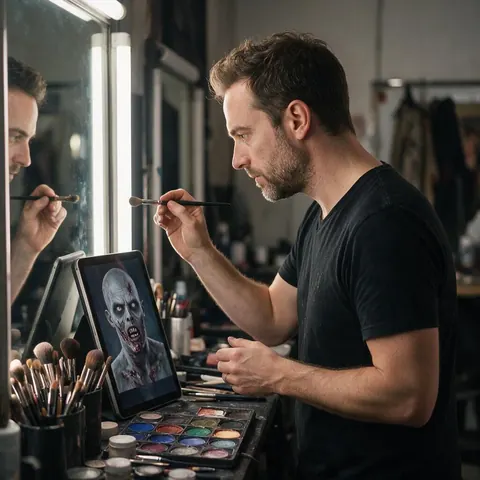
Makeup artist
An SFX makeup artist uses a zombified photo of the client as a colour reference before painting the real look.
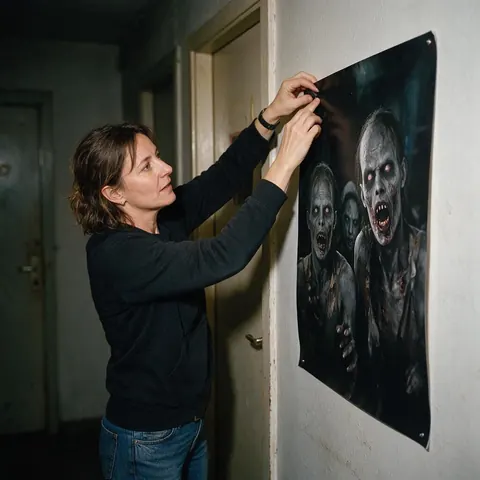
Escape room owner
An escape room owner turns the staff into zombies for a Halloween-week poster.
FAQ
Zombie filter questions
How do I turn myself into a zombie in a photo?
Upload your photo to Kenerate AI Filter, pick the Zombie look in the Fun & Wild group and press Apply. It returns one image of you as a cinematic zombie, with grey cracked skin, sunken glowing eyes, tattered clothes and a foggy graveyard backdrop, in about 10–20 seconds on the default engine. Your pose and expression are kept.
Link to this answerIs the zombie filter gory?
No. The Zombie look asks for greyed cracked skin, sunken glowing eyes, tattered clothes and a foggy graveyard, and nothing about blood, wounds or exposed bone. Results look like a horror-film poster rather than a gore effect. That keeps them suitable for invites, party photos and profile pictures. Optional Twist text is moderation-checked like the app's other text fields.
Link to this answerCan I keep my own background?
Yes. The look adds a foggy graveyard by default, but you can override it in the Twist, the optional one-line instruction of up to 300 characters. Write something like “keep my background, no graveyard” and the look changes you while the room, street or party behind you stays the same.
Link to this answerCan I zombify a group or party photo?
Yes, if everyone in it agrees. The look tells the engine to keep every person and their pose and not to add or remove anyone. Faces that are small in a wide shot keep less detail, so crop in. GPT Image 2 handles crowded group shots best; switch to it in the engine picker if Qwen Image 3 blurs a face.
Link to this answerWhat's the best zombie filter for Halloween?
One that keeps you recognisable under the makeup, because the fun is seeing who's who. Kenerate AI Filter's Zombie look does that on Qwen Image 3, the default engine, and Kenerate Filter takes it further with identity locked. Mix it with Comic Noir or Pop Art for invites, and Upscale the result for printing.
Link to this answerCan I zombify a friend's photo as a joke?
Only with their permission. Restyle photos of yourself, of people who agreed, or pictures you own the rights to, and don't use a zombie version to mock, harass or embarrass someone who didn't sign up for it. A quick “can I zombify you?” before the party keeps the joke a shared one.
Link to this answerIn depth
Zombie filters, explained
What the look does, how to keep it fun rather than gory, and how to use it for a party.
On this page
What the Zombie look changes, and what it doesn't
The look asks for a cinematic zombie: greyed, cracked skin, sunken eyes with a faint glow, tattered clothes and a foggy graveyard behind you. It doesn't ask for blood, wounds or exposed bone, so results read like a horror-film poster rather than a gore effect. Your pose, expression and framing are kept, which is why a smile in the original becomes an unsettling undead grin.
Keeping your own background
By default the backdrop turns into a foggy graveyard. If you'd rather stay where the photo was taken — the party, the office, the backyard — say so in the Twist: “keep my background, no graveyard”. The look then works on you and leaves the scene as it is, which is useful for a before/after of the same room.
A zombie party in four photos
A simple way to use the look for Halloween, with everyone's agreement:
- Before the party: zombify each guest's photo for the invite
- At the door: a quick snap, zombified on a phone in the browser
- Group shot: Zombie with GPT Image 2, everyone kept in the frame
- After: Upscale the best one for a poster or a card
Zombie filter or zombie makeup?
SFX makeup takes an hour and a kit; the filter takes a photo and about 20 seconds. A filtered picture can serve as a reference for colour and placement before anyone picks up a brush, or help you choose between costume ideas. The filter can't help on the night itself, but it's a quick way to plan the face you'll paint.
Mixing Zombie with another look
Zombie × Comic Noir at 70/30 makes an inked horror-comic panel with one red accent. Zombie × Film Noir gives a black-and-white 1940s monster still. Zombie × Pop Art at Even is the friendliest option, a bright screen print for an invite. If the second look takes over, move Balance back toward Zombie.
Zombify your photo for Halloween
New accounts get starter credits. No subscription required. No watermark.
Tried it? Tell us how it went