

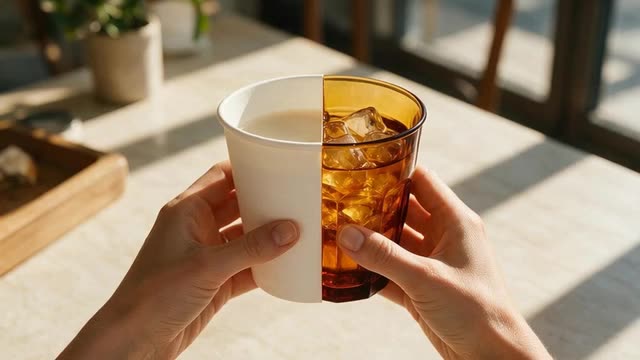
Swap object mode · reference products · hands and light kept
Swap object in video with AI — replace any prop, keep the shot
Wrong mug, last year's packaging, a car that should be a different model? Name the object and what it should become — or add a photo of the new one — and Genjutsu puts it in the same place, at the same size, moving the same way, in the same hands.
- Same place and motion
- Hands and contact kept
- Product from a photo
- No masking
Updated by the Kenerate AI team
Made with Kenerate



On this page
Quick answer
Updated
How do you swap an object in a video with AI?
To swap an object in a video, upload the clip to Kenerate Genjutsu, pick Swap object and name the object and its replacement — or add a photo of the new one as @image1. The new object takes the original's place, scale and movement in every frame, even in moving hands. Genjutsu swaps objects; it doesn't erase them.
Key facts
- Mode
- Swap object
- New object from
- Words or a reference photo
- Kept
- Place, scale, orientation, motion
- Handled
- Hands, contact, reflections, shadows
- Masking
- None — you name the object
- Not supported
- Erasing objects
Real demo
Coffee cup to glowing crystal cup
A hard case on purpose: milk is being poured into the cup. The crystal cup from @image1 takes its place, the pour still lands in it, and its cyan glow lights the table.
- Swapped. Prompt: “Turn the coffee cup into the glowing crystal cup from @image1 — the milk still pours into it and the cyan glow lights the table.”
Kenerate Genjutsu at 720p — an unedited result from the app's example gallery, shown next to its source clip.
Swap an objectReal demo
Red tram to retro-future tram
A moving object: the silver tram from one reference follows the same rails, speed and rainy street as the original.
- Swapped. Prompt: “Replace the red tram with the silver retro-futuristic tram from @image1, gliding along the same rails through the rainy street.”
Kenerate Genjutsu at 720p — an unedited result from the app's example gallery, shown next to its source clip.
Swap a moving objectReal results
Objects worth swapping
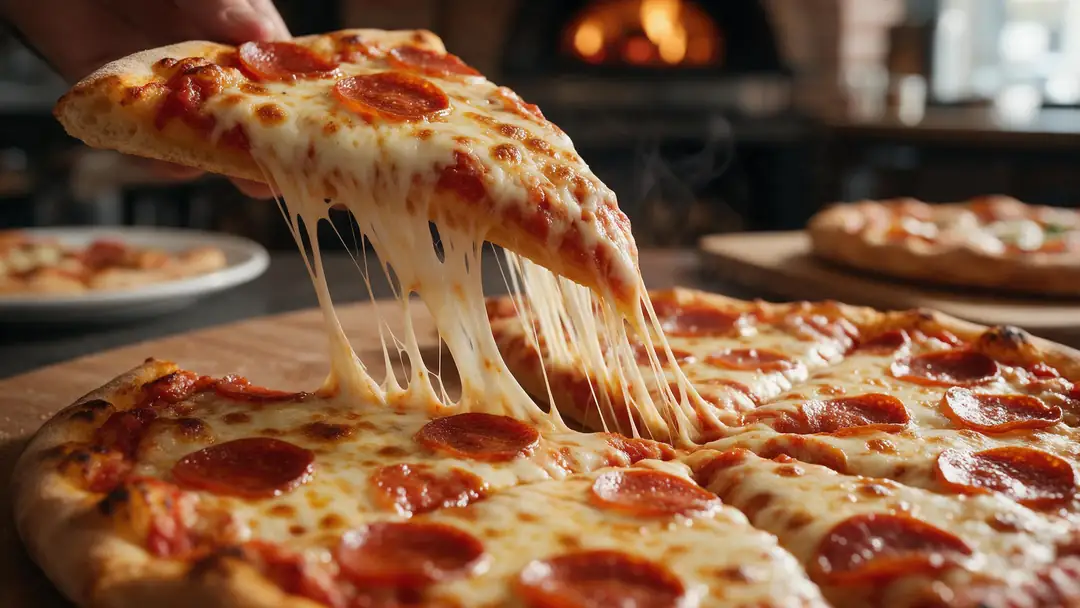
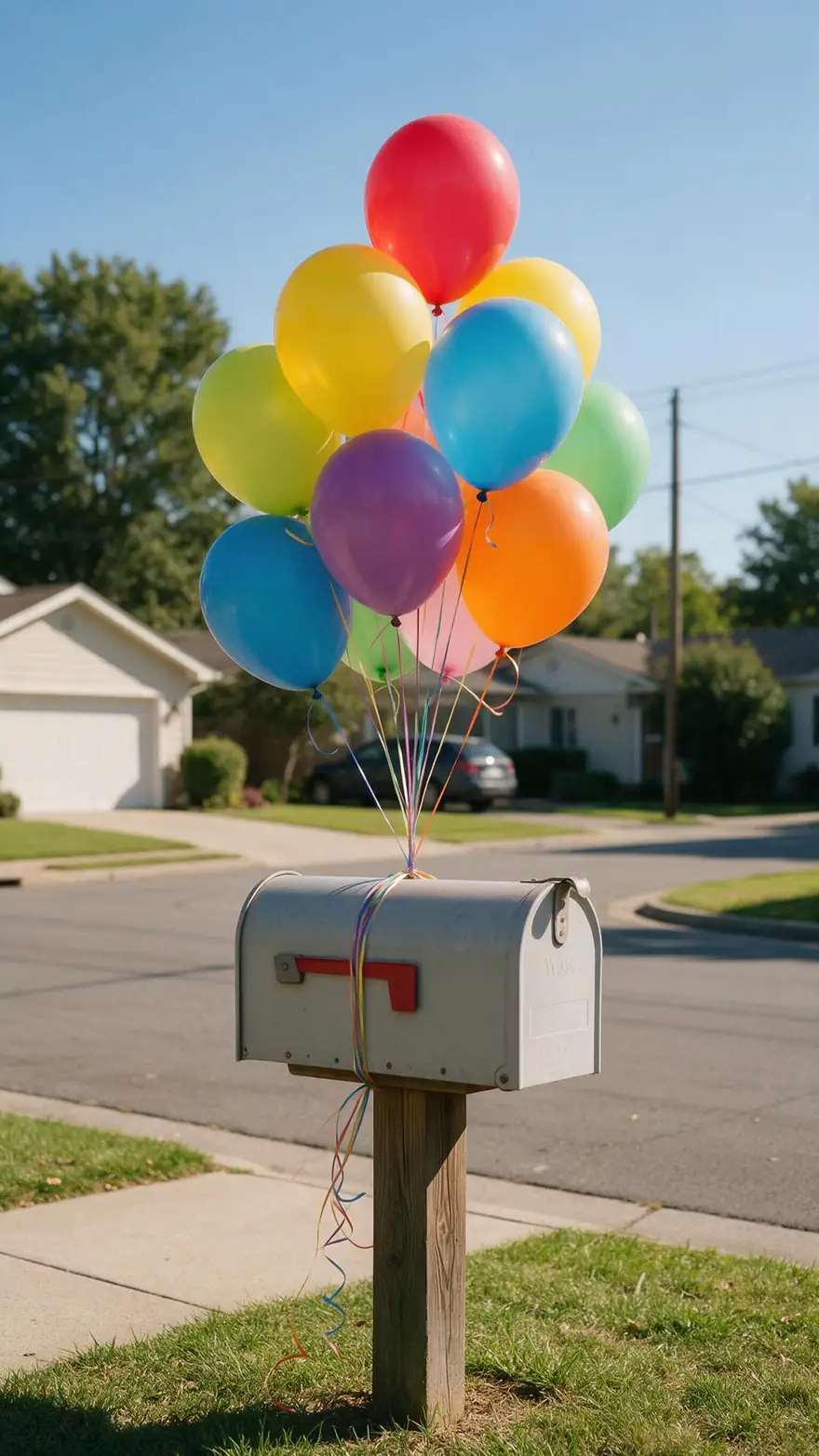
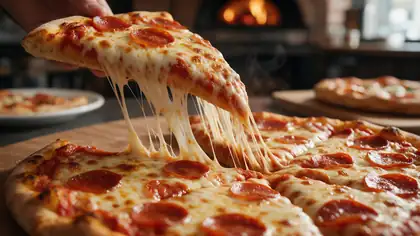
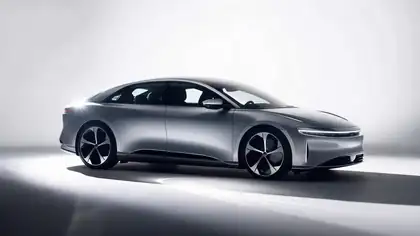
Latte art, a cheese pull, a studio car, a runaway balloon and a pool float — shots where one object carries the frame.
Image-to-video example clips with the model on each card — not object-swap outputs. The two demos above are real Genjutsu swaps; you'd start from your own clip.
How to
Swap an object in five steps
- Time needed
- Steps
- 4 steps
Step 1
Upload the clip
MP4, MOV, WebM or M4V up to about 100 MB, with the object clearly visible for most of it.
Step 2
Choose Swap object
The mode built for props and products: everything except the named object is told to stay.
Step 3
Add the new object (optional)
A clean product photo as @image1 when it has to match something real.
Step 4
Name old and new
"Replace the red tram with the silver tram from @image1." Naming the original avoids the wrong object.
See it in the app

Open Kenerate Genjutsu and choose Replace character, Swap object, Change outfit, Change background or Free edit.


Watch the tour · 1:19
Text, image & reference to video, models, edit, extend & chat
Chapters
Engines
Which engine for an object swap
Swap object works without a reference — "turn the cup into a glowing crystal" — but a photo of the new object makes it match a real product.
- Default
Kenerate
Kenerate Genjutsu
- Input
- Clip 2–15 s + up to 10 references
- Output
- 480p, 720p or 1080p · ~2–4 min
Props and products on short clips, fast
Open Kenerate Genjutsu 
Kenerate
Kenerate Genjutsu Pro
- Input
- Clip 2–15 s + up to 10 references
- Output
- 480p, 720p or 1080p · ~3–6 min
Glass, metal and printed packaging where material detail matters
Open Kenerate Genjutsu Pro- Up to 30 s
ByteDance
Seedance 2.5
- Input
- Clip 4–30 s + up to 30 references
- Output
- 480p to 4K · ~4–8 min
Longer product shots, several angles of the new object, 4K masters
Open Seedance 2.5
Swap object replaces; it doesn't erase. If you add references but write no prompt, the run swaps the main object in the clip for the reference.
Tips
Swaps that sit in the scene
The engine handles contact and light; you help by picking a replacement that fits the original's role.
Similar size and shape swap most cleanly.
Name the original object if there are several.
Photograph the new product front-on, plain background.
Say what the object does: "the milk still pours into it".
One main swap per run; run again on the result for more.
Use products and footage you have the right to use.
Example uses
How creators use swap Object in video
Illustrative examples of typical workflows, not customer reviews.
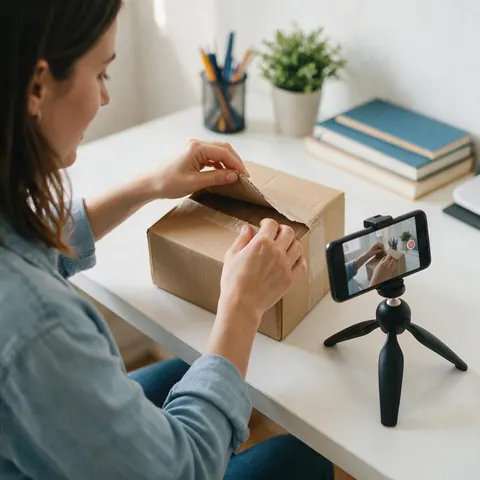
E-commerce marketer
An e-commerce marketer can film one unboxing and swap in every product in the range from its packshot.
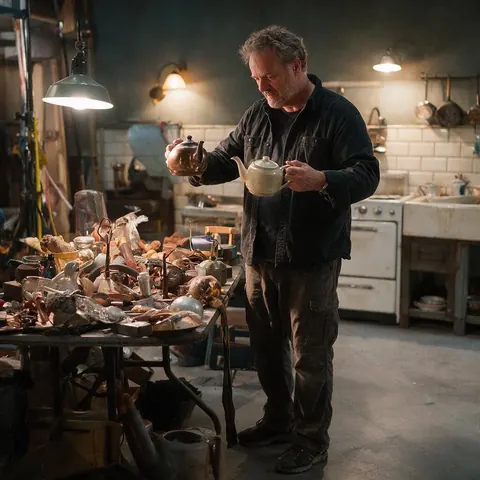
Prop master
A prop master can fix the wrong prop in an otherwise perfect take instead of reshooting the scene.
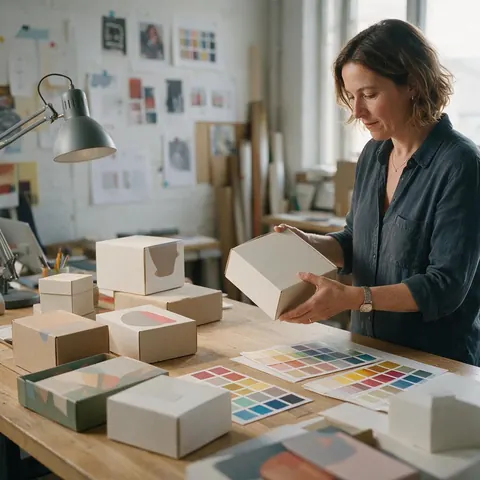
Packaging designer
A packaging designer can show a new pack design in motion on last year's product video before printing.
FAQ
Swapping objects in video — questions
7 questions
Can AI replace an object in a video?
Yes. Genjutsu's Swap object mode replaces one object with another across the whole clip. The new object takes the original's exact place, scale, orientation and movement in every frame — including while hands hold, turn or pour into it — with matching contact, occlusion, reflections and shadows. People, background, camera, timing and lighting are told to stay unchanged.
Link to this answerCan it remove an object instead of replacing it?
No. Genjutsu is built to swap, not erase: there is no object, text or watermark removal. If you need a still photo cleaned up, Kenerate's AI image editor has a Magic Eraser for painting out unwanted things in a single picture, but that doesn't apply to video clips.
Link to this answerIs this the same as AI video inpainting?
It does a similar job a different way. Classic video inpainting regenerates an area you mask by hand, frame by frame. Genjutsu needs no mask: you name the object in words and the engine finds and tracks it through the clip. That's faster, but it means you steer it with a clear description rather than a painted region.
Link to this answerWhich objects swap best?
Clear, mid-sized objects that stay in view: cups, bottles, phones, bags, shoes, vehicles, signs without lettering, furniture. Tiny objects, objects mostly hidden behind hands, and swaps between very different shapes — a pen into a sofa — are harder. When the new object has a different size, describe how it should sit.
Link to this answerCan I swap in my own product?
Yes, that's a common use. Add a clean photo of your product as @image1, pick Swap object and write "replace the bottle with the product from @image1". Seedance 2.5 takes up to 30 references, so you can include several angles. Only swap in products you own or are allowed to show, and don't imply endorsements.
Link to this answerCan I swap several objects in one clip?
Swap object focuses on one object per run. To change two things, run it twice — the second time on the first result — or describe both changes in Free edit mode. Running them one at a time is slower but gives you a checkpoint and keeps each swap cleaner.
Link to this answerIs it OK to swap objects in someone else's video?
Only with permission. Edit footage you shot or are licensed to use, with the consent of anyone in it, and don't place products or brands in a way that suggests a sponsorship or endorsement that never happened. Label AI-edited footage in ads.
Link to this answerIn depth
Object swaps, explained
Hands and contact, product placement, and how instruction-based swaps differ from masks.
On this page
Objects in hands: the hard part
An object that's held, turned or poured into touches everything around it. Swap object's instruction asks for the original's exact movement plus correct contact, occlusion, reflections and shadows in every frame. The crystal cup demo is the stress test: the milk still has to land inside a different shape. Fingers wrapped around the object and liquids are where to look first in the compare view.
Packaging updates and product placement
Keep the original audio on so voice-overs and sound effects stay aligned with the action.
- New packaging on an old product video.
- One hero shot, every product in the range.
- Seasonal versions: a summer can, a winter can.
- Prop fixes: the wrong mug in an otherwise perfect take.
- Pitch mock-ups before a real product exists.
Instructions instead of masks
Mask-based tools are precise about where, vague about what. Instruction-based swaps are the reverse: you describe what changes and the engine works out where, frame by frame. That saves rotoscoping, but it rewards precise wording — the object's colour, position and role in the shot — and a reference photo when the result must match something real.
Replace object in video
Same job, same mode: Swap object. The trick is naming both sides clearly — "the blue ceramic mug on the left" and "a matte black thermos" — so the engine knows which object to follow and what it becomes.
AI video inpainting
If you searched for inpainting because you want to fill a masked area, note that Genjutsu works from instructions, not masks. For replacing a thing with another thing, that's usually quicker; for erasing, it isn't the tool.
Swap product in video for ads
Film one hero shot and swap in each product in the range from its packshot. Every version keeps identical hands, motion and lighting, which makes A/B tests fair and saves a reshoot per product.
Explore
Every Kenerate video tool
Generators, tools, models and guides — all in one studio.

One object changed, everything else as filmed
Swap object with a word or a product photo. Only on footage you have the right to edit.
Tried it? Tell us how it went