

Free edit mode · @image mentions · up to 1,500 characters
Edit video with an AI prompt — type the change, keep the shot
No timeline, no masks, no keyframes. Say what should be different — the weather, a character, a prop, the place — and Genjutsu returns the same clip with that change, keeping everything your prompt didn't mention.
- Any change in words
- Point at references
- The rest stays
- No watermark
Updated by the Kenerate AI team
Made with Kenerate
On this page
Quick answer
Updated
How do you edit a video with an AI prompt?
To edit video with an AI prompt, upload a clip to Kenerate Genjutsu, choose Free edit and type the change — "make it a snowy winter night" or "replace the woman with the character from @image1". Prompts run up to 1,500 characters. Everything the prompt doesn't mention — people, motion, camera, timing — is told to stay as filmed.
Key facts
- Mode
- Free edit (prompt required)
- Prompt
- Up to 1,500 characters
- References
- @image1… up to 10, or 30 on Seedance 2.5
- Kept
- Everything not mentioned
- Enhance prompt
- Kenerate tiers
- Not included
- Cutting, trimming, captions
Real demo
One sentence: a snowy winter night
A greenhouse clip, one mood reference and one prompt. Snow on the glass roof and the plants, northern lights over the city — the camera move is the original's.
- Prompted edit. Prompt: “Make it a snowy winter night like @image1: snow falling, snow on the glass roof and the plants, northern lights over the city behind.”
Kenerate Genjutsu at 720p — an unedited result from the app's example gallery, shown next to its source clip.
Write an editReal demo
Two changes in one prompt
@image1 is a character, @image2 a neon alley. One sentence recasts the walker and moves the scene at the same time — same walk, same camera.
- Prompted edit. Prompt: “Replace the woman with the character from @image1 and move the scene into the neon alley from @image2 at night — same walk, same camera.”
Kenerate Genjutsu at 720p — an unedited result from the app's example gallery, shown next to its source clip.
Combine two editsReal results
Clips that invite a rewrite
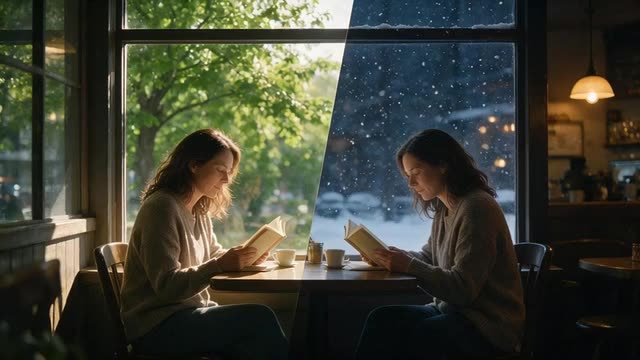
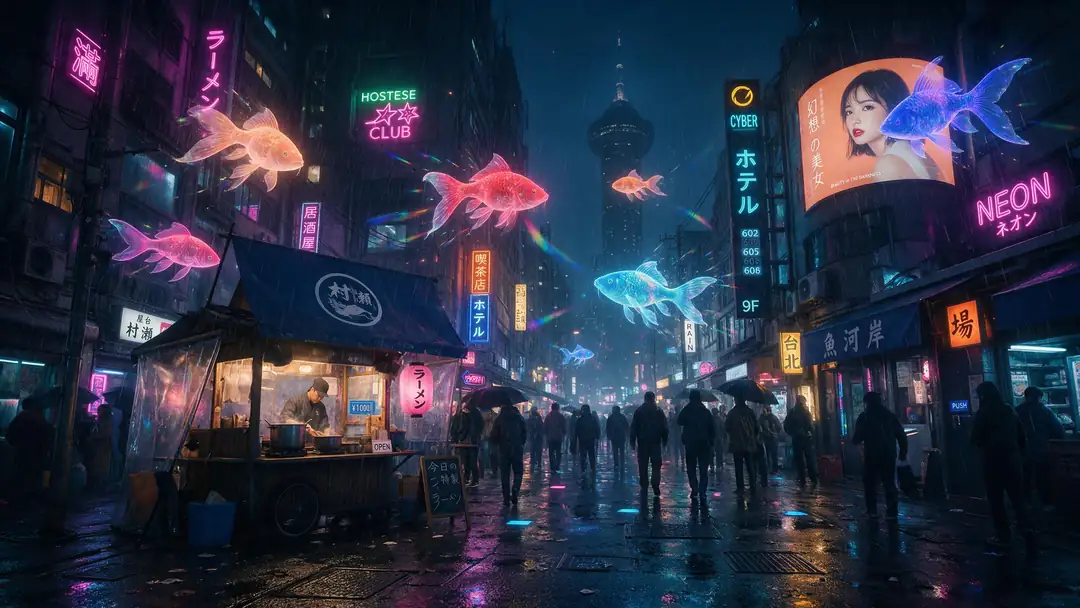
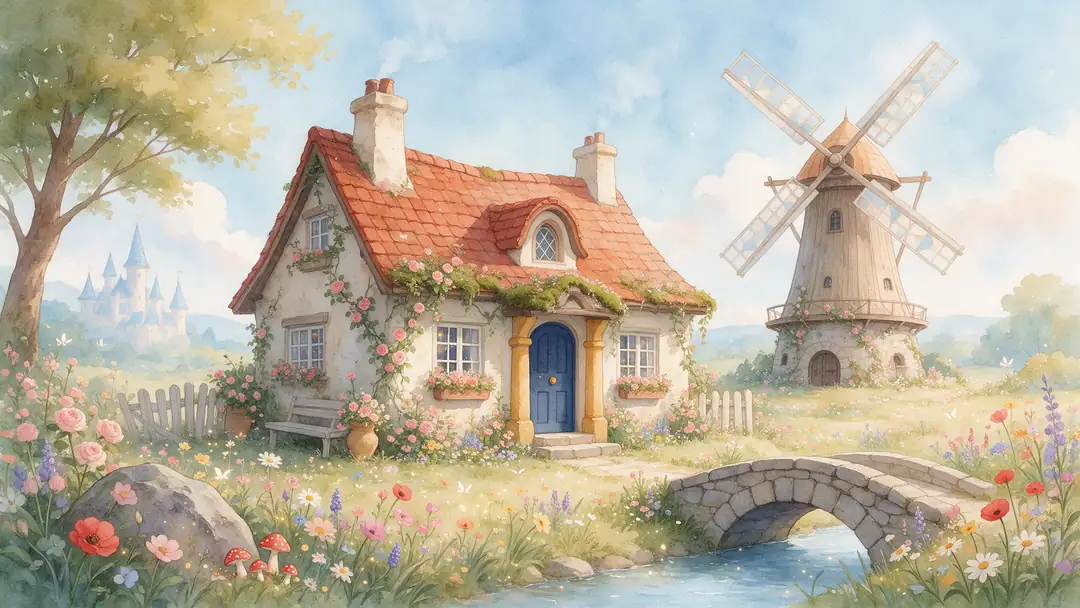
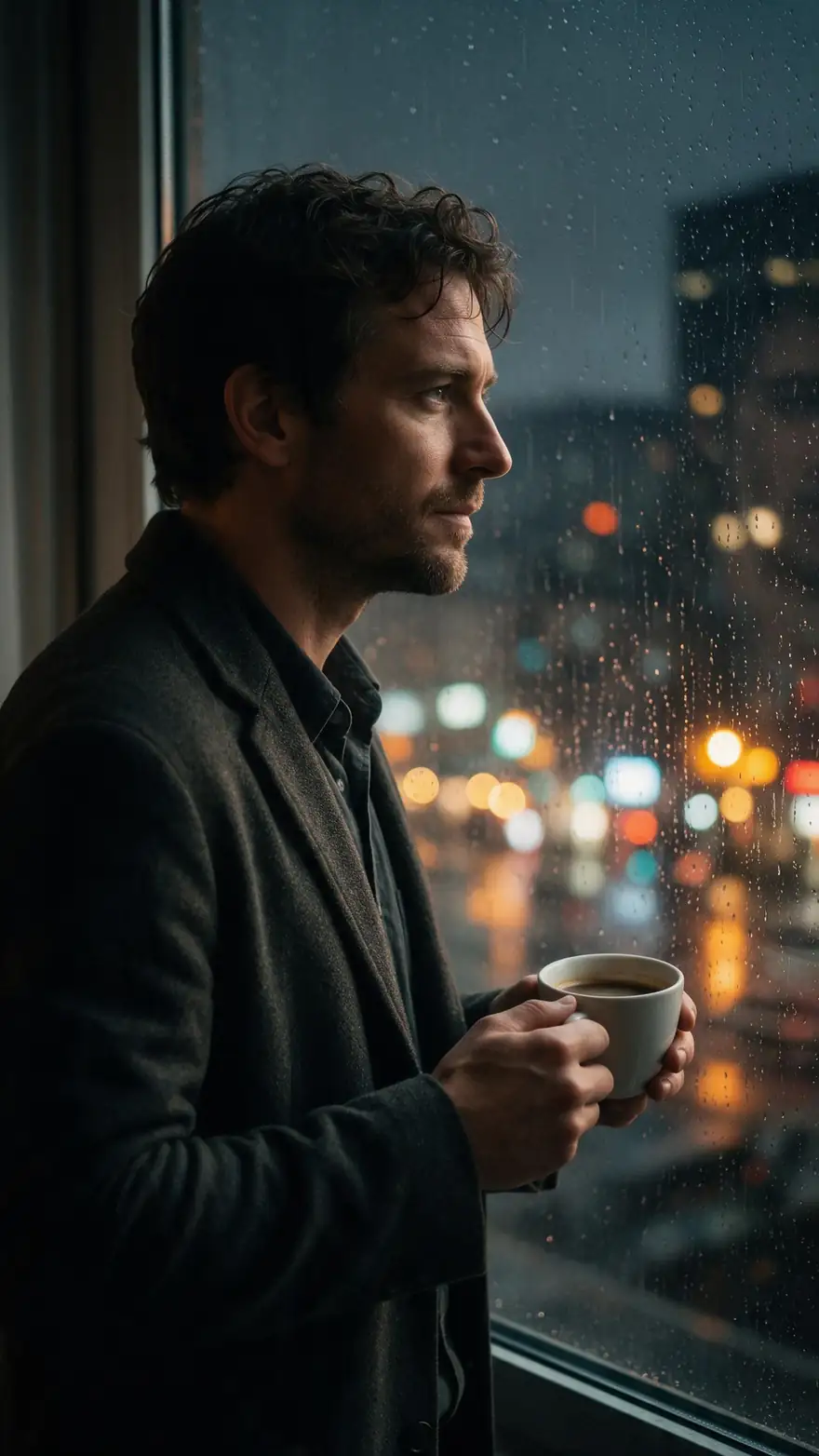
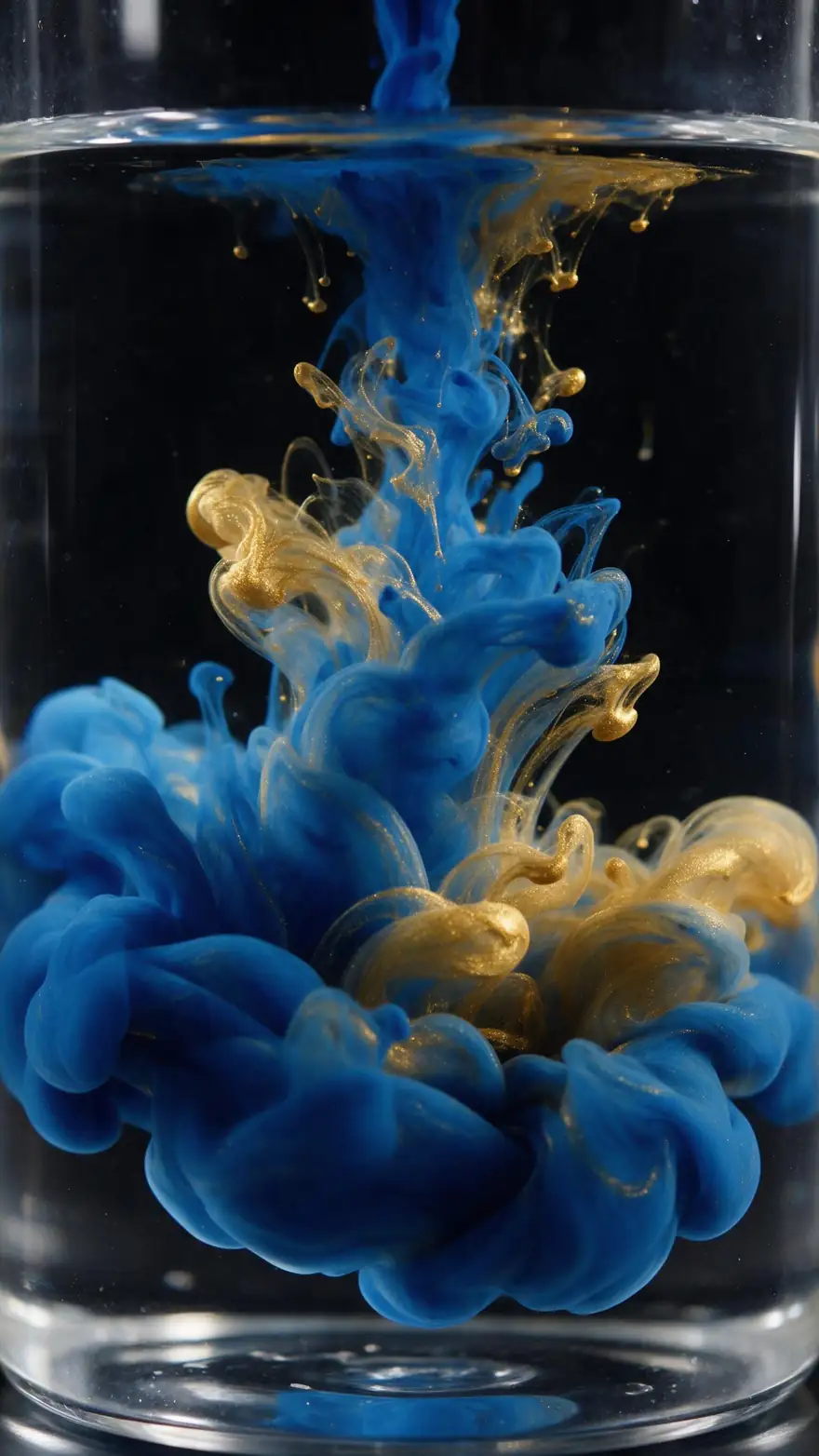
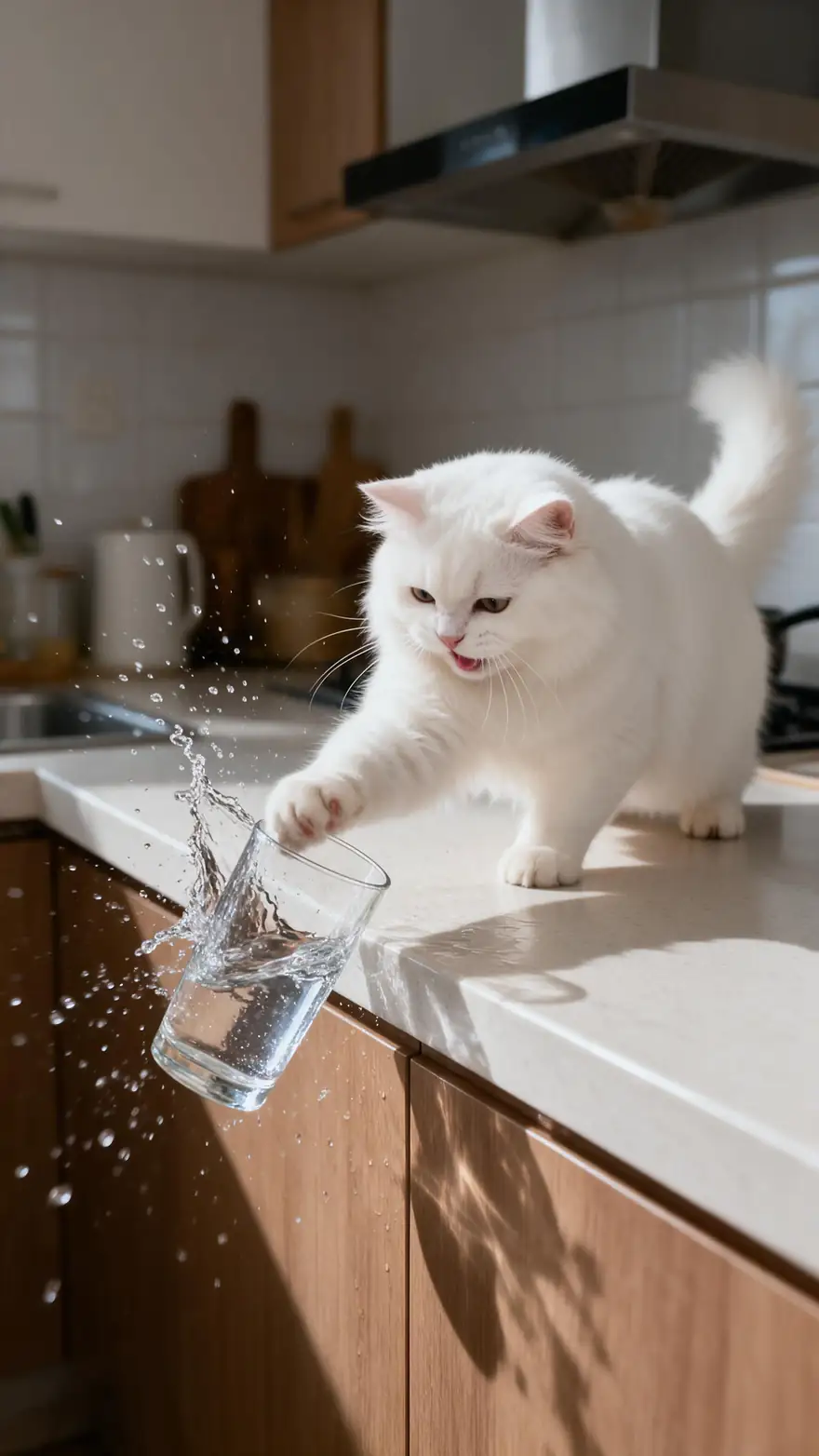
A holographic koi city, a watercolour cottage, a rainy window, ink in water and a mischievous cat — footage where one sentence could change the whole story.
Example clips made with image to video (model named on each card), not prompt edits. The two demos above are real Genjutsu Free edits of other clips.
How to
Edit a video with a prompt in five steps
- Time needed
- Steps
- 4 steps
Step 1
Upload the clip
MP4, MOV, WebM or M4V up to about 100 MB; 2–15 s, or 4–30 s on Seedance 2.5.
Step 2
Choose Free edit
The open mode: any change, in your own words. A prompt is required here.
Step 3
Add references if a look must match
A character, a product, a place — each becomes @image1, @image2 in the order added.
Step 4
Write the change
Verb + target + new look + what to keep: "Turn the sky stormy and purple, keep the people and the lighting on them."
See it in the app

Open Kenerate Genjutsu and choose Replace character, Swap object, Change outfit, Change background or Free edit.


Watch the tour · 1:19
Text, image & reference to video, models, edit, extend & chat
Chapters
Engines
Which engine reads your prompt
All three take the same prompt and references. Enhance prompt — which expands a short instruction — is on the two Kenerate tiers.
- Default
Kenerate
Kenerate Genjutsu
- Input
- Clip 2–15 s + up to 10 references
- Output
- 480p, 720p or 1080p · ~2–4 min
Fast prompt edits on short clips, with Enhance prompt for one-line instructions
Open Kenerate Genjutsu 
Kenerate
Kenerate Genjutsu Pro
- Input
- Clip 2–15 s + up to 10 references
- Output
- 480p, 720p or 1080p · ~3–6 min
Detailed prompts where texture and edges matter, also with Enhance prompt
Open Kenerate Genjutsu Pro- Up to 30 s
ByteDance
Seedance 2.5
- Input
- Clip 4–30 s + up to 30 references
- Output
- 480p to 4K · ~4–8 min
Long, precise prompts on clips up to 30 s, many references, 4K
Open Seedance 2.5
Free edit needs a prompt — it's the only mode where the words are required. The four other modes start from a built-in instruction you can add to.
Tips
Prompts that change only what you meant
The engine keeps whatever you don't mention — so mention exactly what you want different.
Start with a verb: replace, turn, make, move, add.
Name the target precisely: "the man in the grey coat".
Say what to keep when it's at risk: "same faces".
One idea per sentence; two or three sentences at most.
Point at looks with @image1 instead of describing them.
Don't prompt real people into things they didn't do.
Example uses
How creators use Edit video with an AI Prompt
Illustrative examples of typical workflows, not customer reviews.
Video editor
A freelance editor can deliver a client's 'what if it were night?' note without a reshoot or a VFX pass.

Social media manager
A social team can turn one product clip into seasonal versions by changing a single sentence.
Music video director
A director can try a surreal idea on test footage before committing a day of shooting to it.
FAQ
Editing video with a prompt — questions
7 questions
What is text-based video editing?
The phrase has two meanings. In transcript editors, it means cutting a video by deleting words from its transcript. In generative tools like Genjutsu, it means changing what's in the frame by describing the edit in text. Genjutsu does the second: it re-renders the clip with your change and keeps the motion, camera and timing — it doesn't cut or rearrange footage.
Link to this answerWhat can a prompt change in my video?
Almost anything you can see: the character, an object, an outfit, the location, the weather, the season or time of day, or several of these at once. Free edit is the open mode for this; the other four modes — Replace character, Swap object, Change outfit and Change background — are presets for the common cases, with a built-in instruction behind each.
Link to this answerHow do @image mentions work?
Each reference image you add is numbered in order, so the first is @image1, the second @image2. Writing "the character from @image1" tells the engine which picture to copy. Mentions are converted into "reference image 1" before the engine reads them, and a mention past the end of your list is dropped instead of guessed.
Link to this answerHow long can my prompt be?
Up to 1,500 characters. Short, precise prompts usually work best: a verb, the target and the new look, plus what to keep if it's at risk. On Kenerate Genjutsu and Genjutsu Pro, the Enhance prompt toggle can expand a short instruction into a fuller one for you; Seedance 2.5 reads your words as written.
Link to this answerCan a prompt trim, cut or caption my video?
No. Genjutsu changes what appears in the frame and returns the clip at its own length; it doesn't trim, cut, reorder or add captions. For captions, use the Add subtitles hand-off after the result. For assembling several clips, use a timeline editor and bring each finished clip into it.
Link to this answerWhy did the edit change more than I asked?
Usually because the target was ambiguous or the change implied more — "make it night" affects the light on everyone. Name the target precisely, add "keep the faces and the outfits the same" when they matter, and split big changes into two runs. Genjutsu Pro and Seedance 2.5 are the tiers built for cleaner, more faithful results.
Link to this answerIs it OK to edit any video with a prompt?
Only footage you own or are licensed to use, and only with the consent of the people in it. Don't prompt real people into situations that never happened, don't impersonate anyone and never use celebrities. Label AI-edited clips when you share them, especially when they could be mistaken for real events.
Link to this answerIn depth
Prompt-based video editing, explained
Two meanings of text-based editing, how to write an edit prompt, and how to combine edits.
On this page
Two kinds of text-based video editing
Transcript editing treats the video as words: delete a sentence from the transcript and the matching footage is cut. Prompt editing treats the video as a scene: describe a change and the footage is re-rendered with it. They solve different problems — pacing versus content — and Genjutsu is only the second. It returns your clip at the same length, with the same cuts, changed inside the frame.
Anatomy of an edit prompt
Behind every run, Genjutsu adds its own rules: keep everything the instruction doesn't mention, avoid flicker and drifting identities, add no text or watermarks. Your prompt only needs the change.
- Verb: replace, turn, make, move, add.
- Target: which person, object or area.
- New look: words, or "from @image1".
- Boundary: what must stay the same.
- Optional mood: time of day, weather, light.
Combining edits in one prompt
Free edit can do two jobs at once, as in the neon alley demo: a new lead from @image1 and a new place from @image2 in one sentence. Combining saves a run but gives the engine more to balance; when one part comes out weaker, rerun just that part in its own mode — Replace character or Change background — on the result.
Text based video editing
If you want to cut a talk by editing its transcript, you need a transcript editor. If you want to change what the video shows by typing it, that's Free edit. Many workflows use both: cut the story in one, change the shots in the other.
AI video editing
AI video editing covers many tools: restyling, extending, subtitling, upscaling, dubbing. Prompt editing is the one that changes the content of a shot. The AI Video Editor hub lists each Kenerate tool and what it changes.
Edit video by describing changes
Describe it the way you'd brief an editor: what changes, where, and what must not. "Add falling cherry blossoms in the background, keep the couple and their clothes unchanged" gives the engine both the change and the boundary.
Explore
Every Kenerate video tool
Generators, tools, models and guides — all in one studio.

Say it, see it, keep the rest
Free edit, up to 1,500 characters, references as @image1. Only on footage you have the right to edit.
Tried it? Tell us how it went