


Change background mode · reference locations · relit subjects
Video background changer — a new location, no green screen
Shot it in the living room, needed it on a beach? Describe the new place or add a photo of it, and Genjutsu rebuilds the environment around the same performance — then relights the people so they look filmed there.
- No green screen
- Relit to match
- Same motion and camera
- Up to 4K
Updated by the Kenerate AI team
Made with Kenerate
On this page
Quick answer
Updated
How does an AI video background changer work?
A video background changer puts the people in your clip somewhere else. Kenerate Genjutsu's Change background mode keeps every person, their motion and the camera move, swaps the environment for a place you describe or show in a reference image, and relights the subjects to match. No green screen needed — but it doesn't output a transparent cut-out.
Key facts
- Mode
- Change background
- New place from
- Words or a reference photo
- Kept
- People, foreground, motion, camera
- Lighting
- Subjects relit to the new scene
- Green screen
- Not needed
- Output
- Finished MP4, not a cut-out
Real demo
Rooftop to snowy village
Three friends walking on a rooftop, moved to a snowy village street at dusk from one reference image. Their walk and the camera are the original's; the light now comes from the street.
- New location. Prompt: “Move the three of them onto the snowy village street from @image1 at dusk, snow falling around them as they walk.”
Kenerate Genjutsu at 720p — an unedited result from the app's example gallery, shown next to its source clip.
Change a backgroundReal demo
Product shot by a waterfall
Not just for people: a bottle on a studio set, placed on a mossy rock by a forest waterfall with morning mist.
- New location. Prompt: “Place the bottle on the mossy rock by the forest waterfall from @image1, with soft morning light and mist.”
Kenerate Genjutsu at 720p — an unedited result from the app's example gallery, shown next to its source clip.
Move a product shotReal results
Shots that travel well
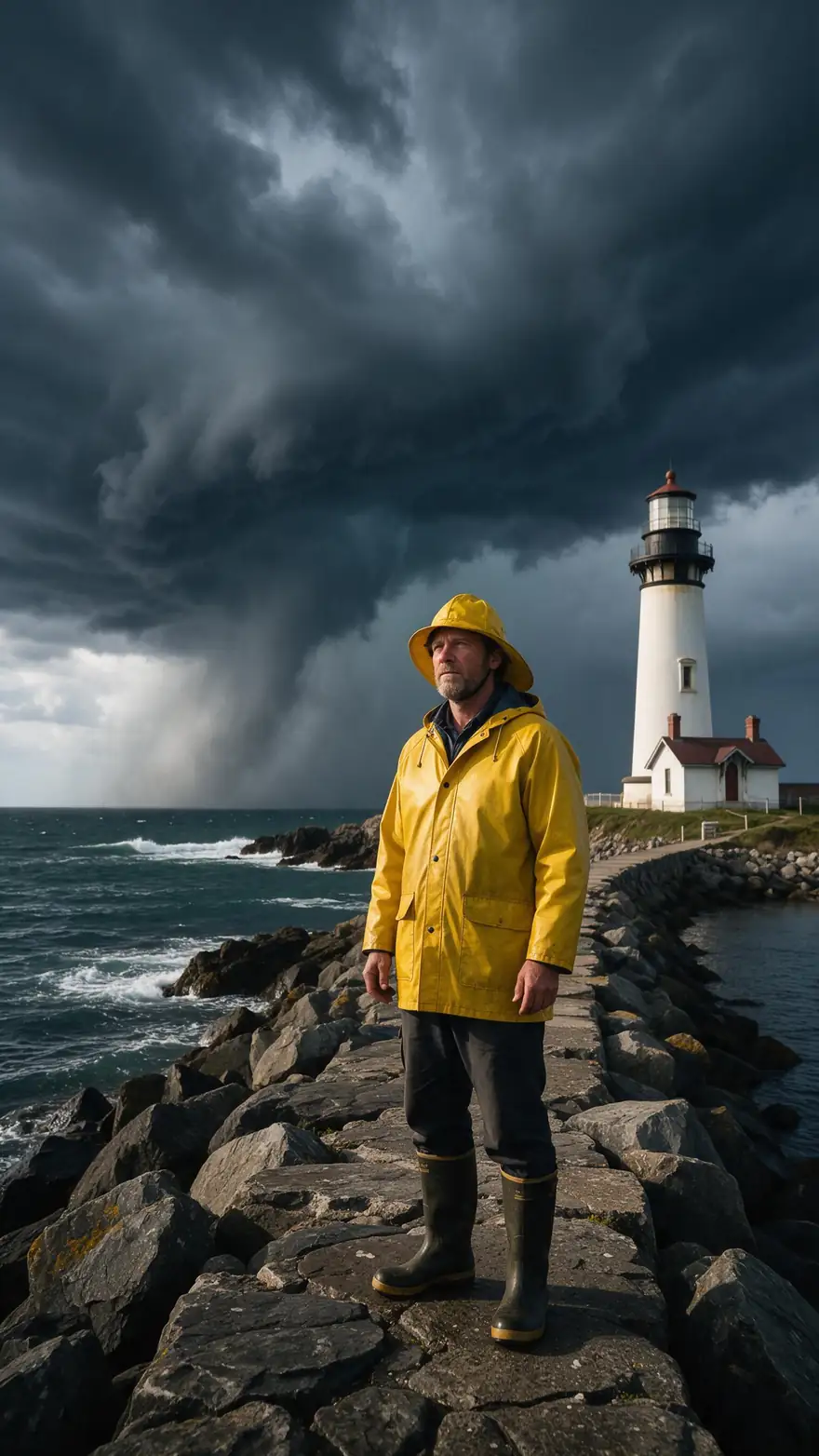
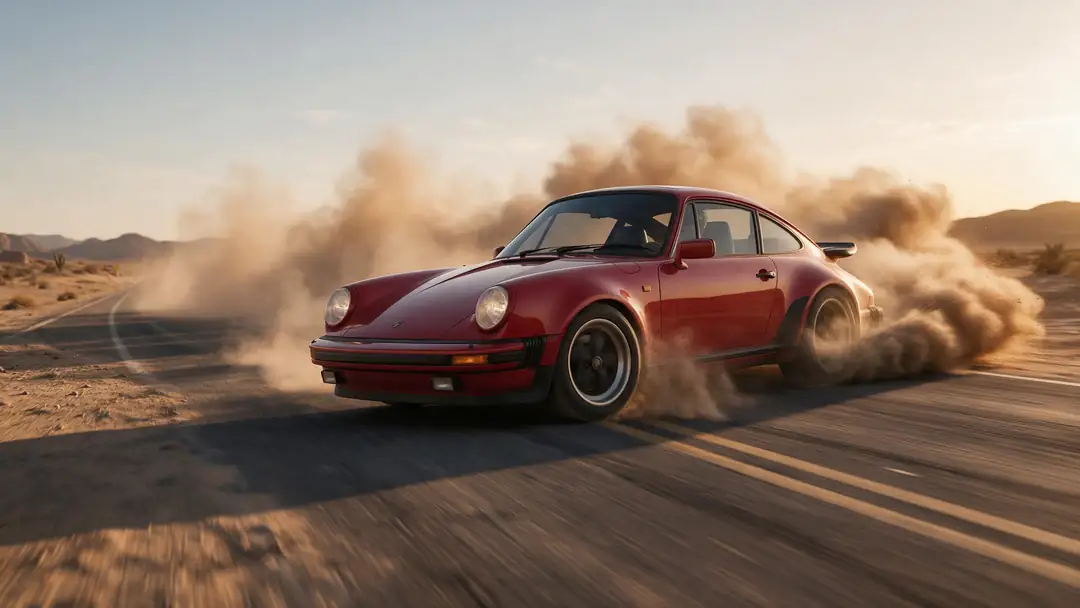
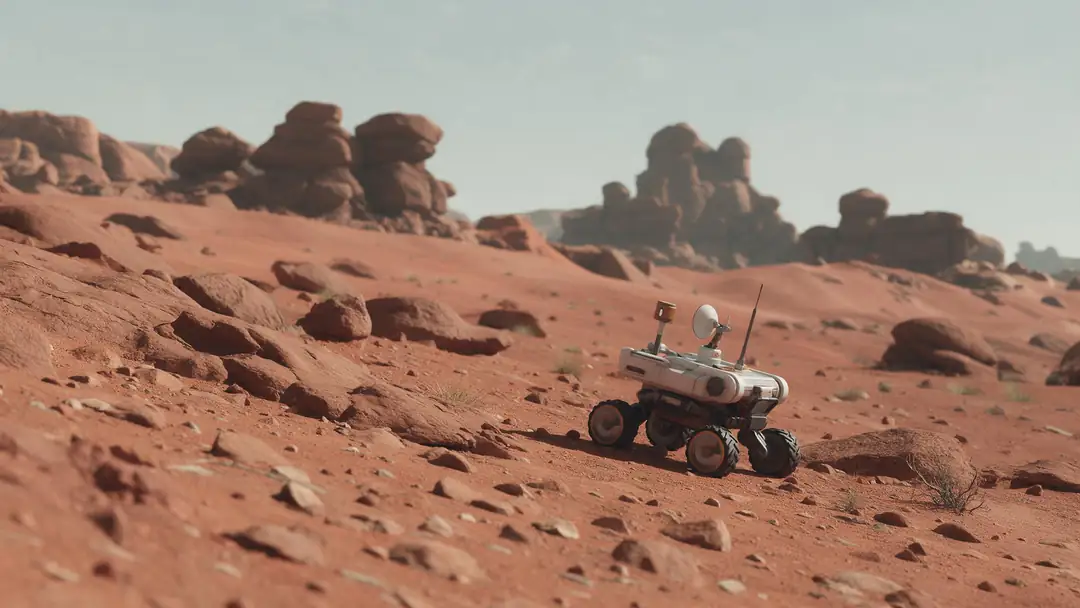
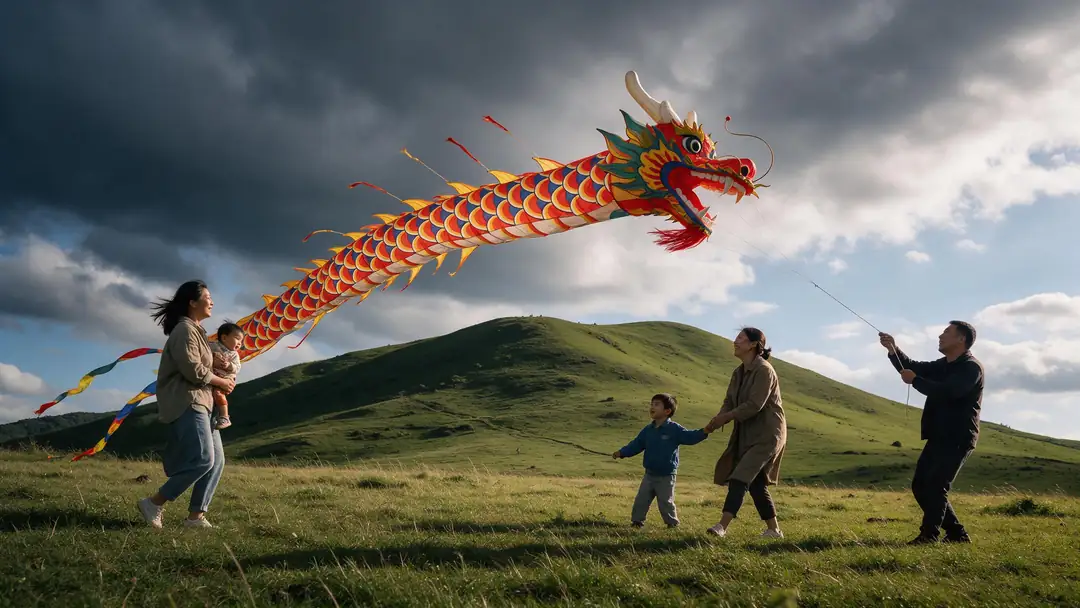
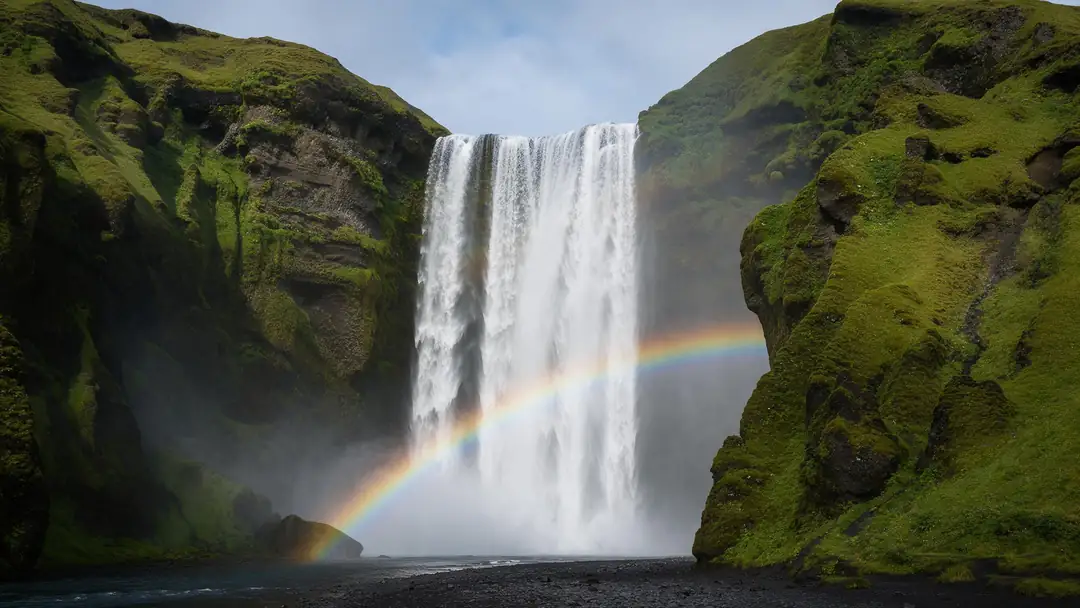
A storm pier, a desert drift, a desert rover, a dragon kite and a waterfall — locations people ask to drop their footage into.
These are image-to-video example clips (model on each card), not background-change outputs. The two demos above are real Genjutsu edits; in the tool you start from your own clip.
How to
Change a video background in five steps
- Time needed
- Steps
- 4 steps
Step 1
Upload the clip
MP4, MOV, WebM or M4V up to about 100 MB. Any background works — no green screen, no even lighting needed.
Step 2
Choose Change background
The mode keeps every person and foreground object and replaces only the environment.
Step 3
Describe or show the place
"A neon Tokyo street at night", or a photo of the location as @image1 for a specific look.
Step 4
Pick engine and resolution
720p by default; Seedance 2.5 for clips up to 30 s or 4K.
See it in the app

Open Kenerate Genjutsu and choose Replace character, Swap object, Change outfit, Change background or Free edit.


Watch the tour · 1:19
Text, image & reference to video, models, edit, extend & chat
Chapters
Engines
Which engine for a background change
All three keep every person and foreground object and swap the environment. Pick by clip length and the resolution you need.
- Default
Kenerate
Kenerate Genjutsu
- Input
- Clip 2–15 s + up to 10 references
- Output
- 480p, 720p or 1080p · ~2–4 min
Quick location swaps for talking clips, walks and product shots
Open Kenerate Genjutsu 
Kenerate
Kenerate Genjutsu Pro
- Input
- Clip 2–15 s + up to 10 references
- Output
- 480p, 720p or 1080p · ~3–6 min
Cleaner edges around hair and hands against a busy new background
Open Kenerate Genjutsu Pro- 4K
ByteDance
Seedance 2.5
- Input
- Clip 4–30 s + up to 30 references
- Output
- 480p to 4K · ~4–8 min
Takes up to 30 s, several location references, or a 4K master
Open Seedance 2.5
Change background replaces the setting; it doesn't cut the subject out. There's no transparent or alpha-channel output — the result is a finished MP4 with the new location in it.
Tips
Background changes that look filmed
The engine relights your subjects; you help by choosing a place that suits the shot.
Match the camera height: eye level to eye level.
Match the time of day, or say "at dusk" on purpose.
A wide clip needs a wide location, a close-up a close one.
Name the weather if it should touch the people: "light snow".
Keep the original audio off if the room tone gives it away.
Don't fake where real people were without their consent.
Example uses
How creators use video background changer
Illustrative examples of typical workflows, not customer reviews.
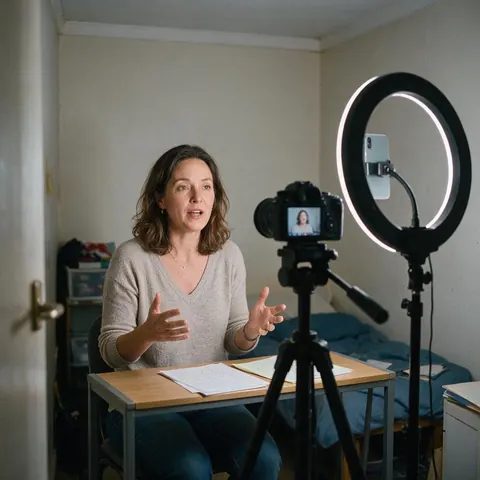
Course creator
A course creator can record every lesson in a spare room and place each module in a setting that fits the topic.
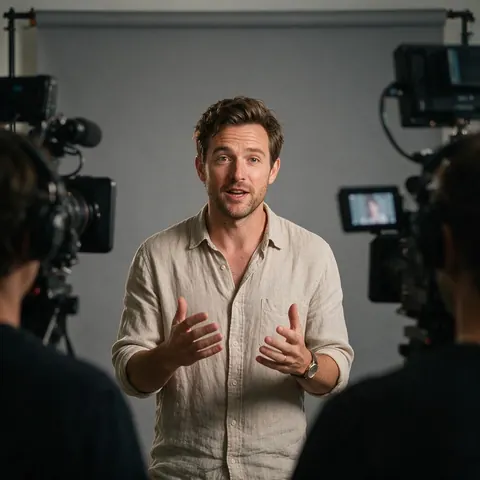
Travel brand
A travel brand can show the same presenter in several destinations for a campaign mock-up before the trip is booked.
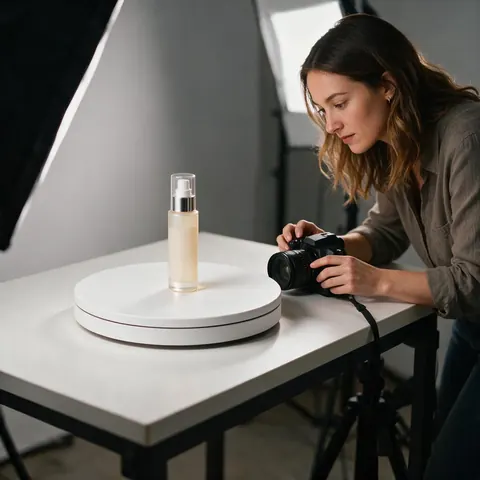
Product marketer
A product marketer can film one turntable shot and drop it into seasonal scenes for each campaign.
FAQ
Video background changer — questions
Can I change a video background without a green screen?
Yes. Genjutsu's Change background mode works on ordinary footage: it keeps every person and foreground object with their motion and the camera move, and rebuilds the environment around them from your words or a reference photo. Because the scene is regenerated rather than keyed, flat lighting and a clean backdrop aren't required.
Link to this answerCan it remove the background or make it transparent?
No. Change background replaces the setting with a new one; it doesn't cut the subject out, and there's no transparent or alpha-channel video output. If you need a cut-out for compositing in another editor, a background-removal tool is the right job; if you need a finished clip in a new place, this is.
Link to this answerDoes the lighting match the new background?
That's part of the instruction: subjects are relit to match the new scene's light direction, colour and shadows, with consistent perspective and scale, and clean edges around hair and hands. A golden-hour beach warms the faces; a neon street throws coloured light. Choose a reference whose light could plausibly fall on your subjects.
Link to this answerCan I use my own background image?
Yes. Add the photo of the place as a reference and point to it in the prompt — "move them onto the street from @image1 at dusk". The engine matches its architecture or landscape, colours, time of day and weather. You can add more than one reference, for example a location and a weather mood, and name each.
Link to this answerWhat is an AI green screen?
It's the idea of separating people from their surroundings without filming in front of green fabric. Some tools do it by cutting the person out; Genjutsu does it by regenerating the environment around them, which also lets the light change. The trade-off: you get a finished clip, not a layer you can composite yourself.
Link to this answerIs it OK to change where someone appears to be?
Only with consent and without misleading anyone. A new background can make it look as if a real person was somewhere they never were, so edit footage you own, with the agreement of the people in it, and never use it to fake an alibi, a news event or a celebrity appearance. Label AI-edited clips.
Link to this answerIn depth
Changing a video's background, explained
Replacing a background versus removing it, choosing a location that fits, and talking-head clips.
On this page
Replace versus remove
Background removal outputs your subject on nothing, for you to place yourself. Background replacement outputs the finished scene. Genjutsu only replaces: you tell it the new place and it renders people, foreground and environment together, with the subjects relit — which is why there's no edge to fix in another editor, and also why there's no cut-out layer to export.
Picking a location the shot can believe
If the place is only in your head, describe it as you would to a location scout: where, when, what weather.
- Perspective: a low-angle clip needs a low-angle place.
- Lens: wide footage wants a wide vista, a close-up a tight wall.
- Light: matching direction and colour hide the edit.
- Scale: a desk-top product shot needs desk-sized surroundings.
- Motion: wind, rain or snow should touch hair and clothes too.
Talking-head and interview clips
A presenter at a desk is the cleanest background change: one person, a steady camera, clear edges. Keep the original audio on so the voice stays in sync, then use the Add subtitles hand-off for captions. For a series, reuse the same location reference so every episode sits in the same place.
Change video background AI
Upload, choose Change background, name the place. Talking-head clips are the easiest case — a still camera and one person — and Keep the original audio leaves the voice untouched while the room behind changes.
Video background changer for product shots
Shoot the product once on a table, then move it to a kitchen, a beach or a mossy rock by a waterfall — the demo above. The product, its motion and the camera stay; only the setting and the light change.
Background changer with camera movement
Moving shots work: the camera's path is kept and the new environment is built to follow it with consistent perspective. Very fast whip pans and heavy motion blur are the hardest cases; slower, steady moves give cleaner results.
Explore
Every Kenerate video tool
Generators, tools, models and guides — all in one studio.


Same take, new location
Change background, no green screen, subjects relit. Only with the consent of the people in it.
Tried it? Tell us how it went