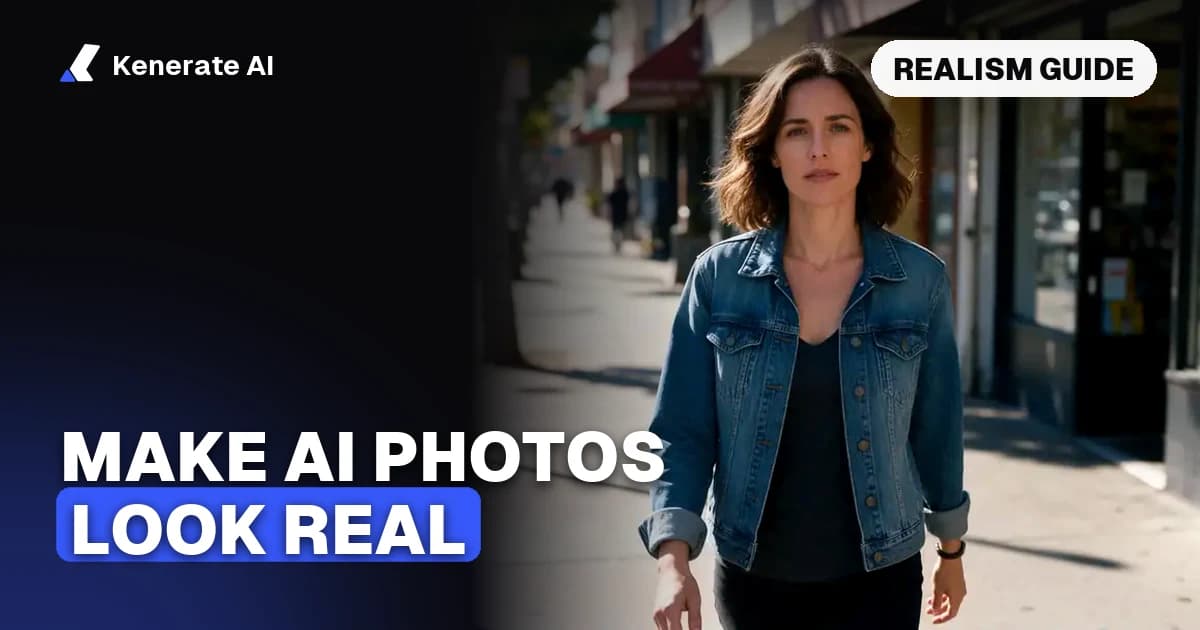
To make AI images look realistic, describe the photograph instead of the subject: name a light source, a lens, and a real-world imperfection, then pick a model built for photorealism and fix the rest with targeted edits and an upscaler. The glossy "AI look" almost always comes from vague prompts ("hyper realistic, 8K, perfect lighting") run on whatever model is the default. This guide covers the exact prompt words, model choices and editing steps that work, with before/after prompts you can copy — checked against the models Kenerate AI runs as of 28 October 2026.
Why do AI images look fake in the first place?
Most AI images fail the realism test for the same handful of reasons, and knowing them tells you exactly what to prompt against:
- Plastic skin. Diffusion models smooth faces by default, so skin loses pores, fine lines and natural unevenness.
- Too-perfect everything. Flawless symmetry, spotless surfaces and studio-perfect lighting on a supposedly candid shot read as artificial instantly.
- Lighting that disagrees with itself. Shadows falling in two directions, reflections that don't match the scene, objects that seem to float above the surface they sit on.
- Hands, teeth and text. Extra fingers, overly white teeth and garbled lettering are the classic tells — newer models handle these far better, but they still deserve a zoom-in check.
- Repeating patterns. Crowds, bookshelves, tiles and windows where the same element duplicates with slight warping.
The fix is not one magic keyword. It's a short pipeline: a specific prompt, a photoreal model, an inspection pass, targeted edits, and an upscale at the end.
Which words actually make an AI image look real?
The single biggest upgrade is to prompt like a photography brief. Describe how the photo was taken, not how good it should look. Four ingredients matter most:
1. Name the light
"Perfect lighting" means nothing to a model. A real light source does: soft window light from the left, overcast afternoon, low golden-hour sun, single street lamp at night, bounced flash off a ceiling. Natural, slightly imperfect light reads as more real than dramatic studio setups.
2. Name the lens and camera style
One lens, not a pile of them: 35mm documentary style, 50mm everyday shot, 85mm portrait with shallow depth of field. Adding handheld, slight motion blur or candid framing breaks the tripod-perfect look that screams AI.
3. Add one real imperfection
Windswept hair, a wrinkled sleeve, fingerprints on a glass, a coffee stain on the napkin, light scratches on metal. One or two small flaws make the whole frame believable — this is the technique nearly every serious guide agrees on, from Cloudinary's realism guide to Upsampler's plastic-skin breakdown.
4. Describe skin like a photographer
For portraits, say natural skin texture, visible pores, no beauty retouching rather than just "realistic face." Naming an approximate age and complexion also keeps the model from defaulting to an airbrushed composite.
Before and after: prompts compared
Here is the difference in practice. The "before" prompts are the kind that produce the glossy AI look; the "after" versions use the same subject with photographic language.
| Shot | Prompt that looks AI | Prompt that looks real |
|---|---|---|
| Portrait | "Hyper realistic beautiful woman, 8K, perfect lighting, ultra detailed" | "Woman in her 40s laughing mid-conversation, soft window light from the left, 85mm portrait, shallow depth of field, natural skin texture with visible pores, stray hairs, no retouching" |
| Product | "Professional product photo of a watch, studio quality, ultra realistic" | "Stainless watch on worn oak desk, overcast daylight from a window, 50mm lens, soft reflections on the glass, faint dust on the desk, shallow focus" |
| Street | "Realistic city street, cinematic, 8K, masterpiece" | "Rainy Tokyo side street at dusk, handheld 35mm, neon reflections in puddles, slight motion blur on a passing cyclist, documentary style" |
| Food | "Delicious realistic pizza, professional food photography, HDR" | "Half-eaten margherita on a marble counter, natural side light, crumbs and a used napkin, 50mm at f/2.8, steam barely visible" |
Two things to notice: the realistic versions never use the words "realistic," "8K" or "masterpiece" — and each one contains a light source, a lens, and at least one imperfection.
Which AI models are best for realistic images?
Model choice matters as much as the prompt: the same text produces visibly different realism across models. These are the strongest photoreal options on Kenerate AI's realistic AI image generator, with per-image credit prices from the live app config (28 October 2026):
| Model | Credits/image | Max size | Strongest at |
|---|---|---|---|
| Seedream 5.0 Pro | 13.5 | 2K | Portraits, fashion, lifelike skin |
| GPT Image 2 | 18 (medium, 1K) | 4K | Realistic scenes with readable text, signs, products |
| Phota | 27 (1K) · 54 (4K) | 4K | Purpose-built photorealism, up to 10 reference images |
| Nano Banana 2.1 | 21 (1K) | 4K | Subject consistency across shots, clean text |
| Qwen Image 3.0 | 9 | 2K | Free-plan drafts, solid all-round realism |
| Flux 2 Dev | 3 | 2K | Cheap free-plan drafts and iterations |
A practical workflow: draft on Qwen Image 3.0 or Flux 2 Dev (both available on the free plan) until the composition is right, then re-run the winning prompt on Seedream 5.0 Pro for portraits or GPT Image 2 when the frame contains text or products. Kenerate accounts start free with starter credits and no watermark on downloads.
How do you fix plastic-looking skin?
If a portrait came out airbrushed, you rarely need to start over:
- Re-prompt the skin specifically. Add natural skin texture, visible pores, fine lines, no beauty filter and regenerate — on Seedream 5.0 Pro this alone usually kills the plastic look.
- Edit instead of regenerating. Use an image edit with the original as reference and describe only the change: "make the skin texture natural with visible pores, keep the pose, lighting and clothing identical." Models like GPT Image 2 and Nano Banana 2.1 take the original as a reference image and change only what you name. The free AI photo editor works this way in the browser.
- Fix the light, not just the skin. Flat, shadowless light makes any face look waxy. Relighting the photo with a directional source — window light from one side — restores the shadows that make skin read as three-dimensional.
- Upscale to restore micro-detail. A detail-enhancing upscale adds back pores and fabric weave that generation smoothed over.
How do you make an existing AI image more realistic?
The same edit-based approach upgrades any image you already have, including ones generated elsewhere:
- Upload the image to an editor that accepts reference images.
- Describe only what should change: "add natural film grain and slightly imperfect lighting, keep the subject and composition identical."
- Relight if the shot looks flat — a single believable light direction does more for realism than any filter.
- Run the result through the AI image upscaler (3 credits, up to 4K). Upscaling matters for realism, not just size: a sharp 4K file with visible texture reads as a photo, while a soft 1K image reads as a render. For print work, go straight to 4K upscaling.
What resolution and aspect ratio should you use?
Real photos come in camera shapes. Generating in 3:2 or 4:3 (or 9:16 for phone-style shots) immediately looks more like photography than the default square. Match the format to the fiction: a candid phone photo is vertical, a documentary street shot is 3:2 horizontal.
On resolution: generate at the model's native size (1K–2K on most, up to 4K on GPT Image 2, Phota and Nano Banana 2.1), then upscale the keeper rather than forcing the largest size on every draft — drafts at 1K cost a fraction and iterate faster.
The final realism checklist
Before publishing, zoom to 100% and check the places AI still slips, as of late 2026:
- Hands and ears — finger count, natural joints
- Eyes and teeth — matching catchlights in both eyes, teeth not uniformly white
- Text anywhere in frame — signs, labels, book spines
- Shadows and reflections — one light direction, reflections that match the scene
- Contact points — feet, cups and furniture actually touching surfaces
- Backgrounds — no warped repeating windows, tiles or faces in crowds
- Jewelry and glasses — frames that connect properly on both sides
Anything that fails gets a targeted edit, not a full regeneration — keeping everything else identical is exactly what reference-based editing is for.
The short version
Prompt the photograph (light, lens, one imperfection), pick a photoreal model (Seedream 5.0 Pro for people, GPT Image 2 for text and products), draft cheap on free-plan models, fix flaws with reference edits and relighting, and finish with an upscale. You can run the whole pipeline in the browser on the realistic AI image generator — free to start, no watermark on downloads.