

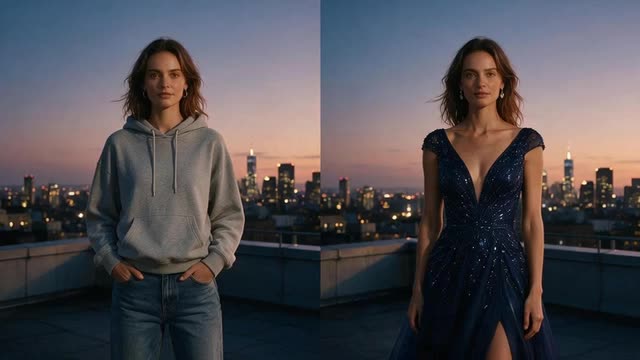
Kenerate Genjutsu · Change outfit
AI Clothing Changer Video Put a New Outfit on the Person in Your Clip
AI Clothing Changer Video by Kenerate AI changes what someone wears in a video: in Kenerate Genjutsu, choose Change outfit, describe the clothes or add a photo of them, and the clip is re-rendered with the same face, moves, camera and timing. Use footage of yourself or of people who agreed.
- Tool
- Kenerate Genjutsu
- Modes
- Outfit · background · object · character
- Keeps
- Face, motion, camera, timing
- Sound
- Original audio kept
- Watermark
- None
- Free to start
- No Watermarks
- Image and video models
- No subscription required
Updated by the Kenerate AI team
On this page
Real results
AI clothing changer video — examples
Generated with the AI models in Kenerate. No watermarks.
What the AI video clothing changer keeps and changes
Change outfit, keep the performance
The person keeps their face, moves, camera path and timing; only the clothes change.
Describe it or show it
Write the outfit in plain words, or add reference images of the garment and mention them as @image1, @image2 in your prompt.
Original sound kept
The clip's audio is kept by default, so speech and music stay in sync.
Background and object swaps
The same tool can change the background, swap an object or recast the person with your own character.
Outfits in photos
For stills, AI Edit and Change Region in the Edit Studio change clothes in a photo from one sentence.
No watermark
Downloads have no watermark, and the video upscaler can take the finished clip up to 4K.
Comparison
Changing clothes in a video vs in a photo
Two Kenerate tools for outfit changes, side by side.
| Feature | Video (Kenerate Genjutsu) | Photo (Edit Studio) |
|---|---|---|
| Input | A short clip | One photo |
| What stays | Face, moves, camera, timing and sound | Face, pose and framing |
| How you describe it | Text, plus reference images | A text instruction, or a painted region |
| Best for | Try-on clips, reels, mockup videos | Product pages, posts, thumbnails |
| Watermark | None | None |
How it works
How it works in the app
Step 1
Pick what should change
Open Kenerate Genjutsu and choose Replace character, Swap object, Change outfit, Change background or Free edit.
Step 2
Choose the video
Upload a clip of 2 to 15 seconds or pick one from your history — its motion, camera and timing are kept.
Step 3
Add a reference and describe the swap
Add up to ten reference images, mention them with @image, and describe the change in the prompt.
Step 4
Set engine and quality, then Cast
Keep Kenerate Genjutsu as the engine, pick 480p, 720p or 1080p, then press Cast Genjutsu.
See it in the app

Open Kenerate Genjutsu and choose Replace character, Swap object, Change outfit, Change background or Free edit.


FAQ
Frequently Asked Questions
How does the AI clothing changer for video work?
Kenerate Genjutsu re-renders your clip with a new outfit. Upload a short video, choose Change outfit, and describe the clothes or add a photo of them as a reference. The engine keeps the person's face, moves, camera path and timing, and keeps the original sound unless you switch it off. Use footage of yourself or of people who agreed.
Link to this answerIs the AI video clothing changer free?
Free to start. A new Kenerate AI account gets free credits, and Kenerate Genjutsu is priced per second of the clip you upload, so short clips cost less. After the free credits, one-time credit packs never expire and there is no subscription required. Downloads have no watermark.
Link to this answerCan I change clothes in a photo instead of a video?
Yes. In the Edit Studio, AI Edit or Change Region changes an outfit in a photo from a plain-text instruction. You can then animate the edited photo in the Video Studio, which needs a one-time credit pack. The photo route is quicker when you only need a still for a product page or a post.
Link to this answerCan I make an AI clothing mockup video for my brand?
Yes. Film or generate a short clip of a model, then use Change outfit in Kenerate Genjutsu with a photo of your garment as the reference image. Clear, front-facing product photos work best. Check logos and fine print in the result, since AI can redraw them slightly, before you use the clip in an ad.
Link to this answerWhat clips work best?
Short clips with one clearly visible person work best — Kenerate Genjutsu takes clips of up to 15 seconds on its standard engines and keeps the camera move and timing. Steady light and a full view of the outfit give cleaner results than fast motion or heavy blur. The same tool can also swap the background or an object.
Link to this answerIn depth
AI Clothing Changer Video, explained
AI clothing change video: how to get a clean result
Start with a steady clip. One person, good light and the whole outfit in frame give the engine the clearest picture of what to replace. Fast spins and motion blur make clothes harder to follow.
Be specific about the garment. Name the cut, colour and material — “a cropped black leather jacket over a white tee” — or add a product photo as @image1. Kenerate Genjutsu keeps the face, moves and camera, so you only describe what changes.
Consent comes first. Only change clothes on footage of yourself or of people who agreed, and never on anyone under 18. For a lookbook, the Edit Studio changes outfits on stills, and Director can turn them into a multi-scene fashion video.

Try a new outfit on your clip
Free credits to start. No watermarks. No subscriptions.
Tried it? Tell us how it went