


PowerPoint (PPTX) · 16:9 · up to 30 slides · images in the same chat
AI Presentation Maker
Tell Kenerate Agent who the talk is for and what it has to say. It writes the slides, picks a layout for each one, makes the pictures and hands you an editable PowerPoint file, all in one conversation.
- Editable PPTX, 16:9
- Up to 30 slides per deck
- Slide images made in the chat
- Your colours and fonts
Updated by the Kenerate AI team
On this page
Quick answer
Updated
What is an AI presentation maker?
Kenerate's AI presentation maker turns one chat request into an editable PowerPoint (PPTX) deck of up to 30 slides in 16:9. Describe the talk, and Kenerate Agent writes the slides, picks from 11 layouts, adds speaker notes and can make the slide images in the same conversation. Open the file in PowerPoint, Keynote or Google Slides.
Key facts
- File
- Editable PowerPoint (.pptx), 16:9
- Slides
- 1 to 30 per deck
- Layouts (11)
- Title · Section · Bullets · Image left · Image right · Full image · Two-column · Quote · Stats · Table · Closing
- On a slide
- Title, short bullets, one picture, speaker notes
- Numbers
- Stats slides with up to 4 big numbers · tables up to 6 columns × 8 rows
- Style
- Your main and accent colours, heading and body fonts
- Slide images
- Made in the same chat (Seedream 5.0 Pro by default) or your own uploads
- Chat models
- GPT-6 Luna (default), GPT-6 Sol, GPT-6 Astra, Claude Opus 5.5, Claude Fable 5.1, Gemini 3.6 Flash
- Also in the chat
- PDF or DOCX documents, XLSX or CSV spreadsheets
- Language
- The chat replies in your language; ask for slides in any language
Gallery
AI presentation maker examples
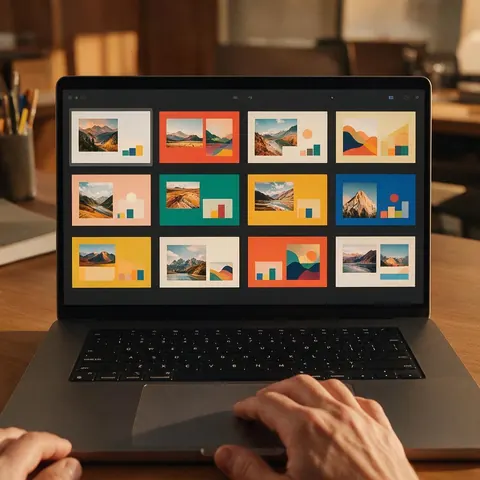
Stills made for this page: fictional people working with decks. Slides on screens are abstract, with no real text.
How to
How to use the AI presentation maker
- Time needed
- Steps
- 4 steps
Step 1
Open the chat
Go to Kenerate Agent at /app/chat and sign in. Pick a chat model or keep the default.
Step 2
Describe the deck
Audience, goal, number of slides, tone and colours. Attach up to 8 images if you want your own photos on the slides.
Step 3
Approve the pictures
In Ask first mode each image job shows a card where you can change the model, ratio and prompt before it runs.
Step 4
Download the PPTX
The deck arrives as a file in the chat. Open it in PowerPoint, Keynote or Google Slides and edit anything.
See it in the app

Open Kenerate Chat and type what you want to make, or tap a starter to drop a prompt in the box.


Watch the tour · 1:22
Starters, models & Ask first, approval cards, image → edit → new camera angle, one-tap actions, files, history & mobile
Chapters
Tips
How to get a deck you only need to tweak
What Kenerate Agent needs from you to build a good first draft.
Say who is in the room and what you want them to do after the last slide.
Give a slide count, or a talk length, so the outline fits the time you have.
Paste your notes, numbers or outline into the message: the chat can't read uploaded documents.
Name your colours as hex codes (#1F3A5F) and a font if the deck must match a brand.
Ask for one image style for the whole deck so the pictures look like a set.
Keep each slide to a title and a few short bullets; put the detail in speaker notes.
Models
Image models for your slides
What each model is good at. Open any one straight in the generator.
ByteDance
Seedream 5.0 Pro
- Reference images
- Up to 10
- Output
- Up to 4K
The chat's default: photoreal slide backgrounds and hero images
Open Seedream 5.0 Pro
OpenAI
GPT Image 2.5 Sunburst
- Reference images
- Up to 10
Precise layouts, diagrams and posters with text in the picture
Open GPT Image 2.5 Sunburst
Google
Nano Banana 2
- Reference images
- Up to 10
Keeps a face or a product the same across every slide
Open Nano Banana 2
Example uses
How creators use AI presentation maker
Illustrative examples of typical workflows, not customer reviews.

Teacher
A teacher could describe next week's lesson on the solar system and get a 15-slide deck with pictures of each planet made in the same chat, then add her own notes in PowerPoint.

Startup founder
A founder could paste his pitch outline and numbers into the chat, ask for a 12-slide investor deck in his brand colours, and have product pictures generated for the cover and closing slides.

Sales manager
A sales manager could turn quarterly results into a deck with stats and table slides, then ask the chat for a shorter version of the same deck for the leadership meeting.
Best for
Which AI presentation maker fits the job
A neutral look at what each tool is built around. Features change often, so check each tool's own pages before you choose.
Kenerate AI chat
Best for a deck that also needs its own pictures, video, voice-over or music made in the same conversation, delivered as an editable PPTX.
Gamma
Best for card-style decks and web pages you share as a link; Gamma also exports to PowerPoint and PDF.
Beautiful.ai
Best for slides that realign and resize themselves as you add content (its Smart Slides); exports to PowerPoint.
Copilot in PowerPoint
Best for people who already work in PowerPoint with Microsoft 365 and want slides drafted from a prompt or a file.
Canva
Best for template-led slide design with a large library of layouts and graphics; decks can be downloaded as PPTX.
FAQ
AI Presentation Maker questions
8 questions
Can AI make a PowerPoint presentation?
Yes. In Kenerate's chat you describe the talk and Kenerate Agent builds a real PowerPoint file (.pptx, 16:9) with titles, bullets, pictures and speaker notes. The file opens in PowerPoint, Keynote and Google Slides, and every text box can be edited like a deck you made by hand.
Link to this answerHow many slides can the AI presentation maker create?
Between 1 and 30 slides per deck. For a longer talk, ask for it in two parts, for example slides 1 to 30 and then the rest as a second file. Each slide uses one of 11 layouts: title, section, bullets, image left or right, full image, two-column, quote, stats, table and closing.
Link to this answerCan it put AI images on the slides?
Yes. The chat can make the pictures first, in 16:9, with Seedream 5.0 Pro or another image model, and then place them on the slides. You can also attach your own photos (up to 8 per message) and ask for them to be used. Every generated image is also saved to your Image Studio history.
Link to this answerCan I use my brand colours and fonts?
Yes. Give a main colour and an accent colour as hex codes, and a heading and body font, and the deck is built with them. If you don't, Kenerate picks a clean default theme. Logos need to be attached as an image so they can be placed on a slide.
Link to this answerCan I upload a Word file or an old deck to turn into slides?
Not at the moment. The chat accepts images, video and audio as attachments, not documents. Paste the text, outline or numbers straight into the message instead, and Kenerate Agent turns it into slides.
Link to this answerWhich AI presentation tool is best?
It depends on the job. Gamma suits card-style decks you share as a link, Beautiful.ai suits slides that re-layout as you type, Copilot suits people who already work inside PowerPoint with Microsoft 365, and Canva suits template-led design. Kenerate suits a deck that also needs its own images, video or voice-over made in the same chat.
Link to this answerDoes it make slides in other languages?
Yes. The chat replies in the language you write in, and you can ask for the slide text in another language. Keep fonts to common ones if the deck uses a non-Latin script so it shows correctly on other computers.
Link to this answerIn depth
AI Presentation Maker, explained
What works, what to avoid, and how to pick a model.
On this page
How a chat builds a deck
Kenerate Agent works from your message, not a template gallery. It drafts an outline, chooses a layout for each slide, writes short titles and bullets, puts the detail into speaker notes, and builds the PowerPoint file. If the deck needs pictures, it makes them first and waits for them before placing them, so every image on a slide is one you can also see in the chat.
Because it is a conversation, changes are a message away: ask for a shorter version, a new closing slide, or the same deck for a different audience, and a new file is made.
The 11 slide layouts
Each slide uses one of these layouts, and the agent is told to vary them so the deck doesn't look like a wall of bullets.
- Title and Section: the cover and the dividers between parts of the talk.
- Bullets: a title and a few one-line points.
- Image left, Image right and Full image: a picture with text beside it, or a picture across the slide.
- Two-column: two titled lists side by side, for before and after or option A and option B.
- Quote: one line in large type, with who said it.
- Stats: up to 4 big numbers with labels.
- Table: up to 6 columns and 8 rows.
- Closing: the last slide with the call to action.
Pictures for slides
Slide images are made with the same models as Image Studio. Seedream 5.0 Pro is the default; GPT Image 2.5 Sunburst suits diagrams and pictures with text, Nano Banana 2 keeps a person or product the same across slides, and Ideogram v4 suits typographic title art. Ask for 16:9 so pictures fill the slide, and for one style across the deck so they look like a set.
Ask first or Auto
In Ask first mode every paid step, such as an image, shows an approval card where you can edit the model, ratio, duration and prompt before it runs. In Auto mode the agent runs steps on its own within the budget you set for that chat. Writing the deck file itself is not a generation step.
What it doesn't do yet
The chat can't read uploaded documents or existing decks, so paste the source text into the message. It makes a file rather than a hosted web presentation, and it doesn't add slide animations. Open the PPTX in PowerPoint to add transitions, or to present.

Try the AI presentation maker
Sign in to start a chat. Your deck arrives as an editable PowerPoint file.
Tried it? Tell us how it went