

Photo or multi-view → 3D
Image to 3D converter one photo, a real 3D model
Upload a clear photo of one object — a product, a figurine, a toy, a character drawing — and get a textured 3D model to rotate, download, print or put in AR. Add more views for exact shapes.
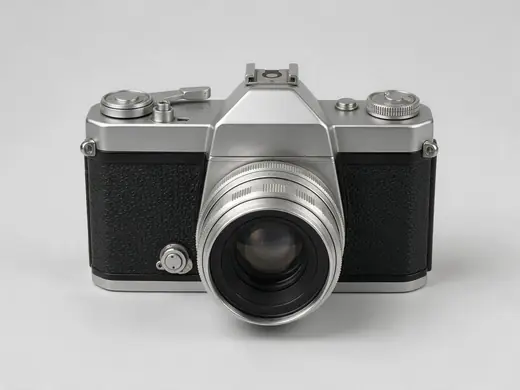
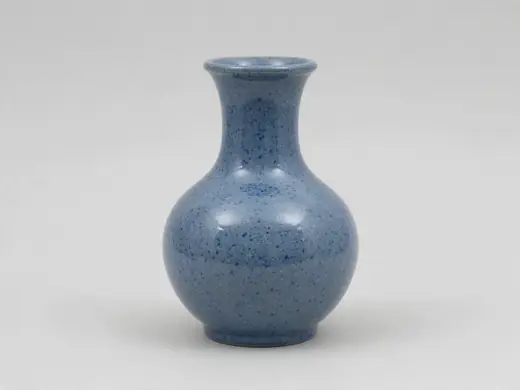
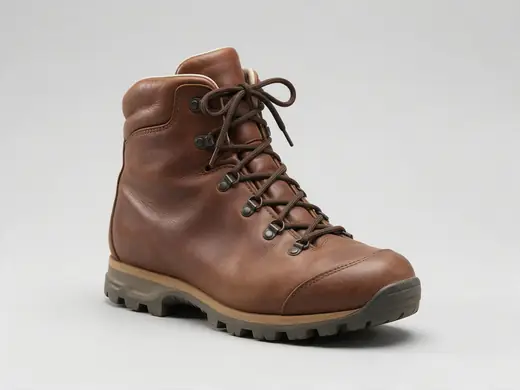


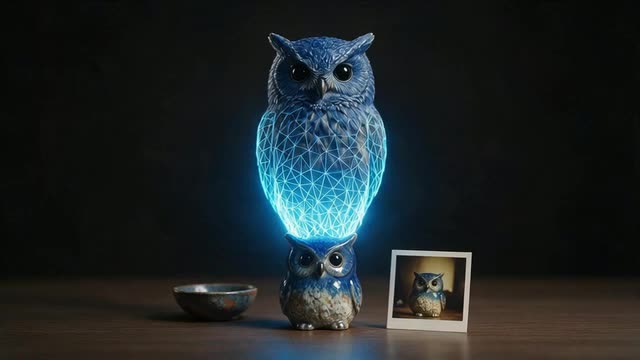
- One photo or 2–10 views
- GLB · FBX · OBJ · USDZ · STL
- One-time credit pack
Updated by the Kenerate AI team
Made with Kenerate
On this page
Quick answer
What is an image to 3D model converter?
An image to 3D model converter uses AI to rebuild a full 3D model from a photo, predicting the sides the camera can't see and texturing the mesh. In Kenerate AI's 3D Studio you upload one photo, or 2–10 views on engines that support multi-view, and usually get a GLB in 1–5 minutes (longer on GPT-6 Astra).
Key facts
- Input
- JPG, PNG or WebP of one object; multi-view: Meshy up to 4, Tripo H3.1 front/left/back/right, Rodin up to 5, GPT-6 Astra up to 10
- Engines
- Tripo H3.1 (default) · Meshy 7.1, 7, 6 · Tripo P2 · Rodin 2.5, 2 · Hunyuan 3D 3.1 Rapid · GPT-6 Astra
- Output
- GLB on every engine; more formats on Meshy, Tripo P2 and Rodin
- Typical time
- About 1–5 minutes; GPT-6 Astra longer
- Best photos
- Plain background, whole object, soft light, no clutter
- Access
- Free to start; 3D generation needs a one-time credit pack
Start from a picture
Photos that make good 3D models
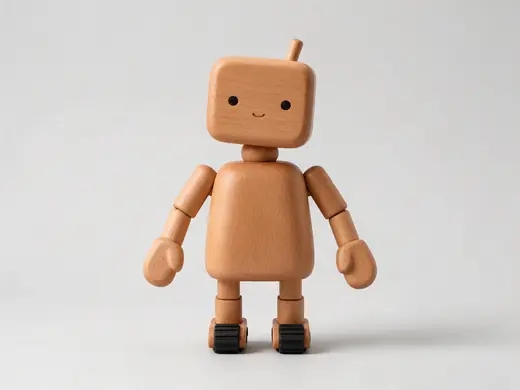
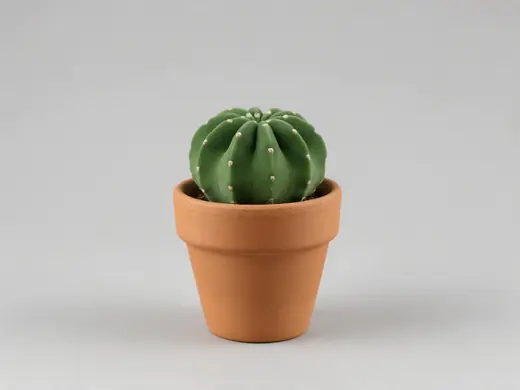
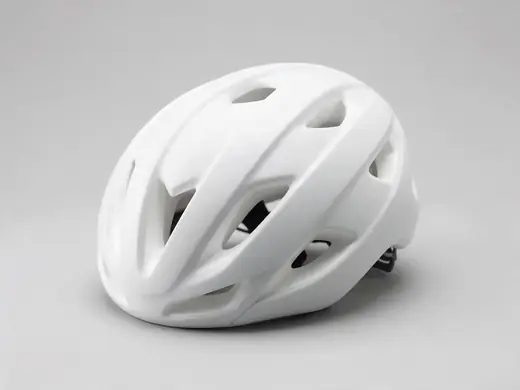
One object, plain background, whole object in frame — like these. Tap “To 3D” to try one.
Reference images made with Seedream 5.0 Pro. “To 3D” opens Image to 3D in the 3D Studio with that picture.
Why Kenerate
Photo to 3D, done properly
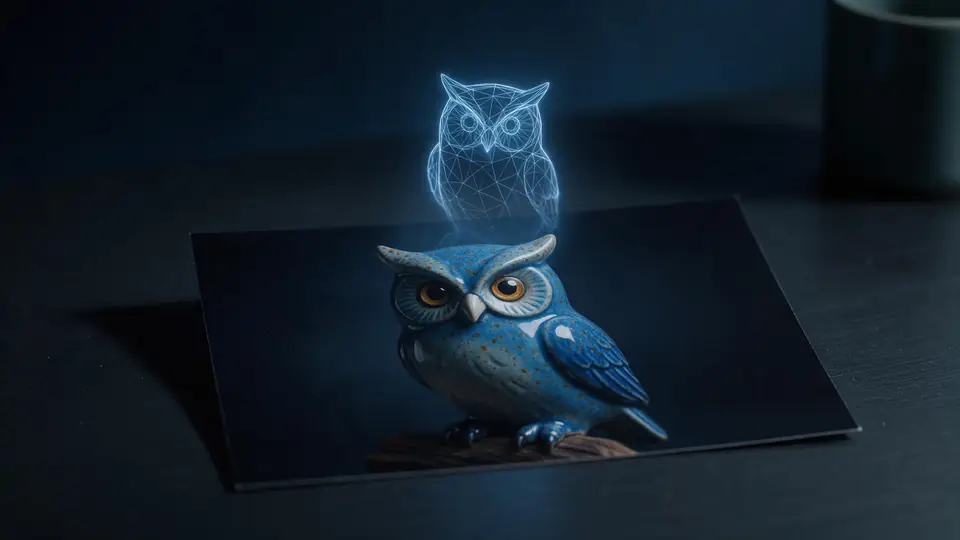
The input photo decides most of the result. The studio helps you get it right — and lets you try more than one engine on it.
Also
What else it does
Prepare the photo in one place
Remove the background or generate a clean reference in Image Studio, then send it straight to 3D.
Choose by result
Engines read the same photo differently — try two and keep the look that fits your use.
Download and convert
GLB everywhere; FBX, OBJ, USDZ or STL on some engines, or convert free with the 3D tools.
Saved to your gallery
Every model is saved with its input and engine so you can download or rebuild it later.
Engines
Nine engines in one 3D Studio
Pick per job — draft fast, then rebuild your favourite on a stronger engine.
Meshy
Meshy 7.1
- Inputs
- Text · Photo · Multi-view (up to 4 views)
- Files
- GLB, FBX, OBJ, USDZ
- Typical time
- about 3–4 min
Open Meshy 7.1Best for
Production assets with the finest Meshy geometry (2K / 4K), smart topology, rigging and animation.
Meshy
Meshy 7
- Inputs
- Text · Photo · Multi-view (up to 4 views)
- Files
- GLB, FBX, OBJ, USDZ
- Typical time
- about 3–4 min
Open Meshy 7Best for
Detailed game and product assets, with an Ultra detail switch, low-poly mode and auto-rigging.
Meshy
Meshy 6
- Inputs
- Text · Photo
- Files
- GLB, FBX, OBJ, USDZ
- Typical time
- about 3–4 min
Open Meshy 6Best for
Reliable textured meshes with a polygon budget you control — the engine 3D Studio started on.
Tripo
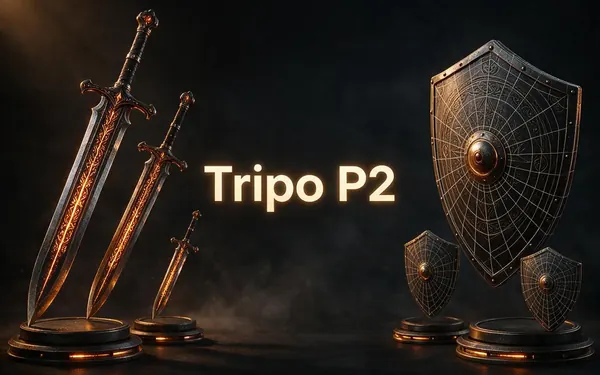
Tripo P2
- Inputs
- Text · Photo
- Files
- GLB, FBX
- Typical time
- about 3–4 min
Open Tripo P2Best for
Crisp, game-ready meshes with pro texture tiers up to Extreme and clean quad remeshing.
Tripo
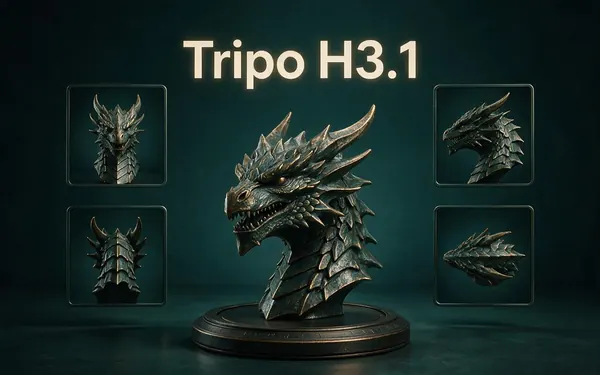
Tripo H3.1
- Inputs
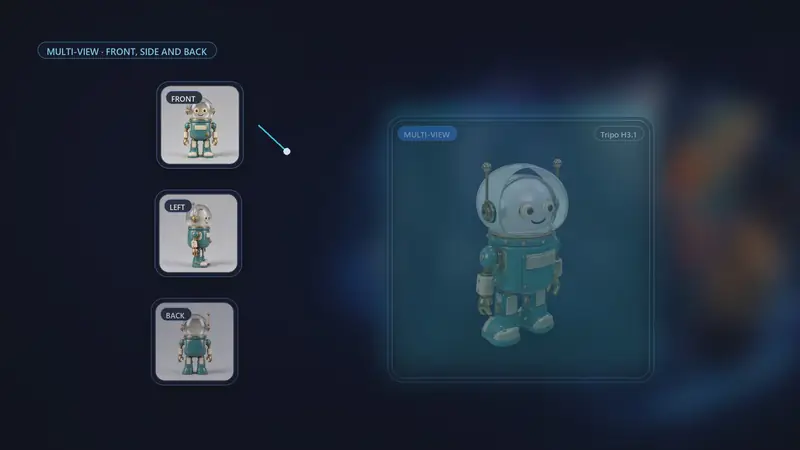
- Text · Photo · Multi-view (up to 4 views)
- Files
- GLB
- Typical time
- about 4–5 min
Open Tripo H3.1Best for
High-quality meshes, with detailed geometry and a four-view mode for exact shapes.
OpenAI
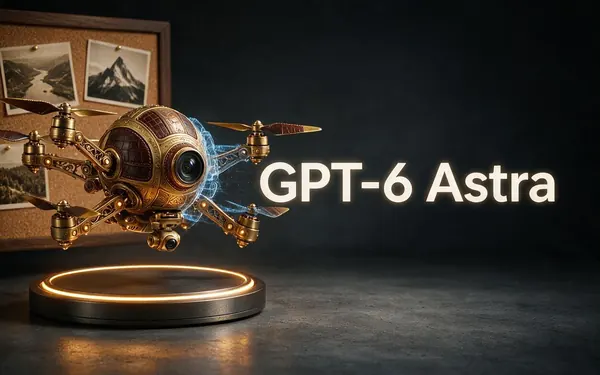
GPT-6 Astra
- Inputs
- Text · Photo · Multi-view (up to 10 views)
- Files
- GLB
- Typical time
- about 5–6 min
Open GPT-6 AstraBest for
OpenAI's general GPT-6 Astra model run as a 3D job — follows long, detailed briefs and up to 10 reference photos, returns a GLB with PBR textures at real-world size. The slowest engine.
All models (9)
Hyper3D
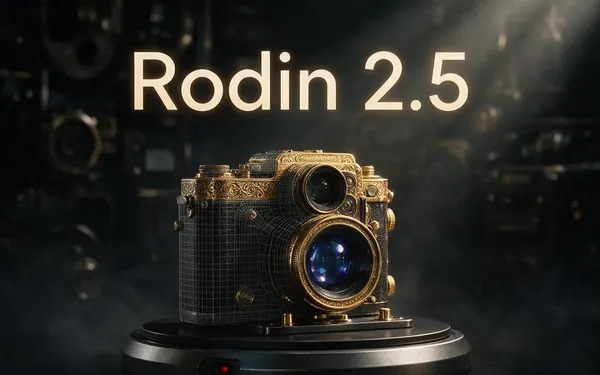
Rodin 2.5
- Inputs
- Text · Photo · Multi-view (up to 5 views)
- Files
- GLB, FBX, OBJ, USDZ, STL
- Typical time
- about 2–3 min
Open Rodin 2.5Best for
Studio-grade meshes from 2K to 500K faces, quad or triangle, with a HighPack for 4K textures.
Hyper3D
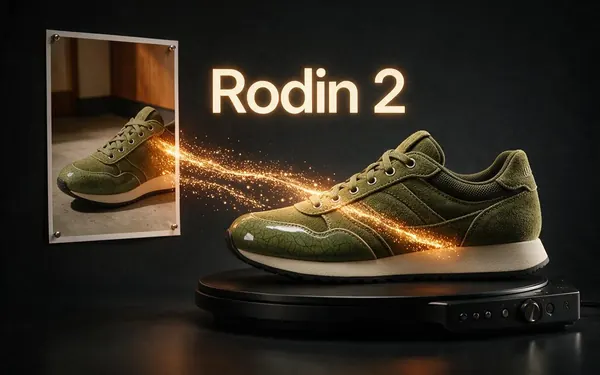
Rodin 2
- Inputs
- Text · Photo · Multi-view (up to 5 views)
- Files
- GLB, FBX, OBJ, USDZ, STL
- Typical time
- about 2–3 min
Open Rodin 2Best for
Clean, detailed meshes — the first photo drives the materials.
Tencent
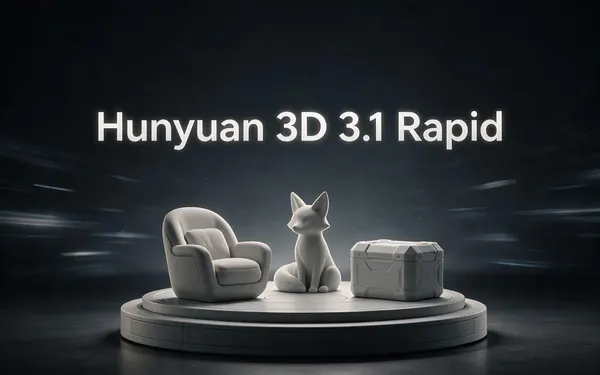
Hunyuan 3D 3.1 Rapid
- Inputs
- Text · Photo
- Files
- GLB (untextured)
- Typical time
- about 1 min
Open Hunyuan 3D 3.1 RapidBest for
The fastest geometry — an untextured (clay) GLB for quick blockouts, drafts and ideas.
Typical times are the studio’s own estimates; real runs vary with load and settings. Formats are what each engine returns — GLB previews in the browser, other formats download.
How it works
How a photo becomes a 3D model
Every engine does a version of these four steps.
Read the photo
The object is separated from the background and its visible shape and colours are analysed.
Predict the shape
A 3D generator builds a closed mesh, filling in the unseen sides from what it has learned.
Texture it
Colours from the photo — and on most engines PBR maps — are projected and painted onto the mesh.
Deliver
The model is saved to your gallery as GLB (plus other formats where supported).
How to
How to use the Image to 3D Model Converter
- Time needed
- Steps
- 4 steps
Step 1
Pick Image to 3D
Or Multi-view if you have photos from several sides.
Step 2
Upload a clean photo
One object, plain background, whole object in frame.
Step 3
Choose an engine
Tripo H3.1 by default; Meshy, Rodin, Hunyuan or GPT-6 Astra for their strengths.
Step 4
Inspect and download
Check the clay and wireframe views, then download GLB or another format.
Watch the tour · 1:48
Text, photo or multi-view to a textured GLB, nine engines, the viewer & lighting, compare engines, gallery, download & chat
Chapters
Use cases
Popular photo-to-3D projects
Product models
A product shot to a 3D model for AR and turntables.
Figurines and toys
Photograph a figure and print a copy.
Character art
Turn a character drawing into a game-ready model.
Heirlooms and keepsakes
A small object kept as a 3D file.
Sketch to model
Clean line art of an object works on many engines.
Catalogue assets
Consistent models from consistent product photos.
Tips
Photos that make good models
One object per photo, centred, with all of it in frame.
Plain light background — remove clutter first with Background Remover.
Soft, even light: hard shadows get baked into the texture.
Shoot slightly above the object at about a three-quarter angle.
Shiny, transparent and very thin objects are the hardest — expect to retouch.
Prompt guide
Prompts that make good 3D models
A glazed ceramic owl figuri…
A glazed ceramic owl figurine
A white and orange running…
A white and orange running sneaker
A brass pocket compass
A brass pocket compass
Example uses
How creators use the image to 3D model converter
Illustrative examples of typical workflows, not customer reviews.
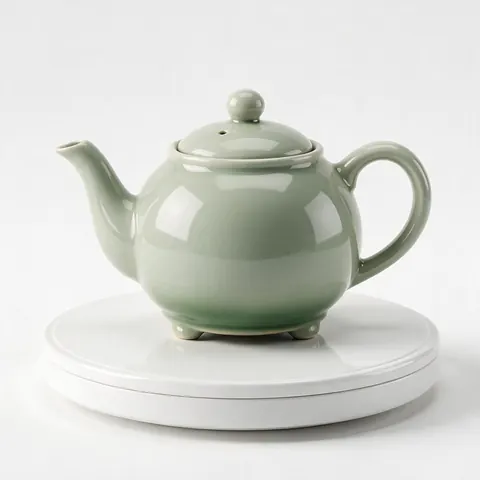
Online seller
An online seller can turn a clean product photo into a 3D model for a turntable or an AR preview.
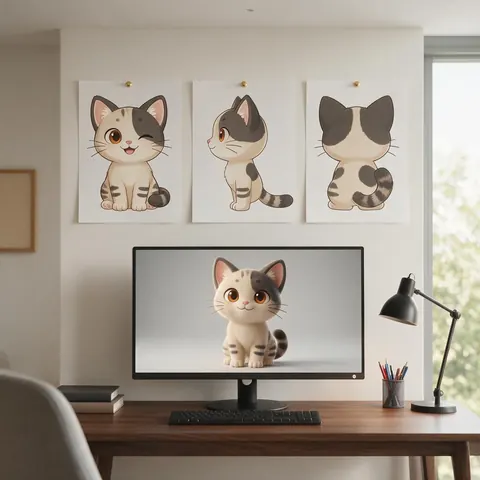
Character artist
A character artist can upload front, side and back drawings so the engine builds an exact model.
Collector
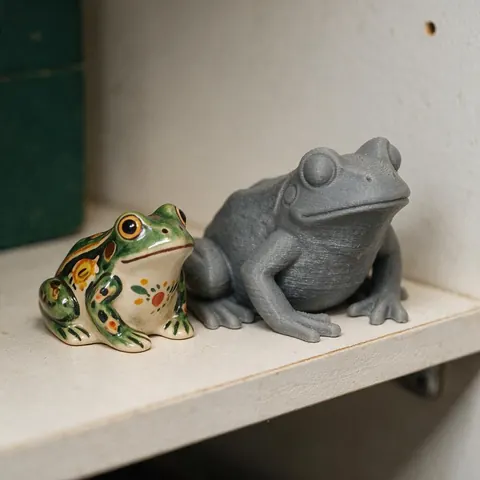
A collector can photograph a figurine and get a model to print a copy in a new size.
FAQ
Image to 3D Model Converter questions
8 questions
Can AI turn a picture into a 3D model?
Yes. Image-to-3D engines reconstruct a full textured mesh from one photo, guessing the hidden sides. More photos from different sides make the result more accurate.
Link to this answerWhich engine is best for image to 3D?
Tripo H3.1 is a strong default. Meshy 7.1 for clean production meshes and rigging, Rodin 2.5 for dense detail and STL, GPT-6 Astra when you have many reference photos, Hunyuan 3D Rapid for a quick untextured draft.
Link to this answerHow many photos can I upload?
One for Image to 3D. For Multi-view: up to 4 on Meshy, front/left/back/right on Tripo H3.1, up to 5 on Rodin and up to 10 on GPT-6 Astra.
Link to this answerHow do I convert a 2D image to a 3D model?
Open Image to 3D in the 3D Studio, upload a clear photo or drawing of one object on a plain background, pick an engine (Tripo H3.1 is the default) and generate. In about 1–5 minutes you get a textured GLB to inspect and download; add side and back views in Multi-view for a more exact shape.
Link to this answerCan I use a drawing or a sketch?
Clean drawings of a single object often work; rough sketches give rough shapes. Generate a clean reference image first if needed.
Link to this answerIs this different from image to STL?
Yes. Image to STL turns a picture's brightness into a relief or lithophane — a flat print. Image to 3D builds a full object. Both are on Kenerate; image to STL is a free tool.
Link to this answerIs it free?
Free to start, but 3D generation needs a one-time credit pack. The browser tools, such as Image to STL, the 3D viewer and the GLB to STL converter, are free.
Link to this answerHow do I convert an image to a 3D print file?
Turn the photo into a model here, then download STL from Rodin or convert any GLB with the free GLB to STL tool, sized in millimetres.
Link to this answerIn depth
Image to 3D Model Converter, explained
What image-to-3D can and can't infer from one picture, and how to give it better input.
On this page
One photo is a guess
A photo records one view. The engine has to infer depth and invent the back from patterns it learned in training. That's why symmetric, familiar objects come out best, and why the same photo looks different on every engine.
More views, less guessing
Multi-view inputs give the engine real evidence of the sides and back. In the studio, Meshy takes up to 4 photos, Tripo H3.1 takes named front, left, back and right views, Rodin up to 5 and GPT-6 Astra up to 10.
Photo to 3D vs photo to relief
If you want a flat print of a picture — a lithophane or embossed tile — you don't need a 3D engine: the free Image to STL tool does that in your browser. Image to 3D is for full, freestanding objects.
Try the Image to 3D Model Converter
3D generation is part of every paid plan and credit pack. The free 3D tools — viewers, converters, image to STL — need no account.
Tried it? Tell us how it went