Gentle Teacher
MiniMax Speech 2.8 HD · MiniMax
EnglishLecturePatient
Slide three. The water cycle has four stages: evaporation, condensation, precipitation and collection. Let's look at each one.
0:08
Guide · lectures · training · business updates
Paste each slide's notes, generate natural narration, and insert the audio into PowerPoint or Google Slides. No microphone, no retakes — and when a slide changes, regenerate just that clip.

Updated by the Kenerate AI team
On this page
Quick answer
Updated
To add an AI voice-over to PowerPoint, generate one clip per slide from your speaker notes in Kenerate AI's Voice Studio, download the MP3 or WAV, then choose Insert → Audio → Audio on My PC and set it to start Automatically. In Google Slides, upload it to Drive and use Insert → Audio.
Listen first
Lecture, business update and training — each generated from one slide's notes.
MiniMax Speech 2.8 HD · MiniMax
Slide three. The water cycle has four stages: evaporation, condensation, precipitation and collection. Let's look at each one.
ElevenLabs Multilingual v2 · ElevenLabs
This quarter, customer sign-ups grew by twelve percent. On the next slide, we'll look at what drove that growth.
MiniMax Speech 2.8 HD · MiniMax
Before you start, make sure your safety badge is visible. In this module, we'll cover the three emergency exits on this floor.
How to
Step 1
Keep each slide's narration to about 20–60 seconds; start with “This slide shows…” only if it helps.
Step 2
Paste the notes into the Voice Studio, pick a calm voice (0.9–1.0× speed), download MP3 or WAV.
Step 3
Select the slide → Insert → Audio → Audio on My PC → choose the file → Playback: Start Automatically. Tick “Hide During Show”.
Step 4
Upload the files to Google Drive → Insert → Audio → pick the clip → set it to play automatically in Format options.
See it in the app

Open Voice Studio in Text to speech and type the words you want spoken, or start from a script template.
Text to speech, emotions & tags, Hindi, voice design, cloning & chat
Chapters
Use cases
Anyone who shares presentations people watch on their own.
Recorded lectures students can replay.
All-hands and quarterly reviews people watch async.
Consistent narration that's easy to update.
Self-running demos to send after a call.
The same deck narrated in 40+ languages.
Export the deck as a video with narration built in.
Engines
Facts from the Voice Studio's code.
ElevenLabs
Lifelike and consistent over long reads
Open ElevenLabs Multilingual v2
MiniMax
Most natural MiniMax voice; 7 emotions, (laughs)/(sighs) interjections, pronunciation dictionary
Open MiniMax Speech 2.8 HD
MiniMax
Near-HD quality, faster; same emotions and interjections
Open MiniMax Speech 2.8 TurboControls
Presentations need a calm, steady pace.
MiniMax voices. 1× is the natural pace; 0.85–0.95× suits narration and learners, 1.1–1.2× suits ads and recaps.
MiniMax voices, in semitones. A few steps down sounds bigger and older; a few up sounds lighter and younger.
MiniMax: neutral, happy, sad, angry, fearful, disgusted, surprised — the same words, a different read.
MiniMax 2.8 reads 13 cues like (laughs), (sighs), (breath); ElevenLabs Eleven v3 reads audio tags like [whispers], [excited], [sarcastic].
ElevenLabs. Lower = more expressive and varied between takes; higher = steadier and more even.
MiniMax lets you pick the format and sample rate (16–44.1 kHz); every clip downloads without a watermark.
Scripts
Paste your own notes, or start from these.
Agenda slide
Here's our agenda. First, a quick recap. Then the new process. And finally, time for your questions.
Chart slide
On this chart, the blue line is this year and the grey line is last year. Notice the jump in March.
Transition
Now that we've seen the problem, let's look at the solution.
Summary
To sum up: start early, check twice, and ask for help when you need it.
Tips
The slides and the voice should work together.
One clip per slide — changing one slide never means re-recording the deck.
Keep slides simple; the narration should explain, not read the slide aloud word for word.
Set audio to start automatically and hide the icon during the show.
Use Transitions → After to advance slides when each clip ends, or export the deck as a video.
Name files by slide number (slide-03.mp3) so inserting is fast.
Use one voice and the same settings for the whole deck.
Example uses
Illustrative examples of typical workflows, not customer reviews.
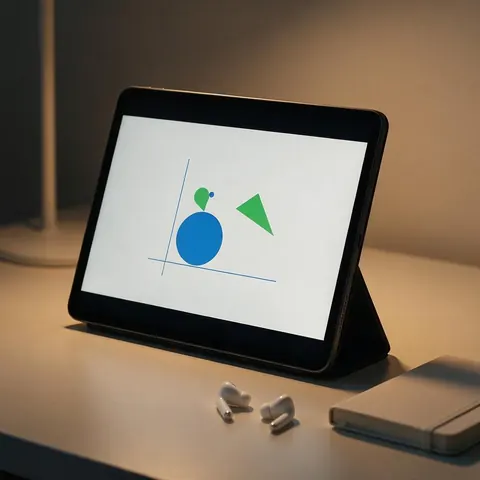
A lecturer can narrate each slide from speaker notes so students replay recorded lectures, regenerating one clip when a slide changes.

A training team can keep consistent narration across a compliance deck and export it as a self-running video.

A sales rep can send a self-running narrated demo deck after a call, with each slide advancing when its clip ends.
FAQ
Generate narration for each slide, then in PowerPoint select the slide and choose Insert → Audio → Audio on My PC, pick the file and set Playback to start automatically. PowerPoint can also record your own narration, but an AI voice needs no microphone or retakes.
Link to this answerUpload the MP3 or WAV to Google Drive, open the slide, choose Insert → Audio and select the file. In Format options, set it to play automatically.
Link to this answerYes. Set each slide's audio to start automatically and set slide transitions to advance after the clip's length, or export the presentation as a video.
Link to this answerMP3 works in both PowerPoint and Google Slides; Google Slides accepts MP3 and WAV from Drive.
Link to this answerYes — paste translated notes and pick a voice in that language. MiniMax speaks 40 languages and ElevenLabs Eleven v3 speaks 70.
Link to this answerA free Kenerate account starts with free credits — enough to narrate a short deck — with no watermark.
Link to this answerIn depth
What works, what to avoid, and how the pieces fit.
PowerPoint adds audio from a file via Insert → Audio → Audio on My PC; for sound that continues across slides there's a Play in Background option [1]. For narration, keep one clip per slide instead, so each slide's audio starts with it and you can update slides independently.
Google Slides adds MP3 and WAV files stored in Google Drive through Insert → Audio [2]. Upload all clips to one Drive folder first; the file picker then makes inserting a whole deck quick.
Narration works best when it:
Free to start. No watermark. Download every clip.
Tried it? Tell us how it went