

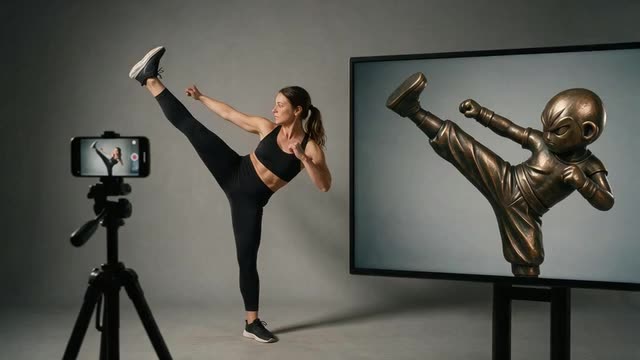
Kling 3.0 Pro Motion · Kling 3.0 Motion · sound kept
Kling motion control — Kling 3.0 Pro Motion in your browser
Run Kling 3.0's motion control without the Kling app or an API: upload a character image and a 3–30 second reference, choose whether the pose follows the video or the image, and keep the clip's sound.
- Kling 3.0 Pro + Standard
- 3–30 s reference
- Keeps the sound
- No API key
Updated by the Kenerate AI team
Made with Kenerate
On this page
Quick answer
Updated
What is Kling motion control?
Kling motion control is Kuaishou's feature that makes the character in one image copy the body movement, gestures and facial expressions of a 3–30 second reference video. Kenerate AI runs Kling 3.0 Pro Motion and Kling 3.0 Motion in its Motion Transfer tool, with an optional switch that keeps the clip's sound, and no API key.
Key facts
- Versions
- Kling 3.0 Pro Motion · Kling 3.0 Motion
- Reference clip
- 3–30 s · MP4 or MOV
- Pose follows the image
- Up to 10 s
- Character image
- JPG or PNG · 300 px+ · up to 10 MB
- Sound
- Keep-sound switch
- Output
- Follows the source · MP4
Real results
Shots Kling-style motion suits
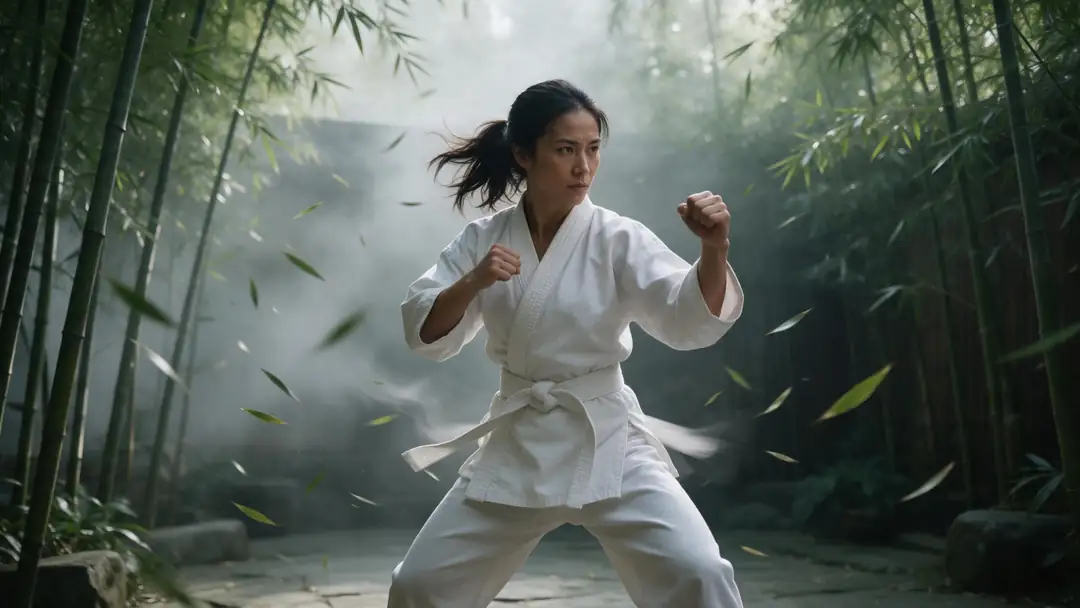
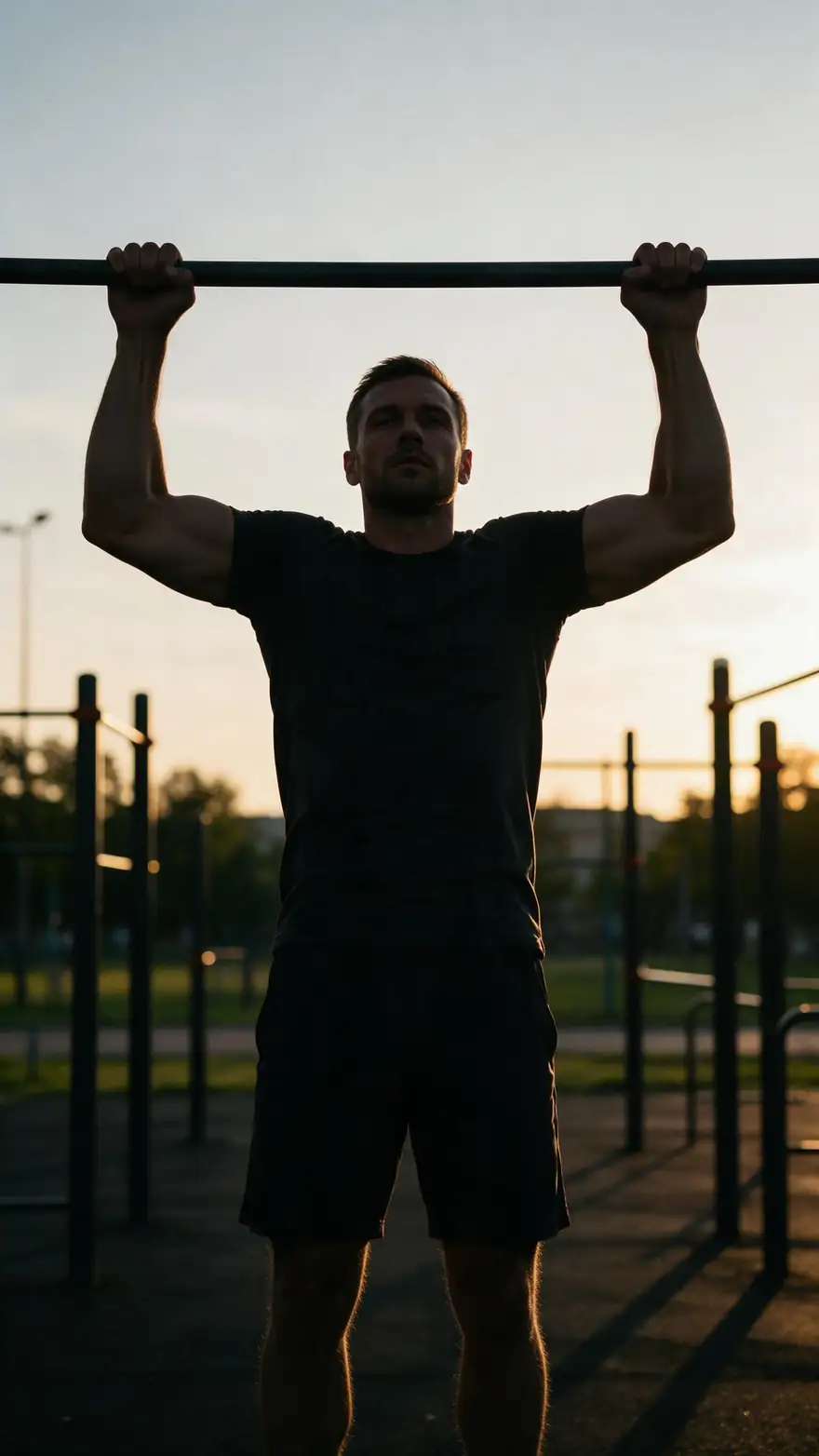
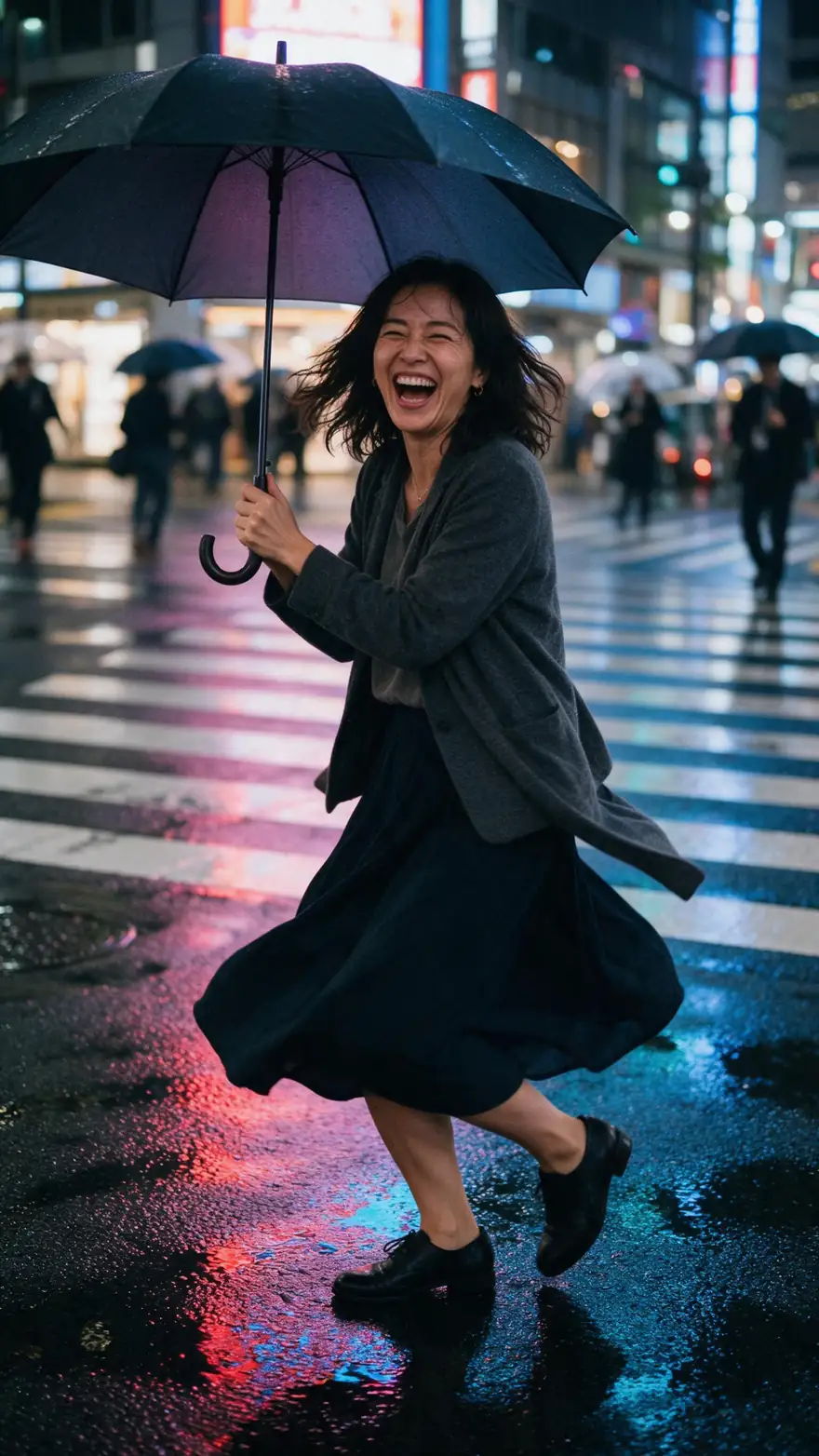
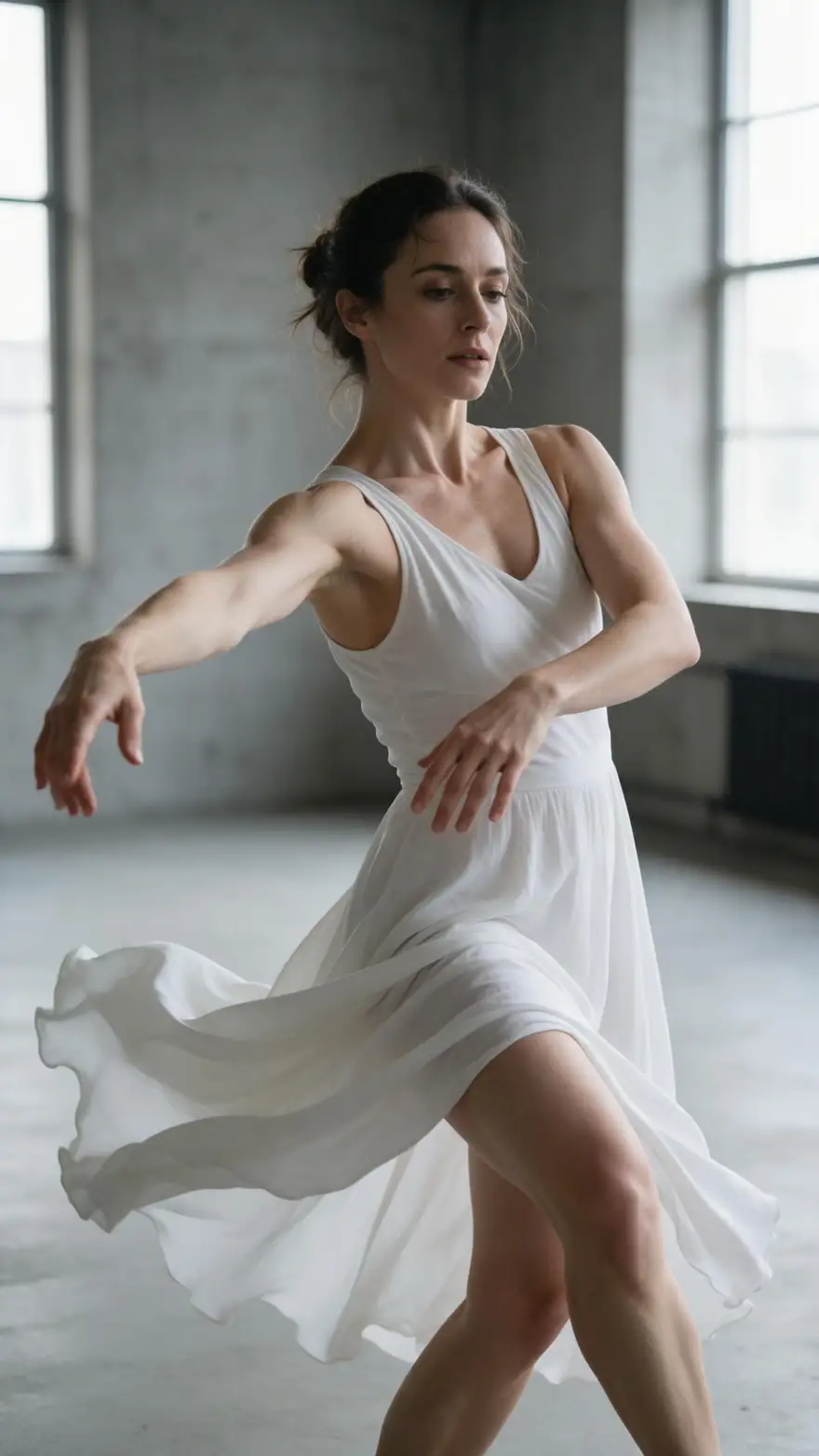
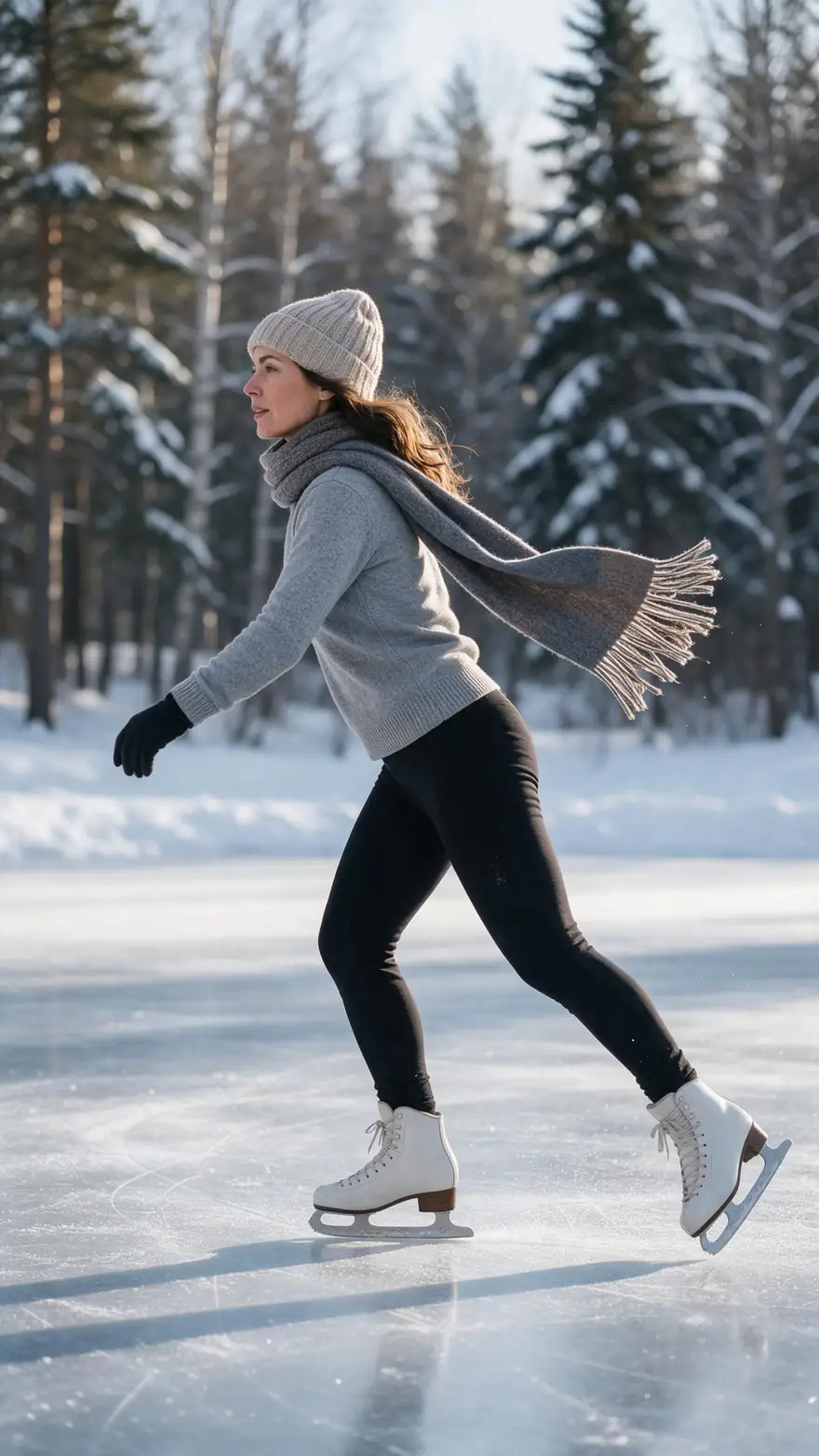
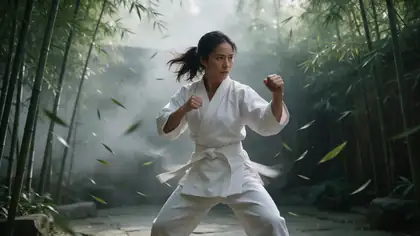
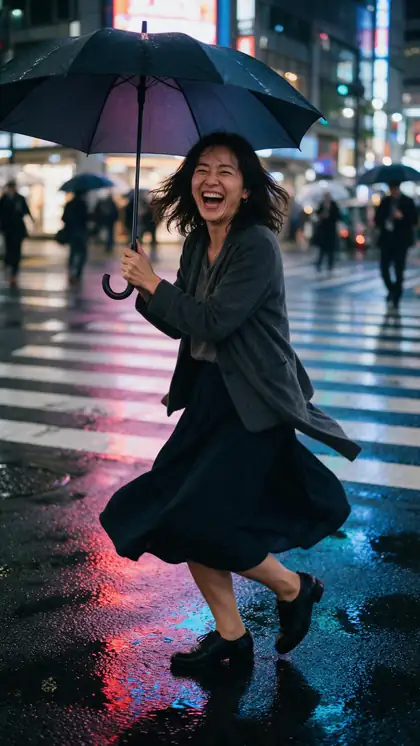
Martial arts, a workout, an umbrella spin, contemporary dance and an ice-skating turn — realistic human movement is where Kling's motion control shines.
These clips come from image to video runs, with the model on each card. With Kling motion control, the movement comes from your 3–30 second reference instead.
How to
Using Kling motion control, step by step
- Time needed
- Steps
- 4 steps
Step 1
Pick Kling 3.0 Pro Motion
Open the Motion Transfer tool and choose Kling 3.0 Pro Motion, or Kling 3.0 Motion for drafts.
Step 2
Upload the character image
JPG or PNG, at least 300 px, up to 10 MB, ratio between 1:2.5 and 2.5:1. Half body for a half-body clip, full body for a full-body one.
Step 3
Upload the 3–30 s reference
MP4 or MOV, up to 100 MB. Longer clips are trimmed to the first 30 seconds.
Step 4
Choose what the pose follows
The video: the character copies the clip's orientation and framing. The image: it keeps your photo's orientation, for clips up to 10 seconds.
See it in the app

Open Motion Transfer and upload a clear photo of the character, or choose one from your history.


Watch the tour · 1:19
Text, image & reference to video, models, edit, extend & chat
Chapters
Engines
Kling 3.0 Pro Motion or Kling 3.0 Motion?
Both run the same Kling 3.0 motion controls; Pro spends more per second on detail. When a clip doesn't suit Kling, these are the engines to switch to.
- Kling
Kuaishou
Kling 3.0 Pro Motion
- Input
- Image + 3–30 s video (10 s when pose follows the image)
- Output
- Follows the source · sound switch
Highest fidelity for faces, cloth and hands — the one for close-ups and product demos
Open Kling 3.0 Pro Motion 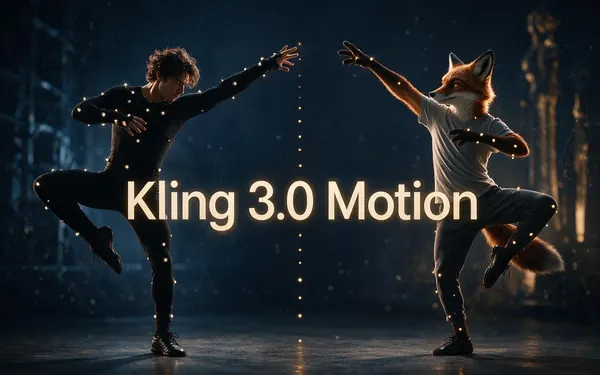
Kuaishou
Kling 3.0 Motion
- Input
- Image + 3–30 s video (10 s when pose follows the image)
- Output
- Follows the source · sound switch
Same controls, standard tier — realistic body motion for drafts and full-body shots
Open Kling 3.0 Motion
WaveSpeed
SCAIL 2
- Input
- Image + video up to 2 min
- Output
- 480p or 720p · keeps sound
When the reference runs past 30 s — up to 2 min, sound kept
Open SCAIL 2
Kenerate
Kenerate Motion
- Input
- Image + video (first 20 s used)
- Output
- 720p or 1080p · 24/48 fps · sound switch
When you need a fixed 1080p output or 24/48 fps
Open Kenerate Motion
ByteDance
DreamActor v2
- Input
- Image + video up to 30 s · no prompt
- Output
- Follows the source · keeps sound
When the clip is mostly a face — talking or singing, no prompt
Open DreamActor v2
Kling output follows your source clip's resolution. Clips longer than 30 s are trimmed to the first 30 s (10 s with 'pose follows the image'). Every engine returns an MP4 with no watermark.
Tips
What Kling handles best
Based on Kling's own Motion Control guide and how the 3.0 engines behave.
Moderate speed beats very fast moves — Kling notes fast, complex motion can shorten the output.
No cuts and no camera moves in the reference.
Keep the character's whole body visible and unobstructed.
One person in the clip — Kling follows the largest figure.
Use the negative prompt for recurring problems such as warped hands.
Only animate people who agreed to it.
Example uses
How creators use Kling motion control
Illustrative examples of typical workflows, not customer reviews.
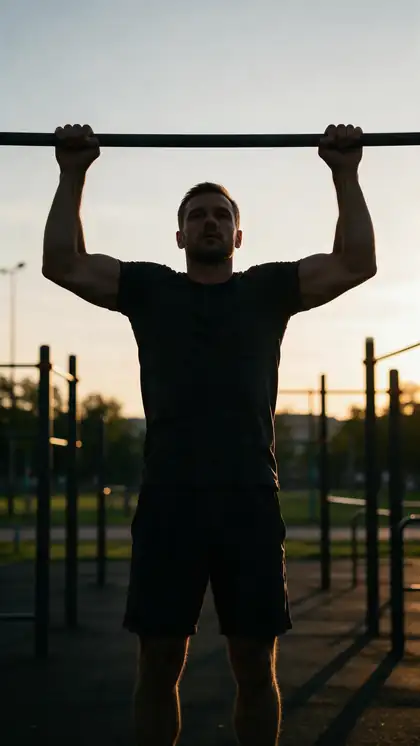
Fitness coach
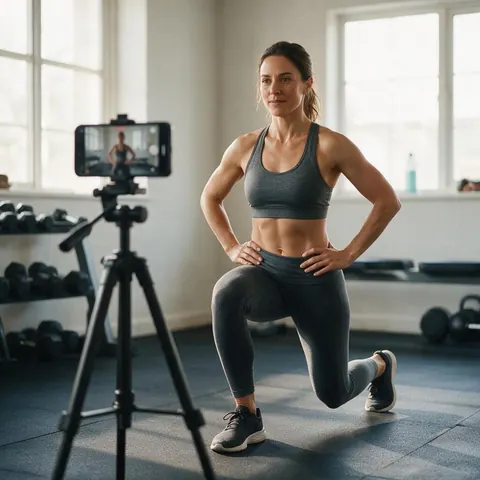
A coach can record one clean rep on a tripod and let Kling 3.0 Pro Motion copy it onto a branded trainer character, sound and counting kept.
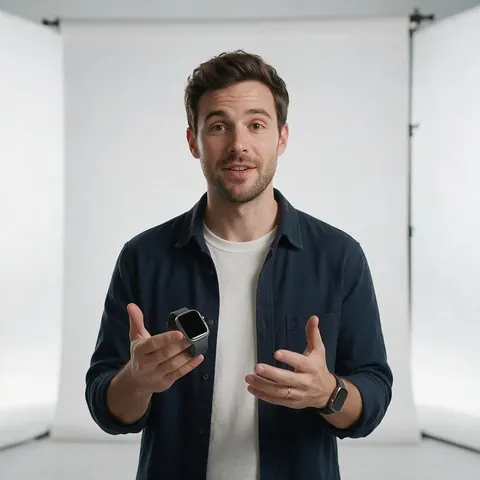
Product marketer
A marketer can turn a hand-gesture demo into the same demo performed by the brand's illustrated host, keeping the voice-over in sync.
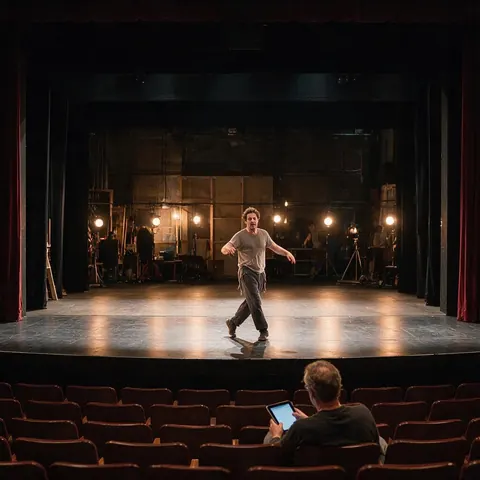
Theatre director
A director can preview a stage movement on a costume concept by filming an actor's blocking and transferring it with the pose following the video.
FAQ
Kling motion control questions
7 questions
How do I use Kling motion control without the API?
Open Kenerate AI's Motion Transfer tool and pick Kling 3.0 Pro Motion or Kling 3.0 Motion. Upload a character image and a 3–30 second reference video, choose whether the pose follows the video or the image, add an optional prompt and negative prompt, and generate. There's no API key, no code and no subscription.
Link to this answerWhat's the difference between Kling 3.0 Pro Motion and Kling 3.0 Motion?
Both use the same Kling 3.0 controls: reference length, pose mode, prompt, negative prompt and the keep-sound switch. Pro Motion gives the highest fidelity on faces, cloth and hands and costs more per second; Kling 3.0 Motion is the standard tier for realistic body motion. Draft on the standard engine, then render the keeper on Pro.
Link to this answerWhy is my Kling output only 10 seconds?
Because 'pose follows the image' is limited to 10 seconds, so a longer reference is trimmed. Switch to 'pose follows the video' for references up to 30 seconds. Kling's own guide also says fast or complex movement can produce a shorter result than the reference, so a calmer clip may help.
Link to this answerDoes Kling motion control keep the original audio?
Yes, if you leave the Keep sound switch on: the result carries the reference clip's audio, so a dance stays on the beat and speech stays in sync. Turn it off for a silent clip you'll score later. Most other engines in the tool are silent, apart from SCAIL 2, Kenerate Motion, LTX-2 Control and DreamActor v2.
Link to this answerCan I use Kling motion control free?
New accounts get starter credits to try it, and there's no subscription — after that, Kling jobs are paid per second of clip with credits, and failed jobs are refunded automatically. Kling's own app sells its own credits, with Motion Control priced per second on its guide page (checked 3 October 2026).
Link to this answerWhat image works best for Kling motion control?
A clear, unobstructed photo of one character, matching the reference's framing: half body for a half-body clip, full body for a full-body dance. On Kenerate the image must be JPG or PNG, at least 300 px, up to 10 MB, with a ratio between 1:2.5 and 2.5:1. Avoid props covering the hands or face.
Link to this answerCan I animate a photo of someone else with Kling?
Only with their permission. Use your own photos, characters you designed, or people who agreed to be animated — never celebrities or strangers. Kling copies facial expressions closely, which makes consent even more important, so label the result as AI-made when you share it.
Link to this answerIn depth
Kling motion control, in depth
The two pose modes, how to prompt them, and what makes a reference clip Kling-friendly.
On this page
Pose follows the video vs pose follows the image
With 'pose follows the video' the character copies the reference's movement, expressions and orientation — if the dancer turns to the side, so does your character — for clips up to 30 seconds. With 'pose follows the image' the movement still comes from the clip, but the character keeps the orientation of your photo; Kenerate limits this mode to 10 seconds. Pick the image mode when your photo's angle matters more than the dancer's.
Prompting Kling 3.0 motion
The reference supplies the movement, so the prompt describes the look: clothing, lighting, setting details and style. The negative prompt is where you list recurring faults — warped fingers, blurry face, extra limbs. Keep both short; a long prompt about movement fights the reference instead of helping it.
Making a reference Kling likes
Kling's guide recommends steady, moderate movement, no cuts or camera moves, and matching framing between image and video. In practice that means filming on a tripod, one person in frame, feet visible for full-body moves, and trimming the clip to the few seconds you actually need.
Kling 2.6 motion control vs Kling 3.0 motion control
Kling's guide lists 2.6 Motion Control as the previous version, with full-body motion sync, and 3.0 Motion Control as the latest, with better facial consistency across scenarios and support for multi-angle, longer motions. Kenerate runs the 3.0 engines only.
fal ai Kling motion control
fal hosts Kling Video v2.6 Motion Control in Pro and Standard tiers as an API for developers, so you call it from code with a fal API key. Kenerate is the no-code route: the same kind of image-plus-reference job in a web tool, on Kling 3.0, next to 10 other engines.
Kling AI motion control on Kling's own app
In Kling's app, Motion Control 3.0 can bind an element from your library — front and side photos or a video of a face — for steadier expressions. Kenerate takes one character image per job instead, and adds the keep-sound switch and a negative prompt.
Explore
Every Kenerate video tool
Generators, tools, models and guides — all in one studio.
Run Kling 3.0 Pro Motion now
Character image, 3–30 s reference, keep the sound. No API key, no subscription.
Tried it? Tell us how it went