

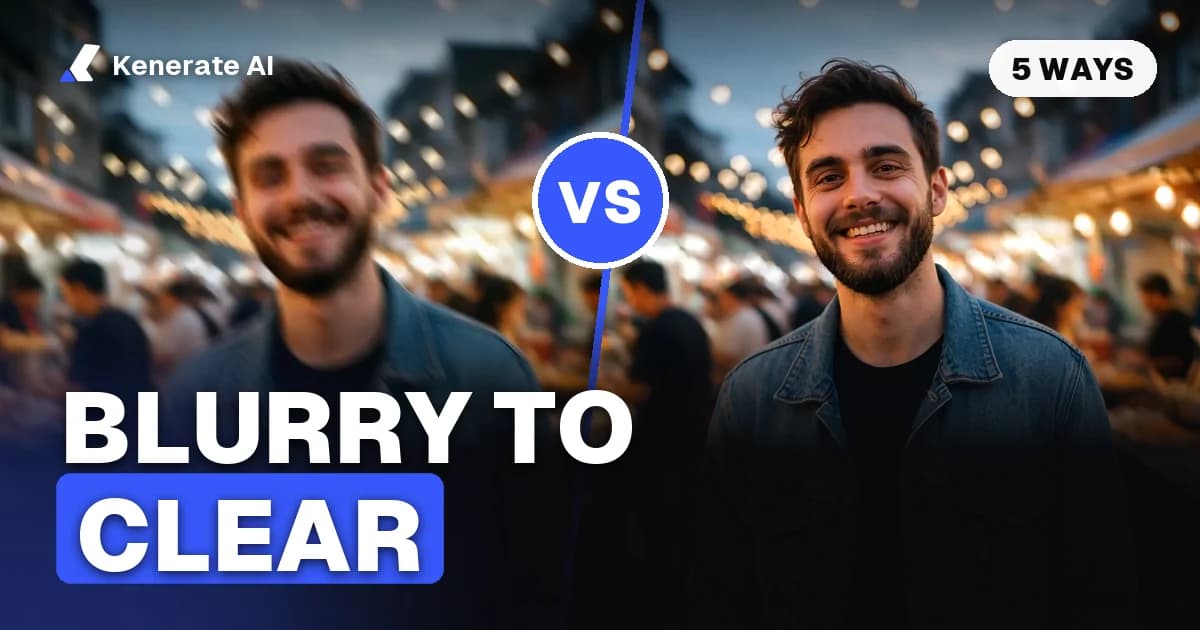
To make a blurry picture clear, run it through an AI restoration or upscaling model, which redraws the edges, eyes, hair and texture the blur softened; a sharpening slider only adds contrast to edges that are already there. Soft focus, slight camera shake and small, compressed images usually come back well. A subject smeared into a streak by heavy motion blur cannot be truly recovered: any tool can only guess at the shapes.
This guide covers each way to do it as of 2 November 2026: free AI online, the iPhone and Android Photos apps, Photoshop and Canva. It also includes a ready prompt for AI editors and a quick test for whether your photo can be saved at all.
Why is my picture blurry in the first place?
Knowing the cause tells you which fix will work. Most blurry photos fall into one of five groups:
| Type of blur | What it looks like | Can it be made clear? | Best fix |
|---|---|---|---|
| Soft or missed focus | Whole subject slightly fuzzy, no streaks | Usually yes | AI restore (unblur) |
| Slight camera shake | Faint double edges, all in one direction | Often yes | AI restore, then light sharpening |
| Small or compressed image | Blocky, smeary, looks bad when enlarged | Yes | AI upscaler |
| Old print or scan | Soft, faded, grainy, scratched | Mostly yes | Restoration model |
| Heavy motion blur | Subject turned into a streak or ghost | No, only a guess | Retake the photo if you can |
The rule of thumb: if you can still tell what the fine details are (an eye, a letter, a button), AI can usually rebuild them. If the details are gone, the model has to invent them, and what it invents may not match what was really there.
Can every blurry picture be made clear?
No. Restoration models learn by studying pairs of clean photos and deliberately damaged copies of them. Real-ESRGAN, one of the best-known open models, was trained on synthetic blur, noise, resizing and JPEG damage (Wang et al., 2021). When the blur in your photo looks like that kind of damage, the model knows how to undo it. When the blur has destroyed the information completely, it can only produce a plausible-looking guess.
Three practical limits to keep in mind:
- Text and numbers. AI makes letters look crisp, but if they were unreadable before, the "clear" version may show different letters. Don't rely on it for receipts, documents or number plates.
- Faces. Generative models redraw detail, so a face can shift slightly between runs. If the person matters, compare at 100% zoom and keep the run that still looks like them. Our guide on how to fix a blurry face in a photo goes deeper on this.
- Evidence. AI-enhanced images are not a record of what happened. Use the original whenever accuracy matters.
How do I make a blurry picture clear with AI for free?
The fastest route is a browser tool: upload, pick a model, download. Here is the exact process on Kenerate AI, using the real tools and credit prices from our app as of 2 November 2026.
- Open the unblur tool. Go to Kenerate's unblur image tool. It opens the upscaler with Phota Enhance selected, the model built for blurry, old or damaged photos.
- Upload the picture. JPG, PNG or WEBP up to 25 MB.
- Run it. Press Upscale. Phota Enhance takes about 40 seconds and returns a 2048 px image with edges, eyes and hair rebuilt.
- Check at 100% zoom. Look at eyes, teeth, hair and any text. Restoration is generative, so if something looks off, run it again and keep the better result.
- Upscale further if you need print size. If you want a bigger file, run the restored image through the Image Upscaler at 4K or 8K.
- Download. No watermark.
New accounts get 25 free credits on sign-up, enough to try several runs. Here is what each engine on the upscale tool costs and what it is best at:
| Engine | Credits per image | Output | Best for blurry photos when… |
|---|---|---|---|
| Real-ESRGAN | 0.72 | 2048 px | The photo is only slightly soft or small |
| Image Upscaler | 3 | 2K, 4K or 8K | You need a bigger file that keeps the original texture |
| Kenerate Upscale | 1.5 to 36 | 4 to 128 MP | You need an exact size, fast |
| Ultimate Upscaler | 18 | 2K, 4K or 8K | Fine detail matters (marketing, restoration) |
| Phota Enhance | 39 | 2048 px | The photo is blurry, old or damaged |
| Clarity Pro | 9 per output MP | 2 to 64 MP | Artwork; keep creativity low on faces |
| Recraft Creative | 75 | 4096 px | Portraits and products that need richer texture |
A good habit is to start cheap: try Real-ESRGAN first on a mildly soft photo, and only move to Phota Enhance if it isn't enough. If the problem is mostly edge softness rather than real blur, the sharpen image tool is the simpler fix.
Is there an AI prompt to make a blurry picture clear?
Prompt-based image editors (models where you upload a photo and describe the change) can also clean up blur. Describe what to fix and what must not change. This prompt works as a starting point:
Restore this photo so it looks sharp and in focus. Remove blur and compression artifacts, recover natural detail in the eyes, hair, skin texture and fabric. Keep the same people, faces, expressions, pose, framing, colors and lighting. Do not add, remove or change any objects or text.
Two tips: keep the "do not change" sentence, because without it editors like to "improve" faces; and if the picture has text you can read, type the exact text into the prompt so the model doesn't invent new words.
How do I make a blurry picture clear on iPhone?
The Photos app has no AI unblur, but its sliders help with mild softness:
- Open the photo in Photos and tap Edit.
- Open Adjust.
- Raise Sharpness a little (start around 20 to 40).
- Raise Definition, which Apple describes as adding midtone definition and local contrast (Apple Photos guide).
- If sharpening makes grain worse, add a touch of Noise Reduction.
- Tap Done. You can revert later, because Photos edits are non-destructive.
These sliders only make existing edges crisper. For a photo that is genuinely out of focus, upload it from Safari to an AI tool such as the unblur image tool instead. Google Photos for iOS also offers Photo Unblur on supported devices (see the Android section).
How do I make a blurry picture clear on Android?
On Android, Google Photos has a built-in AI fix called Photo Unblur. It started on Pixel phones; in April 2024 Google announced it would reach all Google Photos users from 15 May 2024, with no subscription required, on devices with at least 3 GB of RAM and Android 8.0 or iOS 15 or newer (Google blog). Availability still varies by device.
- Open the photo in Google Photos and tap Edit.
- Under Tools (or the suggestions row), tap Unblur.
- Adjust the strength slider, then tap Done and Save copy.
If Unblur doesn't appear on your phone, use the Sharpen slider under Adjust, or a browser-based AI tool.
How do I make a blurry picture clear in Photoshop?
Photoshop gives you the most manual control, but it is sharpening, not true reconstruction. Adobe's own workflow (Adobe: Sharpen your photos) works in two passes:
1. Capture sharpening in Camera Raw (Filter > Camera Raw Filter > Detail)
- Zoom to 100% or 200%.
- Set Sharpening Amount to around 40.
- Raise Luminance noise reduction to around 25, stopping before fine detail goes smooth.
- Keep Radius at about 1 px, Detail lower for portraits, and Masking around 30 if smooth areas such as skies get noisy.
2. Output sharpening (Filter > Sharpen > Smart Sharpen)
- Choose Remove: Lens Blur.
- Try Amount 90 to 100 and Radius around 0.7.
- Set Noise to 0 if you already reduced noise in Camera Raw.
For slight camera shake, Smart Sharpen also has a Motion Blur removal option where you set the angle of the shake. Note that the older Shake Reduction filter was removed in Photoshop 23.3 (Adobe community thread), so many tutorials that mention it are out of date. We also have a full guide on how to sharpen an image in Photoshop.
How do I make a blurry picture clear in Canva?
Canva handles light softness well enough for social posts:
- Upload the photo and select it.
- Click Edit, then Adjust.
- Raise Sharpness and Clarity a little at a time.
- Lower them if you see halos around edges or crunchy-looking skin.
Like the phone sliders, this sharpens what's there. For a picture that is truly blurry, restore it with AI first, then bring it into Canva for the design.
Which method should I use?
| Method | Cost | Real AI deblur? | Good for |
|---|---|---|---|
| Kenerate (browser) | 25 free credits on sign-up, then credit packs | Yes (Phota Enhance, upscalers) | Real blur, old photos, print-size output |
| Google Photos Unblur | Free on supported devices | Yes | Quick fixes on your phone |
| iPhone Photos sliders | Free | No (sharpening only) | Slightly soft shots |
| Photoshop | Paid subscription | No (manual sharpening) | Full control, pro workflows |
| Canva Adjust | Free plan available | No (sharpening only) | Social posts and designs |
How do I make an old blurry picture clear?
Old prints have more than blur: fading, scratches, grain and color shift. Scan the print at 600 dpi or higher (or photograph it flat in daylight, without glare), then run it through a restoration model like Phota Enhance, which is built for old and damaged photos. After that, upscale to 4K if you plan to print it. Our step-by-step guide on how to restore old photos covers scanning, color repair and printing in detail.
How do I stop taking blurry pictures?
Fixing is good; not needing to fix is better.
- Tap to focus on the subject before you shoot, and wait for the camera to lock.
- Hold still and exhale as you press the shutter, or brace your elbows against your body.
- Use more light. In dim light the camera slows the shutter, which causes motion blur.
- Clean the lens. A fingerprint smudge is the most common cause of hazy phone photos.
- Burst mode for moving subjects, then keep the sharpest frame.
- Don't zoom digitally; step closer, or crop later from the full image.
Key points
Making a blurry picture clear comes down to matching the fix to the blur. Sharpening sliders on iPhone, Canva or Photoshop help with slight softness. AI restoration, such as Google Photos Unblur or Kenerate's Phota Enhance, can rebuild detail lost to soft focus, small file sizes and mild shake. Nothing can recover detail that was never captured, so always check faces and text at 100% before you share or print.