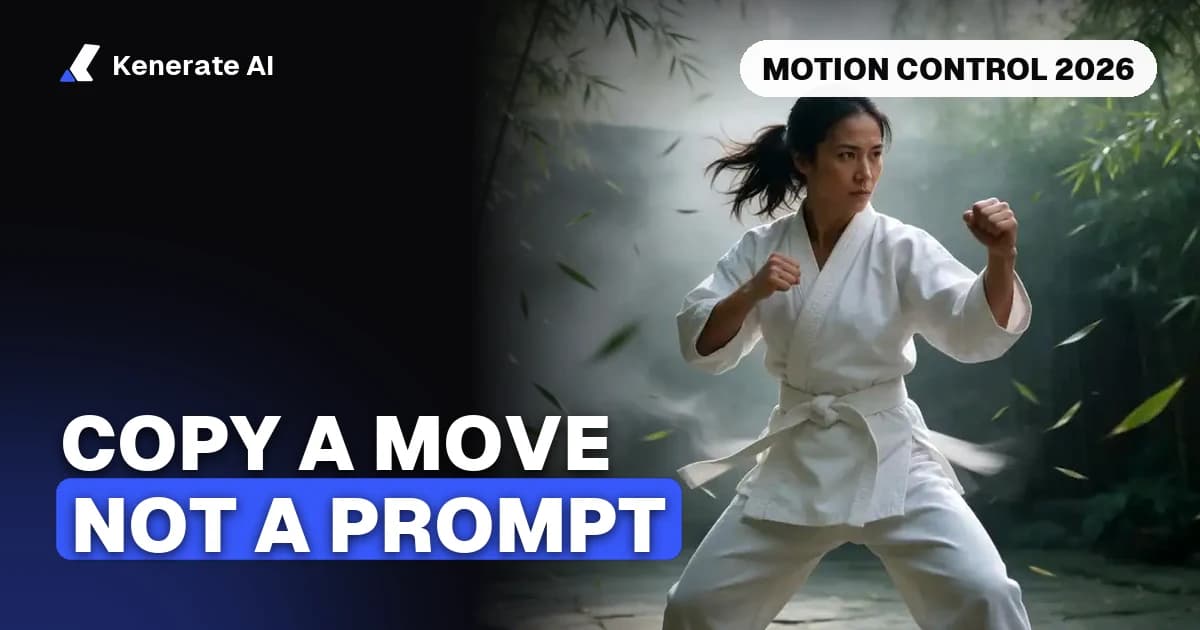
Motion control in AI video takes the movement from a real reference clip and applies it to a still image. You upload a picture of a character and a short video of someone performing the action you want, and the model renders a new clip where your character copies the body movement, gestures and expressions of the reference. Image to video is different: it animates a picture from a prompt or a simple camera move, and the model chooses the motion. Use motion control when the exact action matters, and image to video when the picture just needs to come alive.
As of October 30, 2026, Kenerate's Motion tool takes a reference video of 3 to 30 seconds and bills each second of output at 34 credits (Kenerate Motion) or 26 credits (Kenerate Motion Fast).
What does motion control mean in AI video?
Motion control, sometimes called motion transfer, is a generation mode with two inputs: a character image and a reference video. The reference supplies the movement, timing and body pose. The image supplies who appears on screen. A text prompt is optional and mostly sets the scene, the lighting and the background.
Kling's own tutorial describes the process in simple terms: the system analyses the skeleton in the reference video, maps it onto the character in your image and renders the frames. Because the motion comes from a real performance, you can get a dance step, a turn or a wave that would be hard to describe in words. The trade-off is that you need footage of the action first.
How is motion control different from image to video and text to video?
The three modes differ mainly in who decides the movement. The table below sums up the choice.
| Mode | What you provide | Who decides the movement | Best for |
|---|---|---|---|
| Text to video | A written prompt | The model | New scenes built from scratch |
| Image to video | A start frame and a prompt | The model, guided by your prompt | Bringing a product shot, portrait or illustration to life |
| Motion control | A character image and a 3–30 s reference clip | The reference clip | Copying a specific action, dance or gesture onto your character |
Image to video is the right tool when you want a simple camera move or ambient motion, and you do not mind the model choosing the details. If you need a particular action at a particular speed, a reference clip gives you more control. For a general overview of image-driven generation, see our image to video AI page, and for the motion tool itself see AI motion control.
What inputs does motion control need?
Good results depend more on the inputs than on the prompt. Three things matter most.
What makes a good character image?
The character should be clear and fully visible. Replicate's documentation for Kling's motion model asks that the character's entire body and head are visible and not obstructed in the reference image. Keep the framing close to the reference video: a half-body photo paired with a full-body clip is a common cause of failed or distorted output. Kling's guide also recommends a short edge of at least 300 px.
What makes a good reference video?
The reference drives almost all of the movement, so pick it carefully. Kling's tutorial lists the features of a strong clip:
- A single, clearly visible subject on a clean background
- Readable limb movement with little overlap between body parts
- Steady footage with no cuts and no camera movement
- Moderate speed and distance travelled
Keep the clip between 3 and 30 seconds. Fast, complex moves are harder to track, and Kling notes they can produce a shorter output than you asked for while using more credits.
What should the prompt say?
Describe the scene, not the action. The motion already comes from the reference, so a prompt that says "she spins" adds little. A prompt such as "a rainy neon street at night, soft reflections" or "a studio backdrop, even lighting" sets the look. Add a negative prompt for common faults, such as extra fingers or blur.
How do you run motion control step by step?
- Open the Motion tool in the Kenerate app and choose a model: Kenerate Motion for the highest fidelity on faces, cloth and hands, or Kenerate Motion Fast for drafts.
- Upload the character image. Use a clear picture whose framing matches the reference clip.
- Upload the reference video or pick one from the library. Trim it to the action you want, between 3 and 30 seconds.
- Choose the pose mode. Video follows the clip's orientation and framing. Image keeps the pose and direction of your photo.
- Write a scene prompt and, if needed, a negative prompt.
- Set the sound switch. Leave it on if the clip's audio matters, such as a dance on the beat. Turn it off for a silent clip you plan to score later.
- Generate and review. Draft on the faster model, then render the keeper on the higher-fidelity one.
Sometimes the first run misses. Check the framing of the image against the video before you change the prompt, because framing mismatch is the most common cause of poor output.
Which pose mode should you choose?
The pose mode decides what the output follows. Replicate's listing for Kling's motion model gives the limits for each mode, and they matter for planning:
| Pose mode | Output follows | Maximum length (per Kling's listing) |
|---|---|---|
| Video | The reference's orientation, framing and camera moves | 30 seconds |
| Image | The pose and facing direction of your photo | 10 seconds |
Choose Video when the reference's camera work is part of the shot, such as a turn that should be followed. Choose Image when your character must keep the framing of a carefully composed photo, and keep the clip short.
How much does motion control cost on Kenerate?
Motion clips are billed per second, so the cost scales with length. The rates come from the model configuration in the app:
| Model | Credits per second | 5-second clip | 10-second clip |
|---|---|---|---|
| Kenerate Motion | 34 | 170 credits | 340 credits |
| Kenerate Motion Fast | 26 | 130 credits | 260 credits |
Credits are priced at 300 per US dollar, so 34 credits is about 11 cents of generation a second. Check the live price in the tool before a long run, because the figures above are for planning and not a quote. If a job fails, its credits are refunded automatically.
What are the limits of motion control?
Motion control is strong on human movement and weaker in other areas. Kling's guide lists the common problems:
- Face drift. Identity can drift across a clip, which is the most reported issue with motion transfer. Kenerate's Motion page says the higher-fidelity model gives the best results on faces, so use it for final renders; a sharp, front-facing character image helps too.
- Multiple people. With more than one person in the reference, the system tends to follow whoever takes up the most space.
- Hidden limbs. When body parts are out of view in the reference, the output can drift in proportion.
- Stylised figures. Anime, cartoon and 3D characters are recognised, but human-like movement is more accurate.
If the clip is important, treat the first render as a test and adjust the image framing or the reference before you spend on a longer run.
When should you use motion control instead of image to video?
Use motion control when:
- You need a specific action, such as a dance, a workout move or a hand gesture
- You already have footage of the movement and want it on a new character
- You need the same movement repeated across several characters or products
Use image to video when:
- You want the picture to move with a simple camera move or atmosphere
- You do not have reference footage
- You are making a short ad or social clip where the motion can be loose
For a broader view of which model suits which job, read our AI video models guide or the AI video generator overview. For a comparison of motion transfer with other reference-based tools, see AI motion transfer.
Does motion control keep the original audio?
Yes, when the Keep sound switch is on. The result carries the reference clip's audio, so a dance can stay on the beat and speech can stay in sync with the mouth. Turn the switch off if you want a silent clip to score later. Keep in mind that the sound comes from the reference clip, so check that it contains only the audio you want.
Frequently asked questions
What is motion control in AI video?
Motion control is a generation mode that transfers the movement from a reference video onto a character in a still image. The reference supplies the body movement and expressions, and the image supplies the character. It is useful when a specific action must match a real performance.
How long can a motion control reference video be?
On Kenerate's Motion tool, the reference video must be between 3 and 30 seconds. Kling's listing for its own motion model caps output at 10 seconds in the Image pose mode and 30 seconds in the Video pose mode.
Is motion control the same as image to video?
No. Image to video lets the model choose the movement from a prompt. Motion control takes the movement from a reference clip, so you control the action directly. Both start from a still image, but the source of the motion is different.
Do I need a reference video that has the same person?
No. The reference shows the movement, not the identity. Your character image defines who appears on screen. The reference should still have a clear subject and framing that roughly matches the character image.
How much does a motion control clip cost?
On Kenerate, Kenerate Motion costs 34 credits per second and Kenerate Motion Fast costs 26 credits per second. A 5-second clip costs 170 or 130 credits. Check the price in the tool before a long run.
Can motion control work with anime or cartoon characters?
It can, but the results are less reliable than with human characters. Kling's guide says stylised figures are recognised, while human-like movement is more accurate. Test with a short clip first.
What if the character's face changes during the clip?
Face drift is the most common complaint about motion transfer. Use a sharp, front-facing image, keep the reference steady, and choose a higher-fidelity model for the final render. If it still drifts, shorten the clip.
Key takeaways
- Motion control copies movement from a reference clip (3–30 seconds in Kenerate's Motion tool) onto a character image.
- Image to video lets the model choose the motion, which is easier to start with but less precise.
- Match the character's framing to the reference, and keep the reference single-subject and steady.
- Kenerate Motion costs 34 credits per second and Motion Fast costs 26 credits per second, as of October 30, 2026.
- Pose mode decides whether the output follows the reference or your photo, and it sets the maximum length.
Sources
- Replicate, Kling v3 motion control model listing: replicate.com/kwaivgi/kling-v3-motion-control
- Kling AI, "Ultimate Guide to the Kling VIDEO 2.6 Motion Control": kling.ai/blog/ai-motion-transfer-video-tutorial
- Atlabs help centre, motion control article: help.atlabs.ai/en-us/article/motion-control-jk2b2s
Kenerate credit rates and clip limits are taken from the app's model configuration and were checked on October 30, 2026. Vendor limits can change, so confirm them on each provider's current documentation.