Green screen remover · free credits
Remove the green screen from any photo
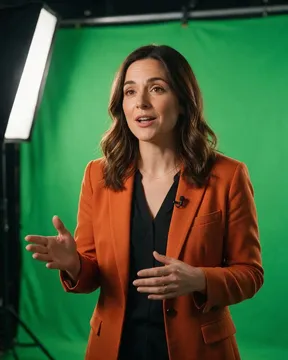
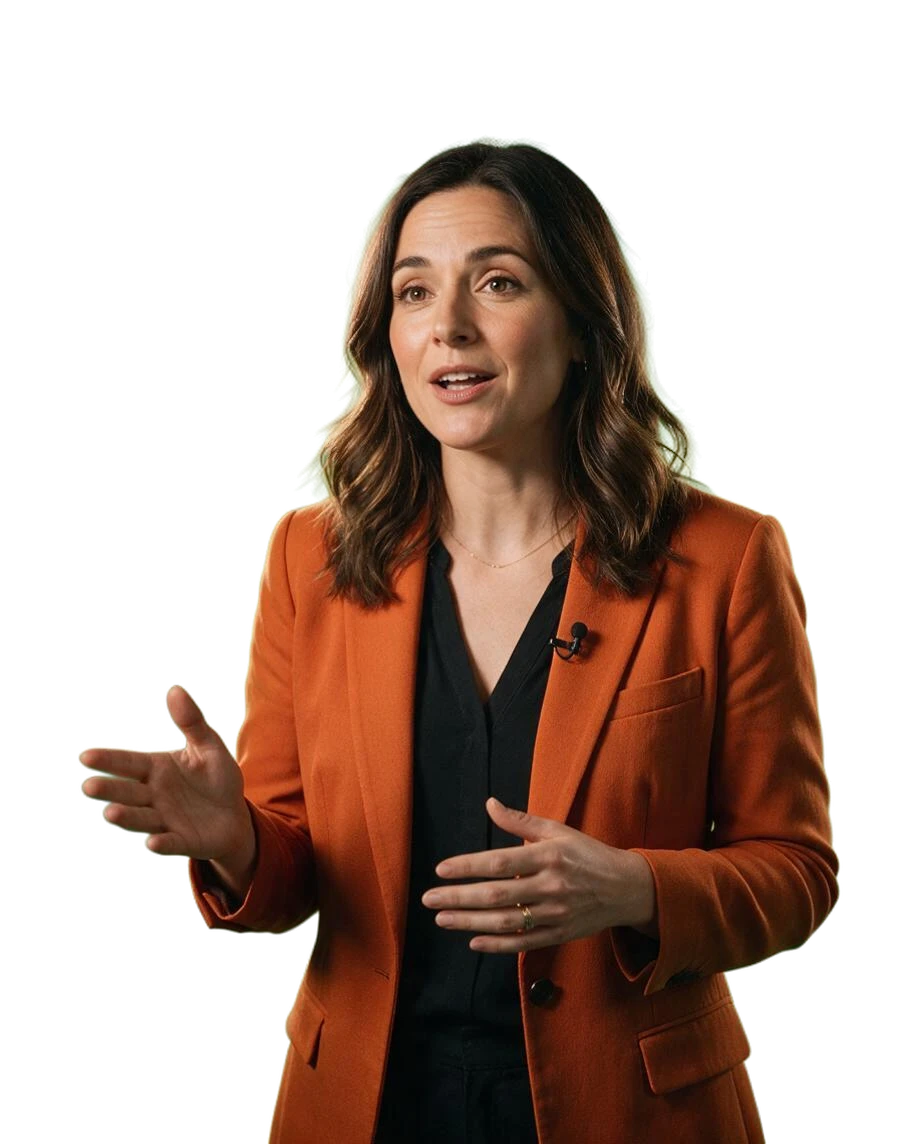
Kenerate cuts the subject out by shape, not colour — no colour picking, no keying settings, no green fringe. Green clothing stays, fur and hair keep their edges, and you download a transparent PNG.


- No colour picking
- No green fringe
- Green clothing kept
- Transparent PNG
Updated by the Kenerate AI team




On this page
Quick answer

How do you remove a green screen from a photo?
To remove a green screen from a photo, upload it to Kenerate and run Cutout HD: the AI finds the subject by shape — no colour to pick, no green fringe — and you download a transparent PNG or drop in any background. For green screens in video, use the chroma key filter in your editor; this tool works on still images.
Key facts
- Works on
- Photos — JPG, PNG, WEBP
- Method
- AI subject detection, not colour keying
- Green clothing
- Kept — shape-based, not colour-based
- Output
- Transparent PNG, no green fringe
Real results
What green screens can it remove?
Real Cutout HD results — tap “Original” to see the green screen.
Step by step
How do I remove a green screen from a photo?
Step 1: Upload the photo
JPG, PNG or WEBP with a green screen behind the subject — even and wrinkle-free is nice but not required.
Step 2: Run Cutout HD
The AI detects the subject by shape, so the green goes even where it reflects onto hair or fur.
Tip: Shape-based detection means a green shirt or green eyes aren't removed with the screen.
Step 3: Download the PNG
Transparent background, ready for a thumbnail, slide or product scene. Check the edges on a dark colour.
The difference
Chroma key or AI — which removes a green screen better?
Chroma key deletes every pixel close to one colour. It's fast and it works on video, but it needs an even, well-lit screen, it punches holes through green clothing, and it leaves a green fringe wherever the screen reflects onto the subject.
AI subject detection — what Kenerate runs — finds the subject by shape and context instead. The screen can be wrinkled or unevenly lit, green outfits survive, and edges don't inherit the backing colour. For a single photo there's nothing to configure: upload, cut out, download.
The honest split: photos → AI; video → chroma key in your editor. Kenerate's remover is for still images, so for footage reach for OBS Studio, Premiere or DaVinci.
The hard case
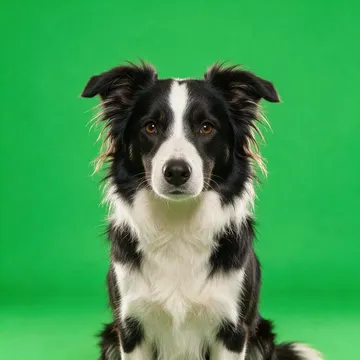
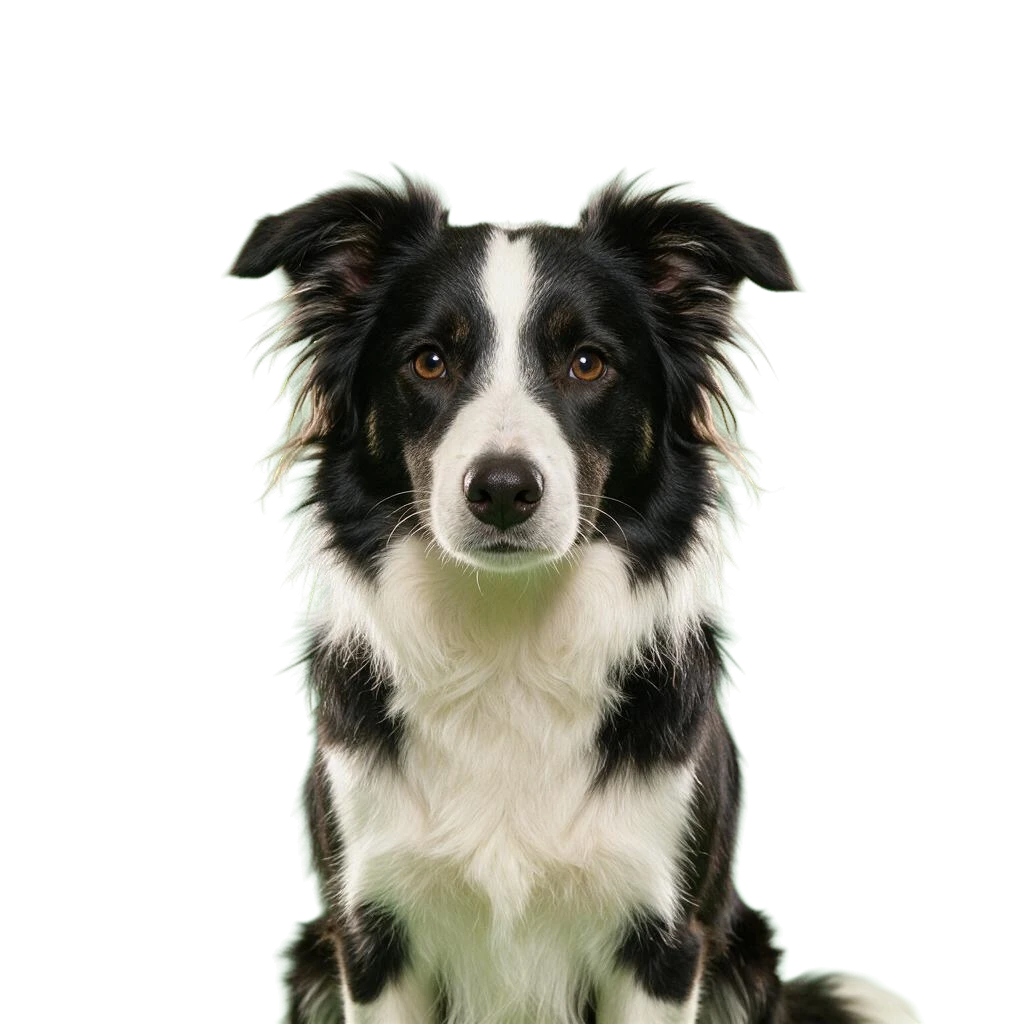
Can it keep fur against a green screen?
Fur and flyaway hair are where colour keyers leave a green halo. Shape-based cutting keeps the wisps without the tint.
- Wispy ear and chest fur kept, green screen removed
- No green halo around the outline
- Ready for any background colour
For video
How do I remove a green screen from video?
Kenerate works on photos. Footage wants a chroma keyer — every major editor ships one.
Step 1: OBS Studio: Chroma Key filter
For live streams and recordings — right-click the camera source and add the filter, then pick the key colour.
Right-click sourceFiltersChroma Key
Step 2: Premiere Pro: Ultra Key
Drop the effect on the clip, sample the green with the eyedropper, then tune the matte.
EffectsKeyingUltra Key
Step 3: DaVinci Resolve: 3D Keyer
Add the keyer effect to the clip and draw a stroke across the green to sample it.
EffectsOpen FX3D Keyer
Checked 28 October 2026
AI cut-out vs chroma key vs manual selection
Pick by what you're working on — photos suit AI, video still wants a keyer.
| Kenerate Cutout HD | Chroma key · editor | Magic Wand · manual | |
|---|---|---|---|
| Works without an even green screen | Yes | No | Yes |
| Green clothing on the subject | Kept | Punched through | By hand |
| Green fringe / spill risk | Low | Needs despill | Medium |
| Colour picking required | None | Yes | Yes |
| Works on video | No | Yes | No |
Troubleshooting
Why is there a green edge around my cut-out?
That's green spill — light bouncing off the screen and tinting the subject's edges. Colour keyers key the screen but keep the tinted edge, which is why they ship despill controls.
- Use a shape-based tool. Cutout HD doesn't judge edge pixels by colour, so the fringe mostly disappears with the background.
- Shoot with distance. A step or two between subject and screen cuts the bounce light dramatically.
- Check on dark. Leftover green is invisible on white and obvious on black — preview the PNG on a dark colour before you publish.
Example uses
Who removes green screens
Common jobs, with the real before and after.
Illustrative examples of typical workflows, not customer reviews.
YouTuber
Films talking-head clips against a green screen, then needs the still for a thumbnail. One cut-out and the frame sits on any thumbnail background.
Try this workflowPet content creator
Shoots the dog on green for overlays. Chroma key chewed the fur; the shape-based cut-out keeps the wispy edges.
Try this workflow
How it works
How it works in the app
Step 1
Add your image
Open Remove & Erase and drop in a photo — products, people and pets all work.
Step 2
Choose what should happen
Pick Cutout for a fast transparent PNG, HD for hair and fur, Pick for one object or Erase to remove something.
Step 3
Click Remove background
Press the button and the cut-out lands in your results in seconds.
Step 4
Compare and download the PNG
Drag the slider to compare, add a new background if you like, then download the transparent PNG.
See it in the app

Open Remove & Erase and drop in a photo — products, people and pets all work.


FAQ
Green screen removal questions
9 questions

How do I remove a green screen from a photo?
Upload the photo to Kenerate and run Cutout HD. The AI separates the subject from the green screen and you download a transparent PNG — no colour picking, no keying settings.
Link to this answerIs this the same as chroma key?
No. Chroma key deletes everything close to one colour, which is why it needs an even screen and fails on green clothing. Kenerate detects the subject by shape and context, so the screen's colour barely matters.
Link to this answerCan it remove a green screen from video?
No — Kenerate's background remover works on still images only. For video, use the chroma key filter in your editor: OBS Studio, Premiere Pro's Ultra Key and DaVinci Resolve all have one built in.
Link to this answerWhy is there a green edge around my cut-out?
That's green spill — light bouncing off the screen onto the subject's edges. Colour-based keyers leave it behind. Cutout HD cuts by shape, so the fringe is far smaller; for heavy spill, step the subject further from the screen when you shoot.
Link to this answerDo I need a green screen for photos at all?
Not for Kenerate — the AI removes any background, busy or plain. A green screen still helps for video keying and live streams, where colour-based tools need it.
Link to this answerWhat if the subject wears green?
It stays. A chroma keyer would punch holes through a green shirt; shape-based detection keeps the shirt and removes only the background.
Link to this answerCan I replace the green screen with another background?
Yes. Download the transparent PNG and place it on anything, or generate a new backdrop with the AI background generator.
Link to this answerWhat files does it accept?
JPG, PNG or WEBP — up to 10 MB in Cutout HD and 25 MB in the standard modes.
Link to this answerIs it free?
Free to start with starter credits on sign-up. Bigger jobs use one-time credit packs that never expire — no subscription required.
Link to this answerIn depth
Why green screens exist — and when you can skip one
The idea behind chroma keying, what green spill is, and why AI detection made the screen optional for photos — with sources.
On this page
Chroma key needs a colour; AI doesn't
Classic keying treats the backing colour as known and solves for what's in front of it — that's why studios paint the wall one loud green and light it evenly [1]. The moment the assumption breaks (wrinkles, shadows, a green sleeve), the key breaks with it. AI segmentation models such as U²-Net and IS-Net work the other way round: they find the subject by shape and context [2][3], so the background's colour, evenness and lighting stop being requirements.
Green spill is the real enemy
A lit green screen bounces green light onto the subject — hair, shoulders, anything glossy. Keyers ship spill-suppression controls precisely because the fringe survives the key [1]. A shape-based cut-out sidesteps most of it, since edge pixels aren't judged by their colour; what remains is the spill on the subject itself, which no background removal can undo — shoot with the subject a step or two away from the screen.
When a green screen still earns its place
For still photos, AI detection has made the screen optional. For video and live streams it hasn't: real-time keying in OBS or an editor's keyer still wants that even green backing, and semi-transparent things — smoke, glass, motion blur — key better against a known colour than any per-frame mask [1].
By the Kenerate AI teamLast updated and reviewed
Written by the Kenerate team; both examples are real Cutout HD results.
Sources: OBS Studio — Filters Guide (Chroma Key) · Smith & Blinn — Blue Screen Matting (SIGGRAPH 1996)

Remove the green screen free
Free credits on sign-up. Upload the photo, download a transparent PNG with no green fringe.
Tried it? Tell us how it went