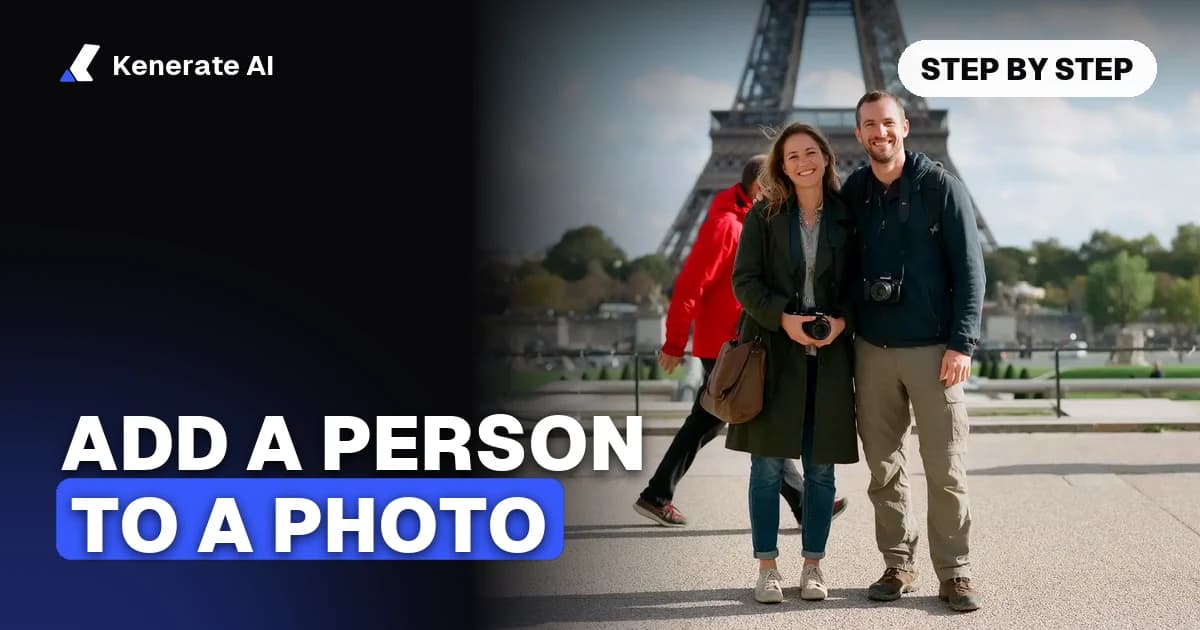
To add a person to a photo, you need two pictures: the photo you want to keep and a clear photo of the person who's missing. The fastest way is an AI image editor that takes both photos and one sentence ("add the person from image 2 at the right end of the group, same light and scale"). The classic way is to cut the person out in Photoshop, place them, then match light, colour and shadows by hand. Either way, only add adults who agreed, and say it's an edited photo when you share it.
This guide covers all three routes as of 1 November 2026: AI editing with your own photos, Photoshop (including its Harmonize tool), and phone options. It also includes a checklist for the part most tutorials skip: making the new person look like they were really there.
Which method should you use to add someone to a picture?
Pick by how much control you want and what you already have installed. Here's how the three main routes compare.
| Method | What you need | Time per photo | Control | Best for |
|---|---|---|---|---|
| AI multi-reference edit (e.g. Kenerate Image Studio) | Original photo + one photo of the person, a browser | 1–3 minutes, plus reruns | Medium: you steer with words | Group shots, family photos, adding the photographer |
| Photoshop: cut-out + Harmonize | Photoshop 2026 (v27.0+), Creative Cloud plan | 10–30 minutes | High: layers, masks, brushes | Pro composites, print work |
| Photoshop: fully manual | Any Photoshop version or GIMP | 30–90 minutes | Full | Tricky light, when AI keeps failing |
| Phone camera "Add Me" (Pixel 9 and newer) | A Pixel phone, decided before you take the photo | Under a minute | Low | Adding the photographer at the moment you shoot |
If the photo has already been taken and you don't own Photoshop, the AI route is the realistic choice. If you're planning the shot right now with a Pixel, Add Me fixes the problem before it happens.
How do you add a person to a photo with AI?
Modern image models can take several reference images at once. You give the model the original photo and a photo of the person together, and it redraws the scene with that person in it, lit by the same light and casting shadows on the same ground. It isn't a cut-out pasted on top, which is why the result can blend much better than a manual paste.
Here's the process on Kenerate. Other multi-reference editors follow the same pattern.
- Open the editor. Go to the add person to photo tool and press the button. Image Studio opens on Nano Banana 2.1 with an add-a-person instruction already in the prompt box. New accounts get 25 free credits on sign-up.
- Upload the original photo first. This is the group shot, holiday picture or family dinner you want to keep. It becomes "image 1".
- Upload the person second. Use one clear photo of the adult who's missing and agreed to be added. It becomes "image 2".
- Say exactly where they go. Edit the prompt to name the spot, their height and their pose (see the formula below).
- Create, compare, rerun. Check every face against the original photo. The picture is redrawn, so small details can shift. Rerun until one take is right, then download it. There's no watermark.
What prompt should you use to add someone to a photo?
Five parts cover nearly every add-a-person edit:
- Who goes where: "Add the person from image 2 into the photo from image 1."
- The exact spot: "at the right end of the front row" or "between the two people on the left".
- Size and pose: "about as tall as the man in the middle, arm around his shoulder, smiling at the camera".
- The light: "match the warm sunset light from the left and the soft shadows on the ground".
- What must not change: "Keep image 1 exactly the same: the background, every other person, their faces, poses and clothes. Keep the added person's face, hair and clothing as in image 2."
A full example:
Add the person from image 2 into the photo from image 1, standing at the right end of the group, at the same distance from the camera as the others. Keep image 1 exactly the same: the background, every other person, their faces, poses and clothes. Keep the added person's face, hairstyle, skin tone, build and clothing exactly as in image 2. Match the lighting direction, colour temperature, shadows, sharpness and grain of image 1, and give them a realistic height next to the people around them.
Which AI model is best for adding a person, and what does it cost?
On Kenerate, four image models can take more than one photo. Prices below are in credits for one edit at 1K with two photos (the original plus one person), taken from the app's credit calculator as of 1 November 2026.
| Model | Credits (1K, two photos) | Max photos per edit | Notes |
|---|---|---|---|
| Nano Banana 2.1 (Google) | 21 (31.5 at 2K, 42 at 4K) | 14 | Default for this edit; keeps faces and scenes steady |
| GPT Image 2.5 Sunburst (OpenAI) | 16.2 (7.2 + 4.5 per photo) | 16 | Careful with fine detail and text in the scene |
| Seedream 5.0 Pro (ByteDance) | 13.5 (27 at 2K) | 10 | Flat price: add two or three people in one go |
| Qwen Image 3.0 (Alibaba) | 10.8 (9 + 0.9 per photo) | 3 | On the free plan; good for quick tries |
So the 25 sign-up credits cover two tries on Qwen Image 3.0, or one on Nano Banana 2.1. If you want to merge separate photos into a brand-new scene rather than add someone to an existing one, the AI image combiner or the AI group photo generator is the better starting point. For more on the default model, see the Nano Banana 2.1 model page.
Google's Gemini API documentation confirms that its Nano Banana image models can mix several reference images in one request. It also reminds users to "make sure you have the necessary rights to any images you upload" (Google AI for Developers).
How do you add a person to a photo in Photoshop?
Photoshop is still the most controllable option. Since Photoshop 2026 (version 27.0), it has a one-click blending tool called Harmonize that matches colour, lighting, shadows and contrast for a subject you've placed in a scene (Photoshop Essentials).
Steps with Harmonize
- Open the background photo (the picture you want to keep).
- Place the person: File › Place Embedded, choose the person's photo, and accept it without resizing yet.
- Remove their background: with the person's layer selected, click Remove Background in the Contextual Task Bar. Photoshop hides the background with a layer mask instead of deleting it.
- Size and position them: Edit › Free Transform, keep width and height linked, then scale and move. Get this right first, because Harmonize blends at that exact size and spot.
- Click Harmonize in the Contextual Task Bar. The result appears on a new layer with three variations to choose from, and you can generate three more.
- Fix what's left: if the person comes out too dark (a known quirk), put the original layer above the Harmonize layer, add a Hide All mask and paint highlights back in with a soft brush at lowered opacity.
Harmonize uses Adobe generative credits, and Adobe's own help pages quote different figures per generation, so check your plan before a big batch. Some compositors report that Harmonize handles objects better than people and can soften skin and fabric texture. A common workaround is to keep your original cut-out and use only Harmonize's shadows and colour cast, masked in by hand (Greg Benz Photography).
The fully manual way
Without Harmonize (older Photoshop, GIMP or Affinity), the workflow is the same except you do the blending yourself:
- Cut out cleanly. Use Select Subject, then refine hair with Select and Mask.
- Match colour. Use a Curves or Color Balance adjustment layer clipped to the person, and sample the warmth of skin tones already in the scene.
- Match light direction. Dodge the side facing the light source and burn the far side.
- Paint a contact shadow. Use a soft black brush on a Multiply layer under the feet, with low opacity and blurred. A missing contact shadow is one of the most common giveaways.
- Match grain and sharpness. Add noise or blur the cut-out so it matches the original's texture.
How do you add a person to a photo on your phone?
You have three realistic options on a phone:
- Before you shoot (Pixel 9 and newer): Google's Add Me camera mode has you take the group photo leaving a gap, then swap places with someone. The camera shows an AR overlay of the first shot so the second photographer can line it up, then merges the two frames. Both originals are saved too (Google blog). It only works at the moment of shooting, not on old photos.
- After the fact, in a browser: the AI method above works on a phone browser. Upload from your camera roll, type the prompt and download the result.
- Photoshop on mobile: Adobe has added Harmonize to Photoshop on mobile (see its mobile help pages), with the same cut-out-then-blend idea on a small screen.
How do you make an added person look real?
A pasted-in look almost always comes from a mismatch between the two photos. Check these before you press Create (AI) or start masking (Photoshop):
| Check | What to match | Quick fix |
|---|---|---|
| Angle | Camera height and direction | Pick a photo of the person shot from the same height: front-on for a front-on group |
| Framing | Waist-up vs full-length | Use a photo of the person with the same crop as the group |
| Light direction | Which side the shadows fall on | Name it in the prompt ("light from the left"), or flip the person's photo if their face is lit from the wrong side |
| Colour temperature | Warm indoor vs cool daylight | Choose a photo taken in similar light; in Photoshop, clip a colour adjustment layer |
| Scale | Height relative to others | Give a reference: "about as tall as the woman in the middle" |
| Contact | Feet on the ground, hands on shoulders | Ask for "realistic shadows on the ground"; check hands and shoulders closely |
| Texture | Sharpness and grain | "Match the sharpness and grain of image 1"; in Photoshop, add noise |
Two more tips help with AI edits. First, leave room: a photo with a natural gap at the end of a row or in the back is much easier than squeezing someone into a tight line. Second, if the lighting in the original photo is the problem (harsh flash, mixed light), fix it first with a relight photo AI pass, then add the person.
OpenAI's image documentation notes that image models may have difficulty placing elements precisely in layout-sensitive compositions (OpenAI). Plan for a rerun or two, and be specific about position.
Can you add more than one person, or the photographer?
Yes to both. For several people, upload the original photo first, then one photo per person, and refer to each by image number: "add the person from image 2 at the far left and the person from image 3 behind the couple in the middle". Nano Banana 2.1 takes up to 14 photos, Seedream 5.0 Pro 10, GPT Image 2.5 Sunburst 16 and Qwen Image 3.0 3.
For the photographer, take a photo of yourself from roughly the same distance, at the same height and in the same light as the group. Then upload the group photo first and your photo second. It's the most common reason people search for this in the first place.
To go the other way and take someone out, see how to remove a person from a photo.
Is it OK to add someone to a photo?
It's fine for honest, personal edits with consent: the friend who took the picture, the cousin who arrived late, or a family member who has passed away, with the family's agreement and labelled as a memorial edit. Keep to a few simple rules:
- Only adults who agreed. That means the person you add and the people already in the photo. Kenerate blocks prompts about children or anyone under 18, so don't upload their photos.
- No public figures or strangers. A believable photo of a real person somewhere they never were can mislead. Google's Generative AI Prohibited Use Policy, for example, bans impersonating someone without explicit disclosure in order to deceive (Google).
- Label it. Caption it as edited or AI-made wherever people might take it as a record of a real moment, and never use it as proof that someone was somewhere.
Summary
Adding a person to a photo comes down to two good source photos and a careful match of angle, light and scale. AI editors do the blending for you in a minute or two. Photoshop's Harmonize gives you layers and masks when you need full control. On a Pixel, Add Me solves it before the shutter clicks. Whatever you use, compare the result against the original, rerun when a face drifts, and keep it honest.