To do the Christmas AI photo trend, upload one clear, well-lit photo of yourself (or your family or pet) to an AI image editor that accepts reference photos, paste a festive prompt that tells the model to keep your face exactly as it is, and generate a few versions. Pick the best one, fix small details with a short follow-up edit, then upscale it if you want to print it. The whole thing takes about ten minutes and works in ChatGPT, Gemini or a multi-model studio like Kenerate AI.
This guide walks through every step as of 1 November 2026: which photo to use, which kind of model to pick, ten copy-paste prompts for the most popular looks, how to keep faces consistent, and how to get a sharp 4K file for cards and prints.
What is the Christmas AI photo trend?
The trend is simple: people take an ordinary selfie or family snapshot and ask an AI image model to turn it into a festive "photoshoot" — a cozy fireplace scene, a snowy cabin, a vintage 1950s card, or a glittery studio set full of candy canes. It took off on TikTok and Instagram in December 2025, when the candy cane version spread through ChatGPT. The Tab described it as a sparkly set with lollipops, fairy lights and baubles, generated from one uploaded photo and a long prompt that asks the AI to keep your facial features unchanged.
Other variants followed quickly. AIPure's roundup lists looks such as the Reindeer Queen, the Christmas bulb, the vintage Christmas card, the winter wonderland, string-light portraits, Polaroid party snapshots, pet portraits and family photos. In 2026 the same idea is back, and the models are better at keeping a real face recognisable.
What do you need before you start?
You need three things:
- A good source photo. One person or group, faces in focus, even light, no heavy filters. A phone photo taken near a window is ideal.
- An image model that edits from a reference. Plain text-to-image models invent a new face; you want an edit model that takes your photo as input.
- A prompt. The prompt describes the scene, the outfit and the light — and, most importantly, tells the model what must stay the same.
Only use photos of yourself or people who have agreed to it (and their parents' agreement for children). Don't use photos of celebrities or strangers.
Which AI tools can do the Christmas photo trend?
Most people use one of three routes. Here is how they compare:
| Route | How you upload | Best for | Things to know |
|---|---|---|---|
| ChatGPT (GPT image models) | Attach a photo in the chat | The viral candy cane look, text on cards | Free tier has daily limits; results can drift from your face after several edits |
| Gemini (Nano Banana models) | Attach a photo in the app | Keeping likeness across many edits, pets | Google adds an invisible SynthID watermark and a visible mark (Google) |
| Kenerate AI Image Studio / Edit | Upload in AI Edit | Comparing several models on one photo, family shots with many references, 4K upscale | Credit-based; new accounts get 25 free credits |
On Kenerate, two edit models suit this trend best (prices from our model config, as of 1 November 2026):
| Model | Max reference images | Credits per edit (1 photo) | Use it for |
|---|---|---|---|
| Nano Banana 2.1 | 14 | 21 | Faces and pets that must look exactly like the photo; families built from several photos |
| GPT Image 2.5 Sunburst | 16 | about 11.7 (+ a little per extra photo) | Studio looks, glitter, text on cards ("Merry Christmas from the Smiths") |
| Image Upscaler | 1 | 3 | Turning the final 1K–2K image into a 4K print file |
If you'd rather not write prompts at all, the AI Christmas photo generator page has ready-made festive styles.
How do you do the Christmas AI photo trend, step by step?
Step 1: Pick and prepare your photo
Choose a photo where every face is at least the size of a thumbnail, eyes open, nothing covering the face. Crop out clutter at the edges. If you're doing a family shot and one photo doesn't have everyone looking good, use two or three photos — reference-based models can combine people from several images.
Step 2: Open an edit model and upload
On Kenerate, open AI Edit, choose Nano Banana 2.1 (best likeness) or GPT Image 2.5 Sunburst (best for glitter and text), and upload your photo. In ChatGPT or Gemini, just attach the photo in the chat box.
Step 3: Paste a prompt with a "keep" sentence
Every good trend prompt has two parts: what to change (scene, clothes, light) and what to keep (face, hair, expression, skin tone, number of people). Start with one of the prompts below and adjust the details.
Step 4: Pick the aspect ratio
Use 4:5 or 9:16 for Instagram and TikTok, 1:1 for a profile picture, and 5:7 or 4:3 for a printed card. Set it before you generate — cropping later can cut off heads.
Step 5: Generate three or four versions
Results vary from run to run. Generate a few and pick the one where faces look most like the real people.
Step 6: Fix small problems with a follow-up edit
Don't rewrite the whole prompt to fix a detail. Upload the best result and ask for one change: "Make the sweater dark green, keep everything else the same." Small edits keep the face stable.
Step 7: Upscale for printing
A 1K image looks fine on a phone but soft on paper. Run the final image through the AI image upscaler to 4K (3 credits on Kenerate) before you order prints or cards.
What are the best Christmas AI photo prompts to copy?
Each prompt ends with the same "keep" line. Paste it as is, or swap in your own details. For 30 more ideas, see our AI Christmas photo prompts post.
Keep line (add to every prompt): "Keep the people's faces, facial features, hairstyle, skin tone and expressions exactly as in the uploaded photo. Do not add or remove people. Photorealistic."
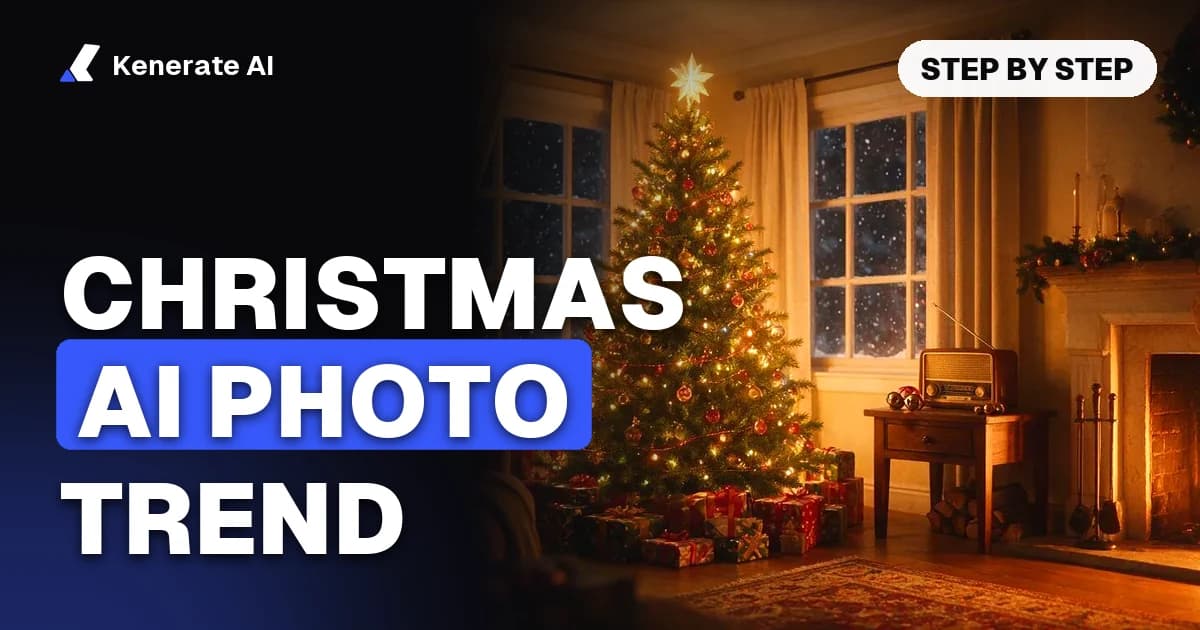
- Cozy fireplace: "Place the people on a cream sofa in front of a crackling stone fireplace with stockings, a decorated tree with warm white lights, soft golden evening light, chunky knit sweaters, mugs of hot cocoa."
- Snowy cabin: "Outdoor portrait in front of a wooden cabin with snow on the roof and pine trees, gentle snowfall, red plaid scarves and wool coats, warm light glowing from the windows, late afternoon blue hour."
- Matching pajamas: "Family on a bed and rug in matching red-and-white Fair Isle Christmas pajamas, wrapped presents and a lit tree behind them, playful laughing poses, bright morning window light."
- Candy cane studio (the viral look): "Glossy studio photoshoot with giant candy canes, peppermint lollipops, silver baubles and fairy lights, sparkling sequined white outfit, soft snow on the floor, magazine-style lighting."
- Vintage 1950s card: "Restyle as a 1950s Christmas card photograph: soft Kodachrome colors, a tinsel tree, vintage dresses and suits, a retro living room, slight film grain, white border with room for a greeting."
- Pet in a Santa hat: "Turn the pet into a festive portrait wearing a small red Santa hat, sitting on a plaid blanket beside wrapped gifts and a glowing tree, shallow depth of field. Keep the pet's fur color, markings and eye color exactly the same."
- Christmas market at night: "Standing at a European Christmas market at night, wooden stalls with string lights, steam from mulled drinks, light snow, warm bokeh in the background, winter coats and beanies."
- Snow globe: "Place the people inside a large glass snow globe on a wooden table, tiny snowy village around them, glitter snow falling, soft studio light reflecting on the glass."
- Gingerbread kitchen: "Baking gingerbread cookies in a bright kitchen, flour on the counter, aprons with holly patterns, a tray of iced cookies, fairy lights on the cabinets."
- Card with greeting text: "Make this a holiday card: the people in front of a decorated tree, and above them the words 'Merry Christmas from the Lees' in elegant gold script." (Use GPT Image 2.5 Sunburst for clean text.)
For a ready-made layout, try the AI Christmas card generator; for a festive avatar, the Christmas PFP generator.
How do you keep faces looking like you?
Faces are where AI holiday photos go wrong. These habits help:
- Say it twice. Put the keep line at the end of the prompt and mention "same face" again if the model drifts.
- Use a reference-first model. Nano Banana-family models are built around keeping people and pets recognisable across edits, which is why the Gemini version of the trend went viral.
- Change one thing at a time. A full restyle (new outfit + new scene + new art style) is where likeness breaks. Do the scene first, then the outfit.
- Don't stretch the photo. A selfie upscaled from a tiny crop gives the model too little detail, so it invents features. Start from the original file.
- Add extra references for groups. If someone looks off, upload a second clear photo of that person and say "use image 2 for the person on the left."
- Avoid heavy beauty filters in the source photo; they make the AI smooth faces even more.
How do you make an AI family Christmas photo with everyone in it?
Family shots are the hardest version, because one bad face ruins the picture. Upload one photo per person (or per small group) to Nano Banana 2.1, which accepts up to 14 images, and describe the arrangement plainly: "Combine the people from all images into one family portrait: the two adults standing at the back, the child from image 3 in front, the dog from image 4 on the rug." Keep the scene simple — a sofa or a tree — so the model spends its effort on faces. Generate several versions and check each face against the originals before you share.
For pets alone, the AI pet portrait generator has styles tuned for fur and markings.
Is there a free way to do the Christmas AI photo trend?
Yes. ChatGPT and Gemini both let free users upload a photo and generate a handful of images per day, within their limits. On Kenerate, a new account gets 25 free credits on sign-up — enough for one Nano Banana 2.1 edit (21 credits) plus a 4K upscale (3 credits), or two GPT Image 2.5 Sunburst edits. If you want to make a batch of cards for the whole family, the Starter plan is $15 for 1,300 credits, which covers dozens of edits.
How do you print or share your AI Christmas photo?
- Social posts: export at 4:5 (Instagram feed) or 9:16 (Reels, TikTok, Stories). Many people post a before/after slide.
- Printed cards: upscale to 4K first, and leave empty space for the greeting if you'll add text in a card app — that way you can change the words without regenerating the photo.
- Labels: be open that the photo is AI-made when you share it. Gemini adds marks automatically; elsewhere a short caption like "made with AI" is a good habit.
Common problems and quick fixes
| Problem | Likely cause | Fix |
|---|---|---|
| Face looks like a stranger | Prompt changed too much at once, or low-res source | Use the original photo, add the keep line, restyle in two steps |
| Extra or missing people | Model guessed the group size | Add "exactly 4 people, no extra people" |
| Hands or fingers look odd | Props held in hands | Ask for "hands resting naturally" or remove the prop |
| Text on the card is misspelled | Model weak at text | Use GPT Image 2.5 Sunburst, or add text later in a card app |
| Image looks blurry when printed | Generated at 1K | Upscale to 4K before printing |
The short version
Upload a clear photo, choose an edit model that keeps likeness, paste a festive prompt that ends with "keep the faces exactly the same", generate a few versions, fix details one at a time, and upscale for print. Start with the cozy fireplace or snowy cabin prompts — they're the most forgiving — then try the candy cane studio once you've got the hang of it.
Updated 1 November 2026. Credit prices are from Kenerate's current model configuration and can change; the app always shows the price before you generate.