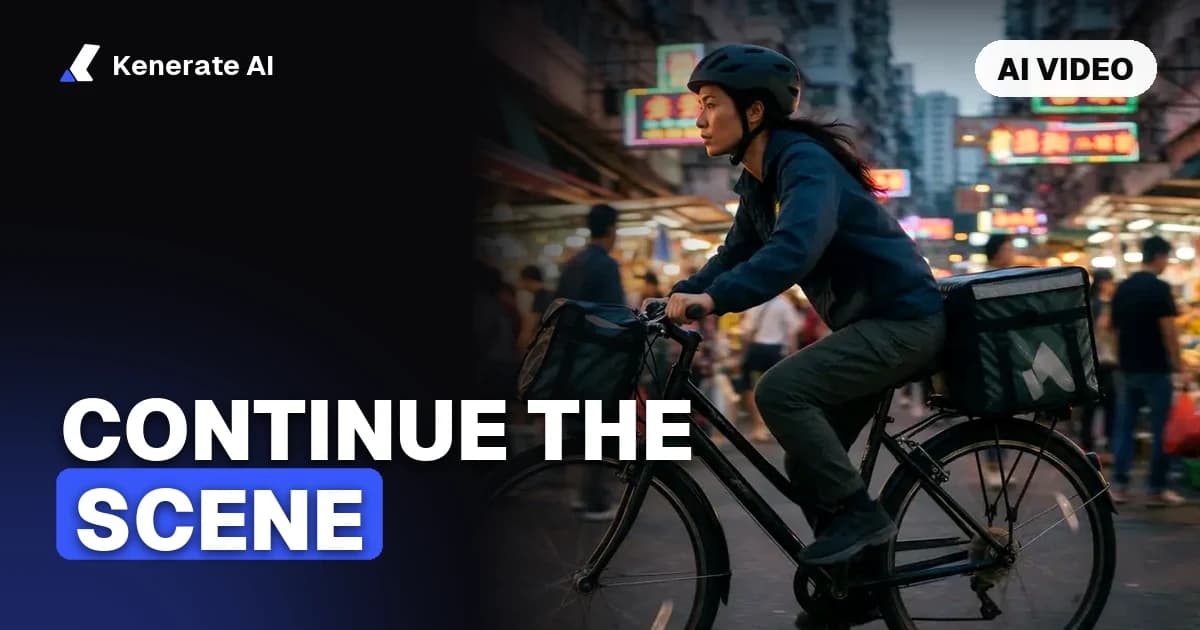
To continue a scene with AI video, you either use a model's built-in extend feature — upload the clip, describe what happens next, and it generates new frames that carry on the same motion, light and framing — or you export the clip's last frame and feed it to an image-to-video model as the start frame of the next shot. As of 28 October 2026, 17 models in Kenerate AI's video studio support native extend, adding anywhere from 1 to 30 new seconds per step, so a 5-second generation can grow into a continuous long take.
This guide covers both methods step by step, the prompt wording that keeps a continuation believable, and the real credit cost per added second.
What does "continue the scene" mean in AI video?
Most AI video models generate short clips — typically 4 to 15 seconds. "Continuing the scene" means making the story keep going past that limit without a visible cut: the same character, in the same place, doing the next thing. There are two ways to get there:
| Method | How it works | Best for |
|---|---|---|
| Native extend | The model reads your existing clip (motion, camera, color) and appends new seconds to it | Seamless continuation of the same shot — one long take |
| Last-frame image-to-video | You export the final frame and use it as the start frame of a brand-new generation | Starting the next shot of the scene, or models without extend |
Native extend produces the smoothest result because the model sees the clip's actual motion, not just one frozen frame. Last-frame continuation works with any image-to-video model and gives you more creative control — you can change the camera angle or pacing at the join.
Method 1: How do you extend a video with a native extend feature?
Here's the workflow in Kenerate AI's video extender, which is the same basic flow as any tool with an extend mode:
- Open the video tool and switch to Extend. In Kenerate that's the Video Studio with the feature set to Video Extend ("Extend an existing video seamlessly with cinematic continuation").
- Upload the clip you want to continue. It can be an earlier AI generation or real footage you filmed. Short, clean clips extend best — if your source is long, trim it to the section you want to grow from.
- Pick a model that supports extend. Wan 3 is a strong default: it adds 2–30 new seconds per step with sound. Seedance 2.5 extends at up to 4K. (Full model table below.)
- Describe only what happens next. Don't summarize the clip — the model already sees it. Write the next beat: "she turns the corner and breaks into a run, camera tracking alongside."
- Generate, review the join, repeat. Watch the first second of the new segment for a jump in color or speed. If it holds, you can extend the result again — chaining several short extends usually beats asking for one huge extension.
The output is one file: your original clip plus the new seconds, playing as a single take.
Method 2: How do you continue a scene from the last frame?
If your preferred model doesn't have extend — or you want the next shot rather than a longer version of the same one — use the last-frame trick with any image-to-video model:
- Export the final frame of your clip as an image (any video player or editor can do this; pause on the last frame and screenshot or export).
- Use it as the start frame in an image-to-video generation. In Kenerate, upload it as the image in Image to Video.
- Restate the scene in the prompt. Unlike native extend, the model only sees one frame, so spell out what must stay the same: "same woman in the red coat, same neon-lit street at night, she keeps walking toward camera."
- Describe the next action and camera move. "She stops at the window and looks in; slow push-in."
- Cut the two clips together in any editor. Because clip two literally starts on clip one's final frame, the join reads as continuous.
With models that accept reference images, you can also attach your character's face or the product from the first clip so identity survives the hand-off — Seedance 2.5 takes up to 30 reference images, Wan 3 up to 10.
Which AI models can extend a video?
As of 28 October 2026, these are the main extend-capable models in Kenerate's studio, with what each adds per step and the credit rate for the new footage:
| Model | Adds per step | Max output quality | Extend cost (720p) |
|---|---|---|---|
| Wan 3 | 2–30 s (new seconds) | 1080p, sound | 30 credits/s |
| Wan 3 Prime | 2–30 s | 1080p, sound | 45 credits/s |
| Seedance 2.5 | 4–30 s | 4K | source + new seconds × 66 credits/s |
| Seedance 2.0 Mini | 4–15 s | 4K | 36 credits/s |
| Seedance 1.5 Pro | 4–12 s | 1080p | 15.6 credits/s (sound), half silent |
| Wan 2.7 | up to 15 s total | 1080p | 30 credits/s of final length |
| Veo 3.1 | +7 s flat | 1080p | 960 credits per extend |
| Veo 3.1 Fast | +7 s flat | 1080p | 360 credits per extend |
| LTX 2.3 | 1–20 s | 720p (keeps source res) | 30 credits/s |
| Grok Imagine | 6 or 10 s | 720p | 15 credits/s |
A few details worth knowing:
- Billing shape differs. Most models bill only the new seconds (Wan 3, LTX 2.3, Grok Imagine). Wan 2.7 asks for the final length you want (5–15 s) and bills that. Seedance 2.5 reads your source clip as context, so it bills source seconds + new seconds at its reference rate — pricier, but the strongest continuity and the only 4K extend.
- Veo 3.1's extend is a fixed +7 seconds per step, and you can chain steps. Google's Veo 3.1 extend is known for carrying audio and atmosphere across the join.
- Resolution follows the source on LTX 2.3 and Grok Imagine — you can't upscale mid-extend. Extend first, then run the finished clip through an upscaler if you need more pixels.
How do you write a prompt that continues the scene?
The single biggest mistake is re-describing the whole scene. Extend prompts work best when they read like a director's next instruction, not a synopsis:
- Write the next moment, not a summary. ❌ "A woman walks through a neon city at night." ✅ "She slows, glances over her shoulder, then ducks into the alley on the left."
- Keep nouns consistent. Call the character the same thing every step ("the woman in the red coat"), and name the setting once per prompt so the model doesn't invent a new location.
- State the camera explicitly. "Camera keeps tracking left at the same speed" prevents the extension from drifting into a static shot.
- One action per extend. Models handle "she opens the door" better than "she opens the door, enters, sits down and starts typing." Chain extends for multi-beat sequences.
- Repeat the style words if the look matters. "Same warm tungsten light, shallow depth of field, 35mm film grain" — carrying style anchors across steps is the cheapest way to stop visual drift.
For the last-frame method, add a "what must stay the same" sentence before the action, since the model can't see the original motion.
How do you keep characters and style consistent across extends?
Drift — the character's face slowly changing, colors shifting, motion speeding up — is the main failure mode of long chained continuations. What works, in rough order of impact:
- Prefer native extend over last-frame when continuity matters most; the model sees real motion, not one frame.
- Use reference images on models that take them. Attaching 1–3 clear shots of your character to each step anchors identity better than any prompt wording. On Seedance 2.5 and Wan 3, reference-to-video accepts both images and clips.
- Extend in short steps. Three +5-second extends with a review between each beats one +15-second gamble — you catch drift at the join instead of baking it into 15 seconds you paid for.
- Pick a clean cut point. If the final frames are motion-blurred or the subject is half out of frame, trim back to a readable moment before extending.
- Lock the style line. Keep an identical sentence of style keywords at the end of every extend prompt.
How much does it cost to continue a scene?
Kenerate accounts are free; video generation runs on a paid plan or credit pack, and downloads have no watermark. Real examples for adding 5 seconds at 720p, priced from the studio's current rates (28 October 2026):
- Grok Imagine: +6 s (its minimum step) = 90 credits — the cheapest way to test a continuation.
- Seedance 1.5 Pro: +5 s = 78 credits with sound, 39 silent.
- Wan 3: +5 s = 150 credits, with native sound.
- LTX 2.3: +5 s = 150 credits.
- Seedance 2.0 Mini: +5 s = 180 credits.
- Veo 3.1 Fast: fixed +7 s = 360 credits.
- Seedance 2.5: 5-s source +5 s = 660 credits — the premium option for 4K continuity.
A sensible workflow: draft the continuation on a cheap model (Grok Imagine or Seedance 1.5 Pro at 480p), confirm the action and prompt wording work, then re-run the keeper on Wan 3 or Seedance 2.5.
Can you continue real filmed footage, not just AI clips?
Yes. Extend features accept uploaded video regardless of where it came from, so you can hand the model a clip from your phone and have it generate what happens next — useful for previsualizing a reshoot, extending b-roll that ended too early, or turning a short product clip into a longer take. The same rules apply: clean final frames, one action per step, explicit camera direction. Expect the first generated second to be the make-or-break moment; if the model misreads your footage's motion, trim to a more static moment and retry.
For a full comparison of every video model — extend-capable or not — see the AI video models overview, and for Veo specifics the Google Veo 3.1 page.
Sources
- Artlist — Give your video seven more seconds with Veo 3.1 Extend
- Magic Hour — How to Extend a Video With AI (2026)
- PixVerse — AI Video Extender for continuing your scene
- Dreamina — Seedance AI video extender
Updated 28 October 2026. Credit rates and model limits from the Kenerate AI studio configuration on that date; they can change as providers update pricing.