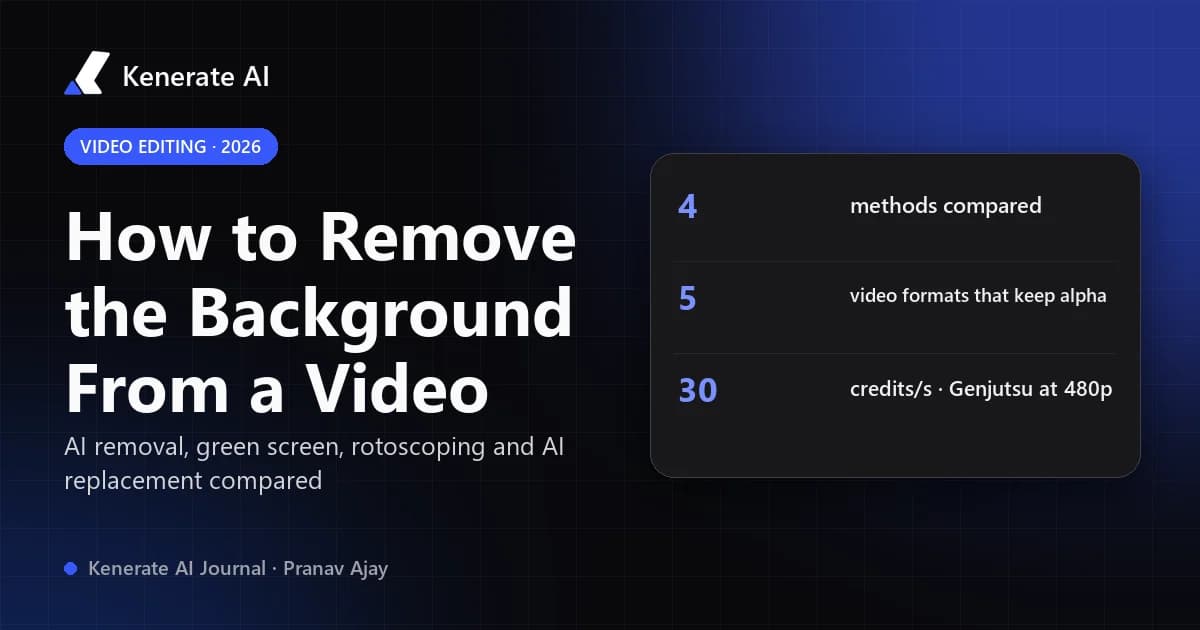
To remove the background from a video, you separate the subject from everything behind it, frame by frame. There are four ways to do it: an AI auto-removal tool, chroma keying green-screen footage, rotoscoping in an editor such as After Effects or DaVinci Resolve, or skipping the cut-out and having AI rebuild a new background around the subject. Which one fits depends on whether you need a transparent cut-out for another editor or a finished clip that's already in a new place.
This guide, written as of 18 October 2026, covers all four methods, which export formats actually keep transparency (most don't), and where Kenerate's own video tools fit, including what they can't do.
What does "removing a video background" actually mean?
People use the phrase for two jobs that end in different files:
- Background removal (a cut-out). The output is your subject on nothing: a video with an alpha channel (transparency) that you lay over another clip, a slide or a web page. You do the compositing yourself.
- Background replacement. The output is a finished video with the subject somewhere new: a beach, an office, a plain studio wall. Nothing is transparent, and you don't need to composite anything.
Decide which one you need before you pick a tool. A lot of frustration starts when someone exports a "transparent" video as an MP4 and gets a black background, or uses a replacement tool when they really needed a layer to animate in an editor.
Which method should you use?
| Method | Needs a green screen? | Output | Edge quality on hair | Effort | Typical tools |
|---|---|---|---|---|---|
| AI auto-removal | No | Cut-out (alpha) or a new solid colour | Good on clean shots, struggles with motion blur | Low | CapCut "Remove BG", Camtasia Background Removal, online removers |
| Chroma key (green screen) | Yes | Cut-out (alpha) | Very good if lit evenly | Medium: lighting is the work | Premiere Pro Ultra Key, After Effects Keylight, Resolve, CapCut Chroma key |
| Rotoscoping / AI masks | No | Cut-out (alpha) | Best: you can refine by hand | High | After Effects Roto Brush, DaVinci Resolve Magic Mask |
| AI background replacement | No | Finished MP4 with a new scene | Edges are regenerated, so there's no seam to fix | Low | Kenerate Genjutsu, Change background mode |
As a rule of thumb: social clips and quick talking heads → AI auto-removal or replacement. Anything you'll composite carefully, like an ad, a title sequence or a product reveal → green screen or rotoscoping, exported in a format that keeps alpha.
How do you remove a video background with AI automatically?
AI removers detect the main subject (usually a person) in each frame and mask everything else out. Most editors now ship one. CapCut has an auto-removal option under its background tools (CapCut), and TechSmith's Camtasia has a Background Removal visual effect with edge feathering and spill controls (TechSmith).
The workflow is nearly the same everywhere:
- Import the clip into the editor or upload it to the web tool.
- Select the clip on the timeline and find the background removal option (often called "Remove BG", "Cutout" or "Background removal").
- Choose auto removal and let it process. Longer clips take longer.
- Refine edges with the feather, smoothing or manual erase and restore brushes if hair or hands flicker.
- Put something behind it (a colour, an image or another clip), or export with transparency if the tool supports it.
Where it works well: one person, a steady camera, decent light and a background that contrasts with their clothes. Where it breaks: fast motion (motion blur smears the edge), several overlapping people, held objects, wispy hair against a busy background, and anything the model doesn't read as "the subject", like a dog or a product on a table.
TechSmith's guide points out the main limit of online removers: you get less control than in a professional editor, and higher resolutions and longer clips usually sit behind a subscription.
How do you remove a green screen background (chroma key)?
Chroma keying removes one colour. Film the subject in front of evenly lit green (or blue) fabric, then key that colour out. When the footage is good it's still the cleanest method, because the software isn't guessing at all.
- Light the screen evenly. Wrinkles and hot spots become patches that won't key. Light the subject separately; a three-point setup helps separate them from the screen.
- Keep distance. Put the subject a couple of metres in front of the screen to cut down green spill on skin and hair.
- Avoid green clothes and shiny props that reflect the screen.
- Apply the keyer. Premiere Pro's Ultra Key, After Effects' Keylight, Resolve's keyers or CapCut's Chroma key: pick the screen colour with the eyedropper.
- Tune it. Raise intensity until the background disappears, then use the edge, shadow and spill-suppression controls until the outline stops buzzing.
- Check the matte (most keyers have an alpha or matte view): the subject should be solid white and the background solid black.
The usual failures are colour spill (a green halo), leftover shadows on the floor and fine hair. Spill suppression handles the first one. Planning the shot handles the other two better than any slider.
How do you remove a background without a green screen in After Effects or DaVinci Resolve?
When there was no green screen and auto-removal isn't clean enough, you rotoscope: you build a mask that follows the subject through the shot. Modern editors do most of the tracking with AI.
After Effects — Roto Brush. Adobe describes its AI-powered Roto Brush as a way to separate an object from its background, fine details like wind-blown hair included (Adobe). In practice you open the layer in the Layer panel, paint over the subject (add strokes) and the areas to exclude (subtract strokes), let the selection propagate through the clip, fix the frames where it drifts, then use Refine Edge around hair.
DaVinci Resolve — Magic Mask. On the Color page, Magic Mask lets you stroke a person or object and track it automatically. Use the mask as an alpha output, or feed it into Fusion for compositing. For tricky shots, editors often render the masked clip in place to ProRes 4444 so the tracked result is baked in.
Rotoscoping takes longer than either option above, but you control every frame. That matters for close-ups, ads and anything that will play on a big screen.
Which video formats keep a transparent background?
This is where most cut-outs get lost. Standard H.264 and H.265 MP4 files don't carry an alpha channel, so a transparent export to MP4 turns the empty areas black. Export a format that stores transparency:
| Format / codec | Carries alpha? | Good for |
|---|---|---|
| QuickTime ProRes 4444 / 4444 XQ (.mov) | Yes | Editing masters, handing a cut-out to another editor |
| QuickTime DNxHR 444 (.mov) | Yes | Avid / Resolve workflows |
| PNG, TIFF or OpenEXR image sequence | Yes | VFX, maximum quality, frame-by-frame work |
| WebM with VP9 | Yes | Transparent video in Chrome and Firefox |
| HEVC with alpha (.mov / .mp4) | Yes | Transparent video in Safari on macOS and iOS |
| H.264 MP4 | No | Final delivery with a background baked in |
| ProRes 422 | No | Edits that don't need transparency |
In DaVinci Resolve, pick an alpha-capable codec on the Deliver page and switch on Export Alpha. If that checkbox doesn't appear, the codec you picked can't store alpha. A guide from DaVinci Resolve Club recommends a final check: drop the render over a bright solid colour, and if the colour shows through, the alpha survived (DaVinci Resolve Club).
For transparent video on a website, no single file works everywhere. Chrome and Firefox play VP9 WebM with alpha. Safari needs HEVC with alpha. So the usual pattern is a <video> tag that lists the HEVC source first and the WebM source second (Jake Archibald).
Can you replace a video background instead of removing it?
Yes. If what you really want is "the same clip, somewhere else", you don't need a cut-out at all. AI background replacement re-renders the scene: it keeps the people, their motion and the camera move, and builds a new environment around them.
That's what the Change background mode in Kenerate Genjutsu does. You upload a clip, describe the new place ("a neon Tokyo street at night") or add a photo of the location as a reference, and the engine rebuilds the environment and relights the subjects to match the new scene's light direction and colour. Because the scene is regenerated rather than keyed, you don't need a green screen or flat lighting, and there's no seam to clean up around hair.
An honest note on the limits: Genjutsu doesn't output a transparent cut-out. The result is a finished MP4 with the new location in it. If you need an alpha layer for After Effects or Premiere, use one of the methods above. If you want a plain backdrop, ask for one ("a seamless white studio wall" or "a flat chroma-green backdrop") and you can key that result in your editor later.
How to change a video background in Kenerate, step by step
- Open Genjutsu and upload your clip (MP4, MOV, WebM or M4V).
- Pick the Change background mode. It keeps every person and foreground object and replaces only the environment.
- Describe the new place or add a reference photo and point to it in the prompt: "move them onto the street from @image1 at dusk".
- Choose the engine and resolution (see the table below). Draft at 480p first if you're testing a location.
- Generate, then compare the original and the result in the gallery. Upscale the one you keep, or add subtitles.
What does it cost? (Kenerate credits, as of 18 October 2026)
Genjutsu bills both the seconds it reads and the seconds it returns. The figures below come straight from the app's pricing code, for one clip:
| Engine | Clip length | 480p | 720p | 1080p | 4K |
|---|---|---|---|---|---|
| Kenerate Genjutsu (default) | 2–15 s | 150 credits / 5 s | 300 / 5 s | 600 / 5 s | — |
| Kenerate Genjutsu Pro | 2–15 s | 225 / 5 s | 450 / 5 s | 900 / 5 s | — |
| Seedance 2.5 | 4–30 s | 330 / 5 s | 660 / 5 s | 1,650 / 5 s | 3,300 / 5 s |
Per second of clip, that works out to 30 credits at 480p on the default engine and 660 credits at 4K on Seedance 2.5. For scale, the $15 Starter pack is 1,300 credits. Kenerate Genjutsu and Pro take up to 10 reference images and Seedance 2.5 up to 30. The Kenerate tiers use only the first 15 s of a longer clip, while Seedance 2.5 refuses clips over 30 s. More engines and modes are on the AI video editor page.
How do you remove the background from a single frame or thumbnail?
If you only need one frame (a thumbnail, a poster or a still for a slide), don't process the whole video. Export the frame as a PNG and run it through an image background remover. Kenerate's free AI background remover costs 2 credits per image, and the transparent background maker gives you a PNG with real transparency for overlays.
How do you get a clean result with any method?
The same habits help every method, from a keyer to an AI model:
- Contrast. Wear clothes that don't match the backdrop, and keep the subject well lit and clearly separated from it.
- Slow movement. Motion blur is the enemy of every edge; a higher shutter speed helps.
- Simple outlines. High-backed chairs, loose scarves and props that cross the body all make the mask harder.
- Test short. Process 3–5 seconds before committing to a long clip, whether you pay in render time or credits.
- Match the light when you place the subject in a new scene. A cut-out lit from the left looks pasted onto a background lit from the right.
- Consent. Putting a real person somewhere they never were can mislead. Edit footage you own, with the agreement of the people in it, and label AI-edited clips.
Sources
- TechSmith — How to remove the background from your videos
- CapCut — Video background remover
- Adobe — After Effects features: Roto Brush
- DaVinci Resolve Club — Export a transparent background in DaVinci Resolve
- Jake Archibald — Video with alpha transparency on the web