To make an AI music video, start with a finished song (your own recording or an AI-generated track), split it into sections, write one visual prompt per section, generate short image-to-video clips, lip-sync the shots where the singer performs, then cut everything on the beat and export in the right aspect ratio. You can do every step by hand with separate tools, or let an AI music video generator such as Kenerate's Director analyse the track and build the timeline for you. This guide covers both routes, with real credit costs as of 18 October 2026.
A music video used to need a crew, a location and an editor. In 2026 the hard part isn't rendering anymore. It's keeping 30 or more AI clips looking like the same video and making the cuts land on the music. The steps below are built around those two problems.
What do you need before you make an AI music video?
You need four things. Rendering only comes in at step five:
- A finished song. Lock the final mix first. If the song changes later, your section timings change too, and every cut moves.
- The lyrics and a section map. Write down where the intro, verses, choruses, bridge and outro start, to the second.
- A visual idea in one sentence. For example: "a singer on a rain-soaked rooftop in a neon city, intercut with a slow-motion dancer". Every prompt you write later should trace back to this line.
- Reference images. These are artist photos (with permission), locations, a mood board and a colour palette. They are what keeps the look consistent from shot to shot.
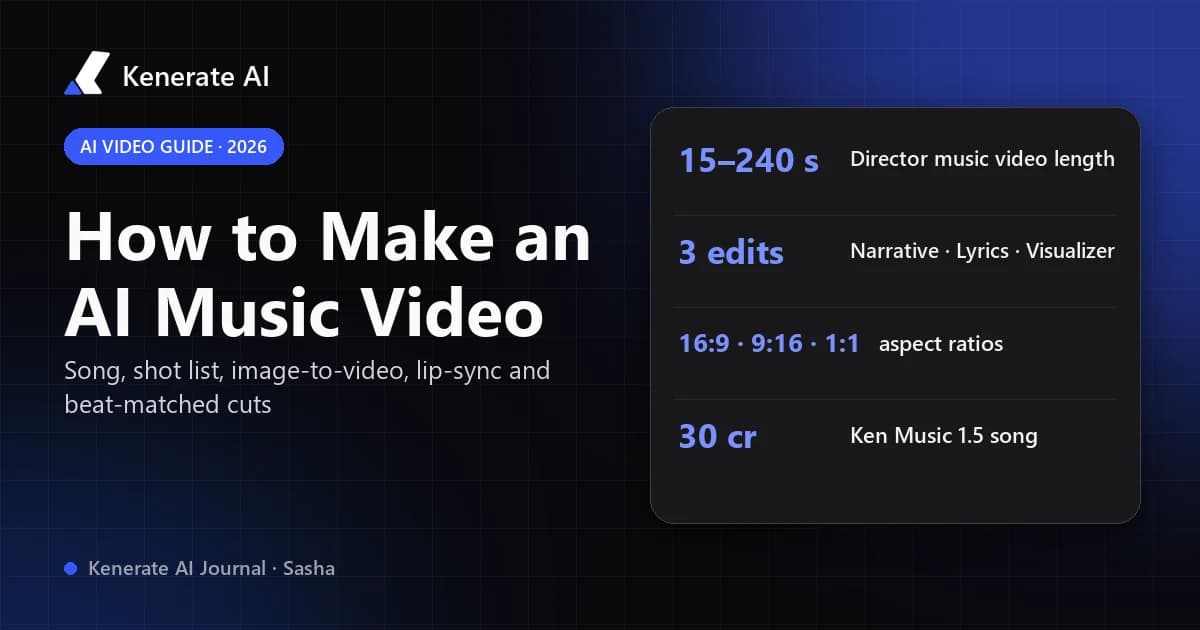
If you don't have a song yet, you can generate one. On Kenerate, Ken Music 1.5 writes full songs with vocals in any language, up to about 3 minutes, for 30 credits per song. Ken Music 1 makes quick ~30-second cues for 12 credits.
How long should each AI clip be?
Most AI video models render 5–15 seconds per generation. A 3-minute song therefore needs somewhere between 15 and 40 clips. The useful way to plan is in musical bars, not seconds.
At a tempo of 120 BPM, one beat lasts 0.5 seconds and one bar of 4/4 lasts 2 seconds. That makes an 8-bar verse phrase 16 seconds long. At 90 BPM, a bar is about 2.67 seconds and 8 bars is about 21 seconds. Cut lengths that are whole multiples of a bar will feel "on the music" even before you fine-tune.
| Song section | Typical feel | Suggested shot length | Shot type |
|---|---|---|---|
| Intro | Build-up, establishing | 1 long shot (4–8 bars) | Wide location, title card |
| Verse | Storytelling | 2–4 bars per shot | Narrative scenes, slow camera |
| Pre-chorus | Rising energy | 1–2 bars per shot | Faster movement, closer framing |
| Chorus | Peak energy | 1 bar or less per shot | Performance, lip-synced close-ups |
| Bridge | Contrast | 2–4 bars, different palette | A visual "twist" or new location |
| Outro | Resolution | 1 long shot | Callback to the intro image |
One independent editing guide (BeatSync PRO) recommends 15–20 clips at minimum for a 3-minute track and 30 or more for flexibility. Its rule of thumb is short 3–5 second clips for fast chorus cuts and longer holds in the verses. That matches the table above, and the reason is simple: you'll throw away a lot of takes.
How do you keep AI clips consistent across a whole song?
Inconsistency is the most common reason AI music videos look amateur. The singer's face changes between shots, the colour grade jumps around, and every clip has a different camera style. Here's how to prevent it:
- Make start frames first, then animate them. Image-to-video keeps faces, outfits and locations far more stable than text-to-video. Generate (or upload) a still for each shot, check it, and only then turn it into motion. The image-to-video AI page explains how start frames work.
- Reuse one style line. Put the same lighting, lens and colour description at the end of every prompt, for example "teal and magenta neon, anamorphic lens, light film grain, shallow depth of field".
- Use the same reference images every time. Multi-reference image models can hold one character across many stills.
- Keep one aspect ratio from the start. Choose 16:9, 9:16 or 1:1 before you generate anything. Cropping later loses framing.
- Draft cheap, finish expensive. Test the motion at 480p, then re-render only the keepers at a higher resolution.
Step by step: how to make an AI music video by hand
This is the "assemble it yourself" route. It's the most flexible, and you'll need a video editor (any NLE such as DaVinci Resolve, Premiere Pro or CapCut) for the final cut.
Step 1: Map the song
Play the track and note the timestamps of each section. Count the BPM, or read it from your DAW. Mark the "hit points": drum fills, drops and the first word of each chorus. Those are where your hardest cuts go.
Step 2: Write a shot list
Give every section 1–6 shots, using the table above. For each shot write the frame (what we see), the motion (what moves), the length in bars, and whether the singer lip-syncs.
Step 3: Generate the start frames
Create one still per shot from your reference images and your style line. Fix problems now, because fixing a bad hand in a still costs far less than re-rendering a video.
Step 4: Animate the frames
Turn each still into a clip with an image-to-video model. On Kenerate, two good starting points are:
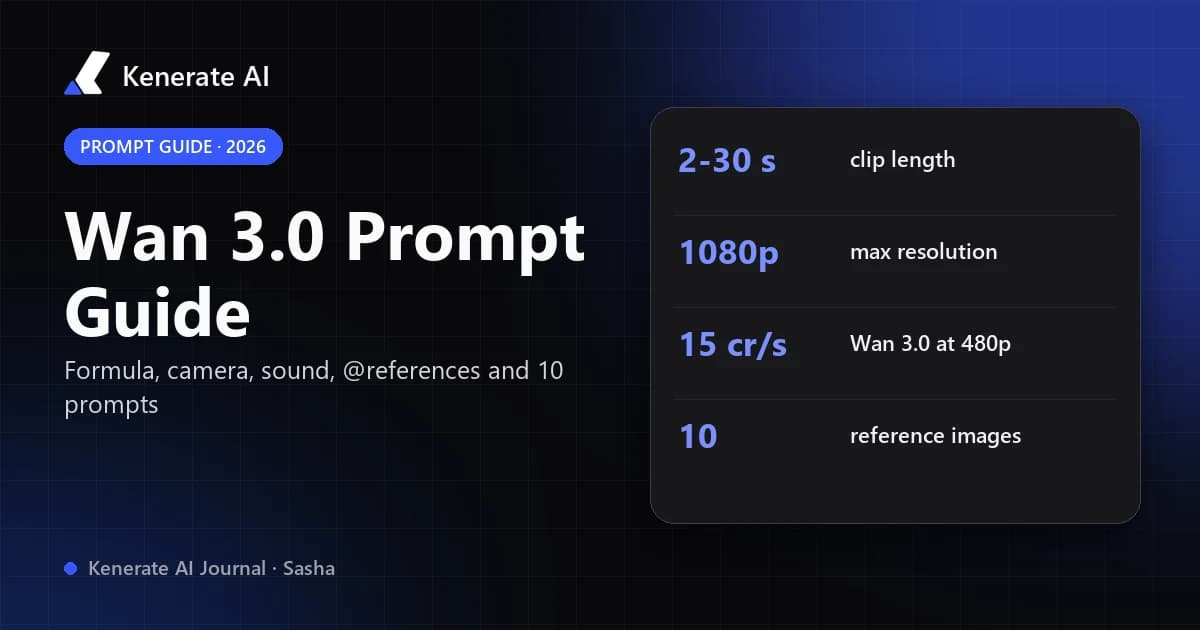
- Wan 3.0: 2–30 seconds per clip, 480p/720p/1080p. A 5-second clip costs 75, 150 or 300 credits at those resolutions. It's a good value pick for drafts and silent b-roll.
- Seedance 2.0: 4–15 seconds per clip, strong for performance and dialogue shots. A 5-second clip costs 180, 360 or 900 credits at 480p, 720p and 1080p.
Describe the motion in a way that suits the song. Slow dolly-ins and drifting particles fit a ballad. Whip-pans, strobing lights and handheld shake fit a high-BPM chorus.
Step 5: Lip-sync the performance shots
For shots where the artist sings to camera, sync the mouth to the vocal stem, the isolated vocal track. That works much better than syncing to the full mix. Kenerate's Lipsync model costs 3, 4 or 6 credits per second at 480p, 720p or 1080p, for clips up to 20 seconds. A 10-second chorus close-up at 720p is therefore 40 credits. The lip sync AI guide compares the photo-to-video and video-to-video options.
Only lip-sync people who have agreed to it. Don't make a video that puts words in a real artist's mouth without permission (see the rights section below).
Step 6: Cut on the beat
Put the song on the timeline first and lock it. Then place clips so the cuts fall on bar lines. Use your hardest cuts on the hit points you marked in Step 1. Mute the clips' own audio: in a music video the track is the soundtrack.
Step 7: Grade, title and export
Apply one colour grade across every clip to hide small differences between models. Add the title, artist name and any lyric lines. Then export an MP4 in the aspect ratio of the platform you're posting to.
How does an AI music video generator automate this?
An AI music video generator does Steps 1–6 for you. It reads the song, plans scenes on its sections and lays the shots on a timeline. Kenerate's version is the Music Video mode in Director. As of 18 October 2026 it works like this:
- Pick an edit. There are three: Narrative (cinematic scenes and performances cut to the rhythm), Lyrics Video (the lyrics appear in sync and become part of each scene) or Visualizer (abstract, audio-reactive visuals).
- Add the song. Upload an MP3, WAV or M4A up to 50 MB. If you have no track, describe the song in up to 300 characters and Ken Music writes one.
- Add lyrics and references. For Lyrics Video, paste up to 3,000 characters of lyrics so the exact words appear on screen. You can attach up to 10 visual references (artist photos, locations, a mood board).
- Write the visual direction. This is required, up to 2,000 characters.
- Choose length and format. Length is 15–240 seconds in 5-second steps (default 60 s), in 16:9, 9:16 or 1:1.
When you attach a track, Director analyses it first (tempo, sections, energy, hit points), then cuts on those sections. Clips render silent, so the song is the soundtrack. On the timeline you can reorder, trim, split, replace a take, and change mute, volume or speed before you export an MP4 at 30 fps in 480p, 720p or 1080p. Director is available on paid plans only. Free accounts can see the landing page and the examples.
For a walkthrough of the Director screens, see how to create a music video. If you want lyric-led videos specifically, the lyric video generator page covers that edit.
Manual workflow vs AI music video generator: which should you use?
| Manual (separate tools + editor) | AI music video generator (Director) | |
|---|---|---|
| Song analysis | You count bars and mark hit points | Automatic: tempo, sections, energy, hit points |
| Shot planning | Your own shot list | Planned from the song and your direction |
| Control | Total, frame by frame | High, with edits on the timeline |
| Lip-sync | Separate pass per shot | Clips render silent; add lip-synced close-ups with a separate Lipsync pass |
| Editor needed | Yes | No, exports MP4 |
| Max length | Unlimited | 15–240 seconds per project |
| Best for | Signature releases, complex stories | Fast drafts, lyric videos, visualizers, social cuts |
Many artists combine the two. They draft the whole video in Director to find the visual idea, then rebuild the hero shots by hand at 1080p.
How much does an AI music video cost?
There's no flat price. It depends on the models, the resolution and how many takes you throw away. Here's a worked example using Kenerate credit prices as of 18 October 2026, for a 60-second video built by hand:
| Item | Assumption | Credits |
|---|---|---|
| Song | 1 Ken Music 1.5 song | 30 |
| B-roll | 8 × 5 s Wan 3.0 clips at 720p | 1,200 |
| Performance shots | 4 × 5 s Seedance 2.0 clips at 720p | 1,440 |
| Lip-sync | 20 s of Lipsync at 720p | 80 |
| Total | before re-takes | 2,750 |
For scale, Kenerate's Starter plan is $15 for 1,300 credits and Creator is $29 for 2,700 credits. Drafting the b-roll at 480p first halves that line, so plan a re-take budget of roughly 30–50% on top. For full plan details, see the pricing page.
What formats do YouTube, TikTok and Reels need?
| Platform | Aspect ratio | Notes |
|---|---|---|
| YouTube | 16:9 | The classic music-video frame; 1080p or higher |
| YouTube Shorts / TikTok / Instagram Reels | 9:16 | Lead with the hook or chorus |
| Instagram feed / X | 1:1 or 4:5 | Square crops of the chorus work well |
If you plan to post one song on several platforms, make the 16:9 master and a separate 9:16 cut of the chorus. Don't crop one into the other, because performance close-ups rarely survive a hard crop.
Can you use AI music videos commercially? Rights and disclosure
There are three rules to know before you release anything:
- Copyright needs human authorship. The US Copyright Office's January 2025 report on copyrightability found that prompts alone don't make you the author of an AI output. Human-authored material that is perceptible in the work, or creative arrangement and modification of the output, can be protected. Your own song, lyrics and the edit you build are where your authorship lives.
- Disclose realistic synthetic content. YouTube requires creators to disclose realistic altered or synthetic content made with AI tools, and shows a label in the description panel. This was announced on 14 November 2023 in its responsible AI post. Creators who repeatedly fail to disclose can face removal or suspension from the Partner Program.
- Don't imitate real artists. YouTube also lets music partners request removal of AI music that mimics a specific artist's singing or rapping voice. Use your own voice, a licensed vocalist or an original AI voice, and never a cloned celebrity.
Also check the licence of the song itself. A track you don't hold the rights to can be claimed no matter how the visuals were made.
Quick checklist
- The song is mixed and locked, with a section map and BPM
- There's a one-sentence visual idea plus a reusable style line
- You picked one aspect ratio before generating
- Start frames were checked before animating
- Lip-sync uses the vocal stem, and only for people who agreed
- Cuts land on bar lines, with the hardest cuts on hit points
- One colour grade covers every clip, and the clips' own audio is muted
- AI use is disclosed where the platform requires it
Ready to try it? Open Director's Music Video mode, or start by writing the song with the AI music generator.
Sources
- YouTube Official Blog, "Our approach to responsible AI innovation", 14 November 2023: https://blog.youtube/inside-youtube/our-approach-to-responsible-ai-innovation/
- U.S. Copyright Office, Copyright and Artificial Intelligence, Part 2: Copyrightability (29 January 2025): https://www.copyright.gov/newsnet/2025/1060.html
- U.S. Copyright Office AI initiative: https://www.copyright.gov/ai/
- BeatSync PRO, "How to Create AI Music Videos in 2026": https://beatsyncpro.ai/blog/how-to-create-ai-music-videos.html