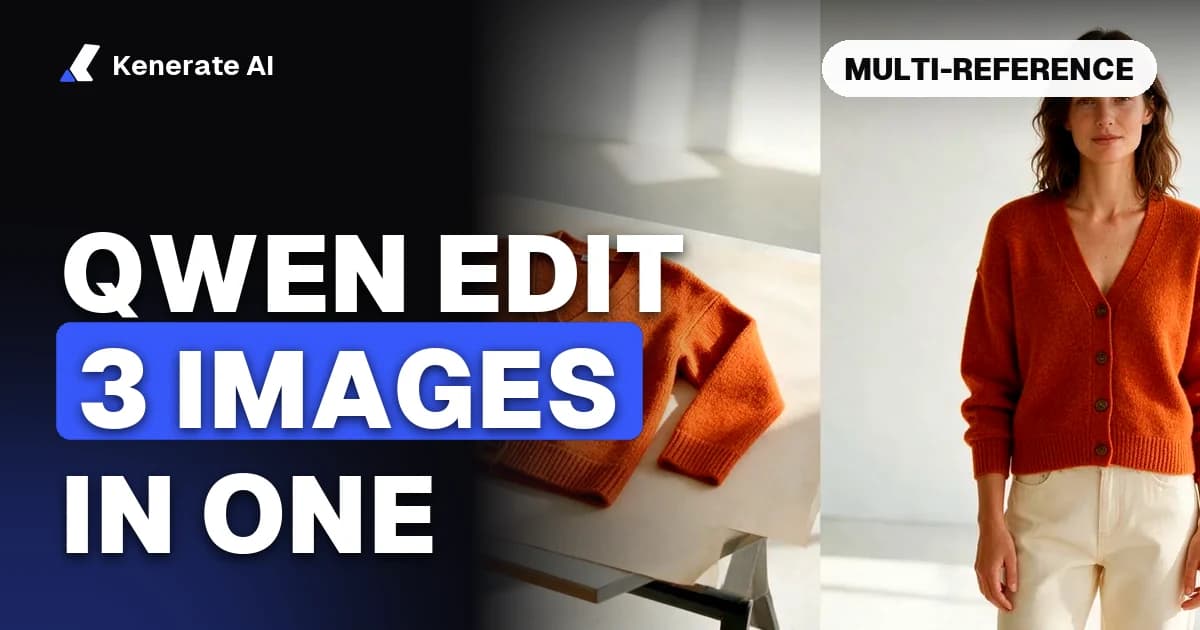
Yes, Qwen Image Edit can work from multiple reference images, but only a few at a time: Qwen's own model card for Qwen-Image-Edit-2509 says it works best with 1 to 3 input images, and the Qwen Image 3.0 and 3.0 Pro edit endpoints on Kenerate accept 3 images in total, the photo you are editing included. If you need more than three references, like the 10-image workflows people use with Seedream, switch to Seedream 5.0 Pro (10 images) or Nano Banana 2.1 (14 images).
This guide, updated as of 23 October 2026, explains how multi-reference editing works, how to write prompts that tell the model which image is which, and when Qwen is the right pick versus Seedream or Nano Banana.
What is multi-reference image editing?
Multi-reference editing means giving an image model two or more pictures plus one instruction, and getting back a single new image that combines parts of each. Typical jobs:
- Person + product: put the handbag from one photo into the hand of the model from another.
- Person + outfit: dress the person from image 1 in the jacket from image 2.
- Person + scene: place a subject into a new background taken from a second photo.
- Person + person: put two characters in the same frame, facing each other.
Qwen's team lists exactly these pairings ("person + person", "person + product", "person + scene") as the target cases for multi-image editing in the Qwen-Image-Edit-2509 model card. The model was trained for it "via image concatenation", which is why the number of images it handles well stays small.
Before 2509, the first Qwen-Image-Edit release only took one image. The common workaround in ComfyUI was to stitch two pictures side by side into one canvas and describe the left and right halves. You no longer need that trick with the newer Qwen edit models.
How many reference images does each model accept?
Limits differ between the open-weight model you run locally and the hosted endpoints, so check the cap on the platform you use. Here are the caps on Kenerate (from our edit model config, which follows each provider's input schema), with the vendor guidance next to them:
| Model | Max images per edit (Kenerate) | Vendor guidance | Credits per edit at 1K (Kenerate) |
|---|---|---|---|
| Qwen Image 3.0 | 3 | Qwen-Image-Edit-2509: best with 1 to 3 images | 9 + 0.9 per image (11.7 with 3 images) |
| Qwen Image 3.0 Pro | 3 | Same family guidance | 12 + 0.9 per image (14.7 with 3 images) |
| Seedream 5.0 Pro | 10 | Multi-image fusion | 13.5 (27 at 2K) |
| Seedream 5.0 Lite | 10 | Multi-image fusion | 10.5 |
| Nano Banana 2.1 | 14 | Google: up to 10 object images and up to 5 character images | 21 (31.5 at 2K, 42 at 4K) |
| GPT Image 2.5 Sunburst | 16 | Multi-image input | priced per input image |
Two details matter here:
- The photo being edited counts toward the cap. With Qwen Image 3.0 you get your base photo plus two references, not three references on top of it.
- Qwen gets slightly more expensive per image, Seedream does not. On Kenerate, Qwen Image 3.0 adds 0.9 credits for each input image (up to 3). Seedream 5.0 Pro charges one price at a given resolution, however many references you send.
Google's Gemini image generation docs describe the Nano Banana family as able to "mix up to 14 reference images", with Nano Banana 2.1 listed at up to 10 object images and up to 5 character images. If you plan to keep several people consistent in one shot, that character limit matters more than the headline 14.
How do you use Qwen Image Edit with multiple images on Kenerate?
You can do this in the browser without installing ComfyUI. Here's the flow in the AI image editor studio:
- Open the editor. Go to kenerateai.com/app/edit and pick the AI Edit tool. Qwen Image 3.0 is its default model.
- Upload the base photo first. This is the image you want to change, such as the person, the room or the product shot.
- Add up to two more references. For example, the jacket you want them to wear and the street you want behind them.
- Write the instruction by image order. Say what comes from each image and what must stay the same (see the prompt patterns below).
- Pick the aspect ratio. Qwen Image 3.0 supports 15 ratios, from 1:1 to 21:9 and 9:21.
- Generate, then iterate. If one element drifts, run a second single-image edit on the result rather than rewriting the whole prompt.
Want to start from text with references instead of an edit? The same Qwen models are in the Image Studio, and the Qwen Image model page lists every Qwen version Kenerate runs.
How should you write a multi-reference prompt?
The model only sees a stack of pictures. Your prompt has to tell it which picture is the subject, which one supplies an element, and what to keep. Three habits help most.
Refer to images by number and by role
Name each image and say what it contributes. Hosted Qwen edit APIs document prompts in the "image 1, image 2, image 3" style, and it is the clearest pattern across models:
The woman from image 1 wearing the denim jacket from image 2, standing on the rainy street from image 3. Keep her face, hairstyle and pose from image 1. Soft evening light.
Qwen's own model card example uses positions and roles instead of numbers ("The magician bear is on the left, the alchemist bear is on the right, facing each other..."). Combining both, number plus a short description, is the safest choice: "the bear in image 1 (the magician)".
Say what must not change
Multi-image edits tend to blend features. Add a keep-list:
- "Keep the face and skin tone from image 1 exactly."
- "Keep the logo and stitching on the bag from image 2."
- "Do not change the background from image 3."
Keep one job per image
If one reference supplies both the outfit and the pose, the model has to guess which one you meant. Crop references so each shows one thing: the jacket on a plain background, the product alone, the empty scene.
Prompt templates you can copy
| Goal | Prompt pattern |
|---|---|
| Outfit swap | "Person from image 1 wearing the [item] from image 2. Keep the face, hair and pose from image 1." |
| Product in hand | "The person from image 1 holding the [product] from image 2 at chest height, label facing the camera. Studio lighting." |
| New background | "Place the subject from image 1 into the scene from image 2. Match the lighting and shadows of image 2." |
| Two characters | "The character from image 1 on the left and the character from image 2 on the right, facing each other in [setting]." |
| Style transfer | "Redraw image 1 in the art style of image 2. Keep the composition of image 1." |
Qwen vs Seedream: which is better for multi-reference edits?
The queries behind this guide often say "like Seedream 4.5", because Seedream became known for taking many references at once. Here is how they compare for this job on Kenerate today:
| Qwen Image 3.0 / 3.0 Pro | Seedream 5.0 Pro | |
|---|---|---|
| Max images per edit | 3 | 10 |
| Best for | Precise, instruction-led edits on 1 to 3 images; text in images; English and Chinese prompts | Busy compositions: many products, mood-board style references, character sheets |
| Cost at 1K | 9 to 14.7 credits depending on version and image count | 13.5 credits flat |
| Prompt length limit (Kenerate endpoint) | 800 characters | No 800-character cap |
| Open weights | Qwen-Image-Edit family is Apache 2.0 | No (API only) |
Choose Qwen when you have one main photo and one or two things to bring in, you care about exact text or layout, or you want a model you could also run locally (the Qwen-Image-Edit weights are Apache 2.0 on Hugging Face).
Choose Seedream 5.0 Pro when you have four or more references, such as a whole product line, a mood board, or several outfit pieces. Our Seedream 5.0 Pro prompt guide covers its prompting style.
Choose Nano Banana 2.1 when identity matters across many images, for example the same character or product shown in different scenes. The Seedream vs Nano Banana comparison goes deeper on that pair.
Can you use more than 3 images with Qwen Image Edit?
Not in a single Kenerate edit. Some ComfyUI community workflows feed more images into Qwen-based graphs, and some hosts advertise higher limits for newer versions. But Qwen's own guidance for the 2509 edit model is that results are best with 1 to 3 images, and quality tends to drop as you add more. Practical workarounds:
- Chain edits. Combine images 1 to 3, then use that result as the base photo for a second edit with the next two references.
- Pre-compose a collage. Put several small products on one canvas and send it as a single reference ("the three bottles shown in image 2").
- Switch model for the big merge. Use Seedream 5.0 Pro or Nano Banana 2.1 for the many-reference step, then return to Qwen for exact text fixes.
Why does my multi-reference edit ignore one of the images?
This is the most common complaint, and it usually comes from one of four causes:
| Symptom | Likely cause | Fix |
|---|---|---|
| Image 3 is ignored | The prompt never names it | Mention every image by number and role |
| Faces blend together | Two references both show faces | Crop the outfit or product reference so no face is visible |
| Wrong person kept | Base photo uploaded second | Upload the subject first, then the references |
| Product looks different | Reference is small or busy | Use a clean, large, front-facing product shot |
| Prompt cut off | Over 800 characters on Qwen | Shorten it, keep the keep-list |
If you only need to restyle or change one photo, a single-image edit is cheaper and more predictable. The image to image AI page explains when that's the better route.
Is Qwen Image Edit free to use?
The open-weight Qwen-Image-Edit models are free to download under Apache 2.0, but running them locally needs a capable GPU and a ComfyUI or Diffusers setup. On Kenerate, edits are paid in credits. As of 23 October 2026, a Qwen Image 3.0 edit with three images costs 11.7 credits and a Qwen Image 3.0 Pro edit with three images costs 14.7 credits at 1K. Current plans are on the pricing page.
Summary
Qwen Image Edit is a strong, affordable choice for combining up to three images: a person with an outfit, a product, or a new scene. Name every image by number and role, upload the main subject first, and add a short keep-list. When a job needs four or more references, Seedream 5.0 Pro (10) or Nano Banana 2.1 (14) handle it in one step.
Sources
- Qwen-Image-Edit-2509 model card, Hugging Face: 1 to 3 input images, supported pairings, Apache 2.0 licence.
- Gemini API image generation docs, Google: up to 14 reference images, per-model object and character limits.
- Qwen-Image technical report, arXiv 2508.02324: Qwen-Image architecture and editing training.